The Power Of Pingbacks: How To Create One

I came across some comments recently where somebody asked how to create a pingback to the post they were leaving their comment on. The blog host didn’t know. It got me thinking that I should do an updated post on what pingbacks are and how to create them.
Light blue image with the words 'The Power Of Pingbacks: How To Create One' in white text
Pingbacks are a powerful blogging tool. Don’t miss out on not using them.

What are pingbacks?

A pingback is a type of notification that allows you to inform another blogger that you have linked to a post or article on their blog or website. This notification is typically automated and serves as a way to establish connections between different blogs or websites. Sometimes, pingbacks are also referred to as trackbacks.

If the other blogger has a pingback-enabled website or blog, then they can see a notification that you have linked to their article. They can then choose to allow your link to appear in the comments section of their blog post.

This may drive traffic to your blog when readers click on the pingback notification link.

Pingbacks work well on blog challenge posts such as Thursday Doors or Sunday Stills (to name but a few).

Today, I’m going to show you how to create a pingback.

Let’s get started.

In the screenshots below, I’ve numbered key points and am creating a pingback to my recent blog post, ‘The Power of Feedback: A Writer’s Brief Journey Through Editing and Story Chat.

Image highlighting keypoints in creating a pingback on a blog post
Keypoints on creating a pingback
  1. Highlight the word or words you’ve picked.
  2. Click the pingback link that pops up in the toolbar.
  3. In the URL box, enter the URL address of the blog post you’re linking to, or if it’s one of your own posts, search for the post.
  4. Choose the post you’re linking to.

Finally, and most importantly, tick the box next to the ‘open in new tab‘ box.
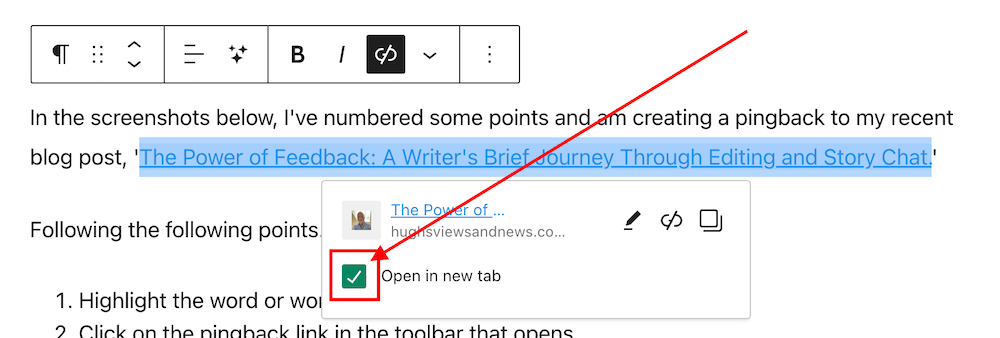
Image highlighting the 'Open in new tab' box
Tick the ‘Open in new tab’ box.

Ticking the ‘open in new tab’ option guarantees that when users click the pingback link, the linked post will open in a new tab or page. This feature effectively retains users on the current page, allowing them to easily return to your post to leave a comment or engage with the content.

Not selecting the “open in new tab” option could result in missed opportunities for comments and likes.

  • Your pingback has been created and will be highlighted in the post.

Tip – You can also highlight the pingback by making the text bold. To do this, highlight the text and click ‘B‘ (bold button in the toolbar).

  • Before publishing your post, preview it first and make sure the pingback works. Does it go to the right location? If not, delete the URL and insert the correct one.
  • Once you are happy that your pingback is working, publish the post.

Pingbacks should be exclusively directed toward blog posts and websites relevant to the subject of the post you are sharing or where you have been specifically invited to link.

Never create a pingback to a post that has no connection with the subject of your post.

Should I ask first before creating a pingback to another blogger’s post?

It’s always nice to ask first, but you’re good to go if the blogger has enabled pingbacks. And if you know the blogger well, there is no need to ask. But it’s best to ask if it’s your first time linking to one of their posts.

However, there’s no guarantee that your pingback requests will get the thumbs up. I receive pingback approval requests every day, and I won’t approve any that seem spammy or are completely unrelated to the post they’re trying to link to.

Are there any advantages of having pingbacks on your blog posts?

Yes. Here are a few advantages.

  • Creates traffic to your blog.
  • SEO-friendly.
  • Search engine optimizations (SEOs) such as Google and Bing rank blog posts that include pingbacks higher.
  • Bloggers may link back to one of your blog posts.
  • Great for promoting older blog posts you have published that some of your followers may not have read.

Caution—It is crucial to refrain from creating a pingback to a blog or website’s home page. This practice is discouraged because it fails to notify the blogger whose post you are referencing.

Do pingbacks attract spam?

Some experts recommend not allowing any pingbacks or trackbacks to a blog because they attract spam. However, by moderating all pingback notifications, you can prevent any spam pingbacks from appearing in the comments section of your blog posts.

Good news from WordPress about spam comments

After an update in 2023, the WordPress anti-spam software has dramatically strengthened its ability to intercept spam. Consequently, there has been a significant decrease in the volume of visible spam comments reaching blogs. Previously, hundreds of spam comments inundated my blog on a daily basis. However, following the update, I only encounter one or two weekly.

Where possible, try and include at least one pingback in every blog post you publish.

You can use a mixture of pingbacks to your posts and those of other bloggers.

Are there any problems with allowing pingbacks on your blog?

None that I am aware of.

An invitation to create a pingback

If you’ve never created a pingback before, try creating one for this post. I’ll be happy to let you know if it works and include it in the comments section.

If you encounter any problems creating a pingback, don’t hesitate to ask me for some help.

Summary: The Power of Pingbacks and How to Create Them

  • This guide explains pingbacks, how to create them, and the best practices to follow.
  • This guide covers everything from creating a pingback to the benefits, staying safe from spam comments, and recent anti-spam updates from WordPress.
  • This post also encourages readers to use pingbacks and shares my positive experience. It’s helpful for new and experienced bloggers, giving them the knowledge and confidence to use pingbacks effectively.
  • In the busy blogging world, pingbacks are important for connecting and getting more site visitors.
  • Pingbacks, sometimes also known as trackbacks, are useful tools for bloggers that let other bloggers know when you link to their posts.
  • It’s polite to ask first before creating a pingback to another blog unless you know the blogger well or have been invited to link to a post.
  • Always tick the ‘open in a new tab’ box so that readers do not lose the page they are reading.
  • Pingbacks do not attract spam.
  • WordPress anti-spam software now eliminates the majority of visible spam, saving you time in checking for comments that may have been marked as spam by mistake.

Layout, content, settings, and format might differ on self-hosted blogs.

I actively utilise pingbacks as part of my content strategy. My experience with using them has been positive, as they help me foster connections with other blogs and websites and enhance engagement. If you have any questions about pingbacks, please leave them in the comments section below, and I’ll be happy to address them.

My thanks to Sylvain Richard for his recent blog post about pingbacks.

Click the buttons below to follow Hugh on Social Media

Copyright @ 2024 hughsviewsandnews.com – All rights reserved.
Are You Getting ‘Anonymous’ Blog Comments? How To Stop Them.

Encouraging visitors to join the conversation on my blog posts and those of other bloggers is a must for me. Personally, if I can’t quickly leave a comment on a blog post, I’ll move on to the next one.

It’s one of the reasons why I use WordPress, as I’ve found it difficult to leave comments on other blogging platforms. What about you?

I firmly believe that we should prioritise making it effortless for blog visitors to leave comments. It’s crucial not to burden them with unnecessary obstacles when they want to engage with us. But that comes with the cost of receiving comments from anonymous readers. But is that a problem?

Light blue image with the words 'Are You Getting 'Anonymous' Blog Comments? How To Stop Them.' in white text.
Or should you make it easier for visitors to leave comments?

I’ve always received comments on my blog posts from visitors using ‘Anonymous’ or ‘Someone’ as their display names. But it has never bothered me because I can spot spam comments easily and guarantee that none will reach the comments section of my posts.

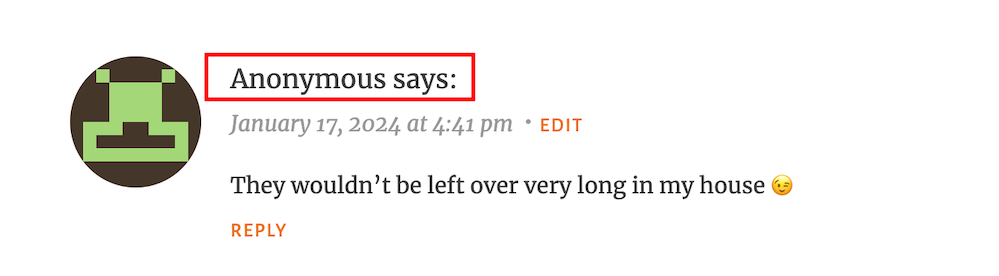
Here’s an anonymous comment I received recently.

Image showing what an 'anonymous' comment on WordPress
Do anonymous comments annoy you?

I wasn’t concerned when it appeared because it was left on one of my recent Wordless Wednesday posts about leftover chocolate, so I knew it was genuine.

Not knowing who the comment is from could pose a problem, but if it sounds genuine and has no uninvited or suspicious links, I’ll reply and approve the comment.

However, I’ll mark it as spam if it looks or sounds like a spam comment or contains any uninvited links. Oh! And I never approve comments that say ‘Nice Post.’ ‘Nice’ or ‘Great photo,’ regardless of who left them.

How do I make it easier for visitors to leave comments on my posts or prevent them from being anonymous?

In the blog settings of WordPress.Com blogs, there are settings which users can turn on or off to make it easier for visitors to leave comments or to prevent comments from being shown as anonymous.

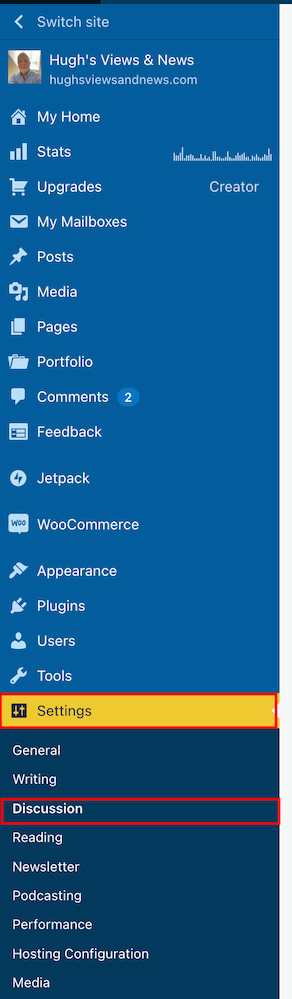
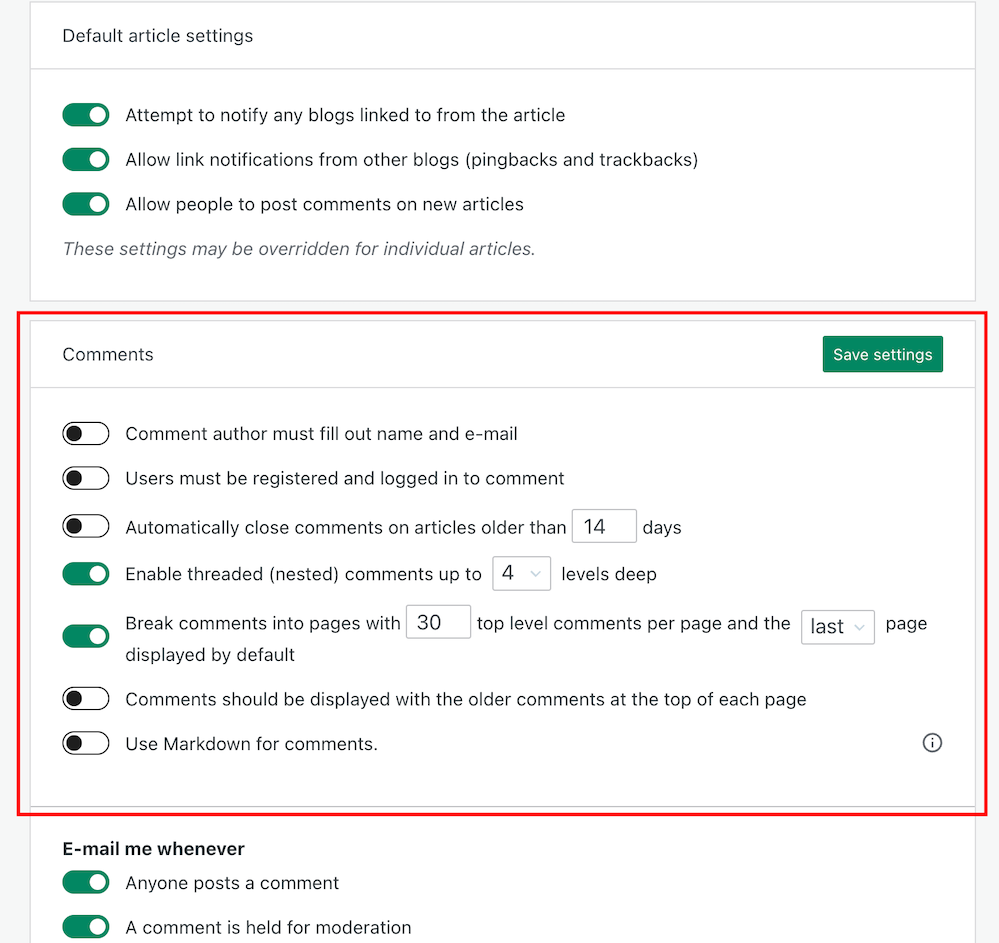
  • To find these settings on your blog’s dashboard, go to SettingsDiscussion and scroll down to the ‘Comments‘ section on the ‘Discussion Settings‘ page. I’m using WordPress on an Apple iMac desktop computer in these screenshots.
Image highlighting 'Settings' - 'Discussion' on a WordPress blog.
Click on Settings – Discussion
Image highlighting the 'Comments' section on the discussions settings page of a WordPress blog.
Scroll to the ‘Comments’ section.
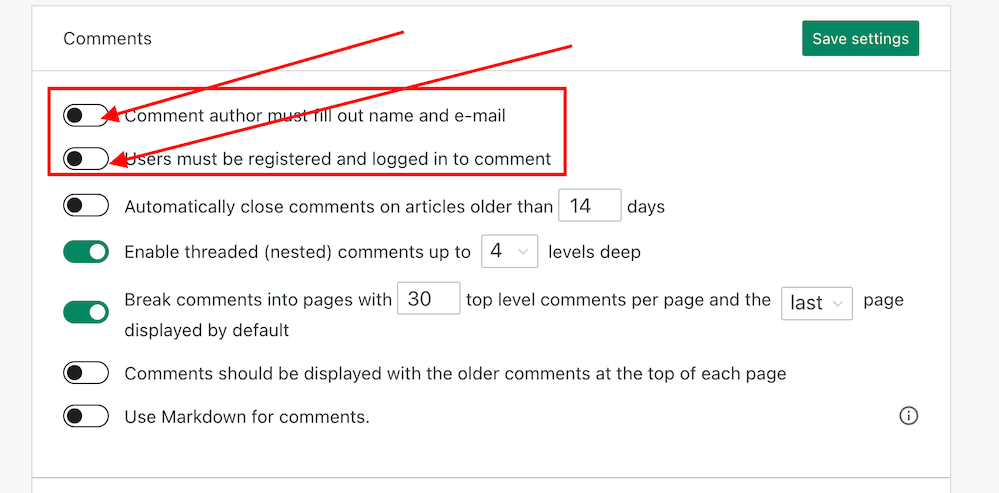
  • If you want to make it easy for visitors to your blog to be able to leave comments, ensure you have the first two settings in the ‘Comments‘ section, ‘Comment author must fill out name and email‘ and ‘User must be registered and logged in to comment,’ switched off.
Image showing the settings to turn on or off depending how easy you want to make it for visitors to your blog to leave comments.
Switch on or off depending on how easy you want it to be for visitors to leave comments on your blog.
  • If you do not want comments on any posts showing as ‘Anonymous’, ensure those two settings are switched on. However, beware that turning these settings on will make it more difficult for some users to leave comments.
  • Turning these settings on means that users must either fill out their name and email address or be registered as a WordPress user and logged in to be able to leave a comment. Some users may not like giving this information to be able to comment.
  • Make sure you click the ‘Save Settings’ button if you make any changes.

And that’s it. Only you can choose whether to have these settings on or off. Go with what you feel most comfortable with.

Do you make it easy for visitors to your blog to comment, or do you prefer to only allow those willing to give their information to be able to leave comments? Is WordPress the best platform for engagement and for leaving comments? Let me know in the comments.

Is your blog as secure as it can be? Take this final step to make sure nobody can hack it. Take a look at my recent post for more details.

Is Your Blog Safe? One Security Feature You Must Have

Layout, content, settings, and format might differ on self-hosted blogs.

Click the buttons below to follow Hugh on Social Media

Copyright @ 2024 hughsviewsandnews.com – All rights reserved.
Is Your Blog Safe? One Security Feature You Must Have

You wouldn’t leave your doors unlocked if you were the last one to leave the house, would you?

Would you give a stranger the password to your online banking account?

Would you share or give a stranger the password to your blog?

Protecting your blog is just as important as protecting your home and online bank accounts, yet many bloggers share personal details about themselves on their blogs and on social media, which can be a treasure trove for scammers. Be careful what information you share.

Before sharing any information, ask yourself, ‘Would I share this information with a complete stranger?’

Light blue image with the words 'Is Your Blog Safe? One Security Feature You Must Have' in white text.
Adding this feature will give your blog an extra layer of security.

Although we’re all encouraged to use a strong password to protect our blogs, did you know that many blogging platforms, including WordPress, offer users an extra layer of security when it comes to protecting their blogs?

Two-factor authentication adds an extra layer of security by requiring you to enter a code or use another device in addition to your password. For example, you can use an app like Microsoft Authenticator or Google Authenticator to generate access codes for your blog.

WordPress offers users two-factor authentication security. Follow the guide below to set it up for your WordPress blog. For this example, I’m using an Apple iMac desktop computer.

How to set up two-step authentication for your WordPress blog.

  • In the top right of your blog, click on your profile picture/avatar.
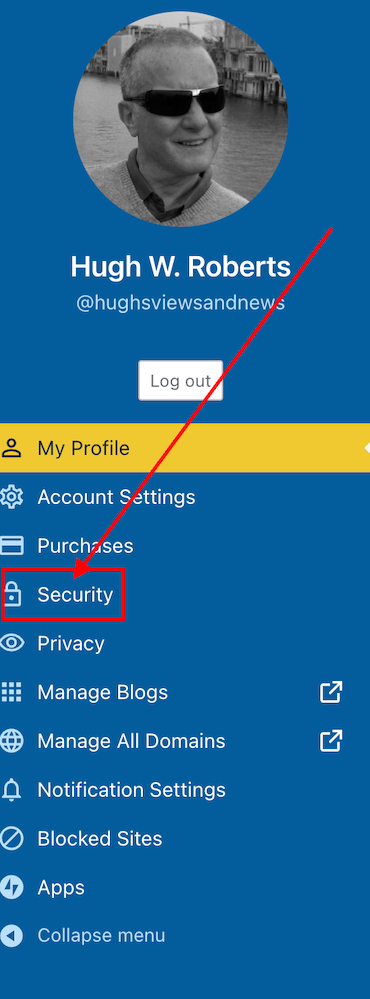
  • Click on ‘Security‘ in the menu on the page’s left side.
Image highlighting the 'Security' tab on a WordPress blog.
Click on the ‘Security’ tab.
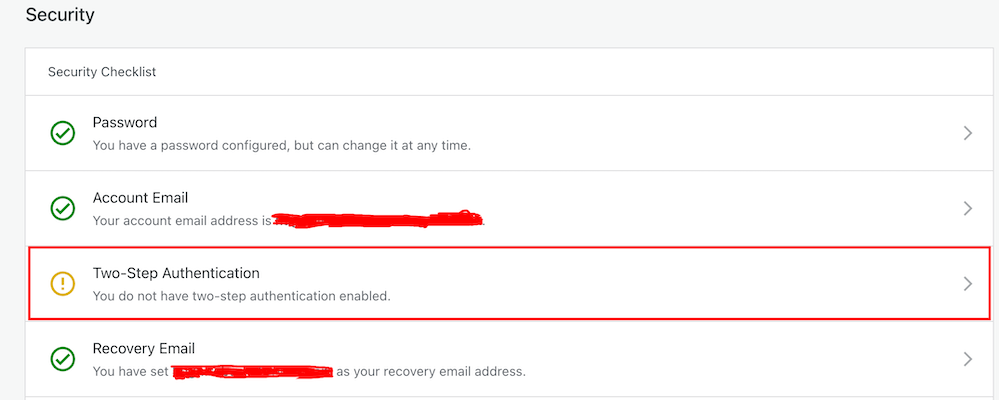
  • Select the ‘Two-step Authentication‘ option.
Image highlight the Two-Step Authentication tab on a WordPress blog.
Select Two-Step Authentication
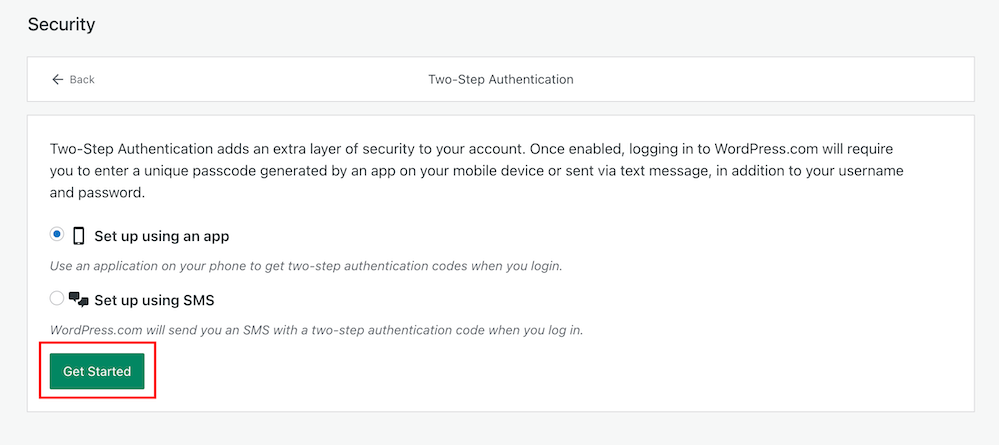
  • Select which method you would like to receive the two-step passcode generated by WordPress, and click the ‘Get Started‘ button.
Image highlighting the 'Get Started' button when setting up Two-Step Authentication on WordPress.
Click the ‘Get Started’ button.
  • Follow the onscreen instructions depending on your selected method to receive the WordPress two-step authentication passcode.
  • Once enabled, logging into WordPress.com will require you to enter a unique passcode generated by an app on your mobile device or sent via text after adding your username and password.
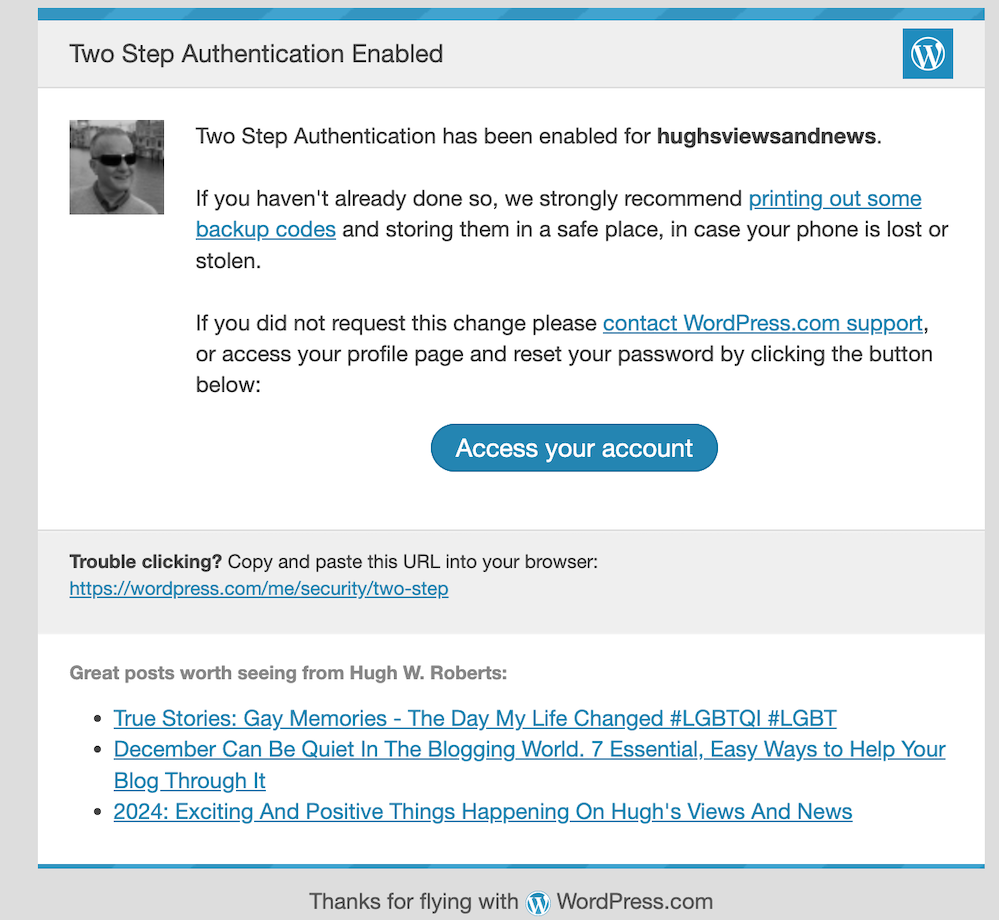
  • You will receive an email from WordPress confirming that two-step authentication has been enabled.
Image showing an email confirmation from WordPress confirming that two-step authentication has been set up.
You’ll get an email from WordPress confirming that two-step authentication has been set up for your blog.
  • That’s it! Access to your blog is now protected by an extra layer of security.

I’d recommend adding or checking that the recovery email address and recovery SMS number for your WordPress blog/account are also correct when switching on two-step authentication.

Are you making the most of Two-Step Authentication to safeguard your blog? Need guidance on setting it up? Share your best practices for securing your blog in the comments below.

Did you miss my post giving details of what plans I have for my blog in 2024? Check out my post, ‘2024: Exciting And Positive Things Happening On Hugh’s Views And News‘, for complete details.

Follow Hugh on social media. Click the buttons below.

Layout, content, settings, and format might differ on self-hosted blogs.

Copyright @ 2024 hughsviewsandnews.com – All rights reserved.

Exploring Multiple Avenues: How to Contact WordPress for Support: 6 Best Ways

Whether you’re a seasoned developer or a novice blogger, there might come a time when you need assistance or have questions about your WordPress site.

Have you ever had to contact WordPress? What’s your preferred method and experience of contacting them?

Light blue image with the words 'Exploring Multiple Avenues: How to Contact WordPress for Support: 6 Best Ways' in white text.
What’s your preferred method to contact WordPress?

During the ten years I’ve been blogging, I’ve contacted WordPress many times for support with my blog. I’ve always received good support from them.

From reporting bugs to getting answers to my questions and getting deals on renewing my WordPress plan, they’ve always been helpful and friendly.

But does the level of support vary depending on which WordPress plan you have?

Fortunately, WordPress offers various channels for users to seek help and find solutions to their queries. In this blog post, we’ll explore how you can contact WordPress for support.

WordPress Support Forums

The forums cover various topics, from general troubleshooting to specific plugins or theme-related queries.

This is my preferred way of contacting WordPress as their staff (Happiness Engineers) get involved in your query, as do other blogging community members.

Users worldwide share their knowledge and assist each other in the forums. You can post your questions, describe your issues, and receive helpful responses from experienced WordPress users, moderators, and WordPress staff.

I’ve helped bloggers out with their queries and questions on the forums.

Next time you have a question or a problem with your blog, give the Forums a go. I’ve had great success with them. And who knows? It may be me who responds to your question or query.

Click the following link to go to the WordPress.Com Forums.

Official WordPress How-To Documentation

Before reaching out for help, the official WordPress how-to documentation is worth checking out.

These comprehensive resources provide detailed information about WordPress features, settings, and troubleshooting tips.

Many common issues have step-by-step solutions outlined in these guides, making it an excellent self-help option.

Click the following link to go to the Official WordPress How-To Documents.

WordPress Support via Email

For more personalised assistance, you can contact WordPress support via email. The official WordPress support email address can only be accessed by completing a form – Contact Us.

When reaching out through email, be sure to provide detailed information about your issue, including the name of your blog, which WordPress plan you are on, which WordPress theme you use, which device you are using, and details of the device’s operating system.

The more details you provide, the easier it is for the support team to understand and address your problem.

Social Media Channels

WordPress is active on various social media platforms, including X and Facebook.

You can follow official WordPress accounts and use these platforms to ask questions or seek assistance. Community members and WordPress developers often actively monitor these channels and may respond to your queries.

I’ve spoken with WordPress staff on X and have found them professional, helpful and friendly. After talking to them on X, I even got a discount code for renewing my WordPress plan.

WordPress on X.

WordPress on Facebook.

Live Chat Support

This can be a quick way to get real-time assistance.

If you’re lucky enough to have a WordPress plan that offers Live Chat, it’s an instant way of getting help from a staff member at WordPress, although I have found that Live Chat isn’t always available.

Although I’ve always had much success with Live Chat, it can sometimes be time-consuming.

As well as having details of your blogging problem or question, give details of which device and operating system you are using. Screenshots of errors or bugs are also helpful and help resolve issues quickly.

To find out if your WordPress plan has Live Chat, click the question mark icon in the top right of your screen and click the ‘Still need help‘ button, and you’ll see a list of options available to you.

Image showing where to access Live Chat on WordPress
Live chat is great for getting an instant response from WordPress.

Users with a free or starter WordPress plan or those on a monthly subscription cannot access Live Chat.

Hire a WordPress Developer

Hiring a WordPress developer might be the best solution for complex issues or customisation requirements. However, this could be an expensive option.

If you do go down the route of this option, I’d recommend you ask around first to find out if anybody can recommend a computer savvy who knows their way around the WordPress platform. Asking the blogging community is always a good option.

If you want to hire a member of the WordPress staff to sort out problems with your blog, contact them via email at support@wordpress.org.

WordPress isn’t always at fault, but sometimes they are.

You only have to look at the WordPress Forums to see that some problems are caused by users rather than WordPress. They’re usually not following the correct procedures or do not understand how something works.

I recently saw a user blame WordPress because they could not add images to their posts. It turned out that they’d never reduced the size of the images they were downloading into their media library; hence, they’d run out of media space.

Some bloggers also give out incorrect information to other bloggers. I had to step in when one blogger said everyone had to be logged into WordPress to leave comments on any WordPress blog. That is not true, and I corrected them explaining that all bloggers can choose via their blog settings whether or not readers had to be logged into WordPress to be able to leave a comment.

So, WordPress are not always at fault.

Of course, the WordPress platform will have bugs like any online site and platform, but WordPress will only know about them if you report them. Don’t sit back and hope that somebody else will do the job.

Sometimes, problems can be related to just one blog.

I recently had a problem with my blog, which only seemed to be affecting me. I stopped getting email notifications of new comments being left on my blog posts.

From the moment I reported the problem, the WordPress staff I spoke with on the Forums were not only accommodating and kept me updated, but they finally got to the bottom of what was causing the problem and fixed it.

My blogging friend Colleen Chesebro also reported problems around some Full Site Editoring themes. WordPress has since withdrawn some of the themes without any notice to users. They’d launched these themes too soon without proper testing, so sometimes, WordPress can be at fault.

However, I hear that current changes to the FSE Themes make them easier to use and install. I think the very least WordPress could have done was give notice first to those using the FSE themes they were going to withdraw.

For now, I’m sticking with my Classic theme, which WordPress still supports (along with over 50 other Classic themes).

Finally, whenever contacting WordPress, please be friendly. Treat them how you expect them to treat you. Being angry, impatient or nasty does nobody any good.

Conclusion:

WordPress has built a robust and supportive community that caters to users of all skill levels. Whether you prefer community-driven forums, official documentation, or personalised support via email, various channels are available to help you navigate any WordPress-related challenges.

By exploring these options, you can ensure a smooth and enjoyable experience as you build and manage your WordPress blog.

What’s your experience with reporting problems to WordPress? What methods do you use to report problems? Are you currently experiencing any issues with WordPress? If so, what are they and have you reported them to WordPress? Share your experiences in the comments section.

Click the buttons below to follow Hugh on Social Media

Copyright @ 2024 hughsviewsandnews.com – All rights reserved.
Have You Discovered These Two New Excellent WordPress Features? And Where Have Reusable Blocks Gone?

You may already be acquainted with these exciting new features I’ve recently uncovered on WordPress. However, I wanted to discuss them in case some of you are still unaware of their existence or unsure about how they function. Let’s delve into these remarkable additions and explore their potential!

Light blue image with the words 'Have You Discovered These Two New Excellent WordPress Features? Where Have Reusable Blocks Gone?' in white text.
New features you may like to try out on WordPress.

Send Test email.

I absolutely love this new feature! It’s incredibly handy because not only do I get to double-check my email notifications for my new blog posts before hitting the publish button, but it also serves as a safety net to ensure that my blog post is flawless and error-free. This is a game-changer for me!

Note – this feature may not be available to WordPress free plan users.

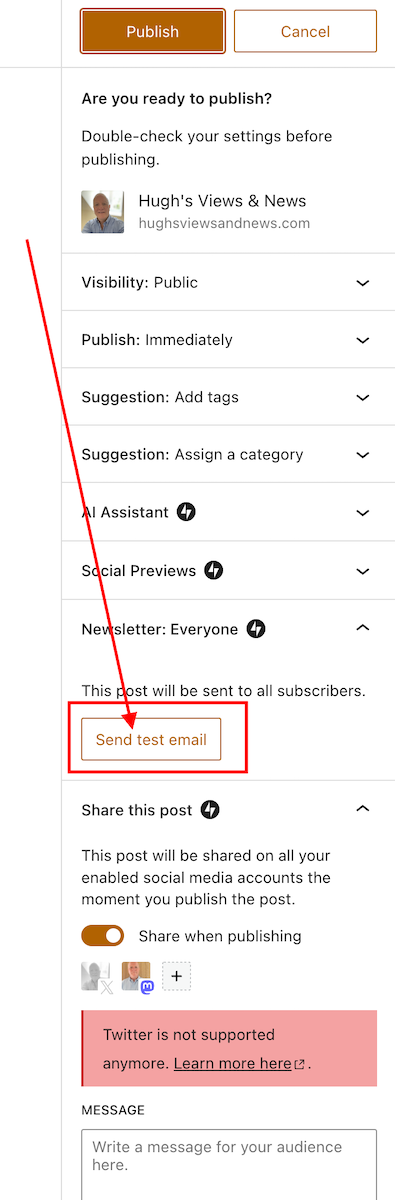
Before scheduling or publishing a new blog post, click the ‘Send test email‘ button, and WordPress will send you an email showing the excerpt and a link to the post.

Where can I find the ‘Send test email’ button?

Under the ‘Publish‘ settings of the draft of your post. Ensure you open the ‘Newsletter: Everyone‘ section to see it.

Here’s a screenshot.

Image highlighting the Send Test Email' button on WordPress
Send test emails for all your WordPress new post notifications.

Not only can you check that the excerpt of your blog post is correct, but you can also click the link within the email to open the post and verify that everything is as it should be.

So, no more –

  • Missing images
  • Uncentred captions
  • Upsidedown images
  • Misplaced images
  • Images and text overlapping
  • Missing blog post titles
  • Missing headings
  • Missing words
  • Spelling mistakes
  • Forgetting to close comments
  • Broken videos or YouTube links
  • Broken links/pingbacks

Of course, spelling and grammar mistakes may still appear, but at least you now have another way of checking and editing a post before it’s published.

A new way to showcase previous blog posts.

Most bloggers like to showcase previous blog posts so those who missed them the first time can catch up.

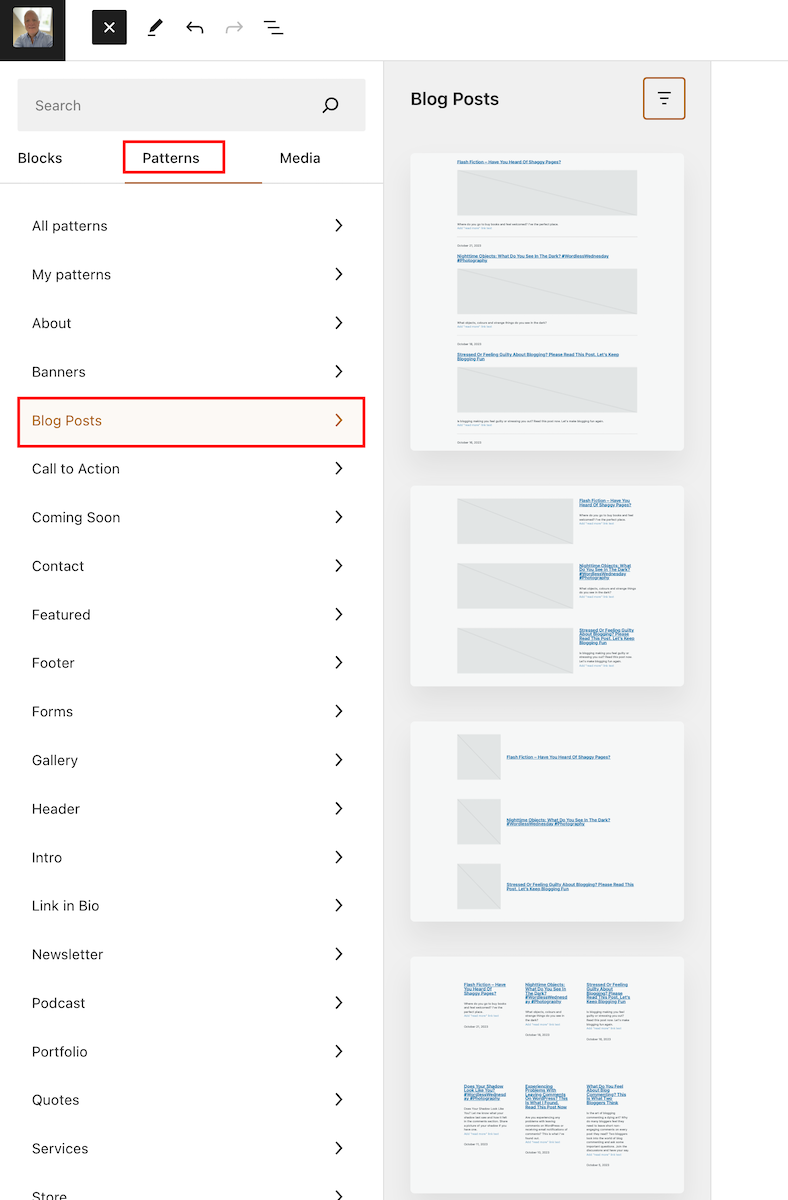
There are various ways to promote older blog posts on newly published posts. This is a new blog post template that WordPress has added to ‘Patterns‘ to help promote previous posts. In fact, WordPress has added lots of new ‘Blog Post’ templates. Here’s one I selected.

Where can I find Blog Post templates?

  • On a draft post, click the ‘+‘ symbol to add a new block and select ‘Patterns.’
  • On the menu that opens, click on ‘Blog Posts‘ and select from the many templates on offer.
Image highlighting where to find Blog Posts Templates on WordPress
Select a ‘blog posts’ template from the many on offer.

You can also select the ‘Blog Posts’ block for the same job.

Each template has many settings you can play around with. For example, I set the template I displayed above to two rather than three columns (displays as one column when viewing on a mobile phone). You can also change the background colour and text colour of the template.

On the template I used, up to six posts can be displayed, with new blog posts added as you publish them.

Unfortunately, I could not find a way of choosing which blog posts I wanted to feature in the template I chose, but some of the templates allow you to do this.

The one drawback I have noticed about my chosen template is the inability to set links to open in a new tab. As a result, users clicking on any of the links will lose their current page. To address this issue, I highly recommend including the ‘Blog Post Template‘ at the end of each post. This way, readers can easily navigate to related content without losing their place on the page.

Where did all my reusable blocks go?

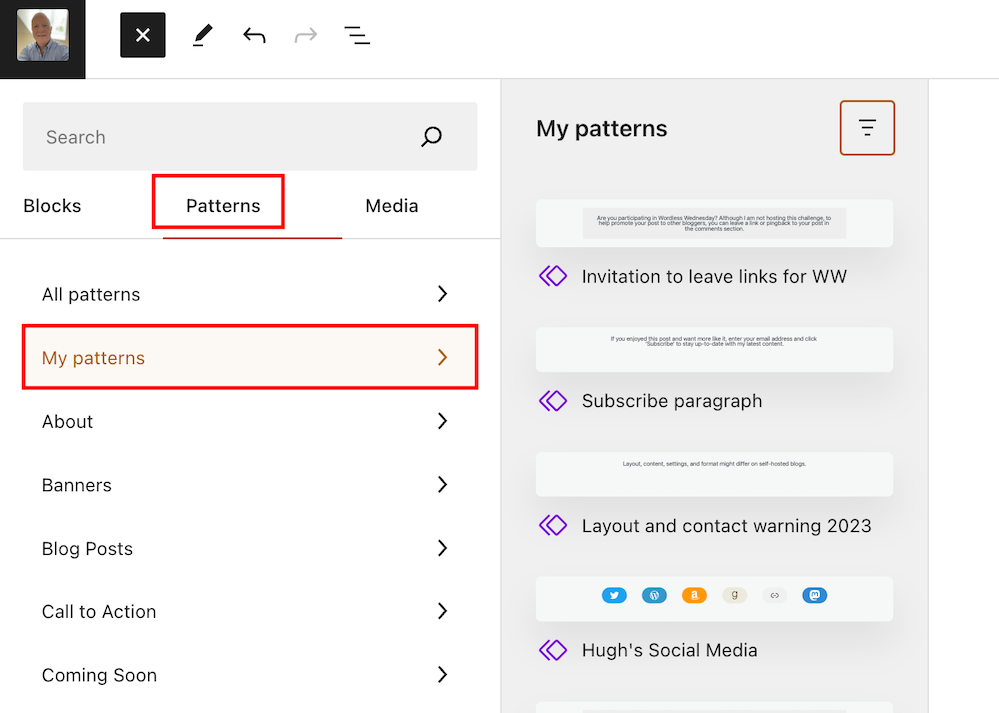
Synced patterns have replaced Reusable blocks, offering a unified creation experience for new pattern functionality on WordPress. Any reusable blocks you’ve created for your blog can now be found under ‘Patterns.’

Go to ‘Patterns’ – ‘My Patterns‘ for a list.

Image highlighting where to manage reusable blocks on WordPress
Reusable blocks can now be found under ‘Pattern.’

Not sure what a reusable block is? My post, ‘What Is A Reusable Block On WordPress? How To Create One And Save Yourself Lots Of Time,’ gives full details.

How to manage reusable blocks.

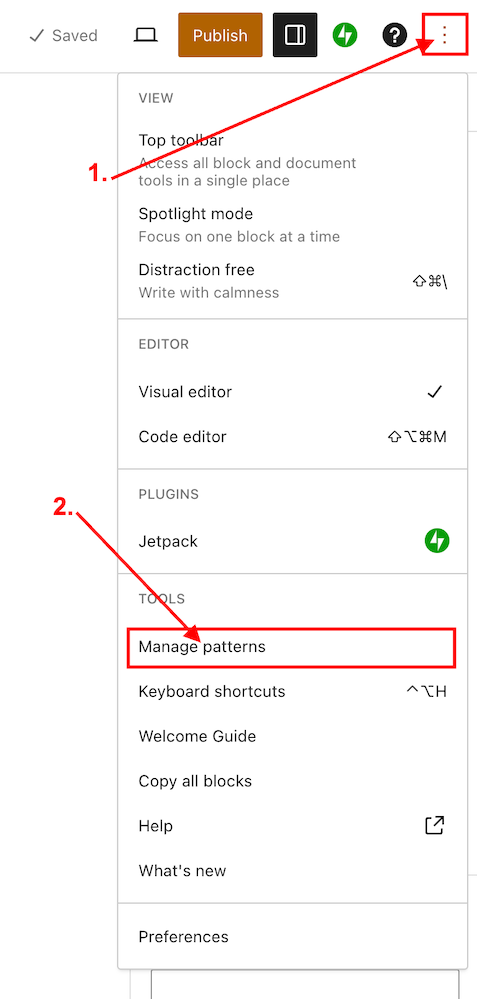
  • Ensure you view your blog’s dashboard in ‘Classic‘ view. When writing this post, it won’t work when viewing in ‘Default‘ view (WordPress are aware of the problem).
  • On the draft page of a post, click the three dots (options button) in the top right-hand corner of the page.
  • Click ‘Manage Patterns‘ in the new menu that opens.
Image highlighting how to manage reusable blocks on WordPress.
Click ‘Manage Patterns’ to manage reusable blocks.
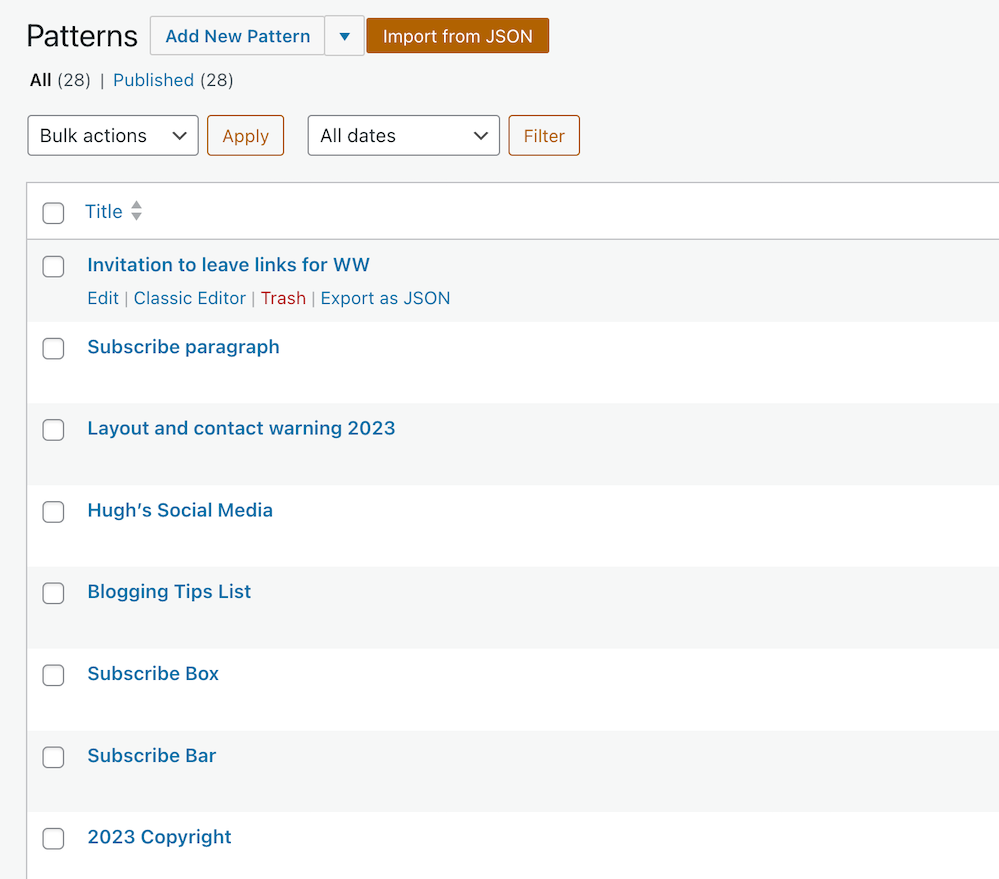
  • A page will open that lists all your reusable blocks. This is where you can edit or delete them.
Image showing a list of reusable blocks (now Patterns) on WordPress
A list of reusable blocks

IMPORTANT NOTICE – Please exercise caution when deleting a reusable block that has been previously used in your posts. Deleting a reusable block will result in its disappearance from all associated posts, and a notification will be displayed indicating that the block is no longer available. It is crucial to be mindful of this consequence to avoid any unintended disruptions to your content.

Have you explored any valuable new features on WordPress, or are you already utilising the ones I’ve mentioned? Are reusable blocks an essential part of your workflow? Feel free to share your thoughts in the comments section, and don’t hesitate to ask any questions.

Layout, content, settings, and format might differ on self-hosted blogs.

Follow Hugh on his social media platforms by clicking the buttons below.

Copyright @ 2024 hughsviewsandnews.com – All rights reserved.
Stressed Or Feeling Guilty About Blogging? Please Read This Post. Let’s Keep Blogging Fun

It’s happening again. Bloggers are saying that blogging is stressful or makes them feel guilty.

Blogging is becoming a chore.

They don’t have time to read and comment on all the blog posts of all the blogs they follow.

They’re constantly apologising for not reading, commenting or publishing new blog posts.

They don’t have time to keep up with a blogging schedule they set themselves.

They feel obliged to read and comment on everything because those bloggers read and comment on their blog posts.

Let’s get something straight about blogging. Nobody expects you to read and comment on all their blog posts.

Image with a light blue background with the words 'Stressed Or Feeling Guilty About Blogging? Please Read This Post. Let's Keep Blogging Fun' in white text.
Do you suffer from blogging stress or guilt? Read this post.

Just because Susan and Jenny read and comment on all of each other’s blog posts doesn’t mean you have you. And believe me when I say that Jenny and Susan won’t have always read each other’s blog posts. They may have left comments, but those comments don’t prove they read the post.

Nobody cares if you don’t read and comment on all their posts.

Nobody says it’s your obligation to read and comment on all their posts because they read and comment on all your posts.

Nobody? Well, not quite. The only person who may feel obliged or think they must read and comment on all the posts of the blogs they follow is you.

One of the biggest pitfalls of blogging is feeling obligated.

Once again, I’ve been reading blog posts, comments, and social media posts where people ask for advice because blogging has got to the stage of stressing them out and/or making them feel guilty.

They seem to feel that not reading and commenting on every post is some kind of a blogging crime and will land them in blogging jail.

I’ve written before about the stress and guilt blogging can bring (if you allow it) and know exactly how these bloggers are feeling, having been through the whole blogging ‘feeling guilty’ trip myself.

So, allow me to explain why you never need to feel stressed or guilty about blogging or never need to apologise for not reading, commenting or publishing blog posts.

Why did you start your blog?

One of the reasons why I signed up for WordPress was because I thought blogging would be fun.

One year in, I became very stressed and guilty because I couldn’t keep up with reading all the new blog posts published by the bloggers I was following.

I was following way too many blogs, many of which didn’t interest me anyway.

Some days, I found myself doing little else but reading and leaving non-engaging, spammy comments on blog posts. You know the types of comments. Things like ‘Great post,’ ‘I enjoyed this’, or one-worded comments that meant nothing.

Some of the bloggers I was following were publishing more than one post daily, and I soon found myself apologising to people for not reading their posts or not being on WordPress 24 hours a day!

Then it struck me that I was not doing the main thing I’d come here to do – write!

Although I possess a few superpowers, I’m afraid that one of them is not being able to read every new blog post from bloggers I follow.

I began to see this as a problem. Blogging was becoming a monster, and I was doing everything possible to make me want to fight it.

Then, one morning, I woke up, switched on my computer and got that horrible feeling I would get when I didn’t want to go to school or go to work.

I soon realised that I had two choices about blogging. Either I gave it up, or I had to change the blogger I had become.

It didn’t take me long to make my choice. After all, I’d created my blog to write and share my thoughts with anybody who stopped by and wanted to listen to what I had to say.

I decreased my reading time and began to write more.

I stopped following every single blogger who followed my blog. If they didn’t have an ‘about me‘ page so I could find out more about who they were, or they blogged about subjects that did not interest me, then I did not follow back.

If bloggers kept sending me messages begging me to follow their blog, I ignored them.

I stopped feeling guilty for not following back.

As time passed, I began to unfollow bloggers whose blog content I didn’t find interesting anymore.

I stopped reading blog posts that did not interest me, regardless of who had written and published them.

I unfollowed some bloggers who continued to fail to respond to questions or acknowledge comments other bloggers and I were leaving on posts.

I didn’t feel guilty about this because it freed up time for me to write, read, and comment on blog posts that interested me.

If you find yourself in a situation where blogging makes you feel guilty and/or stresses you out, then you need to face the questions I was asking myself.

I’m afraid there’s no magic answer.

What worked for me may not work for you, but whatever you do, ensure you do all you can to make blogging fun again.

Isn’t that the reason why you came here in the first place?

Take control of your blog and stop feeling guilty about not reading and commenting on every blog post or for unfollowing blogs that you no longer have any interest in.

Sure, you may lose some followers along the way (don’t we all?), but it’s not going to finish you off as a blogger.

In fact, they probably didn’t read your blog posts anyway and will have left short, non-engaging comments just to prove they visited, so it’s no big deal (unless your only interest is how many followers you have).

If, like me, you decide to stay (and I hope you do), your blogging passion will return.

Remember – Blogging is a marathon, not a sprint!

Have you ever found yourself feeling guilty or stressed out because of blogging? Are you somebody who keeps apologising because you’ve been unable to spend as much time as you like reading and commenting on posts? How did you get over feeling guilty or stressed out by blogging? Leave me a comment and join the conversation.

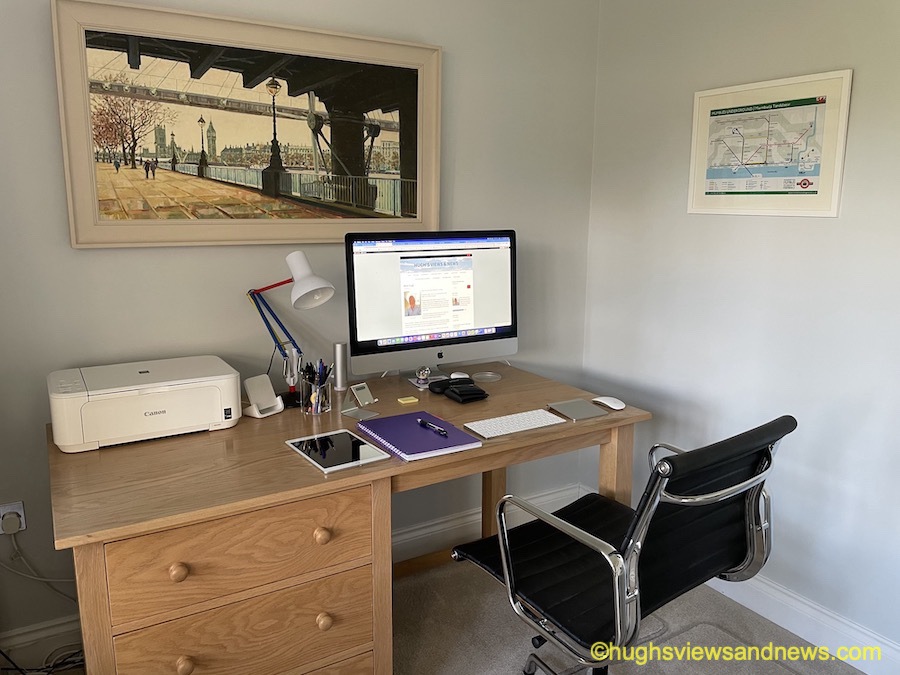
Photo showing Hugh's desk with a computer screen showing Hugh's home page of his blog.
Blogging should always be about enjoyment and fun.

Follow Hugh on Social Media. Click on the links below.

If you enjoyed this post and want more like it, enter your email address and click ‘Subscribe’ to stay up-to-date with my latest content.

Copyright @ 2024 hughsviewsandnews.com – All rights reserved.
Experiencing Problems With Leaving Comments On WordPress? This Is What I Found. Read This Post Now

I’ve written about comments a lot over the last few months, so this seems like the ideal opportunity to discuss some problems with commenting on WordPress.

First, I want to discuss a problem with getting email notifications from WordPress whenever comments are left on my blog posts.

Light blue image with the words 'Experiencing Problems With Leaving Comments On WordPress? This Is What I Found. Read This Post Now' in white text.
Are you experiencing any of these problems with comments on WordPress?

I’ve stopped getting email notifications whenever anyone comments on one of my posts, so I have had to revert to checking for new comments on my blog’s dashboard.

It’s not a huge problem, but the email notifications act as a backup, so I know when comments have been left, and they also serve as a reminder that I have comments to respond to. I don’t delete an email notification until I’ve replied to a comment. That way, I don’t miss any.

I reported the problem on the WordPress Forum. That was over two weeks ago, and whilst I’ve had a lot of contact from WordPress staff, the problem is currently with their developers.

Is anybody else having problems getting email notifications of comments left on their blog posts? Or is it just me?

I’ve also reported another issue to WordPress. I’m wondering if any of the following are happening to you when leaving comments on other blogs?

Other problems with commenting.

Have you noticed that the comments box on WordPress has changed? The old comments box has been replaced with a new one (see the following image), but it seems to be causing me a few problems.

Image showing the new-look comments box on WordPress.
Have you noticed the new comments box on WordPress?

The above new style comments box has gradually been introduced to most blogs on WordPress.

You can write a comment, press the reply button, and move on pretty swiftly, but my concerns are with something hidden behind the settings (cog) button next to the icon that displays your Gravatar image. When you press the cog, you’ll see this.

Image showing the tree options available on the new-look comments box on WordPress.
There are three options to choose from in the new-look comments box.

See those three new options at the bottom of the comments box? Not only can you now get web and phone notifications of new blog posts from the blog you’re leaving a comment on, but you can set how often you get notifications of new posts.

These are not new, though. They’ve been available for use on WordPress for a long time but were buried deep in our blogs’ dashboard settings. Now, they’re much easier to find and use.

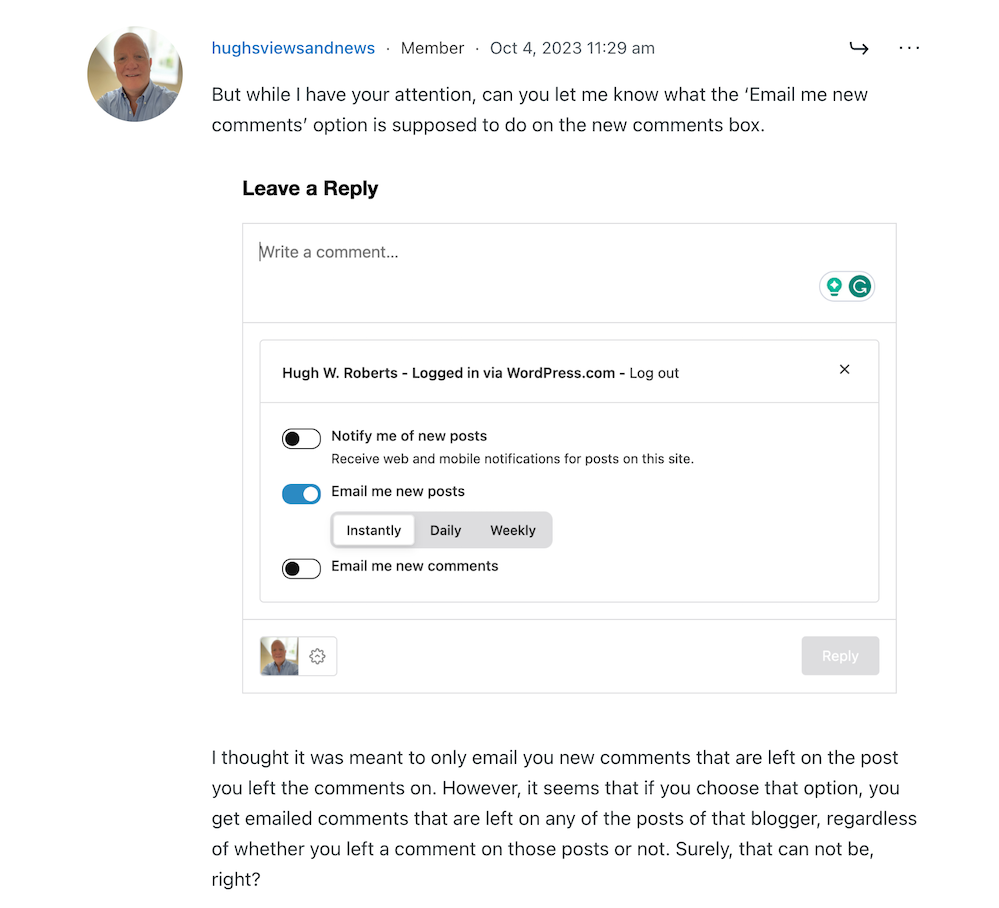
So far, so good, you may think, but it’s the ‘email me new comments‘ button that is causing me concern.

You see, I’m one of those bloggers who like to receive an email whenever anyone replies to a comment I’ve left on their blog or when anyone else leaves a comment on the post I’ve already commented on. It’s my way of knowing that not only have they responded to my comment but also a way for me to either reply to or ‘like’ the comment. I do not like the thought of any blogger thinking I’ve ignored their comment.

The problem now is that when you slide the ‘email me new comments‘ button on, not only do you get emailed comments for the posts you’ve left comments on, but you’ll get email notifications of any comment left on any of the posts on that blog regardless of whether you left a comment or not.

If the blog you’ve left a comment on is huge and gets hundreds of comments, this could become a big problem with your email box filling up quickly.

Needless to say, that is something I do want. I only want email notifications of comments left on the posts I left a comment on. Why? Well, I find that reading comments can sometimes be as interesting as the post they’re left on, plus comments often give me new ideas for blog posts.

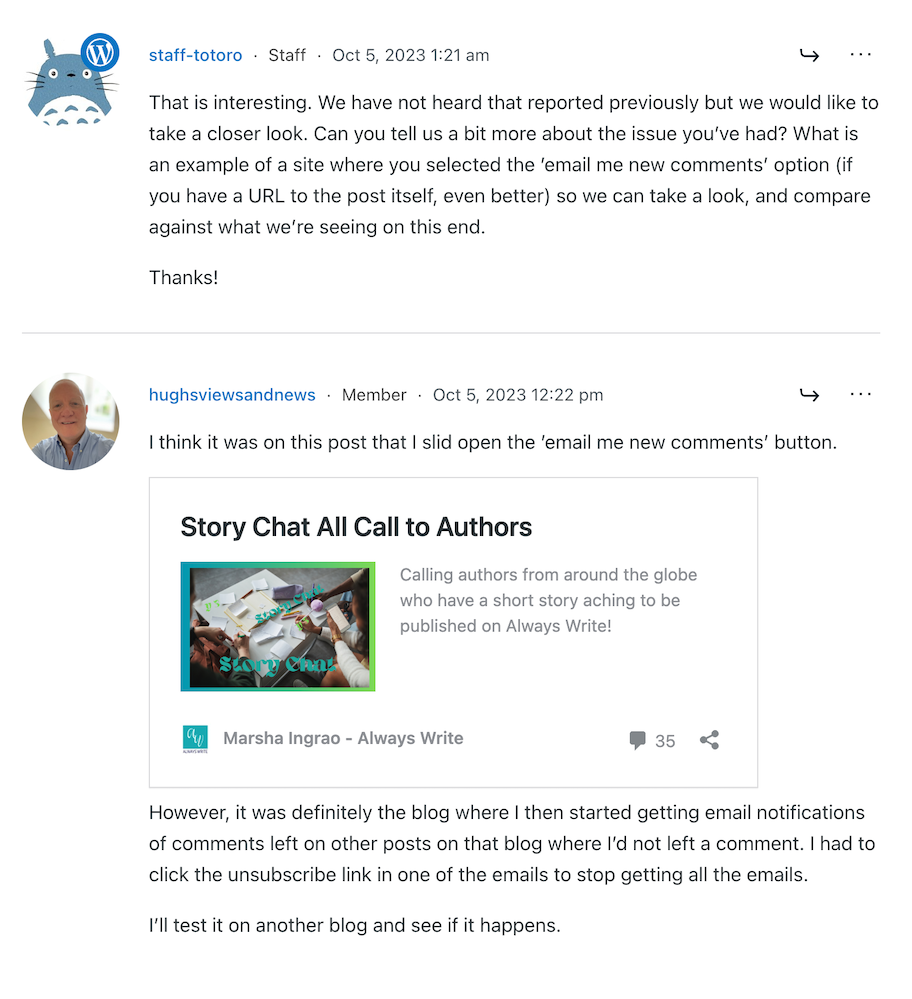
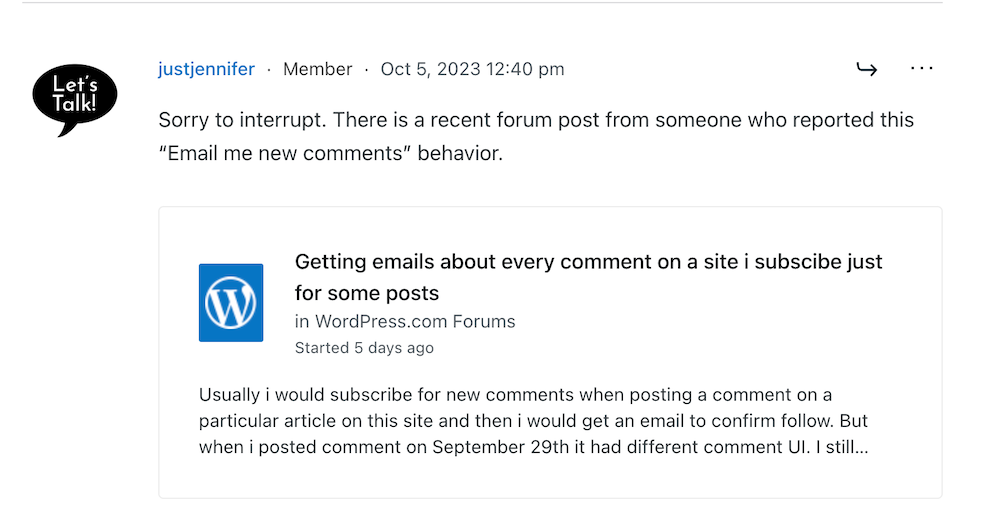
I’ve reported the issue to WordPress, and they’ve replied. See the screenshots below. However, I’m not the only one who reported this particular problem.

Image showing discussion on WordPress forum regarding email notifications about comments
Images showing a discussion on WordPress forum about emails and commenting.
Image showing another blogger who has reported email notification problems on WordPress
Somebody else has reported the same problem.
Image showing a response from WordPress to my concerns regarding problems with email notifications from WordPress
A response from a member of staff at WordPress

That was the last response from WordPress, but I’ll update this post with any developments.

Some good news – My spam box is empty!

Is it only me, or has anyone else seen a drastic reduction in spam since the new comment box appeared? I used to get hundreds of spam messages to scroll through every day, but now my spam box is empty almost every day – hooray!

So, there is no need to close comments off posts anymore if WordPress has waved a magic wand and stopped the spam once and for all. Hooray – that means I can leave comments on blog posts that are more than a month old.

Are you having any of the problems described in this post or any issues with leaving comments or receiving WordPress notifications as a whole? Has the amount of spam you’re getting plummeted? Let me know in the comments section.

Follow Hugh on Social Media. Click on the links below.

If you enjoyed this post and want more like it, enter your email address and click ‘Subscribe’ to stay up-to-date with my latest content.

Layout, content, settings, and format might differ on self-hosted blogs.

Copyright @ 2024 hughsviewsandnews.com – All rights reserved.

What Do You Feel About Blog Commenting? This Is What Two Bloggers Think

Light blue image with the words 'What Do You Feel About Blog Commenting? This Is What Two Bloggers Think' in white text
Are you leaving the right comments?

Comments play a vital role in fostering vibrant discussions within the blogosphere. They are the lifeblood of meaningful engagement, adding depth and diversity of perspectives to any topic.

But recently, commenting on blogs seems to be going in the wrong direction. 

My recent blog post, ‘What Kind Of Comments Are The Best To Leave On Blog Posts?‘ got many of you discussing various types of comments, but more importantly, the non-engaging comments that sadly seem to have become more popular than comments that spark valuable engagement, discussions and conversations.

If you haven’t read the post, please do and add your voice to the various debates. 

Today, I have the pleasure of presenting two captivating blog posts penned by talented bloggers about the subject of comments.

These insightful pieces delve into the diverse range of comments they receive on their blogs, offering a glimpse into their personal perspectives and emotional experiences.

The first is from blogger and writer Brenda, who blogs at Curiosities, Castles and Coffee Shops. Click the following link to read Brenda’s post and join the discussions her post has sparked.

Introductions over Coffee #11

The second post is from blogger and author Erika, who blogs at Share Your Light. Click the following link to read Erika’s post.

JUST A THOUGHT… – HAS IT CHANGED?

I urge those of you who enjoy engagement, discussions and conversations on blog posts to read both posts and add your thoughts to the discussions that Brenda and Erika have ignited on their posts.

I’m closing comments off here so that comments can be left on the posts I’m promoting today.

A big thank you to Brenda and Erika for taking the courage to open up about leaving comments – a subject many bloggers shy away from.

Follow Hugh on Social Media. Click on the links below.

If you enjoyed this post and want more like it, enter your email address and click ‘Subscribe’ to stay up-to-date with my latest content.

Copyright @ 2024 hughsviewsandnews.com – All rights reserved.
How To Find Free Photos And Images On WordPress: Why You Should Use Them.

I’ve published many posts about the perils of using copyrighted images and photos. Several bloggers I know have been fined for downloading copyrighted images and photos, including when they reblogged posts.

Did you know that WordPress offers free, high-quality images and photos to enhance the visual appeal of your WordPress website or blog?

You’re searching for the right image for your new blog post. Rather than doing a Google search in a separate tab — and running the risk of using an image you don’t have rights to — use the free images and photos WordPress offers.

Light blue image with the words 'How To Find Free Photos And Images On WordPress: Why You Should Use Them' in white text
Did you know that WordPress offers users free photos and images?

To avoid any chances of being fined for using copyrighted images and photos, the best advice is to always try and use your own photos and images in your blog posts.

Of course, you could choose not to include any images or photos, but given that posts that include photos or images get 70% more traffic, you should add at least one image or photo to all your blog posts.

Where Do I Find The Free Images And Photos WordPress Offers?

  • Add an Image block to your blog post.
  • Click on the ‘Select Image‘ link to open a new menu.
  • The free images and photos are under ‘Pexels Free Photos‘ and ‘Openverse‘.
Image highlighting where to find Pexels Free Photos and Openverse in the media library of a WordPress blog.
WordPress offers hundreds of free images and photos to all WordPress users.

Pexels Free Photos

  • When you click Pexels Free Photos, a new window will open that includes a search bar.
  • Add a description of the image or photo you are looking for in the search bar and click the ‘Search‘ button.
  • Look through the results, click the image you want to use and click the ‘Select‘ button.
  • Click the ‘Load More‘ button at the bottom of the page to see more results.

When you select an image from Pexels Free Photos, it is downloaded to your media library. Remember to add information about the image to help readers with sight impediments and who may use speech software on their devices.

WordPress will have already completed the title of the image or photo and added credit details, so the only information you need to add is Alt Text and Description.

Openverse

Openverse works like Pexels Free Photos. It’s a search engine for openly licensed media, which gives access to over 600 million Creative Commons licensed and public domain image and audio files. All files can be used free of charge.

You can use the search box to find content licensed for commercial use and content that may be modified.

If you use any images or photos from Openverse, they are downloaded to your media library. You’ll need to complete the Alt Text and Description boxes, giving the image/photo details.

It’s Not Only WordPress That Offers Free Images And Photos.

Several websites offer free images that you can use on your WordPress website. These websites curate collections of high-quality images that are free to use, often under various Creative Commons licenses. Here are some popular websites you can explore:

Review and respect the license terms associated with each image when using images from these sites. Providing proper attribution to the photographer or the source is always good practice.

WordPress Plugins

Another convenient way to find free images within your WordPress editor is by using plugins specifically designed for this purpose. These plugins integrate with popular free image websites, allowing you to search and insert images directly from your WordPress dashboard.

Some notable plugins for finding free images include:

Installing and activating these plugins will add additional options to your media library, making browsing and selecting free images for your content effortless.

Note: Plugins are not available on all WordPress plans.

Image SEO Best Practices

While finding free images for your WordPress blog is essential, optimising any images or photos you use for search engines is equally crucial. Following some basic image SEO best practices can improve your blog’s visibility and attract more organic traffic. Here are a few tips:

  • Use descriptive filenames and alt tags that reflect the image content.
  • Optimise image file sizes to improve site loading speed.
  • Add relevant captions and descriptions to provide more context.
  • Ensure images are responsive and look good on all devices.

By incorporating these strategies, you enhance the visual appeal of your content while improving your blog’s overall SEO performance.

Let’s Wrap It Up.

  • Finding free images and photos for your WordPress website or blog is easier than ever.
  • Whether you explore the WordPress options, leverage free image websites, or use dedicated plugins, the possibilities are abundant.
  • Adhering to image licensing requirements and optimising your images for SEO will ensure a visually appealing and optimised blog.

So go ahead and utilise the resources available to you, and make your WordPress blog shine with stunning images that complement your content!

Remember, a picture is worth a thousand words.

Disclaimer: Always review and respect each image’s terms and conditions and licensing rights. The information provided in this article is for educational purposes only and should not be considered legal advice.

Where do you get the images and photos you use on your blog? If you have any questions about using free images and photos on your blog, leave them in the comments section. Alternatively, please join the discussion and conversation if you’d like to add any information about using free images and photos.

Layout, content, settings, and format might differ on self-hosted blogs.

Follow Hugh on his social media platforms by clicking the buttons below.

If you enjoyed this post and want more like it, enter your email address and click ‘Subscribe’ to stay up-to-date with my latest content.

Copyright @ 2024 hughsviewsandnews.com – All rights reserved.
Is Your Blog Under Attack? Yes, It Is. 4 Easy Ways You Can Protect It

Every day, our blogs come under attack from various elements.

Just like protecting our families, pets, and anything else we value, we should do all we can to protect our blogs from threats.

Image with light blue background with the words 'Is Your Blog Under Attack? Yes, It Is. 4 Easy Ways You Can Protect It' in white text
Are you doing enough to protect your blog from threats?

Threats come in all sorts of forms, but there are a few simple steps you can put in place to keep your blog safe.

1. Comments

What do you do if you receive unfriendly comments or comments that do not agree with what you have said in your blog post?

I’ve blogged for nearly ten years, and, in that time, I have received a handful of comments that were not only very personal but were rude, racist or homophobic.  

Because I moderate all comments before they appear on my blog, I was able to stop these comments in their tracks. They were of the nature that did not call for a reply, and I simply marked them as spam and deleted them.

And it wasn’t only me that some of these unfriendly comments are aimed at.  

I often see rude, unfriendly comments and spam appear on other blogs. Not only can they be shocking in their nature, but in many cases, the very name of the commenter can also be very offensive. 

Unfortunately, Akismet, the WordPress software that blocks unwanted spam, doesn’t always catch all of it. So, monitoring all comments before they are published on your blog posts is worth considering. 

Follow these steps to set up monitoring comments.

For the purpose of this post, instructions are via the ‘Default” view of your blog’s dashboard.

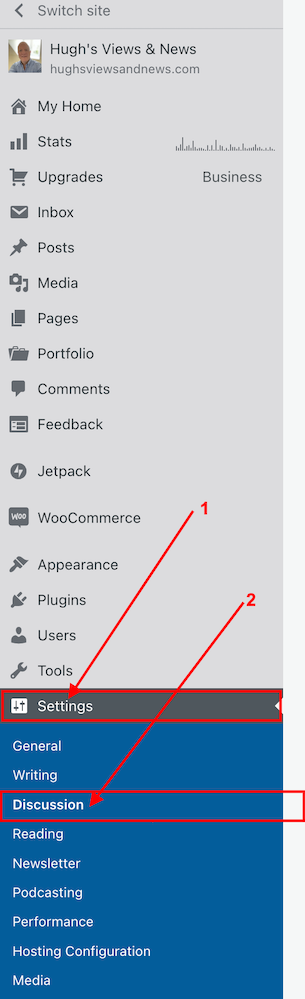
  • Click SettingsDiscussion on your blog’s dashboard.

Image highlighting the Settings and Discussion options on the dashboard of a WordPress blog.
Click Settings and Discussion
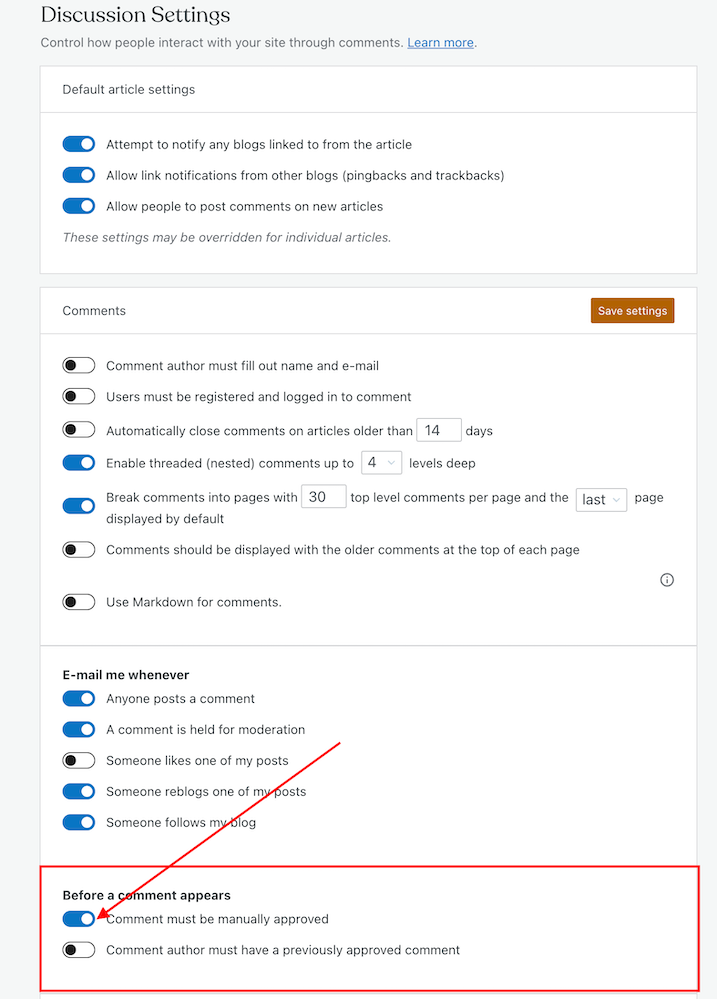
  • On the Discussion Settings page, scroll down to the ‘Before A Comment Appears‘ box and slide open the button next to ‘Comment must be manually approved.’
Image highlighting the 'Comment must be manually approved' button on the Discussion Settings page of a WordPress blog.
To approve all comments, select the ‘Comment must be manually approved’ button
  • Click on the ‘Save settings‘ button. 

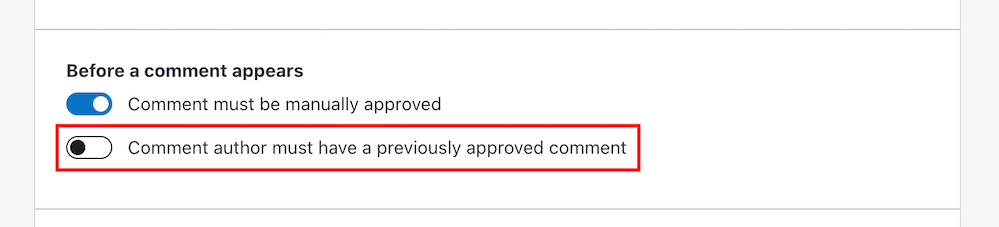
You may also have noticed an option to allow comments to be posted straight away from people who have previously had comments approved by you. 

Image highlighting the 'Comment author must have previously approved comment' button on a WordPress blog.
Selecting the ‘Comment author must have previously approved comment’ means you don’t need to approve those comments.

For bloggers who are dealing with hundreds of comments daily, this is a great time-saving option as you don’t need to manually approve them. 

However, be wary. Somebody who may have left a perfectly friendly comment on an earlier post could also leave an unfriendly comment on a future one.

How to deal with people who don’t agree with you

Sometimes, I receive comments from people who may not agree with what I have to say, but that’s a part of the whole blogging experience. 

However, providing their comment has been written in a friendly and professional manner, I will approve it. 

Nobody should tolerate rudeness or bad manners, so don’t allow any of these kinds of comments to appear on your blog. 

If comments are unfriendly, rude or make you feel threatened, mark them as spam.

Allowing unfriendly, rude comments to appear on your blog can make your blog look unfriendly and unwelcoming, especially to new visitors.

And consider removing anyone who leaves a rude comment, or one that threatens you or another blogger, from your subscriber list. My post ‘How To Spot And Remove Spammers And Spambots From Your WordPress Blog‘ gives full details.

Look after your fellow bloggers

If you see a rude comment or one that is spam on a blog you follow, inform the blog’s owner of the problem. They’ll probably thank you for looking out for them.

How to block certain bloggers or readers from leaving comments

Further down the same page on the Discussion Settings dashboard, you’ll see two boxes entitled ‘Comment Moderation‘ and ‘Disallowed comments.’

Image highlighting the Comment moderation and Disallowed comments boxes on WordPress.
This is where you can blacklist other bloggers and comments

These boxes are where you can add certain words, the web address of a blog, the email address or the internet protocol of a user you want to block. 

Comments will be held in a moderation queue if they contain anything you have added to the Comment Moderation box.

Comments will be sent to the trash bin if they match anything you have added to the Disallowed Comments box.

2. Internet trolls

If you are unlucky enough to find that an internet troll has decided to try and make your blog their new home, ignore them. 

Whatever you do, don’t engage in any conversations with the internet troll. Whether through comments or if they try to contact you through your ‘contact me’ page, ignore them. 

Internet trolls will do all they can to get you to react to what they have said. They may even try to get some of your readers to engage with them by responding to comments they have left, so never approve their comments.

Don’t give internet trolls the satisfaction of acknowledging them in any shape or form. 

Remove any comments, and don’t allow them to upset you in any way. Add them to the ‘Disallowed Comments‘ box. They’ll soon get the message and move on.

3. Back-Up

How would you feel if you woke up one morning and found that all your blog content had disappeared? 

It’s the stuff of nightmares, so be kind to your blog and make sure you back up its content regularly.

Depending on your WordPress plan, your blog can be backed up via JetpackBackup on your blog’s dashboard. If you don’t have this facility, consider saving all your blog posts via an external server or hard drive.

If you’re already writing your blog posts on Word, Pages or any other writing software such as Grammarly, ensure you save the documents on the iCloud (if you have access) or on another hard drive.

Don’t lose all your hard work by not backing up your blog.  

4. Anti Virus Software

Always update anti-virus software on your device to protect your blog and ensure you have the latest version. 

If hackers can get access to well-known websites, then they may be able to get access to your computer\device.

Malware could allow cybercriminals to take control of your computer, log your keystrokes, or access your personal information and financial data, which could lead to identity theft. So, not only could your blog be at risk from hackers, but so could your bank details and other personal information.  

Remember to keep all other software on your computer up to date and use the latest software versions of any website you visit regularly.

WordPress.Com users will always have the latest version of WordPress as WordPress download updates directly. Those who have self-hosted blogs should ensure they have the latest updates installed. 

This all may sound nightmarish, and you may ask yourself who would want to attack your blog, but every blogger should take it seriously. Don’t become a victim. 

However, whatever you do, keep enjoying your blogging experience. 

Although attacks on our blogs are happening constantly, your anti-virus software (and the software supplied by WordPress) deals with most threats without you knowing about it.

Let’s Wrap It Up.

  • Make sure you protect your blog from any online attacks.
  • Don’t approve any comments that are unfriendly, rude, or racist towards you or any other bloggers.
  • Consider moderating all comments before they appear on your blog.
  • People may disagree with what you say in your posts. Only approve their comments if they’ve been written in a friendly and professional manner.
  • Unsubscribe and or/block trolls and unfriendly readers from your blog.
  • Never respond to comments from trolls or allow their comments to appear on your blog.
  • Remember to regularly back up your blog or save your blog posts on an external hard drive.
  • Keep anti-virus software updated on your devices.
  • Ensure you’re using the latest version and tools of WordPress.

Is there anything else you’d like to share with us about protecting your blog from unwanted attention and attacks? Do you have any questions? Join the discussion by leaving me a comment with the details.

Layout, content, settings, and format might differ on self-hosted blogs.

Follow Hugh on Social Media. Click on the links below.

If you enjoyed this post and want more like it, enter your email address and click ‘Subscribe’ to stay up-to-date with my latest content.

Copyright @ 2024 hughsviewsandnews.com – All rights reserved.