Adding Images Or Photos To Your Blog Posts? 4 Essential Things To Do.

Blog posts containing images and photos get up to 70% more traffic than posts without visuals. So why wouldn’t you use them in your posts?

Visual content is an essential component of any successful blog. Adding images, videos, and infographics to your blog posts can make your content more engaging and memorable.

If you plan to include images or photos in your blog posts, there are four essential things to remember. These steps will help ensure your content is engaging and visually appealing while avoiding copyright issues.

1. Use High-Quality Images And Photos.

Always use high-quality images that are relevant to your post. Blurry or low-resolution images can detract from your message and make your blog appear unprofessional.

Additionally, using images that are not directly related to your topic can confuse readers and reduce the effectiveness of your post.

2. Ensure Images And Photos Are Not Copyrighted

Ensure you have permission to use any images and photos you include in your posts. This means sourcing images from websites offering free, non-copyrighted images (such as Pixabay) or purchasing the rights to use images from a stock photo website.

Not all images are free to use. And some that are free may only be free for a limited time. Always check the small print.

Don’t think you’ll ever get fined for using copyrighted images or photos. There are copyright bots continually looking for copyrighted images that have been illegally used and downloaded all over the web.

I know of two bloggers who have been fined for using images/photos on their blog posts that were not free to use.

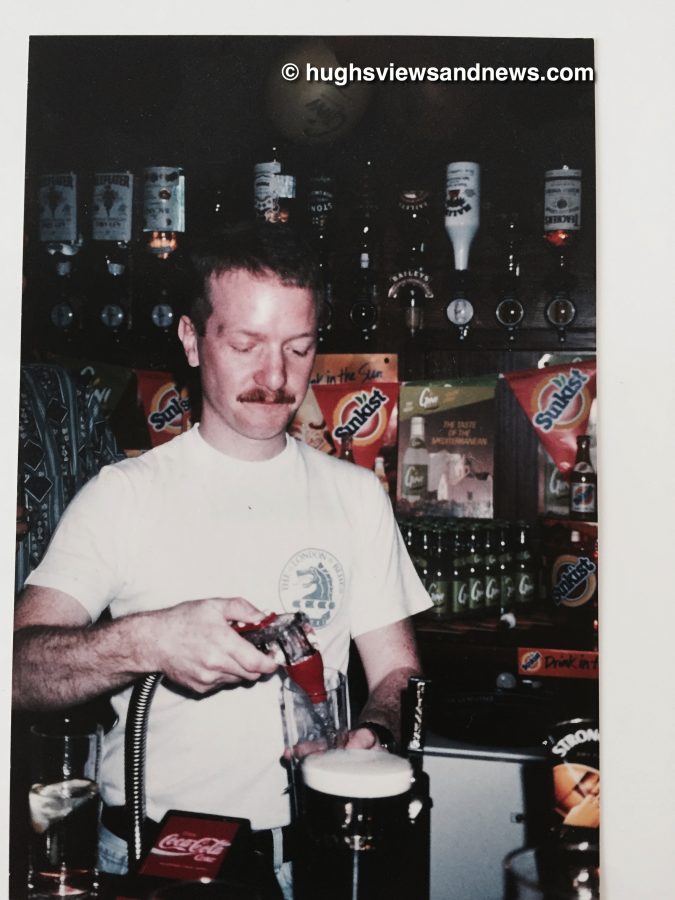
To avoid copyright issues, use your own images and photos and watermark them before adding them to your blog posts. I use a free app called Photobulk to do this. Seeing a watermark is a great deterrent in persuading some thieves not to copy and use them.

Of course, if you’re not concerned about your photos and images being used by anybody else, you don’t need to watermark them.

3. Ensure Images And Photos Are The Correct Sizes.

Optimize your images for web use by compressing them to reduce file size.

Large images can slow down your website’s loading speed, negatively impacting your blog’s search engine rankings and overall user experience.

If you have limited space in your media library, not reducing the size of your images and photos will soon take up all your media space. When that happens, you won’t be allowed to download additional images to your blog unless you free up space or move to a plan that gives you more storage space.

I recommend reducing image and photo sizes to 900 x 675 pixels.

There are several ways you can reduce the size of images and photos. You can reduce them using photo editing software or your device’s software.

The WordPress media library also has editing software, but please note that if you reduce the size of an image or photo using this tool, the original image is kept in your media library when you reduce the size of the image- thus, you won’t save any storage space.

The newly edited image with the reduced size is added as a new file in your media library. You can always revert back to the original image by clicking on the image in the media library, selecting Edit, and then choosing the “Restore Original” button. If you’ve inserted an edited image into other published posts, reverting an image may break this image on those posts.

I use an Apple iMac and can change the size of photos and images by clicking on Tools – Adjust Size on the menubar of my desktop computer. I do this before adding them to my WordPress media library.

On a Windows computer, you can use Microsoft Paint. Open your image with that program, then click on Resize. You can find this option on the middle-right side of the “Image” section at the top of the Paint window.

However, as I mentioned earlier, you can also reduce the size of images and photos on WordPress. But only do this if your WordPress plan has a large storage space allowance.

  • To do this, ensure you view your media library in Classic view.
  • Click the edit image button on the image you want to edit.
Image showing the edit button of an image in the WordPress media library
Click the edit button.
  • Add the new dimensions in the Scale Image box and click the Scale button.
Image showing the new dimensions box and scale button on an image in the WordPress media library.
Add the new dimensions of your image.
  • Click the save or update button to save the changes.

Your photos and images will be reduced in size, but remember that a copy of the original is also kept, so you won’t save any storage space.

If posting to your site using the Jetpack App, the app can optimise images.

In the Jetpack app for iPhone, you can set the Max Image Upload Size so the original file is resized automatically when you upload it. This option can be found by going to My Site and clicking the profile icon in the top right, then choosing App Settings.

In the Jetpack app for Android, click on your profile icon in the top right corner and choose App Settings. There, enable Optimise Images to resize and compress images on upload.

4. Add information to your images and photos.

Don’t forget to include alt text and captions for your images.

Alt text is a description of the image that allows visually-impaired readers to understand what the image is conveying. At the same time, captions can add context and help readers engage with your content. This is especially important when participating in blog challenges such as Wordless Wednesday and Silent Sunday.

Screenshot of the Alt Text box, caption box and description box on an image in the WordPress media library.
Always add information about your images and photos.

Adding a description of the image or photo also helps with SEO searches.

  • Click the save or update button to save all the changes.

Following these four essential steps, you can create visually stunning and engaging blog content with images that stand out.

Let’s wrap it up.

  • Always use high-quality images and photos on your blog.
  • Never use images and photos that are copyrighted. You may be fined for doing so.
  • Use your own images and photos. That way, you won’t encounter any copyright issues.
  • Reduce the size of images and photos before loading them to your blog.
  • Alternatively, reduce the size of images and photos with WordPress’s tools in the media library, but only if you have a WordPress plan that offers a large amount of storage.
  • Always add information about images and photos before adding them to blog posts, as this allows visually-impaired readers to understand what the image conveys.
  • Adding a description of the image or photo also helps with SEO searches.

What do you use to resize images and photos for your blog posts? Do you always complete the details of images and photos in the Alt Text box? If you have any questions about adding images and photos to your blog, please leave them in the comments section.

To follow Hugh on social media, click the links below.

Copyright @ 2024 hughsviewsandnews.com – All rights reserved.


Discover more from Hugh’s Views & News  

Subscribe to get the latest posts sent to your email.

126 responses to “Adding Images Or Photos To Your Blog Posts? 4 Essential Things To Do.”

  1. […] To help those with eyesight-impaired vision, please remember to complete a description of your photo in the ‘alt-text’ and description boxes of the picture in the WordPress media library. For more details, check my post, Adding Images Or Photos To Your Blog Posts? 4 Essential Things To Do.’ […]

  2. […] To help those with eyesight-impaired vision, please remember to complete a description of your photo in the ‘alt-text’ and description boxes of the picture in the WordPress media library. For more details, check my post, Adding Images Or Photos To Your Blog Posts? 4 Essential Things To Do.’ […]

  3. […] To help those with eyesight-impaired vision, please remember to complete a description of your photo in the ‘alt-text’ and description boxes of the picture in the WordPress media library. For more details, check my post, Adding Images Or Photos To Your Blog Posts? 4 Essential Things To Do.’ […]

  4. […] To help those with eyesight-impaired vision, please remember to complete a description of your photo in the ‘alt-text’ and description boxes of the picture in the WordPress media library. For more details, check my post, Adding Images Or Photos To Your Blog Posts? 4 Essential Things To Do.’ […]

  5. […] To help those with eyesight-impaired vision, please remember to complete a description of your photo in the ‘alt-text’ and description boxes of the picture in the WordPress media library. For more details, check my post, Adding Images Or Photos To Your Blog Posts? 4 Essential Things To Do.’ […]

  6. […] To help those with eyesight-impaired vision, please remember to complete a description of your photo in the ‘alt-text’ and description boxes of the picture in the WordPress media library. For more details, check my post, Adding Images Or Photos To Your Blog Posts? 4 Essential Things To Do.’ […]

  7. […] To help those with eyesight-impaired vision, please remember to complete a description of your photo in the ‘alt-text’ and description boxes of the picture in the WordPress media library. For more details, check my post, Adding Images Or Photos To Your Blog Posts? 4 Essential Things To Do.’ […]

  8. […] To help those with eyesight-impaired vision, please remember to complete a description of your photo in the ‘alt-text’ and description boxes of the picture in the WordPress media library. For more details, check my post, Adding Images Or Photos To Your Blog Posts? 4 Essential Things To Do.’ […]

  9. […] To help those with eyesight-impaired vision, please remember to complete a description of your photo in the ‘alt-text’ and description boxes of the picture in the WordPress media library. For more details, check my post, Adding Images Or Photos To Your Blog Posts? 4 Essential Things To Do.’ […]

  10. […] To help those with eyesight-impaired vision, please remember to complete a description of your photo in the ‘alt-text’ and description boxes of the picture in the WordPress media library. For more details, check my post, Adding Images Or Photos To Your Blog Posts? 4 Essential Things To Do.’ […]

Leave a Reply

I’m Hugh

A high-angle overhead photograph of the same smiling bald man from the previous image, now dressed for Christmas and looking directly up at the camera. He wears a red plush Santa hat with a white fluffy trim and pom-pom, a festive red-and-white knit Christmas sweater with snowflake and fair-isle patterns, dark blue jeans, and white sneakers with his hands in his pockets. He stands on a green lawn dusted with light winter snow, surrounded on the ground by wrapped holiday gifts with bows, pine cones, red and gold ornaments, holly sprigs with red berries, and glowing multicoloured Christmas fairy lights.

Welcome to my blog. I’m delighted you’re here. This is where you can find tips on blogging and WordPress, flash fiction, photography, and more. I enjoy engaging with my readers, so please feel free to explore, join discussions, and contact me. I’m happy to assist! Find out more about me and my blog by clicking the ‘Meet Hugh’ button.

Let’s connect

Subscribe to Hugh’s Views And News

Latest Posts

  • How to Schedule a Post in WordPress After the Latest Update
    When WordPress quietly changed how scheduling works, I accidentally published a post immediately instead of queuing it. This guide explains what changed and walks you step by step through the new desktop scheduling process so your posts go live exactly when you want.
  • WordPress Comment Login Problems: New Answers, No Fix Yet
    WordPress has confirmed a bug that forces some users to sign in repeatedly before commenting, caused by changes to the new comment form. There’s no fix date yet, but staying logged in may help some people. This post shares WordPress’s latest answers and temporary workarounds.
  • WordPress Comment Login Problems: Latest Update and Fix Hopes
    Hugh shares the latest on WordPress’s comment sign‑in problems: partial improvements, an official response about changed login sessions and cookie rules, new subscription pop‑ups after commenting, and a workaround that involves staying signed in. He invites bloggers to report whether they’re still affected.
  • WordPress Comment Problems? Here’s What’s Still Going On
    Still being asked to log in when you comment on WordPress.com blogs, even though you’re already signed in? I’m sharing WordPress’s latest update on this known bug, which explains when it happens and demonstrates how to use the “Add your name” option and other workarounds. My post also includes information on the action WordPress is taking to resolve the problem.
  • WordPress.com Comment Problems? Here’s What’s Going On
    Are you suddenly unable to leave comments on WordPress.com blogs, or being asked to log in even when you’re already signed in? I’m sharing details of these current WordPress comment glitches, what engineers have confirmed, and a temporary workaround via the Reader.
  • Sunday Stills Photo Challenge: Steps & Stairs
    Explore the playful side of steps and stairs in this week’s Sunday Stills photo challenge. From optical-illusion doorways and autumn-leafed stone steps to a corgi “research assistant” and a mysterious figure at the top of the stairs. Plus simple guidelines to share your own creative images. Everyone is welcome to join in.

Looking for your next quick read? Try my books

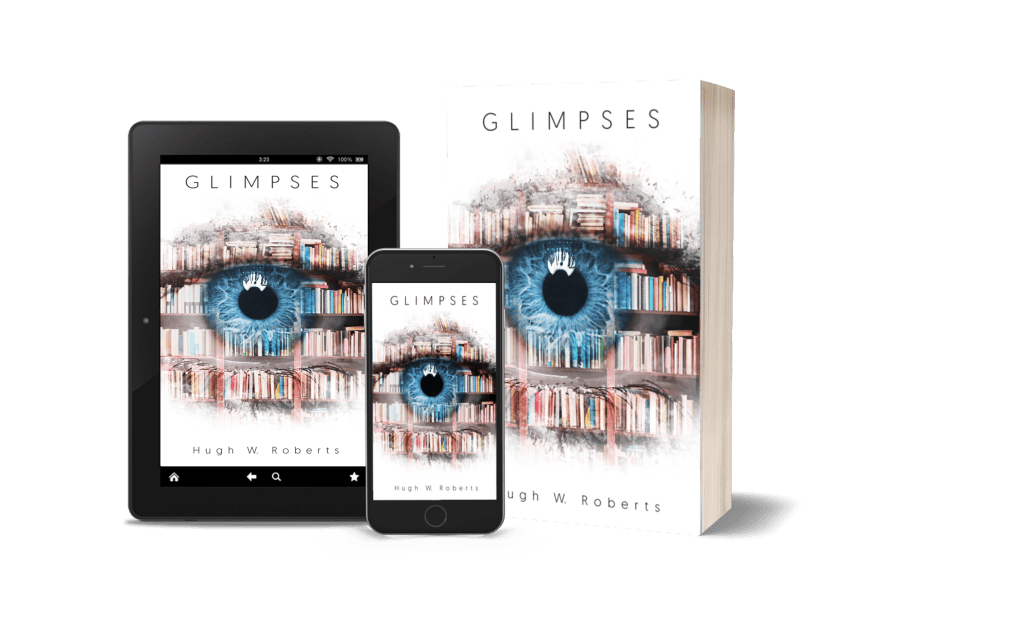
An image of book covers, book, tablet and mobile phone, for the book Glimpses.
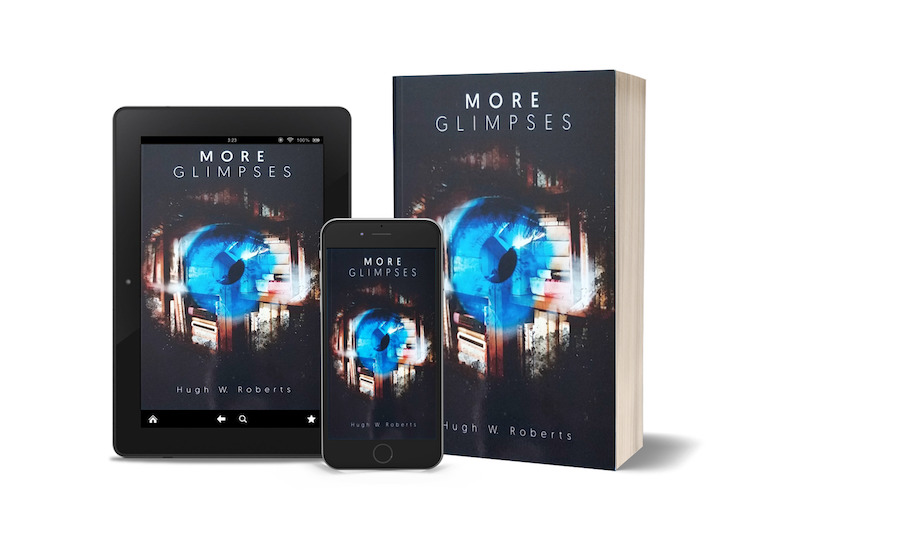
An image for the book More Glimpses - showing a book cover, tablet and mobile phone.
A widget with the words 'Team Effort - Story Chat Digest - Where Authors Meet - Author'

Most Viewed Posts & Pages Over The Last 24 Hours

Recommended Blogs To Follow


Roaming About
A Life Less Ordinary

Second Wind Leisure Perspectives
Fun, Photography & Friends

Spo-Reflections
Spo-Reflections
To live is to battle with trolls in the vaults of heart and brain. To write; this is to sit in judgment over one's Self. Henrik Ibsen

Boomer Eco Crusader
Boomer Eco Crusader
Live Green | Declutter | Simplify Life

SONGS AND SCRIPTS AND DUNKING BISCUITS
Every day tales of a winging-it creative

Jacqueline Lambert
Jacqueline Lambert
Award-Winning Travel Humour Writer

Anne R. Allen’s Blog… with Ruth Harris
Writing about writing. Mostly.

Fancying France
The musings of a ‘femme d’un certain âge’ who divides her time between SW France and SE England

Marsha Ingrao         Always Write
Marsha Ingrao Always Write
Having fun blogging with friends

Curiosities, Castles and Coffee Shops
The musings of a curious mind

WrookieSchU
WrookieSchU
Live life 🙌🏼

WPcomMaven
WPcomMaven
Helping you make the most of your free WordPress.com website since 2011

Share Your Light
Share Your Light
You are a miracle – Let it happen

No Facilities
No Facilities
Random thoughts, life lessons, hopes and dreams

Esther Chilton
Writer, Tutor and Editor

Saying nothing in particular
Jan … JT Twissel

The Chicago Files
The Chicago Files
A Canadian Perspective on Living in the Windy City!

Thank you to all my visitors

498,924 hits

276,309 visitors

Scan the QR code to follow me on Bluesky

Copyright Protected Blog

COPYRIGHT ©2011-2031 Hugh’s Views And News BLOG – All Rights Reserved.

This work by Hugh W. Roberts and/or Hugh’s Views And News blog is licensed under a Creative Commons Attribution-Noncommercial-NoDerivatives 4.0 International License. Unauthorised use and/or duplication of this material (text and images) without express and written permission from this blog’s author and/or owner is strictly prohibited. If you want to use posts, excerpts, photos and links, you may contact me first. You must give full and clear credit to Hugh W. Roberts and Hugh’s Views And News dot com with links to the original content.