
Exploring Multiple Avenues: How to Contact WordPress for Support: 6 Best Ways

Whether you’re a seasoned developer or a novice blogger, there might come a time when you need assistance or have questions about your WordPress site.

Have you ever had to contact WordPress? What’s your preferred method and experience of contacting them?

Light blue image with the words 'Exploring Multiple Avenues: How to Contact WordPress for Support: 6 Best Ways' in white text.
What’s your preferred method to contact WordPress?

During the ten years I’ve been blogging, I’ve contacted WordPress many times for support with my blog. I’ve always received good support from them.

From reporting bugs to getting answers to my questions and getting deals on renewing my WordPress plan, they’ve always been helpful and friendly.

But does the level of support vary depending on which WordPress plan you have?

Fortunately, WordPress offers various channels for users to seek help and find solutions to their queries. In this blog post, we’ll explore how you can contact WordPress for support.

WordPress Support Forums

The forums cover various topics, from general troubleshooting to specific plugins or theme-related queries.

This is my preferred way of contacting WordPress as their staff (Happiness Engineers) get involved in your query, as do other blogging community members.

Users worldwide share their knowledge and assist each other in the forums. You can post your questions, describe your issues, and receive helpful responses from experienced WordPress users, moderators, and WordPress staff.

I’ve helped bloggers out with their queries and questions on the forums.

Next time you have a question or a problem with your blog, give the Forums a go. I’ve had great success with them. And who knows? It may be me who responds to your question or query.

Click the following link to go to the WordPress.Com Forums.

Official WordPress How-To Documentation

Before reaching out for help, the official WordPress how-to documentation is worth checking out.

These comprehensive resources provide detailed information about WordPress features, settings, and troubleshooting tips.

Many common issues have step-by-step solutions outlined in these guides, making it an excellent self-help option.

Click the following link to go to the Official WordPress How-To Documents.

WordPress Support via Email

For more personalised assistance, you can contact WordPress support via email. The official WordPress support email address can only be accessed by completing a form – Contact Us.

When reaching out through email, be sure to provide detailed information about your issue, including the name of your blog, which WordPress plan you are on, which WordPress theme you use, which device you are using, and details of the device’s operating system.

The more details you provide, the easier it is for the support team to understand and address your problem.

Social Media Channels

WordPress is active on various social media platforms, including X and Facebook.

You can follow official WordPress accounts and use these platforms to ask questions or seek assistance. Community members and WordPress developers often actively monitor these channels and may respond to your queries.

I’ve spoken with WordPress staff on X and have found them professional, helpful and friendly. After talking to them on X, I even got a discount code for renewing my WordPress plan.

WordPress on X.

WordPress on Facebook.

Live Chat Support

This can be a quick way to get real-time assistance.

If you’re lucky enough to have a WordPress plan that offers Live Chat, it’s an instant way of getting help from a staff member at WordPress, although I have found that Live Chat isn’t always available.

Although I’ve always had much success with Live Chat, it can sometimes be time-consuming.

As well as having details of your blogging problem or question, give details of which device and operating system you are using. Screenshots of errors or bugs are also helpful and help resolve issues quickly.

To find out if your WordPress plan has Live Chat, click the question mark icon in the top right of your screen and click the ‘Still need help‘ button, and you’ll see a list of options available to you.

Image showing where to access Live Chat on WordPress
Live chat is great for getting an instant response from WordPress.

Users with a free or starter WordPress plan or those on a monthly subscription cannot access Live Chat.

Hire a WordPress Developer

Hiring a WordPress developer might be the best solution for complex issues or customisation requirements. However, this could be an expensive option.

If you do go down the route of this option, I’d recommend you ask around first to find out if anybody can recommend a computer savvy who knows their way around the WordPress platform. Asking the blogging community is always a good option.

If you want to hire a member of the WordPress staff to sort out problems with your blog, contact them via email at support@wordpress.org.

WordPress isn’t always at fault, but sometimes they are.

You only have to look at the WordPress Forums to see that some problems are caused by users rather than WordPress. They’re usually not following the correct procedures or do not understand how something works.

I recently saw a user blame WordPress because they could not add images to their posts. It turned out that they’d never reduced the size of the images they were downloading into their media library; hence, they’d run out of media space.

Some bloggers also give out incorrect information to other bloggers. I had to step in when one blogger said everyone had to be logged into WordPress to leave comments on any WordPress blog. That is not true, and I corrected them explaining that all bloggers can choose via their blog settings whether or not readers had to be logged into WordPress to be able to leave a comment.

So, WordPress are not always at fault.

Of course, the WordPress platform will have bugs like any online site and platform, but WordPress will only know about them if you report them. Don’t sit back and hope that somebody else will do the job.

Sometimes, problems can be related to just one blog.

I recently had a problem with my blog, which only seemed to be affecting me. I stopped getting email notifications of new comments being left on my blog posts.

From the moment I reported the problem, the WordPress staff I spoke with on the Forums were not only accommodating and kept me updated, but they finally got to the bottom of what was causing the problem and fixed it.

My blogging friend Colleen Chesebro also reported problems around some Full Site Editoring themes. WordPress has since withdrawn some of the themes without any notice to users. They’d launched these themes too soon without proper testing, so sometimes, WordPress can be at fault.

However, I hear that current changes to the FSE Themes make them easier to use and install. I think the very least WordPress could have done was give notice first to those using the FSE themes they were going to withdraw.

For now, I’m sticking with my Classic theme, which WordPress still supports (along with over 50 other Classic themes).

Finally, whenever contacting WordPress, please be friendly. Treat them how you expect them to treat you. Being angry, impatient or nasty does nobody any good.

Conclusion:

WordPress has built a robust and supportive community that caters to users of all skill levels. Whether you prefer community-driven forums, official documentation, or personalised support via email, various channels are available to help you navigate any WordPress-related challenges.

By exploring these options, you can ensure a smooth and enjoyable experience as you build and manage your WordPress blog.

What’s your experience with reporting problems to WordPress? What methods do you use to report problems? Are you currently experiencing any issues with WordPress? If so, what are they and have you reported them to WordPress? Share your experiences in the comments section.

Click the buttons below to follow Hugh on Social Media

Copyright @ 2024 hughsviewsandnews.com – All rights reserved.

Why I’m Delighted WordPress Has Fixed This Annoying Bug

In my recent blog post, Experiencing Problems With Leaving Comments On WordPress? This Is What I Found. Read This Post Now, I shared details of two problems I was experiencing connected to comments on WordPress.

Light blue image with the words 'Why I'm Delighted WordPress Has Fixed This Annoying Bug,' in white text
If you don’t report problems to WordPress, how will they know about issues with their platform?

I am thrilled to inform you that the issue I reported regarding the ‘Email me new comments‘ checkbox when leaving a comment has been successfully resolved by WordPress.

Image highlighting the 'Email me new comments' button on WordPress
Click the ‘Email me new comment’ button to get an email notification of when somebody has replied to a comment you left them.

So here’s what happened: When you checked the ‘Email me new comments‘ box, things went a bit haywire. You not only started getting email notifications for comments on that specific post, but you also got bombarded with notifications for comments on other posts on that blog, even if you hadn’t left a comment or picked the ‘Email me new comments‘ option. Your inbox was basically drowning in a sea of WordPress emails. Crazy, right?

Now, when you select the ‘Email me new comments‘ option, rest assured that you will only receive email notifications for comments posted on the exact same post where you have left a comment.

Why do I tick the ‘Email me new comments’ box?

Not only do I get informed via email when I get a reply to a comment I’ve left, but reading other blog posts’ comments always helps me with ideas for new posts. Sometimes, comments can be as interesting as the post they’ve been left on.

I can also definitely lend a helping hand when bloggers reach out for assistance in their comments. Moreover, I take great pleasure in rectifying any misinformation that comes my way. Just the other day, I came across a comment where a blogger erroneously mentioned that having a WordPress account is a prerequisite for leaving comments. Allow me to assure you that this information is not accurate. Indeed, anyone can participate in the discussion without the need for a WordPress account.

One problem remains

The problem I reported concerning no longer getting email notifications when somebody leaves a comment on any of my posts has still not been fixed. However, WordPress has assured me that they’re still working on fixing it.

I’d be interested in knowing if anybody else is experiencing problems with not getting email notifications when comments are left on their posts. Please let me know in the comments section.

Are you experiencing any problems with leaving or receiving comments on blog posts? What are they, and have you reported them to WordPress?

Click the buttons below to follow Hugh on Social Media

Copyright @ 2024 hughsviewsandnews.com – All rights reserved.

Have You Discovered These Two New Excellent WordPress Features? And Where Have Reusable Blocks Gone?

You may already be acquainted with these exciting new features I’ve recently uncovered on WordPress. However, I wanted to discuss them in case some of you are still unaware of their existence or unsure about how they function. Let’s delve into these remarkable additions and explore their potential!

Light blue image with the words 'Have You Discovered These Two New Excellent WordPress Features? Where Have Reusable Blocks Gone?' in white text.
New features you may like to try out on WordPress.

Send Test email.

I absolutely love this new feature! It’s incredibly handy because not only do I get to double-check my email notifications for my new blog posts before hitting the publish button, but it also serves as a safety net to ensure that my blog post is flawless and error-free. This is a game-changer for me!

Note – this feature may not be available to WordPress free plan users.

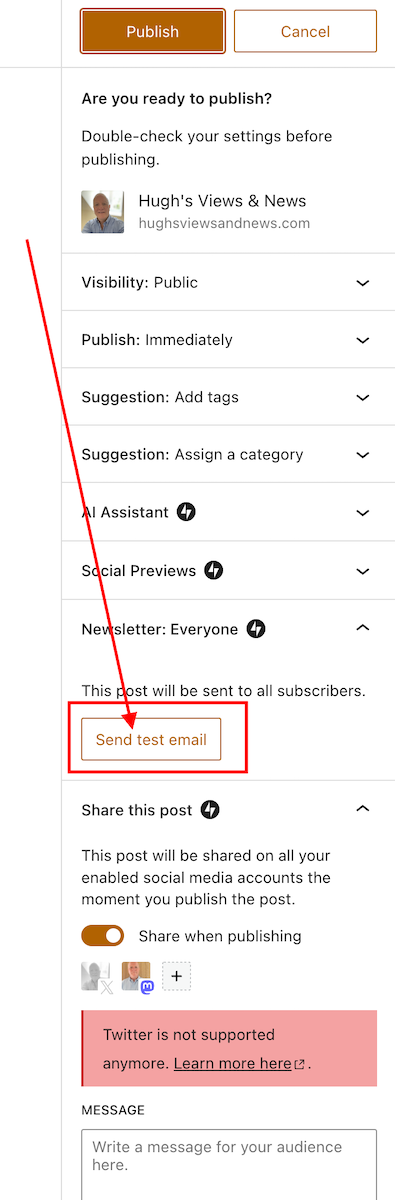
Before scheduling or publishing a new blog post, click the ‘Send test email‘ button, and WordPress will send you an email showing the excerpt and a link to the post.

Where can I find the ‘Send test email’ button?

Under the ‘Publish‘ settings of the draft of your post. Ensure you open the ‘Newsletter: Everyone‘ section to see it.

Here’s a screenshot.

Image highlighting the Send Test Email' button on WordPress
Send test emails for all your WordPress new post notifications.

Not only can you check that the excerpt of your blog post is correct, but you can also click the link within the email to open the post and verify that everything is as it should be.

So, no more –

  • Missing images
  • Uncentred captions
  • Upsidedown images
  • Misplaced images
  • Images and text overlapping
  • Missing blog post titles
  • Missing headings
  • Missing words
  • Spelling mistakes
  • Forgetting to close comments
  • Broken videos or YouTube links
  • Broken links/pingbacks

Of course, spelling and grammar mistakes may still appear, but at least you now have another way of checking and editing a post before it’s published.

A new way to showcase previous blog posts.

Most bloggers like to showcase previous blog posts so those who missed them the first time can catch up.

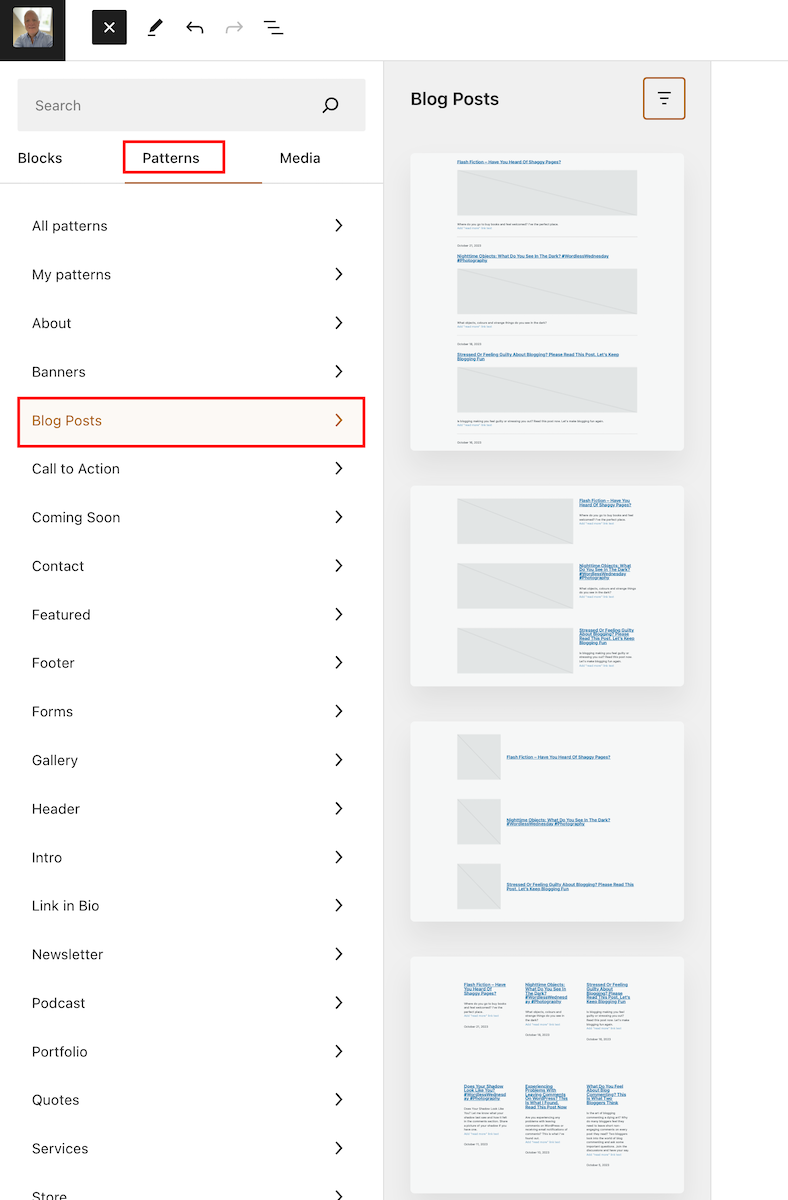
There are various ways to promote older blog posts on newly published posts. This is a new blog post template that WordPress has added to ‘Patterns‘ to help promote previous posts. In fact, WordPress has added lots of new ‘Blog Post’ templates. Here’s one I selected.

Where can I find Blog Post templates?

  • On a draft post, click the ‘+‘ symbol to add a new block and select ‘Patterns.’
  • On the menu that opens, click on ‘Blog Posts‘ and select from the many templates on offer.
Image highlighting where to find Blog Posts Templates on WordPress
Select a ‘blog posts’ template from the many on offer.

You can also select the ‘Blog Posts’ block for the same job.

Each template has many settings you can play around with. For example, I set the template I displayed above to two rather than three columns (displays as one column when viewing on a mobile phone). You can also change the background colour and text colour of the template.

On the template I used, up to six posts can be displayed, with new blog posts added as you publish them.

Unfortunately, I could not find a way of choosing which blog posts I wanted to feature in the template I chose, but some of the templates allow you to do this.

The one drawback I have noticed about my chosen template is the inability to set links to open in a new tab. As a result, users clicking on any of the links will lose their current page. To address this issue, I highly recommend including the ‘Blog Post Template‘ at the end of each post. This way, readers can easily navigate to related content without losing their place on the page.

Where did all my reusable blocks go?

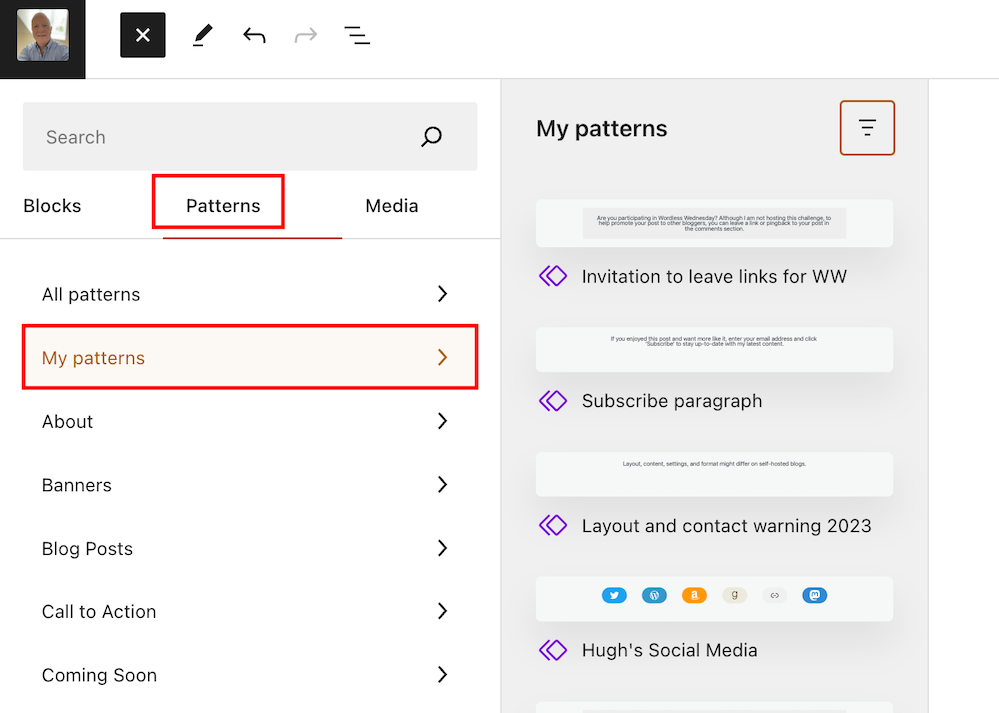
Synced patterns have replaced Reusable blocks, offering a unified creation experience for new pattern functionality on WordPress. Any reusable blocks you’ve created for your blog can now be found under ‘Patterns.’

Go to ‘Patterns’ – ‘My Patterns‘ for a list.

Image highlighting where to manage reusable blocks on WordPress
Reusable blocks can now be found under ‘Pattern.’

Not sure what a reusable block is? My post, ‘What Is A Reusable Block On WordPress? How To Create One And Save Yourself Lots Of Time,’ gives full details.

How to manage reusable blocks.

  • Ensure you view your blog’s dashboard in ‘Classic‘ view. When writing this post, it won’t work when viewing in ‘Default‘ view (WordPress are aware of the problem).
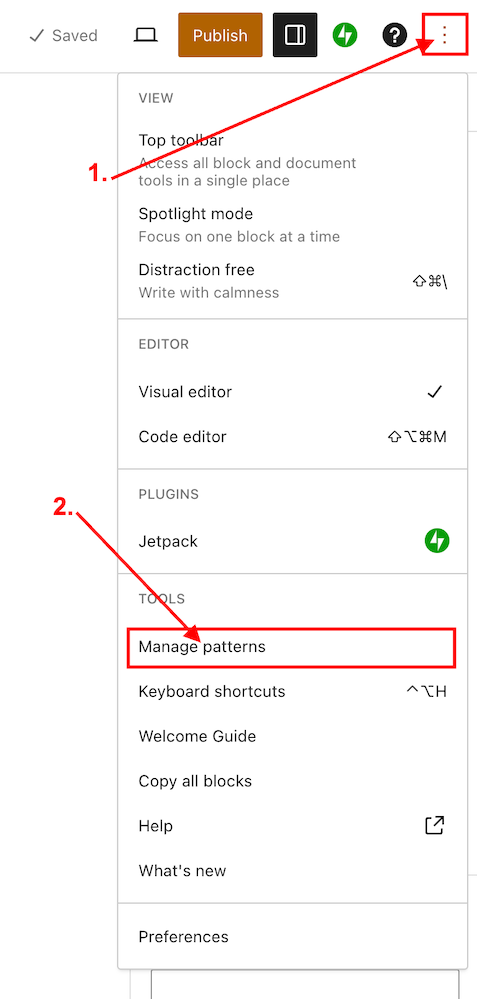
  • On the draft page of a post, click the three dots (options button) in the top right-hand corner of the page.
  • Click ‘Manage Patterns‘ in the new menu that opens.
Image highlighting how to manage reusable blocks on WordPress.
Click ‘Manage Patterns’ to manage reusable blocks.
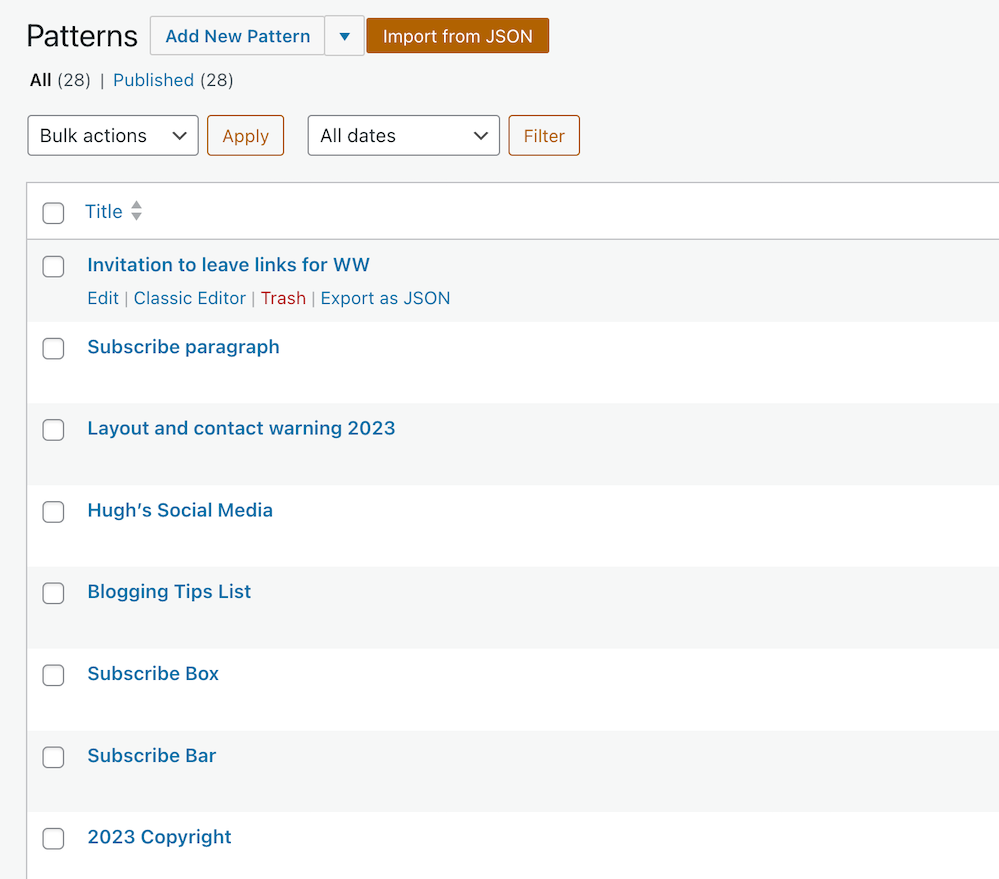
  • A page will open that lists all your reusable blocks. This is where you can edit or delete them.
Image showing a list of reusable blocks (now Patterns) on WordPress
A list of reusable blocks

IMPORTANT NOTICE – Please exercise caution when deleting a reusable block that has been previously used in your posts. Deleting a reusable block will result in its disappearance from all associated posts, and a notification will be displayed indicating that the block is no longer available. It is crucial to be mindful of this consequence to avoid any unintended disruptions to your content.

Have you explored any valuable new features on WordPress, or are you already utilising the ones I’ve mentioned? Are reusable blocks an essential part of your workflow? Feel free to share your thoughts in the comments section, and don’t hesitate to ask any questions.

Layout, content, settings, and format might differ on self-hosted blogs.

Follow Hugh on his social media platforms by clicking the buttons below.

Copyright @ 2024 hughsviewsandnews.com – All rights reserved.
Stressed Or Feeling Guilty About Blogging? Please Read This Post. Let’s Keep Blogging Fun

It’s happening again. Bloggers are saying that blogging is stressful or makes them feel guilty.

Blogging is becoming a chore.

They don’t have time to read and comment on all the blog posts of all the blogs they follow.

They’re constantly apologising for not reading, commenting or publishing new blog posts.

They don’t have time to keep up with a blogging schedule they set themselves.

They feel obliged to read and comment on everything because those bloggers read and comment on their blog posts.

Let’s get something straight about blogging. Nobody expects you to read and comment on all their blog posts.

Image with a light blue background with the words 'Stressed Or Feeling Guilty About Blogging? Please Read This Post. Let's Keep Blogging Fun' in white text.
Do you suffer from blogging stress or guilt? Read this post.

Just because Susan and Jenny read and comment on all of each other’s blog posts doesn’t mean you have you. And believe me when I say that Jenny and Susan won’t have always read each other’s blog posts. They may have left comments, but those comments don’t prove they read the post.

Nobody cares if you don’t read and comment on all their posts.

Nobody says it’s your obligation to read and comment on all their posts because they read and comment on all your posts.

Nobody? Well, not quite. The only person who may feel obliged or think they must read and comment on all the posts of the blogs they follow is you.

One of the biggest pitfalls of blogging is feeling obligated.

Once again, I’ve been reading blog posts, comments, and social media posts where people ask for advice because blogging has got to the stage of stressing them out and/or making them feel guilty.

They seem to feel that not reading and commenting on every post is some kind of a blogging crime and will land them in blogging jail.

I’ve written before about the stress and guilt blogging can bring (if you allow it) and know exactly how these bloggers are feeling, having been through the whole blogging ‘feeling guilty’ trip myself.

So, allow me to explain why you never need to feel stressed or guilty about blogging or never need to apologise for not reading, commenting or publishing blog posts.

Why did you start your blog?

One of the reasons why I signed up for WordPress was because I thought blogging would be fun.

One year in, I became very stressed and guilty because I couldn’t keep up with reading all the new blog posts published by the bloggers I was following.

I was following way too many blogs, many of which didn’t interest me anyway.

Some days, I found myself doing little else but reading and leaving non-engaging, spammy comments on blog posts. You know the types of comments. Things like ‘Great post,’ ‘I enjoyed this’, or one-worded comments that meant nothing.

Some of the bloggers I was following were publishing more than one post daily, and I soon found myself apologising to people for not reading their posts or not being on WordPress 24 hours a day!

Then it struck me that I was not doing the main thing I’d come here to do – write!

Although I possess a few superpowers, I’m afraid that one of them is not being able to read every new blog post from bloggers I follow.

I began to see this as a problem. Blogging was becoming a monster, and I was doing everything possible to make me want to fight it.

Then, one morning, I woke up, switched on my computer and got that horrible feeling I would get when I didn’t want to go to school or go to work.

I soon realised that I had two choices about blogging. Either I gave it up, or I had to change the blogger I had become.

It didn’t take me long to make my choice. After all, I’d created my blog to write and share my thoughts with anybody who stopped by and wanted to listen to what I had to say.

I decreased my reading time and began to write more.

I stopped following every single blogger who followed my blog. If they didn’t have an ‘about me‘ page so I could find out more about who they were, or they blogged about subjects that did not interest me, then I did not follow back.

If bloggers kept sending me messages begging me to follow their blog, I ignored them.

I stopped feeling guilty for not following back.

As time passed, I began to unfollow bloggers whose blog content I didn’t find interesting anymore.

I stopped reading blog posts that did not interest me, regardless of who had written and published them.

I unfollowed some bloggers who continued to fail to respond to questions or acknowledge comments other bloggers and I were leaving on posts.

I didn’t feel guilty about this because it freed up time for me to write, read, and comment on blog posts that interested me.

If you find yourself in a situation where blogging makes you feel guilty and/or stresses you out, then you need to face the questions I was asking myself.

I’m afraid there’s no magic answer.

What worked for me may not work for you, but whatever you do, ensure you do all you can to make blogging fun again.

Isn’t that the reason why you came here in the first place?

Take control of your blog and stop feeling guilty about not reading and commenting on every blog post or for unfollowing blogs that you no longer have any interest in.

Sure, you may lose some followers along the way (don’t we all?), but it’s not going to finish you off as a blogger.

In fact, they probably didn’t read your blog posts anyway and will have left short, non-engaging comments just to prove they visited, so it’s no big deal (unless your only interest is how many followers you have).

If, like me, you decide to stay (and I hope you do), your blogging passion will return.

Remember – Blogging is a marathon, not a sprint!

Have you ever found yourself feeling guilty or stressed out because of blogging? Are you somebody who keeps apologising because you’ve been unable to spend as much time as you like reading and commenting on posts? How did you get over feeling guilty or stressed out by blogging? Leave me a comment and join the conversation.

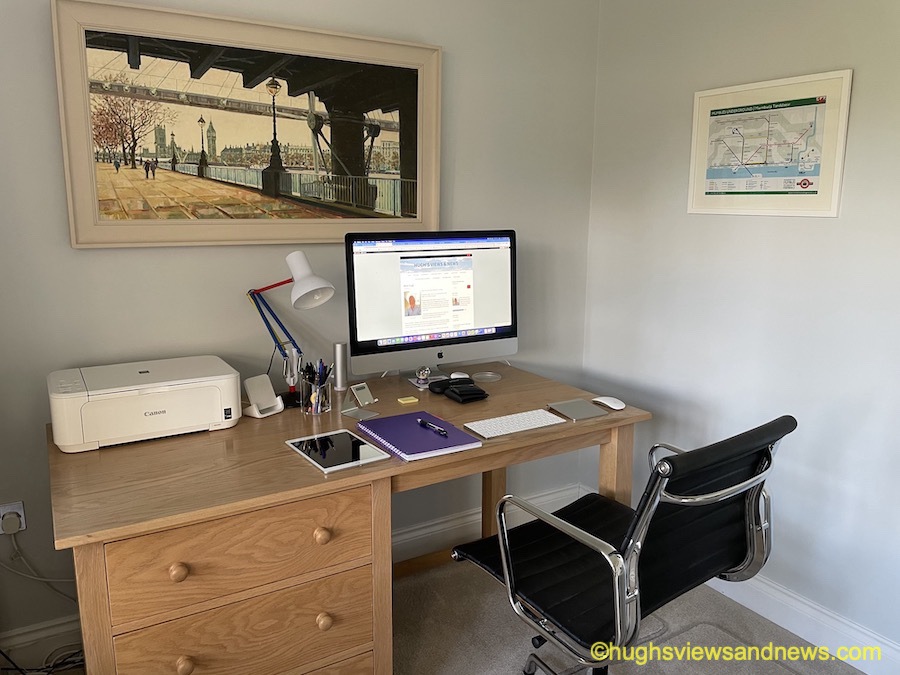
Photo showing Hugh's desk with a computer screen showing Hugh's home page of his blog.
Blogging should always be about enjoyment and fun.

Follow Hugh on Social Media. Click on the links below.

If you enjoyed this post and want more like it, enter your email address and click ‘Subscribe’ to stay up-to-date with my latest content.

Copyright @ 2024 hughsviewsandnews.com – All rights reserved.
Experiencing Problems With Leaving Comments On WordPress? This Is What I Found. Read This Post Now

I’ve written about comments a lot over the last few months, so this seems like the ideal opportunity to discuss some problems with commenting on WordPress.

First, I want to discuss a problem with getting email notifications from WordPress whenever comments are left on my blog posts.

Light blue image with the words 'Experiencing Problems With Leaving Comments On WordPress? This Is What I Found. Read This Post Now' in white text.
Are you experiencing any of these problems with comments on WordPress?

I’ve stopped getting email notifications whenever anyone comments on one of my posts, so I have had to revert to checking for new comments on my blog’s dashboard.

It’s not a huge problem, but the email notifications act as a backup, so I know when comments have been left, and they also serve as a reminder that I have comments to respond to. I don’t delete an email notification until I’ve replied to a comment. That way, I don’t miss any.

I reported the problem on the WordPress Forum. That was over two weeks ago, and whilst I’ve had a lot of contact from WordPress staff, the problem is currently with their developers.

Is anybody else having problems getting email notifications of comments left on their blog posts? Or is it just me?

I’ve also reported another issue to WordPress. I’m wondering if any of the following are happening to you when leaving comments on other blogs?

Other problems with commenting.

Have you noticed that the comments box on WordPress has changed? The old comments box has been replaced with a new one (see the following image), but it seems to be causing me a few problems.

Image showing the new-look comments box on WordPress.
Have you noticed the new comments box on WordPress?

The above new style comments box has gradually been introduced to most blogs on WordPress.

You can write a comment, press the reply button, and move on pretty swiftly, but my concerns are with something hidden behind the settings (cog) button next to the icon that displays your Gravatar image. When you press the cog, you’ll see this.

Image showing the tree options available on the new-look comments box on WordPress.
There are three options to choose from in the new-look comments box.

See those three new options at the bottom of the comments box? Not only can you now get web and phone notifications of new blog posts from the blog you’re leaving a comment on, but you can set how often you get notifications of new posts.

These are not new, though. They’ve been available for use on WordPress for a long time but were buried deep in our blogs’ dashboard settings. Now, they’re much easier to find and use.

So far, so good, you may think, but it’s the ‘email me new comments‘ button that is causing me concern.

You see, I’m one of those bloggers who like to receive an email whenever anyone replies to a comment I’ve left on their blog or when anyone else leaves a comment on the post I’ve already commented on. It’s my way of knowing that not only have they responded to my comment but also a way for me to either reply to or ‘like’ the comment. I do not like the thought of any blogger thinking I’ve ignored their comment.

The problem now is that when you slide the ‘email me new comments‘ button on, not only do you get emailed comments for the posts you’ve left comments on, but you’ll get email notifications of any comment left on any of the posts on that blog regardless of whether you left a comment or not.

If the blog you’ve left a comment on is huge and gets hundreds of comments, this could become a big problem with your email box filling up quickly.

Needless to say, that is something I do want. I only want email notifications of comments left on the posts I left a comment on. Why? Well, I find that reading comments can sometimes be as interesting as the post they’re left on, plus comments often give me new ideas for blog posts.

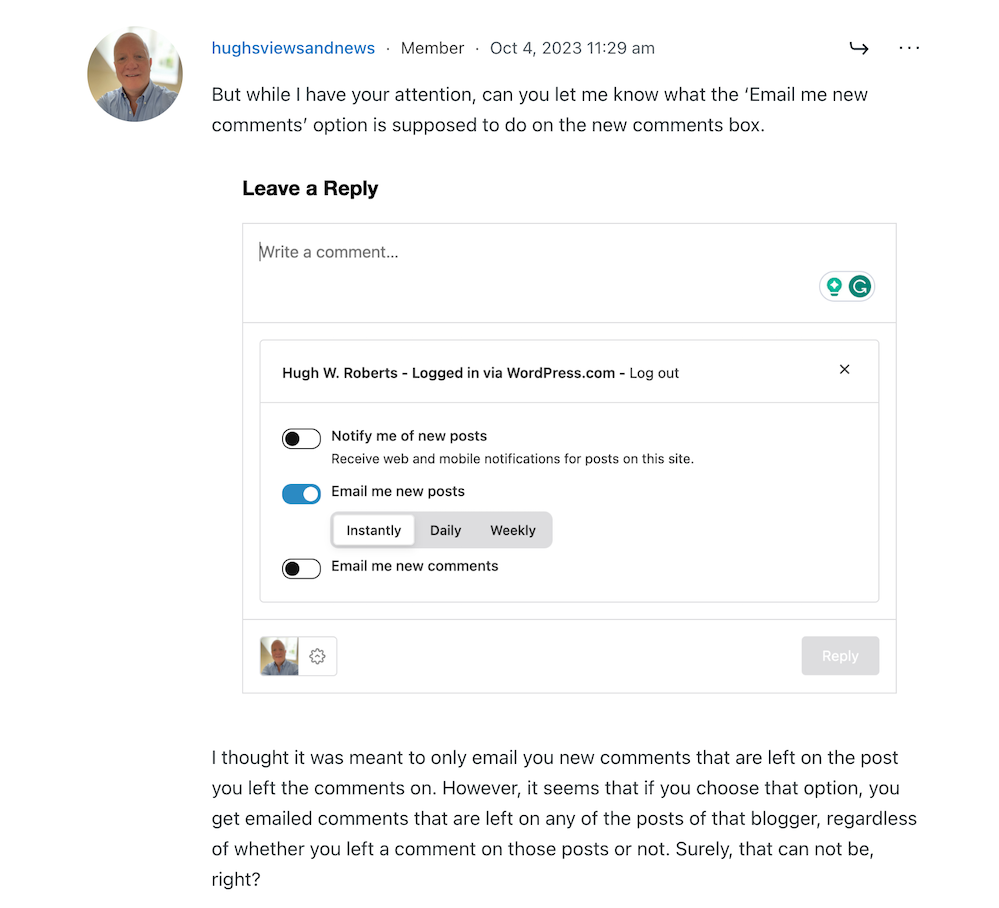
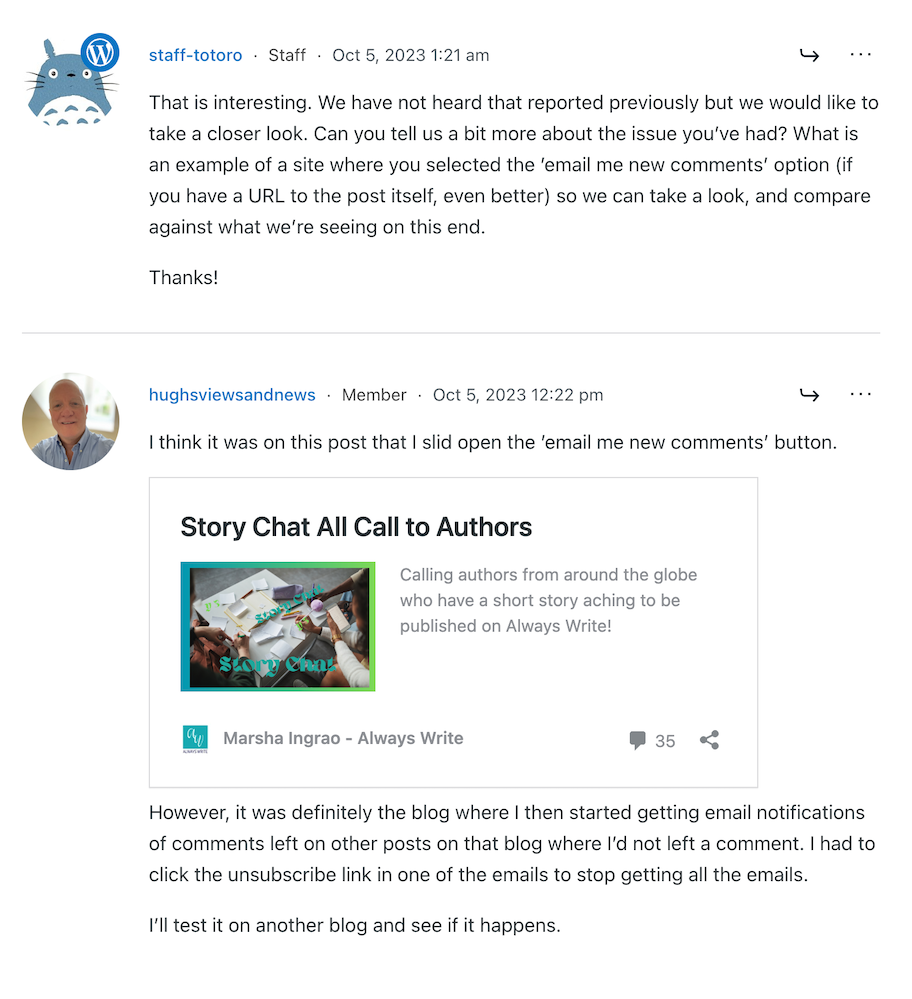
I’ve reported the issue to WordPress, and they’ve replied. See the screenshots below. However, I’m not the only one who reported this particular problem.

Image showing discussion on WordPress forum regarding email notifications about comments
Images showing a discussion on WordPress forum about emails and commenting.
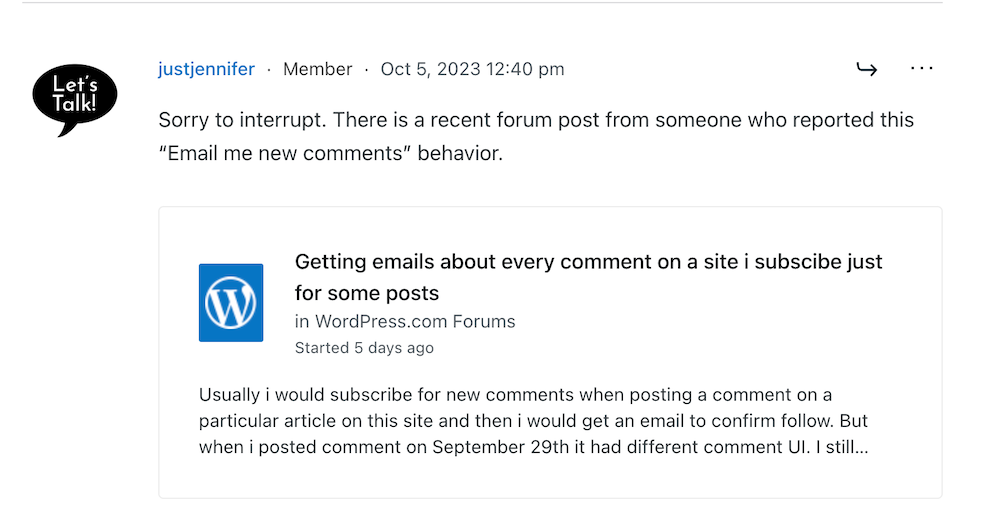
Image showing another blogger who has reported email notification problems on WordPress
Somebody else has reported the same problem.
Image showing a response from WordPress to my concerns regarding problems with email notifications from WordPress
A response from a member of staff at WordPress

That was the last response from WordPress, but I’ll update this post with any developments.

Some good news – My spam box is empty!

Is it only me, or has anyone else seen a drastic reduction in spam since the new comment box appeared? I used to get hundreds of spam messages to scroll through every day, but now my spam box is empty almost every day – hooray!

So, there is no need to close comments off posts anymore if WordPress has waved a magic wand and stopped the spam once and for all. Hooray – that means I can leave comments on blog posts that are more than a month old.

Are you having any of the problems described in this post or any issues with leaving comments or receiving WordPress notifications as a whole? Has the amount of spam you’re getting plummeted? Let me know in the comments section.

Follow Hugh on Social Media. Click on the links below.

If you enjoyed this post and want more like it, enter your email address and click ‘Subscribe’ to stay up-to-date with my latest content.

Layout, content, settings, and format might differ on self-hosted blogs.

Copyright @ 2024 hughsviewsandnews.com – All rights reserved.
How To Find Free Photos And Images On WordPress: Why You Should Use Them.

I’ve published many posts about the perils of using copyrighted images and photos. Several bloggers I know have been fined for downloading copyrighted images and photos, including when they reblogged posts.

Did you know that WordPress offers free, high-quality images and photos to enhance the visual appeal of your WordPress website or blog?

You’re searching for the right image for your new blog post. Rather than doing a Google search in a separate tab — and running the risk of using an image you don’t have rights to — use the free images and photos WordPress offers.

Light blue image with the words 'How To Find Free Photos And Images On WordPress: Why You Should Use Them' in white text
Did you know that WordPress offers users free photos and images?

To avoid any chances of being fined for using copyrighted images and photos, the best advice is to always try and use your own photos and images in your blog posts.

Of course, you could choose not to include any images or photos, but given that posts that include photos or images get 70% more traffic, you should add at least one image or photo to all your blog posts.

Where Do I Find The Free Images And Photos WordPress Offers?

  • Add an Image block to your blog post.
  • Click on the ‘Select Image‘ link to open a new menu.
  • The free images and photos are under ‘Pexels Free Photos‘ and ‘Openverse‘.
Image highlighting where to find Pexels Free Photos and Openverse in the media library of a WordPress blog.
WordPress offers hundreds of free images and photos to all WordPress users.

Pexels Free Photos

  • When you click Pexels Free Photos, a new window will open that includes a search bar.
  • Add a description of the image or photo you are looking for in the search bar and click the ‘Search‘ button.
  • Look through the results, click the image you want to use and click the ‘Select‘ button.
  • Click the ‘Load More‘ button at the bottom of the page to see more results.

When you select an image from Pexels Free Photos, it is downloaded to your media library. Remember to add information about the image to help readers with sight impediments and who may use speech software on their devices.

WordPress will have already completed the title of the image or photo and added credit details, so the only information you need to add is Alt Text and Description.

Openverse

Openverse works like Pexels Free Photos. It’s a search engine for openly licensed media, which gives access to over 600 million Creative Commons licensed and public domain image and audio files. All files can be used free of charge.

You can use the search box to find content licensed for commercial use and content that may be modified.

If you use any images or photos from Openverse, they are downloaded to your media library. You’ll need to complete the Alt Text and Description boxes, giving the image/photo details.

It’s Not Only WordPress That Offers Free Images And Photos.

Several websites offer free images that you can use on your WordPress website. These websites curate collections of high-quality images that are free to use, often under various Creative Commons licenses. Here are some popular websites you can explore:

Review and respect the license terms associated with each image when using images from these sites. Providing proper attribution to the photographer or the source is always good practice.

WordPress Plugins

Another convenient way to find free images within your WordPress editor is by using plugins specifically designed for this purpose. These plugins integrate with popular free image websites, allowing you to search and insert images directly from your WordPress dashboard.

Some notable plugins for finding free images include:

Installing and activating these plugins will add additional options to your media library, making browsing and selecting free images for your content effortless.

Note: Plugins are not available on all WordPress plans.

Image SEO Best Practices

While finding free images for your WordPress blog is essential, optimising any images or photos you use for search engines is equally crucial. Following some basic image SEO best practices can improve your blog’s visibility and attract more organic traffic. Here are a few tips:

  • Use descriptive filenames and alt tags that reflect the image content.
  • Optimise image file sizes to improve site loading speed.
  • Add relevant captions and descriptions to provide more context.
  • Ensure images are responsive and look good on all devices.

By incorporating these strategies, you enhance the visual appeal of your content while improving your blog’s overall SEO performance.

Let’s Wrap It Up.

  • Finding free images and photos for your WordPress website or blog is easier than ever.
  • Whether you explore the WordPress options, leverage free image websites, or use dedicated plugins, the possibilities are abundant.
  • Adhering to image licensing requirements and optimising your images for SEO will ensure a visually appealing and optimised blog.

So go ahead and utilise the resources available to you, and make your WordPress blog shine with stunning images that complement your content!

Remember, a picture is worth a thousand words.

Disclaimer: Always review and respect each image’s terms and conditions and licensing rights. The information provided in this article is for educational purposes only and should not be considered legal advice.

Where do you get the images and photos you use on your blog? If you have any questions about using free images and photos on your blog, leave them in the comments section. Alternatively, please join the discussion and conversation if you’d like to add any information about using free images and photos.

Layout, content, settings, and format might differ on self-hosted blogs.

Follow Hugh on his social media platforms by clicking the buttons below.

If you enjoyed this post and want more like it, enter your email address and click ‘Subscribe’ to stay up-to-date with my latest content.

Copyright @ 2024 hughsviewsandnews.com – All rights reserved.
What Kind Of Comments Are The Best To Leave On Blog Posts?

My blogging friend Brenda, who blogs at Curiosities, Castles and Coffee Shops, publishes a series of blog posts where she introduces a new blogger and shares some wonderful blogging tips.

In her recent post, Brenda talks about using prompts to get ideas for blog posts, especially when we struggle to find something to write about. She mentions the daily WordPress prompt, which asks a question bloggers can respond to in a blog post.

I won’t go into all the details of Brenda’s excellent advice, but it got me thinking about the subject of comments.

Light blue image with the words 'What Kind Of Comments Are The Best To Leave On Blog Posts?' in white text.
What kind of comments do you leave on blog posts?

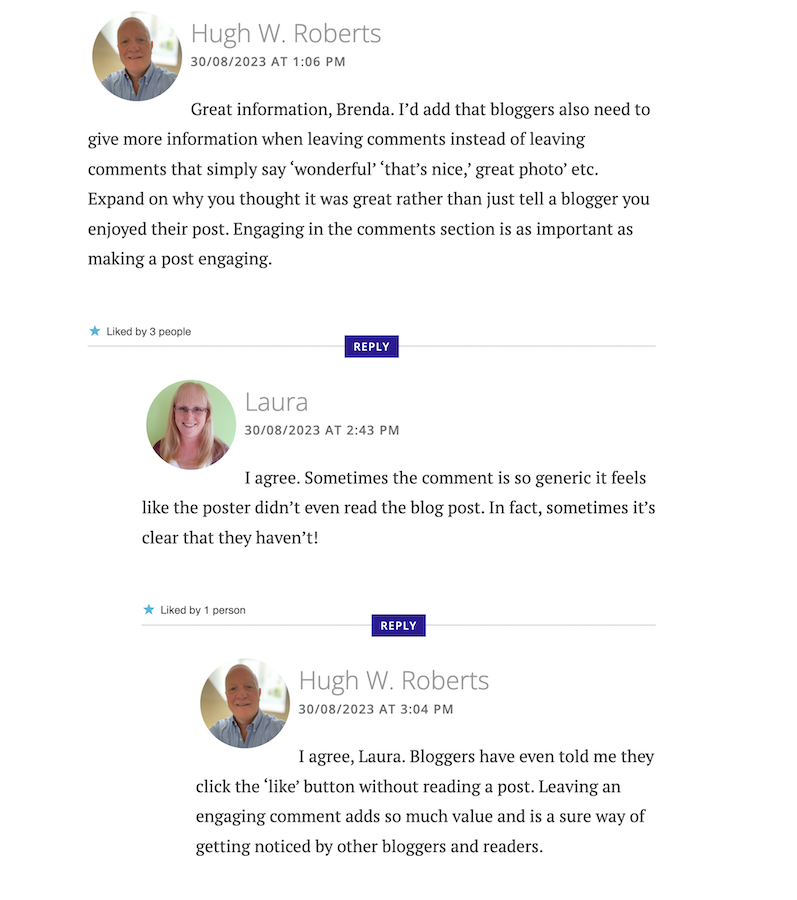
I left a comment on Brenda’s post, which sparked a conversation with another blogger, Laura, who blogs at Keeping It Creative.

The following screenshot is just a small part of the conversation Laura, Brenda, and I had about the subject of comments.

Image showing engaging comments between bloggers on a blog post.
Are your comments engaging?

Our conversation got me thinking about the overall subject of comments and how I’ve noticed a big difference in the comments being left on blogs.

When I first started blogging, the majority of bloggers had conversations and discussions in the comments section with each other about the subject of the post. But over time, that trend seems to be dwindling which had me asking the question –

‘What has happened to the art of conversation and discussion in the comments section of blogs?’

Gone are the days when many readers left comments that not only proved they’d read the post but also gave feedback that opened discussion and conversation.

Now, it seems, some bloggers leave comments with little, if any, way of responding to them other than with a ‘Thank you.’ Comments such as –

  • ‘I enjoyed this.’
  • ‘Wonderful.’
  • ‘This is a great read.’
  • ‘Well done.’
  • ‘Great interview.’
  • ‘You did a great job.’
  • ‘Another great story.’
  • ‘Great authors and books.’
  • ‘Great post.’
  • ‘Thanks for sharing this.’

Or worse, a comment that includes nothing but emojis.

Yes, some of those comments sound encouraging, but as Laura said in her comment, ‘Sometimes a comment is so generic, it feels like the person leaving the comment never read the post.’

None of the above comments mention anything about the contents of the post.

Why do people leave short, non-engaging comments?

There are probably some genuine reasons for leaving non-engaging comments all over the blogging world, but what are they?

I hope some of the reasons will be left in the comments section of this post. I’m interested in knowing.

Some bloggers claim they don’t have the time to leave longer, engaging comments because they don’t have the time to leave them. Some have too many other blogs to visit. Some rush around the blogging world because they only have so much time to visit and comment on as many posts as possible.

But in contrast, if they didn’t feel obliged to visit these blogs to leave short, non-engaging comments, they could free up some time to leave a few engaging comments that open up discussion and conversation.

Then I got this comment from Janice, who blogs at Mostly Blogging.Com.

Image of a conversation saying that it is no longer trendy to leave comments on blog post.
Is it no longer trendy to leave comments on blogs?

I was shocked by what Janice told me. Is it really no longer trendy to leave comments on blogs? Are readers only wanting information, not a community?

The other side of the blogging coin.

It’s not only some of those visiting posts at fault for leaving short, non-engaging comments. Some bloggers respond to engaging comments that clearly show they want to discuss the contents of a post by saying nothing more than a ‘Thank you.’ They instantly cut off engaging with their audience.

What are engaging comments?

  • They contain information that proves the post has been read.
  • They are written in an engaging, friendly manner.
  • They are at least a couple of sentences long.
  • They indicate that you want to discuss the contents of a post further with who wrote the post.
  • Include any questions about the contents of a post.

And let me reassure you that you should never feel guilty for not leaving a comment or feel obliged to leave one on any blog. There is nothing wrong with clicking the ‘like’ button and moving on after reading a post if you’ve nothing of value to add.

I don’t enjoy having to reply to any comment with just a ‘thank you.’ I want to get into a discussion or conversation about the contents of my posts and what made whoever left a comment say what they said.

For example –

  • Why did they think the post was good?
  • What was it that made them enjoy reading the post?
  • Why was it a great read, story or interview?
  • Was it the way the post was written or some of the answers given? If so, which ones?
  • Did the post strike a cord? Why?
  • What parts did they like/dislike the most?
  • Was it something new they learned? If so, what, and how will they use the new information?

I’ve stopped leaving comments on blogs unless I’ve something of value to add.

And I never feel guilty for not leaving a comment.

I don’t need to prove I’ve visited a blog.

I don’t need to make anyone think I’ve read their post.

I don’t feel obliged to follow and read posts on a blog simply because that blogger follows me and leaves me comments.

And nor should you.

So, what has happened to the art of conversation and discussion in the blogging world? Is it dead, or have I, as a blogger who enjoys discussion and conversation, become a minority in the blogging world? Is it no longer trendy to leave comments? Join the discussion and conversation by letting me know what you think in the comments section.

My post, This Is Why It’s Important To Leave The Right Comments On Blogs: 9 Ways, may also help you to improve the types of comments you’re leaving.

Follow Hugh on social media. Click the buttons below.

If you enjoyed this post and want more like it, enter your email address and click ‘Subscribe’ to stay up-to-date with my latest content.

Copyright @ 2024 hughsviewsandnews.com – All rights reserved.
Is Your Blog A Friendly Welcoming Place? This Is How Not To Run A Blog

The other day, I came across a wonderfully written blog post after clicking a link on Mastodon. But the trouble was that I seemed to be the first visitor to that blog, even though the post had been published in May 2023. But it didn’t end there.

Light blue image with the words 'Is Your Blog A Friendly Welcoming Place? This Is How Not To Run A Blog' in white text.
Don’t do this with your blog.

I always find it sad to discover a well-written blog post over a few months old that has captivated me but generated no comments or likes. It’s like it’s been cut adrift, floating around in the deepest, darkest part of the blogging world, where few venture.

Yet there are blog posts I lose interest in after only reading the first few lines that have hundreds of likes and lots of comments.

Not all of those likes will have been generated by people who read the post, and I call many of the comments dead-end comments that fail to ignite any proper discussion.

What are the clues to an unwelcoming blog?

I couldn’t help but feel sorry for the blogger whose post I’d found via Mastodon. I wondered how they feel when they see other badly written posts that have generated lots of likes and comments.

Of course, just because a post has no comments and nobody has clicked the like button doesn’t mean nobody has read it, but how must that blogger feel when they see that their post hasn’t generated any engagement? Do they feel sad or cheated, or do they not care because they wrote and published the post just for themselves?

Looking more closely at the rest of the blog where I found the post, I did find some clues as to why nobody seems to be visiting and engaging with it.

For a start, none of the 15 posts had been categorised. They were all uncategorised. One of the posts was password-protected, so you could not see the contents unless you knew the password. And there was no information about how to obtain the password.

None of the posts had tags attached, meaning they would not appear on any search results page.

Although there was a ‘Contact the Blogger’ page, the ‘About the Blogger’ page contained only a photo. Who is this person? Where in the world are they located? What do they blog about? What are their interests? Why do they want you to read and follow their blog? All you can do is guess the answers to these questions.

Their first post was published in January 2019, meaning, on average, they only publish 4 blog posts a year. Not a lot, you may think, but I’ve seen blogs that publish one post every three months do well.

Imagine my delight when I checked the other 14 posts and found one with a single comment. Somebody had discovered this blog before I had. Somebody had visited, looked around, liked what they had found, and left a lovely comment. But this blog was lifeless, like an uninhabited planet; there was no response to the comment. Whoever was here three years before I arrived had left empty-handed.

The overall look of the blog was clean and simple. No fancy menus or widgets to click, so it was more of a place where visitors could hang out and engage. Yet, the sheer fact that there seemed to be nobody there had probably put visitors off from following and engaging.

I tried contacting the blog’s owner, but my words bounced back as an echo in this deserted, uninviting place. Maybe they only check in to their blog every three months. We’ll wait and see, but I think I’ll prepare my spaceship and visit another new blog where I hope I find some inhabitants who want to engage with more than just themselves.

Follow Hugh on social media. Click the buttons below.

If you enjoyed this post and want more like it, enter your email address and click ‘Subscribe’ to stay up-to-date with my latest content.

Copyright @ 2024 hughsviewsandnews.com – All rights reserved.
Is It Possible To Add Images And Photos To Comments On WordPress? Yes! Here’s How.

Have you seen images and photos in the comments section of blog posts and wondered how they were left there? It’s something I’ve written about before and, given the many changes at WordPress since I last wrote about it, deserves an update.

Light blue image with the words 'Is It Possible To Add Images And Photos To Comments On WordPress? Yes! Here's How.' in white text
Yes, it’s possible to leave photos and images in comments on WordPress blogs

When it comes to adding images and photos to comments, we have to be careful with what we add. We should always ensure the photo or image has a connection to the subject of the post we’re leaving the comment on. And not only that.

If a blogger invites readers to leave photos and images (such as in a photography challenge), then go ahead and leave them.

However, leaving an image or photo just for the sake of doing so is frowned upon by many bloggers, who will mark them as spam. And given that blogs are attacked by spammers daily, I don’t blame bloggers marking uninvited images and photos as spam.

I’ve added images and photos to the comments sections on my blog posts and the comments I have left on the blogs of other bloggers. However, unless I’ve been invited to leave an image or photo, I won’t leave them.

While many bloggers will be happy for you to leave images and photos, it’s always polite to ask first.

How to add images and photos to your comments

  • Add the image or photo to your WordPress media library.
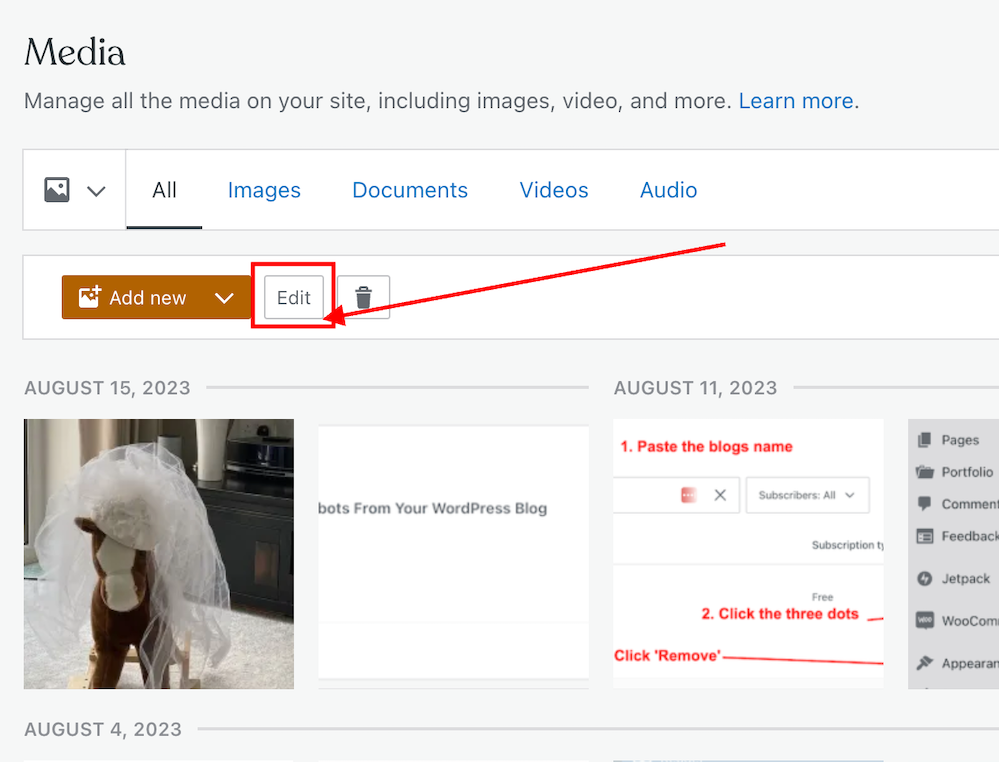
  • Once the image has been added, click it and click the edit button to open it.
Image highlighting the 'Edit' button of a photo in the WordPress media library.
Click the edit button of the photo or image you want to add to a comment.
  • On the righthand side of the screen, you’ll see a window where you can add details about your image. It’s important to complete these details (see the image below).
  • Click the ‘Copy‘ button in the URL box.
Image highlighting the URL address of an image or photo in the WordPress media library.
Copy the URL address of the image or photo.
  • Paste the URL address into your comment.
  • Do not, at this stage, submit your comment as you need to edit one part of the text within the link.
  • Carefully delete the ‘s‘ from the ‘https‘ at the beginning of the link address, so it reads ‘http‘. (If you do not delete the ‘s‘ the image will not show in the comment).
  • Ensure your link ends with ‘.png’ or ‘.jpg’. If it doesn’t, delete any text after ‘.png’ or ‘.jpg’.
  • You can now submit your comment.

The image will now show on the comment. However, remember that if you are leaving an image in a comment on another blogger’s blog, they may have to approve it (and may even remove the link to the image) before it shows up.

I’ve only found this to work on WordPress.Com blogs. On self-hosted blogs, only the link to the image is visible rather than the image appearing. However, those clicking on the link will see the image.

Note – Not all images and photos will show if the security settings on your web browser are set high. However, this does not affect the photos or pictures you leave in the comments of your own blog posts. I recommend that you not change the security settings on your web browser.

Let’s wrap it up.

  • Yes, it is possible to insert images and photos into comments on WordPress.
  • After inserting the URL address of the image, ensure you remove the ‘s‘ from the beginning of the URL so that ‘https’ becomes ‘http.’
  • Only leave images and photos in comments if invited to do so or if you have asked for permission to do so first.
  • If the security settings on your web browser are set high, images and photos may not show. However, this does not affect the photos or pictures you leave in the comments of your own blog posts.

Want to give inserting an image or photo into a comment a go?

Leave me a comment with the link to your image. Perhaps it can be a photo of your latest book cover or of a family pet. I’ll leave it up to you, but only family-friendly images and photos, please.

If you have any further questions about inserting images or photos into the comments, leave them in the comments section.

Layout, content, settings, and format might differ on self-hosted blogs.

Follow Hugh on social media. Click the buttons below.

If you enjoyed this post and want more like it, enter your email address and click ‘Subscribe’ to stay up-to-date with my latest content.

Copyright @ 2024 hughsviewsandnews.com – All rights reserved.

9 Hidden Useful Tools You May Not Know About On The Posts Page Of A WordPress Blog

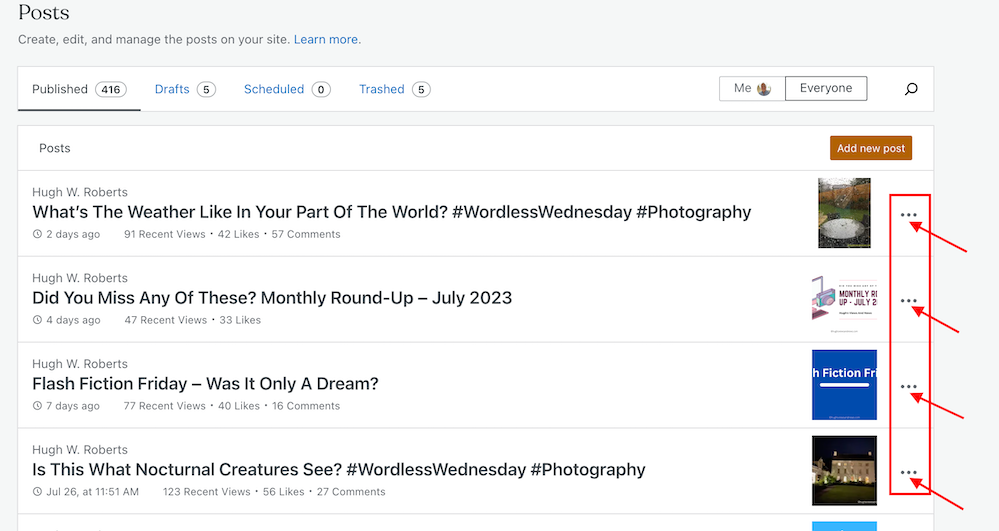
Have you noticed the three horizontal dots next to your blog posts when viewing the ‘Posts‘ page of your blog’s dashboard on WordPress? If not, you’re missing out on some useful tools that will help save you time when blogging and make your blog posts appeal to even more readers.

Light blue image with the words '9 Hidden Useful Tools You May Not Know About On The Posts Page Of A WordPress Blog' in white text
Have you discovered these 9 hidden blogging tools on WordPress?

For the purpose of this post, I’m viewing my blog’s dashboard in ‘Default‘ view.  

These three horizontal dots are known by numerous names, my favourite being a ‘Meatball Menu.’

Not sure what I’m referring to? Here’s a screenshot pointing out the meatball menu on the dashboard of the posts page of my blog.


Image highlighting a meatball menu on the posts page of a WordPress Blog
The Meatball Menu.

When you click on the meatball menu against a post, the three horizontal dots change to three vertical dots (known as a kebab Menu), and nine options appear.

Let’s investigate each option. 

Edit

  • Click this button to edit or update a post. Useful when spotting mistakes. Don’t forget to press the Update button to save any changes you make. 

View

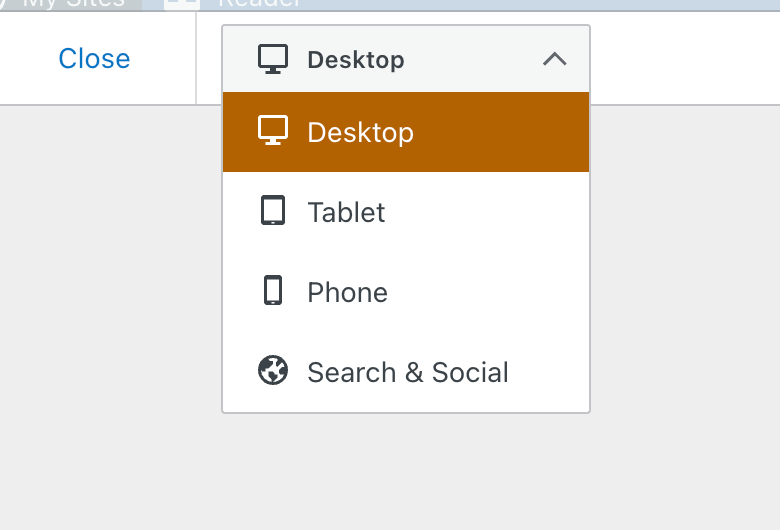
  • This button does more than just show a preview of your post. It also offers the option of previewing the post as it appears on a desktop computer, tablet and phone. You should always preview your posts before publishing them.
Image showing the display menu when clicking the 'view' option on the posts page of a WordPress blog.
See your post in desktop, tablet and phone form.
  • The Search & Social button (at the bottom of the menu) allows you to preview your post as it appears on Facebook, Twitter (now known as X), and a Google search. 
  • I recommend you always preview your post first to ensure they are mobile-friendly, especially given that most people now read blog posts on tablets and phones. 

Promote With Blaze

Blaze is a way to pay to have a post advertised by WordPress, putting it in front of thousands of new readers.

You can advertise a post or page on some of the millions of pages across WordPress.com and Tumblr from $5 per day. This option is not available to bloggers who have a free WordPress plan.

Stats

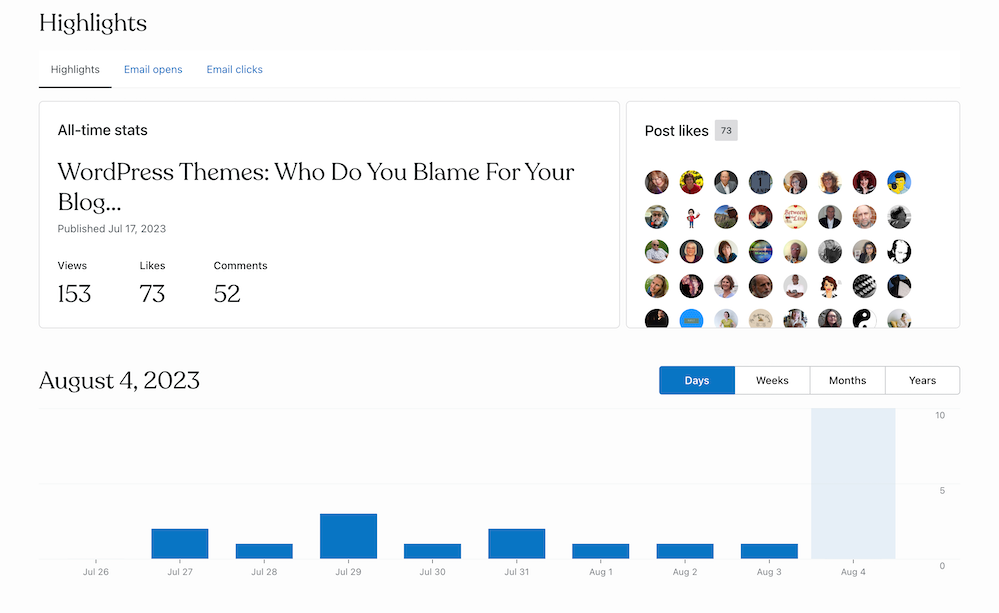
  • Click ‘Stats‘ to check a post’s latest daily, weekly, monthly, and yearly stats.
  • For some WordPress plans, you can view a post’s stats for emails opened and how many people who got the email clicked the link to view the post.  
  • You can also view who clicked the ‘like‘ button on the post and how often ‘like‘ has been clicked. 


Image showing stats for a blog post when clicking the stats option in the kebab menu
What’s behind the ‘Stats’ option?
  • Under ‘Post Likes‘, hover your mouse over any of the profile icons to display the blog name of the blogger.
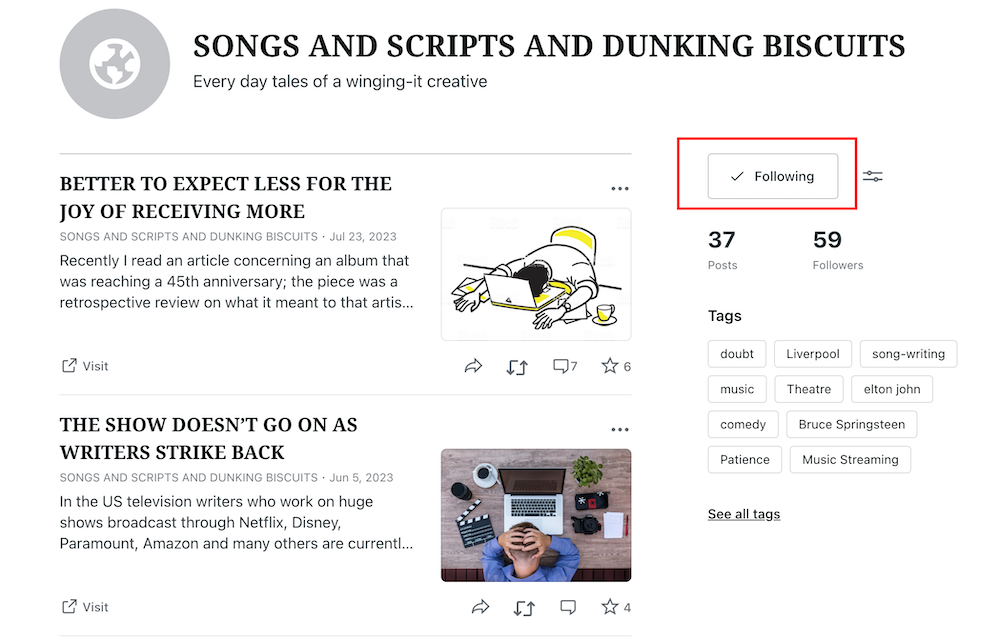
  • Click on an icon to view a list of that blogger’s blog posts, how many posts they have published, how many followers they have, a list of their most popular tags, and a follow button (WordPress.Com bloggers only). This is a great way to find new blogs to follow.
  • If you’re already following a blogger who has clicked ‘like‘, the ‘follow‘ button will be replaced with the word ‘following.’ 


Image showing details of a blog of somebody who clicked 'like' on a post.
Are you following somebody who clicked ‘like’ on your post?
  • To unfollow, click the ‘Following‘ button. 

Comments

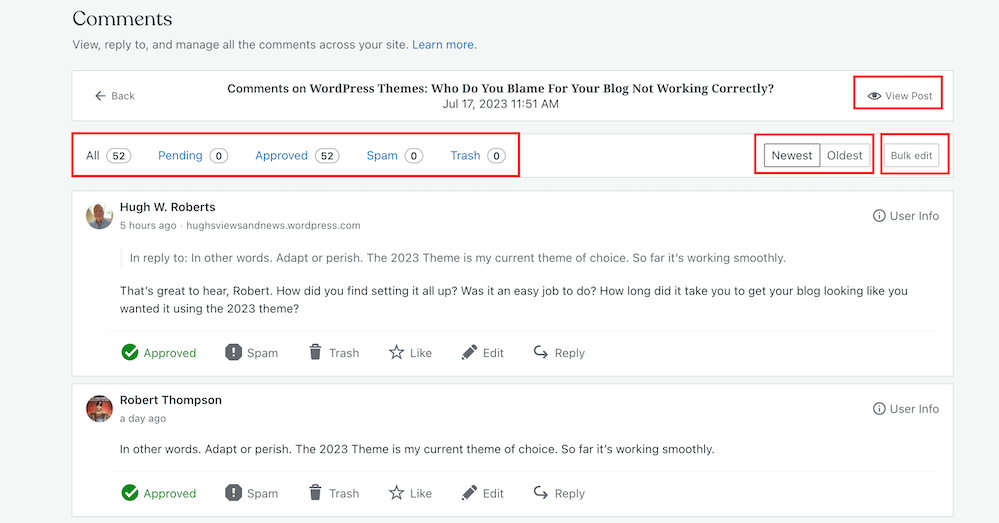
View all the comments that have been left on a post.

Along the top, you can view the following information for a post. 

  • The number of comments it has received.
  • The number of comments that are pending (waiting for approval).
  • The number of comments that have been approved.
  • The number of comments you or WordPress have marked as spam.
  • The number of comments that have been sent to the trash folder.
  • Your replies to comments also show on this page.

You can also sort comments by newest first and oldest first.

With just one click, the ‘bulk edit‘ button allows you to perform a command (approve, un-approve, send to spam, send to trash). However, the ‘bulk edit‘ is only done per page, so if the post has many comments, you’ll need to bulk edit each page.

Image showing options in the comments section of a WordPress post.
An easier way to view comments on a post.
  • You can also perform the following under the comments link –
  • View the post.
  • Approve a comment.
  • Mark and send a comment to the spam folder.
  • Send a comment to the trash bin.
  • Like a comment.
  • Edit a comment.
  • Reply to a comment.

To the right of each comment is a ‘User Info‘ button. Clicking on this button reveals the following information. 

  • The name of the commenter’s WordPress blog. 
  • The commenter’s email address.
  • A link to the commenter’s blog/website.
  • The IP address of the commenter.

You’ll also see a ‘Block User‘ button when clicking ‘User Info.’ If you press ‘Block User,’ any further comments from that user on any of your blog posts are sent directly to your WordPress trash folder. 


Share

  • This neat button allows you to auto-share details of the post to the social media accounts WordPress have an auto-share facility with which you have connected to your blog.
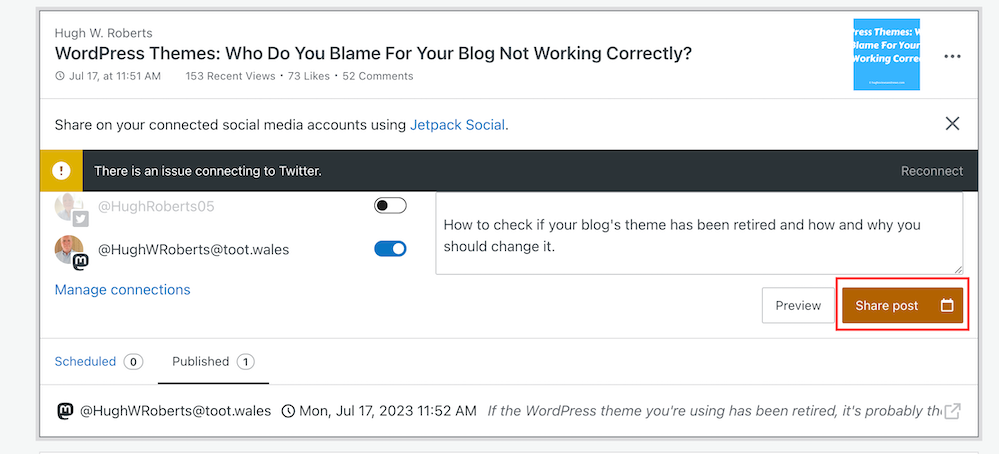
  • Click on the ‘Share Post‘ button to share the post.
Image showing the auto-sharing facility behind the 'sharing' option on WordPress.
Have you set up auto-sharing for your blog posts?
  • The preview button displays your post’s appearance on Facebook, Twitter (now X), LinkedIn, Mastodon, Instagram Business and Tumblr (provided you have set up auto-sharing with them).
  • You can also manage all your social media auto-share connections by clicking on ‘Manage Connections.’  

Copy Post

  • This is my favourite of all the options on the kebab menu.
  • Not only will clicking on this button duplicate your post, but the categories and tags of the post are also copied over. 
  • This is especially beneficial if you run a daily/weekly/monthly blog challenge, series, or promotional posts on your blog.
  • It’s saved me lots of time by not copying, pasting, or redoing links, images, text, tags, and categories. 
  • I also use the ‘copy post‘ function for posts with the same layout (such as my ‘Wordless Wednesday’ posts. 
  • However, if you write excerpts for your blog posts (and I recommend you do), remember to change the excerpt before publishing the post. Otherwise, the excerpt may not make sense. 

Copy Link

  • A link to the post is copied to the clipboard of the device you are using. You can paste the link into an email, message, website, blog post, comment, etc. 

Trash

  • Clicking this button will send your post to the trash folder.
  • You can reinstate the post from the trash folder if you accidentally clicked it.

Let’s wrap things up.

  • There are nine hidden options available to WordPress.Com users on the page that displays their blog posts (and pages).
  • The options are hidden behind a menu known as a meatball menu.
  • The meatball menu opens up a kebab menu listing all available options.
  • Some of the options do exactly as they say on the can.
  • However, other options lead to lots more options and functions.
  • The comments option has a hidden ‘Block User‘ button – great for blocking comments from spammers or those you don’t want leaving comments anymore.
  • No need to copy and paste – The copy option copies an existing blog post and copies over the categories, tags and any images you have on that post, saving you lots of time.
  • It’s worth checking out all the options, especially as some are time-saving functions.

I hope you have found this post useful. If you have any questions, please leave them in the comments section.

Layout, content, settings, and format might differ on self-hosted blogs.

Follow Hugh on social media. Click the buttons below.

If you enjoyed this post and want more like it, enter your email address and click ‘Subscribe’ to stay up-to-date with my latest content.

Copyright @ 2024 hughsviewsandnews.com – All rights reserved.