
The Amazing New WordPress Comments Box: What It Does

Have you noticed the new style comment box on WordPress?

In line with the Block editor, WordPress has rolled out a new cool comment box on most WordPress blogs. While I’m writing this post, I still see a few blogs with the old-style comments box, but I’m confident all WordPress blogs will soon display the block-style comment box.

The new style comments box appears on blog posts, but not when you add your comment via the comments box on the WordPress Reader.

Light blue image with the words 'The Amazing New WordPress Comments Box: What It Does' in white text
This new comments box can do more than just leave comments

For the purpose of this post, I’m using an iMac desktop computer.

Here is a breakdown of what users can do when leaving comments on blogs with the new block-style comment box.

What does it look like?

This is what the new style comment box looks like.

Image showing the new style block comment box on WordPress
WordPress Block Style Comments Box

It looks very simple, doesn’t it? And it is very easy to use. Your Gravatar image appears in the bottom left corner.

The comments box looks like this as soon you click in the box.

Image showing
Click inside the box to start typing your comment.

Notice the difference? A toolbar has opened along the top, and an ‘+‘ icon has appeared inside the comments box. Let’s examine what they do. I’ve numbered some icons in the following image.

Image highlighting the features of the toolbar on the block style comments box on WordPress
Features of the toolbar
  1. Block being used.
  2. Aline text
  3. Bold
  4. Italic
  5. Pingback link

1 – This is the type of block being used when commenting. It will always be the Paragraph block by default, but you can switch to the List or Quote block by clicking on it. If you change it to the List or Quote block, a new toolbar will appear.

2 – Use this icon to align text to the left, right or centre.

3 – Use this icon to make the text bold.

4 – Use this icon to make the text italic.

5 – Use this icon to create a pingback.

Most readers only use text when leaving comments and they will never feel the need to align it or make it bold. However, many bloggers want more.

You can now insert other blocks into the comments box by clicking the ‘+‘ icon. For example, you can now easily insert an image in your comment by clicking the ‘+‘ icon and choosing the Image block.

Image showing an image placed into the block-style comments box on WordPress.
Copy and paste the URL address of the image you want to add.

How cool is that? (not the photo of me, but the fact that I can add an image to the comments). This is especially good for participating in photography challenges without creating a blog post or when explaining something where including an image or screenshot helps.

I want to mention that you can create pingbacks in your comments. Pingbacks are powerful and can help boost visitors to your blog. We could already add pingbacks when using the Classic view on our blog’s dashboard but we can now finally do it using the Default view.

Image showing how to create a pingback in the comments box on WordPress
Create pingbacks in your comments.

Are you unsure how to create a pingback? My post, The Power Of Pingbacks: How To Create One, provides full details.

Before submitting your comment, remember to click the small settings cog next to your Gravatar photo to open a new menu. Why?
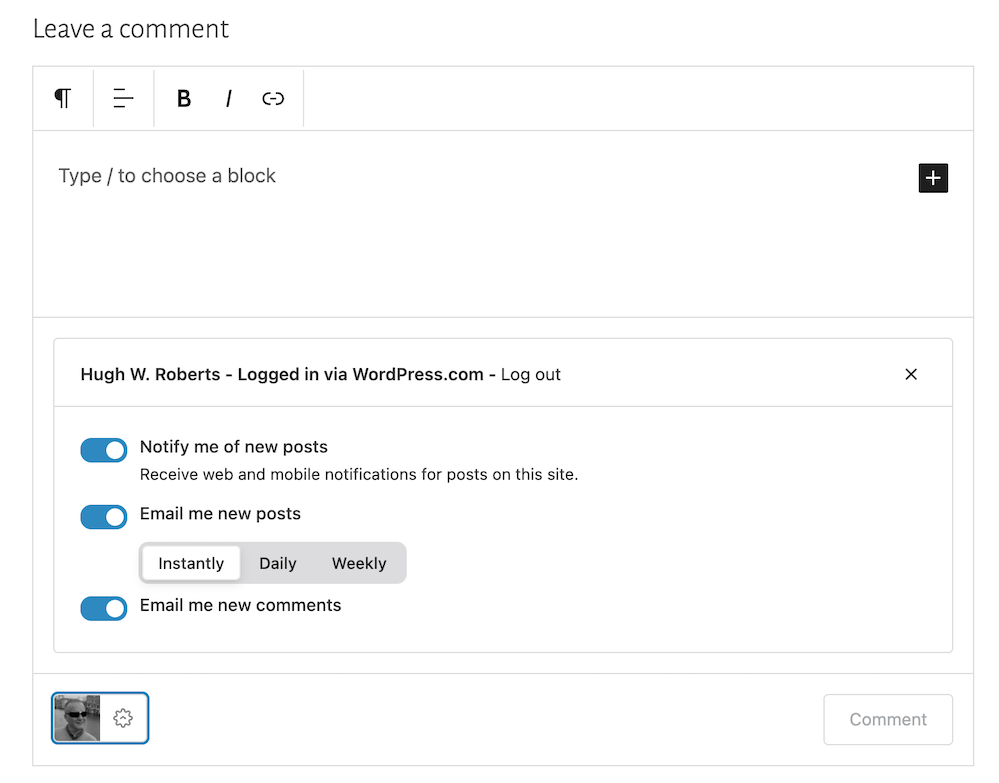
Image showing the new menu that opens when clicking the settings button next to a Gravatar profile in a Block-style comments box on WordPress
Click the settings cog next to your Gravatar picture for a new menu.

Not only will the menu that opens confirm if you are logged into WordPress, but you can also sign up to receive web and mobile notifications for posts on the blog you are leaving your comment on, get email notifications of new posts, and receive email notifications of any new comments left on the post (including a response to your comment from the blog host).

Press the ‘Comment‘ box to submit your comment.

Is this true?

I’ve heard that some bloggers are threatening to stop leaving comments or are thinking of leaving WordPress because of the introduction of the new block-style comment box.

Given that the bare minimum somebody has to do to leave a comment is to type their comment into the box, I find it hard to believe that people are threatening to stop leaving comments or leaving WordPress because of the introduction of this new comments box. If you are, please reconsider your decision.

The new block-style comments box is not hard to use; it’s just a little different!

Update

Users can now disable blocks in comments. Go to Settings – Discussions, and in the ‘Comments‘ section of the page, turn off ‘Enable blocks in comments.’ Remember to save the change.

WordPress’s new comments box style is a refreshing update that enhances the user experience. Its modern and intuitive design makes interacting with comments more enjoyable. If you have any questions about it, feel free to leave them in the comments section. I look forward to hearing your thoughts!

Layout, content, settings, and format might differ on self-hosted blogs.

Click the buttons below to follow Hugh on Social Media

Copyright @ 2024 hughsviewsandnews.com – All rights reserved.
Are You Getting ‘Anonymous’ Blog Comments? How To Stop Them.

Encouraging visitors to join the conversation on my blog posts and those of other bloggers is a must for me. Personally, if I can’t quickly leave a comment on a blog post, I’ll move on to the next one.

It’s one of the reasons why I use WordPress, as I’ve found it difficult to leave comments on other blogging platforms. What about you?

I firmly believe that we should prioritise making it effortless for blog visitors to leave comments. It’s crucial not to burden them with unnecessary obstacles when they want to engage with us. But that comes with the cost of receiving comments from anonymous readers. But is that a problem?

Light blue image with the words 'Are You Getting 'Anonymous' Blog Comments? How To Stop Them.' in white text.
Or should you make it easier for visitors to leave comments?

I’ve always received comments on my blog posts from visitors using ‘Anonymous’ or ‘Someone’ as their display names. But it has never bothered me because I can spot spam comments easily and guarantee that none will reach the comments section of my posts.

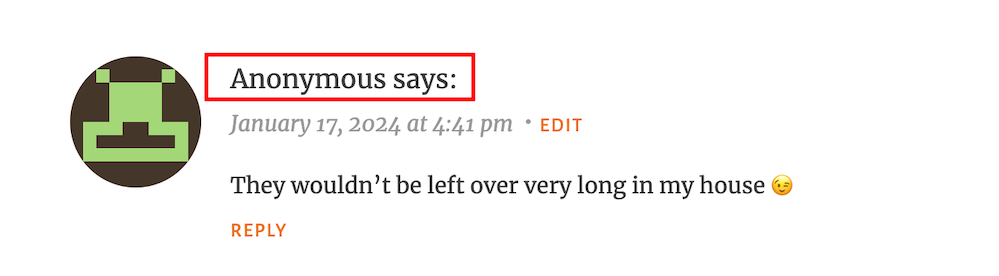
Here’s an anonymous comment I received recently.

Image showing what an 'anonymous' comment on WordPress
Do anonymous comments annoy you?

I wasn’t concerned when it appeared because it was left on one of my recent Wordless Wednesday posts about leftover chocolate, so I knew it was genuine.

Not knowing who the comment is from could pose a problem, but if it sounds genuine and has no uninvited or suspicious links, I’ll reply and approve the comment.

However, I’ll mark it as spam if it looks or sounds like a spam comment or contains any uninvited links. Oh! And I never approve comments that say ‘Nice Post.’ ‘Nice’ or ‘Great photo,’ regardless of who left them.

How do I make it easier for visitors to leave comments on my posts or prevent them from being anonymous?

In the blog settings of WordPress.Com blogs, there are settings which users can turn on or off to make it easier for visitors to leave comments or to prevent comments from being shown as anonymous.

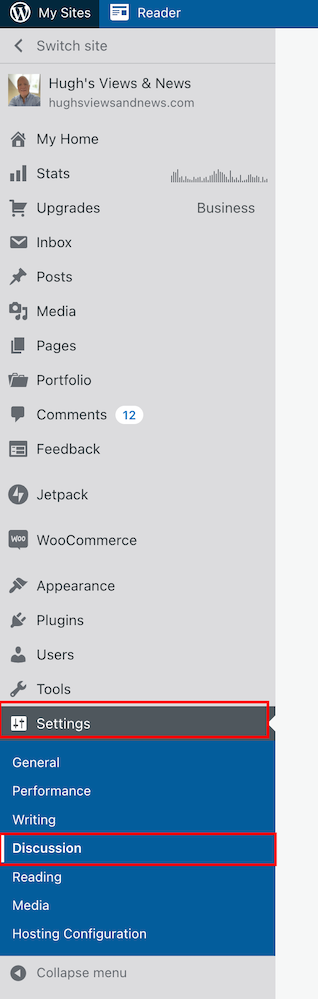
  • To find these settings on your blog’s dashboard, go to SettingsDiscussion and scroll down to the ‘Comments‘ section on the ‘Discussion Settings‘ page. I’m using WordPress on an Apple iMac desktop computer in these screenshots.
Image highlighting 'Settings' - 'Discussion' on a WordPress blog.
Click on Settings – Discussion
Image highlighting the 'Comments' section on the discussions settings page of a WordPress blog.
Scroll to the ‘Comments’ section.
  • If you want to make it easy for visitors to your blog to be able to leave comments, ensure you have the first two settings in the ‘Comments‘ section, ‘Comment author must fill out name and email‘ and ‘User must be registered and logged in to comment,’ switched off.
Image showing the settings to turn on or off depending how easy you want to make it for visitors to your blog to leave comments.
Switch on or off depending on how easy you want it to be for visitors to leave comments on your blog.
  • If you do not want comments on any posts showing as ‘Anonymous’, ensure those two settings are switched on. However, beware that turning these settings on will make it more difficult for some users to leave comments.
  • Turning these settings on means that users must either fill out their name and email address or be registered as a WordPress user and logged in to be able to leave a comment. Some users may not like giving this information to be able to comment.
  • Make sure you click the ‘Save Settings’ button if you make any changes.

And that’s it. Only you can choose whether to have these settings on or off. Go with what you feel most comfortable with.

Do you make it easy for visitors to your blog to comment, or do you prefer to only allow those willing to give their information to be able to leave comments? Is WordPress the best platform for engagement and for leaving comments? Let me know in the comments.

Is your blog as secure as it can be? Take this final step to make sure nobody can hack it. Take a look at my recent post for more details.

Is Your Blog Safe? One Security Feature You Must Have

Layout, content, settings, and format might differ on self-hosted blogs.

Click the buttons below to follow Hugh on Social Media

Copyright @ 2024 hughsviewsandnews.com – All rights reserved.
Experiencing Problems With Leaving Comments On WordPress? This Is What I Found. Read This Post Now

I’ve written about comments a lot over the last few months, so this seems like the ideal opportunity to discuss some problems with commenting on WordPress.

First, I want to discuss a problem with getting email notifications from WordPress whenever comments are left on my blog posts.

Light blue image with the words 'Experiencing Problems With Leaving Comments On WordPress? This Is What I Found. Read This Post Now' in white text.
Are you experiencing any of these problems with comments on WordPress?

I’ve stopped getting email notifications whenever anyone comments on one of my posts, so I have had to revert to checking for new comments on my blog’s dashboard.

It’s not a huge problem, but the email notifications act as a backup, so I know when comments have been left, and they also serve as a reminder that I have comments to respond to. I don’t delete an email notification until I’ve replied to a comment. That way, I don’t miss any.

I reported the problem on the WordPress Forum. That was over two weeks ago, and whilst I’ve had a lot of contact from WordPress staff, the problem is currently with their developers.

Is anybody else having problems getting email notifications of comments left on their blog posts? Or is it just me?

I’ve also reported another issue to WordPress. I’m wondering if any of the following are happening to you when leaving comments on other blogs?

Other problems with commenting.

Have you noticed that the comments box on WordPress has changed? The old comments box has been replaced with a new one (see the following image), but it seems to be causing me a few problems.

Image showing the new-look comments box on WordPress.
Have you noticed the new comments box on WordPress?

The above new style comments box has gradually been introduced to most blogs on WordPress.

You can write a comment, press the reply button, and move on pretty swiftly, but my concerns are with something hidden behind the settings (cog) button next to the icon that displays your Gravatar image. When you press the cog, you’ll see this.

Image showing the tree options available on the new-look comments box on WordPress.
There are three options to choose from in the new-look comments box.

See those three new options at the bottom of the comments box? Not only can you now get web and phone notifications of new blog posts from the blog you’re leaving a comment on, but you can set how often you get notifications of new posts.

These are not new, though. They’ve been available for use on WordPress for a long time but were buried deep in our blogs’ dashboard settings. Now, they’re much easier to find and use.

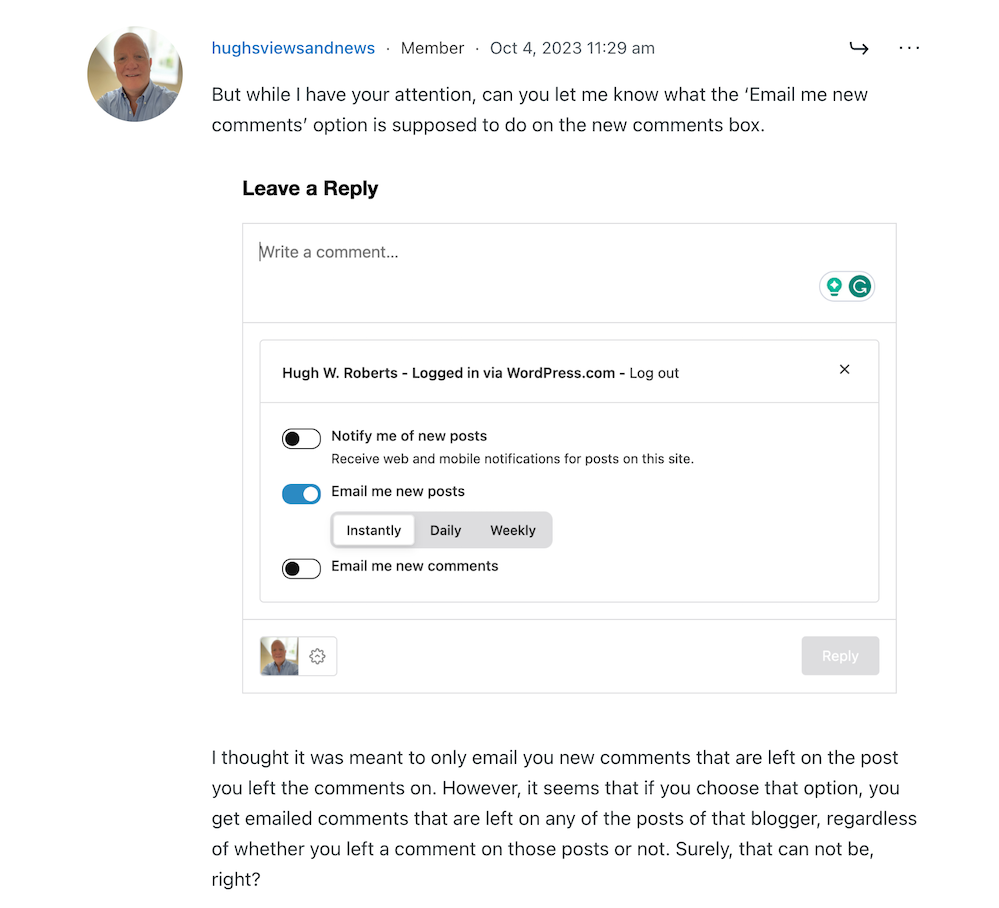
So far, so good, you may think, but it’s the ‘email me new comments‘ button that is causing me concern.

You see, I’m one of those bloggers who like to receive an email whenever anyone replies to a comment I’ve left on their blog or when anyone else leaves a comment on the post I’ve already commented on. It’s my way of knowing that not only have they responded to my comment but also a way for me to either reply to or ‘like’ the comment. I do not like the thought of any blogger thinking I’ve ignored their comment.

The problem now is that when you slide the ‘email me new comments‘ button on, not only do you get emailed comments for the posts you’ve left comments on, but you’ll get email notifications of any comment left on any of the posts on that blog regardless of whether you left a comment or not.

If the blog you’ve left a comment on is huge and gets hundreds of comments, this could become a big problem with your email box filling up quickly.

Needless to say, that is something I do want. I only want email notifications of comments left on the posts I left a comment on. Why? Well, I find that reading comments can sometimes be as interesting as the post they’re left on, plus comments often give me new ideas for blog posts.

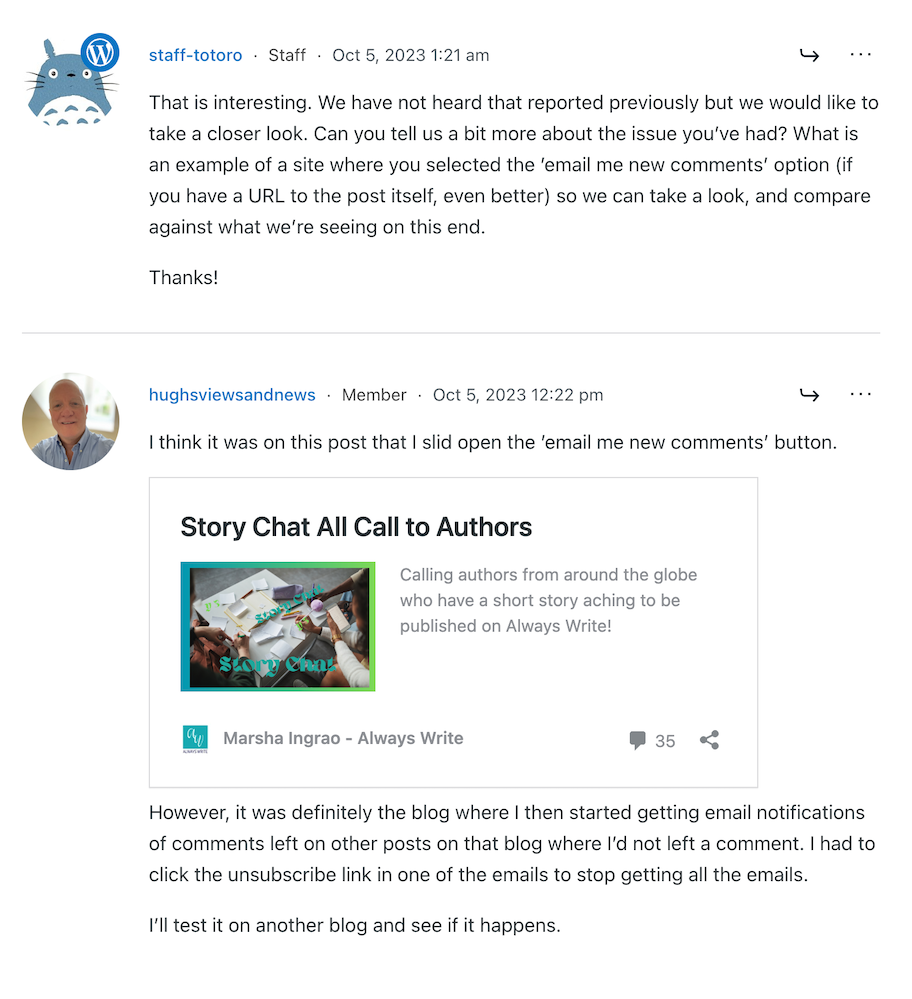
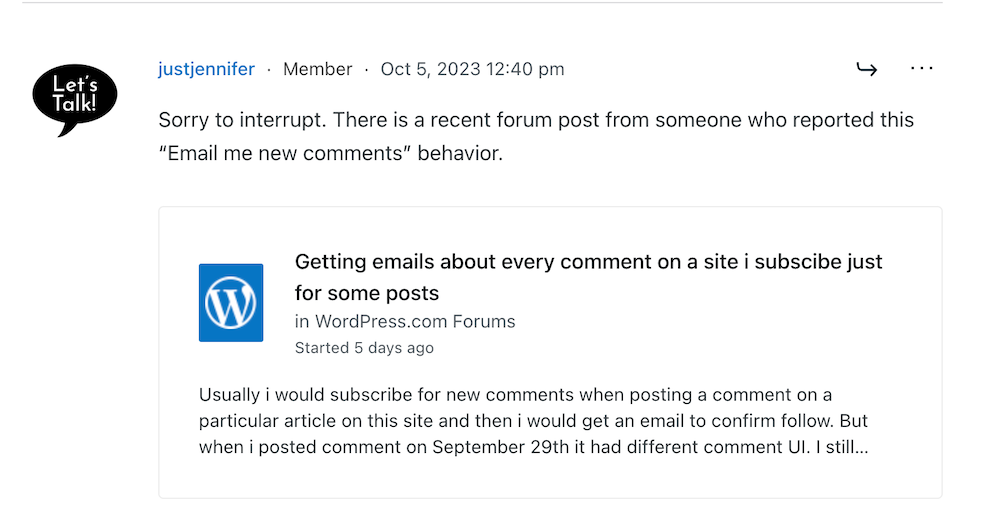
I’ve reported the issue to WordPress, and they’ve replied. See the screenshots below. However, I’m not the only one who reported this particular problem.

Image showing discussion on WordPress forum regarding email notifications about comments
Images showing a discussion on WordPress forum about emails and commenting.
Image showing another blogger who has reported email notification problems on WordPress
Somebody else has reported the same problem.
Image showing a response from WordPress to my concerns regarding problems with email notifications from WordPress
A response from a member of staff at WordPress

That was the last response from WordPress, but I’ll update this post with any developments.

Some good news – My spam box is empty!

Is it only me, or has anyone else seen a drastic reduction in spam since the new comment box appeared? I used to get hundreds of spam messages to scroll through every day, but now my spam box is empty almost every day – hooray!

So, there is no need to close comments off posts anymore if WordPress has waved a magic wand and stopped the spam once and for all. Hooray – that means I can leave comments on blog posts that are more than a month old.

Are you having any of the problems described in this post or any issues with leaving comments or receiving WordPress notifications as a whole? Has the amount of spam you’re getting plummeted? Let me know in the comments section.

Follow Hugh on Social Media. Click on the links below.

If you enjoyed this post and want more like it, enter your email address and click ‘Subscribe’ to stay up-to-date with my latest content.

Layout, content, settings, and format might differ on self-hosted blogs.

Copyright @ 2024 hughsviewsandnews.com – All rights reserved.
What Do You Feel About Blog Commenting? This Is What Two Bloggers Think

Light blue image with the words 'What Do You Feel About Blog Commenting? This Is What Two Bloggers Think' in white text
Are you leaving the right comments?

Comments play a vital role in fostering vibrant discussions within the blogosphere. They are the lifeblood of meaningful engagement, adding depth and diversity of perspectives to any topic.

But recently, commenting on blogs seems to be going in the wrong direction. 

My recent blog post, ‘What Kind Of Comments Are The Best To Leave On Blog Posts?‘ got many of you discussing various types of comments, but more importantly, the non-engaging comments that sadly seem to have become more popular than comments that spark valuable engagement, discussions and conversations.

If you haven’t read the post, please do and add your voice to the various debates. 

Today, I have the pleasure of presenting two captivating blog posts penned by talented bloggers about the subject of comments.

These insightful pieces delve into the diverse range of comments they receive on their blogs, offering a glimpse into their personal perspectives and emotional experiences.

The first is from blogger and writer Brenda, who blogs at Curiosities, Castles and Coffee Shops. Click the following link to read Brenda’s post and join the discussions her post has sparked.

Introductions over Coffee #11

The second post is from blogger and author Erika, who blogs at Share Your Light. Click the following link to read Erika’s post.

JUST A THOUGHT… – HAS IT CHANGED?

I urge those of you who enjoy engagement, discussions and conversations on blog posts to read both posts and add your thoughts to the discussions that Brenda and Erika have ignited on their posts.

I’m closing comments off here so that comments can be left on the posts I’m promoting today.

A big thank you to Brenda and Erika for taking the courage to open up about leaving comments – a subject many bloggers shy away from.

Follow Hugh on Social Media. Click on the links below.

If you enjoyed this post and want more like it, enter your email address and click ‘Subscribe’ to stay up-to-date with my latest content.

Copyright @ 2024 hughsviewsandnews.com – All rights reserved.
Is Your Blog Under Attack? Yes, It Is. 4 Easy Ways You Can Protect It

Every day, our blogs come under attack from various elements.

Just like protecting our families, pets, and anything else we value, we should do all we can to protect our blogs from threats.

Image with light blue background with the words 'Is Your Blog Under Attack? Yes, It Is. 4 Easy Ways You Can Protect It' in white text
Are you doing enough to protect your blog from threats?

Threats come in all sorts of forms, but there are a few simple steps you can put in place to keep your blog safe.

1. Comments

What do you do if you receive unfriendly comments or comments that do not agree with what you have said in your blog post?

I’ve blogged for nearly ten years, and, in that time, I have received a handful of comments that were not only very personal but were rude, racist or homophobic.  

Because I moderate all comments before they appear on my blog, I was able to stop these comments in their tracks. They were of the nature that did not call for a reply, and I simply marked them as spam and deleted them.

And it wasn’t only me that some of these unfriendly comments are aimed at.  

I often see rude, unfriendly comments and spam appear on other blogs. Not only can they be shocking in their nature, but in many cases, the very name of the commenter can also be very offensive. 

Unfortunately, Akismet, the WordPress software that blocks unwanted spam, doesn’t always catch all of it. So, monitoring all comments before they are published on your blog posts is worth considering. 

Follow these steps to set up monitoring comments.

For the purpose of this post, instructions are via the ‘Default” view of your blog’s dashboard.

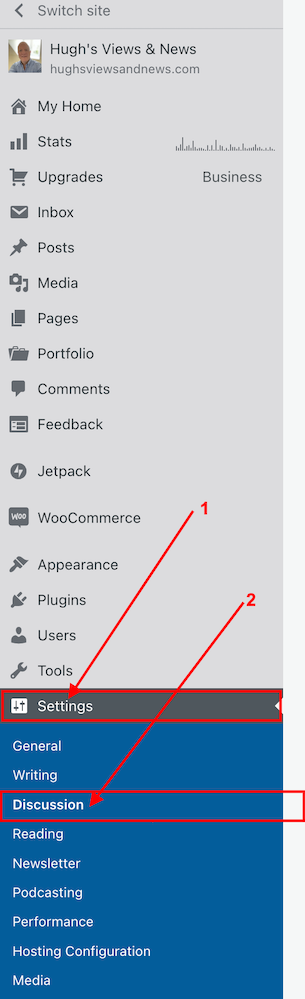
  • Click SettingsDiscussion on your blog’s dashboard.

Image highlighting the Settings and Discussion options on the dashboard of a WordPress blog.
Click Settings and Discussion
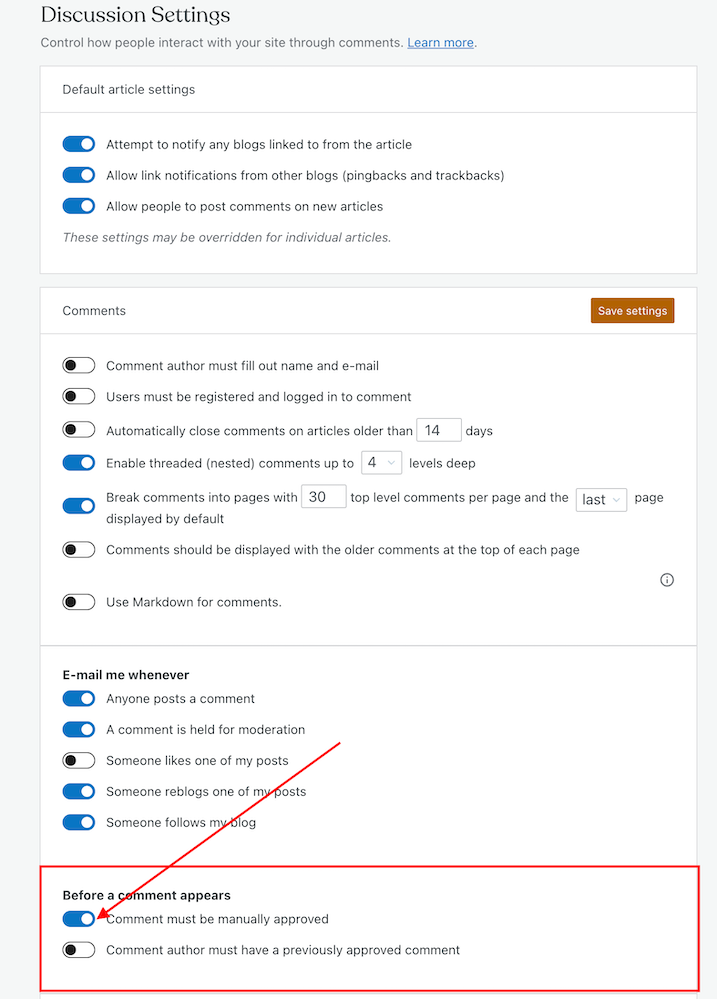
  • On the Discussion Settings page, scroll down to the ‘Before A Comment Appears‘ box and slide open the button next to ‘Comment must be manually approved.’
Image highlighting the 'Comment must be manually approved' button on the Discussion Settings page of a WordPress blog.
To approve all comments, select the ‘Comment must be manually approved’ button
  • Click on the ‘Save settings‘ button. 

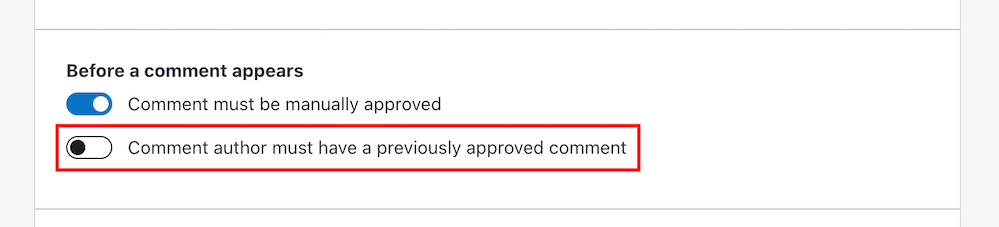
You may also have noticed an option to allow comments to be posted straight away from people who have previously had comments approved by you. 

Image highlighting the 'Comment author must have previously approved comment' button on a WordPress blog.
Selecting the ‘Comment author must have previously approved comment’ means you don’t need to approve those comments.

For bloggers who are dealing with hundreds of comments daily, this is a great time-saving option as you don’t need to manually approve them. 

However, be wary. Somebody who may have left a perfectly friendly comment on an earlier post could also leave an unfriendly comment on a future one.

How to deal with people who don’t agree with you

Sometimes, I receive comments from people who may not agree with what I have to say, but that’s a part of the whole blogging experience. 

However, providing their comment has been written in a friendly and professional manner, I will approve it. 

Nobody should tolerate rudeness or bad manners, so don’t allow any of these kinds of comments to appear on your blog. 

If comments are unfriendly, rude or make you feel threatened, mark them as spam.

Allowing unfriendly, rude comments to appear on your blog can make your blog look unfriendly and unwelcoming, especially to new visitors.

And consider removing anyone who leaves a rude comment, or one that threatens you or another blogger, from your subscriber list. My post ‘How To Spot And Remove Spammers And Spambots From Your WordPress Blog‘ gives full details.

Look after your fellow bloggers

If you see a rude comment or one that is spam on a blog you follow, inform the blog’s owner of the problem. They’ll probably thank you for looking out for them.

How to block certain bloggers or readers from leaving comments

Further down the same page on the Discussion Settings dashboard, you’ll see two boxes entitled ‘Comment Moderation‘ and ‘Disallowed comments.’

Image highlighting the Comment moderation and Disallowed comments boxes on WordPress.
This is where you can blacklist other bloggers and comments

These boxes are where you can add certain words, the web address of a blog, the email address or the internet protocol of a user you want to block. 

Comments will be held in a moderation queue if they contain anything you have added to the Comment Moderation box.

Comments will be sent to the trash bin if they match anything you have added to the Disallowed Comments box.

2. Internet trolls

If you are unlucky enough to find that an internet troll has decided to try and make your blog their new home, ignore them. 

Whatever you do, don’t engage in any conversations with the internet troll. Whether through comments or if they try to contact you through your ‘contact me’ page, ignore them. 

Internet trolls will do all they can to get you to react to what they have said. They may even try to get some of your readers to engage with them by responding to comments they have left, so never approve their comments.

Don’t give internet trolls the satisfaction of acknowledging them in any shape or form. 

Remove any comments, and don’t allow them to upset you in any way. Add them to the ‘Disallowed Comments‘ box. They’ll soon get the message and move on.

3. Back-Up

How would you feel if you woke up one morning and found that all your blog content had disappeared? 

It’s the stuff of nightmares, so be kind to your blog and make sure you back up its content regularly.

Depending on your WordPress plan, your blog can be backed up via JetpackBackup on your blog’s dashboard. If you don’t have this facility, consider saving all your blog posts via an external server or hard drive.

If you’re already writing your blog posts on Word, Pages or any other writing software such as Grammarly, ensure you save the documents on the iCloud (if you have access) or on another hard drive.

Don’t lose all your hard work by not backing up your blog.  

4. Anti Virus Software

Always update anti-virus software on your device to protect your blog and ensure you have the latest version. 

If hackers can get access to well-known websites, then they may be able to get access to your computer\device.

Malware could allow cybercriminals to take control of your computer, log your keystrokes, or access your personal information and financial data, which could lead to identity theft. So, not only could your blog be at risk from hackers, but so could your bank details and other personal information.  

Remember to keep all other software on your computer up to date and use the latest software versions of any website you visit regularly.

WordPress.Com users will always have the latest version of WordPress as WordPress download updates directly. Those who have self-hosted blogs should ensure they have the latest updates installed. 

This all may sound nightmarish, and you may ask yourself who would want to attack your blog, but every blogger should take it seriously. Don’t become a victim. 

However, whatever you do, keep enjoying your blogging experience. 

Although attacks on our blogs are happening constantly, your anti-virus software (and the software supplied by WordPress) deals with most threats without you knowing about it.

Let’s Wrap It Up.

  • Make sure you protect your blog from any online attacks.
  • Don’t approve any comments that are unfriendly, rude, or racist towards you or any other bloggers.
  • Consider moderating all comments before they appear on your blog.
  • People may disagree with what you say in your posts. Only approve their comments if they’ve been written in a friendly and professional manner.
  • Unsubscribe and or/block trolls and unfriendly readers from your blog.
  • Never respond to comments from trolls or allow their comments to appear on your blog.
  • Remember to regularly back up your blog or save your blog posts on an external hard drive.
  • Keep anti-virus software updated on your devices.
  • Ensure you’re using the latest version and tools of WordPress.

Is there anything else you’d like to share with us about protecting your blog from unwanted attention and attacks? Do you have any questions? Join the discussion by leaving me a comment with the details.

Layout, content, settings, and format might differ on self-hosted blogs.

Follow Hugh on Social Media. Click on the links below.

If you enjoyed this post and want more like it, enter your email address and click ‘Subscribe’ to stay up-to-date with my latest content.

Copyright @ 2024 hughsviewsandnews.com – All rights reserved.
What Kind Of Comments Are The Best To Leave On Blog Posts?

My blogging friend Brenda, who blogs at Curiosities, Castles and Coffee Shops, publishes a series of blog posts where she introduces a new blogger and shares some wonderful blogging tips.

In her recent post, Brenda talks about using prompts to get ideas for blog posts, especially when we struggle to find something to write about. She mentions the daily WordPress prompt, which asks a question bloggers can respond to in a blog post.

I won’t go into all the details of Brenda’s excellent advice, but it got me thinking about the subject of comments.

Light blue image with the words 'What Kind Of Comments Are The Best To Leave On Blog Posts?' in white text.
What kind of comments do you leave on blog posts?

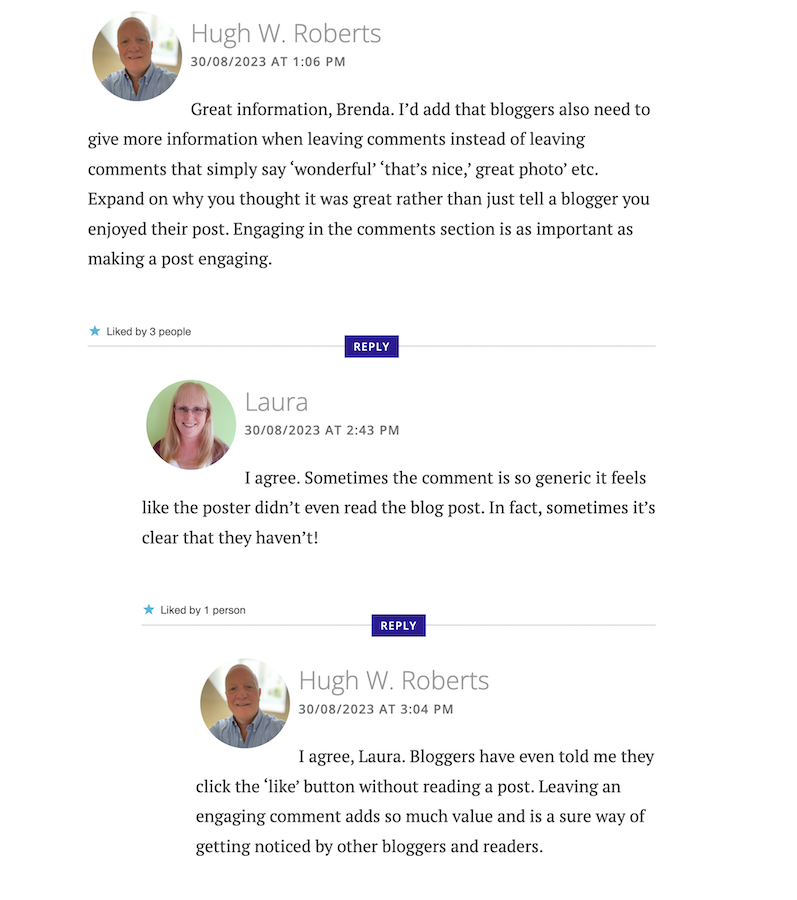
I left a comment on Brenda’s post, which sparked a conversation with another blogger, Laura, who blogs at Keeping It Creative.

The following screenshot is just a small part of the conversation Laura, Brenda, and I had about the subject of comments.

Image showing engaging comments between bloggers on a blog post.
Are your comments engaging?

Our conversation got me thinking about the overall subject of comments and how I’ve noticed a big difference in the comments being left on blogs.

When I first started blogging, the majority of bloggers had conversations and discussions in the comments section with each other about the subject of the post. But over time, that trend seems to be dwindling which had me asking the question –

‘What has happened to the art of conversation and discussion in the comments section of blogs?’

Gone are the days when many readers left comments that not only proved they’d read the post but also gave feedback that opened discussion and conversation.

Now, it seems, some bloggers leave comments with little, if any, way of responding to them other than with a ‘Thank you.’ Comments such as –

  • ‘I enjoyed this.’
  • ‘Wonderful.’
  • ‘This is a great read.’
  • ‘Well done.’
  • ‘Great interview.’
  • ‘You did a great job.’
  • ‘Another great story.’
  • ‘Great authors and books.’
  • ‘Great post.’
  • ‘Thanks for sharing this.’

Or worse, a comment that includes nothing but emojis.

Yes, some of those comments sound encouraging, but as Laura said in her comment, ‘Sometimes a comment is so generic, it feels like the person leaving the comment never read the post.’

None of the above comments mention anything about the contents of the post.

Why do people leave short, non-engaging comments?

There are probably some genuine reasons for leaving non-engaging comments all over the blogging world, but what are they?

I hope some of the reasons will be left in the comments section of this post. I’m interested in knowing.

Some bloggers claim they don’t have the time to leave longer, engaging comments because they don’t have the time to leave them. Some have too many other blogs to visit. Some rush around the blogging world because they only have so much time to visit and comment on as many posts as possible.

But in contrast, if they didn’t feel obliged to visit these blogs to leave short, non-engaging comments, they could free up some time to leave a few engaging comments that open up discussion and conversation.

Then I got this comment from Janice, who blogs at Mostly Blogging.Com.

Image of a conversation saying that it is no longer trendy to leave comments on blog post.
Is it no longer trendy to leave comments on blogs?

I was shocked by what Janice told me. Is it really no longer trendy to leave comments on blogs? Are readers only wanting information, not a community?

The other side of the blogging coin.

It’s not only some of those visiting posts at fault for leaving short, non-engaging comments. Some bloggers respond to engaging comments that clearly show they want to discuss the contents of a post by saying nothing more than a ‘Thank you.’ They instantly cut off engaging with their audience.

What are engaging comments?

  • They contain information that proves the post has been read.
  • They are written in an engaging, friendly manner.
  • They are at least a couple of sentences long.
  • They indicate that you want to discuss the contents of a post further with who wrote the post.
  • Include any questions about the contents of a post.

And let me reassure you that you should never feel guilty for not leaving a comment or feel obliged to leave one on any blog. There is nothing wrong with clicking the ‘like’ button and moving on after reading a post if you’ve nothing of value to add.

I don’t enjoy having to reply to any comment with just a ‘thank you.’ I want to get into a discussion or conversation about the contents of my posts and what made whoever left a comment say what they said.

For example –

  • Why did they think the post was good?
  • What was it that made them enjoy reading the post?
  • Why was it a great read, story or interview?
  • Was it the way the post was written or some of the answers given? If so, which ones?
  • Did the post strike a cord? Why?
  • What parts did they like/dislike the most?
  • Was it something new they learned? If so, what, and how will they use the new information?

I’ve stopped leaving comments on blogs unless I’ve something of value to add.

And I never feel guilty for not leaving a comment.

I don’t need to prove I’ve visited a blog.

I don’t need to make anyone think I’ve read their post.

I don’t feel obliged to follow and read posts on a blog simply because that blogger follows me and leaves me comments.

And nor should you.

So, what has happened to the art of conversation and discussion in the blogging world? Is it dead, or have I, as a blogger who enjoys discussion and conversation, become a minority in the blogging world? Is it no longer trendy to leave comments? Join the discussion and conversation by letting me know what you think in the comments section.

My post, This Is Why It’s Important To Leave The Right Comments On Blogs: 9 Ways, may also help you to improve the types of comments you’re leaving.

Follow Hugh on social media. Click the buttons below.

If you enjoyed this post and want more like it, enter your email address and click ‘Subscribe’ to stay up-to-date with my latest content.

Copyright @ 2024 hughsviewsandnews.com – All rights reserved.

9 Hidden Useful Tools You May Not Know About On The Posts Page Of A WordPress Blog

Have you noticed the three horizontal dots next to your blog posts when viewing the ‘Posts‘ page of your blog’s dashboard on WordPress? If not, you’re missing out on some useful tools that will help save you time when blogging and make your blog posts appeal to even more readers.

Light blue image with the words '9 Hidden Useful Tools You May Not Know About On The Posts Page Of A WordPress Blog' in white text
Have you discovered these 9 hidden blogging tools on WordPress?

For the purpose of this post, I’m viewing my blog’s dashboard in ‘Default‘ view.  

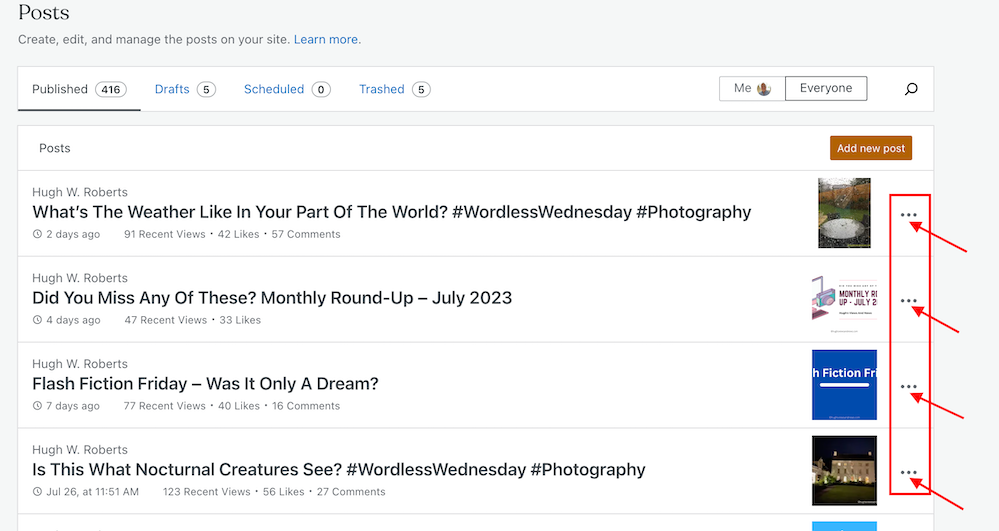
These three horizontal dots are known by numerous names, my favourite being a ‘Meatball Menu.’

Not sure what I’m referring to? Here’s a screenshot pointing out the meatball menu on the dashboard of the posts page of my blog.


Image highlighting a meatball menu on the posts page of a WordPress Blog
The Meatball Menu.

When you click on the meatball menu against a post, the three horizontal dots change to three vertical dots (known as a kebab Menu), and nine options appear.

Let’s investigate each option. 

Edit

  • Click this button to edit or update a post. Useful when spotting mistakes. Don’t forget to press the Update button to save any changes you make. 

View

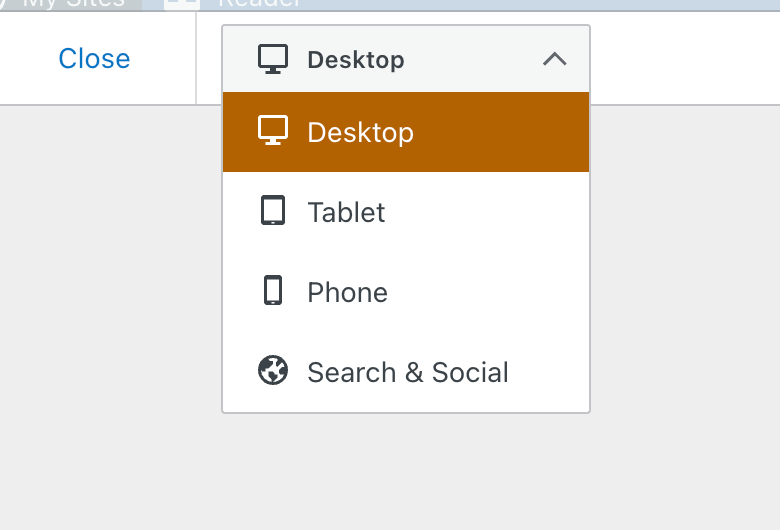
  • This button does more than just show a preview of your post. It also offers the option of previewing the post as it appears on a desktop computer, tablet and phone. You should always preview your posts before publishing them.
Image showing the display menu when clicking the 'view' option on the posts page of a WordPress blog.
See your post in desktop, tablet and phone form.
  • The Search & Social button (at the bottom of the menu) allows you to preview your post as it appears on Facebook, Twitter (now known as X), and a Google search. 
  • I recommend you always preview your post first to ensure they are mobile-friendly, especially given that most people now read blog posts on tablets and phones. 

Promote With Blaze

Blaze is a way to pay to have a post advertised by WordPress, putting it in front of thousands of new readers.

You can advertise a post or page on some of the millions of pages across WordPress.com and Tumblr from $5 per day. This option is not available to bloggers who have a free WordPress plan.

Stats

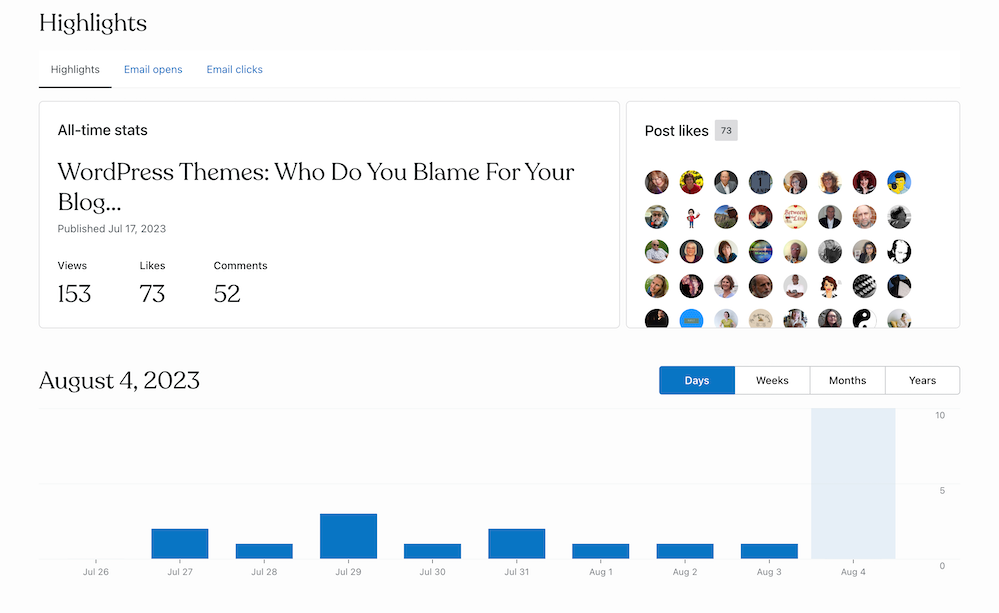
  • Click ‘Stats‘ to check a post’s latest daily, weekly, monthly, and yearly stats.
  • For some WordPress plans, you can view a post’s stats for emails opened and how many people who got the email clicked the link to view the post.  
  • You can also view who clicked the ‘like‘ button on the post and how often ‘like‘ has been clicked. 


Image showing stats for a blog post when clicking the stats option in the kebab menu
What’s behind the ‘Stats’ option?
  • Under ‘Post Likes‘, hover your mouse over any of the profile icons to display the blog name of the blogger.
  • Click on an icon to view a list of that blogger’s blog posts, how many posts they have published, how many followers they have, a list of their most popular tags, and a follow button (WordPress.Com bloggers only). This is a great way to find new blogs to follow.
  • If you’re already following a blogger who has clicked ‘like‘, the ‘follow‘ button will be replaced with the word ‘following.’ 


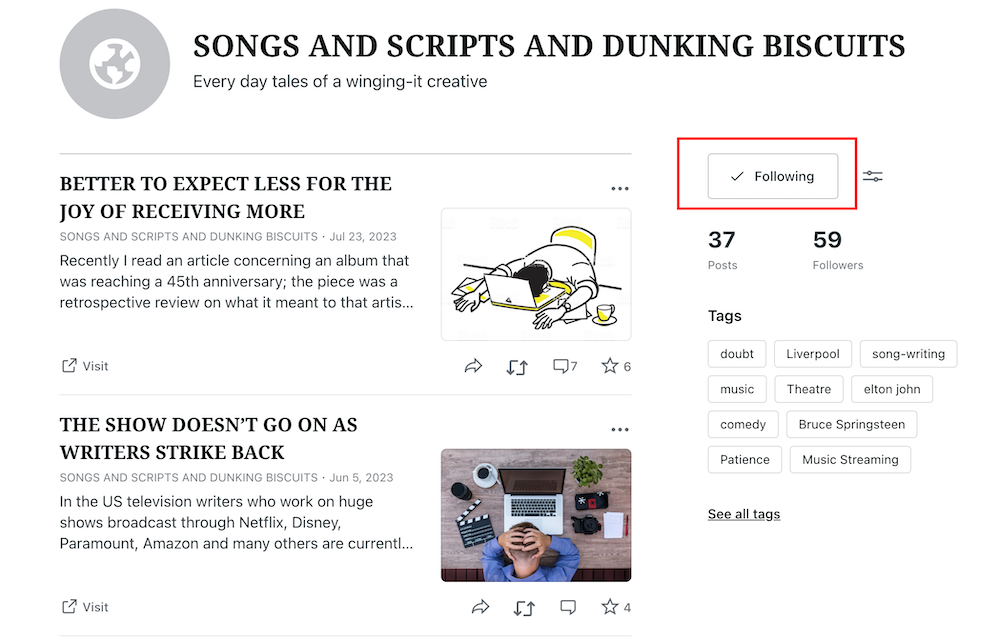
Image showing details of a blog of somebody who clicked 'like' on a post.
Are you following somebody who clicked ‘like’ on your post?
  • To unfollow, click the ‘Following‘ button. 

Comments

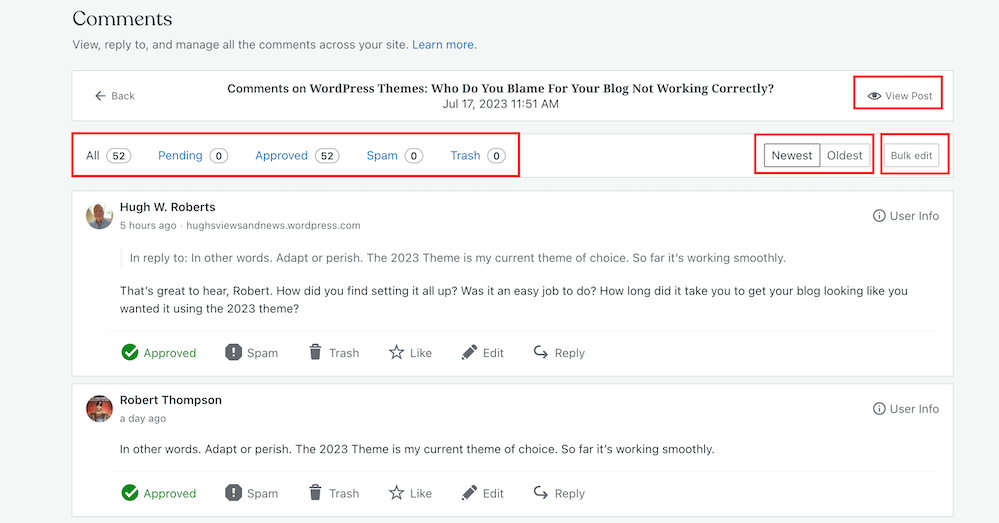
View all the comments that have been left on a post.

Along the top, you can view the following information for a post. 

  • The number of comments it has received.
  • The number of comments that are pending (waiting for approval).
  • The number of comments that have been approved.
  • The number of comments you or WordPress have marked as spam.
  • The number of comments that have been sent to the trash folder.
  • Your replies to comments also show on this page.

You can also sort comments by newest first and oldest first.

With just one click, the ‘bulk edit‘ button allows you to perform a command (approve, un-approve, send to spam, send to trash). However, the ‘bulk edit‘ is only done per page, so if the post has many comments, you’ll need to bulk edit each page.

Image showing options in the comments section of a WordPress post.
An easier way to view comments on a post.
  • You can also perform the following under the comments link –
  • View the post.
  • Approve a comment.
  • Mark and send a comment to the spam folder.
  • Send a comment to the trash bin.
  • Like a comment.
  • Edit a comment.
  • Reply to a comment.

To the right of each comment is a ‘User Info‘ button. Clicking on this button reveals the following information. 

  • The name of the commenter’s WordPress blog. 
  • The commenter’s email address.
  • A link to the commenter’s blog/website.
  • The IP address of the commenter.

You’ll also see a ‘Block User‘ button when clicking ‘User Info.’ If you press ‘Block User,’ any further comments from that user on any of your blog posts are sent directly to your WordPress trash folder. 


Share

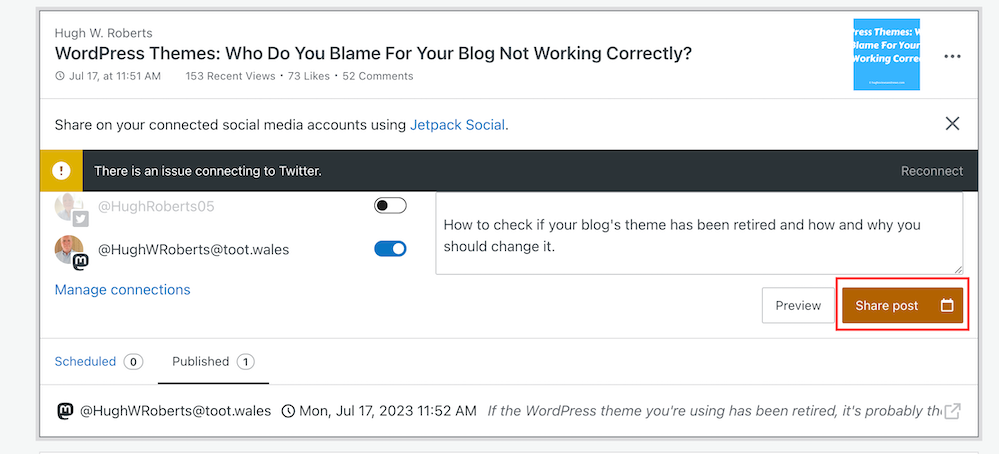
  • This neat button allows you to auto-share details of the post to the social media accounts WordPress have an auto-share facility with which you have connected to your blog.
  • Click on the ‘Share Post‘ button to share the post.
Image showing the auto-sharing facility behind the 'sharing' option on WordPress.
Have you set up auto-sharing for your blog posts?
  • The preview button displays your post’s appearance on Facebook, Twitter (now X), LinkedIn, Mastodon, Instagram Business and Tumblr (provided you have set up auto-sharing with them).
  • You can also manage all your social media auto-share connections by clicking on ‘Manage Connections.’  

Copy Post

  • This is my favourite of all the options on the kebab menu.
  • Not only will clicking on this button duplicate your post, but the categories and tags of the post are also copied over. 
  • This is especially beneficial if you run a daily/weekly/monthly blog challenge, series, or promotional posts on your blog.
  • It’s saved me lots of time by not copying, pasting, or redoing links, images, text, tags, and categories. 
  • I also use the ‘copy post‘ function for posts with the same layout (such as my ‘Wordless Wednesday’ posts. 
  • However, if you write excerpts for your blog posts (and I recommend you do), remember to change the excerpt before publishing the post. Otherwise, the excerpt may not make sense. 

Copy Link

  • A link to the post is copied to the clipboard of the device you are using. You can paste the link into an email, message, website, blog post, comment, etc. 

Trash

  • Clicking this button will send your post to the trash folder.
  • You can reinstate the post from the trash folder if you accidentally clicked it.

Let’s wrap things up.

  • There are nine hidden options available to WordPress.Com users on the page that displays their blog posts (and pages).
  • The options are hidden behind a menu known as a meatball menu.
  • The meatball menu opens up a kebab menu listing all available options.
  • Some of the options do exactly as they say on the can.
  • However, other options lead to lots more options and functions.
  • The comments option has a hidden ‘Block User‘ button – great for blocking comments from spammers or those you don’t want leaving comments anymore.
  • No need to copy and paste – The copy option copies an existing blog post and copies over the categories, tags and any images you have on that post, saving you lots of time.
  • It’s worth checking out all the options, especially as some are time-saving functions.

I hope you have found this post useful. If you have any questions, please leave them in the comments section.

Layout, content, settings, and format might differ on self-hosted blogs.

Follow Hugh on social media. Click the buttons below.

If you enjoyed this post and want more like it, enter your email address and click ‘Subscribe’ to stay up-to-date with my latest content.

Copyright @ 2024 hughsviewsandnews.com – All rights reserved.

Is Now The Time For WordPress To Remove The Like Button From All Blog Posts?

Do you remember how you felt when somebody first pressed the ‘like’ button on one of your early blog posts?

Does the ‘like’ button lose its appeal the longer you blog?

Do you notice who has clicked the ‘like’ button on any posts?

Is the ‘like’ button overrated?

Banner for the blog post 'Is Now The Time For WordPress To Remove The Like Button From All Blog Posts?'
Is it time to remove the ‘like’ button on your blog?

When I first started blogging, the ‘like’ button on blogs was something I thought was one of the best ideas about blogging.

Getting a ‘like’ on one of my posts gave me the best feeling. I thought anybody clicking the ‘like’ button had read my post.

For me, a ‘like’ indicated that somebody had taken the time to read what I had written. Yes, somebody in the big wide world had taken a few minutes to read and like something I had written.

It also motivated me to write more blog posts in the hope that they would attract even more ‘likes.’ Of course, if somebody also left a comment, that was a bonus!

The Like button doesn’t have any disadvantages, does it?

It was not long before I discovered that the ‘like’ button has disadvantages.

Some bloggers said that seeing too many ‘likes’ on a blog post makes them feel demoralised.

In turn, some users go on to delete or abandon their blog or develop ‘blogging envy’ at seeing how well other users are doing compared to themselves.

I know of one user who admitted that, for them, ‘the number of ‘likes’ was more important than the content’; in other words, they saw blogging as more of a popularity contest.

I have never envied seeing bloggers get hundreds of likes, but I understand why some bloggers may envy it.

As I grew the list of the blogs I followed, it wasn’t long before I realised that there was not enough time in my day to read, like, and comment on all the blogs I followed.

Given that some of the bloggers I followed were publishing new blog posts more than once a day I was soon overwhelmed and drowned in a sea of voices, all wanting my attention.

Doing the following is not a solution.

Rather than unfollow any blogs, I began to ‘like’ posts without reading them. I thought that doing this would indicate to the blogger (who had written the post) that I had read their post, and they, in turn, would continue to read and ‘like’ my posts. I was fooling both them and myself.

I soon discovered that other bloggers and readers were playing the same game because they were all in the same boat as me. Some users (including me) were misusing the’ like’ button.

A dilemma. What would you have done?

When I read a blog post about the death of somebodies wife, I asked myself what I should do. Should I click ‘like’ or just leave a thoughtful comment? After all, many readers had already clicked the ‘like’ button on the post. Did those who clicked it not read the post? How could they have pressed the ‘like’ button on a post about somebodies death?

That was the day I left my first comment without clicking the ‘like’ button. Now I’m doing it much more often. Do you leave comments without clicking the ‘like’ button?

Would you press the like button on a post that contained bad news or news of death?

What shocked me the most about the ‘like’ button.

What shocked me the most was why some bloggers and readers click ‘like’ even if they have not read the post. The most surprising reason why bloggers do it was that it ‘shows support’ for the blogger who had written the post, even if they didn’t have time to read it.

Really? Liking a post without reading it is a way to support other bloggers? Are there no better ways to support bloggers? Of course, there are.

Should you remove the ‘Like’ button from your blog?

I did it about four years ago and was inundated with messages from readers who said that they missed seeing the ‘like’ button. When I asked why they missed it, only a few responded, most saying that it was a way to say they’d visited even if they didn’t read the post or leave a comment saying so.

When I enquired what kind of comment they’d leave if they’d not read the post, most said a comment that confirmed they’d visited.

How would you feel if a reader told you they’d clicked ‘like’ on one of your posts, but they’d not read it?

Of course, there’s also the other side of the coin. Just because somebody hasn’t clicked the ‘like’ button does not mean they have not read the post.

Do you notice the gravatar icons next to the ‘like’ button?

These days, I take little if any notice of them. I’d go as far as to say that the ‘like’ button found at the end of blog posts should probably disappear for good.

Not everyone misuses the ‘like’ button. And remember, there are many other ways to support a blogger than clicking ‘like.’

For example, occasionally, leaving a blogger a valuable comment that adds value to their post. Or ask questions about their post’s content to show you’re interested in what they’ve written.

Don’t become a ‘comment spammer‘ by leaving empty comments hoping you’ll get comments back on your posts.

Of course, if you’re happy with the comments section on your blog containing boring comments that serve no purpose other than saying that those who left them visited your blog, click away.

Why do some bloggers press the ‘like’ button on their blog posts?

That’s a question I’d love to know the answer to. Can you help? Does it benefit the post or their blog or make it look odd?

Don’t have time to leave thoughtful comments?

Rather than spend small amounts of time leaving pointless comments on many posts, use the time you save not leaving them by leaving the occasional comment that adds value to the post. Most bloggers will value you more for leaving a thoughtful comment occasionally than leaving many comments that add no value.

One thoughtful comment that adds value to a post is worth hundreds of comments that add no value.

When and for what reasons do you use the ‘like’ button on WordPress? Have you ever misused it, and would you miss it if WordPress removed it from all blogs?

Before you answer my questions or leave a comment, this is what WordPress says about the ‘like’ button.

Let’s say you’ve found a particularly awesome post on WordPress.com. You’d like to tip your hat to the author and give him or her credit. At the bottom of the post, you see the Like button. Press it, and the author will know that you have acknowledged an exceptional, phenomenal blog post.

WordPress.com

Please feel free to answer any of the questions I have asked throughout this post by leaving me a comment. I look forward to hearing what you have to say.

Follow Hugh on Social Media. Click the buttons below.

Want more posts like this? Enter your email address and click Subscribe.

Copyright @ 2024 hughsviewsandnews.com – All rights reserved.

This Is Why It’s Important To Leave The Right Comments On Blogs: 9 Ways

Leaving comments on other blogs is a great way to connect with other bloggers, build relationships, and drive traffic to your blog. But it’s essential to do it the right way to be effective.

Banner for the blog post 'This Is Why It’s Important To Leave The Right Comments On Blogs: 9 Ways'
Are you making the most of your comments?

Here are nine essential points about comments (including what kind of comments to leave) that will help you get the most out of this strategy:

  • 1. Read the blog post first. It may seem obvious, but ensure you’ve read the whole blog post before leaving a comment. This will help you avoid leaving comments that are off-topic or that have already been addressed by the blogger. If you have a question unrelated to the post’s topic, contact the blogger via their contact page
  • 2. Be thoughtful and constructive. When you leave a comment, add something of value to the conversation. Share your own thoughts and experiences, Ask questions and start conversations. If you think the post is excellent, expand on why rather than saying, ‘Great post’ and rushing off.
  • 3. You can build relationships with other bloggers. When you leave a thoughtful comment on another blog, you show the blogger that you appreciate their work and are interested in what they say. This can help you build relationships with other bloggers, leading to the possibility of guest posts, interviews, and other forms of collaboration. Friendships can also be made.
  • 4. You can drive traffic to your own blog. If you leave a helpful or insightful comment on another blog, other readers may be interested in checking out your blog. This can drive traffic to your blog and increase your readership. However, ensure you’ve linked your blog to your Gravatar; otherwise, it won’t work.
  • 5. You can improve your own writing skills. When you leave comments on other blogs, think about your own writing and how you can improve it. Don’t rush to leave a comment; check for any mistakes before leaving it. This can help you become a better writer overall. Other bloggers and readers will determine how much time you have for them by the type of comments you leave.
  • 6. You can learn new things. You are exposed to new ideas and perspectives when reading other blogs’ comments section. This can help you learn new things and expand your knowledge base. It will also open up ideas for new blog posts.
  • 7. You can have fun. Leaving comments on other blogs can be a fun and rewarding experience. It’s a great way to connect with others who share your interests and learn new things. However, always ensure your comments are thoughtful and constructive. And only leave comments if you are genuinely interested in the post’s subject. Don’t force yourself to leave comments or feel obliged to leave one.
  • 8. Be respectful. There’s a difference between constructive criticism and just being rude or negative. If you have a genuine issue with something in the post, try to approach it in a respectful and constructive manner. If you can’t find anything positive to say, it’s probably best not to leave a comment at all. The same goes for rude comments to or about other bloggers. Be respectful.
  • 9. Be patient. It may take some time to build relationships with other bloggers through comments. You may see results later. Give it time; remember that not everyone will be interested in your blog’s content. Just because you comment on other blogs does not mean they’ll enjoy and want to leave comments on your blog.

An important message to new bloggers about responding to comments

I’ve recently followed a handful of new bloggers. However, although I’ve read their posts, left them thoughtful comments, and asked questions about their posts, only two of them replied.

To those that didn’t respond: Don’t ignore comments left on your blog posts. Always reply to them or acknowledge them. You’ll gain more followers and readers by engaging with other bloggers rather than lose followers and probably end up abandoning your blog when followers fail to materialise.

Now an important message to all bloggers about leaving comments

Avoid leaving spam comments on other people’s blogs. This includes comments that have nothing to do with the post or are clearly just an attempt to promote your blog or product. Not only is this annoying, but it can also damage your reputation and credibility as a blogger.

If you need help with something, contact the blogger directly rather than leaving a link to your blog asking for help.

Don’t have time to leave comments?

Some bloggers will tell you they don’t have time to leave thoughtful and constructive comments.

I say – If you don’t have time, click the ‘like’ button and move on. After all, isn’t that what the ‘like button is for?

Nobody will care if you don’t leave comments on all their blog posts. I certainly do not expect everyone who reads my posts to leave a comment.

What’s the worst type of comment somebody can leave?

My answer: Bloggers who leave nothing but a link to their blog as a comment. Those comments all go straight to my spam folder.

Leaving a link as a comment shows that you’re only interested in promoting yourself and not adding value to the conversation. Instead, leave a genuine comment that shows you actually read the post and have something meaningful to contribute.

Let’s wrap it up

In conclusion, leaving the right comments on blogs is essential for building relationships, engaging with other bloggers, and growing your own audience.

By following these tips, you can ensure that your comments add value to the conversation and help you establish yourself as a thoughtful and respected blogging community member.

What’s the worst type of comment somebody can leave you? Do you have any tips you’d like to add about leaving comments on blogs? Leave them in the comments section?

Follow Hugh on Social Media. Click the buttons below.

Want more posts like this? Enter your email address and click Subscribe.

Copyright @ 2024 hughsviewsandnews.com – All rights reserved.
Do You Crave More People To Engage With On Your Blog? Check These Settings Now.

How easily can all visitors engage with you on your blog?

Is it as easy as you think it is?

Banner for the blog post 'Do You Crave More People To Engage With On Your Blog? Check These Settings Now.'
Did you know that you could be preventing some visitors to your blog from leaving you comments?

After receiving an e-mail from Jean, who blogs at DelightfulRepast.com, who had seen one of my posts at the Senior Salon Pitstop weekly linky party hosted by Esme and Julie, I was somewhat concerned when she mentioned that it wasn’t easy for her to engage with me on my blog.

Jean explained that she didn’t want to leave her e-mail address, create a WordPress account or use social media to be able to leave me comments. I understand why she didn’t want to leave any of those details. After all, our information is private and shouldn’t be given out if we don’t want to give it out.

WordPress offers ‘Discussions‘ options where users can decide how easily readers can engage with them without leaving any personal details. I thought I already had this option switched off, so nobody needed to leave any personal details, and I was right, but it didn’t explain why Jean thought she had to leave her personal details if she wanted to comment on my posts.

Upon further checking my discussion settings, I saw where the confusion was coming from and want to highlight it so those who wish to engage with me without personal details can still leave comments knowing they do not need to give any personal information.

Let’s Look At The Discussion Settings On WordPress.

  • Ensure you’re viewing your blog’s dashboard in the Default view. To do this, click on the View button in the top right of the screen when viewing your blog’s dashboard.
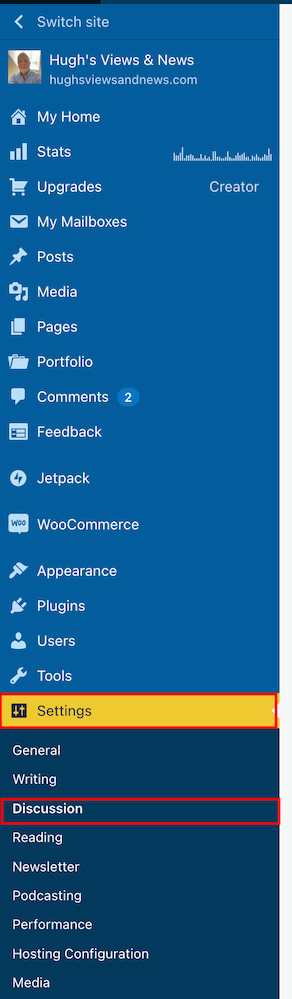
  • Go to Settings – Discussion.
Screenshot highlighting the discussion setting on the dashboard of a WordPress blog
Make sure you’re viewing your blog’s dashboard in the Default view.
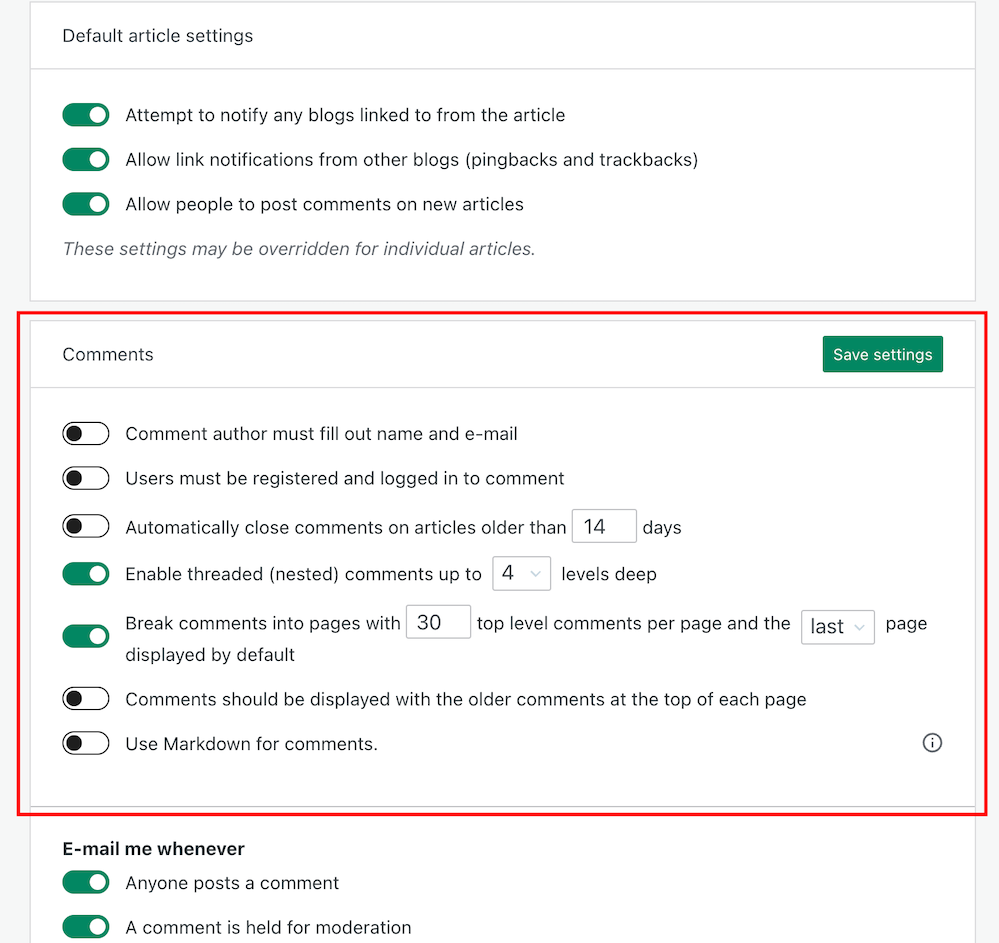
  • On the Discussions Settings page, look for the Comments box.
Image highlighting the Comments settings on the Discussion Settings page of a WordPress blog.
Look for the comments settings box.

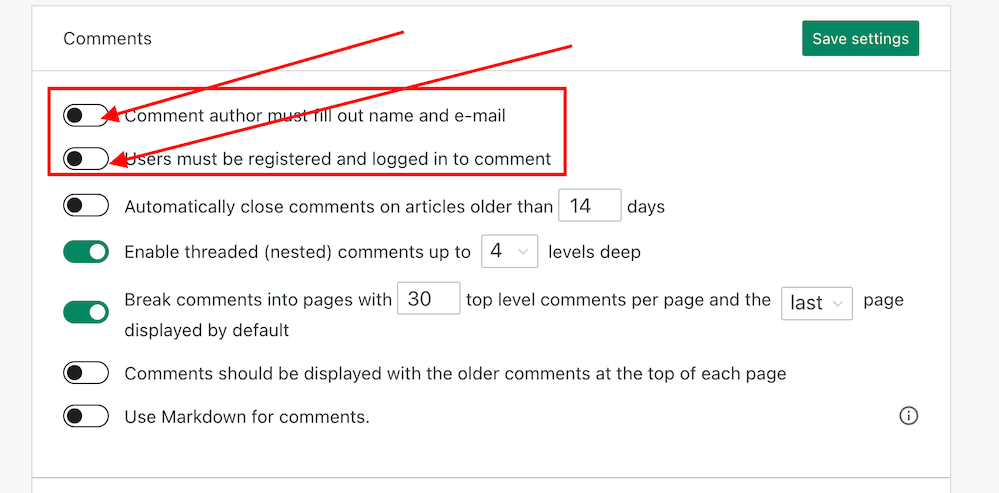
As you will see from the above screenshot, I have turned off both the ‘Comment author must fill out name and e-mail‘ and ‘Users must be registered and logged in to comment‘ options. So why wasn’t Jean able to leave me a comment?

It seems that, for whatever reason, in their wisdom, WordPress has decided to still show visitors a login box when these options have been switched off. This is what Jean and visitors who are not logged in see.

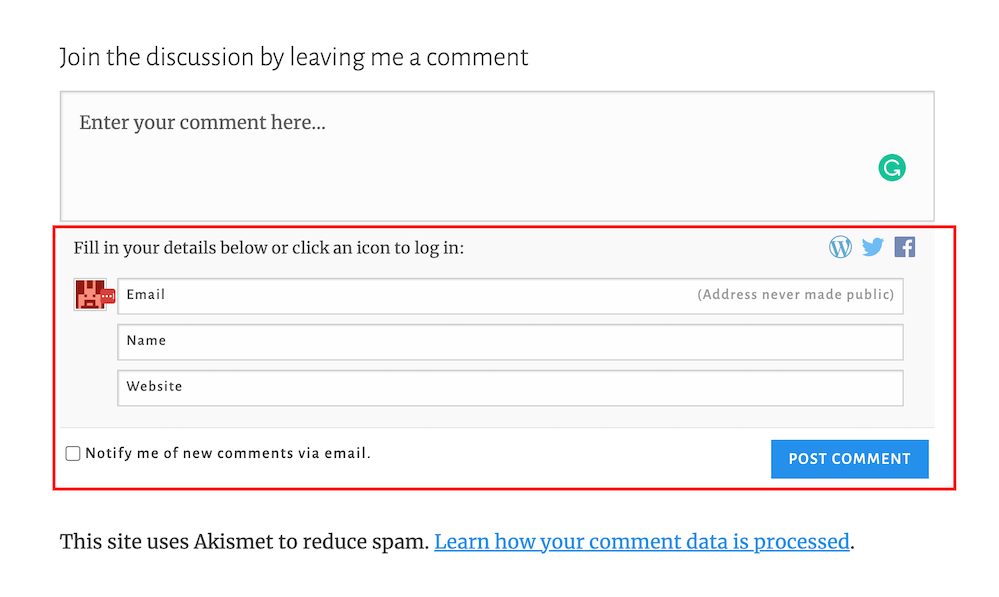
Screenshot highlighting the login box when wanting to leave a comment on a WordPress blog.
The log in box tricks visitors into believing they have to leave personal details to be able to leave comments.

And this is what WordPress say –

Comment author must fill out name and e-mail: When this setting is on, anyone leaving a comment will be forced to leave a name and a valid e-mail address. If the setting is off, visitors can leave anonymous comments. While your commenters do not have to fill in the e-mail field if you’ve turned this setting off, it will still be visible to them when they comment.

So I understand why Jean thought I wasn’t making it easy for her to engage with me.

If you only want readers to engage with you who must leave their name and email address, ensure you have this option switched on.

If you only want comments from readers who are logged in and registered, ensure you have the ‘Users must be registered and logged in to comment‘ setting switched on.

If you want comments from both, ensure both settings are switched on.

However, if, like me, you’re happy to allow anyone to leave you a comment, then switch both of these settings off.

Don’t forget to click the ‘Save‘ button in the Comments settings box if you make any changes.

Are There Any Disadvantages To Switching These Discussion Settings Off?

The main disadvantage is that it could open the gates for spammers and trolls to leave you comments. However, the Akismet antispam software on WordPress catches and places the majority of spam into your blog’s spam folder, so you’ll never see it unless you check what’s in it.

Further down on the Discussion Settings page, there is more help to filter out spam and troll comments.

  • Look for the ‘Before A Comment Appears‘ box, and you’ll see these two options.
  1. Comment must be manually approved: If this setting is on, all comments will go into moderation, and they will need to be approved by you before appearing on your blog.
  2. Comment author must have a previously approved comment: If this option is on, any visitors that have had a comment approved on your blog in the past will get a free pass through approval and only comments from new visitors will go into moderation.

As you will see from the following screenshot, my blog is set for manually approving all comments before they appear on any of my posts.

Screenshot highlighting the 'Comments moderation' settings on WordPress
Decide which level of protection you want to stop the comments of spammers and trolls from appearing on your blog posts.

This helps me stop unprofessional, rude, nasty comments from appearing on any of my posts, even if they’re from somebody who has previously left a friendly comment.

My thanks to Jean for contacting me about discussion settings on blogs. And apologies for the confusion WordPress causes in insisting a login box shows when visitors do not need to leave any personal details when wanting to engage or leave a comment.

If you see a login box or are asked to leave your name and email address when leaving a comment, try leaving a comment without filling in personal details or logging in. If the blogger you’re engaging with has switched off the ‘Comment author must fill out name and e-mail‘ and ‘Users must be registered and logged in to comment.‘ options, your comment will go through.

If either or one of those options is switched on, you’ll need to follow the instructions to be able to leave a comment.

Let’s wrap it up.

  • Check the discussion settings on your blog to see if you’re preventing visitors from leaving comments.
  • Decide whether you want only certain visitors to be able to leave comments or if you’re happy for all visitors to leave comments.
  • The majority of spam comments will go straight to your spam folder. Remember to empty your spam folder regularly.
  • To stop comments from trolls appearing on your blog posts, switch on the ‘Comment must be manually approved‘ setting.
  • Consider whether comments from those who have previously left you a friendly comment do not need to be manually approved by you.

If you have questions about the discussion settings on your WordPress blog, leave them in the comments section.

Layout, content, settings, and format might differ on self-hosted blogs.

Follow Hugh on Social Media. Click the buttons below.

Want more posts like this? Enter your email address and click Subscribe.

Copyright @ 2024 hughsviewsandnews.com – All rights reserved.