WordPress Themes: Who Do You Blame For Your Blog Not Working Correctly?

Who do you blame when something goes wrong with your blog?

Most of us will probably blame WordPress, yet have you ever thought that the problem could be that the theme of your blog is to blame because you’ve never changed it and it’s been retired?
Light blue image with the words 'WordPress Themes: Who Do You Blame For Your Blog Not Working Correctly?' in white text.
Is your blog’s theme causing the problems you’re experiencing with your blog?

Many problems can arise on blogs when a theme has been retired.

How Do I Find Out If The Theme I’m Using Has Been Retired?

You’ll see the following image on the themes page of your blog.

Image of a message from WordPress stating that a theme has been retired.
Has your theme been retired?

Go to your blog’s dashboard and click Appearance – Themes to determine if your chosen theme has been retired.

Can I Still Use My Retired Theme?

Yes, you can. WordPress won’t remove it from your site. However, when a theme is retired, it no longer appears in the list of themes available on WordPress.

Your retired theme may remain available for the lifetime of your site or blog, but it will no longer be fully supported by WordPress. It won’t receive any updates with new features; hence WordPress won’t guarantee it will always function correctly with their ever-evolving software. If anything goes wrong, it may not be possible to fix it.

You can still contact WordPress support so the Happiness Engineers can take a look, but support will be limited, and they’ll probably recommend switching to a newer theme. In addition, they won’t provide any CSS support for the retired theme.

Why Do Themes Get Retired?

Web technology updates make the visibility and functionality of some themes outdated.

Web design is an area that is continually evolving, thanks to trends, tastes, and new technologies. WordPress has to keep up to date with these changes and is at the forefront of wanting blogs to look fresh and modern.

Retired themes can make blogs look outdated, stale, and uninviting to visitors, especially if you’ve never changed your theme since starting to blog.

Themes may also be retired if their design has become old-fashioned or uses certain no longer supported features.

What Should I Do If The Theme I Am Using Is Retired?

You can continue to use it, but it may no longer be possible for WordPress to fix any issues you encounter.

Some of the issues I have found with blogs that are still using retired themes are –

  • I can no longer leave comments.
  • Pingback to the blog no longer work.
  • Pingbacks from the blog no longer work.
  • The gravatar image is no longer displayed.
  • The ‘Notify me of new comments via email’ box is missing.
  • Pressing the ‘like’ button no longer works.
  • New blog posts do not appear on the WordPress Reader.
  • Blog posts are no longer mobile or tablet-friendly.
  • Comments do not display correctly.
  • Images, photos and paragraphs do not display correctly.
  • Sharing buttons no longer work correctly.

In all cases, when I’ve checked the blog’s theme when these problems have happened, it’s an old, retired theme.

Some bloggers find workarounds when problems occur, but all this does is put off the inevitable that one day they will have to change the theme.

My recommended advice is to consider switching to a new theme to ensure your blog has a modern look and feel to its design.

If you’re not bothered about parts of your blog being broken, you may wish to continue using it until you are forced to change the theme. However, that’s not something I recommend.

Not only can finding a new theme be fun, but it can also boost your blog’s ranking.

How Do I Find A New Theme?

On the dashboard of your blog, go to Appearance – Themes. You’ll see all the WordPress themes available. For free themes, click the ‘Free‘ button in the top-right of the page.

You can also use the search field on the themes page to find a replacement theme. Click on the filter options below the search bar or type directly into the search field to filter by specific features or subjects or by the number of columns the theme natively displays to select a new theme similar to your retired theme.

Block Themes Vs Classic Themes

Block (or Full-Site Editing) themes are the new boys on the block.

WordPress recommends switching to a Block theme, as these are the future and what will be supported in the long term.

I have heard of some bloggers encountering problems switching to Block themes. It’s a long learning curve to get used to them, but WordPress has plenty of advice and help for switching to one.

Some bloggers who have already made the switch have reported that not only do their blogs run faster after switching to a Block theme, but problems they were experiencing with their blogs also disappear.

I recommend watching WordPress tutorial videos and reading their guidance page before switching to a Block theme. For information, click the links below.

Video Tutorials: Customize your Site or Blog

Using The Site Editor

Should you encounter problems switching to a Block theme, help is at hand.

  • Contact the WordPress Happiness Engineers by clicking on the ‘question mark’ icon (next to the ‘bell’ notification icon) in the top right of your blog’s dashboard.
  • Ask for help from your followers and other bloggers by writing and publishing a post or contacting a blogger directly.

Important Information: Do not activate a new theme unless you are absolulty sure you like the theme you have chosen, as it’s impossible to go back to a retired theme once you’ve activated a new theme.

Classic themes were created to work with the old Classic editor, but with the large drop in Classic editor users, WordPress has been retiring them, especially when they no longer work with new functionality software or when updates to the WordPress platform have been released.

Unlike Block themes, Classic themes are heavily loaded with CSS code, meaning many things can go wrong. Block themes are only lightly loaded with CSS code, so are less likely to break.

Currently, WordPress provides 54 Classic themes that are free to use and compatible with the Block editor.

To find current Classic themes, search for them by adding ‘Classic‘ to the search bar on the Themes page, and select ‘Classic Theme‘ from the dropdown menu that appears.

If the theme you’re currently using has been retired, I recommend you switch to one of the Classic themes if you do not want to switch to a Block theme. Doing this will fix some or all of the problems your blog may be experiencing.

If you still experience problems after switching to a current Classic (or Block) theme, report the problems to WordPress. How will WordPress know about a problem unless you report it? Don’t rely on other users reporting the problems you’re having with your blog.

Does WordPress have any plans for new Classic themes?

I asked WordPress the above question. Their response was –

‘No, and we doubt there will be as the industry shifts to the more modern and convenient Full Site Editing (Block) themes that remove most of the need to learn coding to create and customize your theme.’

Is WordPress retiring all Classic themes? If so, when?

Their response –

‘It’s likely, as the focus is shifted to the more modern approach. We do not have specific timelines for each theme or the ones available on our list at this moment.’

So I guess it’s a case of ‘watch this space.’

However, given that the Classic Editor plugin is still available, my guess is that WordPress will retain some of the Classic themes until they stop supporting the Classic Editor plugin. But the choice of Classic themes will become more and more limited as time passes.

I didn’t ask WordPress if there are any plans to stop supporting the Classic Editor plugin, although I have heard rumours that they plan to stop supporting it by the end of 2024.

Let’s wrap it up.

  • Problems may affect your blog because your theme has been retired.
  • WordPress may be able to fix some issues, but they will advise you to switch to a new theme if the theme you’re using is retired.
  • You can continue to use a retired theme you’re using, but it may not work correctly.
  • Once you activate a new theme, you won’t be able to go back to the retired theme you’ve been using.
  • Upon publication of this post, WordPress offers Full Site Editing (Block) and Classic themes.
  • All Classic themes are free to use.
  • There are no plans to introduce new Classic themes.
  • The number of available Classic themes will continue to diminish.

I’ve seen some bloggers say they will wait until they are forced to switch themes. Given that switching themes can be a complicated and time-consuming project, all that will do is make them panic when the time comes to switch. Don’t be one of them.

If the theme you’re using has been retired, switch now.

WordPress welcomes feedback on the new Block themes and encourages everyone to contact them with suggestions for improving them.

If you enjoyed this post and want more like it, enter your email address and click ‘Subscribe’ to stay up-to-date with my latest content.

To follow Hugh on social media, click the links below.

Layout, content, settings, and format might differ on self-hosted blogs.

Copyright @ 2024 hughsviewsandnews.com – All rights reserved.
5 Things You Can Do To Free Up Media Space In Your Blog’s Media Library.

‘Help! I’ve run out of media storage space on my blog and can no longer upload new photos, images or videos. What can I do?’

That was a question to me from Micheal, who blogs at Spo-Reflections.

Michael was happy to upgrade his WordPress plan to obtain more media space, but there are other things you could do if you find your blog running out of media space.

Light blue image with the words '5 Things You Can Do To Free Up Media Space In Your Blog's Media Library' written in white text.
Have you run out of media space on your blog? Here are 5 things you can do to obtain more.

1. Upgrade your plan.

WordPress currently offers 6 plans.

The amount of media storage space you get varies. Click the following link to see the plans – ‘There Is A Plan For You.’ Pricing is correct at the time of publication of this post.

Each plan provides the following media storage space.

Name of planStorage Amount
Free1GB
Personal6GB
Premium13GB
Business200GB
Commerce200GB
EnterpriseN/A

However, only upgrade your WordPress plan if you absolutely need to. Do not get into debt by upgrading unless you can afford it, as there are other things you can do to free up media storage space.

2. Resize the size of your images and photos.

One of the biggest reasons bloggers run out of media space is that they do not resize their images and photos before uploading them to their media library.

There are several ways you can reduce the size of images and photos. You can reduce them using photo editing software or via the tools of your device you use to blog.

I use an Apple iMac and can change the size of photos and images by clicking on ToolsAdjust size on the menubar of my desktop computer. I do this before uploading them to my WordPress media library.

I recommend reducing image and photo sizes to 900 x 675 pixels.

On a Windows computer, you can use Microsoft Paint. Open your image with that program, then click on Resize. You can find this option on the middle-right side of the “Image” section at the top of the Paint window.

The WordPress media library also has editing software, but please note that if you reduce the size of an image or photo using this tool, the original image is kept in your media library when you reduce the size of the picture – thus, you won’t have freed up any storage space.

Large images can also slow down your blog’s downloading speed, negatively impacting your blog’s search engine rankings and overall user experience. So, I recommend you always reduce the size of images and photos before uploading them to your blog.

3. Do not upload videos to your media library.

If you include videos in your blog posts, uploading them to your media library can take up vast amounts of space.

To overcome this problem and free up all the space they take up, upload your videos to YouTube. Then add the YouTube block to your blog post and include the link to the video in the block.

Image of the YouTube block on WordPress
Adding videos to your blog via YouTube helps free up media space for your blog.

Do this for any existing videos you have in your media library. Upload them to YouTube and add them via the YouTube block before deleting the original from your media library. This will free up large amounts of storage in your media library.

4. Delete images from your media library.

We can accumulate vast amounts of images and photos in our media library, many of which will become redundant.

Deleting these images will free up storage space. However, when you delete any images or photos in your media library, they disappear from the blog posts they appear on.

My blog post, ‘Are Your Old Blog Posts Damaging Your Blog? How To Stop It From Happening’ details why bloggers should delete old blog posts.

Deleting old, redundant blog posts containing images, photos, and videos frees up storage space. However, delete any images, photos and videos in your media library before deleting the posts.

If you’re unsure whether a post should be deleted, read my post, ‘Are Your Old Blog Posts Damaging Your Blog? How To Stop It From Happening,’ for advice.

5. Reduce the number of images and photos you add to blog posts.

While I recommend adding at least one image or photo to a blog post (because blog posts containing images get up to 70% more traffic), reducing the number of images and pictures will help save media space.

Before adding more images or photos, ask yourself if adding them to your post is necessary.

Let’s wrap it up.

  • Resize your images and photos before uploading them to your blog’s media library.
  • Upload videos to YouTube and use the YouTube block to show them on your blog posts.
  • Delete old images and photos from your media library, but remember to remove them from any posts first.
  • Do not resize images using tools in the media library, as this does not save storage space.
  • Consider deleting old blog posts that are no longer relevant.
  • Reduce the number of images and photos on blog posts. Ask yourself if they’re necessary.

How do you free up storage space in your blog’s media library? If you have any questions about this post, leave them in the comments section.

To follow Hugh on social media, click the links below.

If you enjoyed this post and want more like it, enter your email address and click ‘Subscribe’ to stay up-to-date with my latest content.

Copyright @ 2024 hughsviewsandnews.com – All rights reserved.

Adding Images Or Photos To Your Blog Posts? 4 Essential Things To Do.

Blog posts containing images and photos get up to 70% more traffic than posts without visuals. So why wouldn’t you use them in your posts?

Visual content is an essential component of any successful blog. Adding images, videos, and infographics to your blog posts can make your content more engaging and memorable.

An blue background image with the title of a blog post, 'Adding Images Or Photos To Your Blog Posts? 4 Essential Things To do' in white text.
Are you making any mistakes when adding images or photos to blog posts?

If you plan to include images or photos in your blog posts, there are four essential things to remember. These steps will help ensure your content is engaging and visually appealing while avoiding copyright issues.

1. Use High-Quality Images And Photos.

Always use high-quality images that are relevant to your post. Blurry or low-resolution images can detract from your message and make your blog appear unprofessional.

Additionally, using images that are not directly related to your topic can confuse readers and reduce the effectiveness of your post.

2. Ensure Images And Photos Are Not Copyrighted

Ensure you have permission to use any images and photos you include in your posts. This means sourcing images from websites offering free, non-copyrighted images (such as Pixabay) or purchasing the rights to use images from a stock photo website.

Not all images are free to use. And some that are free may only be free for a limited time. Always check the small print.

Don’t think you’ll ever get fined for using copyrighted images or photos. There are copyright bots continually looking for copyrighted images that have been illegally used and downloaded all over the web.

I know of two bloggers who have been fined for using images/photos on their blog posts that were not free to use.

To avoid copyright issues, use your own images and photos and watermark them before adding them to your blog posts. I use a free app called Photobulk to do this. Seeing a watermark is a great deterrent in persuading some thieves not to copy and use them.

Of course, if you’re not concerned about your photos and images being used by anybody else, you don’t need to watermark them.

3. Ensure Images And Photos Are The Correct Sizes.

Optimize your images for web use by compressing them to reduce file size.

Large images can slow down your website’s loading speed, negatively impacting your blog’s search engine rankings and overall user experience.

If you have limited space in your media library, not reducing the size of your images and photos will soon take up all your media space. When that happens, you won’t be allowed to download additional images to your blog unless you free up space or move to a plan that gives you more storage space.

I recommend reducing image and photo sizes to 900 x 675 pixels.

There are several ways you can reduce the size of images and photos. You can reduce them using photo editing software or your device’s software.

The WordPress media library also has editing software, but please note that if you reduce the size of an image or photo using this tool, the original image is kept in your media library when you reduce the size of the image- thus, you won’t save any storage space.

The newly edited image with the reduced size is added as a new file in your media library. You can always revert back to the original image by clicking on the image in the media library, selecting Edit, and then choosing the “Restore Original” button. If you’ve inserted an edited image into other published posts, reverting an image may break this image on those posts.

I use an Apple iMac and can change the size of photos and images by clicking on ToolsAdjust Size on the menubar of my desktop computer. I do this before adding them to my WordPress media library.

On a Windows computer, you can use Microsoft Paint. Open your image with that program, then click on Resize. You can find this option on the middle-right side of the “Image” section at the top of the Paint window.

However, as I mentioned earlier, you can also reduce the size of images and photos on WordPress. But only do this if your WordPress plan has a large storage space allowance.

  • To do this, ensure you view your media library in Classic view.
  • Click the edit image button on the image you want to edit.
Image showing the edit button of an image in the WordPress media library
Click the edit button.
  • Add the new dimensions in the Scale Image box and click the Scale button.
Image showing the new dimensions box and scale button on an image in the WordPress media library.
Add the new dimensions of your image.
  • Click the save or update button to save the changes.

Your photos and images will be reduced in size, but remember that a copy of the original is also kept, so you won’t save any storage space.

If posting to your site using the Jetpack App, the app can optimise images.

In the Jetpack app for iPhone, you can set the Max Image Upload Size so the original file is resized automatically when you upload it. This option can be found by going to My Site and clicking the profile icon in the top right, then choosing App Settings.

In the Jetpack app for Android, click on your profile icon in the top right corner and choose App Settings. There, enable Optimise Images to resize and compress images on upload.

4. Add information to your images and photos.

Don’t forget to include alt text and captions for your images.

Alt text is a description of the image that allows visually-impaired readers to understand what the image is conveying. At the same time, captions can add context and help readers engage with your content. This is especially important when participating in blog challenges such as Wordless Wednesday and Silent Sunday.

Screenshot of the Alt Text box, caption box and description box on an image in the WordPress media library.
Always add information about your images and photos.

Adding a description of the image or photo also helps with SEO searches.

  • Click the save or update button to save all the changes.

Following these four essential steps, you can create visually stunning and engaging blog content with images that stand out.

Let’s wrap it up.

  • Always use high-quality images and photos on your blog.
  • Never use images and photos that are copyrighted. You may be fined for doing so.
  • Use your own images and photos. That way, you won’t encounter any copyright issues.
  • Reduce the size of images and photos before loading them to your blog.
  • Alternatively, reduce the size of images and photos with WordPress’s tools in the media library, but only if you have a WordPress plan that offers a large amount of storage.
  • Always add information about images and photos before adding them to blog posts, as this allows visually-impaired readers to understand what the image conveys.
  • Adding a description of the image or photo also helps with SEO searches.

What do you use to resize images and photos for your blog posts? Do you always complete the details of images and photos in the Alt Text box? If you have any questions about adding images and photos to your blog, please leave them in the comments section.

To follow Hugh on social media, click the links below.

If you enjoyed this post and want more like it, click the ‘Subscribe’ button to stay up-to-date with my latest content.

Copyright @ 2024 hughsviewsandnews.com – All rights reserved.

Is Now The Time For WordPress To Remove The Like Button From All Blog Posts?

Do you remember how you felt when somebody first pressed the ‘like’ button on one of your early blog posts?

Does the ‘like’ button lose its appeal the longer you blog?

Do you notice who has clicked the ‘like’ button on any posts?

Is the ‘like’ button overrated?

Banner for the blog post 'Is Now The Time For WordPress To Remove The Like Button From All Blog Posts?'
Is it time to remove the ‘like’ button on your blog?

When I first started blogging, the ‘like’ button on blogs was something I thought was one of the best ideas about blogging.

Getting a ‘like’ on one of my posts gave me the best feeling. I thought anybody clicking the ‘like’ button had read my post.

For me, a ‘like’ indicated that somebody had taken the time to read what I had written. Yes, somebody in the big wide world had taken a few minutes to read and like something I had written.

It also motivated me to write more blog posts in the hope that they would attract even more ‘likes.’ Of course, if somebody also left a comment, that was a bonus!

The Like button doesn’t have any disadvantages, does it?

It was not long before I discovered that the ‘like’ button has disadvantages.

Some bloggers said that seeing too many ‘likes’ on a blog post makes them feel demoralised.

In turn, some users go on to delete or abandon their blog or develop ‘blogging envy’ at seeing how well other users are doing compared to themselves.

I know of one user who admitted that, for them, ‘the number of ‘likes’ was more important than the content’; in other words, they saw blogging as more of a popularity contest.

I have never envied seeing bloggers get hundreds of likes, but I understand why some bloggers may envy it.

As I grew the list of the blogs I followed, it wasn’t long before I realised that there was not enough time in my day to read, like, and comment on all the blogs I followed.

Given that some of the bloggers I followed were publishing new blog posts more than once a day I was soon overwhelmed and drowned in a sea of voices, all wanting my attention.

Doing the following is not a solution.

Rather than unfollow any blogs, I began to ‘like’ posts without reading them. I thought that doing this would indicate to the blogger (who had written the post) that I had read their post, and they, in turn, would continue to read and ‘like’ my posts. I was fooling both them and myself.

I soon discovered that other bloggers and readers were playing the same game because they were all in the same boat as me. Some users (including me) were misusing the’ like’ button.

A dilemma. What would you have done?

When I read a blog post about the death of somebodies wife, I asked myself what I should do. Should I click ‘like’ or just leave a thoughtful comment? After all, many readers had already clicked the ‘like’ button on the post. Did those who clicked it not read the post? How could they have pressed the ‘like’ button on a post about somebodies death?

That was the day I left my first comment without clicking the ‘like’ button. Now I’m doing it much more often. Do you leave comments without clicking the ‘like’ button?

Would you press the like button on a post that contained bad news or news of death?

What shocked me the most about the ‘like’ button.

What shocked me the most was why some bloggers and readers click ‘like’ even if they have not read the post. The most surprising reason why bloggers do it was that it ‘shows support’ for the blogger who had written the post, even if they didn’t have time to read it.

Really? Liking a post without reading it is a way to support other bloggers? Are there no better ways to support bloggers? Of course, there are.

Should you remove the ‘Like’ button from your blog?

I did it about four years ago and was inundated with messages from readers who said that they missed seeing the ‘like’ button. When I asked why they missed it, only a few responded, most saying that it was a way to say they’d visited even if they didn’t read the post or leave a comment saying so.

When I enquired what kind of comment they’d leave if they’d not read the post, most said a comment that confirmed they’d visited.

How would you feel if a reader told you they’d clicked ‘like’ on one of your posts, but they’d not read it?

Of course, there’s also the other side of the coin. Just because somebody hasn’t clicked the ‘like’ button does not mean they have not read the post.

Do you notice the gravatar icons next to the ‘like’ button?

These days, I take little if any notice of them. I’d go as far as to say that the ‘like’ button found at the end of blog posts should probably disappear for good.

Not everyone misuses the ‘like’ button. And remember, there are many other ways to support a blogger than clicking ‘like.’

For example, occasionally, leaving a blogger a valuable comment that adds value to their post. Or ask questions about their post’s content to show you’re interested in what they’ve written.

Don’t become a ‘comment spammer‘ by leaving empty comments hoping you’ll get comments back on your posts.

Of course, if you’re happy with the comments section on your blog containing boring comments that serve no purpose other than saying that those who left them visited your blog, click away.

Why do some bloggers press the ‘like’ button on their blog posts?

That’s a question I’d love to know the answer to. Can you help? Does it benefit the post or their blog or make it look odd?

Don’t have time to leave thoughtful comments?

Rather than spend small amounts of time leaving pointless comments on many posts, use the time you save not leaving them by leaving the occasional comment that adds value to the post. Most bloggers will value you more for leaving a thoughtful comment occasionally than leaving many comments that add no value.

One thoughtful comment that adds value to a post is worth hundreds of comments that add no value.

When and for what reasons do you use the ‘like’ button on WordPress? Have you ever misused it, and would you miss it if WordPress removed it from all blogs?

Before you answer my questions or leave a comment, this is what WordPress says about the ‘like’ button.

Let’s say you’ve found a particularly awesome post on WordPress.com. You’d like to tip your hat to the author and give him or her credit. At the bottom of the post, you see the Like button. Press it, and the author will know that you have acknowledged an exceptional, phenomenal blog post.

WordPress.com

Please feel free to answer any of the questions I have asked throughout this post by leaving me a comment. I look forward to hearing what you have to say.

Follow Hugh on Social Media. Click the buttons below.

Want more posts like this? Enter your email address and click Subscribe.

Copyright @ 2024 hughsviewsandnews.com – All rights reserved.

This Is Why It’s Important To Leave The Right Comments On Blogs: 9 Ways

Leaving comments on other blogs is a great way to connect with other bloggers, build relationships, and drive traffic to your blog. But it’s essential to do it the right way to be effective.

Banner for the blog post 'This Is Why It’s Important To Leave The Right Comments On Blogs: 9 Ways'
Are you making the most of your comments?

Here are nine essential points about comments (including what kind of comments to leave) that will help you get the most out of this strategy:

  • 1. Read the blog post first. It may seem obvious, but ensure you’ve read the whole blog post before leaving a comment. This will help you avoid leaving comments that are off-topic or that have already been addressed by the blogger. If you have a question unrelated to the post’s topic, contact the blogger via their contact page
  • 2. Be thoughtful and constructive. When you leave a comment, add something of value to the conversation. Share your own thoughts and experiences, Ask questions and start conversations. If you think the post is excellent, expand on why rather than saying, ‘Great post’ and rushing off.
  • 3. You can build relationships with other bloggers. When you leave a thoughtful comment on another blog, you show the blogger that you appreciate their work and are interested in what they say. This can help you build relationships with other bloggers, leading to the possibility of guest posts, interviews, and other forms of collaboration. Friendships can also be made.
  • 4. You can drive traffic to your own blog. If you leave a helpful or insightful comment on another blog, other readers may be interested in checking out your blog. This can drive traffic to your blog and increase your readership. However, ensure you’ve linked your blog to your Gravatar; otherwise, it won’t work.
  • 5. You can improve your own writing skills. When you leave comments on other blogs, think about your own writing and how you can improve it. Don’t rush to leave a comment; check for any mistakes before leaving it. This can help you become a better writer overall. Other bloggers and readers will determine how much time you have for them by the type of comments you leave.
  • 6. You can learn new things. You are exposed to new ideas and perspectives when reading other blogs’ comments section. This can help you learn new things and expand your knowledge base. It will also open up ideas for new blog posts.
  • 7. You can have fun. Leaving comments on other blogs can be a fun and rewarding experience. It’s a great way to connect with others who share your interests and learn new things. However, always ensure your comments are thoughtful and constructive. And only leave comments if you are genuinely interested in the post’s subject. Don’t force yourself to leave comments or feel obliged to leave one.
  • 8. Be respectful. There’s a difference between constructive criticism and just being rude or negative. If you have a genuine issue with something in the post, try to approach it in a respectful and constructive manner. If you can’t find anything positive to say, it’s probably best not to leave a comment at all. The same goes for rude comments to or about other bloggers. Be respectful.
  • 9. Be patient. It may take some time to build relationships with other bloggers through comments. You may see results later. Give it time; remember that not everyone will be interested in your blog’s content. Just because you comment on other blogs does not mean they’ll enjoy and want to leave comments on your blog.

An important message to new bloggers about responding to comments

I’ve recently followed a handful of new bloggers. However, although I’ve read their posts, left them thoughtful comments, and asked questions about their posts, only two of them replied.

To those that didn’t respond: Don’t ignore comments left on your blog posts. Always reply to them or acknowledge them. You’ll gain more followers and readers by engaging with other bloggers rather than lose followers and probably end up abandoning your blog when followers fail to materialise.

Now an important message to all bloggers about leaving comments

Avoid leaving spam comments on other people’s blogs. This includes comments that have nothing to do with the post or are clearly just an attempt to promote your blog or product. Not only is this annoying, but it can also damage your reputation and credibility as a blogger.

If you need help with something, contact the blogger directly rather than leaving a link to your blog asking for help.

Don’t have time to leave comments?

Some bloggers will tell you they don’t have time to leave thoughtful and constructive comments.

I say – If you don’t have time, click the ‘like’ button and move on. After all, isn’t that what the ‘like button is for?

Nobody will care if you don’t leave comments on all their blog posts. I certainly do not expect everyone who reads my posts to leave a comment.

What’s the worst type of comment somebody can leave?

My answer: Bloggers who leave nothing but a link to their blog as a comment. Those comments all go straight to my spam folder.

Leaving a link as a comment shows that you’re only interested in promoting yourself and not adding value to the conversation. Instead, leave a genuine comment that shows you actually read the post and have something meaningful to contribute.

Let’s wrap it up

In conclusion, leaving the right comments on blogs is essential for building relationships, engaging with other bloggers, and growing your own audience.

By following these tips, you can ensure that your comments add value to the conversation and help you establish yourself as a thoughtful and respected blogging community member.

What’s the worst type of comment somebody can leave you? Do you have any tips you’d like to add about leaving comments on blogs? Leave them in the comments section?

Follow Hugh on Social Media. Click the buttons below.

Want more posts like this? Enter your email address and click Subscribe.

Copyright @ 2024 hughsviewsandnews.com – All rights reserved.

Should I Switch To The New Jetpack App Or Stay With The WordPress App?

I’ve been contacted by several bloggers asking the question in the title of this post.

In March 2023, the WordPress app that many of us are familiar with will lose many key features. For example, you’ll no longer be able to access the WordPress Reader or view your blog’s stats.

But fear not because all the features the WordPress app bring have been transferred to the new Jetpack app.

Banner for the blog post 'Should I Switch To The New Jetpack App Or Stay With The WordPress App?'
Which app should I use?

Which app should I use?

If you want access to all the WordPress features you’re used to, switch to the new Jetpack app.

If you only want to focus on the basics of writing and publishing and have no interest in your blog stats, notifications of comments, menus and the WordPress Reader (to name a few), stick with the WordPress app.

Can I use both apps?

It’s not recommended that you use both apps. Managing your blog across both apps is unsupported and may lead to issues such as data conflicts. So I’d recommend sticking to one.

What features does the Jetpack app have?

  • Posts
  • Pages
  • Media Library
  • Comments
  • Site Settings
  • Stats
  • WordPress Reader
  • Notifications
  • Activity Log
  • Jetpack Social
  • Jetpack Backup
  • Jetpack Scan
  • Menus
  • People
  • Themes

With the Jetpack app, you’ll benefit from powerful tools to manage and build your blog.

Is the Jetpack app free?

Yes. There are no additional costs for using the Jetpack app.

What features does the WordPress app have?

From March 2023, only the features listed below will be available on the WordPress app.

  • Posts
  • Pages
  • Media library
  • Comments
  • Site Settings

How do I make the switch to the Jetpack app?

  • First, ensure you have the latest version of the WordPress app installed and are logged in to it.
  • If you’ve had (or get) an email from WordPress asking you to choose which app to use, click the link in the email to download the Jetpack app. If you’ve not had the email, click here to download the Jetpack app.
  • Once the app has been downloaded, open it, and you’ll be automatically logged in with all your data and settings in place. All your posts, pages, media library and anything else you have on your blog will also be transferred.
  • Remember to delete the WordPress app.

Any questions about switching to the Jetpack app? Leave them in the comments section.

Follow Hugh on Social Media. Click the buttons below.

Want more posts like this? Enter your email address and click Subscribe.

Copyright @ 2024 hughsviewsandnews.com – All rights reserved.

Do You Crave More People To Engage With On Your Blog? Check These Settings Now.

How easily can all visitors engage with you on your blog?

Is it as easy as you think it is?

Banner for the blog post 'Do You Crave More People To Engage With On Your Blog? Check These Settings Now.'
Did you know that you could be preventing some visitors to your blog from leaving you comments?

After receiving an e-mail from Jean, who blogs at DelightfulRepast.com, who had seen one of my posts at the Senior Salon Pitstop weekly linky party hosted by Esme and Julie, I was somewhat concerned when she mentioned that it wasn’t easy for her to engage with me on my blog.

Jean explained that she didn’t want to leave her e-mail address, create a WordPress account or use social media to be able to leave me comments. I understand why she didn’t want to leave any of those details. After all, our information is private and shouldn’t be given out if we don’t want to give it out.

WordPress offers ‘Discussions‘ options where users can decide how easily readers can engage with them without leaving any personal details. I thought I already had this option switched off, so nobody needed to leave any personal details, and I was right, but it didn’t explain why Jean thought she had to leave her personal details if she wanted to comment on my posts.

Upon further checking my discussion settings, I saw where the confusion was coming from and want to highlight it so those who wish to engage with me without personal details can still leave comments knowing they do not need to give any personal information.

Let’s Look At The Discussion Settings On WordPress.

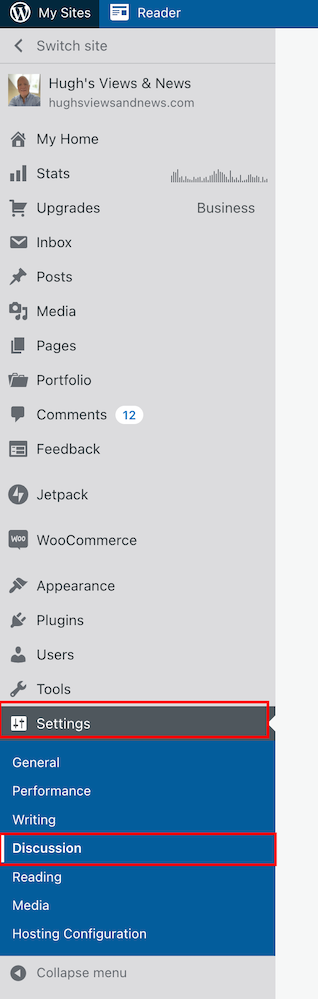
  • Ensure you’re viewing your blog’s dashboard in the Default view. To do this, click on the View button in the top right of the screen when viewing your blog’s dashboard.
  • Go to Settings – Discussion.
Screenshot highlighting the discussion setting on the dashboard of a WordPress blog
Make sure you’re viewing your blog’s dashboard in the Default view.
  • On the Discussions Settings page, look for the Comments box.
Image highlighting the Comments settings on the Discussion Settings page of a WordPress blog.
Look for the comments settings box.

As you will see from the above screenshot, I have turned off both the ‘Comment author must fill out name and e-mail‘ and ‘Users must be registered and logged in to comment‘ options. So why wasn’t Jean able to leave me a comment?

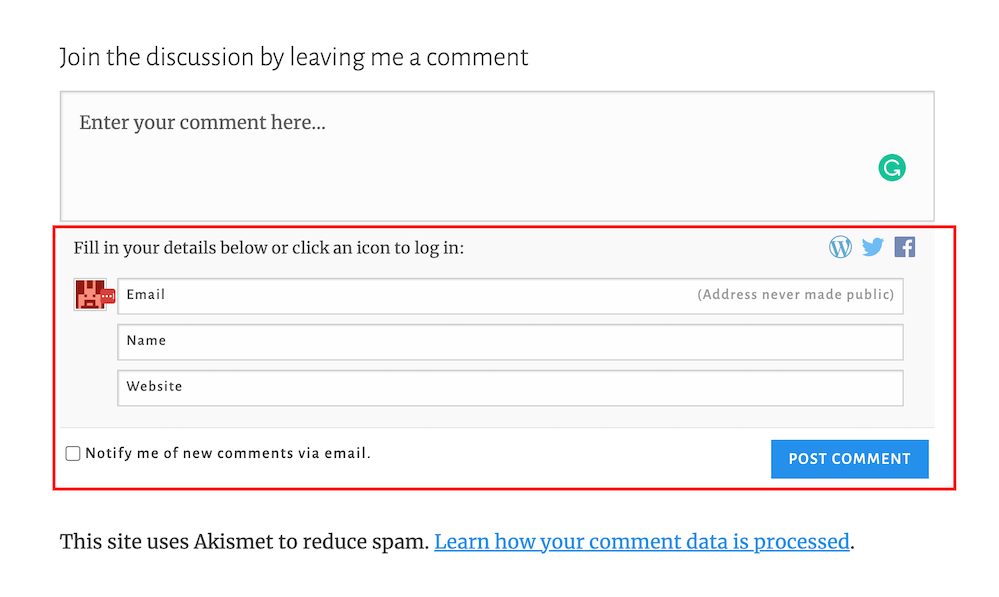
It seems that, for whatever reason, in their wisdom, WordPress has decided to still show visitors a login box when these options have been switched off. This is what Jean and visitors who are not logged in see.

Screenshot highlighting the login box when wanting to leave a comment on a WordPress blog.
The log in box tricks visitors into believing they have to leave personal details to be able to leave comments.

And this is what WordPress say –

Comment author must fill out name and e-mail: When this setting is on, anyone leaving a comment will be forced to leave a name and a valid e-mail address. If the setting is off, visitors can leave anonymous comments. While your commenters do not have to fill in the e-mail field if you’ve turned this setting off, it will still be visible to them when they comment.

So I understand why Jean thought I wasn’t making it easy for her to engage with me.

If you only want readers to engage with you who must leave their name and email address, ensure you have this option switched on.

If you only want comments from readers who are logged in and registered, ensure you have the ‘Users must be registered and logged in to comment‘ setting switched on.

If you want comments from both, ensure both settings are switched on.

However, if, like me, you’re happy to allow anyone to leave you a comment, then switch both of these settings off.

Don’t forget to click the ‘Save‘ button in the Comments settings box if you make any changes.

Are There Any Disadvantages To Switching These Discussion Settings Off?

The main disadvantage is that it could open the gates for spammers and trolls to leave you comments. However, the Akismet antispam software on WordPress catches and places the majority of spam into your blog’s spam folder, so you’ll never see it unless you check what’s in it.

Further down on the Discussion Settings page, there is more help to filter out spam and troll comments.

  • Look for the ‘Before A Comment Appears‘ box, and you’ll see these two options.
  1. Comment must be manually approved: If this setting is on, all comments will go into moderation, and they will need to be approved by you before appearing on your blog.
  2. Comment author must have a previously approved comment: If this option is on, any visitors that have had a comment approved on your blog in the past will get a free pass through approval and only comments from new visitors will go into moderation.

As you will see from the following screenshot, my blog is set for manually approving all comments before they appear on any of my posts.

Screenshot highlighting the 'Comments moderation' settings on WordPress
Decide which level of protection you want to stop the comments of spammers and trolls from appearing on your blog posts.

This helps me stop unprofessional, rude, nasty comments from appearing on any of my posts, even if they’re from somebody who has previously left a friendly comment.

My thanks to Jean for contacting me about discussion settings on blogs. And apologies for the confusion WordPress causes in insisting a login box shows when visitors do not need to leave any personal details when wanting to engage or leave a comment.

If you see a login box or are asked to leave your name and email address when leaving a comment, try leaving a comment without filling in personal details or logging in. If the blogger you’re engaging with has switched off the ‘Comment author must fill out name and e-mail‘ and ‘Users must be registered and logged in to comment.‘ options, your comment will go through.

If either or one of those options is switched on, you’ll need to follow the instructions to be able to leave a comment.

Let’s wrap it up.

  • Check the discussion settings on your blog to see if you’re preventing visitors from leaving comments.
  • Decide whether you want only certain visitors to be able to leave comments or if you’re happy for all visitors to leave comments.
  • The majority of spam comments will go straight to your spam folder. Remember to empty your spam folder regularly.
  • To stop comments from trolls appearing on your blog posts, switch on the ‘Comment must be manually approved‘ setting.
  • Consider whether comments from those who have previously left you a friendly comment do not need to be manually approved by you.

If you have questions about the discussion settings on your WordPress blog, leave them in the comments section.

Layout, content, settings, and format might differ on self-hosted blogs.

Follow Hugh on Social Media. Click the buttons below.

Want more posts like this? Enter your email address and click Subscribe.

Copyright @ 2024 hughsviewsandnews.com – All rights reserved.

Is Blogging Causing You Stress Or Making You Feel Guilty? How To Fix It

What makes you put your head in your hands or shake your head regarding blogging?

Recently, I’ve been shaking my head a lot when visiting the blogging world.

Some of my fellow bloggers worry me, and I’m concerned about their mental health.

I’m witnessing bloggers panicking, stressed, feeling guilty, or apologising because of how they blog.

Banner for the blog post 'Is Blogging Causing You Stress Or Making You Feel Guilty? How To Fix It'
Are you showing signs of stress because of blogging?

Here are some of the bloggers I am referring to. Are you one of them?

The Sprinters

Have you heard this quote?

Blogging is a marathon, not a sprint!

It’s a quote many bloggers acknowledge.

Sprinters rush around the blogging world every day as if they’re on a time challenge where they must read and leave comments on as many blog posts as possible within a certain amount of time.

The comments they leave are seldom engaging and are often empty. Instead of leaving a comment saying why they thought a post was great or why they liked a photo or reading a piece of fiction, they’ll leave a comment like, ‘Great story’ or ‘I enjoyed this.’

They don’t have time to leave engaging comments, so leave comments that’ll not make you want to engage with them other than maybe to say ‘Thanks.’

If they fail to leave comments on all the blogs they’re following, they believe they may upset someone. They need to prove they’ve visited your post, often by leaving an empty comment.

They often show signs of stress or pressure in the content they publish and the comments they leave.

They won’t read long-engaging posts because that wastes time and worsens their stress. They’re on a mission to read as many posts as possible in the time they have so they don’t upset anyone.

Why read a couple of interesting, engaging, long posts when you can read lots of short blog posts in the time it takes to read one fascinating post over 1,000 words that gets you and lots of other readers wanting to get into a discussion?

When I saw the above tweet from James, I punched the air with my fist. He makes a valid point. And it doesn’t only apply to new bloggers.

Blogging should never be about sprinting under pressure around the blogging world to see how many blog posts you can read and comment on in 20 minutes!

Those posts will still be there next week.

There is no such thing as being behind in blogging. Read, respond and leave comments when you have the time to do so.

Hugh W. Roberts

Ask yourself why you started blogging. Was it for enjoyment and fun? Or did you come to the blogging world on a mission to try and break the world record every day for the number of blog posts you can read and comment on so you don’t feel guilty or upset anyone?

Is rushing around the blogging world, feeling stressed out while leaving the same non-engaging short comments, fun?

Slow down, and engage with bloggers rather than trying to prove the point that you have visited their posts.

If you don’t have the time to read and leave comments, make time by reading less blogs.

Hugh W. Roberts

This brings me to…

The obliging blogger

In the next paragraph, I’ll ask you a question. Leave your answer in the comments section before reading the rest of this post.

Question: If a blogger reads and leaves comments on all your blog posts, should you feel obliged to read and leave comments on all their posts?

You won’t be surprised that my answer to that question is ‘No.’

But if you answered ‘Yes’, share your reasons in the comments section.

Nobody should feel obliged to read and comment on another blogger’s posts because they read and leave comments on all their blog posts.

Your time is precious, and wasting it by forcing yourself to read and comment on content that does not interest you is a waste of your time.

“But won’t the blogger who reads and comments on all my posts stop reading and commenting on my blog posts if I don’t return the favour?’

Yes, they may, but does it matter? And if they do, ask yourself this question.

‘Why am I following that blogger?’

If it’s because you genuinely enjoy reading their content, then, by all means, continue to follow them, but don’t feel obliged to read and leave comments on all their posts.

If a blogger gets upset with you for not reading and leaving comments on all their posts, consider unfollowing them.

Allocate the time you spent reading their blogs to the blogs you enjoy reading, and leave valuable, engaging comments on those posts rather than short, empty, non-engaging comments.

Tip: Make the first comment count and show that you genuinely want to engage.

Don’t get too upset if the blogger you’re trying to engage with doesn’t want to engage with you when they respond to your comment with nothing but a ‘Thank you.’

That’s your cue to think twice before engaging with them again.

If you don’t want to engage with a blogger after reading a post, press the like button and move on. After all, that’s why it’s there.

There is nothing wrong with not leaving a comment after reading a blog post if you’ve nothing of value to add. Stop acting like it’s a crime not to leave one.

Hugh W. Roberts

Don’t be tricked into feeling guilty if you don’t always leave a comment. I read many blog posts where I do not click the ‘like’ button or leave comments. Why? Because I have nothing of value to add.

Likewise, never feel obliged to follow a blogger who has followed your blog. There’s no harm in visiting their blog to check out their content. If you like it, by all means, follow back, but don’t follow them simply because they followed you.

The desperate blogger

This blogger comes in two forms.

The first are bloggers you’ve never received comments from, and suddenly they’ll leave a comment and link on one of your posts that begs you (and your readers) to check out their blog, read their posts and leave comments.

I’ve received lots of these types of comments recently.

Their comment won’t mention anything about the contents of the posts they’ve left their comment on, just a few words of desperation and a link to their blog.

You’ll see them leaving the same comment on other blogs. I never approve these comments, so you’ll never see them in the comments section of any of my blog posts.

These types of comments are often left by new bloggers looking for new followers and readers.

If you’re new to blogging, there are much better ways to gain followers and new readers than to leave uninvited links on other blogs. These posts list some tips that will help you gain new followers and readers.

New To Blogging? These Free Tips On Leaving Comments Will Help Bring New Visitors To Your Blog

Are You Struggling To Get People To Your Blog? These 7 Free Methods Will Help

The other type of desperate blogger is someone who has previously left some engaging comments but unexpectedly starts dropping links to their posts that have nothing to do with the content of your post, asking you to read and comment.

I’ve said this many times before. Other blogs are not places for you to leave links unless the host has invited you to leave them. For example, in my Wordless Wednesday posts, I invite bloggers to leave links to their Wordless Wednesday posts.

If you have a post you’d like to share with a blogger in the comments section because it’s connected to their post, ask for permission to leave the link first.

Many bloggers class uninvited links as spam and move comments that include them to the spam folder or bin.

How do you deal with uninvited links left in the comments section of your blog?

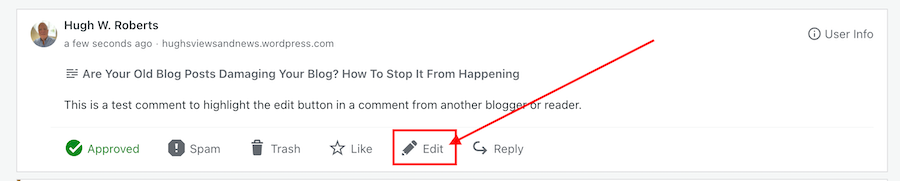
I edit them out before approving the comment by pressing the edit button.

Image highlighting the edit button on a comment on a WordPress blog
Click edit to edit out uninvited links from bloggers

Remember to save the changes and then approve the comment. Most bloggers leaving uninvited links soon get the message.

Let’s wrap it up

  • Never feel pressured to read and comment on too many blog posts when you don’t have the time.
  • Read and leave engaging comments on a few blog posts a day/week rather than try and read and leave empty, non-engaging comments on all the blog posts of those you follow.
  • Never feel obliged to follow a blog simply because they followed you.
  • Don’t force yourself or waste time reading blog posts that do not interest you. Instead, invest your time reading and engaging with bloggers who publish content that interests you.
  • It doesn’t matter if you don’t read a blog post today. It’ll still be there to read in a week or when you have more time.
  • Don’t feel guilty if you do not get around to reading all the blog posts you want to read and comment on.
  • If you have nothing of value to add in a comment, rather than leaving short, empty, non-engaging comments, click the ‘like’ button and move on.
  • Other blogs are not the place to leave uninvited links promoting your blog.
  • Edit out uninvited links before approving comments.
  • Remove any thoughts of thinking you’re behind with blogging and have to catch up. Read and comment on posts when you have the time to do so.

Are there any examples of blogging that have you holding your head in your hands, shaking your head or concerned for other bloggers? Please share them in the comments section.

Follow Hugh on Social Media. Click on the buttons below.

Copyright © 2022 hughsviewsandnews.com – All rights reserved.

This Is How Easy It Is To Centre Captions Underneath Images And Photos On WordPress

Once upon a time, getting captions to centre underneath photos and images on blog posts involved adding complicated CSS code to your blog.

I don’t know about you, but it doesn’t look right to me whenever I see uncentred captions. It gives blog posts a messy look.

However, WordPress now makes it much easier to centre captions under blog posts, images and photos.

Banner for the blog post 'This Is How Easy It Is To Centre Captions Underneath Images And Photos On WordPress'
Are your captions centred?

Here’s my simple guide to centring captions.

  • Add an image or photo to a blog post.
  • Click on the image to open the image toolbar.
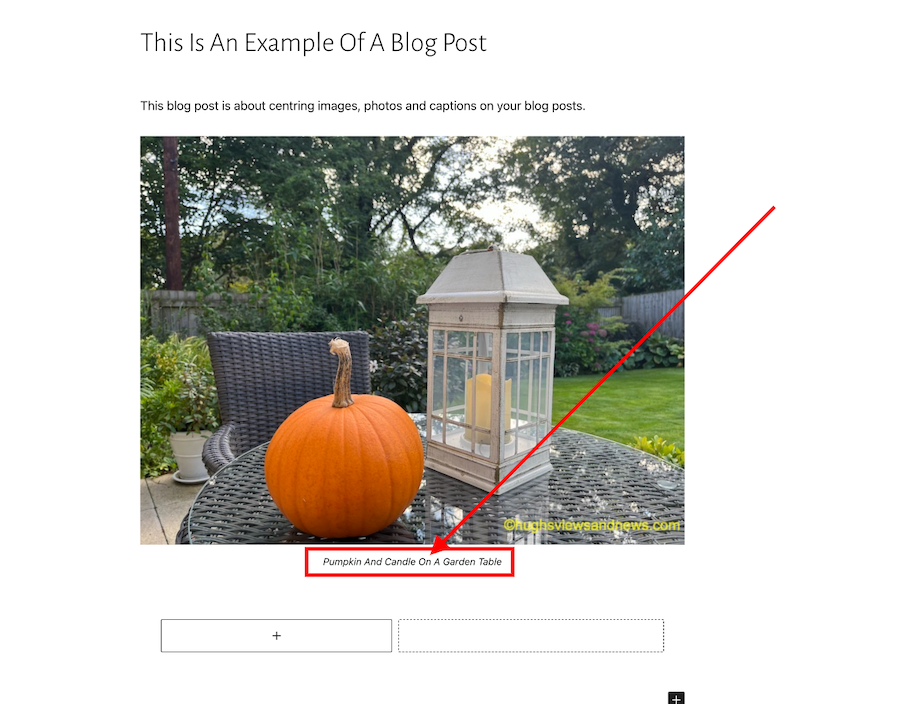
Image of a photo on a WordPress blog highlighting the image toolbar
How to centre a caption

You’ll see that the caption is aligned to the left under the above photo. Arghhhhh!

  • On the toolbar, click on the ‘Align‘ button and on the dropdown menu that appears, click on ‘Align Centre.’
Image highlighting the Align Centre button on WordPress
Click on the Align Centre button.
  • The image or photo will now be centred on your blog post, as will the caption.
Image showing a centred caption under an image on a WordPress blog.
The caption is now centred underneath the photo.

How easy was that? No more ‘Arghhhhhs.’

The example I have given above works on the Block editor.

Of course, if you prefer captions on your blog posts to be aligned to the left or right, you can ignore everything I’ve said in this post.

If you have any questions about centring captions, leave them in the comments section.

Looking for more blogging tips? Click on the ‘Blogging Tips’ and ‘Block Editor – How To’ buttons on the menubar of my blog.

Follow Hugh on social media. Click on the buttons below.

Copyright © 2022 hughsviewsandnews.com – All rights reserved.

5 Powerful Blogging Tools That Will Get Your Blog Noticed

Getting readers to engage with you by leaving comments on your blog posts is something many bloggers crave.

And when those comments clearly show that your post has been read, it’s one of the best feelings in the world.

However, once you get visitors reading your posts and leaving comments, you need to do all you can to ensure they keep coming back.

Writing good quality posts that make your readers want to engage with you and each other is one way to keep your readers returning, but you also need to ensure they can easily find your other similarly themed posts, which are often buried deep in your blog archives.

Banner for the blog post, 5 Powerful Blogging Tools That Will Get Your Blog Noticed
Need more readers and followers? These 5 blogging tools will help

Here are five blogging tools that work for me. Not only do they give my readers a way of finding more similarly-themed content, but these tools have also helped bring me many new readers and followers.

1. The Search Bar

The other day, I was writing a new blog post and wanted to include links to some posts I had read on other blogs.

However, try as I might, I couldn’t find one of the posts I wanted to link to. Even worse, there was no search bar on the blog concerned.

It wasn’t long before I gave up looking for that blog post. I didn’t have the time to find it.

You can make it easy for readers to find what they are looking for by including a search bar on your blog.

Does your blog have a search bar? If not, WordPress has a ‘search’ widget. Click here to find out how to install one.

Once you’ve installed a search bar, open up one of your blog posts and check you are happy with its position. Ensure it’s visible and easy for visitors to find. The search bar on my blog is the first widget on my widget bar to the right of all my blog posts.

Remember, too, that you can use the search bar when looking for your own posts. You can save yourself a lot of time by doing this instead of scrolling through all your blog posts on your blog’s dashboard.

2. The Menu Bar

Navigation is of prime importance on any blog. Make it difficult for visitors to navigate or find more content, and they’ll probably give up and never return.

That’s why it’s essential to have a menu bar on your blog.

A menu bar allows your readers to check out what is on your blog and helps direct them to other parts of your blog they’d like to explore.

Many bloggers can be frightened by including a menu bar on their blog or adding items. However, it’s an easy and straightforward process.

Click here for details on how to set up a custom menu bar on your WordPress blog.

However, don’t overload the menu bar on your blog, as it can look overwhelming. And ensure you keep it updated and check that everything works on it.

3. The ‘Contact Me Page

Just imagine another blogger, a magazine editor, or somebody from your local radio station wanting to contact you to invite you to write an article or appear on a show. How exciting would that be? But they can’t find a way of reaching you privately!

Not everyone wants to leave a comment when they want to invite you to write a guest post, be interviewed, or ask you to appear on a show. If you don’t have a ‘contact me’ page, and nobody can contact you privately, then they’ll probably move on and give that opportunity to somebody else.

On the menu bar of my blog, you’ll see a ‘Contact Hugh’ button. That’s how people can contact me privately.

I get lots of people contacting me every week. As a result, I’ve written guest articles, appeared on radio shows and recorded podcasts, all of which have allowed me to promote myself and my blog. In return, I’ve got hundreds of new readers and followers to my blog.

Make sure you’re contactable. Click here to find out how to set up a ‘contact me’ page.

4. The ‘About Me’ Page

Ever since my early days of blogging, I’ve been told that many new blog visitors will want to learn a little about the blogger behind the blog before deciding whether to follow.

When I visit a new blog, I first look for an ‘about me’ page to learn more about the blogger.

If the blogger doesn’t have an ‘about me’ page or it’s difficult to find, I’m more likely to move on than check out the rest of their blog.

If you do have an ‘about me’ page, ensure you allow new visitors to introduce themselves by allowing them to leave a comment on it. And don’t forget, a friendly reply is more likely to keep that visitor returning to read your posts.

Click here for details on setting up an ‘About Me’ page and what to include.

5. The Gravatar

The image that appears next to all comments is known as a Gravatar. A gravatar is created for you as soon as you leave your first review or comment on the internet.

How many times have you clicked on the gravatar image of somebody who has left an excellent comment on a post and not been able to find their blog details? Frustrating, isn’t it, especially when you think it may be a blog you’d like to follow.

Unfortunately, one of the biggest mistakes many bloggers make, as soon as their gravatar is created, is they forget about it. Many don’t realise they can add images and leave links to their blog and social media accounts on their gravatar.

If a reader then clicks on your gravatar, they’ll see the links to your blog and social media accounts and be able to visit them. That means more visitors to your blog and social media accounts which could result in more followers.

Click here to find out how to add links to your blog and social media accounts to your gravatar.

Let’s wrap it up

  • Many blogging tools can help readers notice your blog and keep them returning.
  • Make sure you have a Search Bar on your blog to help visitors find other content.
  • Ensure your blog includes a menu bar, but don’t overload it with too many items.
  • Ensure the links on your blog’s menu bar all work. Check for broken links at least once a month and fix any that have become broken.
  • Ensure your blog has a page where readers and visitors can contact you privately. Not everyone will want to leave a comment inviting you to write a guest post or to appear on a radio show or podcast.
  • Many new visitors want to know a little about the person behind the blog before deciding whether to follow. Tell visitors a little about yourself on an ‘about me’ page.
  • Ensure your Gravatar has links to your blog and social media accounts.

This is an updated version of a post originally published on Hugh’s Views And News in September 2018

What powerful blogging tools do you use on your blog, and why do you use them? Share them with us by leaving a comment.

Copyright © 2022 hughsviewsandnews.com – All rights reserved.