

Now This Is Why Keeping Your WordPress Site Updated Matters

WordPress has introduced a useful new feature that benefits all users, including those with a ‘Free’ plan.

With just a few clicks, you can check whether the version of WordPress you are using is up to date, whether any plugins you have installed are current, and if the theme of your WordPress site is the latest release.

Here’s how to verify that all your WordPress installations are up to date. I am using an Apple iMac desktop computer for this guide.

  • Go to the dashboard of your blog and click on Dashboard – Updates.
An image emphasising the 'Update' button on the dashboard of a WordPress blog.
Click the ‘Update’ button.
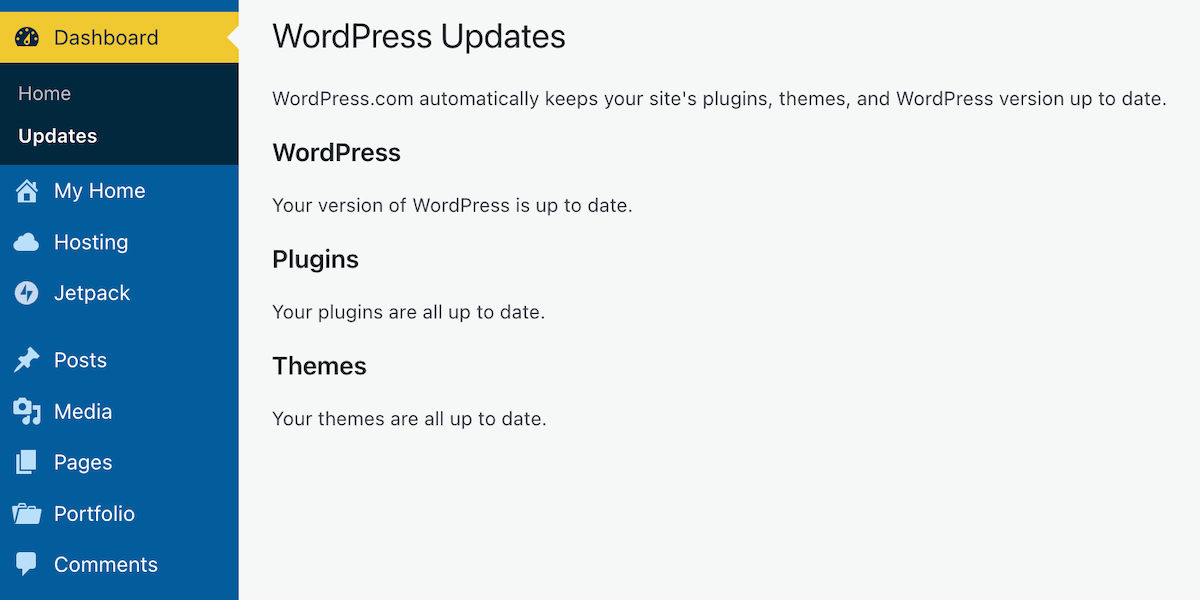
  • After clicking on Updates, you will see a page that informs you whether you are using the latest version of WordPress, plugins, and the WordPress theme you have installed.
An image of a page on a WordPress blog informing if WordPress, plugins and themes are all up to date.
Is everything on your WordPress blog updated?

If, like me, you are a WordPress.com user, WordPress will keep all these items up to date for you. So, why am I then informing you of this feature? Well, it’s all about retired themes and plugins that cause problems.

If you are using any plugins or a theme that has been retired, even if it appears you have the latest versions, any bugs affecting the theme or plugin since the final update will no longer be fixed because WordPress has withdrawn support.

How do I find out if the WordPress theme I’m using is still supported?

To find out if the WordPress theme you are using is still supported (and receiving updates), visit your blog’s dashboard and click Appearance – Themes. You will see a message indicating your theme is retired if it is no longer supported by WordPress. As we all know, using outdated themes can cause numerous problems for users.

Although a retired theme might not cause problems now, it could in the future. Some users attempt to use a workaround to avoid issues, but this is not advised, as it may lead to further problems. Instead of a workaround, switch to a current theme fully supported by WordPress. You don’t have to move to a Block theme if you prefer not to, since many Classic themes remain supported by WordPress. I am still using a Classic theme (Toujours) on my blog, which is fully supported.

Using an outdated, unsupported theme can lead to several issues. Here are a few.


1. Security vulnerabilities: Without ongoing updates, the theme may become prone to security risks that could compromise your blog.
2. Compatibility issues: As plugins and WordPress itself update, an outdated theme may not function correctly with newer versions, causing layout glitches, functional problems such as not being able to leave comments and issues with WordPress believing you are not logged in.
3. Lack of support: You won’t have access to official support for troubleshooting any issues or queries that arise with the theme. WordPress will advise you to change to a supported theme.
4. Performance issues: Unsupported themes may not be optimised for speed and performance, leading to slower load times.
5. Missed features: Regular updates often include new features and improvements; sticking with an unsupported theme means missing out on these enhancements, which could benefit your blog’s features and user experience.

If you are using a retired theme and refuse to switch to a supported one, there’s no point in blaming WordPress for any problems with your blog. It’s not their fault if you continue to use something they no longer support.

How do I change my WordPress theme?

Refer to the ‘Change Your Theme‘ page for complete details.

How do I change a retired plugin?

The best approach is to find a new plugin that provides similar functionality. You can search the WordPress plugin repository or other trusted sources for alternatives. 

Conclusion:

  • Many users often blame WordPress for blog-related issues, which are frequently due to user error or outdated software on their devices.
  • WordPress has introduced a new feature that allows users, even on the free plan, to check if their WordPress version, plugins, and theme are up to date.
  • To check for updates, navigate to Dashboard – Updates in your blog’s dashboard. If everything is updated, great!
  • However, if you’re using retired themes or plugins, you won’t receive support or fixes for any issues that arise.
  • Unsupported themes can lead to security vulnerabilities, compatibility issues with newer updates, a lack of support, performance problems, and the omission of key features.
  • To determine if your theme is still supported, navigate to Appearance – Themes in the dashboard.
  • If it’s retired, consider switching to a supported theme or plugin for better performance and security.

Have you ever faced issues with outdated themes or plugins on your WordPress blog? How did you go about resolving them? Which themes are you currently using, and have you checked if they are still supported? Do you have any WordPress tips to share with others?

Layout, content, settings, and format might differ on self-hosted blogs.

I’m getting tough with non-engaging comments. Comments such as ‘Nice post’ are marked as spam.

The featured image in this blog post is taken from Pixabay. AI checked spelling and grammar mistakes.

Click the buttons below to follow Hugh on Social Media

Copyright @ 2025 hughsviewsandnews.com – All rights reserved.

How to Fix Commenting Issues on WordPress Email Notifications: A Simple Solution

If you receive email notifications from WordPress about new blog posts, you might face difficulties leaving comments on certain blogs.

When I attempt to leave a comment, I receive an error message.

Image of an error message that appears when trying to leave a comment on WordPress.
The error message.

This issue only impacts comments made when opening posts from email, not those via the WordPress Reader or the bell icon in the notification centre of my blog.

The issue still exists at the time of this post. However, I have found that comments go through when replying to the You can also reply to this email to leave a comment message (see the image below).

Image highlighting the 'You can also reply to this email to leave a comment' link on a new post notification from WordPress.
Leave your comment via the ‘You can also reply to this email to leave a comment’ link.

You’ll see that it’s like replying to an email rather than leaving a comment on the post, so press the reply button to the email, draft your comment and click the send button. When you check the post, you’ll see your comment unless it’s waiting for approval by the blogger for which you’re leaving the comment.

I recently came across this message. I’m unsure how long it’s been appearing in WordPress emails, whether WordPress has temporarily added it to email notifications to address the issue, or whether it’s a permanent fix. Next time I talk with WordPress, I’ll ask them and update this post.

The important thing is that this method of leaving comments works, so there’s no longer a need to remember to copy comments before submitting them.

Update: See the below response from a staff member at WordPress to me.

An image of a comment from a member of staff at WordPress about the problem involving not be able to leave comments via the WordPress new blog post notification email.
WordPress is working on the problem that is causing some comments to fail.

I inquired with WordPress about whether the text ‘You can also reply to this email to leave a comment at the bottom of their notifications is a recent addition. They confirmed that this specific wording is new; however, the ability to leave comments by replying to emails has been available for a long time.

Update 2

WordPress has now resolved this problem. I’m no longer seeing the error message.

However, if you still get the ‘Sorry, this comment could not be posted’ message when leaving comments, please contact WordPress.

Is this commenting problem affecting you? Please feel free to ask any questions by leaving a comment.

Click the buttons below to follow Hugh on Social Media

Copyright @ 2025 hughsviewsandnews.com – All rights reserved.

WordPress: Excerpts Are Working Again!

Earlier this week, in my post, ‘Is This WordPress Problem Affecting You? It’s Been Reported.’ I outlined a problem where excerpts no longer appeared in WordPress’s new post email notifications.

Is This WordPress Problem Affecting You? It’s Been Reported

I’m delighted to say that the problem has now been fixed. Unfortunately, users will need to change the ‘For each new post email, include‘ setting back to ‘Excerpt,’ as the fix has caused the setting to default back to ‘Full text.’

Do the following now if you want your new post email notifications to only show an excerpt.

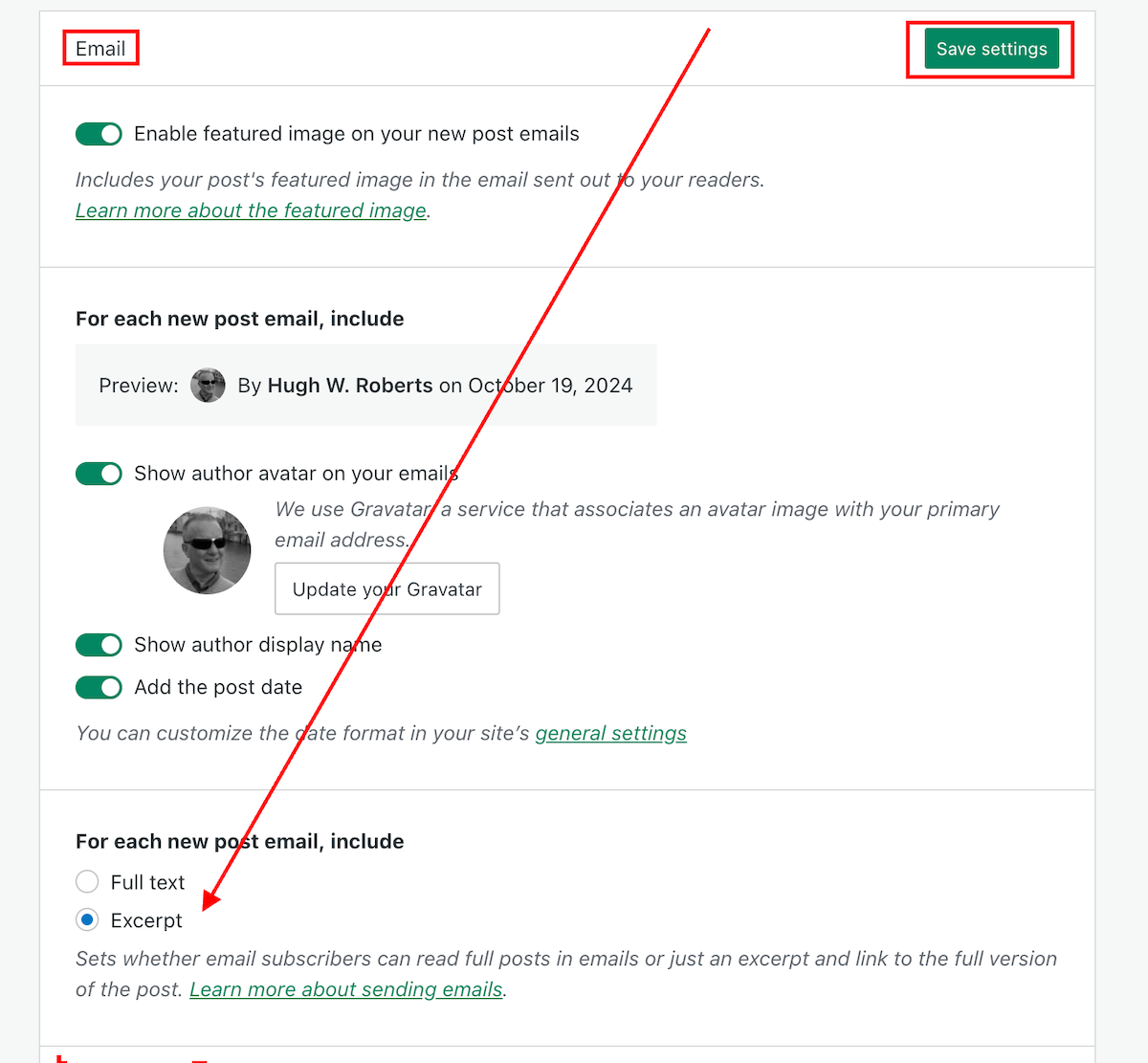
  • On the dashboard of your blog, go to Settings – Newsletter.
  • Scroll down to the Emails sections of the Newsletter settings page, and change the ‘For each new post email, include‘ setting back to ‘Excerpt.’
  • Click the ‘Save Settings‘ button.
Image highlighting where to change the 'For each new post email, include..' setting to 'Excerpt,'
Change this setting to ‘Excerpt.’

Your new post notification emails will now only show an excerpt rather than the full post.

The ‘For each new post email, include‘ setting can also be found on your blog’s dashboard under SettingsReading.

My thanks to Dave Martin at Automattic and WordPress for fixing this problem.

Layout, content, settings, and format might differ on self-hosted blogs.

Any questions? Leave them in the comments section.

Follow Hugh on social media. Click the links below.

Copyright @ 2024 hughsviewsandnews.com – All rights reserved.
Why Do You Use The WordPress Reader? This Is Why You Should Use It.

I don’t use the WordPress Reader nearly as much as I should.

I get email notifications when new blog posts are published by the bloggers I follow. This makes sense as I only follow around 55 blogs, most of which publish no more than a few times a week.

Am I missing out on not using the WordPress Reader? I think so, yes! But why?

Light blue image with the words 'Why Do You Use The WordPress Reader?' in white text.
Tell me why you use or don’t use the WordPress Reader.

One of the reasons I stopped using the WP Reader was that when I was following over 500 blogs, I felt like a hamster constantly running around a wheel in my endless battle to reach the top of the reader. I never reached the top, so I thought I was missing out!

However, I occasionally use the WordPress Reader to search for posts on subjects I enjoy reading. In my opinion, this is where the WordPress Reader is at its best!

For example, I recently entered the word ‘WordPress’ into the reader search bar and was presented with a long list of blog posts in which ‘WordPress’ had been used as a category or tag (this shows how important categorising and tagging your posts is).

But before I discuss some of the search results, let me first say that, unlike some bloggers who seem to think WordPress has deleted the ‘Reader,’ the WP Reader has moved.

Where is the WordPress Reader?

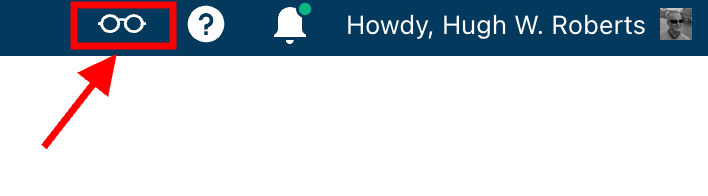
If you’re using a desktop computer, the WP Reader is now located in the top right corner of your blog. Look for the pair of spectacles icon.

Image highlighting the WordPress Reader icon and where to find it.
The WordPress Reader icon has changed and moved.

Click on it, and you’ll be taken to the WordPress Reader.

On mobile phones and tablets (using the Jetpack app), the WP Reader icon (spectacles) is located at the bottom of the screen.

What I found in the search results!

I was delighted to see some of my posts appear in the search results. However, I was more interested in the posts from blogs I don’t currently follow.

One of those posts that grabbed my attention was from Mitch, who blogs at The Power Of Story. Mitch’s post, ‘What’s Up WordPress?‘, was about the sudden ups and downs of his blog’s number of subscribers/followers. Indeed, I’ve noticed the same thing happening with my blog.

Image showing the ups and downs of subscriber/follower numbers on WordPress

My subscriber/follower stats have become like a fairground rollercoaster ride. Some days, I lose a lot of subscribers/followers, and then the numbers suddenly return, although not the same subscribers.

I did some digging and found that WordPress are now actively deleting spam blogs and blogs run by spambots. That’s a good thing, especially since I’ve been manually unsubscribing them for many months. WordPress is unsubscribing these blogs for me, although I will unsubscribe any I find myself.

Have you noticed your subscriber/follower numbers going on a rollercoaster ride recently?

Another post that grabbed my attention from the results page was from Kevin, who blogs at Chef Kevin Ashton. Kevin’s post, titled ‘The Thorny Issue Of WordPress Likes.’ touched on a subject I’ve often written about – the ‘like’ button!

Love it or hate it, the ‘like’ button is something just about every WordPress user and visitor will use. However, Kevin touched on the subject of ‘guilt’ by not using it, especially when he doesn’t have enough time to visit and read blogs.

I’ve been there, Kevin. Many bloggers feel guilty or stressed about not clicking ‘like’, visiting blogs that follow them, or leaving comments. Yet, in my opinion, nobody really cares that you can’t always visit their blog. I’ve discovered that leaving one engaging comment occasionally that shows you read the post is much more appreciated than leaving short, non-engaging comments just to prove you visited. However, you may not have read their post.

I’ve written many posts about blogging guilt and stress. In my last post on the subject, ‘Stressed Or Feeling Guilty About Blogging? Please Read This Post. Let’s Keep Blogging Fun,’ many readers spoke up about how bad they feel when they don’t have the time to read blogs, click ‘like,’ and leave comments, often resulting in blogging feeling like a chore rather than something that should be enjoyed.

Nobody should ever feel obliged to read posts, click the ‘like’ button or leave comments. Keep blogging fun.

How do you deal with blogging stress or guilt?

The happy and sad sides of blogging!

It was also lovely to see blog posts celebrating milestones on WordPress in the results. From celebrating 15 years of blogging on WordPress to publishing their 100th post and some folks being notified that their blogs had achieved half a million visits, these posts brought a smile to my face.

Of course, posts complaining about how bad WordPress is and the problems bloggers are having also appeared in the results. Although I only read a few, most of the reported issues were related to WordPress’s changes, and the author often confirmed in the comments section that the issue(s) had now been resolved.

Personally, I’m pleased that WordPress does make changes. If they left things alone, the platform would quickly become outdated and dull, as would all our blogs. WordPress would lose many paying customers, and we’d all lose our blogs if they went out of business. I used to hate change but learned that adapting to it is much less stressful than fighting it

Are you encountering any issues with WordPress? My recent post, ‘WordPress Problems: Don’t Panic! How To Solve Issues Quickly,’ may be of some help.

Are your blog posts appearing on the WordPress Reader?

I always check that my blog posts appear in the WordPress reader. To do this, I follow my blog and check the reader immediately after publishing a post. If it’s not there, I know there’s a problem.

There are several reasons why your posts may not appear in the WordPress Reader. The main reason is that you add too many categories and tags to a post. WordPress allows up to 15 categories and tags combined. Your post could be marked as spam and won’t appear if you add more, so ensure you do not add more than 15 tags and categories (combined).

There may also be technical reasons why your posts don’t show in the reader. If you don’t see your posts, contact WordPress. They’ll be able to help.

That’s it for today. I’ll share other interesting posts when I do more searches on the WordPress Reader.

Why Do You Use The WordPress Reader?

Did you enjoy reading this post? Then you may also like…

Layout, content, settings, and format might differ on self-hosted blogs.

Click the buttons below to follow Hugh on Social Media

Copyright @ 2024 hughsviewsandnews.com – All rights reserved.

WordPress Problems: Don’t Panic! How To Solve Issues Quickly

Do you encounter problems using WordPress? Are your posts not aligning correctly, or are you unable to leave comments on certain blogs? What’s causing these problems? Is it WordPress, or are you or your device causing them?

Light blue image with the words 'WordPress Problems: Don't Panic! How To Solve Issues Quickly' in white text
Don’t panic when WordPress causes you problems. The problem could be you!

Like any online website, the WordPress platform experiences problems. Bugs occur. They can often cause havoc for users. Sometimes, things don’t go to plan when new updates are released.

But what causes these problems, and how can they be fixed?

Case 1 – Your posts are not displaying correctly.

A few years ago, a reader informed me that my blog posts were not displaying correctly.

I checked my blog and couldn’t see any problems. I used another device and couldn’t see any issues.

I contacted the WordPress Happiness Engineers. They assured me that from what they saw, there were no problems with how my blog posts were displaying. They even sent me screenshots and some short video clips showing me what they were seeing at their end.

But I was still not happy.

I decided to write and publish a post about the problem.

I asked my followers to check some of my blog posts and let me know if there were any problems with how they were displaying. Over 100 people came to my call for help. Only one person said there was a problem with how my posts were displayed, and this was the person who reported the problem to me.

It turned out that the problem wasn’t my blog or WordPress. The problem was the device belonging to the reader who reported the issue.

I asked them to make sure their device had the latest updates. They never informed me that my blog was displaying incorrectly again.

Case 2 – I can’t leave comments on certain blogs.

I recently saw a post from a blogger who said he had problems leaving comments on certain blogs.

He named the blogs so they knew who they were and apologised, saying that his comments were being cut off as he wrote them.

He asked if anybody else was having the same problem when leaving comments.

By the time the responses came in (and all were saying ‘No’), he’d gone to another device. He tried leaving comments on the same blogs. They all worked, and he came back and apologised.

The problem was caused by the device he was using. He updated the device’s software and also tried using another internet browser, and his comments worked.

Case 3 – When was the last time you cleaned your house?

Some of my WordPress data and stats were not displaying. ‘Have you tried clearing your browser history, cookies and cache on your computer?” somebody asked?

I did the clear-out, and the data all showed up.

Like your home, your blog device needs some housekeeping to keep it working correctly.

Case 4 – Have you tried the most popular advice when things go wrong?

A user contacted me saying they could not leave comments or ‘likes’ on any blog posts. She was using the Jetpack app on her mobile phone.

I told her to try signing out of the Jetpack app, delete it, reinstall it and sign in again.

Problem solved.

Case 5 – Has the blog theme you’re using been retired?

Another WordPress user was experiencing many problems with her blog. Her posts were not aligning correctly, and some readers contacted her to say they couldn’t leave comments. The sharing buttons at the end of her posts were also not working. There were also other issues like certain tools no longer working.

She contacted WordPress, which informed her that her blog theme was retired and was no longer supported. The advice was to change her theme. She didn’t want to change the theme; she liked it. She tried working around the problems. That worked for a while. Then, the issues worsened, and she eventually gave up on her blog.

The WordPress platform wasn’t the problem. The device she was using wasn’t the problem. She was the problem for refusing to change to a theme that WordPress supported.

If your theme has been retired, you will find this notice on the theme’s info page:

Image showing the message 'This theme has been retired' on WordPress
Has your WordPress theme been retired?

When a theme is retired, it no longer appears in the list of themes at Appearances – Themes or at Appearance – Theme Showcase if using the Classic Editor.  

But, if the theme is already active on your site, you can continue to use it. Some retired themes will usually stay available for the lifetime of your site or blog without any issues. However, if you continue using a retired theme, you should note the following:

  • A retired theme no longer receives WordPress updates or new features. This includes security updates that protect your blog from spammers and hackers.
  • A retired theme should continue functioning on your site. However, WordPress does not guarantee that it will always work well with its ever-evolving software.
  • You may lose access to certain features like sharing and reblog buttons, blocks, writing tools and clicking the ‘like’ button.

If you still use a retired theme, you will likely encounter problems at some point. Visitors to your blog may also experience problems viewing it correctly or engaging with you.

How do I change my WordPress theme?

Some bloggers are terrified of changing the theme of their WordPress blog. It can seem like a daunting task.

Once upon a time, changing your WordPress blog theme was a nightmare. I recall the first time I changed the theme of my blog. It took a whole weekend to finish.

But changing the theme of your WordPress blog is now easy and quick. WordPress provides full details on how to do it on the ‘Change your theme‘ page.

Have you checked the WordPress forum?

A user experiencing problems with their WordPress blog does not necessarily mean that other users are experiencing the same problems. Sometimes, problems can be exclusive to one blog (as in some of the above cases).

The WordPress forum page is great for determining if problems affect other users. Here, you can report issues and check what other issues users are experiencing.

Another way to find out if other users are experiencing the same problems with their WordPress blog is to ask them (as I did in Case Number One). Sometimes, issues can be theme-related. Once reported and provided the theme has not been retired, WordPress quickly fixes theme-related problems.

Let’s Wrap It Up!

  • Like any website, the WordPress platform will suffer from bugs and problems.
  • While some problems are widespread, many problems can be caused by a user’s device when blogging, especially if the device is old and does not have the latest updates installed.
  • If you can access another device, try using it to determine whether the problem is only related to one device or a certain web browser.
  • Some problems are related to themes. If a theme has been retired, consider changing to one WordPress support.
  • Changing your blog theme is now easier and quicker.
  • You can check if other bloggers are experiencing the same problems you’re having with your blog by asking them, posting on the WordPress forum, or doing both.
  • Consider that any issues lie outside of WordPress first before blaming them solely.
  • Ensure all devices you use to blog have the latest updates.
  • Report issues and problems to WordPress. They may not know about issues unless you report them.

Are you experiencing any problems using WordPress? Have you checked if the issues are sitewide or only affecting you? How do you deal with issues using the WordPress platform?

Layout, content, settings, and format might differ on self-hosted blogs.

More blogging tips posts from Hugh

Click the buttons below to follow Hugh on Social Media

Copyright @ 2024 hughsviewsandnews.com – All rights reserved.

Why I’m Delighted WordPress Has Fixed This Annoying Bug

In my recent blog post, Experiencing Problems With Leaving Comments On WordPress? This Is What I Found. Read This Post Now, I shared details of two problems I was experiencing connected to comments on WordPress.

Light blue image with the words 'Why I'm Delighted WordPress Has Fixed This Annoying Bug,' in white text
If you don’t report problems to WordPress, how will they know about issues with their platform?

I am thrilled to inform you that the issue I reported regarding the ‘Email me new comments‘ checkbox when leaving a comment has been successfully resolved by WordPress.

Image highlighting the 'Email me new comments' button on WordPress
Click the ‘Email me new comment’ button to get an email notification of when somebody has replied to a comment you left them.

So here’s what happened: When you checked the ‘Email me new comments‘ box, things went a bit haywire. You not only started getting email notifications for comments on that specific post, but you also got bombarded with notifications for comments on other posts on that blog, even if you hadn’t left a comment or picked the ‘Email me new comments‘ option. Your inbox was basically drowning in a sea of WordPress emails. Crazy, right?

Now, when you select the ‘Email me new comments‘ option, rest assured that you will only receive email notifications for comments posted on the exact same post where you have left a comment.

Why do I tick the ‘Email me new comments’ box?

Not only do I get informed via email when I get a reply to a comment I’ve left, but reading other blog posts’ comments always helps me with ideas for new posts. Sometimes, comments can be as interesting as the post they’ve been left on.

I can also definitely lend a helping hand when bloggers reach out for assistance in their comments. Moreover, I take great pleasure in rectifying any misinformation that comes my way. Just the other day, I came across a comment where a blogger erroneously mentioned that having a WordPress account is a prerequisite for leaving comments. Allow me to assure you that this information is not accurate. Indeed, anyone can participate in the discussion without the need for a WordPress account.

One problem remains

The problem I reported concerning no longer getting email notifications when somebody leaves a comment on any of my posts has still not been fixed. However, WordPress has assured me that they’re still working on fixing it.

I’d be interested in knowing if anybody else is experiencing problems with not getting email notifications when comments are left on their posts. Please let me know in the comments section.

Are you experiencing any problems with leaving or receiving comments on blog posts? What are they, and have you reported them to WordPress?

Click the buttons below to follow Hugh on Social Media

Copyright @ 2024 hughsviewsandnews.com – All rights reserved.

Have You Discovered These Two New Excellent WordPress Features? And Where Have Reusable Blocks Gone?

You may already be acquainted with these exciting new features I’ve recently uncovered on WordPress. However, I wanted to discuss them in case some of you are still unaware of their existence or unsure about how they function. Let’s delve into these remarkable additions and explore their potential!

Light blue image with the words 'Have You Discovered These Two New Excellent WordPress Features? Where Have Reusable Blocks Gone?' in white text.
New features you may like to try out on WordPress.

Send Test email.

I absolutely love this new feature! It’s incredibly handy because not only do I get to double-check my email notifications for my new blog posts before hitting the publish button, but it also serves as a safety net to ensure that my blog post is flawless and error-free. This is a game-changer for me!

Note – this feature may not be available to WordPress free plan users.

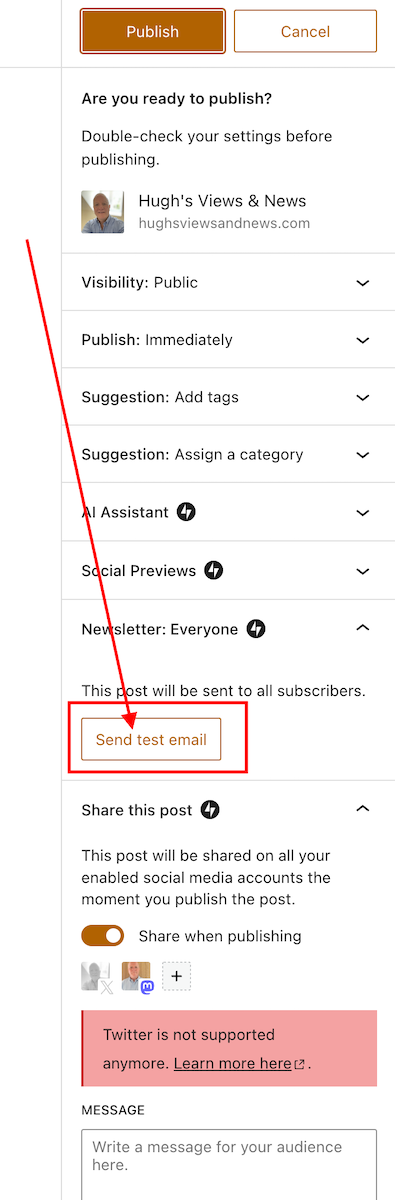
Before scheduling or publishing a new blog post, click the ‘Send test email‘ button, and WordPress will send you an email showing the excerpt and a link to the post.

Where can I find the ‘Send test email’ button?

Under the ‘Publish‘ settings of the draft of your post. Ensure you open the ‘Newsletter: Everyone‘ section to see it.

Here’s a screenshot.

Image highlighting the Send Test Email' button on WordPress
Send test emails for all your WordPress new post notifications.

Not only can you check that the excerpt of your blog post is correct, but you can also click the link within the email to open the post and verify that everything is as it should be.

So, no more –

  • Missing images
  • Uncentred captions
  • Upsidedown images
  • Misplaced images
  • Images and text overlapping
  • Missing blog post titles
  • Missing headings
  • Missing words
  • Spelling mistakes
  • Forgetting to close comments
  • Broken videos or YouTube links
  • Broken links/pingbacks

Of course, spelling and grammar mistakes may still appear, but at least you now have another way of checking and editing a post before it’s published.

A new way to showcase previous blog posts.

Most bloggers like to showcase previous blog posts so those who missed them the first time can catch up.

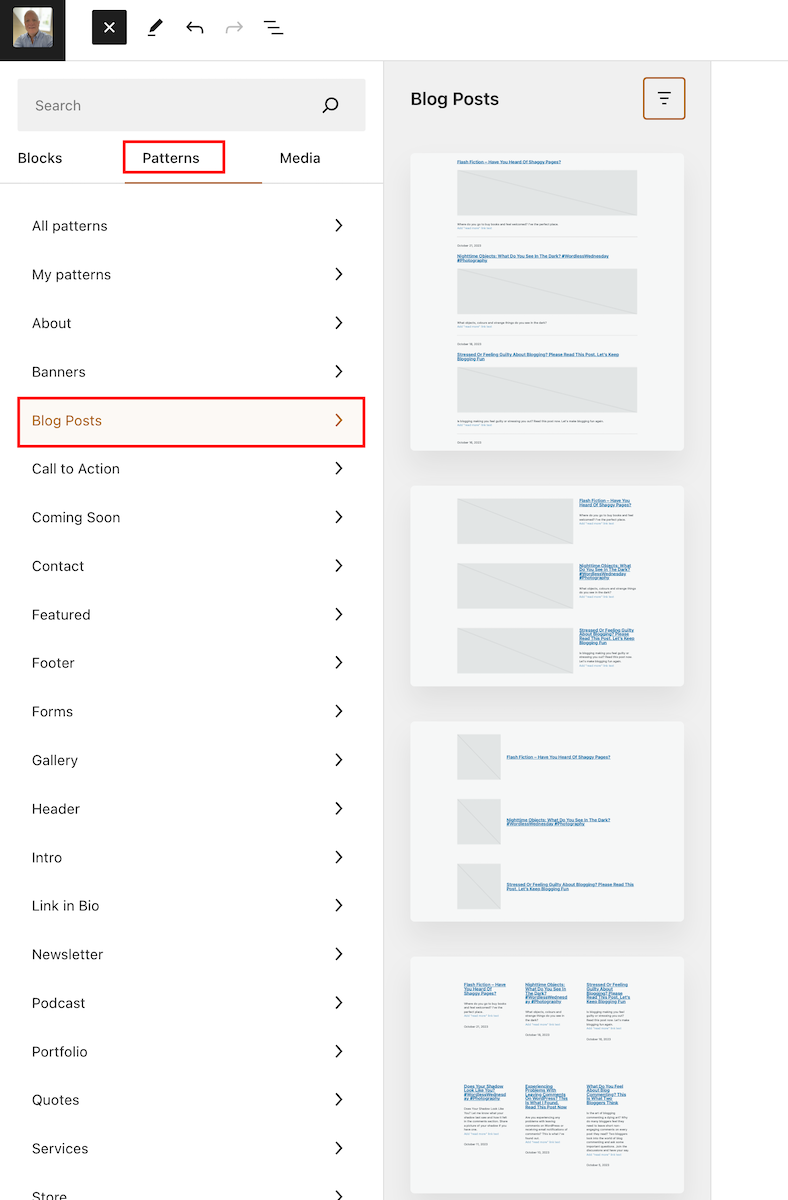
There are various ways to promote older blog posts on newly published posts. This is a new blog post template that WordPress has added to ‘Patterns‘ to help promote previous posts. In fact, WordPress has added lots of new ‘Blog Post’ templates. Here’s one I selected.

Where can I find Blog Post templates?

  • On a draft post, click the ‘+‘ symbol to add a new block and select ‘Patterns.’
  • On the menu that opens, click on ‘Blog Posts‘ and select from the many templates on offer.
Image highlighting where to find Blog Posts Templates on WordPress
Select a ‘blog posts’ template from the many on offer.

You can also select the ‘Blog Posts’ block for the same job.

Each template has many settings you can play around with. For example, I set the template I displayed above to two rather than three columns (displays as one column when viewing on a mobile phone). You can also change the background colour and text colour of the template.

On the template I used, up to six posts can be displayed, with new blog posts added as you publish them.

Unfortunately, I could not find a way of choosing which blog posts I wanted to feature in the template I chose, but some of the templates allow you to do this.

The one drawback I have noticed about my chosen template is the inability to set links to open in a new tab. As a result, users clicking on any of the links will lose their current page. To address this issue, I highly recommend including the ‘Blog Post Template‘ at the end of each post. This way, readers can easily navigate to related content without losing their place on the page.

Where did all my reusable blocks go?

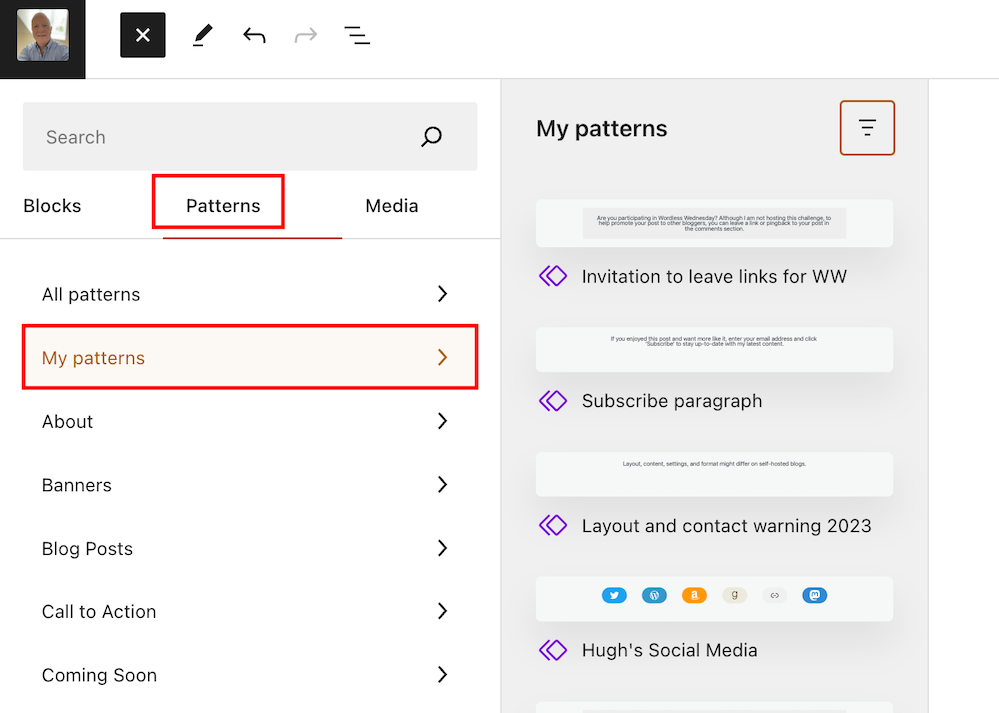
Synced patterns have replaced Reusable blocks, offering a unified creation experience for new pattern functionality on WordPress. Any reusable blocks you’ve created for your blog can now be found under ‘Patterns.’

Go to ‘Patterns’ – ‘My Patterns‘ for a list.

Image highlighting where to manage reusable blocks on WordPress
Reusable blocks can now be found under ‘Pattern.’

Not sure what a reusable block is? My post, ‘What Is A Reusable Block On WordPress? How To Create One And Save Yourself Lots Of Time,’ gives full details.

How to manage reusable blocks.

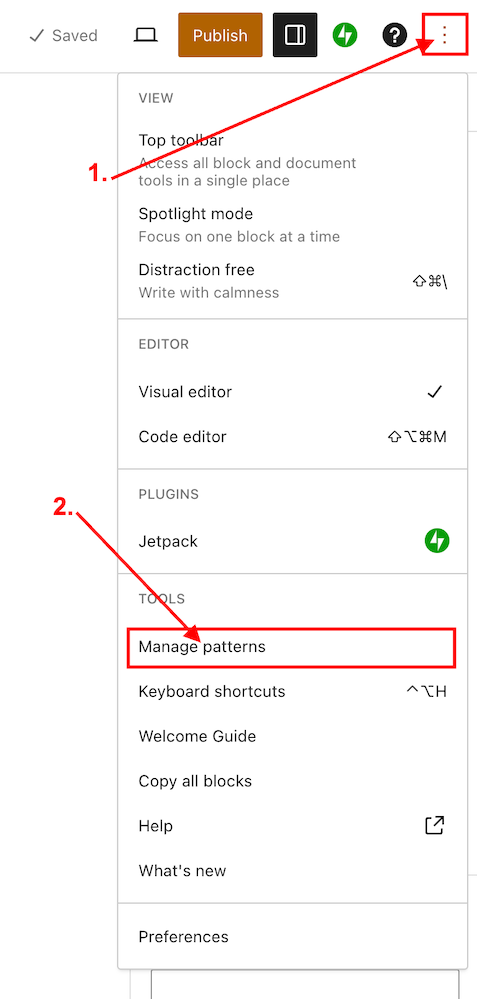
  • Ensure you view your blog’s dashboard in ‘Classic‘ view. When writing this post, it won’t work when viewing in ‘Default‘ view (WordPress are aware of the problem).
  • On the draft page of a post, click the three dots (options button) in the top right-hand corner of the page.
  • Click ‘Manage Patterns‘ in the new menu that opens.
Image highlighting how to manage reusable blocks on WordPress.
Click ‘Manage Patterns’ to manage reusable blocks.
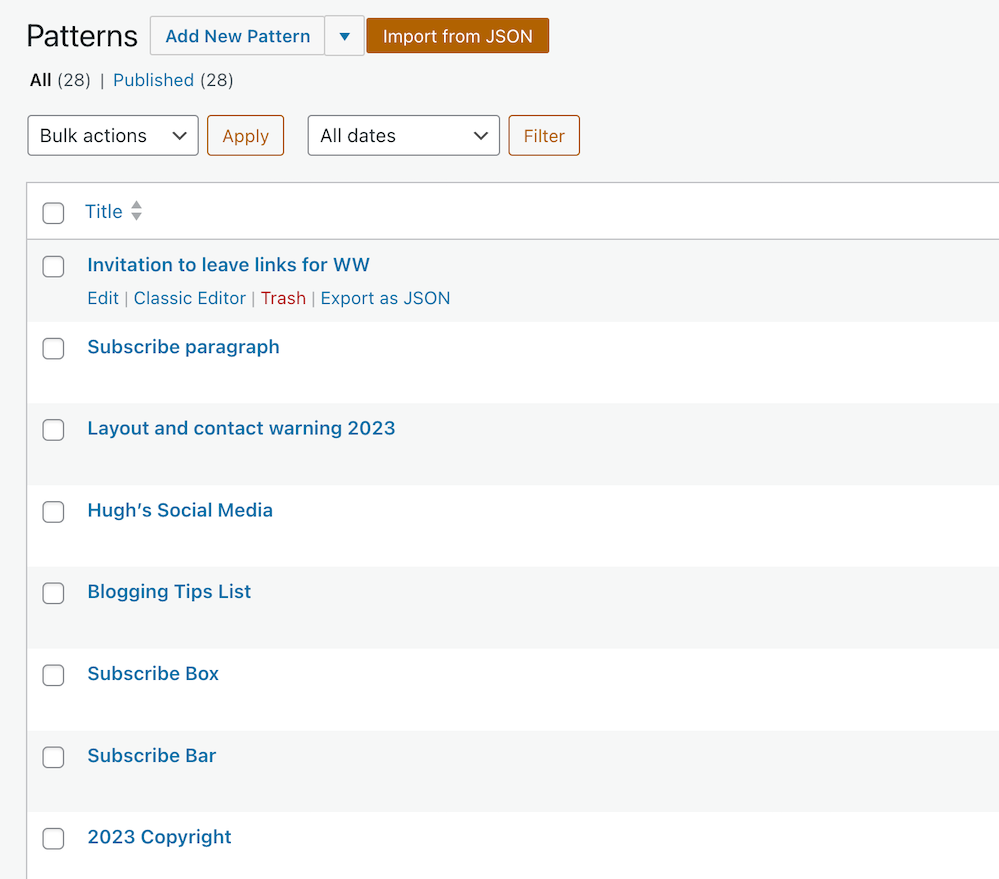
  • A page will open that lists all your reusable blocks. This is where you can edit or delete them.
Image showing a list of reusable blocks (now Patterns) on WordPress
A list of reusable blocks

IMPORTANT NOTICE – Please exercise caution when deleting a reusable block that has been previously used in your posts. Deleting a reusable block will result in its disappearance from all associated posts, and a notification will be displayed indicating that the block is no longer available. It is crucial to be mindful of this consequence to avoid any unintended disruptions to your content.

Have you explored any valuable new features on WordPress, or are you already utilising the ones I’ve mentioned? Are reusable blocks an essential part of your workflow? Feel free to share your thoughts in the comments section, and don’t hesitate to ask any questions.

Layout, content, settings, and format might differ on self-hosted blogs.

Follow Hugh on his social media platforms by clicking the buttons below.

Copyright @ 2024 hughsviewsandnews.com – All rights reserved.

Experiencing Problems With Leaving Comments On WordPress? This Is What I Found. Read This Post Now

I’ve written about comments a lot over the last few months, so this seems like the ideal opportunity to discuss some problems with commenting on WordPress.

First, I want to discuss a problem with getting email notifications from WordPress whenever comments are left on my blog posts.

Light blue image with the words 'Experiencing Problems With Leaving Comments On WordPress? This Is What I Found. Read This Post Now' in white text.
Are you experiencing any of these problems with comments on WordPress?

I’ve stopped getting email notifications whenever anyone comments on one of my posts, so I have had to revert to checking for new comments on my blog’s dashboard.

It’s not a huge problem, but the email notifications act as a backup, so I know when comments have been left, and they also serve as a reminder that I have comments to respond to. I don’t delete an email notification until I’ve replied to a comment. That way, I don’t miss any.

I reported the problem on the WordPress Forum. That was over two weeks ago, and whilst I’ve had a lot of contact from WordPress staff, the problem is currently with their developers.

Is anybody else having problems getting email notifications of comments left on their blog posts? Or is it just me?

I’ve also reported another issue to WordPress. I’m wondering if any of the following are happening to you when leaving comments on other blogs?

Other problems with commenting.

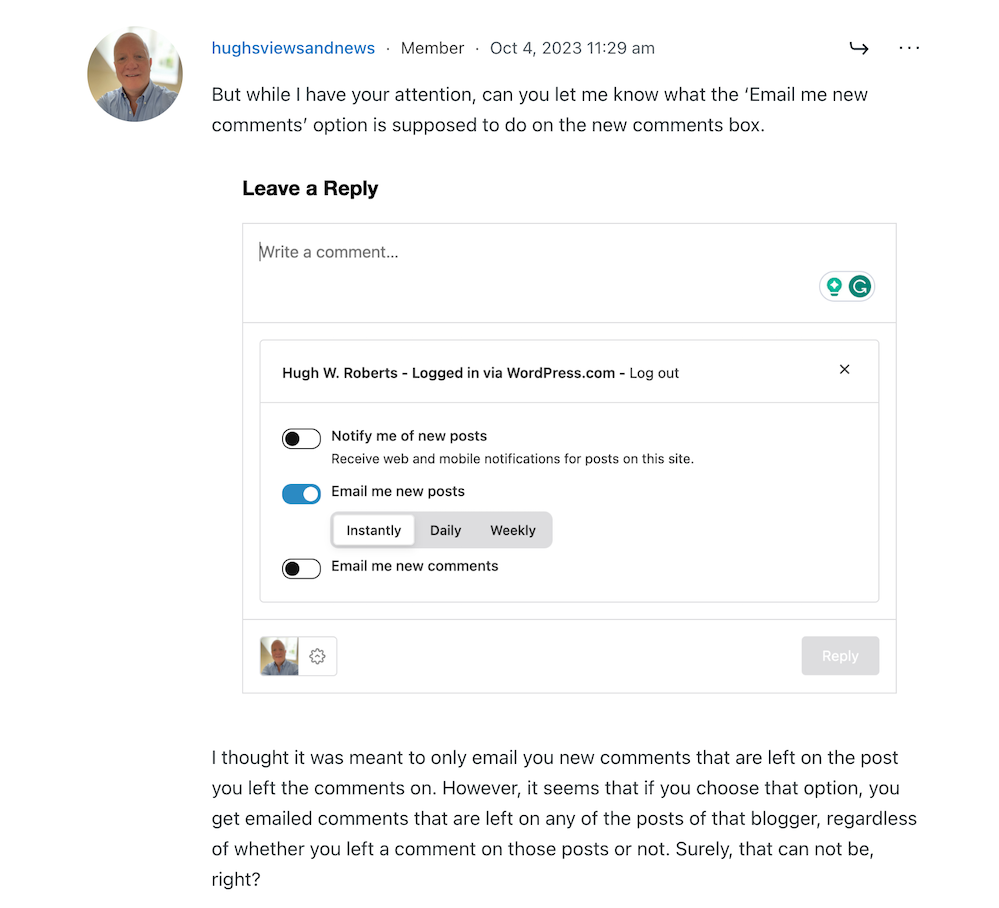
Have you noticed that the comments box on WordPress has changed? The old comments box has been replaced with a new one (see the following image), but it seems to be causing me a few problems.

Image showing the new-look comments box on WordPress.
Have you noticed the new comments box on WordPress?

The above new style comments box has gradually been introduced to most blogs on WordPress.

You can write a comment, press the reply button, and move on pretty swiftly, but my concerns are with something hidden behind the settings (cog) button next to the icon that displays your Gravatar image. When you press the cog, you’ll see this.

Image showing the tree options available on the new-look comments box on WordPress.
There are three options to choose from in the new-look comments box.

See those three new options at the bottom of the comments box? Not only can you now get web and phone notifications of new blog posts from the blog you’re leaving a comment on, but you can set how often you get notifications of new posts.

These are not new, though. They’ve been available for use on WordPress for a long time but were buried deep in our blogs’ dashboard settings. Now, they’re much easier to find and use.

So far, so good, you may think, but it’s the ‘email me new comments‘ button that is causing me concern.

You see, I’m one of those bloggers who like to receive an email whenever anyone replies to a comment I’ve left on their blog or when anyone else leaves a comment on the post I’ve already commented on. It’s my way of knowing that not only have they responded to my comment but also a way for me to either reply to or ‘like’ the comment. I do not like the thought of any blogger thinking I’ve ignored their comment.

The problem now is that when you slide the ‘email me new comments‘ button on, not only do you get emailed comments for the posts you’ve left comments on, but you’ll get email notifications of any comment left on any of the posts on that blog regardless of whether you left a comment or not.

If the blog you’ve left a comment on is huge and gets hundreds of comments, this could become a big problem with your email box filling up quickly.

Needless to say, that is something I do want. I only want email notifications of comments left on the posts I left a comment on. Why? Well, I find that reading comments can sometimes be as interesting as the post they’re left on, plus comments often give me new ideas for blog posts.

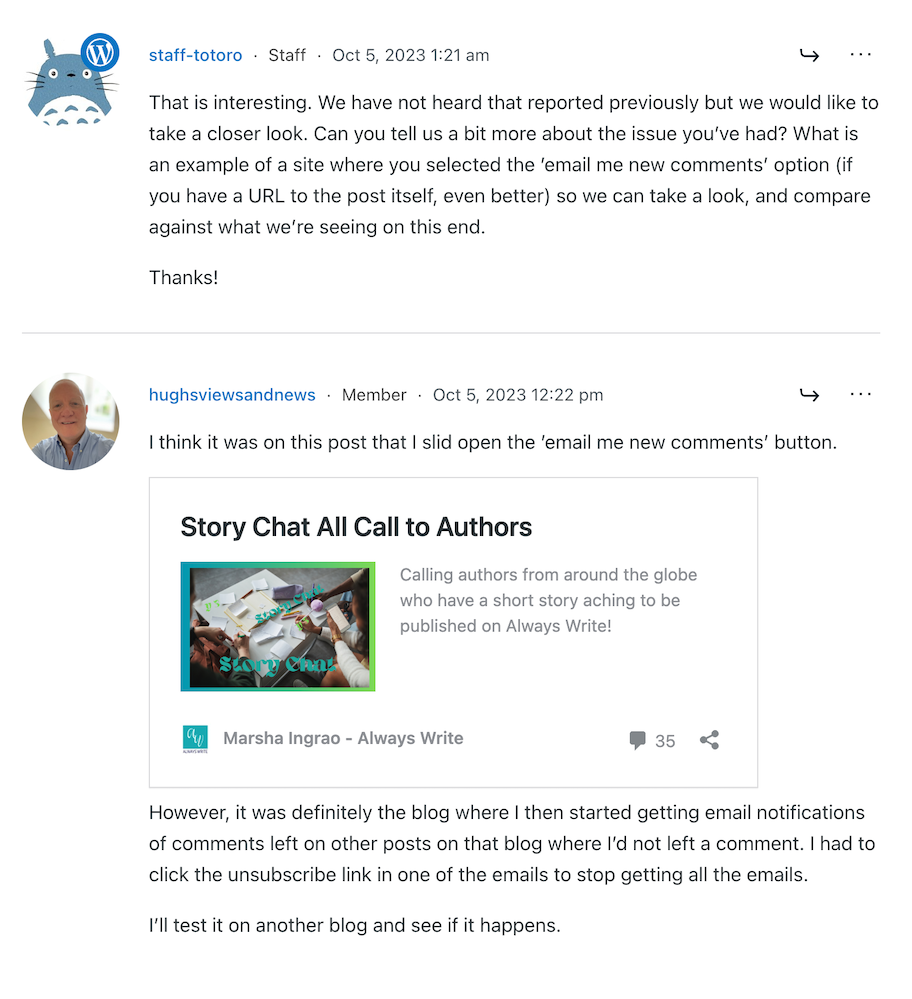
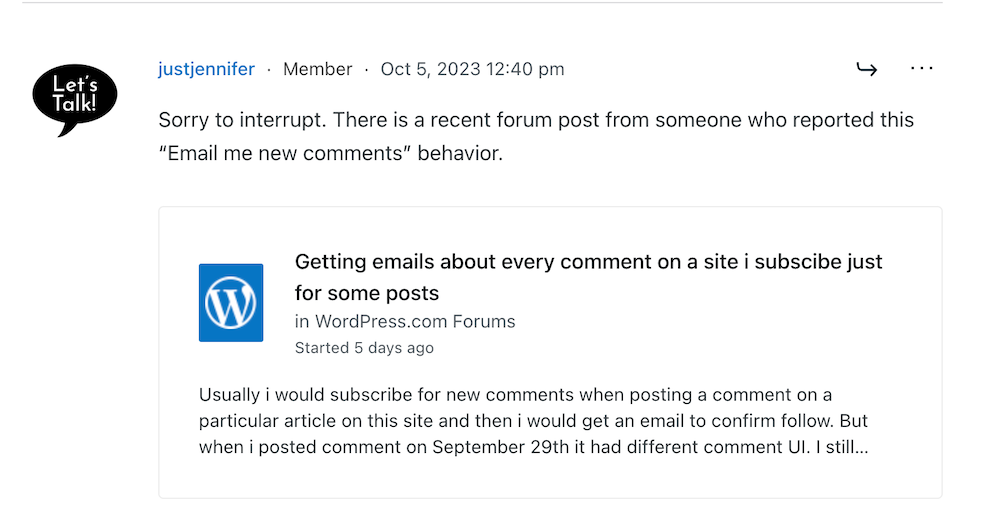
I’ve reported the issue to WordPress, and they’ve replied. See the screenshots below. However, I’m not the only one who reported this particular problem.

Image showing discussion on WordPress forum regarding email notifications about comments
Images showing a discussion on WordPress forum about emails and commenting.
Image showing another blogger who has reported email notification problems on WordPress
Somebody else has reported the same problem.
Image showing a response from WordPress to my concerns regarding problems with email notifications from WordPress
A response from a member of staff at WordPress

That was the last response from WordPress, but I’ll update this post with any developments.

Some good news – My spam box is empty!

Is it only me, or has anyone else seen a drastic reduction in spam since the new comment box appeared? I used to get hundreds of spam messages to scroll through every day, but now my spam box is empty almost every day – hooray!

So, there is no need to close comments off posts anymore if WordPress has waved a magic wand and stopped the spam once and for all. Hooray – that means I can leave comments on blog posts that are more than a month old.

Are you having any of the problems described in this post or any issues with leaving comments or receiving WordPress notifications as a whole? Has the amount of spam you’re getting plummeted? Let me know in the comments section.

Follow Hugh on Social Media. Click on the links below.

If you enjoyed this post and want more like it, enter your email address and click ‘Subscribe’ to stay up-to-date with my latest content.

Layout, content, settings, and format might differ on self-hosted blogs.

Copyright @ 2024 hughsviewsandnews.com – All rights reserved.
WordPress Themes: Who Do You Blame For Your Blog Not Working Correctly?

Who do you blame when something goes wrong with your blog?

Most of us will probably blame WordPress, yet have you ever thought that the problem could be that the theme of your blog is to blame because you’ve never changed it and it’s been retired?

Light blue image with the words 'WordPress Themes: Who Do You Blame For Your Blog Not Working Correctly?' in white text.
Is your blog’s theme causing the problems you’re experiencing with your blog?

Many problems can arise on blogs when a theme has been retired.

How Do I Find Out If The Theme I’m Using Has Been Retired?

You’ll see the following image on the themes page of your blog.

Image of a message from WordPress stating that a theme has been retired.
Has your theme been retired?

Go to your blog’s dashboard and click Appearance – Themes to determine if your chosen theme has been retired.

Can I Still Use My Retired Theme?

Yes, you can. WordPress won’t remove it from your site. However, when a theme is retired, it no longer appears in the list of themes available on WordPress.

Your retired theme may remain available for the lifetime of your site or blog, but it will no longer be fully supported by WordPress. It won’t receive any updates with new features; hence WordPress won’t guarantee it will always function correctly with their ever-evolving software. If anything goes wrong, it may not be possible to fix it.

You can still contact WordPress support so the Happiness Engineers can take a look, but support will be limited, and they’ll probably recommend switching to a newer theme. In addition, they won’t provide any CSS support for the retired theme.

Why Do Themes Get Retired?

Web technology updates make the visibility and functionality of some themes outdated.

Web design is an area that is continually evolving, thanks to trends, tastes, and new technologies. WordPress has to keep up to date with these changes and is at the forefront of wanting blogs to look fresh and modern.

Retired themes can make blogs look outdated, stale, and uninviting to visitors, especially if you’ve never changed your theme since starting to blog.

Themes may also be retired if their design has become old-fashioned or uses certain no longer supported features.

What Should I Do If The Theme I Am Using Is Retired?

You can continue to use it, but it may no longer be possible for WordPress to fix any issues you encounter.

Some of the issues I have found with blogs that are still using retired themes are –

  • I can no longer leave comments.
  • Pingback to the blog no longer work.
  • Pingbacks from the blog no longer work.
  • The gravatar image is no longer displayed.
  • The ‘Notify me of new comments via email’ box is missing.
  • Pressing the ‘like’ button no longer works.
  • New blog posts do not appear on the WordPress Reader.
  • Blog posts are no longer mobile or tablet-friendly.
  • Comments do not display correctly.
  • Images, photos and paragraphs do not display correctly.
  • Sharing buttons no longer work correctly.

In all cases, when I’ve checked the blog’s theme when these problems have happened, it’s an old, retired theme.

Some bloggers find workarounds when problems occur, but all this does is put off the inevitable that one day they will have to change the theme.

My recommended advice is to consider switching to a new theme to ensure your blog has a modern look and feel to its design.

If you’re not bothered about parts of your blog being broken, you may wish to continue using it until you are forced to change the theme. However, that’s not something I recommend.

Not only can finding a new theme be fun, but it can also boost your blog’s ranking.

How Do I Find A New Theme?

On the dashboard of your blog, go to Appearance – Themes. You’ll see all the WordPress themes available. For free themes, click the ‘Free‘ button in the top-right of the page.

You can also use the search field on the themes page to find a replacement theme. Click on the filter options below the search bar or type directly into the search field to filter by specific features or subjects or by the number of columns the theme natively displays to select a new theme similar to your retired theme.

Block Themes Vs Classic Themes

Block (or Full-Site Editing) themes are the new boys on the block.

WordPress recommends switching to a Block theme, as these are the future and what will be supported in the long term.

I have heard of some bloggers encountering problems switching to Block themes. It’s a long learning curve to get used to them, but WordPress has plenty of advice and help for switching to one.

Some bloggers who have already made the switch have reported that not only do their blogs run faster after switching to a Block theme, but problems they were experiencing with their blogs also disappear.

I recommend watching WordPress tutorial videos and reading their guidance page before switching to a Block theme. For information, click the links below.

Video Tutorials: Customize your Site or Blog

Using The Site Editor

Should you encounter problems switching to a Block theme, help is at hand.

  • Contact the WordPress Happiness Engineers by clicking on the ‘question mark’ icon (next to the ‘bell’ notification icon) in the top right of your blog’s dashboard.
  • Ask for help from your followers and other bloggers by writing and publishing a post or contacting a blogger directly.

Important Information: Do not activate a new theme unless you are absolulty sure you like the theme you have chosen, as it’s impossible to go back to a retired theme once you’ve activated a new theme.

Classic themes were created to work with the old Classic editor, but with the large drop in Classic editor users, WordPress has been retiring them, especially when they no longer work with new functionality software or when updates to the WordPress platform have been released.

Unlike Block themes, Classic themes are heavily loaded with CSS code, meaning many things can go wrong. Block themes are only lightly loaded with CSS code, so are less likely to break.

Currently, WordPress provides 54 Classic themes that are free to use and compatible with the Block editor.

To find current Classic themes, search for them by adding ‘Classic‘ to the search bar on the Themes page, and select ‘Classic Theme‘ from the dropdown menu that appears.

If the theme you’re currently using has been retired, I recommend you switch to one of the Classic themes if you do not want to switch to a Block theme. Doing this will fix some or all of the problems your blog may be experiencing.

If you still experience problems after switching to a current Classic (or Block) theme, report the problems to WordPress. How will WordPress know about a problem unless you report it? Don’t rely on other users reporting the problems you’re having with your blog.

Does WordPress have any plans for new Classic themes?

I asked WordPress the above question. Their response was –

‘No, and we doubt there will be as the industry shifts to the more modern and convenient Full Site Editing (Block) themes that remove most of the need to learn coding to create and customize your theme.’

Is WordPress retiring all Classic themes? If so, when?

Their response –

‘It’s likely, as the focus is shifted to the more modern approach. We do not have specific timelines for each theme or the ones available on our list at this moment.’

So I guess it’s a case of ‘watch this space.’

However, given that the Classic Editor plugin is still available, my guess is that WordPress will retain some of the Classic themes until they stop supporting the Classic Editor plugin. But the choice of Classic themes will become more and more limited as time passes.

I didn’t ask WordPress if there are any plans to stop supporting the Classic Editor plugin, although I have heard rumours that they plan to stop supporting it by the end of 2024.

Let’s wrap it up.

  • Problems may affect your blog because your theme has been retired.
  • WordPress may be able to fix some issues, but they will advise you to switch to a new theme if the theme you’re using is retired.
  • You can continue to use a retired theme you’re using, but it may not work correctly.
  • Once you activate a new theme, you won’t be able to go back to the retired theme you’ve been using.
  • Upon publication of this post, WordPress offers Full Site Editing (Block) and Classic themes.
  • All Classic themes are free to use.
  • There are no plans to introduce new Classic themes.
  • The number of available Classic themes will continue to diminish.

I’ve seen some bloggers say they will wait until they are forced to switch themes. Given that switching themes can be a complicated and time-consuming project, all that will do is make them panic when the time comes to switch. Don’t be one of them.

If the theme you’re using has been retired, switch now.

WordPress welcomes feedback on the new Block themes and encourages everyone to contact them with suggestions for improving them.

If you enjoyed this post and want more like it, enter your email address and click ‘Subscribe’ to stay up-to-date with my latest content.

To follow Hugh on social media, click the links below.

Layout, content, settings, and format might differ on self-hosted blogs.

Copyright @ 2024 hughsviewsandnews.com – All rights reserved.
5 Things You Can Do To Free Up Media Space In Your Blog’s Media Library.

‘Help! I’ve run out of media storage space on my blog and can no longer upload new photos, images or videos. What can I do?’

That was a question to me from Micheal, who blogs at Spo-Reflections.

Michael was happy to upgrade his WordPress plan to obtain more media space, but there are other things you could do if you find your blog running out of media space.

Light blue image with the words '5 Things You Can Do To Free Up Media Space In Your Blog's Media Library' written in white text.
Have you run out of media space on your blog? Here are 5 things you can do to obtain more.

1. Upgrade your plan.

WordPress currently offers 6 plans.

The amount of media storage space you get varies. Click the following link to see the plans – ‘There Is A Plan For You.’ Pricing is correct at the time of publication of this post.

Each plan provides the following media storage space.

Name of planStorage Amount
Free1GB
Personal6GB
Premium13GB
Business200GB
Commerce200GB
EnterpriseN/A

However, only upgrade your WordPress plan if you absolutely need to. Do not get into debt by upgrading unless you can afford it, as there are other things you can do to free up media storage space.

2. Resize the size of your images and photos.

One of the biggest reasons bloggers run out of media space is that they do not resize their images and photos before uploading them to their media library.

There are several ways you can reduce the size of images and photos. You can reduce them using photo editing software or via the tools of your device you use to blog.

I use an Apple iMac and can change the size of photos and images by clicking on ToolsAdjust size on the menubar of my desktop computer. I do this before uploading them to my WordPress media library.

I recommend reducing image and photo sizes to 900 x 675 pixels.

On a Windows computer, you can use Microsoft Paint. Open your image with that program, then click on Resize. You can find this option on the middle-right side of the “Image” section at the top of the Paint window.

The WordPress media library also has editing software, but please note that if you reduce the size of an image or photo using this tool, the original image is kept in your media library when you reduce the size of the picture – thus, you won’t have freed up any storage space.

Large images can also slow down your blog’s downloading speed, negatively impacting your blog’s search engine rankings and overall user experience. So, I recommend you always reduce the size of images and photos before uploading them to your blog.

3. Do not upload videos to your media library.

If you include videos in your blog posts, uploading them to your media library can take up vast amounts of space.

To overcome this problem and free up all the space they take up, upload your videos to YouTube. Then add the YouTube block to your blog post and include the link to the video in the block.

Image of the YouTube block on WordPress
Adding videos to your blog via YouTube helps free up media space for your blog.

Do this for any existing videos you have in your media library. Upload them to YouTube and add them via the YouTube block before deleting the original from your media library. This will free up large amounts of storage in your media library.

4. Delete images from your media library.

We can accumulate vast amounts of images and photos in our media library, many of which will become redundant.

Deleting these images will free up storage space. However, when you delete any images or photos in your media library, they disappear from the blog posts they appear on.

My blog post, ‘Are Your Old Blog Posts Damaging Your Blog? How To Stop It From Happening’ details why bloggers should delete old blog posts.

Deleting old, redundant blog posts containing images, photos, and videos frees up storage space. However, delete any images, photos and videos in your media library before deleting the posts.

If you’re unsure whether a post should be deleted, read my post, ‘Are Your Old Blog Posts Damaging Your Blog? How To Stop It From Happening,’ for advice.

5. Reduce the number of images and photos you add to blog posts.

While I recommend adding at least one image or photo to a blog post (because blog posts containing images get up to 70% more traffic), reducing the number of images and pictures will help save media space.

Before adding more images or photos, ask yourself if adding them to your post is necessary.

Let’s wrap it up.

  • Resize your images and photos before uploading them to your blog’s media library.
  • Upload videos to YouTube and use the YouTube block to show them on your blog posts.
  • Delete old images and photos from your media library, but remember to remove them from any posts first.
  • Do not resize images using tools in the media library, as this does not save storage space.
  • Consider deleting old blog posts that are no longer relevant.
  • Reduce the number of images and photos on blog posts. Ask yourself if they’re necessary.

How do you free up storage space in your blog’s media library? If you have any questions about this post, leave them in the comments section.

To follow Hugh on social media, click the links below.

If you enjoyed this post and want more like it, enter your email address and click ‘Subscribe’ to stay up-to-date with my latest content.

Copyright @ 2024 hughsviewsandnews.com – All rights reserved.