

5 ‘Questionable’ Photos That Give You The Chance To Say Who You Are

Last month, I published the first post of my ‘photography-themed’ series. If you missed it, you can read ‘4 Never Before Seen Photos And Why You Need To See Them‘ and join the many readers who have already joined the conversations.

I want to thank everyone who left a comment and those who started conversations about the photos I featured. Honestly, the post’s success exceeded my expectations. I have a dedicated group of readers who love to engage, and for that, I am genuinely grateful.

December 2025

This month, I am not only showcasing five photographs (some of which I appear in), all with a Christmas theme, but I am also highlighting another WordPress gallery block you can use to display your photos and photography.

So, here we go. I’m excited to share five photos, three of which are new to my blog, each one posing a question. Feel free to leave a comment or write your own post with your answers. If you choose to write a post, you’re welcome to link back to mine so other bloggers can join the discussion.

1. When did you first meet Father Christmas?

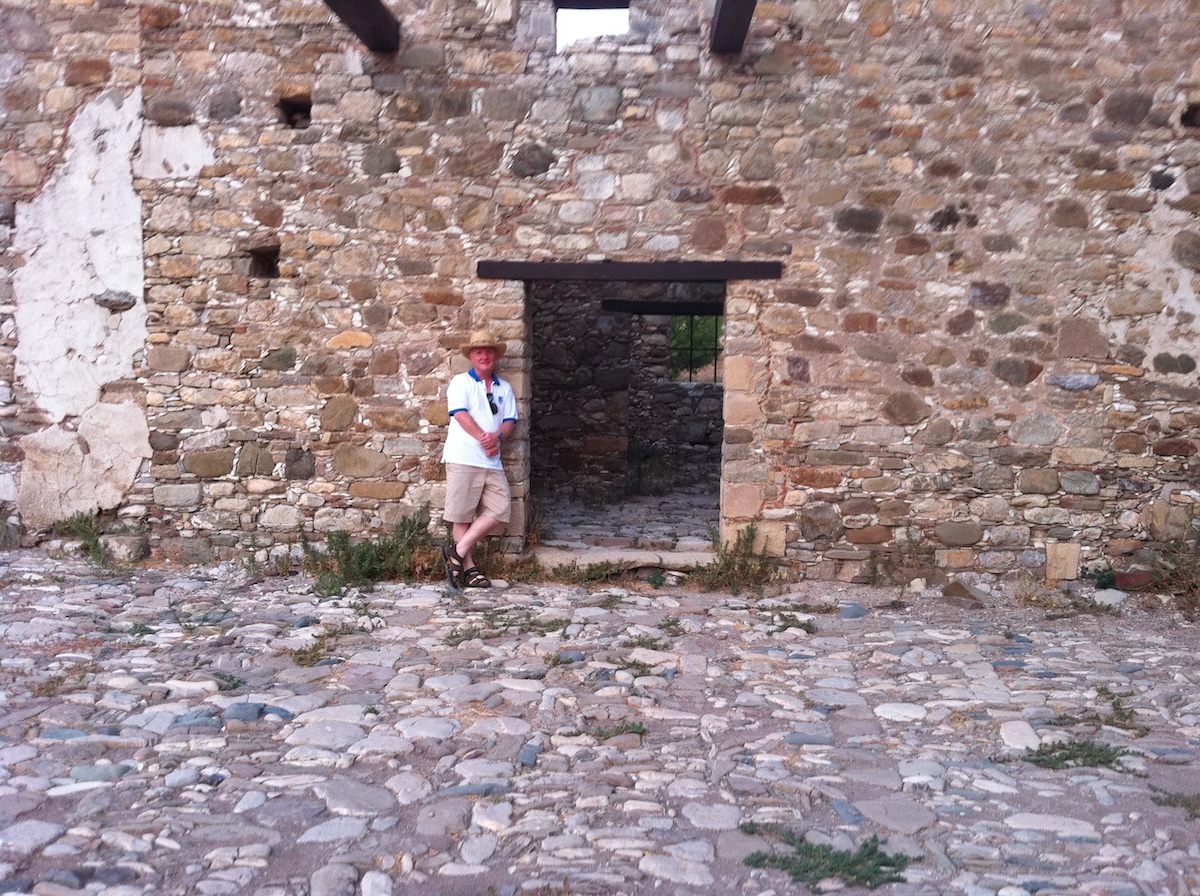
A photo of a smiling man standing next to Father Christmas
When was the last time you bumped into Father Christmas?

I have to dig deep into the archives of my memory to recall the first time I encountered Father Christmas. I was six years old, and meeting the man I thought was the ultimate VIP (Very Important Person) was like waiting for the last biscuit in the jar.

It happened in a department store’s Christmas grotto, a place where the air smelled like gingerbread and desperation—not just mine, but also my sister’s, who was so terrified of Father Christmas that she screamed like we were evacuating from a man-eating, zombie, giant snowman! The whole store was probably questioning their Christmas spirit as they listened to her wails echo off the walls, rattling every bauble and piece of tinsel in the store.

However, on Christmas Eve, she had no problem with Father Christmas making his grand entrance into our home, as if he owned the place, and dropping off presents. After all, she was fast asleep, blissfully convinced that if she couldn’t see him, he mustn’t be able to see her!

The above photo was snapped one June while I was on a cruise, proving that you might just find Father Christmas on a beach holiday! So remember to be nice all year long, because you never know when you may be teetering on the edge of his nice list.

Do you have a photo of you with Father Christmas?

2. Have you ever baked a Christmas cake?

A photo taken from above of an iced Christmas cake. On top of the cake are some stars, Santa, a Christmas tree, and a snowman.
Have you ever baked a Christmas cake?

I distinctly recall my grandmother turning into a Christmas cake factory every year. I adored being her little helper, especially during the cake decoration extravaganza a few days before Christmas.

It was quite the spectacle watching her bake the cakes in September, then patiently unwrap them from their greaseproof swaddling every few weeks for a little “brandishing” with brandy. Who knew a cake could get an alcoholic makeover before the Christmas festivities even started?

I would sit there, as she dramatically stabbed the cake bases with a fork and spooned what seemed like an endless supply of brandy into the tiny holes. Of course, she’d also help herself to a few swigs of brandy while waiting for the cakes to soak up what she’s already spooned in. It was like she was giving them a little boozy makeover and joining in the festivities early.

The cake in the above photo was baked by me, but it wasn’t made the traditional way my grandmother prepared her Christmas cakes. I cheated by using a box with all the ready-prepared ingredients for making a Christmas cake. However, the magic of icing and decorating the cake was still present. And, of course, I carried on the tradition of a few glasses of brandy while feeding and decorating it.

If you’re wondering why it’s just a photo of the top of the cake, I decided it was the only part of it I felt I hadn’t cheated at. However, this made me start looking at all the different angles you can take photos, giving them a new dimension.

Do you make your own Christmas cake or do you buy a shop-bought one? And what’s inside your cake? Is it fruit-based, or filled with sponge, jam, and buttercream?

3. What’s your go-to karaoke song?

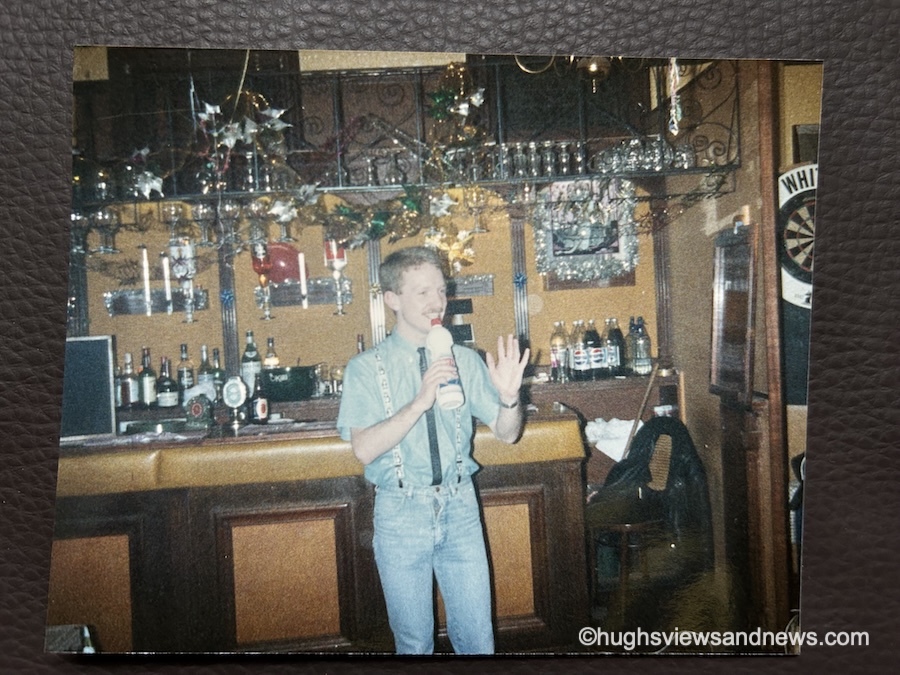
An old 1980s photo of a young man at a Christmas party in a bar, singing into a plastic bottle?
What’s your go-to song at a party?

Get ready to cringe! I’ve totally lost track of how many Christmas parties I’ve attended over the years—seriously, it’s like my life turned into a never-ending Netflix series focused on festive cheer, and most of them were work parties, where the eggnog flows like water, and the awkward small talk is the real gift! From fancy dress to black tie, I’ve always got into the spirit of Christmas celebrations. And the above photo is no exception.

Taken in the late 1980s, I’m not entirely sure why I decided a bottle of bleach was the ideal choice for a microphone, but let’s chalk it up to a few too many festive glasses of sherry or eggnog that night! My outfit is a glorious testament to the era; I mean, who could resist the charm of penguins proudly dancing on my braces? Clearly, I was ahead of my time in fashion… or maybe just in silliness!

However, I still know the song I was singing when the photo was taken.

This song has become my ‘go-to’ whenever anyone puts a microphone in my hand. So, if you ever meet me, never give me a bottle of bleach or a microphone!

What’s your go-to karaoke song?

4. What’s your favourite Christmas tree ornament?

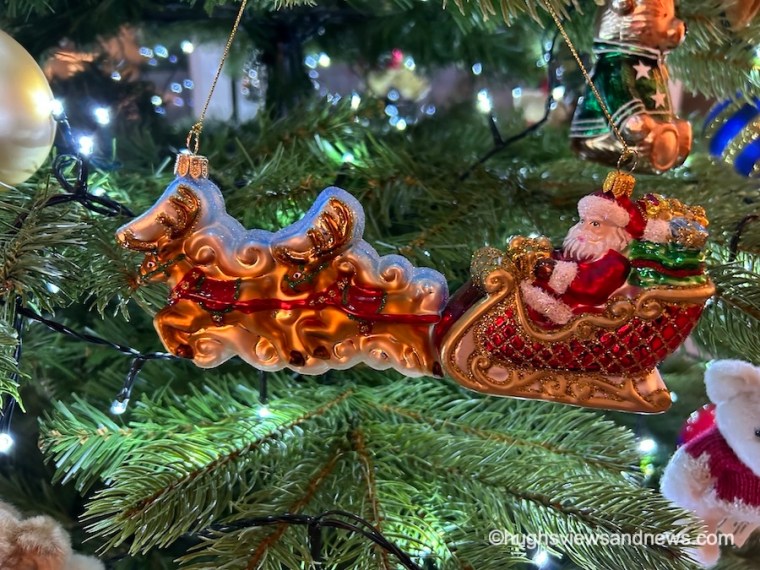
A photo of a Christmas tree ornament of Father Christmas in his sleigh being pulled by reindeer.
What’s your favourite Christmas tree ornament?

My favorite Christmas tree ornament is a jolly old Father Christmas in his sleigh, dramatically being yanked along by two reindeer who have clearly lost the plot; they’re now engaged in an epic showdown over who gets the last carrot that all the kids left out, while Father Christmas just sits back, chuckling with a mince pie in one hand and a glass of brandy in the other, thinking, “This is the real Christmas spirit!”

As Father Christmas steers his sleigh joyfully, all those glasses of brandy would probably get him into trouble if he were caught by a traffic officer. However, as he’s flying, rather than driving on roads, hopefully he won’t get into any trouble.

Over the years, I have collected many Christmas tree ornaments. This one is only a few years old and was bought online from a well-known London store. Yes, it was expensive, but the joy it has brought is worth every penny.

Do you have a favourite Christmas tree ornament? Share the details or a photo with us.

5. Is this how Christmas makes you feel?

And finally, is this how Christmas makes you feel?

A photo of a festive Christmas reindeer that appears to have collapsed onto the ground after a busy Christmas.
Does the thought of Christmas make you feel like this?

Whether it’s before or after Christmas, most of us will find ourselves feeling deflated, like a poor reindeer caught napping three days after the big day—let’s just say, even Rudolph looks like he needs a strong cup of cocoa at this point!

The look on its face says it all and reminds me of those confusing days between Christmas and New Year, when the days of the week all blend into one. “Is it Monday or Tuesday? No, it’s Wednesday, isn’t it, or was Wednesday yesterday? Hang on, wasn’t it Thursday yesterday?”

The Slideshow Block

This month, I am displaying and featuring the ‘Slideshow’ block. Here are my five photos, all in the slideshow block.

  • A photo of a smiling man standing next to Father Christmas
  • A photo taken from above of an iced Christmas cake. On top of the cake are some stars, Santa, a Christmas tree, and a snowman.
  • An old 1980s photo of a young man at a Christmas party in a bar, singing into a plastic bottle?
  • A photo of a Christmas tree ornament of Father Christmas in his sleigh being pulled by reindeer.
  • A photo of a festive Christmas reindeer that appears to have collapsed onto the ground after a busy Christmas.

You can select as many photos as you like for your slideshow. Captions you have added to your photos also appear, but unfortunately, and this is something I dislike, the captions cannot be centred.

You can set the slideshow to manual, so readers must click to view the next image, or select an autoplay option. If you choose autoplay, you can also decide how many seconds pass between each photo (I chose 4 seconds).

Another option is to add a transition. You can choose slide or fade for your photos. You can also select the image size: small, medium, large, or extra large. I decided on the ‘Large’ option.

All of these options can be found by clicking on the image and choosing the ‘Block‘ option.

An image showing the different options of the Slideshow block on WordPress
The Slideshow Block options.

Click the following link for more information about the Slideshow Block.

How to make a photographer’s day.

Next time you leave a comment on a photography post, instead of saying ‘Great photo,’ explain what it was about the picture that made you think it was great. Was it the subject, the lighting, the scenery, the angle it was taken from, or the emotion it evoked when you saw it?

It only needs to be a few lines, but the people you leave the comment for will appreciate the feedback much more than when all you say, time after time, is that it’s a great photo.

Do you have a photo of you with Father Christmas? Do you make your own Christmas cake or do you buy a shop-bought one? What’s your go-to karaoke song? Do you have a favourite Christmas tree ornament? How does Christmas make you feel?

The featured image in this blog post is taken from Pixabay. AI checked spelling and grammar mistakes.

You can follow me at the following sites.

Copyright @ 2025 hughsviewsandnews.com – All rights reserved.

4 Never Before Seen Photos And Why You Need To See Them

I used to publish a substantial amount of photography on my blog, especially in Wordless Wednesday posts, and then it all ceased!

I couldn’t help but notice how they generated little to no engagement. I felt somewhat disheartened by this apparent lack of interest in my photography. After all, how can you respond week after week to the same ‘Great shot’ comments, other than with a ‘Thank you?’ It almost seems as if people are just going through the motions with those kinds of comments without truly engaging with the content.

Can a photography blog post generate meaningful engagement?

It’s something I wasn’t entirely convinced about. I only had to look around the blogosphere and see the same ‘Great photo’ comments on photography posts.

However, some photo challenges seem to spark discussion and engagement, although you’ll sometimes have to sift through the ‘Nice shot’ types of comments. Nevertheless, as I’ve discovered, hosting any kind of blog challenge is hard work, so it’s always a shame when people drop links or short comments and run without recognising the effort the host has put into creating the post. Some of those hosts must feel disheartened when it happens, but the thoughtful and engaging comments they get must make all the difference.

I love photography, so why don’t I showcase mine?

After realising I was missing out on sharing my photography and not wanting to create my own photography challenge, I decided to publish a monthly photography post showcasing four photographs I’ve never featured on my blog before.

Not only that, but at the end of each post, I will display the photos in a separate WordPress photo Gallery block and give a brief explanation of that block’s features.

So, here we go. I’m excited to share with you four never-before-seen photos that I’m delighted to finally unveil on my blog!

1. How old is this tree?

A photo of the ends of a tree trunk that has been cut down. The rings on the inside of the trunk are visible. In the background are some colourful buildings, trees and plantlife.
How old was this tree?

What initially caught my eye in this shot were those colourful buildings in the background. But the fallen tree had me asking many more questions.

Can you actually determine a tree’s age by counting the rings in its trunk? Well, this tree got a bit overzealous during a storm and decided to take a nap across a footpath! It turned into the ultimate footpath block, leading to some unfortunate lumberjack shenanigans where it had to be chopped into manageable pieces.

Not only did I ponder the ancient age of this tree—seriously, is it older than me?—but I also found myself wondering about the brave soul who planted it and how many people have swung from its branches or taken leisurely naps beneath its leafy embrace. The rings? Oh, they’ve got secrets, but counting them seemed as feasible as getting my two dogs to sit still long enough for a family photo.

Today, the chunks of trunk are still hanging around, serving as a posh Airbnb for wildlife that need a place to kick back and relax. I’m thrilled parts of it are still there because this tree has decided to become the ultimate retirement home for other species.

2. Do you know this bear?

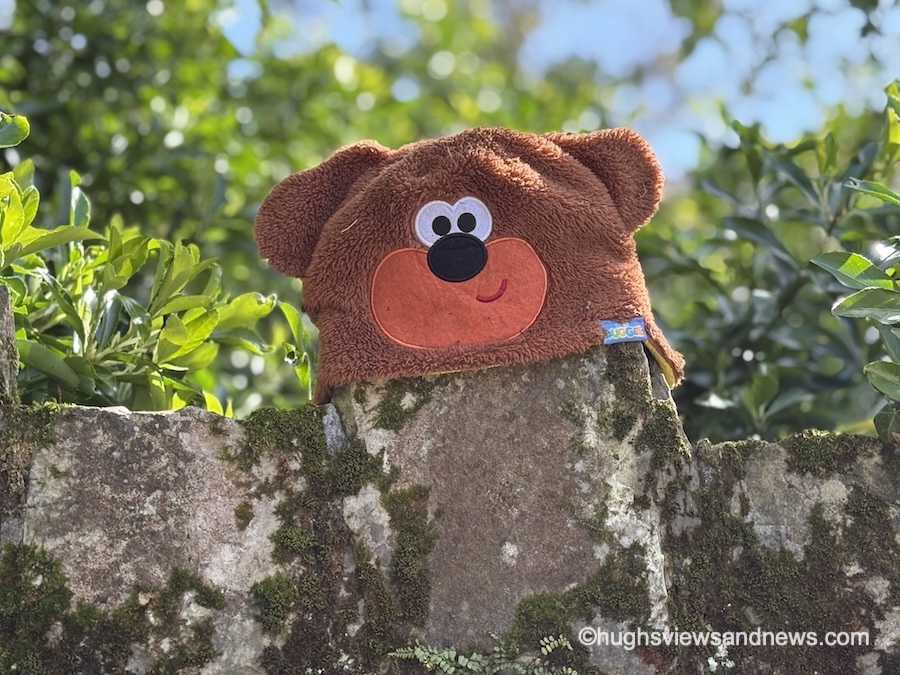
A photo of the head of a child's toy bear that has been put over one of the stones that jut out on top of the wall. Behind the toy is some plant life.
I’m lost. Have you seen my owner?

This cheeky face practically yanked a grin out of me when it halted my stroll. I simply had to snap a photo—who could resist it? There it was, perched impossibly high, making me ponder not just how it got there, but also who the previous owner was. Was it a child’s hat, a brave toy that escaped the toy box, or maybe even a rogue UFO pilot’s accessory? Hey, a guy can dream about flying a UFO dressed as a Bear, can’t he!?

A few days later, the bear was gone. Someone had either claimed it or rehomed it, although my darker, more creative mind was also insisting that it had fallen off the wall and was now trapped behind it (was that a call for help I could hear?).

Whatever had happened to this smiling bear, I was thankful for the joy it had not only given me when I spotted it, but also for the smiles it must have brought to others who had seen it on their journeys. I hope it was reunited with its owner.

3. Does this sign give you mixed emotions?

A photo of a wooden sign that reads 'Dogs' Graves, St Catwg Walks Exit, and Bluebell Wood.' In the background are some trees and grass areas
This way please

This sign will probably evoke mixed feelings. After all, that first line isn’t pleasant, is it? It evoked a vision of a horror story and film by one of my favourite authors, Stephen King. However, the bottom part of this sign brought to mind a beautiful, tranquil place that could be the name of a location you’d find in a children’s book.

I wondered why there was not a separate sign for the dogs’ graves. After all, who would want to visit a dog’s graveyard, apart from maybe pet owners who had buried their beloved pets there? Bluebell Wood, on the other hand, sounded like a lovely place for a walk, especially during bluebell season in May. I pictured myself sitting in Bluebell Wood, forest-bathing, while recharging my body and mind.

Later, I discovered that the gardens, where the photo was taken, were purchased by William Graham Vivian in 1860, when he acquired Clyne Castle, a nearby dwelling, and began creating the surrounding landscape gardens. He died in 1912, and the many dogs buried in the graveyard were his pet dogs. So, there’s the answer to why the dogs’ graveyard is on the sign.

4. Do you know this dog?

A photo of a black and white Welsh Cardigan corgi sitting next to a sofa while looking directly at the camera.
Do you think I look younger than my age?

Talking of dogs, the chap in the above photo turned 14 last month.

For those of you who haven’t read my ‘About‘ page, this is Toby, the older of the two Welsh Cardigan Corgis my partner and I own. I still recall the day we collected him and how, from the moment we met him, our lives took a new turn. It’s one of the best days of our lives.

Toby is a photography subject, like me, in that he usually moves when a picture is taken. However, on this particular day, his 14th birthday, he posed for the camera, and I was thrilled with the result.

Toby’s hobbies include sleeping, walking, and meeting his mates on the beach. He also enjoys having a mad 10 minutes after dinner, when I have to chase him (very slowly) around the dining table while carrying his favourite toy in his mouth. Additionally, he likes to believe he’s in charge of the household.

When I first started blogging in 2013, Toby was a prominent feature on my blog, but over the years, he hasn’t been as interested in appearing. However, he has recently garnered considerable attention on Bluesky, where some of his photos have been shared hundreds of times and generated a lot of engagement. It’s a rare occurrence that he appears on my blog, and I’m very grateful that he agreed to let me share his photo.

The Gallery Block

The first WordPress gallery I am displaying and featuring is the ‘Gallery‘ block. Here are my four photos.

The Gallery block is a straightforward photo gallery that lets you drag and rearrange images to display them in any way you prefer. It’s a useful gallery, and I notice it being used more frequently than any of the other image blocks provided by WordPress.

Notice how the captions I’ve added to my photos appear at the bottom of each one. You don’t need to add captions to photos, but they are a great way to boost engagement from visitors, especially when asking a question.

To find the ‘Gallery‘ block, search for ‘Gallery‘ under the ‘Blocks‘ tab when drafting a post.

An image displaying the 'Gallery' block under the 'Block' tab on WordPress
The Gallery Block

Click the following link for more information about the Gallery Block.

How to make a photographer’s day.

Next time you leave a comment on a photography post, instead of simply saying ‘Great photo,’ explain what it was about the picture that made you think it was great. Was it the subject, the lighting, the scenery, the angle it was taken from, or the emotion it evoked when you saw it? It only needs to be a few lines, but they will appreciate the feedback much more than when all you say time after time is that it’s a great photo.

How do you usually engage with photography posts? What encourages you to leave a comment other than saying, ‘These are nice photos.’ Are you a photography blogger? If so, does engagement on your posts matter to you?

The featured image in this blog post is taken from Pixabay. AI checked spelling and grammar mistakes.

You can follow me at the following sites.

Copyright @ 2025 hughsviewsandnews.com – All rights reserved.

The Best Ultimate Guide To Why Alt-Text Is Important

What answers would you provide if I asked you what alt-text means and what advantages it offers to bloggers?

What is alt-text, and why is it important?

Alt-Text (short for alternative text) is a commonly used term. It is essential to include it in posts that contain pictures, images or photographs. This unsung hero of the digital world ensures that everyone can access and benefit from the images included in your blog posts.

Blog posts that contain images, pictures, or photos attract, on average, 70% more traffic and clicks than those that do not. However, how many bloggers include alt-text information for these images, pictures, and photos? Unfortunately, the answer is not many. Furthermore, bloggers who fail to add alt-text to the images in their posts are missing out on providing some visitors with additional and important information.

Alt-Text assists those with vision impairments understand the content of the images and photos used in your blog post. Without it, they would be unaware, potentially missing out on crucial information. Imagine you’re showing off a brand new cover for your next book and don’t add alt-text to the image. They won’t have any idea what that new book-cover looks like. But that’s not all.

Utilising alt-text enhances your blog’s SEO rankings and helps search engines understand the content of your images. How will search engines determine what your pictures depict if no information is provided?

Search engine crawlers extract several key details from an image, including its file name, captions, title, and alt-text. When these details are absent, the post containing the images is ranked significantly lower. Visitors using a screen reader or other devices that inform them of the image’s content will remain unaware of what those images depict.

How to write alt-text.

When writing alt-text, keep it descriptive and straightforward—ensure it aligns with the content on the page. Include some keywords where appropriate, but avoid overdoing it. Keyword stuffing is not advisable, as it disrupts the user experience and can lead search engines to consider your site spam. Trust me, you don’t want that!

But where and how should you add alt text to your images, photographs, and pictures?

How to add alt-text to your images, photos, and pictures.

  • Click on the image you have uploaded to the media library.
  • On the right-hand side, you will see several boxes to which you need to add information.
  • Alternative Text – In this box, add information that describes what is in the image.
  • Title – Give the image a title.
  • Caption — Add a caption to the image, although you don’t need to if it’s unnecessary.
  • Description — Describe what’s in the image. You can use the same information you added for alternative text if you like.
  • File URL – This information will already be populated.

Here’s an example from my media library for the following photo.

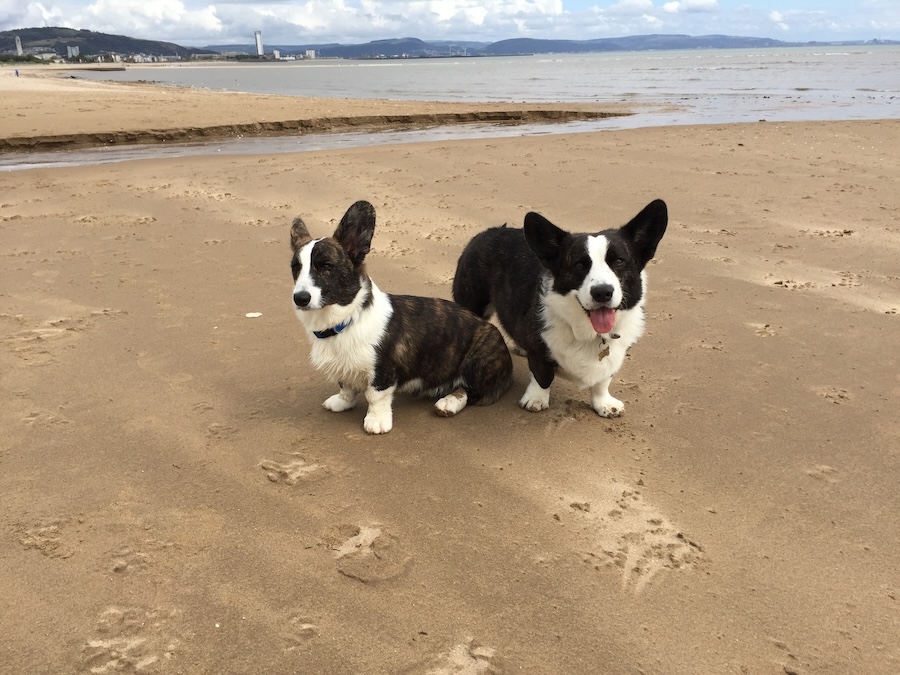
A photo of two Welsh Cardigan Corgis sitting on a sandy beach, gazing towards the camera. In the background, there are several buildings of a city and some mountains. There are a few white clouds in the sky.
A walk on the beach with Toby and Austin, the Welsh Cardigan Corgis.
  • Here are the details of the alt-text and information I added to the photo.
An image provides information about the Alt-Text added to a photo in the WordPress media library.
Always add Alt-Text information to images, pictures and photos

The next time you add an image, photo, or picture to your blog post, don’t just add the image and run. Make sure you include the details outlined in this post.

Summary

  • Alt-Text, or alternative text, is crucial for bloggers who include images in their posts.
  • It enhances accessibility for those with vision impairments, ensuring they understand the content represented in images.
  • Additionally, it plays a significant role in improving SEO rankings by helping search engines identify image content.
  • Despite these advantages, many bloggers neglect to add alt-text to their images, missing out on valuable audience engagement and search engine visibility.
  • To effectively write alt-text, it should be descriptive, straightforward, and relevant to the content, with a mindful inclusion of keywords.
  • Bloggers can easily add alt-text by accessing the media library and providing a title, caption, and description of the images.
  • Overall, including alt-text enhances the user experience and optimises blog performance.

Do you add alt-text and other details to the images and photos included in your blog posts? If not, what’s holding you back?

The featured image in this blog post is taken from Pixabay. AI checked spelling and grammar mistakes.

I’m getting tough with non-engaging comments. Comments such as ‘Nice post’ are marked as spam.

Layout, content, settings, and format might differ on self-hosted blogs.

Click the buttons below to follow Hugh on Social Media

Copyright @ 2025 hughsviewsandnews.com – All rights reserved.
Is It Possible To Add Images And Photos To Comments On WordPress? Yes! Here’s How.

Have you seen images and photos in the comments section of blog posts and wondered how they were left there? It’s something I’ve written about before and, given the many changes at WordPress since I last wrote about it, deserves an update.

Light blue image with the words 'Is It Possible To Add Images And Photos To Comments On WordPress? Yes! Here's How.' in white text
Yes, it’s possible to leave photos and images in comments on WordPress blogs

When it comes to adding images and photos to comments, we have to be careful with what we add. We should always ensure the photo or image has a connection to the subject of the post we’re leaving the comment on. And not only that.

If a blogger invites readers to leave photos and images (such as in a photography challenge), then go ahead and leave them.

However, leaving an image or photo just for the sake of doing so is frowned upon by many bloggers, who will mark them as spam. And given that blogs are attacked by spammers daily, I don’t blame bloggers marking uninvited images and photos as spam.

I’ve added images and photos to the comments sections on my blog posts and the comments I have left on the blogs of other bloggers. However, unless I’ve been invited to leave an image or photo, I won’t leave them.

While many bloggers will be happy for you to leave images and photos, it’s always polite to ask first.

How to add images and photos to your comments

  • Add the image or photo to your WordPress media library.
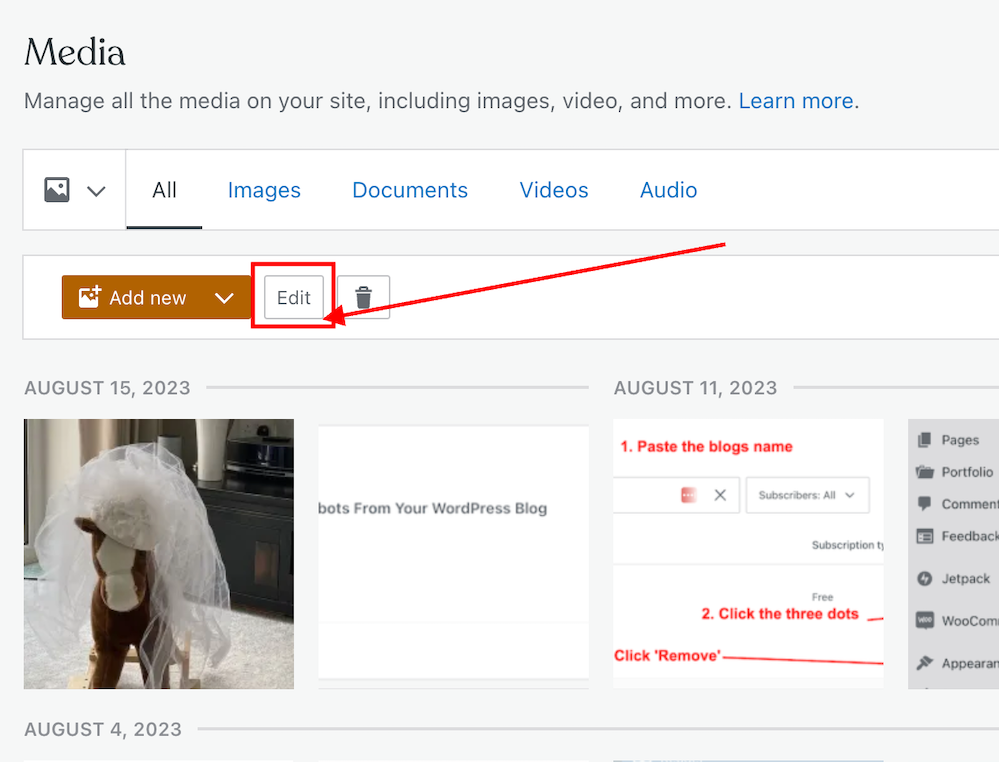
  • Once the image has been added, click it and click the edit button to open it.
Image highlighting the 'Edit' button of a photo in the WordPress media library.
Click the edit button of the photo or image you want to add to a comment.
  • On the righthand side of the screen, you’ll see a window where you can add details about your image. It’s important to complete these details (see the image below).
  • Click the ‘Copy‘ button in the URL box.
Image highlighting the URL address of an image or photo in the WordPress media library.
Copy the URL address of the image or photo.
  • Paste the URL address into your comment.
  • Do not, at this stage, submit your comment as you need to edit one part of the text within the link.
  • Carefully delete the ‘s‘ from the ‘https‘ at the beginning of the link address, so it reads ‘http‘. (If you do not delete the ‘s‘ the image will not show in the comment).
  • Ensure your link ends with ‘.png’ or ‘.jpg’. If it doesn’t, delete any text after ‘.png’ or ‘.jpg’.
  • You can now submit your comment.

The image will now show on the comment. However, remember that if you are leaving an image in a comment on another blogger’s blog, they may have to approve it (and may even remove the link to the image) before it shows up.

I’ve only found this to work on WordPress.Com blogs. On self-hosted blogs, only the link to the image is visible rather than the image appearing. However, those clicking on the link will see the image.

Note – Not all images and photos will show if the security settings on your web browser are set high. However, this does not affect the photos or pictures you leave in the comments of your own blog posts. I recommend that you not change the security settings on your web browser.

Let’s wrap it up.

  • Yes, it is possible to insert images and photos into comments on WordPress.
  • After inserting the URL address of the image, ensure you remove the ‘s‘ from the beginning of the URL so that ‘https’ becomes ‘http.’
  • Only leave images and photos in comments if invited to do so or if you have asked for permission to do so first.
  • If the security settings on your web browser are set high, images and photos may not show. However, this does not affect the photos or pictures you leave in the comments of your own blog posts.

Want to give inserting an image or photo into a comment a go?

Leave me a comment with the link to your image. Perhaps it can be a photo of your latest book cover or of a family pet. I’ll leave it up to you, but only family-friendly images and photos, please.

If you have any further questions about inserting images or photos into the comments, leave them in the comments section.

Layout, content, settings, and format might differ on self-hosted blogs.

Follow Hugh on social media. Click the buttons below.

If you enjoyed this post and want more like it, enter your email address and click ‘Subscribe’ to stay up-to-date with my latest content.

Copyright @ 2024 hughsviewsandnews.com – All rights reserved.

5 Things You Can Do To Free Up Media Space In Your Blog’s Media Library.

‘Help! I’ve run out of media storage space on my blog and can no longer upload new photos, images or videos. What can I do?’

That was a question to me from Micheal, who blogs at Spo-Reflections.

Michael was happy to upgrade his WordPress plan to obtain more media space, but there are other things you could do if you find your blog running out of media space.

Light blue image with the words '5 Things You Can Do To Free Up Media Space In Your Blog's Media Library' written in white text.
Have you run out of media space on your blog? Here are 5 things you can do to obtain more.

1. Upgrade your plan.

WordPress currently offers 6 plans.

The amount of media storage space you get varies. Click the following link to see the plans – ‘There Is A Plan For You.’ Pricing is correct at the time of publication of this post.

Each plan provides the following media storage space.

Name of planStorage Amount
Free1GB
Personal6GB
Premium13GB
Business200GB
Commerce200GB
EnterpriseN/A

However, only upgrade your WordPress plan if you absolutely need to. Do not get into debt by upgrading unless you can afford it, as there are other things you can do to free up media storage space.

2. Resize the size of your images and photos.

One of the biggest reasons bloggers run out of media space is that they do not resize their images and photos before uploading them to their media library.

There are several ways you can reduce the size of images and photos. You can reduce them using photo editing software or via the tools of your device you use to blog.

I use an Apple iMac and can change the size of photos and images by clicking on ToolsAdjust size on the menubar of my desktop computer. I do this before uploading them to my WordPress media library.

I recommend reducing image and photo sizes to 900 x 675 pixels.

On a Windows computer, you can use Microsoft Paint. Open your image with that program, then click on Resize. You can find this option on the middle-right side of the “Image” section at the top of the Paint window.

The WordPress media library also has editing software, but please note that if you reduce the size of an image or photo using this tool, the original image is kept in your media library when you reduce the size of the picture – thus, you won’t have freed up any storage space.

Large images can also slow down your blog’s downloading speed, negatively impacting your blog’s search engine rankings and overall user experience. So, I recommend you always reduce the size of images and photos before uploading them to your blog.

3. Do not upload videos to your media library.

If you include videos in your blog posts, uploading them to your media library can take up vast amounts of space.

To overcome this problem and free up all the space they take up, upload your videos to YouTube. Then add the YouTube block to your blog post and include the link to the video in the block.

Image of the YouTube block on WordPress
Adding videos to your blog via YouTube helps free up media space for your blog.

Do this for any existing videos you have in your media library. Upload them to YouTube and add them via the YouTube block before deleting the original from your media library. This will free up large amounts of storage in your media library.

4. Delete images from your media library.

We can accumulate vast amounts of images and photos in our media library, many of which will become redundant.

Deleting these images will free up storage space. However, when you delete any images or photos in your media library, they disappear from the blog posts they appear on.

My blog post, ‘Are Your Old Blog Posts Damaging Your Blog? How To Stop It From Happening’ details why bloggers should delete old blog posts.

Deleting old, redundant blog posts containing images, photos, and videos frees up storage space. However, delete any images, photos and videos in your media library before deleting the posts.

If you’re unsure whether a post should be deleted, read my post, ‘Are Your Old Blog Posts Damaging Your Blog? How To Stop It From Happening,’ for advice.

5. Reduce the number of images and photos you add to blog posts.

While I recommend adding at least one image or photo to a blog post (because blog posts containing images get up to 70% more traffic), reducing the number of images and pictures will help save media space.

Before adding more images or photos, ask yourself if adding them to your post is necessary.

Let’s wrap it up.

  • Resize your images and photos before uploading them to your blog’s media library.
  • Upload videos to YouTube and use the YouTube block to show them on your blog posts.
  • Delete old images and photos from your media library, but remember to remove them from any posts first.
  • Do not resize images using tools in the media library, as this does not save storage space.
  • Consider deleting old blog posts that are no longer relevant.
  • Reduce the number of images and photos on blog posts. Ask yourself if they’re necessary.

How do you free up storage space in your blog’s media library? If you have any questions about this post, leave them in the comments section.

To follow Hugh on social media, click the links below.

If you enjoyed this post and want more like it, enter your email address and click ‘Subscribe’ to stay up-to-date with my latest content.

Copyright @ 2024 hughsviewsandnews.com – All rights reserved.

Adding Images Or Photos To Your Blog Posts? 4 Essential Things To Do.

Blog posts containing images and photos get up to 70% more traffic than posts without visuals. So why wouldn’t you use them in your posts?

Visual content is an essential component of any successful blog. Adding images, videos, and infographics to your blog posts can make your content more engaging and memorable.

An blue background image with the title of a blog post, 'Adding Images Or Photos To Your Blog Posts? 4 Essential Things To do' in white text.
Are you making any mistakes when adding images or photos to blog posts?

If you plan to include images or photos in your blog posts, there are four essential things to remember. These steps will help ensure your content is engaging and visually appealing while avoiding copyright issues.

1. Use High-Quality Images And Photos.

Always use high-quality images that are relevant to your post. Blurry or low-resolution images can detract from your message and make your blog appear unprofessional.

Additionally, using images that are not directly related to your topic can confuse readers and reduce the effectiveness of your post.

2. Ensure Images And Photos Are Not Copyrighted

Ensure you have permission to use any images and photos you include in your posts. This means sourcing images from websites offering free, non-copyrighted images (such as Pixabay) or purchasing the rights to use images from a stock photo website.

Not all images are free to use. And some that are free may only be free for a limited time. Always check the small print.

Don’t think you’ll ever get fined for using copyrighted images or photos. There are copyright bots continually looking for copyrighted images that have been illegally used and downloaded all over the web.

I know of two bloggers who have been fined for using images/photos on their blog posts that were not free to use.

To avoid copyright issues, use your own images and photos and watermark them before adding them to your blog posts. I use a free app called Photobulk to do this. Seeing a watermark is a great deterrent in persuading some thieves not to copy and use them.

Of course, if you’re not concerned about your photos and images being used by anybody else, you don’t need to watermark them.

3. Ensure Images And Photos Are The Correct Sizes.

Optimize your images for web use by compressing them to reduce file size.

Large images can slow down your website’s loading speed, negatively impacting your blog’s search engine rankings and overall user experience.

If you have limited space in your media library, not reducing the size of your images and photos will soon take up all your media space. When that happens, you won’t be allowed to download additional images to your blog unless you free up space or move to a plan that gives you more storage space.

I recommend reducing image and photo sizes to 900 x 675 pixels.

There are several ways you can reduce the size of images and photos. You can reduce them using photo editing software or your device’s software.

The WordPress media library also has editing software, but please note that if you reduce the size of an image or photo using this tool, the original image is kept in your media library when you reduce the size of the image- thus, you won’t save any storage space.

The newly edited image with the reduced size is added as a new file in your media library. You can always revert back to the original image by clicking on the image in the media library, selecting Edit, and then choosing the “Restore Original” button. If you’ve inserted an edited image into other published posts, reverting an image may break this image on those posts.

I use an Apple iMac and can change the size of photos and images by clicking on ToolsAdjust Size on the menubar of my desktop computer. I do this before adding them to my WordPress media library.

On a Windows computer, you can use Microsoft Paint. Open your image with that program, then click on Resize. You can find this option on the middle-right side of the “Image” section at the top of the Paint window.

However, as I mentioned earlier, you can also reduce the size of images and photos on WordPress. But only do this if your WordPress plan has a large storage space allowance.

  • To do this, ensure you view your media library in Classic view.
  • Click the edit image button on the image you want to edit.
Image showing the edit button of an image in the WordPress media library
Click the edit button.
  • Add the new dimensions in the Scale Image box and click the Scale button.
Image showing the new dimensions box and scale button on an image in the WordPress media library.
Add the new dimensions of your image.
  • Click the save or update button to save the changes.

Your photos and images will be reduced in size, but remember that a copy of the original is also kept, so you won’t save any storage space.

If posting to your site using the Jetpack App, the app can optimise images.

In the Jetpack app for iPhone, you can set the Max Image Upload Size so the original file is resized automatically when you upload it. This option can be found by going to My Site and clicking the profile icon in the top right, then choosing App Settings.

In the Jetpack app for Android, click on your profile icon in the top right corner and choose App Settings. There, enable Optimise Images to resize and compress images on upload.

4. Add information to your images and photos.

Don’t forget to include alt text and captions for your images.

Alt text is a description of the image that allows visually-impaired readers to understand what the image is conveying. At the same time, captions can add context and help readers engage with your content. This is especially important when participating in blog challenges such as Wordless Wednesday and Silent Sunday.

Screenshot of the Alt Text box, caption box and description box on an image in the WordPress media library.
Always add information about your images and photos.

Adding a description of the image or photo also helps with SEO searches.

  • Click the save or update button to save all the changes.

Following these four essential steps, you can create visually stunning and engaging blog content with images that stand out.

Let’s wrap it up.

  • Always use high-quality images and photos on your blog.
  • Never use images and photos that are copyrighted. You may be fined for doing so.
  • Use your own images and photos. That way, you won’t encounter any copyright issues.
  • Reduce the size of images and photos before loading them to your blog.
  • Alternatively, reduce the size of images and photos with WordPress’s tools in the media library, but only if you have a WordPress plan that offers a large amount of storage.
  • Always add information about images and photos before adding them to blog posts, as this allows visually-impaired readers to understand what the image conveys.
  • Adding a description of the image or photo also helps with SEO searches.

What do you use to resize images and photos for your blog posts? Do you always complete the details of images and photos in the Alt Text box? If you have any questions about adding images and photos to your blog, please leave them in the comments section.

To follow Hugh on social media, click the links below.

If you enjoyed this post and want more like it, click the ‘Subscribe’ button to stay up-to-date with my latest content.

Copyright @ 2024 hughsviewsandnews.com – All rights reserved.

This Is How Easy It Is To Centre Captions Underneath Images And Photos On WordPress

Once upon a time, getting captions to centre underneath photos and images on blog posts involved adding complicated CSS code to your blog.

I don’t know about you, but it doesn’t look right to me whenever I see uncentred captions. It gives blog posts a messy look.

However, WordPress now makes it much easier to centre captions under blog posts, images and photos.

Banner for the blog post 'This Is How Easy It Is To Centre Captions Underneath Images And Photos On WordPress'
Are your captions centred?

Here’s my simple guide to centring captions.

  • Add an image or photo to a blog post.
  • Click on the image to open the image toolbar.
Image of a photo on a WordPress blog highlighting the image toolbar
How to centre a caption

You’ll see that the caption is aligned to the left under the above photo. Arghhhhh!

  • On the toolbar, click on the ‘Align‘ button and on the dropdown menu that appears, click on ‘Align Centre.’
Image highlighting the Align Centre button on WordPress
Click on the Align Centre button.
  • The image or photo will now be centred on your blog post, as will the caption.
Image showing a centred caption under an image on a WordPress blog.
The caption is now centred underneath the photo.

How easy was that? No more ‘Arghhhhhs.’

The example I have given above works on the Block editor.

Of course, if you prefer captions on your blog posts to be aligned to the left or right, you can ignore everything I’ve said in this post.

If you have any questions about centring captions, leave them in the comments section.

Looking for more blogging tips? Click on the ‘Blogging Tips’ and ‘Block Editor – How To’ buttons on the menubar of my blog.

Follow Hugh on social media. Click on the buttons below.

Copyright © 2022 hughsviewsandnews.com – All rights reserved.

Advent Sunday – Have Any Of Your Christmas Decorations Come Out Yet?

Ever since I can remember, I’ve always enjoyed Advent Sunday. It’s the day when the first few Christmas decorations start appearing around our house.

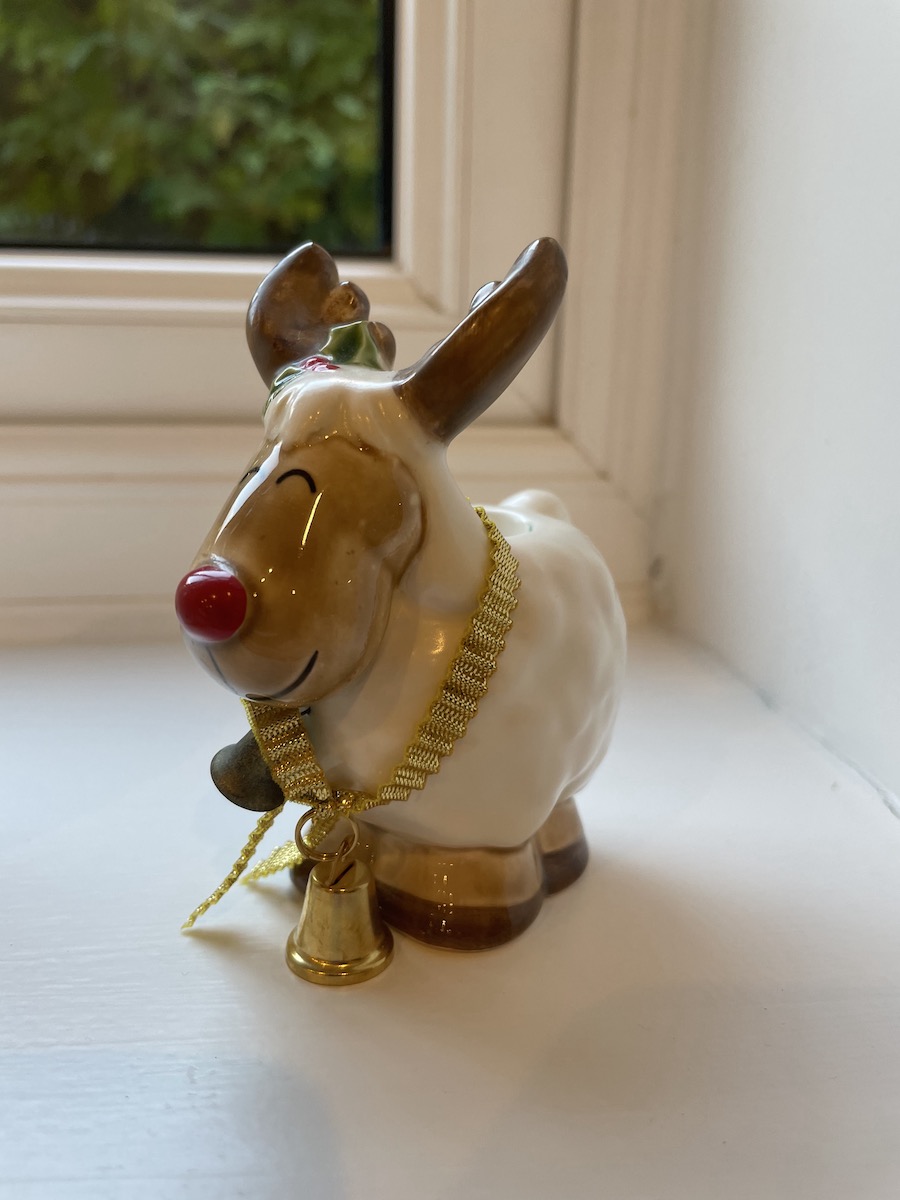
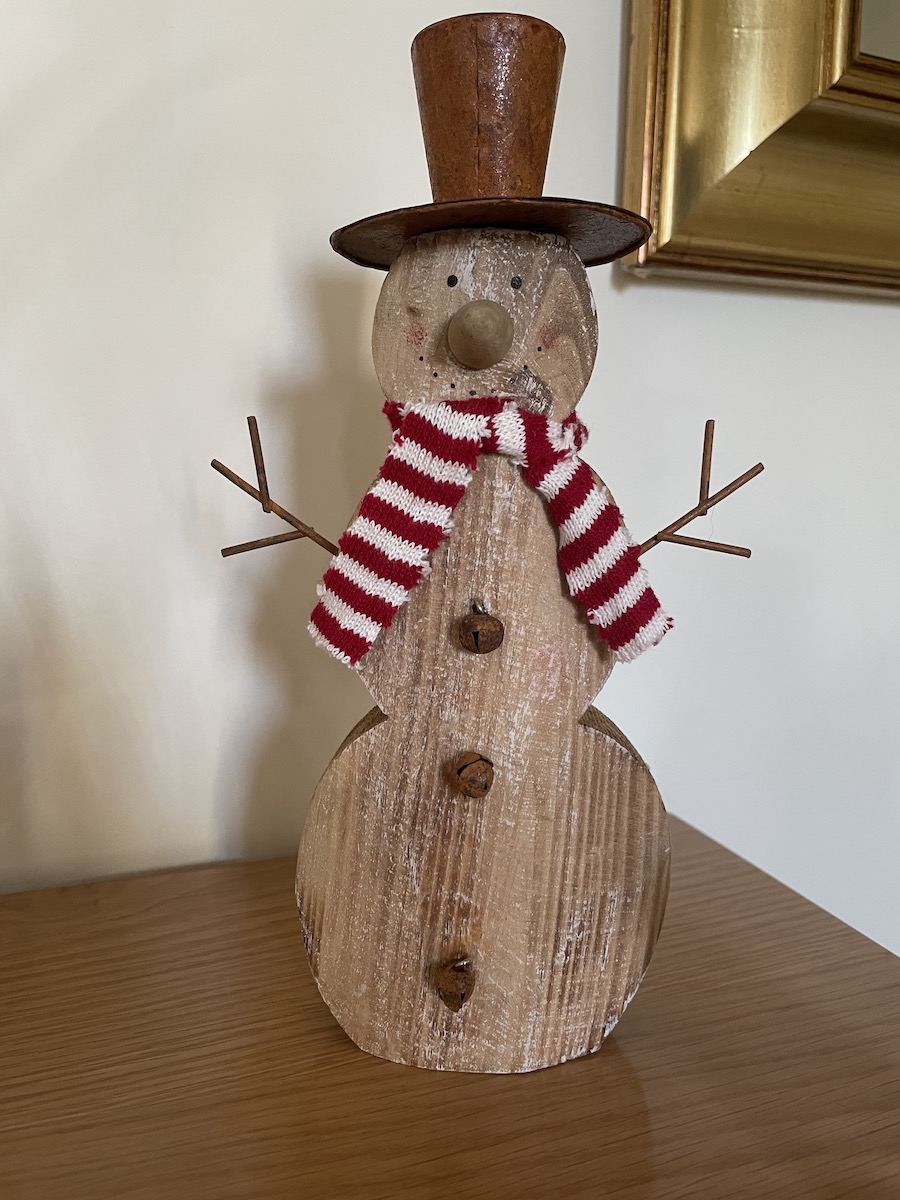
An eBay purchase from 10 years ago
Another eBay purchase from 2001
Purchased in 2019
Another eBay purchase from 2005

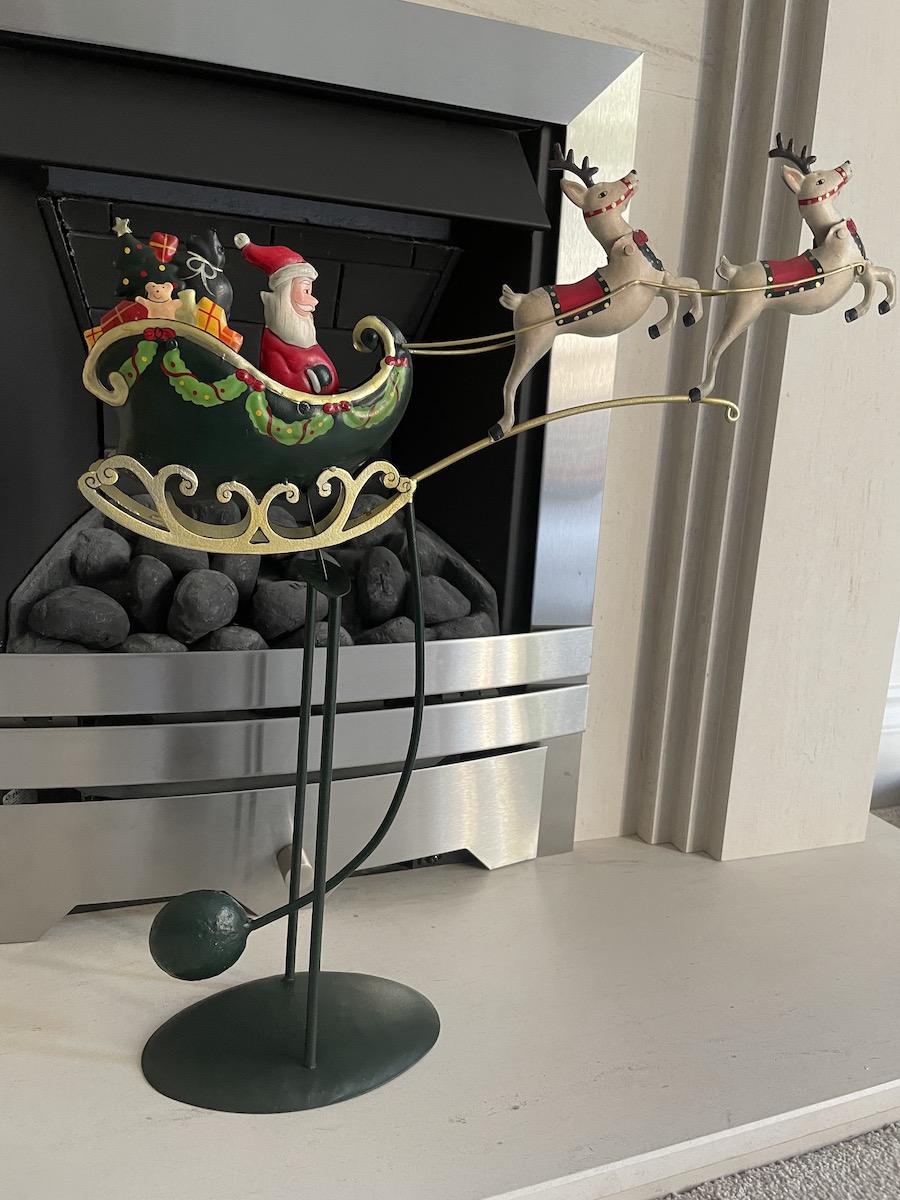
Although I tell myself that I’m not going to buy anymore Christmas decorations (because we have too many), I always end up buying something new every Christmas. Introducing this year’s buy

Christmas 2020

Over the next 14 days, more Christmas decorations will appear, with the grand finalé being switching on the lights on the Christmas tree.

Do you have any Christmas decorations up yet, or is it still too early to put them up?

All photos in this post were taken and belong to me.

Copyright © 2021 hughsviewsandnews.com – All rights reserved.