WordPress users often face problems, but they may not always be caused by their blogging platform. Device issues, internet browsers, poor blog housekeeping and retired themes can all contribute to problems.
My post outlines what to do if you’re experiencing issues with using WordPress.
Do you encounter problems using WordPress? Are your posts not aligning correctly, or are you unable to leave comments on certain blogs? What’s causing these problems? Is it WordPress, or are you or your device causing them?
Don’t panic when WordPress causes you problems. The problem could be you!
Like any online website, the WordPress platform experiences problems. Bugs occur. They can often cause havoc for users. Sometimes, things don’t go to plan when new updates are released.
But what causes these problems, and how can they be fixed?
Case 1 – Your posts are not displaying correctly.
A few years ago, a reader informed me that my blog posts were not displaying correctly.
I checked my blog and couldn’t see any problems. I used another device and couldn’t see any issues.
I contacted the WordPress Happiness Engineers. They assured me that from what they saw, there were no problems with how my blog posts were displaying. They even sent me screenshots and some short video clips showing me what they were seeing at their end.
But I was still not happy.
I decided to write and publish a post about the problem.
I asked my followers to check some of my blog posts and let me know if there were any problems with how they were displaying. Over 100 people came to my call for help. Only one person said there was a problem with how my posts were displayed, and this was the person who reported the problem to me.
It turned out that the problem wasn’t my blog or WordPress. The problem was the device belonging to the reader who reported the issue.
I asked them to make sure their device had the latest updates. They never informed me that my blog was displaying incorrectly again.
Case 2 – I can’t leave comments on certain blogs.
I recently saw a post from a blogger who said he had problems leaving comments on certain blogs.
He named the blogs so they knew who they were and apologised, saying that his comments were being cut off as he wrote them.
He asked if anybody else was having the same problem when leaving comments.
By the time the responses came in (and all were saying ‘No’), he’d gone to another device. He tried leaving comments on the same blogs. They all worked, and he came back and apologised.
The problem was caused by the device he was using. He updated the device’s software and also tried using another internet browser, and his comments worked.
Case 3 – When was the last time you cleaned your house?
Some of my WordPress data and stats were not displaying. ‘Have you tried clearing your browser history, cookies and cache on your computer?” somebody asked?
I did the clear-out, and the data all showed up.
Like your home, your blog device needs some housekeeping to keep it working correctly.
Case 4 – Have you tried the most popular advice when things go wrong?
A user contacted me saying they could not leave comments or ‘likes’ on any blog posts. She was using the Jetpack app on her mobile phone.
I told her to try signing out of the Jetpack app, delete it, reinstall it and sign in again.
Problem solved.
Case 5 – Has the blog theme you’re using been retired?
Another WordPress user was experiencing many problems with her blog. Her posts were not aligning correctly, and some readers contacted her to say they couldn’t leave comments. The sharing buttons at the end of her posts were also not working. There were also other issues like certain tools no longer working.
She contacted WordPress, which informed her that her blog theme was retired and was no longer supported. The advice was to change her theme. She didn’t want to change the theme; she liked it. She tried working around the problems. That worked for a while. Then, the issues worsened, and she eventually gave up on her blog.
The WordPress platform wasn’t the problem. The device she was using wasn’t the problem. She was the problem for refusing to change to a theme that WordPress supported.
If your theme has been retired, you will find this notice on the theme’s info page:
Has your WordPress theme been retired?
When a theme is retired, it no longer appears in the list of themes at Appearances – Themes or at Appearance – Theme Showcase if using the Classic Editor.
But, if the theme is already active on your site, you can continue to use it. Some retired themes will usually stay available for the lifetime of your site or blog without any issues. However, if you continue using a retired theme, you should note the following:
A retired theme no longer receives WordPress updates or new features. This includes security updates that protect your blog from spammers and hackers.
A retired theme should continue functioning on your site. However, WordPress does not guarantee that it will always work well with its ever-evolving software.
You may lose access to certain features like sharing and reblog buttons, blocks, writing tools and clicking the ‘like’ button.
If you still use a retired theme, you will likely encounter problems at some point. Visitors to your blog may also experience problems viewing it correctly or engaging with you.
How do I change my WordPress theme?
Some bloggers are terrified of changing the theme of their WordPress blog. It can seem like a daunting task.
Once upon a time, changing your WordPress blog theme was a nightmare. I recall the first time I changed the theme of my blog. It took a whole weekend to finish.
But changing the theme of your WordPress blog is now easy and quick. WordPress provides full details on how to do it on the ‘Change your theme‘ page.
Have you checked the WordPress forum?
A user experiencing problems with their WordPress blog does not necessarily mean that other users are experiencing the same problems. Sometimes, problems can be exclusive to one blog (as in some of the above cases).
The WordPress forum page is great for determining if problems affect other users. Here, you can report issues and check what other issues users are experiencing.
Another way to find out if other users are experiencing the same problems with their WordPress blog is to ask them (as I did in Case Number One). Sometimes, issues can be theme-related. Once reported and provided the theme has not been retired, WordPress quickly fixes theme-related problems.
Let’s Wrap It Up!
Like any website, the WordPress platform will suffer from bugs and problems.
While some problems are widespread, many problems can be caused by a user’s device when blogging, especially if the device is old and does not have the latest updates installed.
If you can access another device, try using it to determine whether the problem is only related to one device or a certain web browser.
Some problems are related to themes. If a theme has been retired, consider changing to one WordPress support.
Changing your blog theme is now easier and quicker.
You can check if other bloggers are experiencing the same problems you’re having with your blog by asking them, posting on the WordPress forum, or doing both.
Consider that any issues lie outside of WordPress first before blaming them solely.
Ensure all devices you use to blog have the latest updates.
Report issues and problems to WordPress. They may not know about issues unless you report them.
Are you experiencing any problems using WordPress? Have you checked if the issues are sitewide or only affecting you? How do you deal with issues using the WordPress platform?
Layout, content, settings, and format might differ on self-hosted blogs.
Do you draft blog posts on a desktop computer or laptop? If so, did you know you can now add photos to your post directly from your mobile phone? No more having to download photos to your computer or laptop.
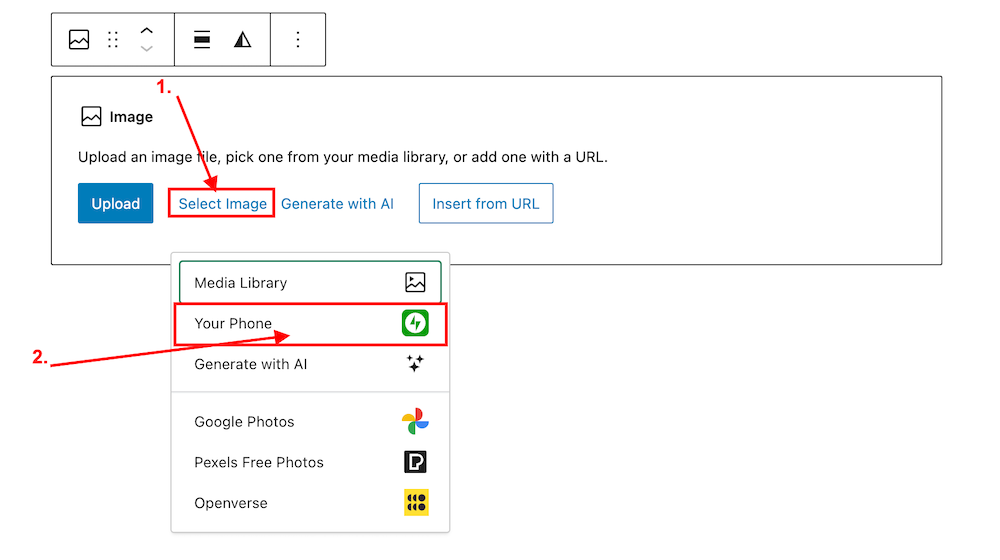
Now you can add images and photos directly from your phone to a WordPress post.
Here’s how to do it:
Ensure you have the Jetpack app on your phone. If not, download it from the app store.
Insert an ‘Image‘ or ‘Gallery‘ Block on your post/page.
Click ‘Select Image.‘
From the dropdown menu, select ‘Your Phone.’ A message will pop up on your phone with a QR code.
Click ‘Select Image’ and ‘Your Phone.’
Scan the QR code.
4. Use your phone’s camera to scan the QR code. This will automatically open the Jetpack app on your phone and then your photo library.
5. Choose the image(s) you want to use: From there, simply click the image or images you wish to add to your post/page.
6. Click ‘Add‘ (top right corner): Watch your image(s) automatically appear in your desktop/laptop editor. Here’s one I added directly from my phone.
Can I adjust the size of images in the Jetpack app?
Yes. This is important to do to prevent images from taking up too much storage space in your blog’s media library. By default, the “Optimise Images” option is turned on. You can set the ‘Max Image Upload Size‘ so the original file is resized automatically when you upload it.
You can toggle ‘Optimize Images‘ off (not recommended) or adjust the ‘Max Image Upload Size‘. The default is 2000 x 2000px.
As you can see from the above image, I’ve set the maximum image upload size to 1000 x 1000px. I recommend not going any higher than this.
Is there anything to remember when uploading images directly from your phone?
Yes. If you add copyright information to images and photos on your computer or laptop (something I recommend you do), remember to add copyright information to your images and photos on your phone before you add them to your blog posts.
WordPress has managed to do it once more! It’s relocated a setting I frequently use, seemingly without informing anyone about it.
Turning comments off is simple to do. But WordPress has moved the settings!
During a recent post-drafting session, I attempted to disable comments on a post. I encountered difficulty locating the ‘Discussion‘ setting, which is the usual place for enabling or disabling comments on individual posts.
Why turn comments off?
I consistently close comments whenever I share another blogger’s post or a guest post I’ve written on another blog. This strategy ensures that new comments appear on the original post, consolidating the discussion in one place rather than being split between two posts. Kinda makes sense, doesn’t it?
Some bloggers also choose to close comments on older posts as a proactive measure. This practice became popular when WordPress faced a significant spam issue. Specific posts received hundreds of spam comments daily, making it challenging for bloggers to sift through the spam in their WordPress folders to find authentic comments that can sometimes end up there.
The installation of the updated Askimet anti-spam software in 2023 has led to a significant improvement in the spam situation. Thanks to Askimet’s enhanced functionality, the previously prevalent issue of hundreds of visible spam comments daily has been effectively curtailed to just a few a week. Consequently, there is no longer a necessity to close comments on these posts.
Where has the ‘Discussion’ setting gone?
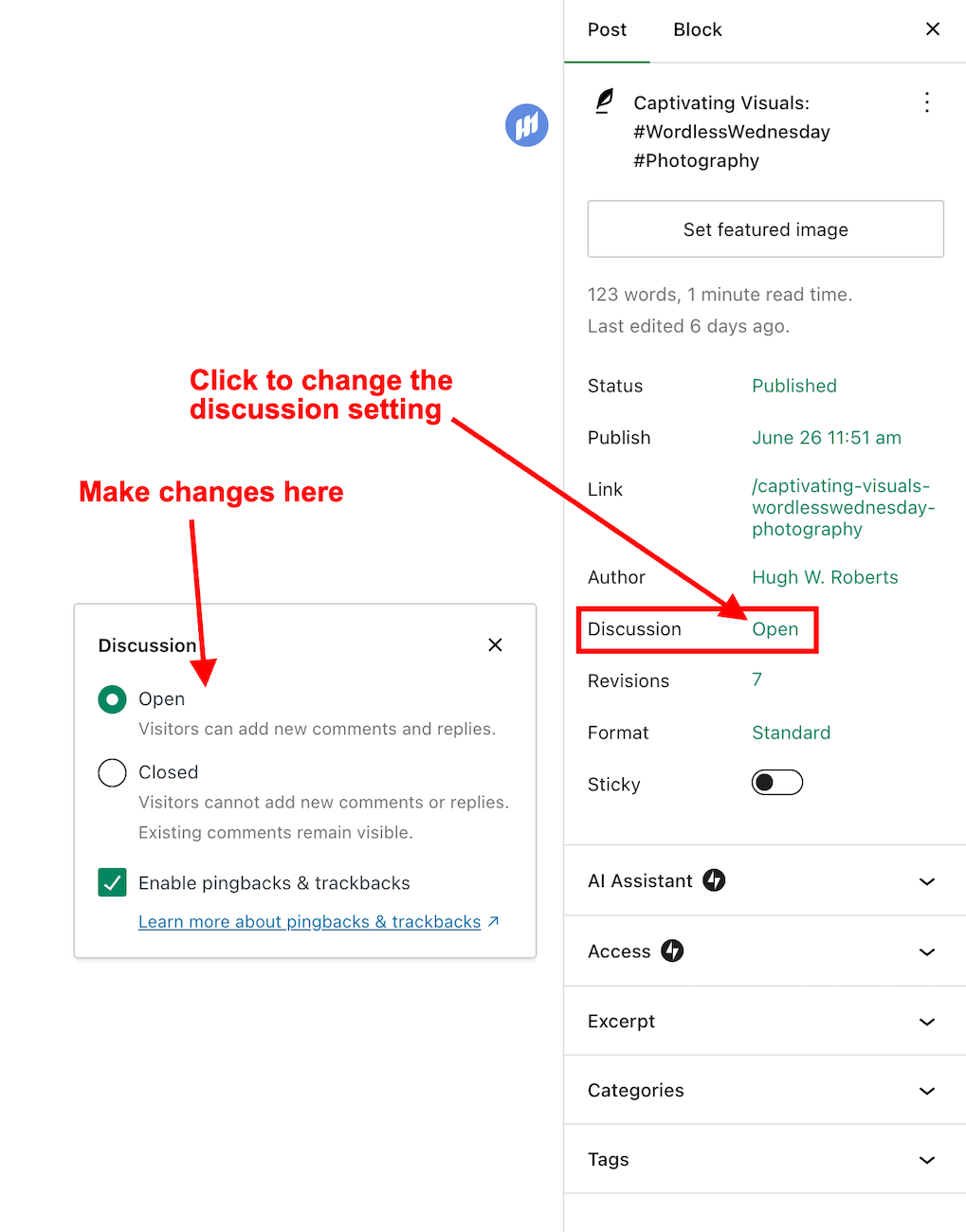
The ‘Discussion’ setting used to be located at the bottom of the settings box of a post.
The ‘Discussion’ setting used to sit under ‘Tags.’
Now, the discussion setting has been conveniently relocated to a more prominent position at the top of the post settings panel rather than at the bottom. This new placement, coupled with the clear indication of whether comments on a post are open or closed, significantly enhances the ease and user-friendliness of managing comments and pingbacks.
Changing the discussion setting is straightforward. Click on ‘open‘ or ‘closed‘ to make the change.
The ‘Discussion’ setting is now further up the ‘draft post’ section of a post.
This simple, user-friendly system also allows you to control comments, pingbacks, and trackbacks.
This is where to turn on or switch off pingbacks on your WordPress posts.
Pingbacks and trackbacks are methods for alerting other blogs that you have linked to them. However, they only work when the blog you’re linking to has enabled pingbacks and trackbacks and you do not link to a blog’s home page. My post, ‘The Power Of Pingbacks: How To Create One‘, has more details.
Do you disable comments on posts? If so, which posts? Do you have any questions about the ‘Discussion’ setting on WordPress? Please leave them in the comments box.
Layout, content, settings, and format might differ on self-hosted blogs.
Click the buttons below to follow Hugh on Social Media
As a dyslexic writer, I’ve been improving my writing for a decade by crafting short stories and flash fiction on my blog. Throughout this journey, I’ve gained valuable insights into the art of storytelling from fellow blogging community members and authors.
Excitingly, I’ve crafted a guest post detailing what I have learned and sharing tips that have empowered me to create short stories and flash fiction, which I take great pride in.
If you have questions or are eager to contribute tips and advice on writing short stories and flash fiction, feel free to share them in my post on Marsha’s blog. I’m closing comments here so that they all appear in one place.
Are you a short story or flash fiction writer? Share your writing tips with us.
Thank you, Marsha, for inviting me to write the guest post. It’s the first of several writing tips posts as part of her blog’s wonderful ‘Story Chat’ feature. My story, ‘You’re It,’ was the first to be featured in year three.
Click the buttons below to follow Hugh on Social Media
Imagine having a blog where nobody wants to engage. It’s a thought that’s hard to fathom. After all, what’s the point of writing and publishing blog posts if there’s no one to interact with?
How do you engage with your readers and other bloggers?
As bloggers, we can spark curiosity and questions in our readers, even when publishing informative posts. And that’s where the actual engagement begins. It’s our responsibility to set the stage for meaningful interactions. One way to do this is by asking open-ended questions at the end of your posts or inviting readers to share their thoughts or experiences related to the post’s topic. It can encourage more in-depth and meaningful discussions.
Those bloggers who blog to make money will only care a little about the interaction. For them, making a living out of blogging is more important. Good for them if they are successful, but take your readers seriously, especially if they want to engage with you. Consider removing the comments section from your blog if you’re going to refrain from engaging or responding to questions.
What’s the right way to engage with readers? Is there a right way?
I’ve always craved engagement, but over the ten years I’ve been blogging, the type of engagement I crave has changed.
I’ve become more of a ‘discussion’ blogger. By that, I mean a blogger who likes to discuss the subject of a post rather than just leaving a comment that only confirms I visited. It’s about sparking a conversation, sharing different perspectives, and learning from each other. This type of engagement is more valuable than a simple ‘I agree’ comment, as it adds depth and richness to the post’s content.
Over the past year, I’ve made a conscious effort to reduce the number of non-engaging comments on my blog, a decision I’m proud of. I’ve aimed to break free from the cycle of leaving comments solely to prove a visit or just for the sake of doing so.
This shift has decreased the overall number of comments I get but has made me feel like a more thoughtful and influential blogger. It’s not about the number of comments but the quality of the interactions. This change has helped my personal growth in writing and blogging.
Should we always try to engage? No!
Of course, just because I don’t leave a comment on a blog post does not mean I’ve not read it. Likewise, I know many people read my posts but want to avoid engaging. There’s nothing wrong with that. These silent readers are still part of the blogging community; their support is as important as active engagement. So, let’s recognise their presence and continue to create content that resonates with them.
If you’re new to blogging, leaving an engaging comment every once in a while is far more beneficial than leaving short, non-engaging comments on every post you read in an attempt to get noticed.
Are you approving spam comments without realising it?
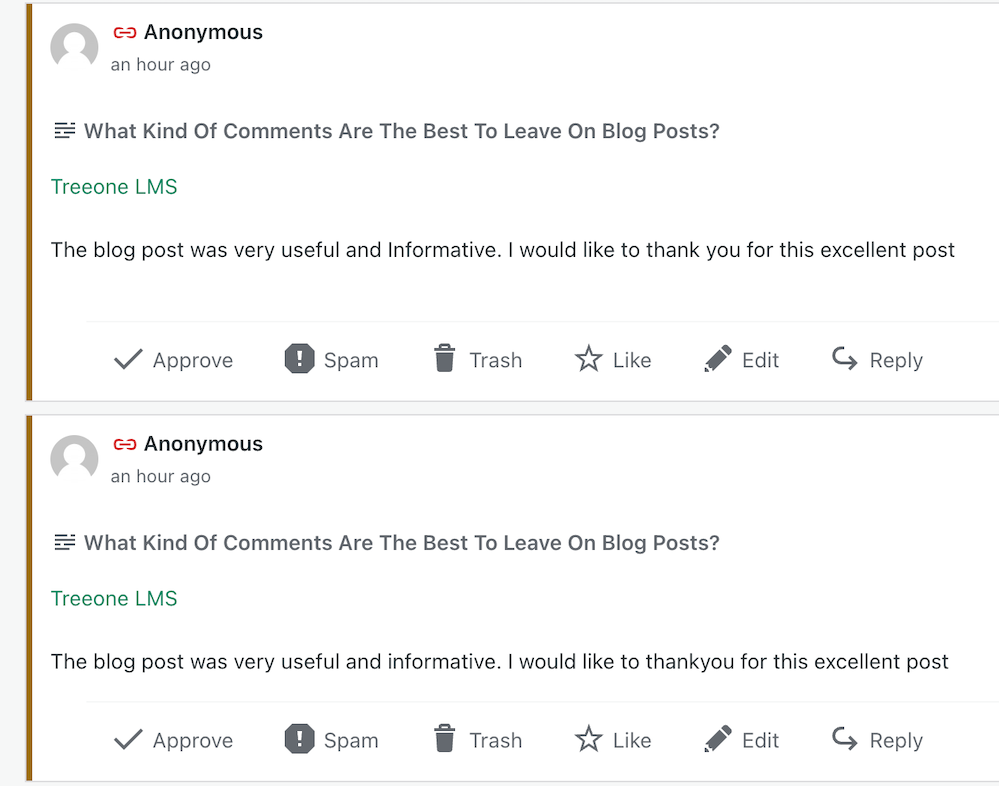
Imagine my concern when I came across this comments section on a recently read post.
Never approve these types of comments
I was appalled to see these comments and could not understand why they’d been approved. Given that the blog’s posts would probably be full of these types of comments, I also decided not to follow it.
Spam comments not only detract from the quality of a blog but also discourage meaningful interactions. Let’s keep the blogging community free from such spam and focus on producing meaningful engagement. Your thoughts and ideas are too valuable to be drowned out by spam.
Other examples of spam comments.
Some may look genuine, but they’re not. Spammers and spambots are getting cleverer at fooling us into approving their comments, so beware.
Thank you
I want to express my deep appreciation to all of you who support and interact with me here. Your engagement is not just a number on a screen but a vibrant testament to the joys and value of blogging. I especially want to acknowledge those who actively interact with me, as your contributions are the lifeblood of my blog.
Remember, it’s not just about the numbers but the profound connections we build through interactions. For instance, when a reader shares a personal experience related to a blog post or when we engage in a thoughtful debate about a controversial topic, these are the types of interactions that genuinely enrich the blogging community.
Let’s wrap it up.
This post delves into the importance of engaging with readers and other bloggers, offering insightful strategies to spark meaningful interactions.
Avoid leaving short, non-engaging comments on all the posts you read. Instead, leave a thoughtful comment every now and again.
Don’t leave a comment just to leave a comment or prove you’ve visited.
Never feel obligated to comment because they always comment on your posts.
There’s nothing wrong with not wanting to engage. Some readers are more comfortable reading a post without saying anything.
Take your readers seriously by responding to or acknowledging their comments.
Never approve spam comments. Mark them as spam and delete them.
Consider closing comments off if you do not want to engage with your readers or respond to any questions.
If you crave engagement, ask open-ended questions at the end of your posts or invite readers to share details of their experiences with the subject you’ve discussed in the post.
Do you enjoy engaging with your readers and other bloggers? What type of commenter are you? How do you deal with spam comments and the spammers? Share your knowledge and ideas in the comments section.
Click the buttons below to follow Hugh on Social Media
Categorising and tagging blog posts are some of the most potent ways for bloggers to get their posts noticed. However, some bloggers don’t bother with either, meaning they’re losing the potential for new readers and followers. Are you one of them?
But what are categories and tags, and how do they work?
Do you categorise and add tags to all your blog posts?
What are blogging categories?
Blogging categories act like groups where blog posts that have a connection with each other are stored.
For example, if you’re a travel blogger, you could have The United Kingdom categoryand list the sub-categories Scotland, Wales, England, and Northern Ireland.
Categories are important because they make finding specific blog posts more straightforward for visitors to your blog (especially first-time visitors).
Every blog post should have at least one category.
Unfortunately, if you don’t categorise blog posts, they will be uncategorised, which is no help to anyone.
Imagine going into a shop to find a particular book about dinosaurs and finding that none of the books has been categorised. You’d leave and go to another shop that helps customers by categorising its books to find what you’re looking for much easier.
I never return to blogs that do not categorise posts.
How to add a category to your WordPress blog post
This tutorial uses an Apple iMac desktop computer and the WordPress ‘Default’ dashboard.
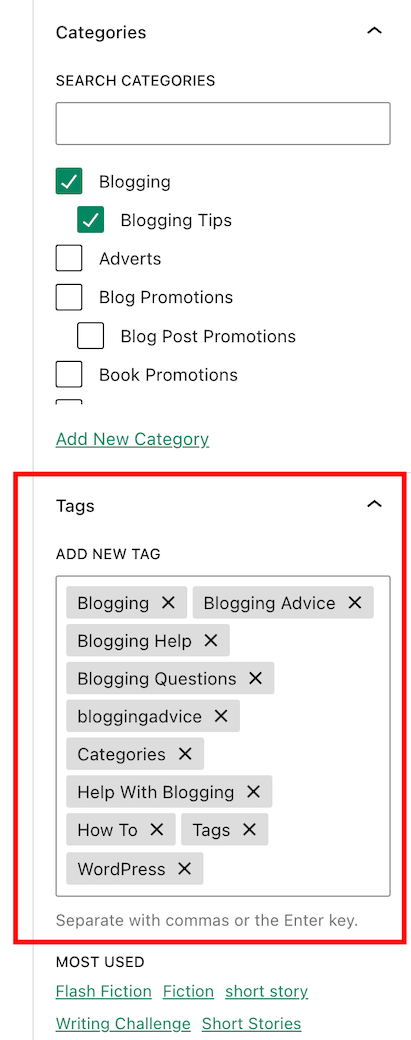
While drafting a blog post, you’ll see a toolbar in the settings area on the right-hand side of the page. This is where you can add categories.
Every blog post should have at least one category.
If a blog post doesn’t fit into one of your existing categories, click ‘Add New Category‘ and create a new one.
Remember to do some housekeeping regularly for the categories on your blog. For example, delete categories that are no longer being used or update categories by giving them a new name if something works better.
How to edit the categories on your blog.
On your blog’s dashboard, click on Posts to open a submenu, and click on Categories.
Click Posts and Categories.
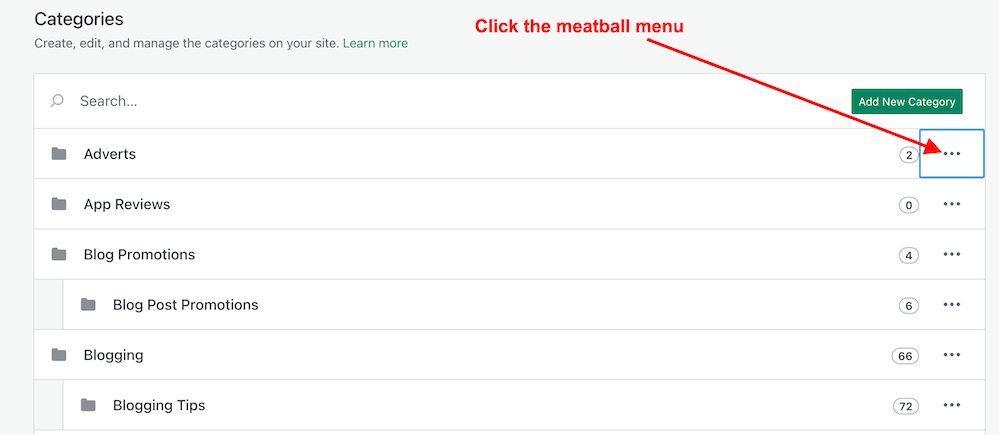
To edit a category, click the three verticle dots (meatball menu) next to the category you want to edit.
Click the meatball menu to edit a category.
The meatball menu displays four options: edit, delete, view posts, and set as a default.
Edit – Edit the name or description of the category.
Delete – Delete the category.
View posts – View a list of all your posts under the category.
Set as default – Useful when most posts fall under a particular category.
Remember to click the ‘Update‘ button to save any changes you make.
The number next to each category tells you how many posts are under that category. I recommend deleting any categories that are not being used.
Any sub-categories will show under each category.
Tip: Setting your default category to ‘Uncatorigised‘ allows you to search for any blog posts you may have forgotten to categorise.
What are tags?
Tags are popular keywords that can be added to a blog post. For example, some of the tag words I’ve added to this post are –
blogging
bloggingtips
categories
tags
WordPress
HowTo
Each tag should be separated with a comma or by pushing ‘Enter’ on your keyboard.
Tags containing more than one word (such as ‘Blogging tips’) act as one tag word, but you must add them without any space between the words, i.e., ‘ blogging tips’ becomes ‘bloggingtips.’
Generally, tags do not need to connect with each other, but when used correctly, they can generate a lot of extra traffic to a blog post.
Like categories, tags can be added to blog posts in the settings area toolbar on the right side of a draft post.
Always add keywords (Tags) to your blog posts.
When adding tags to your post, consider the keywords somebody would add to the WordPress search bar when looking for specific blog posts. Or think of words you would use to search for your post.
Check out the tags I’ve added for this blog post. They appear at the end of every post.
Important information – Did you know this…?
The cardinal tagging rule on WordPress.com is that you should never add more than 15 tags and categories (combined) to your post; otherwise, it won’t appear in the WordPress Reader.This cap prevents spam posts from appearing on the reader list, as spammers and spambots tend to use many categories and tags to lure readers in
15 tags and categories can seem like a lot, but you don’t need to use all of them.
Never tag your blog post with words that have nothing to do with the post’s subject. Otherwise, visitors will come to your blog under false pretences and probably won’t return.
Generally, I add no more than three categories and between six and ten tags to my blog posts.
As with categories, it’s also essential to do some housekeeping for the tags you use on your blog.
How to delete and update tags
On the dashboard of your blog, click on Posts – Tags.
A page showing your tags and how many blog posts containing each tag appears.
To edit, view and delete posts containing a tag word, hover your mouse over each tag word and click edit, quick edit, view or delete.
You can also view the posts containing the tag word by clicking the number in the ‘Count’ column. I recommend deleting any tag words that are no longer being used.
Let’s wrap it up!
All blog posts should be categorised and tagged.
Categorising and tagging your blog posts makes them user-friendly, meaning people will likely return to your blog.
Not categorising your blog posts means they’ll be challenging to find.
When tagging posts, think of keywords others will use when searching for your blog post.
Don’t use tag words that have nothing to do with the subject of your blog post.
WordPress users – never add more than 15 tags and categories (combined) to your posts; otherwise, they won’t appear on the WordPress Reader.
Remember to perform regular housekeeping of categories and tags on your blog.
Adding the proper tags to your blog posts will increase the number of readers who find them. More readers mean higher stats, more comments, and new followers.
Do you categorise and add tags to all your blog posts? If not, why not? Which tags-words work best for you? Is there anything you’d like to add or ask regarding categories and tags in blog posts? Join the discussion by leaving a comment.
Did you enjoy reading this post? Then you may also like…
How obsessed are you with your blog stats and blogging? And what essential points have you learned about blogging?
How obsessed are you with your blog?
When I first started blogging in 2014, I was obsessed with my blog stats. I checked them almost hourly to see if anybody had visited my blog. We all know that wonderful feeling when somebody clicks the ‘like’ button, or better still, when somebody leaves a comment on one of our posts for the first time.
It didn’t matter what that comment said. Even if it was, ‘Great post,’ it made my day. How times have changed!
Taking the advice of other bloggers
When another more experienced blogger and somebody who had been blogging much longer than me told me that most of the hits my posts were getting were probably from people who didn’t stay more than a few seconds on my blog, my whole blogging world began caving in.
Even worse, that blogger told me that many of those who hit the ‘like’ button probably didn’t even read the post. What?
I was so deflated that I thought, ‘Why bother?’ It wasn’t until another blogger told me to stop obsessing over my blog stats and to put the energy of stat-watching into writing blog posts that I took that advice.
More trouble
A few months later, I found myself in trouble again. ‘Concentrate on the comments rather than how many people have visited your blog or how many have hit the ‘like’ button,’ another blogger told me. ‘Most importantly, don’t forget to visit, read and leave engaging comments on other blogs.’
But I took that last bit of information to heart and soon found myself spending all my blogging time reading and leaving engaging comments instead of writing posts. I was following over 500 blogs and I believed I had to read and comment on every single post.
Blogging guilt and stress crept up on me, and I thought I’d upset people if I didn’t read their posts and leave them comments, or, even worse, people would unfollow me if I stopped reading and leaving comments on their posts. After all, they were reading and commenting on all my posts.
Once again, I found myself on the edge of packing in blogging. I was going to delete my blog and find something else to do that was more fun and enjoyable.
How do you find the right blogging balance?
Thankfully, I never deleted my blog, but I know of bloggers who have done so, some of whom came back and started afresh. Unfortunately, it doesn’t always work out, and some of these bloggers went on to abandon their blogs for the same reasons they left blogging in the first place.
Finding a balance between writing blog posts and reading and commenting on other blogs can be a significant task. Thankfully, I found it.
I know some bloggers who balance blogging by reading as many posts as possible in as short a time as possible. They’ll often leave short, non-engaging comments on all those posts. It works for them, but not for me, but good for them if that’s what works.
What works for some won’t work for others.
Then there are the bloggers who reduce the number of blogs they follow without worrying that they’ll probably lose followers in the process (and they will), giving them more time to write. Good for them.
Why do bloggers suddenly stop leaving comments?
I’ve lost followers because I cut down on the number of blogs I followed. Now, I’m following around 75 blogs, all of which I’m interested in. That gives me more time to write, more time to read and more time to leave engaging comments on the blogs I follow.
I no longer get comments from people who always used to leave me comments, however, the fall in non-engaging comments is something I’m delighted with.
Some bloggers seem to have disappeared from the blogging world while others are still around, but have lost interest in what I have to say or no longer have anything interesting to add in a comment. But there’s nothing wrong with that. It’s not worth worrying about.
Are you more of an engaging or non-engaging blogger?
Someone once told me that a non-engaging comment indicates that the person who left it does not want to engage with you (or anybody else). This is usually because they’ll say they don’t have the time to engage. All they want to do is say, ‘Hello, I visited,’ before moving on quickly. They may not have even read the post.
And then there are the bloggers who leave comments like ‘Subscribe to my blog!’ or ‘Nice’ without saying anything else. Do they want to engage, or are they simply number/follower-hunting? I often wonder how would they react if I left them an engaging comment on one of their posts.
Of course, blogging isn’t only about engagement. Many people blog just to express their thoughts online. Some bloggers do not respond to comments. Some bloggers simply thank people for leaving a comment without engaging with them, even if the comment they’re responding to shouts, ‘I want to engage with you!’ thus taking the person who wants to engage down a dead-end.
Many bloggers want to engage, yet I’ve heard from some bloggers who say the comments section of blogs is a waste of time and should be removed. I don’t agree with that, but if a blogger does not want to engage then there is the option to turn off comments.
How often should you blog?
I’ve learned the only answer to this question is – ‘blog as often as you like without feeling obliged to publish something.’
It took me a while to find that I’m happier publishing two or three posts weekly. Any more than that, and I find I’m forcing myself to write posts, which makes blogging less enjoyable. Sometimes, I may only publish once a week.
I do not want to get myself feeling stressed because I haven’t got a post ready, so my advice is not to blog to any schedule of when you’re going to publish posts. If readers are interested in what you write and publish, they’ll read your posts regardless of how often or when you publish and sometimes that could mean days, weeks or even months after the publication of a post, so don’t close comments off to force your audience to read your posts within a particular time-frame. Blogging should always be a leisurely activity.
I also witnessed a drop in the quality of the posts I publish when publishing more than a few times a week. For me, quality is much more important than quantity, but it may not be the same for you.
I also tend to stay clear of blogs that publish more than once daily as they tend to bring an overwhelming feeling that I don’t like. Once again, it’s about finding the perfect balance that works best for you.
Blogging! It’s a fascinating subject, isn’t it? I could go on, but it’s now over to you. Can we discuss blogging honestly without fearing upsetting other people? What do you think? Let me know in the comments section. Let’s discuss blogging.
Pingbacks are a vital tool in the blogging world, fostering connections and increasing site traffic. Are you making the most of pingbacks or missing out on their benefits? This post details their benefits, creation, and anti-spam measures.
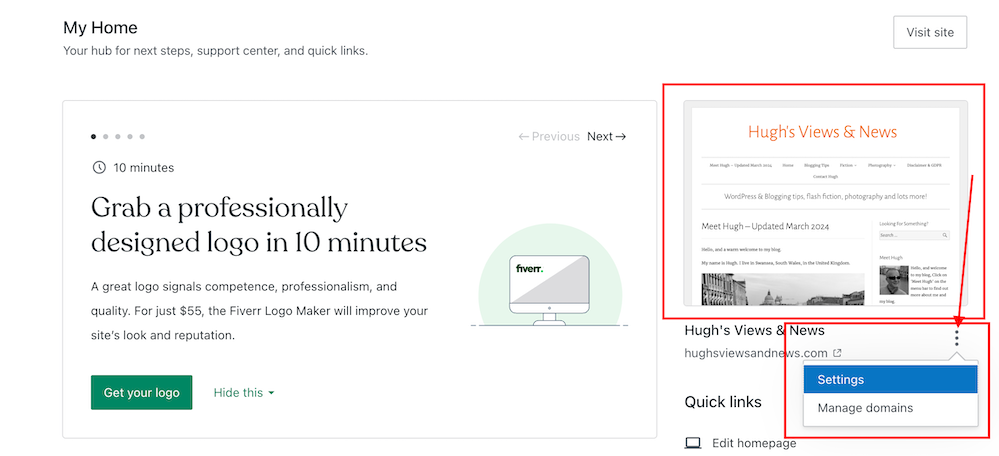
Have you noticed the new feature WordPress has added to your blog’s dashboard? It’s located on the ‘My Home‘ page in the top right corner.
But what does this new feature do?
This new ‘settings’ feature is easy to use. But what does it do?
For this post, I’m using an Apple iMac desktop computer and the ‘Default‘ view setting of my blog’s dashboard.
You’ll find this new feature on the ‘My Home’ page of your blog’s dashboard
Let’s get started
Click on the meatball menu (three horizontal dots) to open a new menu.
Click the kebab menu to open a new menu
The menu contains two options – Settings and Manage Domains.
Let’s take a look at the two options
Settings – this option takes you to the General Settings page of your blog.
You can make many changes to your blog on this page, including your blog’s icon (photo or image), name, and tagline.
Edit your blog’s icon, title and tagline
Click the ‘Save Settings‘ button if you make any changes.
On the same page, you can also create a logo for your blog via Fiverr logo maker (note that there is a charge for this) and set/change your blog’s primary language and timezone. Remember to save any changes you make.
Another option includes setting privacy settings for your blog.
Privacy – This is where you can set your blog to public viewing (anyone can view it) or private viewing (only visible to you and logged-in members you have approved to view it). There is also a ‘Coming Soon‘ option, so your blog is hidden from view until it’s ready for viewing.
Set privacy settings for your blog
Two other options are also available.
If ticked, the ‘Discourage search engines from indexing this site‘ option will prevent search engines from indexing your blog, but note that it is up to search engines to honour your request.
The ‘Prevent third-party sharing‘ option should be ticked if you want to restrict your blog’s content from AI training and third-party use. It will exclude your blog’s public content from WordPress’s network of third-party content and research partners. It also adds known AI bots to the ‘disallow’ list in your blog’s robots.txt file to stop them from crawling your site, though it is up to AI platforms to honour this request.
Click the ‘Save Settings‘ button if you make any changes.
Other settings include –
Accept a gift subscription – turn this setting on to accept gift subscriptions from visitors to your blog.
Footer credit: Here, you can choose or edit a footer credit that appears at the bottom of your blog’s pages and posts.
Site tools – this section allows you to do the following.
Register a new domain or change your blog’s URL address.
Transfer your blog to another blogging provider.
You can reset your blog and start afresh while keeping the same domain/blog name. (If you choose this option, all your posts, pages, and media will be deleted).
Delete your blog and give up your blog’s domain/address.
2. Manage Domains — This option takes you to the part of your blog where you can manage your blog’s domains.
It’s worth checking this page to see what domains you have and to see offers for other domains you may be interested in purchasing for your blog.
While you may not visit your blog’s settings page regularly, it’s worth knowing that there is now an even quicker way to find these settings.
Are there easy ways to promote your old blog posts, and should you feature them on your blog again?
Can old blog posts bring in more visitors, followers and comments?
The answer is YES.
Have you killed off your old blog posts?
One of the biggest mistakes many bloggers make is forgetting their old blog posts. They publish posts and quickly forget about them.
Yet, If they’ve been regularly publishing blog posts, their blog archive will be a treasure trove of opportunities waiting for them to bring posts alive again. Just think about all those followers, readers and visitors who have never seen those posts.
Rather than ignoring these old blog posts, there are ways to bring them back to the attention of your audience.
These old blog posts probably never got anywhere near as many views and comments as your recent blog posts, but did you know that they could quickly bring you many more views, comments and followers?
My three quick and easy tips for bringing these old blog posts back to life are easy to follow and will deliver results as soon as you implement them.
1. Display ‘related’ posts at the end of all your blog posts.
I’m always surprised by how many WordPress bloggers don’t have this feature switched on.
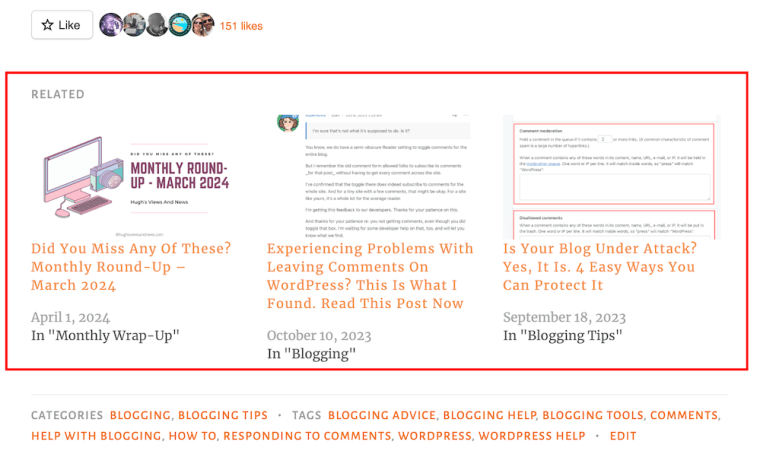
Here’s a screenshot of the related posts that featured at the end of one of my recent blog posts.
Promote similar older blog posts at the end of new blog posts.
WordPress automatically chooses which of your posts to display.
If you’re not already showing related blog posts at the end of newly published blog posts, follow this guide.
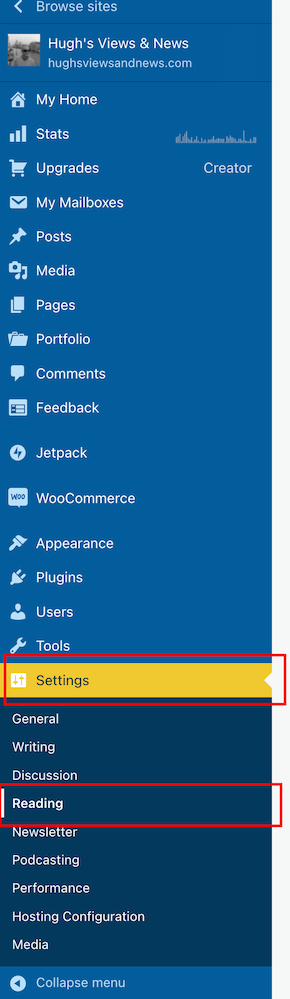
On the dashboard of your blog, click on Settings and Reading.
Select ‘Settings’ – ‘Reading’
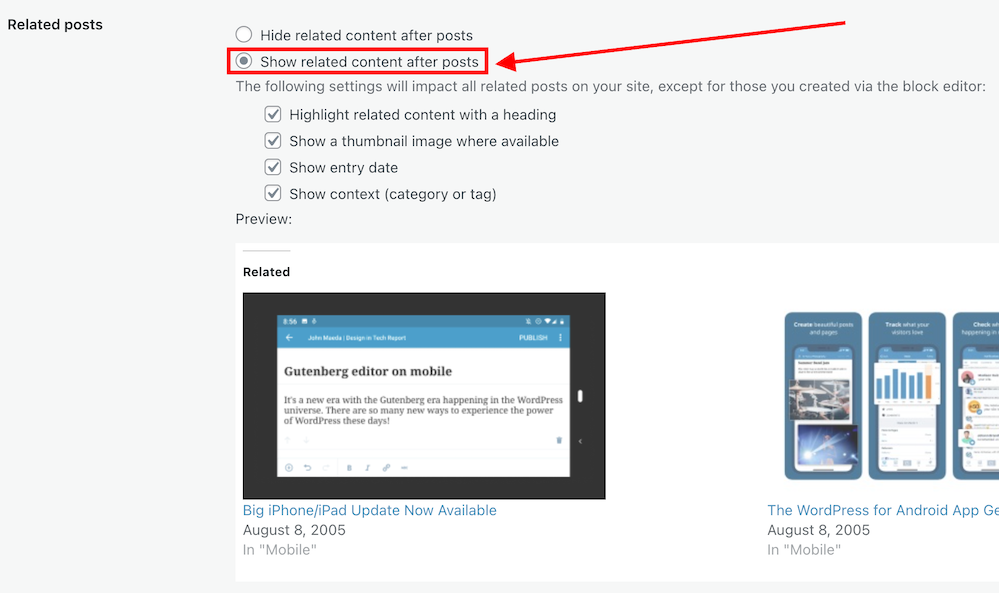
On the Reading Settings page, look for Related Posts and ensure ‘Show Related Content After Posts’ is switched on.
Switch on ‘Show related content after posts.’
Choose which other settings options you want to use.
Choose which settings options you want to use.
At the bottom of the screen, click on the Save Changes button.
Future posts will now display three related posts from your archives, resulting in those posts being seen again.
2. The ‘Blog Posts’ Block
Those using the Block Editor can use a terrific block called the’ Blog Posts’ block. It allows bloggers to choose which of their previous blog posts to promote on newly published posts.
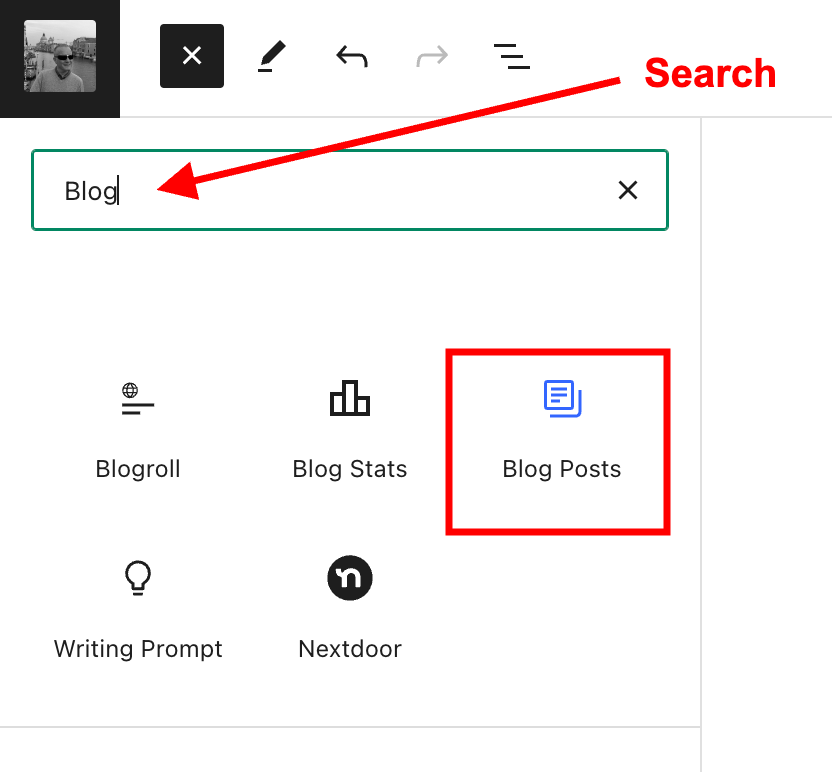
Insert the ‘Blog Posts’ block in the place where you’d like to feature it on your upcoming new post. You’ll find the ‘Blog Posts’ block under the ‘Widgets’ section, or you can search for it by entering ‘Blog Posts’ in the search bar.
Select the ‘Blog Posts’ block
The Blog Posts block defaults to showing the last three blog posts you published, but you can change this. You can leave it as it is or switch to other settings.
Today, I will show you how to choose the blog posts you want to display.
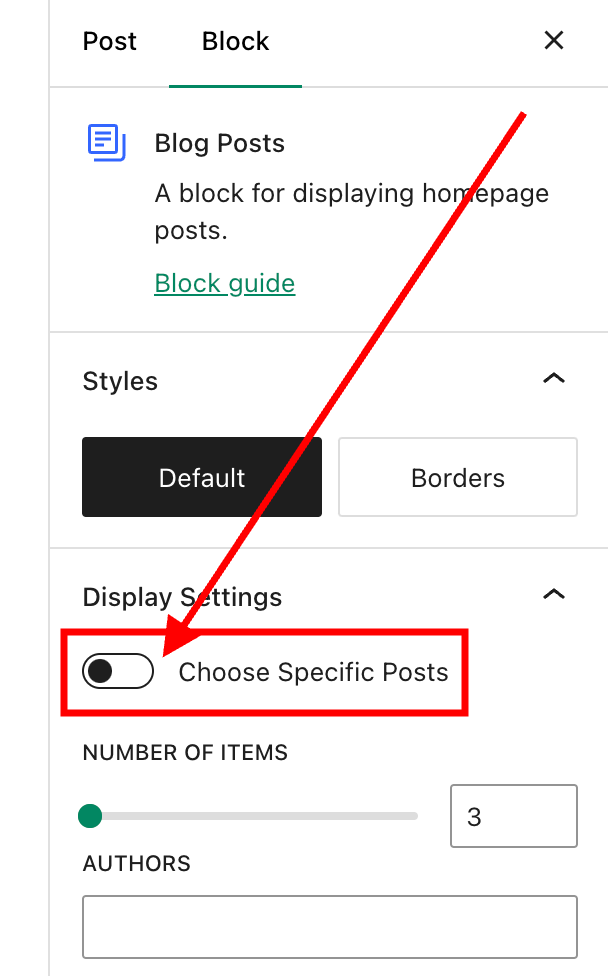
When you insert the block, a toolbar will open on the right-hand side of the page. Under Display Settings, look for Choose specific posts and slide the button to the ‘on‘ position.
Switch on the ‘Choose Specific Posts’ option
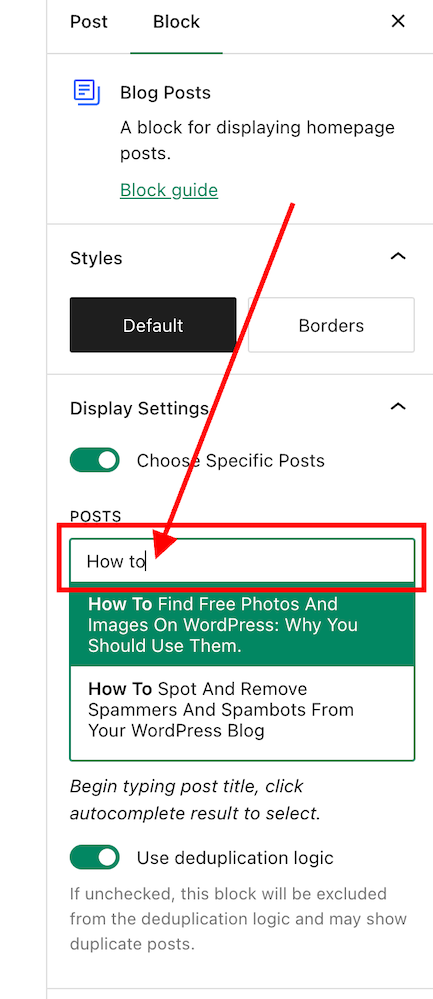
In the ‘Posts‘ box, type in the blog post title you want to display. As you type, suggestions for blog posts with the words you are using will appear.
Search for the posts you want to promote on your new blog post.
Select the blog post you want to feature.
If you’re going to add more blog posts, search for them by typing in more words in the Posts box.
I recommend that you add no more than three posts.
The Blog Posts block has many other settings, which you can read about here.
There’s nothing wrong with adding pingbacks and linking back to your previous blog posts. Lots of bloggers do it.
In fact, I recommend that you include at least a couple of pingbacks in all your blog posts. However, you should always ensure that what you’re writing about is connected to the post you’re linking back to.
Pingbacks can also be added to images, pictures, and photos in blog posts and captions.
Let’s wrap it up!
Your blog’s archives are a treasure trove of blog posts that can attract new visitors, comments, and followers.
Don’t allow old blog posts to remain idle and not work for you. Use them.
Your previous blog posts may not have been read by new followers. Introduce them to your new audience.
People who may have read your older posts are often thankful for the opportunity to read them again, especially if the post includes tips and advice.
Ensure you keep old blog posts up to date.
WordPress has made several blocks available on the Block editor to promote old blog posts. The ‘Blog Posts’ block is just one of those blocks.
Consider switching it on if you’re not already using the ‘Related Posts’ feature.
Remember that you can create pingbacks to old blog posts from any images or photos in future blog posts.
Do you promote your old blog posts? If not, why not? How do you promote them? What way(s) of promoting old blog posts have worked best for you? Have you had much success promoting old blog posts?
Did you enjoy reading this post? Then you may also like…

















 Hugh's Views & News