What Kind Of Comments Are The Best To Leave On Blog Posts?

My blogging friend Brenda, who blogs at Curiosities, Castles and Coffee Shops, publishes a series of blog posts where she introduces a new blogger and shares some wonderful blogging tips.

In her recent post, Brenda talks about using prompts to get ideas for blog posts, especially when we struggle to find something to write about. She mentions the daily WordPress prompt, which asks a question bloggers can respond to in a blog post.

I won’t go into all the details of Brenda’s excellent advice, but it got me thinking about the subject of comments.

Light blue image with the words 'What Kind Of Comments Are The Best To Leave On Blog Posts?' in white text.
What kind of comments do you leave on blog posts?

I left a comment on Brenda’s post, which sparked a conversation with another blogger, Laura, who blogs at Keeping It Creative.

The following screenshot is just a small part of the conversation Laura, Brenda, and I had about the subject of comments.
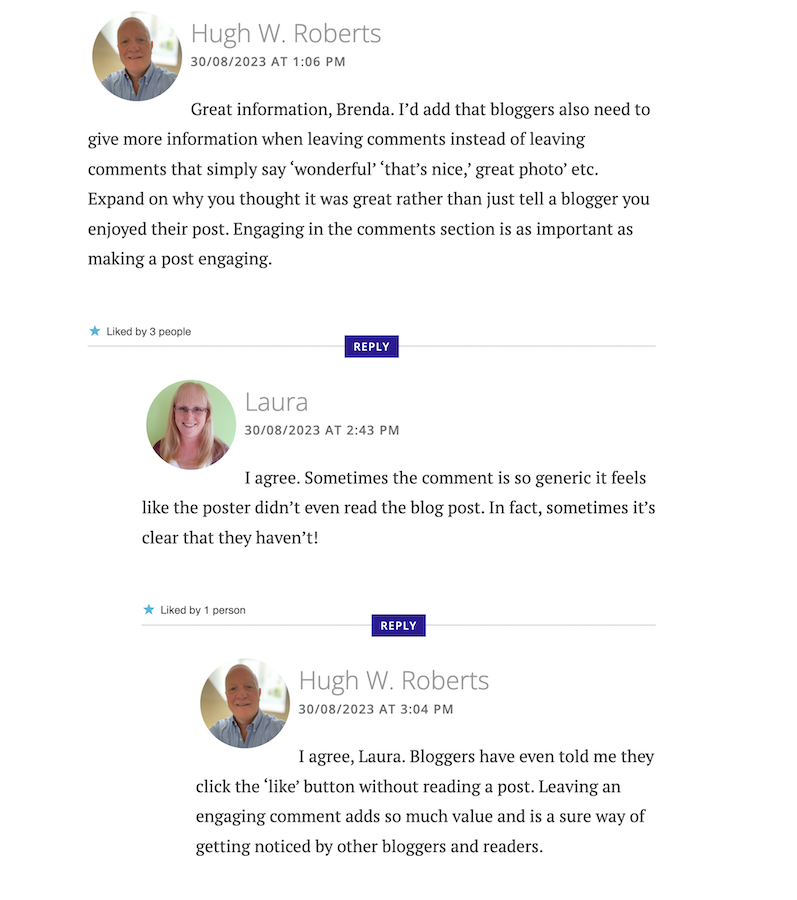
Image showing engaging comments between bloggers on a blog post.
Are your comments engaging?

Our conversation got me thinking about the overall subject of comments and how I’ve noticed a big difference in the comments being left on blogs.

When I first started blogging, the majority of bloggers had conversations and discussions in the comments section with each other about the subject of the post. But over time, that trend seems to be dwindling which had me asking the question –

‘What has happened to the art of conversation and discussion in the comments section of blogs?’

Gone are the days when many readers left comments that not only proved they’d read the post but also gave feedback that opened discussion and conversation.

Now, it seems, some bloggers leave comments with little, if any, way of responding to them other than with a ‘Thank you.’ Comments such as –

  • ‘I enjoyed this.’
  • ‘Wonderful.’
  • ‘This is a great read.’
  • ‘Well done.’
  • ‘Great interview.’
  • ‘You did a great job.’
  • ‘Another great story.’
  • ‘Great authors and books.’
  • ‘Great post.’
  • ‘Thanks for sharing this.’

Or worse, a comment that includes nothing but emojis.

Yes, some of those comments sound encouraging, but as Laura said in her comment, ‘Sometimes a comment is so generic, it feels like the person leaving the comment never read the post.’

None of the above comments mention anything about the contents of the post.

Why do people leave short, non-engaging comments?

There are probably some genuine reasons for leaving non-engaging comments all over the blogging world, but what are they?

I hope some of the reasons will be left in the comments section of this post. I’m interested in knowing.

Some bloggers claim they don’t have the time to leave longer, engaging comments because they don’t have the time to leave them. Some have too many other blogs to visit. Some rush around the blogging world because they only have so much time to visit and comment on as many posts as possible.

But in contrast, if they didn’t feel obliged to visit these blogs to leave short, non-engaging comments, they could free up some time to leave a few engaging comments that open up discussion and conversation.

Then I got this comment from Janice, who blogs at Mostly Blogging.Com.

Image of a conversation saying that it is no longer trendy to leave comments on blog post.
Is it no longer trendy to leave comments on blogs?

I was shocked by what Janice told me. Is it really no longer trendy to leave comments on blogs? Are readers only wanting information, not a community?

The other side of the blogging coin.

It’s not only some of those visiting posts at fault for leaving short, non-engaging comments. Some bloggers respond to engaging comments that clearly show they want to discuss the contents of a post by saying nothing more than a ‘Thank you.’ They instantly cut off engaging with their audience.

What are engaging comments?

  • They contain information that proves the post has been read.
  • They are written in an engaging, friendly manner.
  • They are at least a couple of sentences long.
  • They indicate that you want to discuss the contents of a post further with who wrote the post.
  • Include any questions about the contents of a post.

And let me reassure you that you should never feel guilty for not leaving a comment or feel obliged to leave one on any blog. There is nothing wrong with clicking the ‘like’ button and moving on after reading a post if you’ve nothing of value to add.

I don’t enjoy having to reply to any comment with just a ‘thank you.’ I want to get into a discussion or conversation about the contents of my posts and what made whoever left a comment say what they said.

For example –

  • Why did they think the post was good?
  • What was it that made them enjoy reading the post?
  • Why was it a great read, story or interview?
  • Was it the way the post was written or some of the answers given? If so, which ones?
  • Did the post strike a cord? Why?
  • What parts did they like/dislike the most?
  • Was it something new they learned? If so, what, and how will they use the new information?

I’ve stopped leaving comments on blogs unless I’ve something of value to add.

And I never feel guilty for not leaving a comment.

I don’t need to prove I’ve visited a blog.

I don’t need to make anyone think I’ve read their post.

I don’t feel obliged to follow and read posts on a blog simply because that blogger follows me and leaves me comments.

And nor should you.

So, what has happened to the art of conversation and discussion in the blogging world? Is it dead, or have I, as a blogger who enjoys discussion and conversation, become a minority in the blogging world? Is it no longer trendy to leave comments? Join the discussion and conversation by letting me know what you think in the comments section.

My post, This Is Why It’s Important To Leave The Right Comments On Blogs: 9 Ways, may also help you to improve the types of comments you’re leaving.

Follow Hugh on social media. Click the buttons below.

If you enjoyed this post and want more like it, enter your email address and click ‘Subscribe’ to stay up-to-date with my latest content.

Copyright @ 2024 hughsviewsandnews.com – All rights reserved.

Is Your Blog A Friendly Welcoming Place? This Is How Not To Run A Blog

The other day, I came across a wonderfully written blog post after clicking a link on Mastodon. But the trouble was that I seemed to be the first visitor to that blog, even though the post had been published in May 2023. But it didn’t end there.

Light blue image with the words 'Is Your Blog A Friendly Welcoming Place? This Is How Not To Run A Blog' in white text.
Don’t do this with your blog.

I always find it sad to discover a well-written blog post over a few months old that has captivated me but generated no comments or likes. It’s like it’s been cut adrift, floating around in the deepest, darkest part of the blogging world, where few venture.

Yet there are blog posts I lose interest in after only reading the first few lines that have hundreds of likes and lots of comments.

Not all of those likes will have been generated by people who read the post, and I call many of the comments dead-end comments that fail to ignite any proper discussion.

What are the clues to an unwelcoming blog?

I couldn’t help but feel sorry for the blogger whose post I’d found via Mastodon. I wondered how they feel when they see other badly written posts that have generated lots of likes and comments.

Of course, just because a post has no comments and nobody has clicked the like button doesn’t mean nobody has read it, but how must that blogger feel when they see that their post hasn’t generated any engagement? Do they feel sad or cheated, or do they not care because they wrote and published the post just for themselves?

Looking more closely at the rest of the blog where I found the post, I did find some clues as to why nobody seems to be visiting and engaging with it.

For a start, none of the 15 posts had been categorised. They were all uncategorised. One of the posts was password-protected, so you could not see the contents unless you knew the password. And there was no information about how to obtain the password.

None of the posts had tags attached, meaning they would not appear on any search results page.

Although there was a ‘Contact the Blogger’ page, the ‘About the Blogger’ page contained only a photo. Who is this person? Where in the world are they located? What do they blog about? What are their interests? Why do they want you to read and follow their blog? All you can do is guess the answers to these questions.

Their first post was published in January 2019, meaning, on average, they only publish 4 blog posts a year. Not a lot, you may think, but I’ve seen blogs that publish one post every three months do well.

Imagine my delight when I checked the other 14 posts and found one with a single comment. Somebody had discovered this blog before I had. Somebody had visited, looked around, liked what they had found, and left a lovely comment. But this blog was lifeless, like an uninhabited planet; there was no response to the comment. Whoever was here three years before I arrived had left empty-handed.

The overall look of the blog was clean and simple. No fancy menus or widgets to click, so it was more of a place where visitors could hang out and engage. Yet, the sheer fact that there seemed to be nobody there had probably put visitors off from following and engaging.

I tried contacting the blog’s owner, but my words bounced back as an echo in this deserted, uninviting place. Maybe they only check in to their blog every three months. We’ll wait and see, but I think I’ll prepare my spaceship and visit another new blog where I hope I find some inhabitants who want to engage with more than just themselves.

Follow Hugh on social media. Click the buttons below.

If you enjoyed this post and want more like it, enter your email address and click ‘Subscribe’ to stay up-to-date with my latest content.

Copyright @ 2024 hughsviewsandnews.com – All rights reserved.

How To Spot And Remove Spammers And Spambots From Your WordPress Blog

Is your blog plagued by spam, spammers and spambots? Do they annoy you? Do you know they’re even there and the damage they could be doing?

Allowing spammers and spambots to follow your blog makes it easier for them to attempt to flood your blog with spam comments. In turn, this opens the floodgates to your readers becoming the victims of scams or having their computer, tablet or phone infected with malware.

Light blue image with the words 'How To Spot And Remove Spammers And Spambots From Your WordPress Blog' in white text.
Is your blog infected with spammers and spambots?

There are many different types of spammers in the blog world. From those who leave uninvited links, those who flood your posts with pleas to check out their blog and follow them, and comments from spambots; they can all be a nuisance.

Some spammers are easy to spot. The clues are in their name.

Image highlighting the name of a spammer
The name of some spammers gives them a way straight away.

Some spammers try a little harder to trick you.

Image highlighting the web address of a comment from a spammer
Always check the web address of where a comment has come from.

The above comment may sound genuine, but just look at the web address where it’s come from.

Recently, many blogs on WordPress have been flooded with spam comments from dog breeders. My blogging friend Renard at Renard’s World wrote about them.

I’ve witnessed some bloggers approve and respond to the comments from these spambots. The comments look genuine, but they’re not. Here’s an example of a spam comment from one of the dog breeders.

Image showing a spam comment from a dog breeders spambot on a WordPress blog
Comment from a dog breeders spambot

Approving and allowing comments from spammers and spambots onto your blog posts will damage the ranking of your blog. It may also end up resulting in genuine readers clicking on links in comments or visiting the sites of these scammers resulting in them becoming victims of scams or having their computer infected with malware.

These spammers often leave messages on posts that look authentic and nice, but they never mention anything about the contents of the posts (other than saying they like them) and often trick bloggers into believing they are genuine.

Spammers who follow your blog will also click the ‘like’ button on all your posts in the hope that other readers will see their gravatar icon, and visit their site. Once there, the reader puts themselves in danger of being scammed or having their device infected.

How Do You Spot Comments From Scammers and Spambot?

WordPress has recently improved the subscribers’ page of a blog. Not only has this helped spotting spammers and spambots, but it’s easy to remove them as subscribers to your blog.

Here’s a screenshot of a comment from a spambot. I’ve highlighted the spammers name for instructions on how to unsubscribe them from following your blog further down in this post.

Image of a comment from a spambot on WordPress
Make sure you remove spammers from following your blog.

The Akismet Anti-Spam software that WordPress provides is excellent at dealing with spam, but it doesn’t catch it all.

Comments from spammers rarely have an image in their Gravatar, but spammers are now getting clever and inserting an image in their profile (like the one in the previous image).

Here’s how to spot, check and remove spammers and spambots as subscribers to your blog.

  • Make sure you are viewing your blog’s dashboard in ‘Default‘ view.
  • Copy the name of the spammers blog.
  • On your blog’s dashboard, go to ‘Users‘ – ‘Subscribers.’
Image highlighting "users' - 'Subscribers' on the dashboard of a WordPress blog.
Click Users – Subscribers
  • On the ‘Subscribers‘ page you’re taken to, paste the spammers blog’s name in the ‘search box.’
  • If the spammer is following your blog, their name will show in the results.
  • Click the three dots next to the blog you want to remove.
  • Click the ‘Remove‘ button to unsubscribe the blog from following you.
Image highlighting the steps to take to remove a spammer from following your blog.
How to remove a spammer from following your blog.
  • The spammer has now been unsubscribed from following your blog.

Spammers who follow your blog are more likely to try and flood your blog posts with spam comments because they get notifications when you publish new posts. You can mark any such comments as spam, but I’d recommend you unsubscribe them from following your blog.

Of course, there is nothing stopping spammers from subscribing to your blog again, but every time they follow, unsubscribe them. As I have found out with those dog breeder spammers, they soon get fed up of having to keep subscribing to your blog.

Let’s Wrap It Up

  • Don’t allow spammers, scammers or spambots invade your blog or stress you out.
  • Spotting spammers, scammers and spambots is easy to do. Follow the guide in this post.
  • Never approve or respond to spam comments.
  • If you’re unsure a comment is from a spammer, check out their website address first.
  • Always unsubscribe spammers, scammers and spambots from your blog. Follow the guide in this post.
  • Although the Akismet Anti-Spam software that WordPress provides catches the majority of spam, it won’t catch all of it.
  • Approving and allowing comments from spammers and spambots onto your blog posts will damage the ranking of your blog. It may also end up resulting in genuine readers clicking on the links in their comments or visiting their website and becoming a victim of scams or having their computer infected with malware.
  • Look after your readers, not the spammers, scammers or spambots.

How do you deal with spam, spammers and spambots on your blog? Share details in the comments section.

Layout, content, settings, and format might differ on self-hosted blogs.

Follow Hugh on social media. Click the buttons below.

If you enjoyed this post and want more like it, enter your email address and click ‘Subscribe’ to stay up-to-date with my latest content.

Copyright @ 2024 hughsviewsandnews.com – All rights reserved.

9 Hidden Useful Tools You May Not Know About On The Posts Page Of A WordPress Blog

Have you noticed the three horizontal dots next to your blog posts when viewing the ‘Posts‘ page of your blog’s dashboard on WordPress? If not, you’re missing out on some useful tools that will help save you time when blogging and make your blog posts appeal to even more readers.

Light blue image with the words '9 Hidden Useful Tools You May Not Know About On The Posts Page Of A WordPress Blog' in white text
Have you discovered these 9 hidden blogging tools on WordPress?

For the purpose of this post, I’m viewing my blog’s dashboard in ‘Default‘ view.  

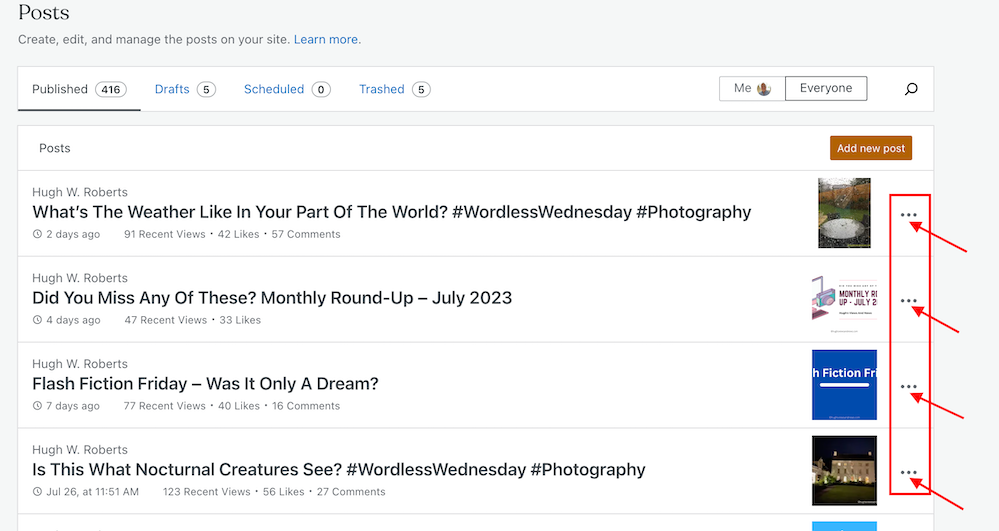
These three horizontal dots are known by numerous names, my favourite being a ‘Meatball Menu.’

Not sure what I’m referring to? Here’s a screenshot pointing out the meatball menu on the dashboard of the posts page of my blog.


Image highlighting a meatball menu on the posts page of a WordPress Blog
The Meatball Menu.

When you click on the meatball menu against a post, the three horizontal dots change to three vertical dots (known as a kebab Menu), and nine options appear.

Let’s investigate each option. 

Edit

  • Click this button to edit or update a post. Useful when spotting mistakes. Don’t forget to press the Update button to save any changes you make. 

View

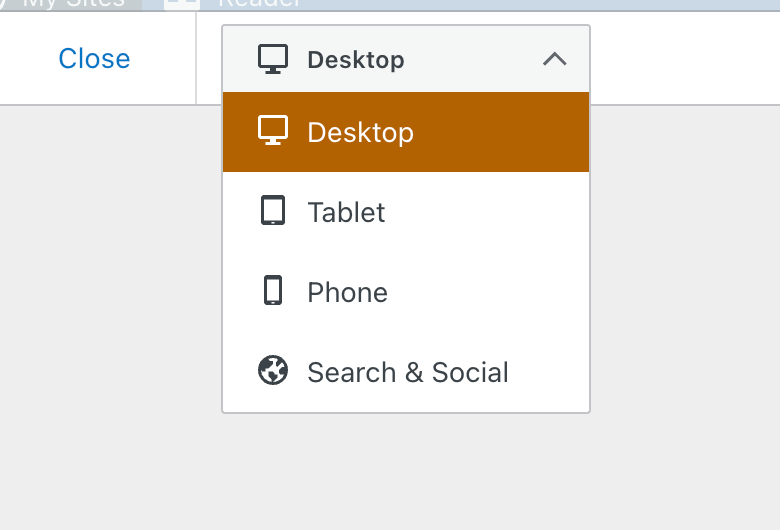
  • This button does more than just show a preview of your post. It also offers the option of previewing the post as it appears on a desktop computer, tablet and phone. You should always preview your posts before publishing them.
Image showing the display menu when clicking the 'view' option on the posts page of a WordPress blog.
See your post in desktop, tablet and phone form.
  • The Search & Social button (at the bottom of the menu) allows you to preview your post as it appears on Facebook, Twitter (now known as X), and a Google search. 
  • I recommend you always preview your post first to ensure they are mobile-friendly, especially given that most people now read blog posts on tablets and phones. 

Promote With Blaze

Blaze is a way to pay to have a post advertised by WordPress, putting it in front of thousands of new readers.

You can advertise a post or page on some of the millions of pages across WordPress.com and Tumblr from $5 per day. This option is not available to bloggers who have a free WordPress plan.

Stats

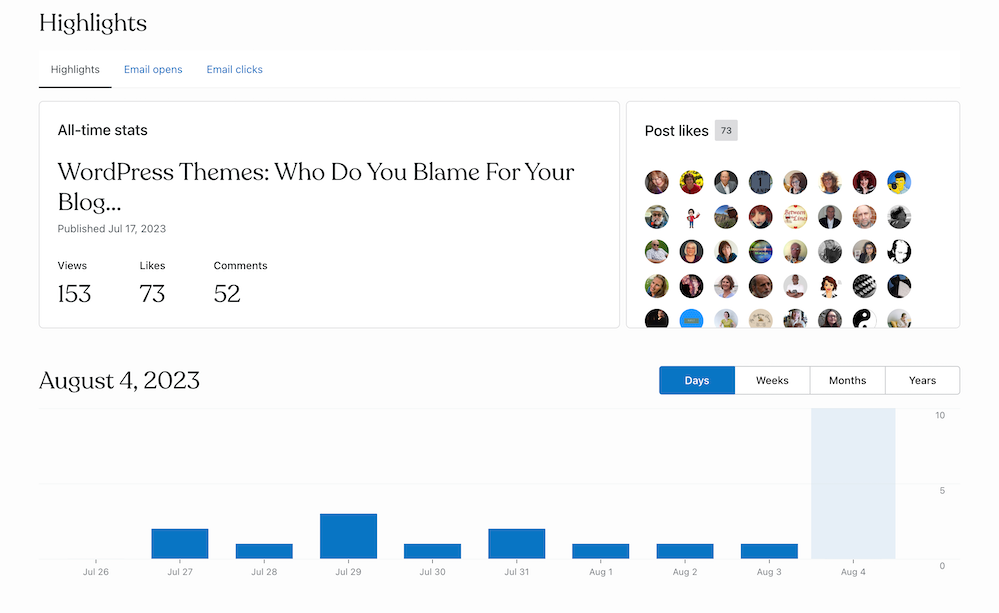
  • Click ‘Stats‘ to check a post’s latest daily, weekly, monthly, and yearly stats.
  • For some WordPress plans, you can view a post’s stats for emails opened and how many people who got the email clicked the link to view the post.  
  • You can also view who clicked the ‘like‘ button on the post and how often ‘like‘ has been clicked. 


Image showing stats for a blog post when clicking the stats option in the kebab menu
What’s behind the ‘Stats’ option?
  • Under ‘Post Likes‘, hover your mouse over any of the profile icons to display the blog name of the blogger.
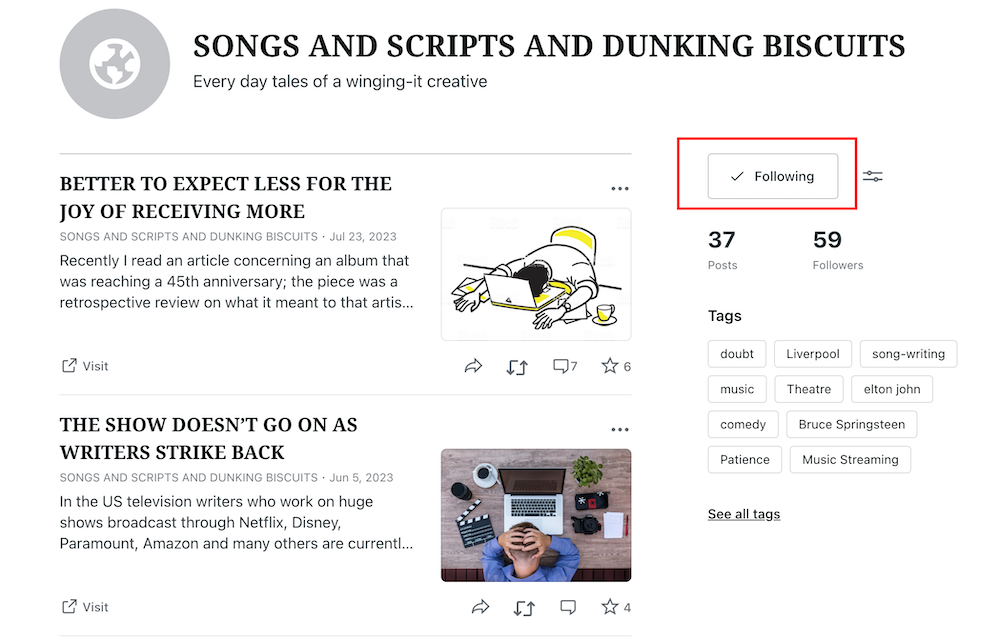
  • Click on an icon to view a list of that blogger’s blog posts, how many posts they have published, how many followers they have, a list of their most popular tags, and a follow button (WordPress.Com bloggers only). This is a great way to find new blogs to follow.
  • If you’re already following a blogger who has clicked ‘like‘, the ‘follow‘ button will be replaced with the word ‘following.’ 


Image showing details of a blog of somebody who clicked 'like' on a post.
Are you following somebody who clicked ‘like’ on your post?
  • To unfollow, click the ‘Following‘ button. 

Comments

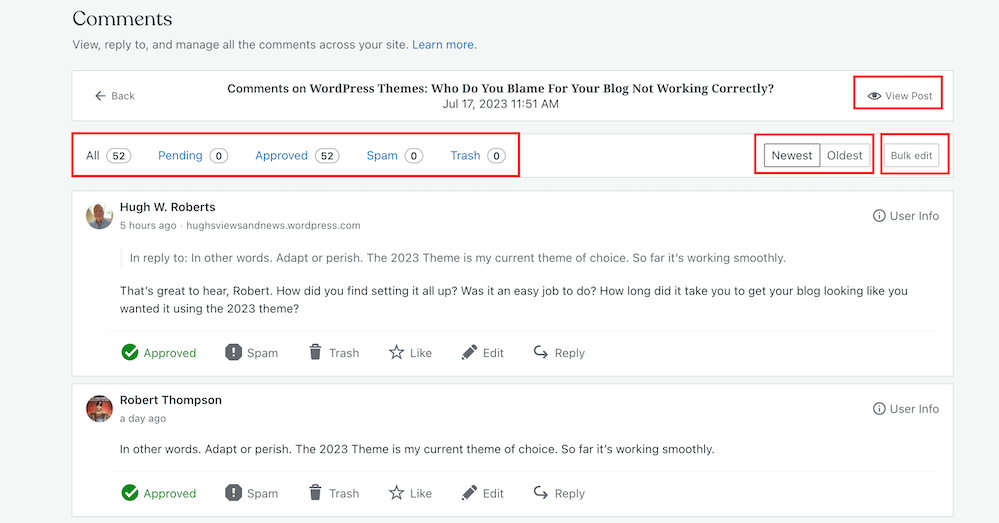
View all the comments that have been left on a post.

Along the top, you can view the following information for a post. 

  • The number of comments it has received.
  • The number of comments that are pending (waiting for approval).
  • The number of comments that have been approved.
  • The number of comments you or WordPress have marked as spam.
  • The number of comments that have been sent to the trash folder.
  • Your replies to comments also show on this page.

You can also sort comments by newest first and oldest first.

With just one click, the ‘bulk edit‘ button allows you to perform a command (approve, un-approve, send to spam, send to trash). However, the ‘bulk edit‘ is only done per page, so if the post has many comments, you’ll need to bulk edit each page.

Image showing options in the comments section of a WordPress post.
An easier way to view comments on a post.
  • You can also perform the following under the comments link –
  • View the post.
  • Approve a comment.
  • Mark and send a comment to the spam folder.
  • Send a comment to the trash bin.
  • Like a comment.
  • Edit a comment.
  • Reply to a comment.

To the right of each comment is a ‘User Info‘ button. Clicking on this button reveals the following information. 

  • The name of the commenter’s WordPress blog. 
  • The commenter’s email address.
  • A link to the commenter’s blog/website.
  • The IP address of the commenter.

You’ll also see a ‘Block User‘ button when clicking ‘User Info.’ If you press ‘Block User,’ any further comments from that user on any of your blog posts are sent directly to your WordPress trash folder. 


Share

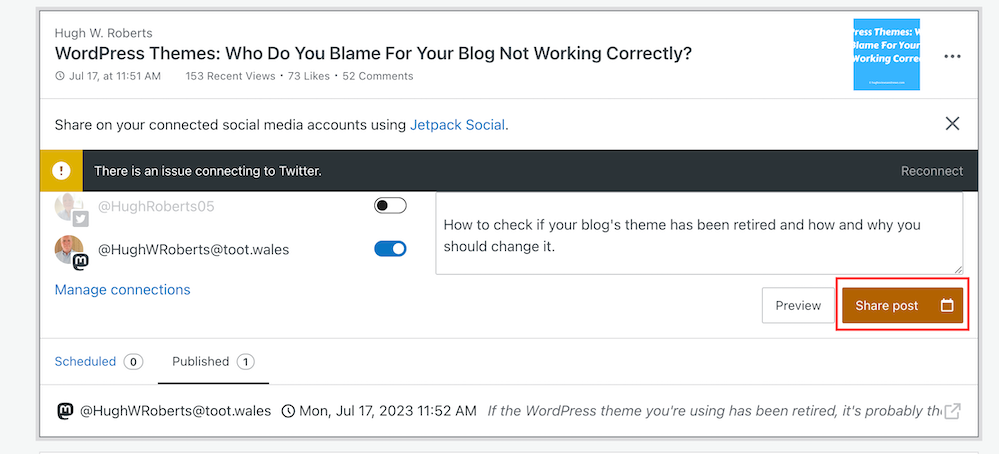
  • This neat button allows you to auto-share details of the post to the social media accounts WordPress have an auto-share facility with which you have connected to your blog.
  • Click on the ‘Share Post‘ button to share the post.
Image showing the auto-sharing facility behind the 'sharing' option on WordPress.
Have you set up auto-sharing for your blog posts?
  • The preview button displays your post’s appearance on Facebook, Twitter (now X), LinkedIn, Mastodon, Instagram Business and Tumblr (provided you have set up auto-sharing with them).
  • You can also manage all your social media auto-share connections by clicking on ‘Manage Connections.’  

Copy Post

  • This is my favourite of all the options on the kebab menu.
  • Not only will clicking on this button duplicate your post, but the categories and tags of the post are also copied over. 
  • This is especially beneficial if you run a daily/weekly/monthly blog challenge, series, or promotional posts on your blog.
  • It’s saved me lots of time by not copying, pasting, or redoing links, images, text, tags, and categories. 
  • I also use the ‘copy post‘ function for posts with the same layout (such as my ‘Wordless Wednesday’ posts. 
  • However, if you write excerpts for your blog posts (and I recommend you do), remember to change the excerpt before publishing the post. Otherwise, the excerpt may not make sense. 

Copy Link

  • A link to the post is copied to the clipboard of the device you are using. You can paste the link into an email, message, website, blog post, comment, etc. 

Trash

  • Clicking this button will send your post to the trash folder.
  • You can reinstate the post from the trash folder if you accidentally clicked it.

Let’s wrap things up.

  • There are nine hidden options available to WordPress.Com users on the page that displays their blog posts (and pages).
  • The options are hidden behind a menu known as a meatball menu.
  • The meatball menu opens up a kebab menu listing all available options.
  • Some of the options do exactly as they say on the can.
  • However, other options lead to lots more options and functions.
  • The comments option has a hidden ‘Block User‘ button – great for blocking comments from spammers or those you don’t want leaving comments anymore.
  • No need to copy and paste – The copy option copies an existing blog post and copies over the categories, tags and any images you have on that post, saving you lots of time.
  • It’s worth checking out all the options, especially as some are time-saving functions.

I hope you have found this post useful. If you have any questions, please leave them in the comments section.

Layout, content, settings, and format might differ on self-hosted blogs.

Follow Hugh on social media. Click the buttons below.

If you enjoyed this post and want more like it, enter your email address and click ‘Subscribe’ to stay up-to-date with my latest content.

Copyright @ 2024 hughsviewsandnews.com – All rights reserved.

WordPress Themes: Who Do You Blame For Your Blog Not Working Correctly?

Who do you blame when something goes wrong with your blog?

Most of us will probably blame WordPress, yet have you ever thought that the problem could be that the theme of your blog is to blame because you’ve never changed it and it’s been retired?

Light blue image with the words 'WordPress Themes: Who Do You Blame For Your Blog Not Working Correctly?' in white text.
Is your blog’s theme causing the problems you’re experiencing with your blog?

Many problems can arise on blogs when a theme has been retired.

How Do I Find Out If The Theme I’m Using Has Been Retired?

You’ll see the following image on the themes page of your blog.

Image of a message from WordPress stating that a theme has been retired.
Has your theme been retired?

Go to your blog’s dashboard and click Appearance – Themes to determine if your chosen theme has been retired.

Can I Still Use My Retired Theme?

Yes, you can. WordPress won’t remove it from your site. However, when a theme is retired, it no longer appears in the list of themes available on WordPress.

Your retired theme may remain available for the lifetime of your site or blog, but it will no longer be fully supported by WordPress. It won’t receive any updates with new features; hence WordPress won’t guarantee it will always function correctly with their ever-evolving software. If anything goes wrong, it may not be possible to fix it.

You can still contact WordPress support so the Happiness Engineers can take a look, but support will be limited, and they’ll probably recommend switching to a newer theme. In addition, they won’t provide any CSS support for the retired theme.

Why Do Themes Get Retired?

Web technology updates make the visibility and functionality of some themes outdated.

Web design is an area that is continually evolving, thanks to trends, tastes, and new technologies. WordPress has to keep up to date with these changes and is at the forefront of wanting blogs to look fresh and modern.

Retired themes can make blogs look outdated, stale, and uninviting to visitors, especially if you’ve never changed your theme since starting to blog.

Themes may also be retired if their design has become old-fashioned or uses certain no longer supported features.

What Should I Do If The Theme I Am Using Is Retired?

You can continue to use it, but it may no longer be possible for WordPress to fix any issues you encounter.

Some of the issues I have found with blogs that are still using retired themes are –

  • I can no longer leave comments.
  • Pingback to the blog no longer work.
  • Pingbacks from the blog no longer work.
  • The gravatar image is no longer displayed.
  • The ‘Notify me of new comments via email’ box is missing.
  • Pressing the ‘like’ button no longer works.
  • New blog posts do not appear on the WordPress Reader.
  • Blog posts are no longer mobile or tablet-friendly.
  • Comments do not display correctly.
  • Images, photos and paragraphs do not display correctly.
  • Sharing buttons no longer work correctly.

In all cases, when I’ve checked the blog’s theme when these problems have happened, it’s an old, retired theme.

Some bloggers find workarounds when problems occur, but all this does is put off the inevitable that one day they will have to change the theme.

My recommended advice is to consider switching to a new theme to ensure your blog has a modern look and feel to its design.

If you’re not bothered about parts of your blog being broken, you may wish to continue using it until you are forced to change the theme. However, that’s not something I recommend.

Not only can finding a new theme be fun, but it can also boost your blog’s ranking.

How Do I Find A New Theme?

On the dashboard of your blog, go to Appearance – Themes. You’ll see all the WordPress themes available. For free themes, click the ‘Free‘ button in the top-right of the page.

You can also use the search field on the themes page to find a replacement theme. Click on the filter options below the search bar or type directly into the search field to filter by specific features or subjects or by the number of columns the theme natively displays to select a new theme similar to your retired theme.

Block Themes Vs Classic Themes

Block (or Full-Site Editing) themes are the new boys on the block.

WordPress recommends switching to a Block theme, as these are the future and what will be supported in the long term.

I have heard of some bloggers encountering problems switching to Block themes. It’s a long learning curve to get used to them, but WordPress has plenty of advice and help for switching to one.

Some bloggers who have already made the switch have reported that not only do their blogs run faster after switching to a Block theme, but problems they were experiencing with their blogs also disappear.

I recommend watching WordPress tutorial videos and reading their guidance page before switching to a Block theme. For information, click the links below.

Video Tutorials: Customize your Site or Blog

Using The Site Editor

Should you encounter problems switching to a Block theme, help is at hand.

  • Contact the WordPress Happiness Engineers by clicking on the ‘question mark’ icon (next to the ‘bell’ notification icon) in the top right of your blog’s dashboard.
  • Ask for help from your followers and other bloggers by writing and publishing a post or contacting a blogger directly.

Important Information: Do not activate a new theme unless you are absolulty sure you like the theme you have chosen, as it’s impossible to go back to a retired theme once you’ve activated a new theme.

Classic themes were created to work with the old Classic editor, but with the large drop in Classic editor users, WordPress has been retiring them, especially when they no longer work with new functionality software or when updates to the WordPress platform have been released.

Unlike Block themes, Classic themes are heavily loaded with CSS code, meaning many things can go wrong. Block themes are only lightly loaded with CSS code, so are less likely to break.

Currently, WordPress provides 54 Classic themes that are free to use and compatible with the Block editor.

To find current Classic themes, search for them by adding ‘Classic‘ to the search bar on the Themes page, and select ‘Classic Theme‘ from the dropdown menu that appears.

If the theme you’re currently using has been retired, I recommend you switch to one of the Classic themes if you do not want to switch to a Block theme. Doing this will fix some or all of the problems your blog may be experiencing.

If you still experience problems after switching to a current Classic (or Block) theme, report the problems to WordPress. How will WordPress know about a problem unless you report it? Don’t rely on other users reporting the problems you’re having with your blog.

Does WordPress have any plans for new Classic themes?

I asked WordPress the above question. Their response was –

‘No, and we doubt there will be as the industry shifts to the more modern and convenient Full Site Editing (Block) themes that remove most of the need to learn coding to create and customize your theme.’

Is WordPress retiring all Classic themes? If so, when?

Their response –

‘It’s likely, as the focus is shifted to the more modern approach. We do not have specific timelines for each theme or the ones available on our list at this moment.’

So I guess it’s a case of ‘watch this space.’

However, given that the Classic Editor plugin is still available, my guess is that WordPress will retain some of the Classic themes until they stop supporting the Classic Editor plugin. But the choice of Classic themes will become more and more limited as time passes.

I didn’t ask WordPress if there are any plans to stop supporting the Classic Editor plugin, although I have heard rumours that they plan to stop supporting it by the end of 2024.

Let’s wrap it up.

  • Problems may affect your blog because your theme has been retired.
  • WordPress may be able to fix some issues, but they will advise you to switch to a new theme if the theme you’re using is retired.
  • You can continue to use a retired theme you’re using, but it may not work correctly.
  • Once you activate a new theme, you won’t be able to go back to the retired theme you’ve been using.
  • Upon publication of this post, WordPress offers Full Site Editing (Block) and Classic themes.
  • All Classic themes are free to use.
  • There are no plans to introduce new Classic themes.
  • The number of available Classic themes will continue to diminish.

I’ve seen some bloggers say they will wait until they are forced to switch themes. Given that switching themes can be a complicated and time-consuming project, all that will do is make them panic when the time comes to switch. Don’t be one of them.

If the theme you’re using has been retired, switch now.

WordPress welcomes feedback on the new Block themes and encourages everyone to contact them with suggestions for improving them.

If you enjoyed this post and want more like it, enter your email address and click ‘Subscribe’ to stay up-to-date with my latest content.

To follow Hugh on social media, click the links below.

Layout, content, settings, and format might differ on self-hosted blogs.

Copyright @ 2024 hughsviewsandnews.com – All rights reserved.

5 Things You Can Do To Free Up Media Space In Your Blog’s Media Library.

‘Help! I’ve run out of media storage space on my blog and can no longer upload new photos, images or videos. What can I do?’

That was a question to me from Micheal, who blogs at Spo-Reflections.

Michael was happy to upgrade his WordPress plan to obtain more media space, but there are other things you could do if you find your blog running out of media space.

Light blue image with the words '5 Things You Can Do To Free Up Media Space In Your Blog's Media Library' written in white text.
Have you run out of media space on your blog? Here are 5 things you can do to obtain more.

1. Upgrade your plan.

WordPress currently offers 6 plans.

The amount of media storage space you get varies. Click the following link to see the plans – ‘There Is A Plan For You.’ Pricing is correct at the time of publication of this post.

Each plan provides the following media storage space.

Name of planStorage Amount
Free1GB
Personal6GB
Premium13GB
Business200GB
Commerce200GB
EnterpriseN/A

However, only upgrade your WordPress plan if you absolutely need to. Do not get into debt by upgrading unless you can afford it, as there are other things you can do to free up media storage space.

2. Resize the size of your images and photos.

One of the biggest reasons bloggers run out of media space is that they do not resize their images and photos before uploading them to their media library.

There are several ways you can reduce the size of images and photos. You can reduce them using photo editing software or via the tools of your device you use to blog.

I use an Apple iMac and can change the size of photos and images by clicking on ToolsAdjust size on the menubar of my desktop computer. I do this before uploading them to my WordPress media library.

I recommend reducing image and photo sizes to 900 x 675 pixels.

On a Windows computer, you can use Microsoft Paint. Open your image with that program, then click on Resize. You can find this option on the middle-right side of the “Image” section at the top of the Paint window.

The WordPress media library also has editing software, but please note that if you reduce the size of an image or photo using this tool, the original image is kept in your media library when you reduce the size of the picture – thus, you won’t have freed up any storage space.

Large images can also slow down your blog’s downloading speed, negatively impacting your blog’s search engine rankings and overall user experience. So, I recommend you always reduce the size of images and photos before uploading them to your blog.

3. Do not upload videos to your media library.

If you include videos in your blog posts, uploading them to your media library can take up vast amounts of space.

To overcome this problem and free up all the space they take up, upload your videos to YouTube. Then add the YouTube block to your blog post and include the link to the video in the block.

Image of the YouTube block on WordPress
Adding videos to your blog via YouTube helps free up media space for your blog.

Do this for any existing videos you have in your media library. Upload them to YouTube and add them via the YouTube block before deleting the original from your media library. This will free up large amounts of storage in your media library.

4. Delete images from your media library.

We can accumulate vast amounts of images and photos in our media library, many of which will become redundant.

Deleting these images will free up storage space. However, when you delete any images or photos in your media library, they disappear from the blog posts they appear on.

My blog post, ‘Are Your Old Blog Posts Damaging Your Blog? How To Stop It From Happening’ details why bloggers should delete old blog posts.

Deleting old, redundant blog posts containing images, photos, and videos frees up storage space. However, delete any images, photos and videos in your media library before deleting the posts.

If you’re unsure whether a post should be deleted, read my post, ‘Are Your Old Blog Posts Damaging Your Blog? How To Stop It From Happening,’ for advice.

5. Reduce the number of images and photos you add to blog posts.

While I recommend adding at least one image or photo to a blog post (because blog posts containing images get up to 70% more traffic), reducing the number of images and pictures will help save media space.

Before adding more images or photos, ask yourself if adding them to your post is necessary.

Let’s wrap it up.

  • Resize your images and photos before uploading them to your blog’s media library.
  • Upload videos to YouTube and use the YouTube block to show them on your blog posts.
  • Delete old images and photos from your media library, but remember to remove them from any posts first.
  • Do not resize images using tools in the media library, as this does not save storage space.
  • Consider deleting old blog posts that are no longer relevant.
  • Reduce the number of images and photos on blog posts. Ask yourself if they’re necessary.

How do you free up storage space in your blog’s media library? If you have any questions about this post, leave them in the comments section.

To follow Hugh on social media, click the links below.

If you enjoyed this post and want more like it, enter your email address and click ‘Subscribe’ to stay up-to-date with my latest content.

Copyright @ 2024 hughsviewsandnews.com – All rights reserved.

Adding Images Or Photos To Your Blog Posts? 4 Essential Things To Do.

Blog posts containing images and photos get up to 70% more traffic than posts without visuals. So why wouldn’t you use them in your posts?

Visual content is an essential component of any successful blog. Adding images, videos, and infographics to your blog posts can make your content more engaging and memorable.

An blue background image with the title of a blog post, 'Adding Images Or Photos To Your Blog Posts? 4 Essential Things To do' in white text.
Are you making any mistakes when adding images or photos to blog posts?

If you plan to include images or photos in your blog posts, there are four essential things to remember. These steps will help ensure your content is engaging and visually appealing while avoiding copyright issues.

1. Use High-Quality Images And Photos.

Always use high-quality images that are relevant to your post. Blurry or low-resolution images can detract from your message and make your blog appear unprofessional.

Additionally, using images that are not directly related to your topic can confuse readers and reduce the effectiveness of your post.

2. Ensure Images And Photos Are Not Copyrighted

Ensure you have permission to use any images and photos you include in your posts. This means sourcing images from websites offering free, non-copyrighted images (such as Pixabay) or purchasing the rights to use images from a stock photo website.

Not all images are free to use. And some that are free may only be free for a limited time. Always check the small print.

Don’t think you’ll ever get fined for using copyrighted images or photos. There are copyright bots continually looking for copyrighted images that have been illegally used and downloaded all over the web.

I know of two bloggers who have been fined for using images/photos on their blog posts that were not free to use.

To avoid copyright issues, use your own images and photos and watermark them before adding them to your blog posts. I use a free app called Photobulk to do this. Seeing a watermark is a great deterrent in persuading some thieves not to copy and use them.

Of course, if you’re not concerned about your photos and images being used by anybody else, you don’t need to watermark them.

3. Ensure Images And Photos Are The Correct Sizes.

Optimize your images for web use by compressing them to reduce file size.

Large images can slow down your website’s loading speed, negatively impacting your blog’s search engine rankings and overall user experience.

If you have limited space in your media library, not reducing the size of your images and photos will soon take up all your media space. When that happens, you won’t be allowed to download additional images to your blog unless you free up space or move to a plan that gives you more storage space.

I recommend reducing image and photo sizes to 900 x 675 pixels.

There are several ways you can reduce the size of images and photos. You can reduce them using photo editing software or your device’s software.

The WordPress media library also has editing software, but please note that if you reduce the size of an image or photo using this tool, the original image is kept in your media library when you reduce the size of the image- thus, you won’t save any storage space.

The newly edited image with the reduced size is added as a new file in your media library. You can always revert back to the original image by clicking on the image in the media library, selecting Edit, and then choosing the “Restore Original” button. If you’ve inserted an edited image into other published posts, reverting an image may break this image on those posts.

I use an Apple iMac and can change the size of photos and images by clicking on ToolsAdjust Size on the menubar of my desktop computer. I do this before adding them to my WordPress media library.

On a Windows computer, you can use Microsoft Paint. Open your image with that program, then click on Resize. You can find this option on the middle-right side of the “Image” section at the top of the Paint window.

However, as I mentioned earlier, you can also reduce the size of images and photos on WordPress. But only do this if your WordPress plan has a large storage space allowance.

  • To do this, ensure you view your media library in Classic view.
  • Click the edit image button on the image you want to edit.
Image showing the edit button of an image in the WordPress media library
Click the edit button.
  • Add the new dimensions in the Scale Image box and click the Scale button.
Image showing the new dimensions box and scale button on an image in the WordPress media library.
Add the new dimensions of your image.
  • Click the save or update button to save the changes.

Your photos and images will be reduced in size, but remember that a copy of the original is also kept, so you won’t save any storage space.

If posting to your site using the Jetpack App, the app can optimise images.

In the Jetpack app for iPhone, you can set the Max Image Upload Size so the original file is resized automatically when you upload it. This option can be found by going to My Site and clicking the profile icon in the top right, then choosing App Settings.

In the Jetpack app for Android, click on your profile icon in the top right corner and choose App Settings. There, enable Optimise Images to resize and compress images on upload.

4. Add information to your images and photos.

Don’t forget to include alt text and captions for your images.

Alt text is a description of the image that allows visually-impaired readers to understand what the image is conveying. At the same time, captions can add context and help readers engage with your content. This is especially important when participating in blog challenges such as Wordless Wednesday and Silent Sunday.

Screenshot of the Alt Text box, caption box and description box on an image in the WordPress media library.
Always add information about your images and photos.

Adding a description of the image or photo also helps with SEO searches.

  • Click the save or update button to save all the changes.

Following these four essential steps, you can create visually stunning and engaging blog content with images that stand out.

Let’s wrap it up.

  • Always use high-quality images and photos on your blog.
  • Never use images and photos that are copyrighted. You may be fined for doing so.
  • Use your own images and photos. That way, you won’t encounter any copyright issues.
  • Reduce the size of images and photos before loading them to your blog.
  • Alternatively, reduce the size of images and photos with WordPress’s tools in the media library, but only if you have a WordPress plan that offers a large amount of storage.
  • Always add information about images and photos before adding them to blog posts, as this allows visually-impaired readers to understand what the image conveys.
  • Adding a description of the image or photo also helps with SEO searches.

What do you use to resize images and photos for your blog posts? Do you always complete the details of images and photos in the Alt Text box? If you have any questions about adding images and photos to your blog, please leave them in the comments section.

To follow Hugh on social media, click the links below.

If you enjoyed this post and want more like it, click the ‘Subscribe’ button to stay up-to-date with my latest content.

Copyright @ 2024 hughsviewsandnews.com – All rights reserved.

Is Now The Time For WordPress To Remove The Like Button From All Blog Posts?

Do you remember how you felt when somebody first pressed the ‘like’ button on one of your early blog posts?

Does the ‘like’ button lose its appeal the longer you blog?

Do you notice who has clicked the ‘like’ button on any posts?

Is the ‘like’ button overrated?

Banner for the blog post 'Is Now The Time For WordPress To Remove The Like Button From All Blog Posts?'
Is it time to remove the ‘like’ button on your blog?

When I first started blogging, the ‘like’ button on blogs was something I thought was one of the best ideas about blogging.

Getting a ‘like’ on one of my posts gave me the best feeling. I thought anybody clicking the ‘like’ button had read my post.

For me, a ‘like’ indicated that somebody had taken the time to read what I had written. Yes, somebody in the big wide world had taken a few minutes to read and like something I had written.

It also motivated me to write more blog posts in the hope that they would attract even more ‘likes.’ Of course, if somebody also left a comment, that was a bonus!

The Like button doesn’t have any disadvantages, does it?

It was not long before I discovered that the ‘like’ button has disadvantages.

Some bloggers said that seeing too many ‘likes’ on a blog post makes them feel demoralised.

In turn, some users go on to delete or abandon their blog or develop ‘blogging envy’ at seeing how well other users are doing compared to themselves.

I know of one user who admitted that, for them, ‘the number of ‘likes’ was more important than the content’; in other words, they saw blogging as more of a popularity contest.

I have never envied seeing bloggers get hundreds of likes, but I understand why some bloggers may envy it.

As I grew the list of the blogs I followed, it wasn’t long before I realised that there was not enough time in my day to read, like, and comment on all the blogs I followed.

Given that some of the bloggers I followed were publishing new blog posts more than once a day I was soon overwhelmed and drowned in a sea of voices, all wanting my attention.

Doing the following is not a solution.

Rather than unfollow any blogs, I began to ‘like’ posts without reading them. I thought that doing this would indicate to the blogger (who had written the post) that I had read their post, and they, in turn, would continue to read and ‘like’ my posts. I was fooling both them and myself.

I soon discovered that other bloggers and readers were playing the same game because they were all in the same boat as me. Some users (including me) were misusing the’ like’ button.

A dilemma. What would you have done?

When I read a blog post about the death of somebodies wife, I asked myself what I should do. Should I click ‘like’ or just leave a thoughtful comment? After all, many readers had already clicked the ‘like’ button on the post. Did those who clicked it not read the post? How could they have pressed the ‘like’ button on a post about somebodies death?

That was the day I left my first comment without clicking the ‘like’ button. Now I’m doing it much more often. Do you leave comments without clicking the ‘like’ button?

Would you press the like button on a post that contained bad news or news of death?

What shocked me the most about the ‘like’ button.

What shocked me the most was why some bloggers and readers click ‘like’ even if they have not read the post. The most surprising reason why bloggers do it was that it ‘shows support’ for the blogger who had written the post, even if they didn’t have time to read it.

Really? Liking a post without reading it is a way to support other bloggers? Are there no better ways to support bloggers? Of course, there are.

Should you remove the ‘Like’ button from your blog?

I did it about four years ago and was inundated with messages from readers who said that they missed seeing the ‘like’ button. When I asked why they missed it, only a few responded, most saying that it was a way to say they’d visited even if they didn’t read the post or leave a comment saying so.

When I enquired what kind of comment they’d leave if they’d not read the post, most said a comment that confirmed they’d visited.

How would you feel if a reader told you they’d clicked ‘like’ on one of your posts, but they’d not read it?

Of course, there’s also the other side of the coin. Just because somebody hasn’t clicked the ‘like’ button does not mean they have not read the post.

Do you notice the gravatar icons next to the ‘like’ button?

These days, I take little if any notice of them. I’d go as far as to say that the ‘like’ button found at the end of blog posts should probably disappear for good.

Not everyone misuses the ‘like’ button. And remember, there are many other ways to support a blogger than clicking ‘like.’

For example, occasionally, leaving a blogger a valuable comment that adds value to their post. Or ask questions about their post’s content to show you’re interested in what they’ve written.

Don’t become a ‘comment spammer‘ by leaving empty comments hoping you’ll get comments back on your posts.

Of course, if you’re happy with the comments section on your blog containing boring comments that serve no purpose other than saying that those who left them visited your blog, click away.

Why do some bloggers press the ‘like’ button on their blog posts?

That’s a question I’d love to know the answer to. Can you help? Does it benefit the post or their blog or make it look odd?

Don’t have time to leave thoughtful comments?

Rather than spend small amounts of time leaving pointless comments on many posts, use the time you save not leaving them by leaving the occasional comment that adds value to the post. Most bloggers will value you more for leaving a thoughtful comment occasionally than leaving many comments that add no value.

One thoughtful comment that adds value to a post is worth hundreds of comments that add no value.

When and for what reasons do you use the ‘like’ button on WordPress? Have you ever misused it, and would you miss it if WordPress removed it from all blogs?

Before you answer my questions or leave a comment, this is what WordPress says about the ‘like’ button.

Let’s say you’ve found a particularly awesome post on WordPress.com. You’d like to tip your hat to the author and give him or her credit. At the bottom of the post, you see the Like button. Press it, and the author will know that you have acknowledged an exceptional, phenomenal blog post.

WordPress.com

Please feel free to answer any of the questions I have asked throughout this post by leaving me a comment. I look forward to hearing what you have to say.

Follow Hugh on Social Media. Click the buttons below.

Want more posts like this? Enter your email address and click Subscribe.

Copyright @ 2024 hughsviewsandnews.com – All rights reserved.

This Is Why It’s Important To Leave The Right Comments On Blogs: 9 Ways

Leaving comments on other blogs is a great way to connect with other bloggers, build relationships, and drive traffic to your blog. But it’s essential to do it the right way to be effective.

Banner for the blog post 'This Is Why It’s Important To Leave The Right Comments On Blogs: 9 Ways'
Are you making the most of your comments?

Here are nine essential points about comments (including what kind of comments to leave) that will help you get the most out of this strategy:

  • 1. Read the blog post first. It may seem obvious, but ensure you’ve read the whole blog post before leaving a comment. This will help you avoid leaving comments that are off-topic or that have already been addressed by the blogger. If you have a question unrelated to the post’s topic, contact the blogger via their contact page
  • 2. Be thoughtful and constructive. When you leave a comment, add something of value to the conversation. Share your own thoughts and experiences, Ask questions and start conversations. If you think the post is excellent, expand on why rather than saying, ‘Great post’ and rushing off.
  • 3. You can build relationships with other bloggers. When you leave a thoughtful comment on another blog, you show the blogger that you appreciate their work and are interested in what they say. This can help you build relationships with other bloggers, leading to the possibility of guest posts, interviews, and other forms of collaboration. Friendships can also be made.
  • 4. You can drive traffic to your own blog. If you leave a helpful or insightful comment on another blog, other readers may be interested in checking out your blog. This can drive traffic to your blog and increase your readership. However, ensure you’ve linked your blog to your Gravatar; otherwise, it won’t work.
  • 5. You can improve your own writing skills. When you leave comments on other blogs, think about your own writing and how you can improve it. Don’t rush to leave a comment; check for any mistakes before leaving it. This can help you become a better writer overall. Other bloggers and readers will determine how much time you have for them by the type of comments you leave.
  • 6. You can learn new things. You are exposed to new ideas and perspectives when reading other blogs’ comments section. This can help you learn new things and expand your knowledge base. It will also open up ideas for new blog posts.
  • 7. You can have fun. Leaving comments on other blogs can be a fun and rewarding experience. It’s a great way to connect with others who share your interests and learn new things. However, always ensure your comments are thoughtful and constructive. And only leave comments if you are genuinely interested in the post’s subject. Don’t force yourself to leave comments or feel obliged to leave one.
  • 8. Be respectful. There’s a difference between constructive criticism and just being rude or negative. If you have a genuine issue with something in the post, try to approach it in a respectful and constructive manner. If you can’t find anything positive to say, it’s probably best not to leave a comment at all. The same goes for rude comments to or about other bloggers. Be respectful.
  • 9. Be patient. It may take some time to build relationships with other bloggers through comments. You may see results later. Give it time; remember that not everyone will be interested in your blog’s content. Just because you comment on other blogs does not mean they’ll enjoy and want to leave comments on your blog.

An important message to new bloggers about responding to comments

I’ve recently followed a handful of new bloggers. However, although I’ve read their posts, left them thoughtful comments, and asked questions about their posts, only two of them replied.

To those that didn’t respond: Don’t ignore comments left on your blog posts. Always reply to them or acknowledge them. You’ll gain more followers and readers by engaging with other bloggers rather than lose followers and probably end up abandoning your blog when followers fail to materialise.

Now an important message to all bloggers about leaving comments

Avoid leaving spam comments on other people’s blogs. This includes comments that have nothing to do with the post or are clearly just an attempt to promote your blog or product. Not only is this annoying, but it can also damage your reputation and credibility as a blogger.

If you need help with something, contact the blogger directly rather than leaving a link to your blog asking for help.

Don’t have time to leave comments?

Some bloggers will tell you they don’t have time to leave thoughtful and constructive comments.

I say – If you don’t have time, click the ‘like’ button and move on. After all, isn’t that what the ‘like button is for?

Nobody will care if you don’t leave comments on all their blog posts. I certainly do not expect everyone who reads my posts to leave a comment.

What’s the worst type of comment somebody can leave?

My answer: Bloggers who leave nothing but a link to their blog as a comment. Those comments all go straight to my spam folder.

Leaving a link as a comment shows that you’re only interested in promoting yourself and not adding value to the conversation. Instead, leave a genuine comment that shows you actually read the post and have something meaningful to contribute.

Let’s wrap it up

In conclusion, leaving the right comments on blogs is essential for building relationships, engaging with other bloggers, and growing your own audience.

By following these tips, you can ensure that your comments add value to the conversation and help you establish yourself as a thoughtful and respected blogging community member.

What’s the worst type of comment somebody can leave you? Do you have any tips you’d like to add about leaving comments on blogs? Leave them in the comments section?

Follow Hugh on Social Media. Click the buttons below.

Want more posts like this? Enter your email address and click Subscribe.

Copyright @ 2024 hughsviewsandnews.com – All rights reserved.

Should I Switch To The New Jetpack App Or Stay With The WordPress App?

I’ve been contacted by several bloggers asking the question in the title of this post.

In March 2023, the WordPress app that many of us are familiar with will lose many key features. For example, you’ll no longer be able to access the WordPress Reader or view your blog’s stats.

But fear not because all the features the WordPress app bring have been transferred to the new Jetpack app.

Banner for the blog post 'Should I Switch To The New Jetpack App Or Stay With The WordPress App?'
Which app should I use?

Which app should I use?

If you want access to all the WordPress features you’re used to, switch to the new Jetpack app.

If you only want to focus on the basics of writing and publishing and have no interest in your blog stats, notifications of comments, menus and the WordPress Reader (to name a few), stick with the WordPress app.

Can I use both apps?

It’s not recommended that you use both apps. Managing your blog across both apps is unsupported and may lead to issues such as data conflicts. So I’d recommend sticking to one.

What features does the Jetpack app have?

  • Posts
  • Pages
  • Media Library
  • Comments
  • Site Settings
  • Stats
  • WordPress Reader
  • Notifications
  • Activity Log
  • Jetpack Social
  • Jetpack Backup
  • Jetpack Scan
  • Menus
  • People
  • Themes

With the Jetpack app, you’ll benefit from powerful tools to manage and build your blog.

Is the Jetpack app free?

Yes. There are no additional costs for using the Jetpack app.

What features does the WordPress app have?

From March 2023, only the features listed below will be available on the WordPress app.

  • Posts
  • Pages
  • Media library
  • Comments
  • Site Settings

How do I make the switch to the Jetpack app?

  • First, ensure you have the latest version of the WordPress app installed and are logged in to it.
  • If you’ve had (or get) an email from WordPress asking you to choose which app to use, click the link in the email to download the Jetpack app. If you’ve not had the email, click here to download the Jetpack app.
  • Once the app has been downloaded, open it, and you’ll be automatically logged in with all your data and settings in place. All your posts, pages, media library and anything else you have on your blog will also be transferred.
  • Remember to delete the WordPress app.

Any questions about switching to the Jetpack app? Leave them in the comments section.

Follow Hugh on Social Media. Click the buttons below.

Want more posts like this? Enter your email address and click Subscribe.

Copyright @ 2024 hughsviewsandnews.com – All rights reserved.