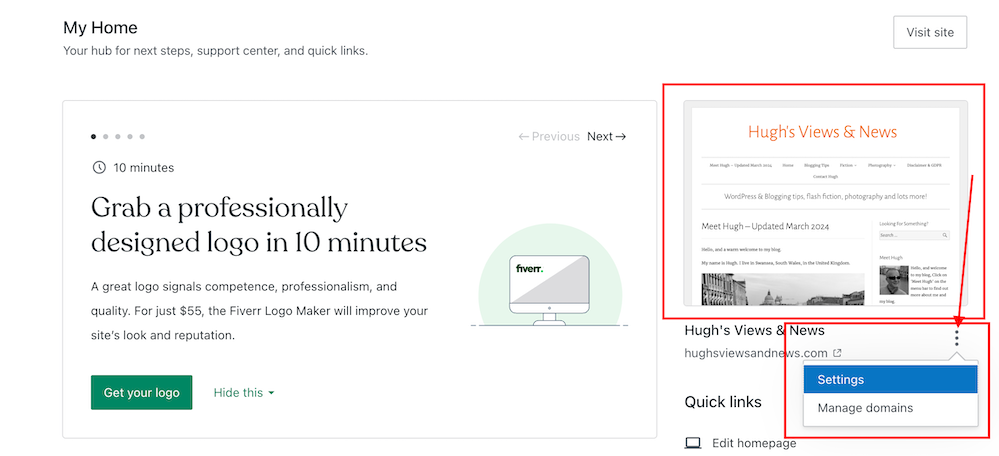
Have you noticed the new feature WordPress has added to your blog’s dashboard? It’s located on the ‘My Home‘ page in the top right corner.
But what does this new feature do?
This new ‘settings’ feature is easy to use. But what does it do?
For this post, I’m using an Apple iMac desktop computer and the ‘Default‘ view setting of my blog’s dashboard.
You’ll find this new feature on the ‘My Home’ page of your blog’s dashboard
Let’s get started
Click on the meatball menu (three horizontal dots) to open a new menu.
Click the kebab menu to open a new menu
The menu contains two options – Settings and Manage Domains.
Let’s take a look at the two options
Settings – this option takes you to the General Settings page of your blog.
You can make many changes to your blog on this page, including your blog’s icon (photo or image), name, and tagline.
Edit your blog’s icon, title and tagline
Click the ‘Save Settings‘ button if you make any changes.
On the same page, you can also create a logo for your blog via Fiverr logo maker (note that there is a charge for this) and set/change your blog’s primary language and timezone. Remember to save any changes you make.
Another option includes setting privacy settings for your blog.
Privacy – This is where you can set your blog to public viewing (anyone can view it) or private viewing (only visible to you and logged-in members you have approved to view it). There is also a ‘Coming Soon‘ option, so your blog is hidden from view until it’s ready for viewing.
Set privacy settings for your blog
Two other options are also available.
If ticked, the ‘Discourage search engines from indexing this site‘ option will prevent search engines from indexing your blog, but note that it is up to search engines to honour your request.
The ‘Prevent third-party sharing‘ option should be ticked if you want to restrict your blog’s content from AI training and third-party use. It will exclude your blog’s public content from WordPress’s network of third-party content and research partners. It also adds known AI bots to the ‘disallow’ list in your blog’s robots.txt file to stop them from crawling your site, though it is up to AI platforms to honour this request.
Click the ‘Save Settings‘ button if you make any changes.
Other settings include –
Accept a gift subscription – turn this setting on to accept gift subscriptions from visitors to your blog.
Footer credit: Here, you can choose or edit a footer credit that appears at the bottom of your blog’s pages and posts.
Site tools – this section allows you to do the following.
Register a new domain or change your blog’s URL address.
Transfer your blog to another blogging provider.
You can reset your blog and start afresh while keeping the same domain/blog name. (If you choose this option, all your posts, pages, and media will be deleted).
Delete your blog and give up your blog’s domain/address.
2. Manage Domains — This option takes you to the part of your blog where you can manage your blog’s domains.
It’s worth checking this page to see what domains you have and to see offers for other domains you may be interested in purchasing for your blog.
While you may not visit your blog’s settings page regularly, it’s worth knowing that there is now an even quicker way to find these settings.
Are there easy ways to promote your old blog posts, and should you feature them on your blog again?
Can old blog posts bring in more visitors, followers and comments?
The answer is YES.
Have you killed off your old blog posts?
One of the biggest mistakes many bloggers make is forgetting their old blog posts. They publish posts and quickly forget about them.
Yet, If they’ve been regularly publishing blog posts, their blog archive will be a treasure trove of opportunities waiting for them to bring posts alive again. Just think about all those followers, readers and visitors who have never seen those posts.
Rather than ignoring these old blog posts, there are ways to bring them back to the attention of your audience.
These old blog posts probably never got anywhere near as many views and comments as your recent blog posts, but did you know that they could quickly bring you many more views, comments and followers?
My three quick and easy tips for bringing these old blog posts back to life are easy to follow and will deliver results as soon as you implement them.
1. Display ‘related’ posts at the end of all your blog posts.
I’m always surprised by how many WordPress bloggers don’t have this feature switched on.
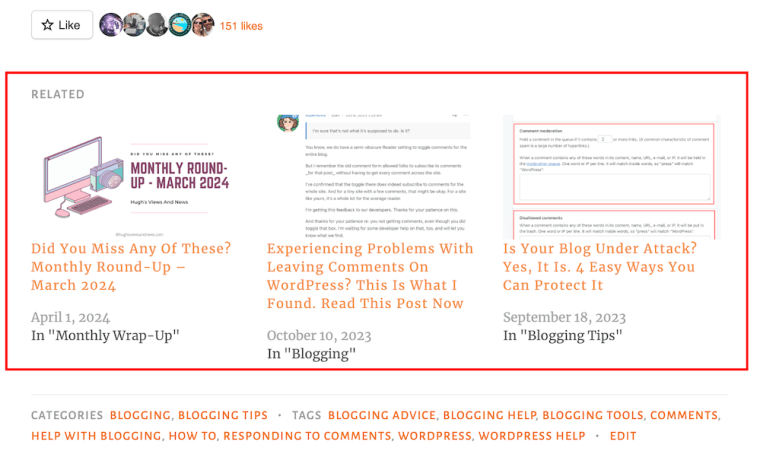
Here’s a screenshot of the related posts that featured at the end of one of my recent blog posts.
Promote similar older blog posts at the end of new blog posts.
WordPress automatically chooses which of your posts to display.
If you’re not already showing related blog posts at the end of newly published blog posts, follow this guide.
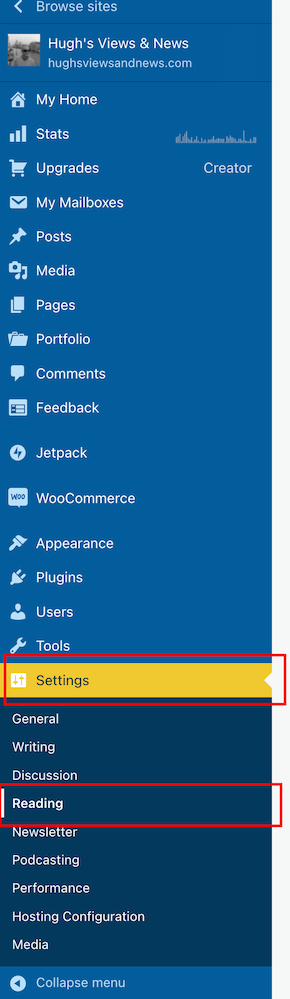
On the dashboard of your blog, click on Settings and Reading.
Select ‘Settings’ – ‘Reading’
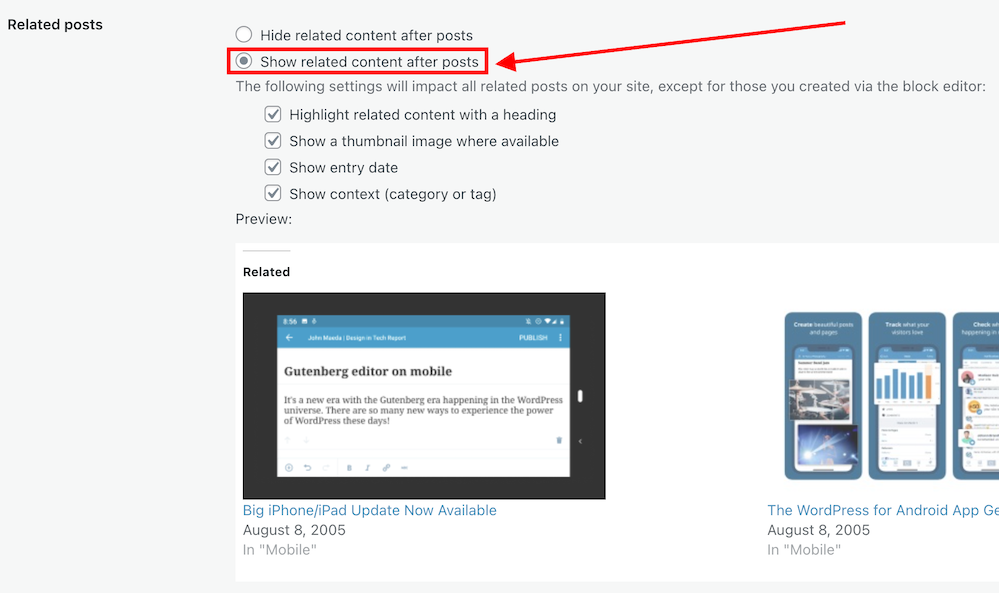
On the Reading Settings page, look for Related Posts and ensure ‘Show Related Content After Posts’ is switched on.
Switch on ‘Show related content after posts.’
Choose which other settings options you want to use.
Choose which settings options you want to use.
At the bottom of the screen, click on the Save Changes button.
Future posts will now display three related posts from your archives, resulting in those posts being seen again.
2. The ‘Blog Posts’ Block
Those using the Block Editor can use a terrific block called the’ Blog Posts’ block. It allows bloggers to choose which of their previous blog posts to promote on newly published posts.
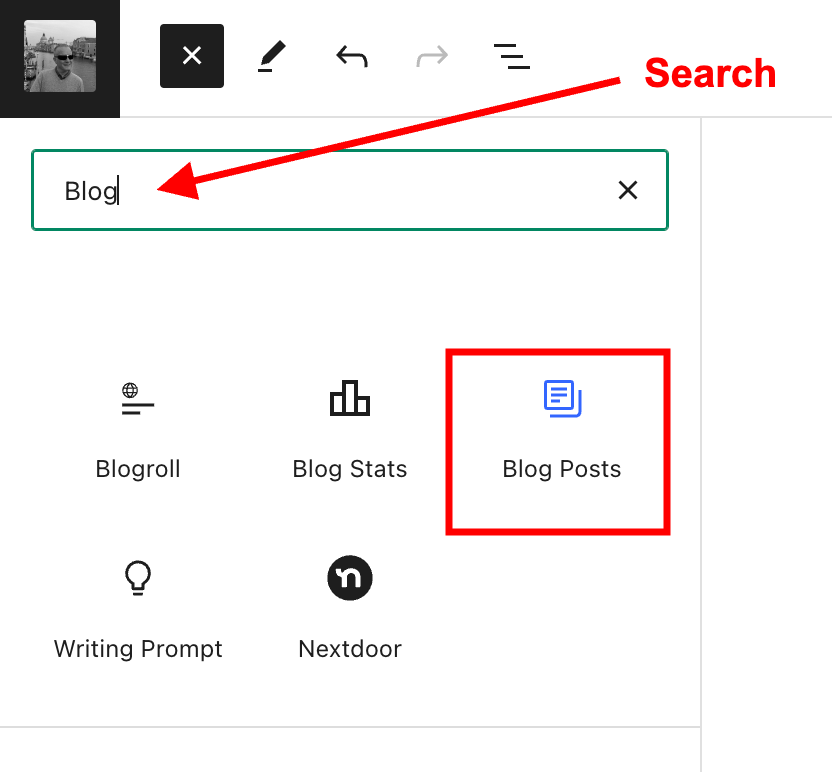
Insert the ‘Blog Posts’ block in the place where you’d like to feature it on your upcoming new post. You’ll find the ‘Blog Posts’ block under the ‘Widgets’ section, or you can search for it by entering ‘Blog Posts’ in the search bar.
Select the ‘Blog Posts’ block
The Blog Posts block defaults to showing the last three blog posts you published, but you can change this. You can leave it as it is or switch to other settings.
Today, I will show you how to choose the blog posts you want to display.
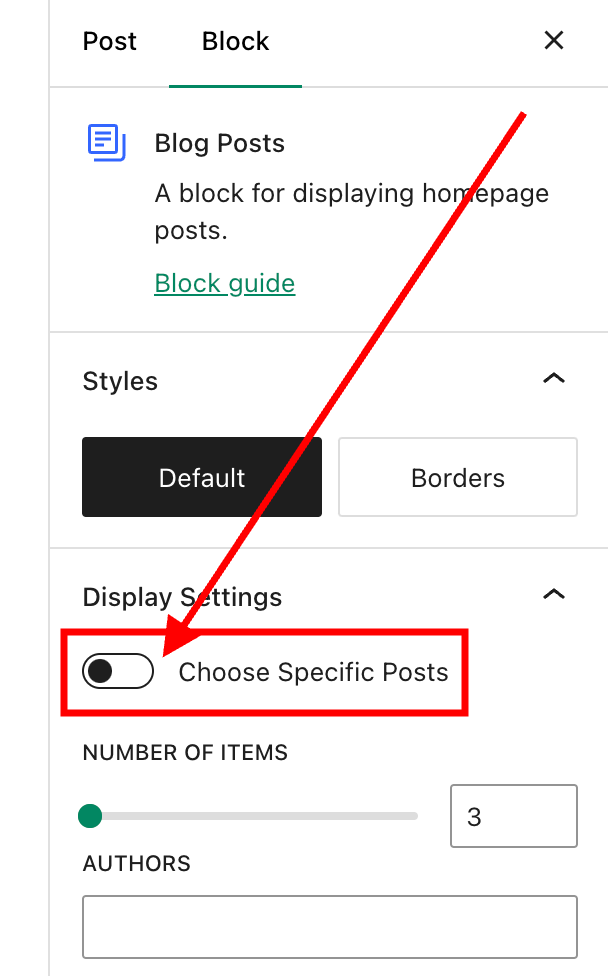
When you insert the block, a toolbar will open on the right-hand side of the page. Under Display Settings, look for Choose specific posts and slide the button to the ‘on‘ position.
Switch on the ‘Choose Specific Posts’ option
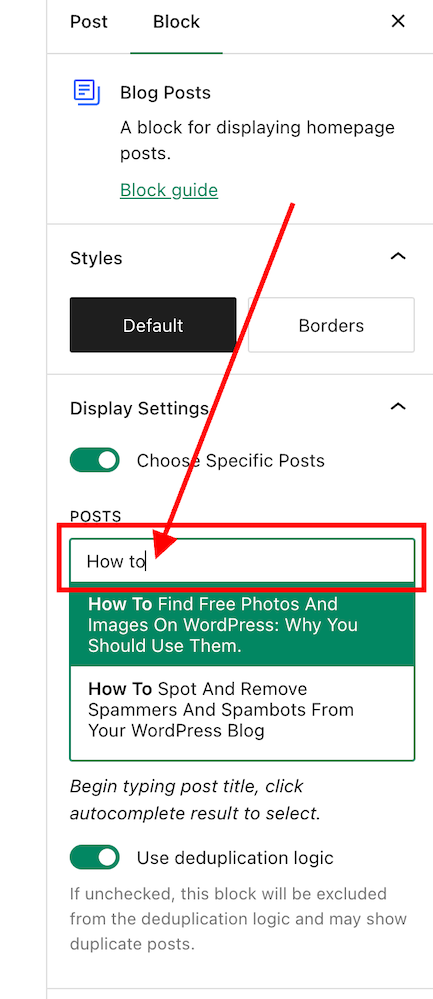
In the ‘Posts‘ box, type in the blog post title you want to display. As you type, suggestions for blog posts with the words you are using will appear.
Search for the posts you want to promote on your new blog post.
Select the blog post you want to feature.
If you’re going to add more blog posts, search for them by typing in more words in the Posts box.
I recommend that you add no more than three posts.
The Blog Posts block has many other settings, which you can read about here.
There’s nothing wrong with adding pingbacks and linking back to your previous blog posts. Lots of bloggers do it.
In fact, I recommend that you include at least a couple of pingbacks in all your blog posts. However, you should always ensure that what you’re writing about is connected to the post you’re linking back to.
Pingbacks can also be added to images, pictures, and photos in blog posts and captions.
Let’s wrap it up!
Your blog’s archives are a treasure trove of blog posts that can attract new visitors, comments, and followers.
Don’t allow old blog posts to remain idle and not work for you. Use them.
Your previous blog posts may not have been read by new followers. Introduce them to your new audience.
People who may have read your older posts are often thankful for the opportunity to read them again, especially if the post includes tips and advice.
Ensure you keep old blog posts up to date.
WordPress has made several blocks available on the Block editor to promote old blog posts. The ‘Blog Posts’ block is just one of those blocks.
Consider switching it on if you’re not already using the ‘Related Posts’ feature.
Remember that you can create pingbacks to old blog posts from any images or photos in future blog posts.
Do you promote your old blog posts? If not, why not? How do you promote them? What way(s) of promoting old blog posts have worked best for you? Have you had much success promoting old blog posts?
Did you enjoy reading this post? Then you may also like…
Did you catch these 9 blog posts that got everyone talking, discussing, and wondering? Maybe you were part of the conversation, but if not, jump in and share your thoughts!
Kenneth has a problem. His wife believes he’s having an affair. Can Artificial Intelligence help?
WordPress have hidden the ‘Open in new tab’ box again! This updated post shows you where to find it so that links in your blog posts open a new window.
WordPress has introduced a new block-style comment box that aligns with the Block editor. But what can users do with it besides leaving comments? Are some bloggers really refusing to use it and threatening to leave WordPress? My post contains all the details you need.
Coming out to my family is one of the most difficult things I have done in my life. I faced varied reactions that led to estrangement from some but eventual reconciliation with others. In this post, I highlight some of the ups and downs of family acceptance of somebody being gay.
Have you noticed the new style comment box on WordPress?
In line with the Block editor, WordPress has rolled out a new cool comment box on most WordPress blogs. While I’m writing this post, I still see a few blogs with the old-style comments box, but I’m confident all WordPress blogs will soon display the block-style comment box.
The new style comments box appears on blog posts, but not when you add your comment via the comments box on the WordPress Reader.
This new comments box can do more than just leave comments
For the purpose of this post, I’m using an iMac desktop computer.
Here is a breakdown of what users can do when leaving comments on blogs with the new block-style comment box.
What does it look like?
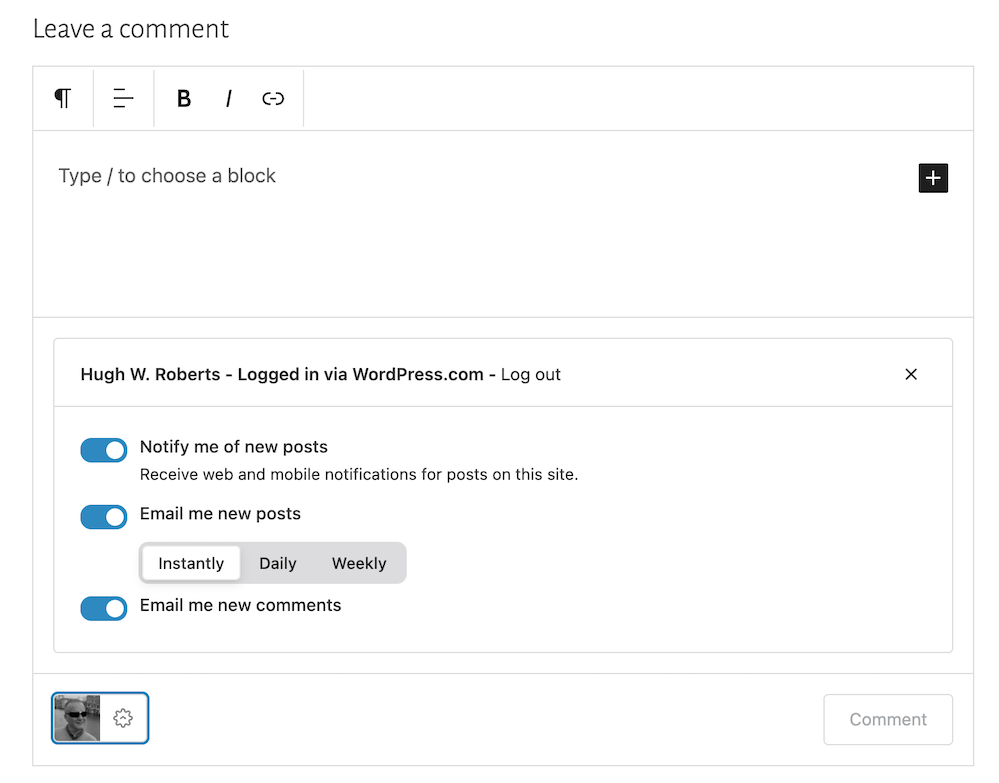
This is what the new style comment box looks like.
WordPress Block Style Comments Box
It looks very simple, doesn’t it? And it is very easy to use. Your Gravatar image appears in the bottom left corner.
The comments box looks like this as soon you click in the box.
Click inside the box to start typing your comment.
Notice the difference? A toolbar has opened along the top, and an ‘+‘ icon has appeared inside the comments box. Let’s examine what they do. I’ve numbered some icons in the following image.
Features of the toolbar
Block being used.
Aline text
Bold
Italic
Pingback link
1 – This is the type of block being used when commenting. It will always be the Paragraph block by default, but you can switch to the List or Quote block by clicking on it. If you change it to the List or Quote block, a new toolbar will appear.
2 – Use this icon to align text to the left, right or centre.
3 – Use this icon to make the text bold.
4 – Use this icon to make the text italic.
5 – Use this icon to create a pingback.
Most readers only use text when leaving comments and they will never feel the need to align it or make it bold. However, many bloggers want more.
You can now insert other blocks into the comments box by clicking the ‘+‘ icon. For example, you can now easily insert an image in your comment by clicking the ‘+‘ icon and choosing the Image block.
Copy and paste the URL address of the image you want to add.
How cool is that? (not the photo of me, but the fact that I can add an image to the comments). This is especially good for participating in photography challenges without creating a blog post or when explaining something where including an image or screenshot helps.
I want to mention that you can create pingbacks in your comments. Pingbacks are powerful and can help boost visitors to your blog. We could already add pingbacks when using the Classic view on our blog’s dashboard but we can now finally do it using the Default view.
Before submitting your comment, remember to click the small settings cog next to your Gravatar photo to open a new menu. Why?
Click the settings cog next to your Gravatar picture for a new menu.
Not only will the menu that opens confirm if you are logged into WordPress, but you can also sign up to receive web and mobile notifications for posts on the blog you are leaving your comment on, get email notifications of new posts, and receive email notifications of any new comments left on the post (including a response to your comment from the blog host).
Press the ‘Comment‘ box to submit your comment.
Is this true?
I’ve heard that some bloggers are threatening to stop leaving comments or are thinking of leaving WordPress because of the introduction of the new block-style comment box.
Given that the bare minimum somebody has to do to leave a comment is to type their comment into the box, I find it hard to believe that people are threatening to stop leaving comments or leaving WordPress because of the introduction of this new comments box. If you are, please reconsider your decision.
The new block-style comments box is not hard to use; it’s just a little different!
Update
Users can now disable blocks in comments. Go to Settings – Discussions, and in the ‘Comments‘ section of the page, turn off ‘Enable blocks in comments.’ Remember to save the change.
WordPress’s new comments box style is a refreshing update that enhances the user experience. Its modern and intuitive design makes interacting with comments more enjoyable. If you have any questions about it, feel free to leave them in the comments section. I look forward to hearing your thoughts!
Layout, content, settings, and format might differ on self-hosted blogs.
Click the buttons below to follow Hugh on Social Media
WordPress constantly changes; some things keep changing and return to where they were before. That’s why I’ve updated and am republishing this post from July 2023.
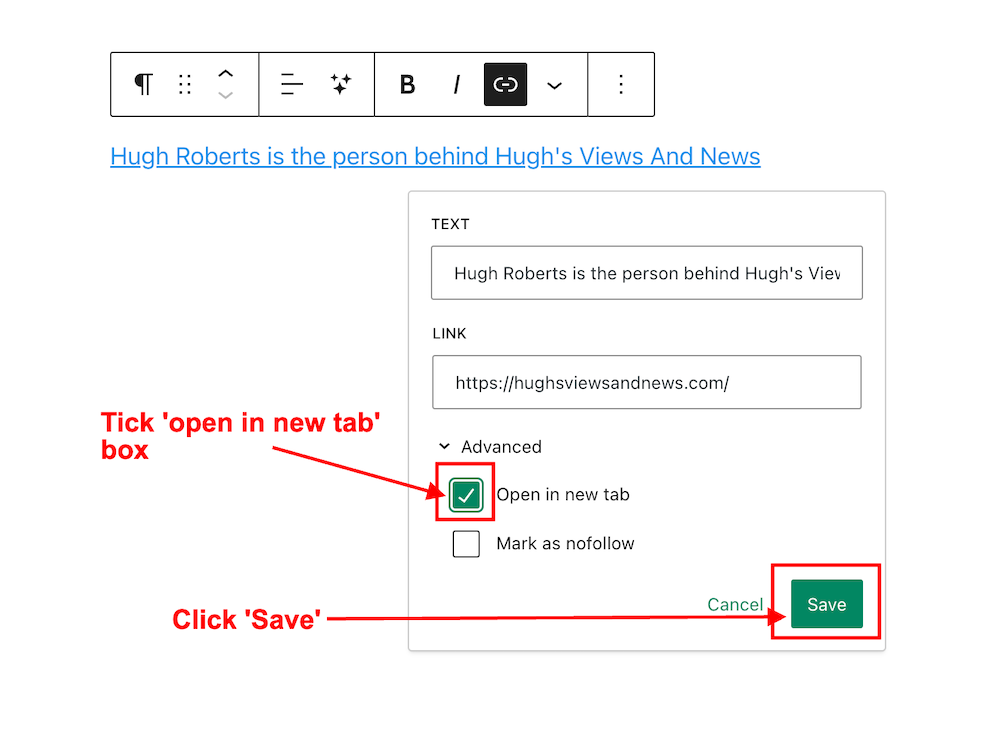
This is where to find the ‘Open in new tab’ box on WordPress.
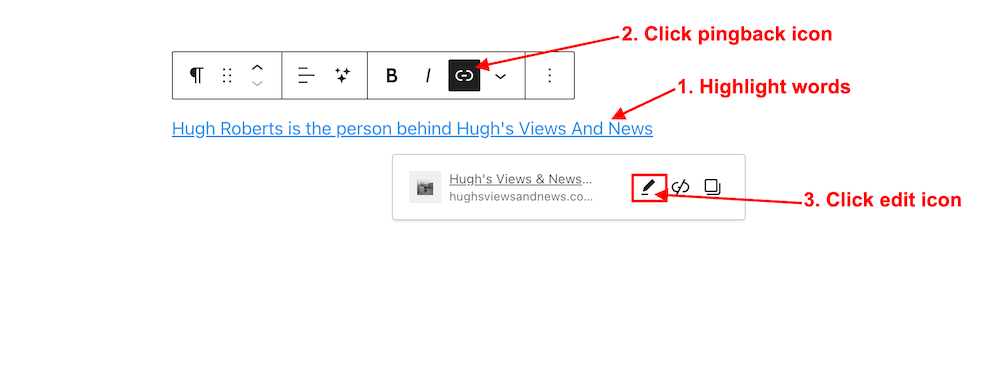
If, like me, when you create a pingback, you prefer links to open in a new window rather than in the same window you’re viewing (thus losing the page), it’s vital that you tick the ‘open in new tab‘ box when adding links or pingbacks to a blog post.
The ‘open in new tab‘ box used to be visible when creating a pingback but has reverted to being hidden again. I don’t know why, but I wanted to show you where to find it.
Did you catch these 9 blog posts that got everyone talking, discussing, and wondering? Maybe you were part of the conversation, but if not, jump in and share your thoughts!
Can objects hold emotional significance, evoking conversations about their beauty and cost? This group of friends are about to delve into the significance of senses and emotional connections. Will you join them?
Pingbacks are a vital tool in the blogging world, fostering connections and increasing site traffic. Are you making the most of pingbacks or missing out on their benefits? This post details their benefits, creation, and anti-spam measures.
In the 1970s, I faced discrimination in my first job for being gay. Progressing to a more accepting workplace in the 1980s, I finally came out openly to colleagues. But even today, despite the changing times, fear and discrimination still persist in the workplace. This is my story, but have you faced fear or discrimination because of who you are?
I came across some comments recently where somebody asked how to create a pingback to the post they were leaving their comment on. The blog host didn’t know. It got me thinking that I should do an updated post on what pingbacks are and how to create them.
Pingbacks are a powerful blogging tool. Don’t miss out on not using them.
What are pingbacks?
A pingback is a type of notification that allows you to inform another blogger that you have linked to a post or article on their blog or website. This notification is typically automated and serves as a way to establish connections between different blogs or websites. Sometimes, pingbacks are also referred to as trackbacks.
If the other blogger has a pingback-enabled website or blog, then they can see a notification that you have linked to their article. They can then choose to allow your link to appear in the comments section of their blog post.
This may drive traffic to your blog when readers click on the pingback notification link.
Click the pingback link that pops up in the toolbar.
In the URL box, enter the URL address of the blog post you’re linking to, or if it’s one of your own posts, search for the post.
Choose the post you’re linking to.
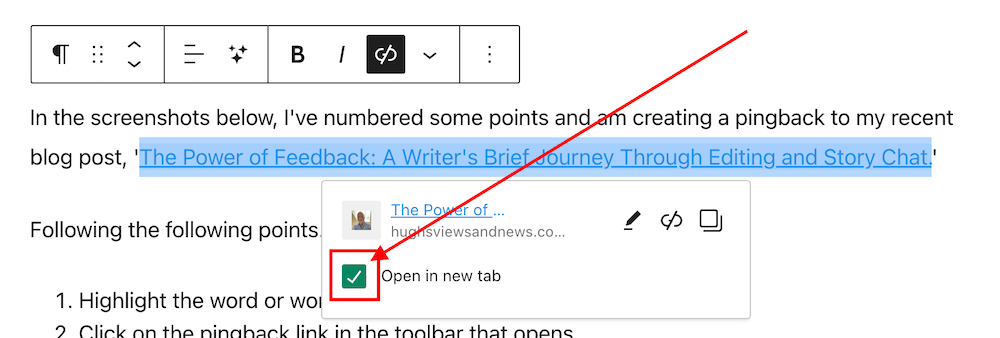
Finally, and most importantly, tick the box next to the ‘open in new tab‘ box.
Tick the ‘Open in new tab’ box.
Ticking the ‘open in new tab’ option guarantees that when users click the pingback link, the linked post will open in a new tab or page. This feature effectively retains users on the current page, allowing them to easily return to your post to leave a comment or engage with the content.
Not selecting the “open in new tab” option could result in missed opportunities for comments and likes.
Your pingback has been created and will be highlighted in the post.
Tip – You can also highlight the pingback by making the text bold. To do this, highlight the text and click ‘B‘ (bold button in the toolbar).
Before publishing your post, preview it first and make sure the pingback works. Does it go to the right location? If not, delete the URL and insert the correct one.
Once you are happy that your pingback is working, publish the post.
Pingbacks should be exclusively directed toward blog posts and websites relevant to the subject of the post you are sharing or where you have been specifically invited to link.
Never create a pingback to a post that has no connection with the subject of your post.
Should I ask first before creating a pingback to another blogger’s post?
It’s always nice to ask first, but you’re good to go if the blogger has enabled pingbacks. And if you know the blogger well, there is no need to ask. But it’s best to ask if it’s your first time linking to one of their posts.
However, there’s no guarantee that your pingback requests will get the thumbs up. I receive pingback approval requests every day, and I won’t approve any that seem spammy or are completely unrelated to the post they’re trying to link to.
Are there any advantages of having pingbacks on your blog posts?
Yes. Here are a few advantages.
Creates traffic to your blog.
SEO-friendly.
Search engine optimizations (SEOs) such as Google and Bing rank blog posts that include pingbacks higher.
Bloggers may link back to one of your blog posts.
Great for promoting older blog posts you have published that some of your followers may not have read.
Caution—It is crucial to refrain from creating a pingback to a blog or website’s home page. This practice is discouraged because it fails to notify the blogger whose post you are referencing.
Do pingbacks attract spam?
Some experts recommend not allowing any pingbacks or trackbacks to a blog because they attract spam. However, by moderating all pingback notifications, you can prevent any spam pingbacks from appearing in the comments section of your blog posts.
Good news from WordPress about spam comments
After an update in 2023, the WordPress anti-spam software has dramatically strengthened its ability to intercept spam. Consequently, there has been a significant decrease in the volume of visible spam comments reaching blogs. Previously, hundreds of spam comments inundated my blog on a daily basis. However, following the update, I only encounter one or two weekly.
Where possible, try and include at least one pingback in every blog post you publish.
You can use a mixture of pingbacks to your posts and those of other bloggers.
Are there any problems with allowing pingbacks on your blog?
None that I am aware of.
An invitation to create a pingback
If you’ve never created a pingback before, try creating one for this post. I’ll be happy to let you know if it works and include it in the comments section.
If you encounter any problems creating a pingback, don’t hesitate to ask me for some help.
Summary: The Power of Pingbacks and How to Create Them
This guide explains pingbacks, how to create them, and the best practices to follow.
This guide covers everything from creating a pingback to the benefits, staying safe from spam comments, and recent anti-spam updates from WordPress.
This post also encourages readers to use pingbacks and shares my positive experience. It’s helpful for new and experienced bloggers, giving them the knowledge and confidence to use pingbacks effectively.
In the busy blogging world, pingbacks are important for connecting and getting more site visitors.
Pingbacks, sometimes also known as trackbacks, are useful tools for bloggers that let other bloggers know when you link to their posts.
It’s polite to ask first before creating a pingback to another blog unless you know the blogger well or have been invited to link to a post.
Always tick the ‘open in a new tab’ box so that readers do not lose the page they are reading.
Pingbacks do not attract spam.
WordPress anti-spam software now eliminates the majority of visible spam, saving you time in checking for comments that may have been marked as spam by mistake.
Layout, content, settings, and format might differ on self-hosted blogs.
I actively utilise pingbacks as part of my content strategy. My experience with using them has been positive, as they help me foster connections with other blogs and websites and enhance engagement. If you have any questions about pingbacks, please leave them in the comments section below, and I’ll be happy to address them.
Did you catch these 11 blog posts that got everyone talking, discussing, and wondering? Maybe you were part of the conversation, but if not, jump in and share your thoughts!
Would you like to be a part of Hugh’s Views And News in 2024? Plus, what exciting and positive things are happening in 2024 on Hugh’s Views And News. Read on for all the details.
Are you fed up with getting anonymous comments on your blog posts? How to stop them. Plus, how easy is it for visitors to leave comments on your blog posts? You may be making it more difficult than you think.
Encouraging visitors to join the conversation on my blog posts and those of other bloggers is a must for me. Personally, if I can’t quickly leave a comment on a blog post, I’ll move on to the next one.
It’s one of the reasons why I use WordPress, as I’ve found it difficult to leave comments on other blogging platforms. What about you?
I firmly believe that we should prioritise making it effortless for blog visitors to leave comments. It’s crucial not to burden them with unnecessary obstacles when they want to engage with us. But that comes with the cost of receiving comments from anonymous readers. But is that a problem?
Or should you make it easier for visitors to leave comments?
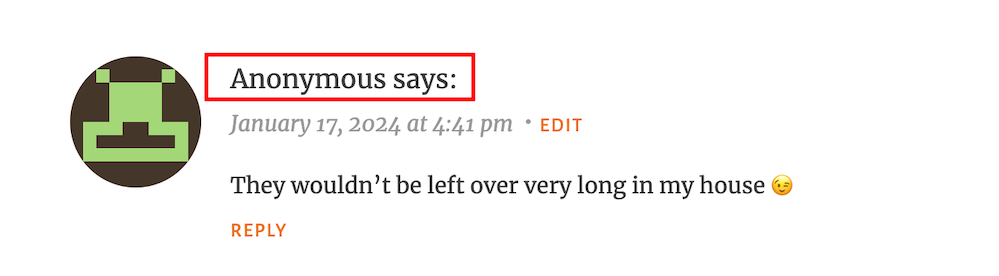
I’ve always received comments on my blog posts from visitors using ‘Anonymous’ or ‘Someone’ as their display names. But it has never bothered me because I can spot spam comments easily and guarantee that none will reach the comments section of my posts.
Here’s an anonymous comment I received recently.
Do anonymous comments annoy you?
I wasn’t concerned when it appeared because it was left on one of my recent Wordless Wednesday posts about leftover chocolate, so I knew it was genuine.
Not knowing who the comment is from could pose a problem, but if it sounds genuine and has no uninvited or suspicious links, I’ll reply and approve the comment.
However, I’ll mark it as spam if it looks or sounds like a spam comment or contains any uninvited links. Oh! And I never approve comments that say ‘Nice Post.’ ‘Nice’ or ‘Great photo,’ regardless of who left them.
How do I make it easier for visitors to leave comments on my posts or prevent them from being anonymous?
In the blog settings of WordPress.Com blogs, there are settings which users can turn on or off to make it easier for visitors to leave comments or to prevent comments from being shown as anonymous.
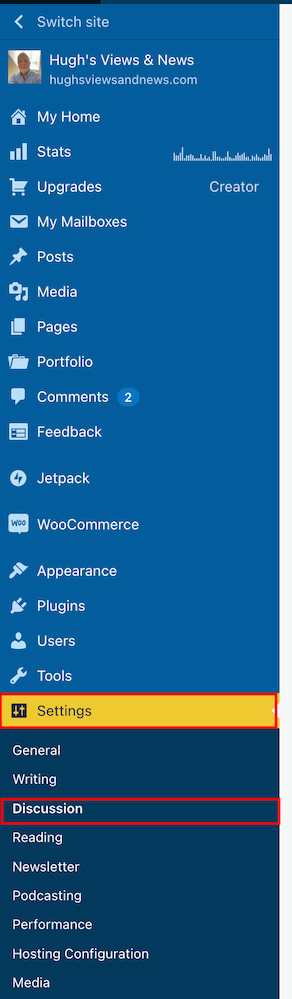
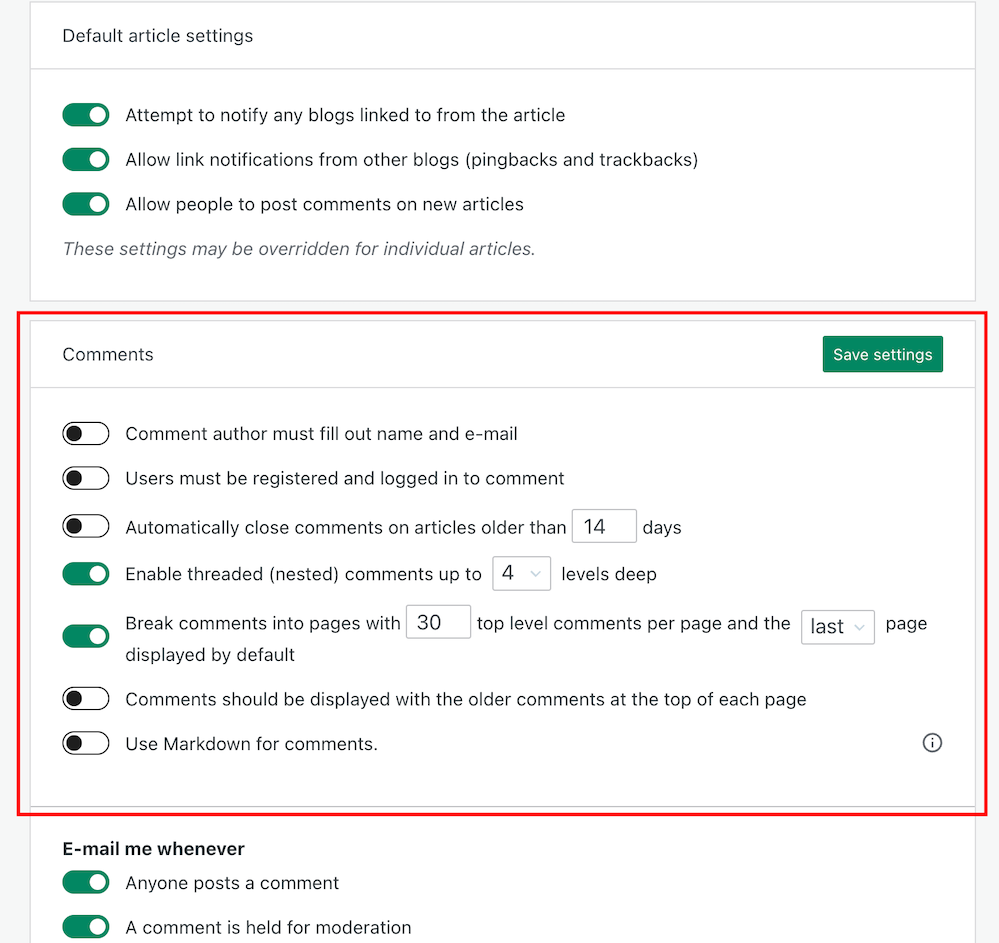
To find these settings on your blog’s dashboard, go to Settings – Discussion and scroll down to the ‘Comments‘ section on the ‘Discussion Settings‘ page. I’m using WordPress on an Apple iMac desktop computer in these screenshots.
Click on Settings – Discussion
Scroll to the ‘Comments’ section.
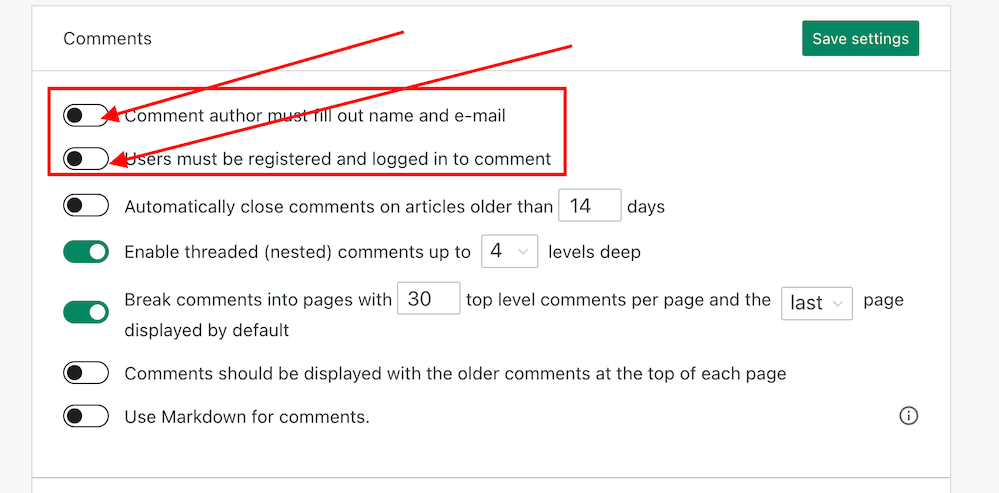
If you want to make it easy for visitors to your blog to be able to leave comments, ensure you have the first two settings in the ‘Comments‘ section, ‘Comment author must fill out name and email‘ and ‘User must be registered and logged in to comment,’ switched off.
Switch on or off depending on how easy you want it to be for visitors to leave comments on your blog.
If you do not want comments on any posts showing as ‘Anonymous’, ensure those two settings are switched on. However, beware that turning these settings on will make it more difficult for some users to leave comments.
Turning these settings on means that users must either fill out their name and email address or be registered as a WordPress user and logged in to be able to leave a comment. Some users may not like giving this information to be able to comment.
Make sure you click the ‘Save Settings’ button if you make any changes.
And that’s it. Only you can choose whether to have these settings on or off. Go with what you feel most comfortable with.
Do you make it easy for visitors to your blog to comment, or do you prefer to only allow those willing to give their information to be able to leave comments? Is WordPress the best platform for engagement and for leaving comments? Let me know in the comments.
Is your blog as secure as it can be? Take this final step to make sure nobody can hack it. Take a look at my recent post for more details.
You wouldn’t leave your doors unlocked if you were the last one to leave the house, would you?
Would you give a stranger the password to your online banking account?
Would you share or give a stranger the password to your blog?
Protecting your blog is just as important as protecting your home and online bank accounts, yet many bloggers share personal details about themselves on their blogs and on social media, which can be a treasure trove for scammers. Be careful what information you share.
Before sharing any information, ask yourself, ‘Would I share this information with a complete stranger?’
Adding this feature will give your blog an extra layer of security.
Although we’re all encouraged to use a strong password to protect our blogs, did you know that many blogging platforms, including WordPress, offer users an extra layer of security when it comes to protecting their blogs?
Two-factor authentication adds an extra layer of security by requiring you to enter a code or use another device in addition to your password. For example, you can use an app like Microsoft Authenticator or Google Authenticator to generate access codes for your blog.
WordPress offers users two-factor authentication security. Follow the guide below to set it up for your WordPress blog. For this example, I’m using an Apple iMac desktop computer.
How to set up two-step authentication for your WordPress blog.
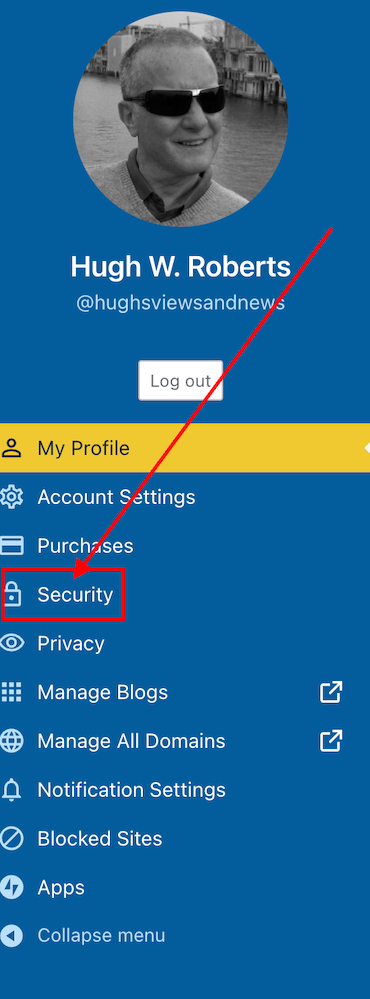
In the top right of your blog, click on your profile picture/avatar.
Click on ‘Security‘ in the menu on the page’s left side.
Click on the ‘Security’ tab.
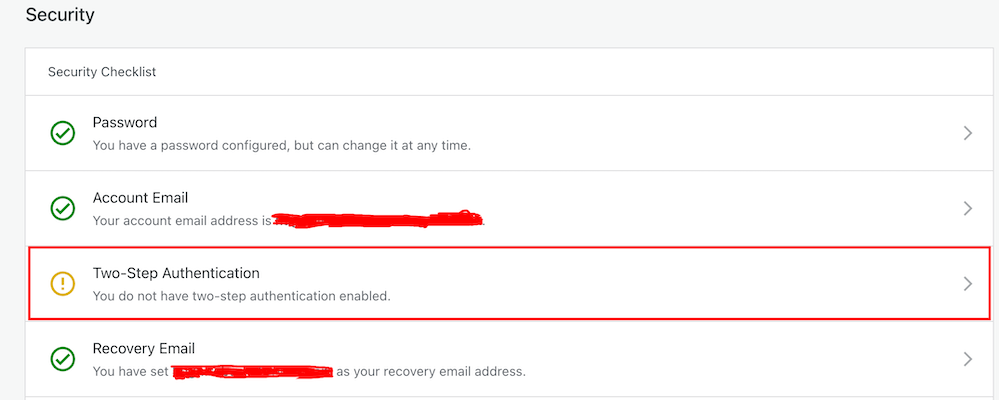
Select the ‘Two-step Authentication‘ option.
Select Two-Step Authentication
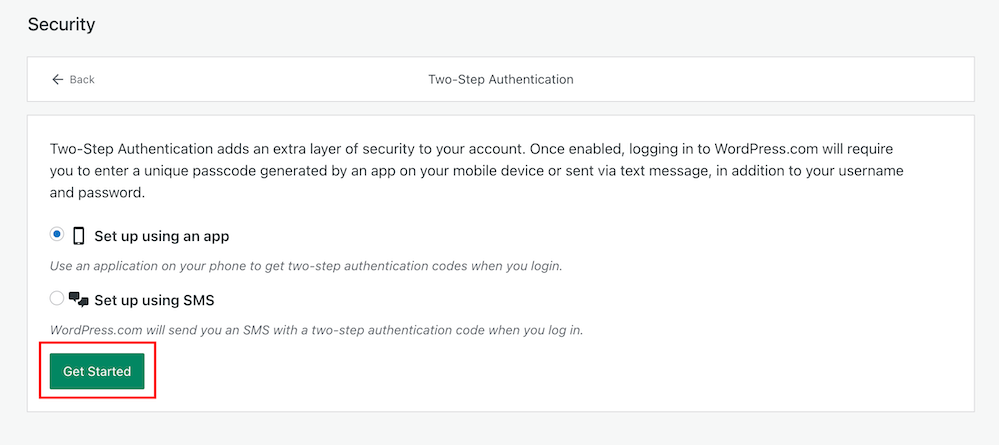
Select which method you would like to receive the two-step passcode generated by WordPress, and click the ‘Get Started‘ button.
Click the ‘Get Started’ button.
Follow the onscreen instructions depending on your selected method to receive the WordPress two-step authentication passcode.
Once enabled, logging into WordPress.com will require you to enter a unique passcode generated by an app on your mobile device or sent via text after adding your username and password.
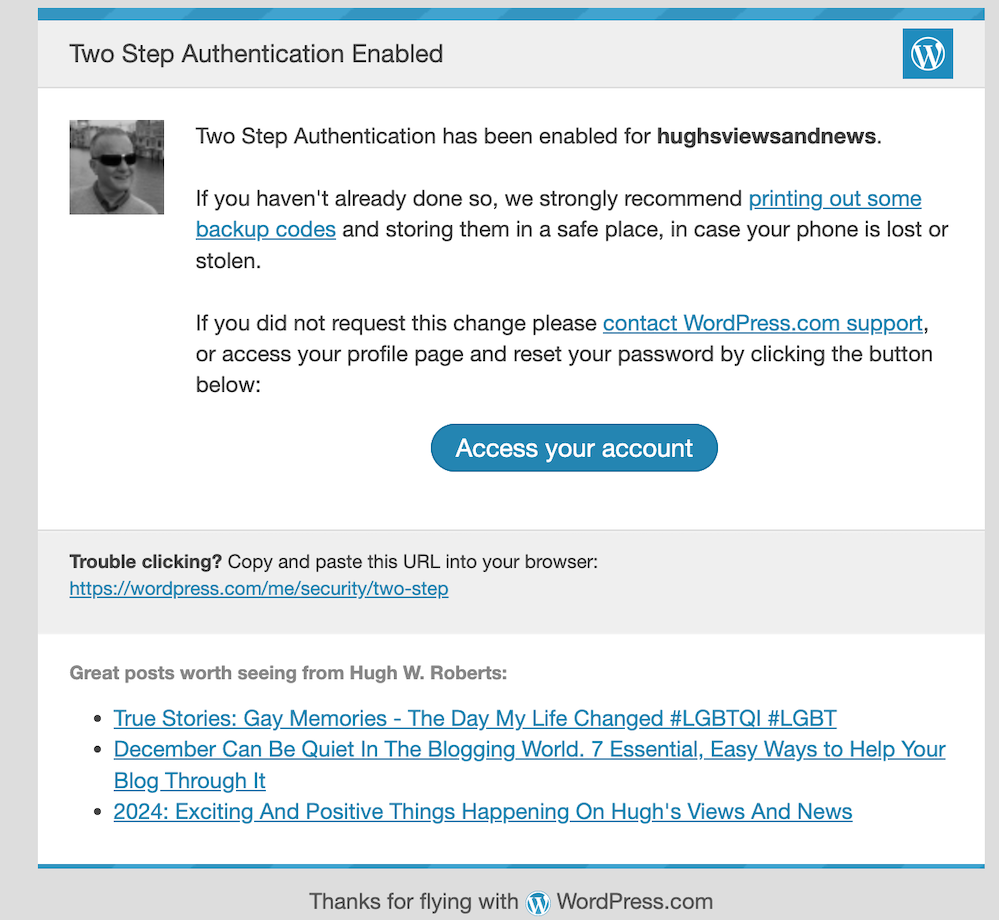
You will receive an email from WordPress confirming that two-step authentication has been enabled.
You’ll get an email from WordPress confirming that two-step authentication has been set up for your blog.
That’s it! Access to your blog is now protected by an extra layer of security.
I’d recommend adding or checking that the recovery email address and recovery SMS number for your WordPress blog/account are also correct when switching on two-step authentication.
Are you making the most of Two-Step Authentication to safeguard your blog? Need guidance on setting it up? Share your best practices for securing your blog in the comments below.













 Hugh's Views & News