You wouldn’t leave your doors unlocked if you were the last one to leave the house, would you?
Would you give a stranger the password to your online banking account?
Would you share or give a stranger the password to your blog?
Protecting your blog is just as important as protecting your home and online bank accounts, yet many bloggers share personal details about themselves on their blogs and on social media, which can be a treasure trove for scammers. Be careful what information you share.
Before sharing any information, ask yourself, ‘Would I share this information with a complete stranger?’
Although we’re all encouraged to use a strong password to protect our blogs, did you know that many blogging platforms, including WordPress, offer users an extra layer of security when it comes to protecting their blogs?
Two-factor authentication adds an extra layer of security by requiring you to enter a code or use another device in addition to your password. For example, you can use an app like Microsoft Authenticator or Google Authenticator to generate access codes for your blog.
WordPress offers users two-factor authentication security. Follow the guide below to set it up for your WordPress blog. For this example, I’m using an Apple iMac desktop computer.
How to set up two-step authentication for your WordPress blog.
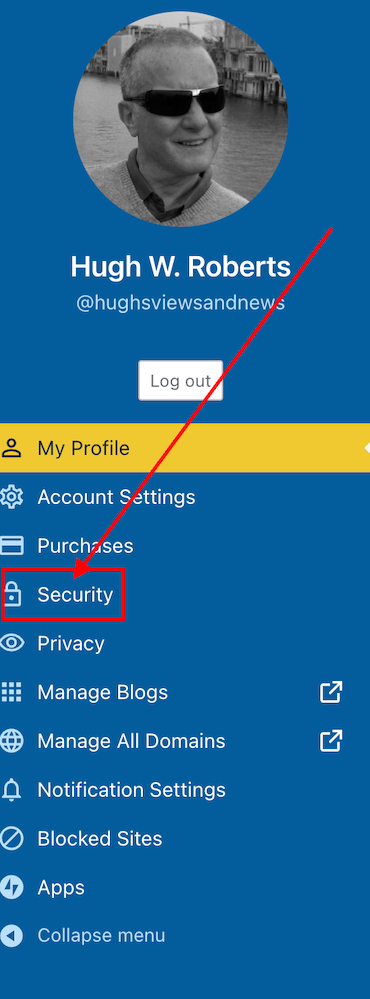
- In the top right of your blog, click on your profile picture/avatar.
- Click on ‘Security‘ in the menu on the page’s left side.
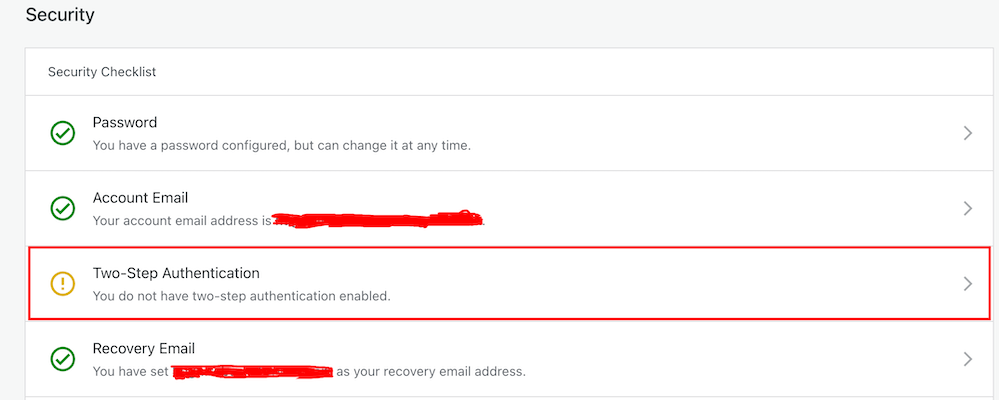
- Select the ‘Two-step Authentication‘ option.
- Select which method you would like to receive the two-step passcode generated by WordPress, and click the ‘Get Started‘ button.
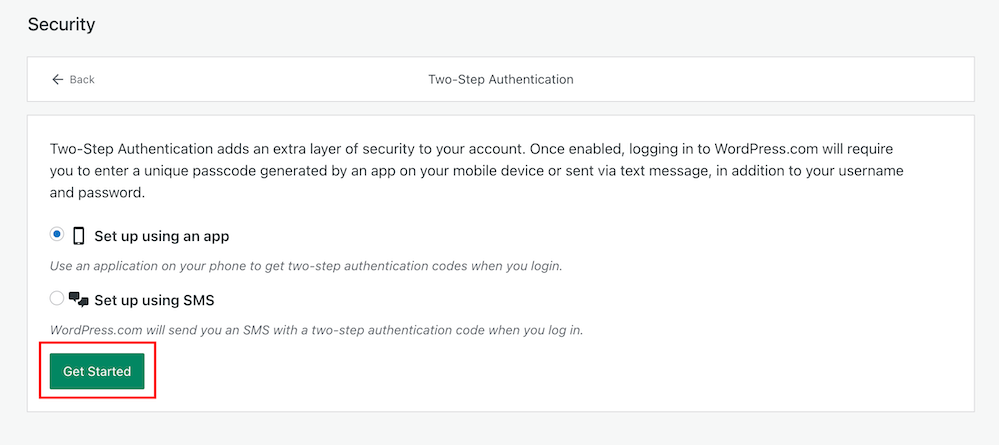
- Follow the onscreen instructions depending on your selected method to receive the WordPress two-step authentication passcode.
- Once enabled, logging into WordPress.com will require you to enter a unique passcode generated by an app on your mobile device or sent via text after adding your username and password.
- You will receive an email from WordPress confirming that two-step authentication has been enabled.
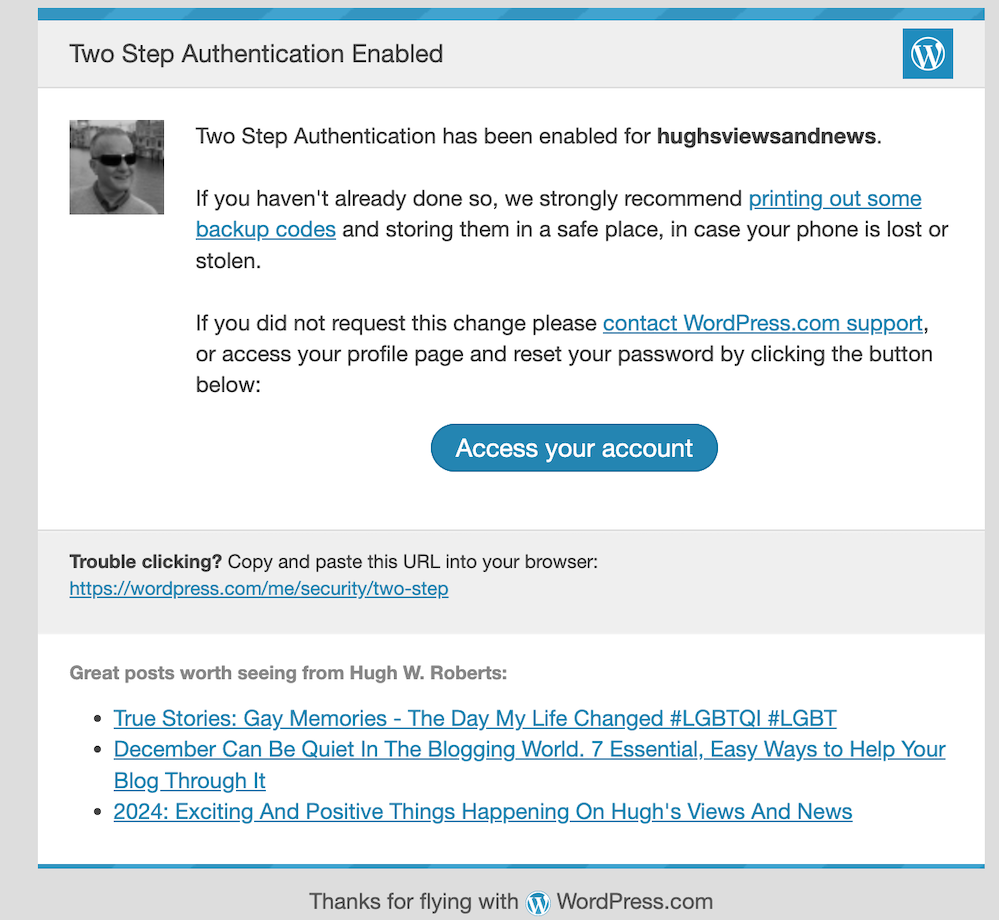
- That’s it! Access to your blog is now protected by an extra layer of security.
I’d recommend adding or checking that the recovery email address and recovery SMS number for your WordPress blog/account are also correct when switching on two-step authentication.
Are you making the most of Two-Step Authentication to safeguard your blog? Need guidance on setting it up? Share your best practices for securing your blog in the comments below.
Did you miss my post giving details of what plans I have for my blog in 2024? Check out my post, ‘2024: Exciting And Positive Things Happening On Hugh’s Views And News‘, for complete details.
Follow Hugh on social media. Click the buttons below.
Layout, content, settings, and format might differ on self-hosted blogs.
Copyright @ 2024 hughsviewsandnews.com – All rights reserved.
Discover more from Hugh's Views & News
Subscribe to get the latest posts sent to your email.
 Hugh's Views & News
Congratulations! You won the Inspire Me Monday Linky Party and will be featured on my site tomorrow.
Janice
Thanks for the fantastic news, Janice.
Hi Hugh, Great and very useful tip as always.
Thanks so much for participating and sharing at SSPS 293. See you again next week!
I’m glad this post has been so helpful. Thanks Esme.
Thanks for another great tip Hugh. I’d like to know if by adding the two-step, does that mean we have to do two logins to open our dashboards? :)
It depends, Debby. I went the SMS direction. After logging in, I now get a link sent to my phone (and Apple Watch). All I have to do is click on the link, and my blog then opens on my desktop. So no having to enter any passcodes.
Thanks Hugh. I’m not a Mac user so it may be a tad different.
Yes, you’re right. Also, if you go or the app option, you’ll be sent a number code (usually 6 figures long) to open up your blog. I used to do that using an authentication app until I discovered I could open my blog (and computer) from my watch.
Thanks again Hugh. :)
Thanks for the tip, Hugh. I’ll have to figure out how to activate the two-step authentication function on my self-hosted blog, as my avatar on the right top corner in my dashboard doesn’t give me a “security” option.
I hope you find where the security option is, Liesbet. Two-step authentication certainly helps give me a little more piece of mind.
Thank you, Hugh, for this excellent advice. We must be vigilant about being safe online and not have the attitude, that it will never happen to us.
I completely agree, Eugi. It always annoys me when people say ‘ it’ll never happen to me.’
Me too, Hugh, and words they will regret.
Great advice, Hugh! I see the prompt for it occasionally and really should take this step, given that my blog FB page was hacked in 2022. Thanks for the reminder!
That’s a good enough reason to set it up, Terri. I think I set two-step authentication for my blog up many years ago when my Facebook account was also hacked. That’s one social media site I do not miss.
Thanks Hugh for spreading the word about 2 Factor Authentication, I can see a lot of people commenting on the post saying they’re setting up which is good to see, as this extra security key will go a long way to protecting identify.
I used 2 factor on as many accounts that allow it, and it does work as an extra failsafe if you tend to use the same password on different sites, and one of those places suffer a data breach. People will malicious intentions will then try that password on any other accounts they know you own (which is easier than ever due to sharing on social media.
It might be annoying having that extra step to authentic – I once accidently left my phone in the car, so couldn’t get on a site I regularly because of 2FA being enabled, but it shows how effective it works if your password falls into the wrong hands!
Also hope you don’t mind me sharing this link (please edit out if not), but your readers checking through the comments might be interested in the website https://haveibeenpwned.com/ which reveals which sites have had user details leaked, you just put in the web domains where you have accounts, it tells you if a site has been hacked (and when), you can then update your passwords for the site, and all other sites you use which share the same password!
Thanks for the information, James. I use Chrome and it has a similar feature that tells me which sites have had a data breach. My Apple devices also tell me of any ‘insecure passwords’ including weak passwords.
I know that changing passwords can be a hassle, but I tend to change mine at least once a year and do not use the same ones. I also use a password manager which helps when I forget passwords (it happens).
Your story about leaving your phone in the car and not being able to access a site is prove indeed on why everybody should consider two-step authentication. Yes, it can be a pain, but that extra layer of security works.
In an old IT job we had people complain about the enforcement of two factor authentication, but those who let their company email account fall into the wrong hands, had bruised egos and were more compromising!
For some reason it’s already set up on my blog – I don’t recall doing anything! But it’s nice to know how to reset it should anything happen. Thx!
You may have set it up many years ago as it’s been available to do for sometime. But good to know it’s all set up and working.
Once again, you made me ponder. I have not thought of going more secure with my blog. Now, seeing the options is a great support. Thank you, Hugh!
Good to hear, Erika. We have to do all we can to protect blogs and ourselves when online.
You are so right!
Thank you so much for this excellent advice, Hugh! I’m setting it up immediately! Cher xoxoxo
Great. Let me know if you run into any problems when setting it up, Cher.
I appreciate it, Hugh. Thank you! Because of your excellent instructions, I think I was able to set it up correctly. I also found several things that I did not have in place, so that prompted me to take a look at those as well (backup email address, verifying such, etc.)
Thank you, Hugh! Cher xoxoxo
You’re welcome. Good to hear you checked all those other details and updated them, Cher.
Thank you, Hugh! I really appreciate it! Cher xoxoxo
Fantastic advice, Hugh. I’m off to set it up!
If you run into any problems setting it up, feel free to ask questions, Jan.
good to know!
Certainly makes sense, Hugh.
And gives so much piece of mind knowing you have that extra layer of security on your blog, Cathy.
Absolutely.
When I was working in support of technology, we required 2FA for everything that supported it. This is very good advice.
I use it for everything online, Dan. Adding that extra piece of security always gives me extra piece of mind.
My only concern, and it’s a minor one these days, is when I’m flying. I’ve had problems logging into services on my iPad, because I can’t get the authentication code on my phone. Then again, in most cases, whatever it is I have to do can wait a few hours. Some services we used allowed you to switch to an email code for things like that, but not all.
That’s true, Dan. I’ve now set it up so that the notification comes to my Apple Watch. And as I do not fly anymore, there is usually wifi on trains and buses, so no problem for me. However, I tend to enjoy watching the world go by when travelling.
Me, too. Now that I’m only flying for personal reasons (and only once or twice a year) it’s not an issue.
Very much informative Hugh.
The problem is people are too lazy to opt for 2f authentication.
As for the DOB, year etc one need not be Frank on online matters especially social media platforms.
Thank you
Laziness doesn’t get anyone anywhere, and I’d have thought that everyone who goes online would want to protect themselves. I guess ‘it’ll never happen to me’ also plays a big part.
I’m shocked by how much personal information bloggers and those on social media give out online. I always ask myself ‘would I give this information to a complete stranger?’ before putting anything online.
Agree about giving strangers personal details believing them unconditionally.
As you have rightly suggested, one must opt for 2F authentication without delay wherever there is a provision.
Thank you Hugh that’s great advice 💜💜
I’d recommend every blogger using two-step-authentication for their blog, Willow. That extra layer of security give more piece of mind.
Thank you Hugh 🙂
So easy to do and well explained. Thank you, Hugh. I can’t emphasize enough that part about printing out your 2FA backup codes and keeping them in a safe place! They’re also useful should you ever need to recover your WordPress.com account.
Yes, those backup codes are so important, Jen. I have mine safely stored, and I know where I can access them should the need a rise. Hopefully not.
This is something I was looking at just yesterday.
Also, we must be on the same wavelength as I’ve been writing a post along similar lines … being safe online
Good to hear you’re writing that post, Brenda. I’m often astonished at how much personal information people give out online – the main one being their date of birth when giving their age and announcing their birthday. Put that together with their real name and where they live, and a scammer has some free personal information to get scamming or stealing an identity. I think the biggest problem are those who think it’ll never happen to them.
I look forward to reading your post.
Thanks Hugh. I agree. I’ve seen people posting name, address, telephone number and, as you say DoB. Crazy, you wouldn’t do it anywhere else