I recently began receiving emails from WordPress informing me that another blogger has recommended my blog.
Of course, there’s an easy way to recommend another blog simply by writing and publishing a post and linking to that blog, but this new way of recommending another blog was something I thought was much better.
After all, once you read a post recommending a blog, it isn’t long before that post gets pushed down your reader list, until it’s probably forgotten about. So, if you haven’t read the post or maybe thought you’d come back to it later, you probably won’t.
However, this new method of recommending a blog is better because the blogs you recommend appear on your Gravatar profile when using the WordPress Reader, which means that anyone checking your Gravatar will see a list of the blogs you recommend.
It’s easy to add the blogs you want to recommend. I’m using an Apple iMac desktop computer to demonstrate this. Here’s how to do it.
On the dashboard of your blog, click the ‘Reader‘ icon (represented by a pair of spectacles).
Click the ‘Reader’ icon.
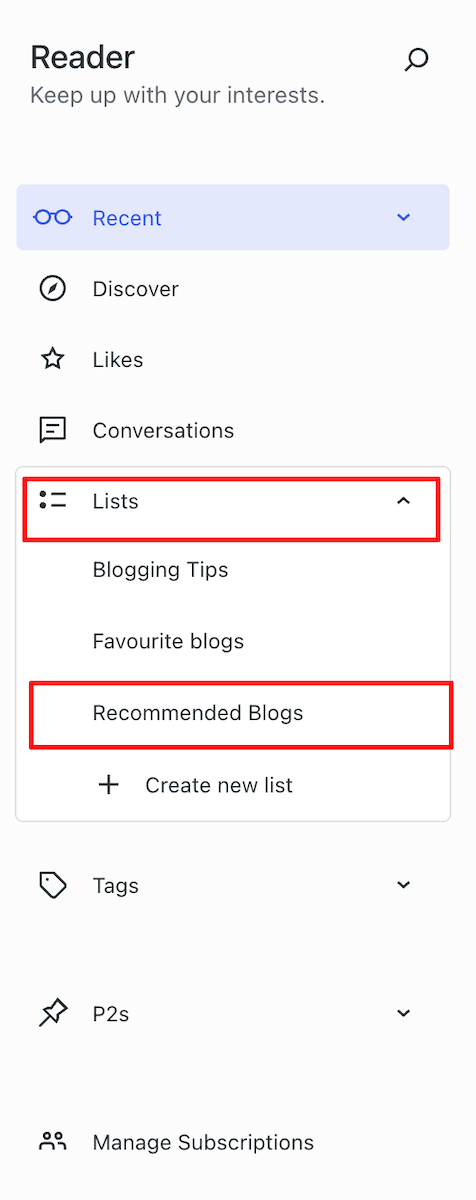
On the Reader menu, open ‘Lists‘ and click on ‘Recommended Blogs.’
Click the Recommended Blogs link.
Click the ‘Edit‘ button and open the ‘Sites‘ tab. As you will see from the image below, I’ve already recommended some blogs.
Click the ‘Sites’ tab.
To remove a recommended blog, click on the ‘Remove‘ button.
To add a blog, start typing the name of the blog in the ‘Search or enter URL to follow‘ box, and a list of suggestions will appear.
Start typing to display a list of blogs.
Click the ‘Recommend‘ button to add a blog to your Recommended Blogs list. Note that if you are already following a blog, you’ll see ‘Subscribed‘ next to it.
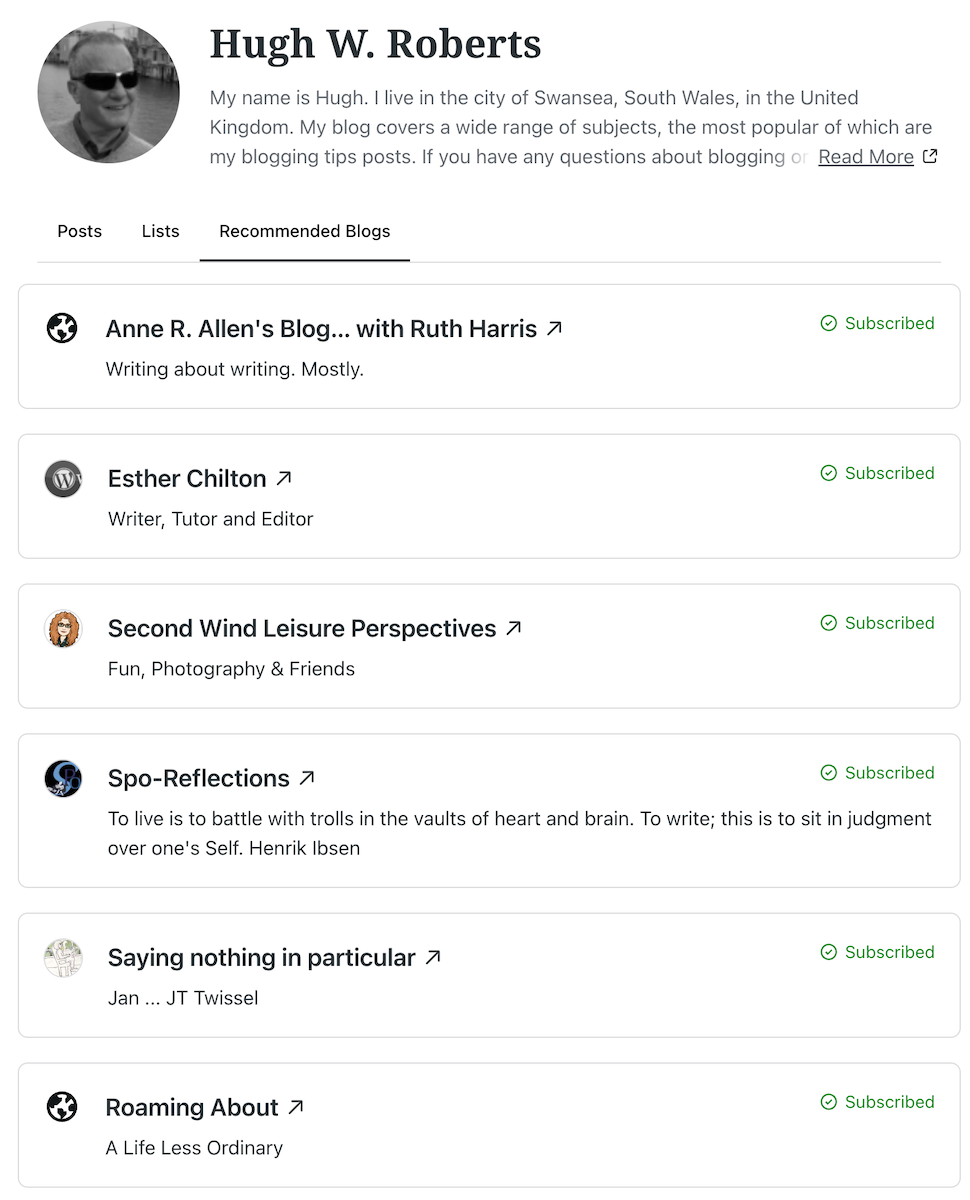
The blog you recommended is now added to your Recommended Blogs list and will appear whenever anyone hovers their mouse over your Gravatar profile in the WordPress Reader. Click the ‘View All‘ link to see a list of all the blogs they recommend.
As you recommend blogs, they will appear on your Gravatar profile.
Whenever another blogger recommends your blog, you should receive a notification email from WordPress with the details of who has recommended your blog, provided you have not switched off notifications. However, I’ve not yet seen these notifications appear under the notification bell icon.
Based on my observations, after clicking on the Gravatars of many bloggers, few have recommended any blogs so far. Additionally, some bloggers haven’t included their blog details on their Gravatar, making it harder for others to find their blog. And remember that if you leave comments on other blogs, your Gravatar will appear next to your comment.
Have you seen this new feature on WordPress? Has anyone recommended your blog in this way? Will you start using the ‘Recommend Blog’ feature? Have you added your blog details to your Gravatar?
Layout, content, settings, and format might differ on self-hosted blogs.
The featured image in this blog post is taken from Pixabay. AI checked spelling and grammar mistakes.
Click the buttons below to follow Hugh on Social Media
I don’t use the WordPress Reader nearly as much as I should.
I get email notifications when new blog posts are published by the bloggers I follow. This makes sense as I only follow around 55 blogs, most of which publish no more than a few times a week.
Am I missing out on not using the WordPress Reader? I think so, yes! But why?
Tell me why you use or don’t use the WordPress Reader.
One of the reasons I stopped using the WP Reader was that when I was following over 500 blogs, I felt like a hamster constantly running around a wheel in my endless battle to reach the top of the reader. I never reached the top, so I thought I was missing out!
However, I occasionally use the WordPress Reader to search for posts on subjects I enjoy reading. In my opinion, this is where the WordPress Reader is at its best!
For example, I recently entered the word ‘WordPress’ into the reader search bar and was presented with a long list of blog posts in which ‘WordPress’ had been used as a category or tag (this shows how important categorising and tagging your posts is).
But before I discuss some of the search results, let me first say that, unlike some bloggers who seem to think WordPress has deleted the ‘Reader,’ the WP Reader has moved.
Where is the WordPress Reader?
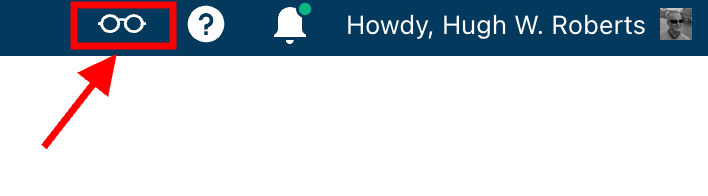
If you’re using a desktop computer, the WP Reader is now located in the top right corner of your blog. Look for the pair of spectacles icon.
The WordPress Reader icon has changed and moved.
Click on it, and you’ll be taken to the WordPress Reader.
On mobile phones and tablets (using the Jetpack app), the WP Reader icon (spectacles) is located at the bottom of the screen.
What I found in the search results!
I was delighted to see some of my posts appear in the search results. However, I was more interested in the posts from blogs I don’t currently follow.
One of those posts that grabbed my attention was from Mitch, who blogs at The Power Of Story. Mitch’s post, ‘What’s Up WordPress?‘, was about the sudden ups and downs of his blog’s number of subscribers/followers. Indeed, I’ve noticed the same thing happening with my blog.
My subscriber/follower stats have become like a fairground rollercoaster ride. Some days, I lose a lot of subscribers/followers, and then the numbers suddenly return, although not the same subscribers.
I did some digging and found that WordPress are now actively deleting spam blogs and blogs run by spambots. That’s a good thing, especially since I’ve been manually unsubscribing them for many months. WordPress is unsubscribing these blogs for me, although I will unsubscribe any I find myself.
Have you noticed your subscriber/follower numbers going on a rollercoaster ride recently?
Another post that grabbed my attention from the results page was from Kevin, who blogs at Chef Kevin Ashton. Kevin’s post, titled ‘The Thorny Issue Of WordPress Likes.’ touched on a subject I’ve often written about – the ‘like’ button!
Love it or hate it, the ‘like’ button is something just about every WordPress user and visitor will use. However, Kevin touched on the subject of ‘guilt’ by not using it, especially when he doesn’t have enough time to visit and read blogs.
I’ve been there, Kevin. Many bloggers feel guilty or stressed about not clicking ‘like’, visiting blogs that follow them, or leaving comments. Yet, in my opinion, nobody really cares that you can’t always visit their blog. I’ve discovered that leaving one engaging comment occasionally that shows you read the post is much more appreciated than leaving short, non-engaging comments just to prove you visited. However, you may not have read their post.
I’ve written many posts about blogging guilt and stress. In my last post on the subject, ‘Stressed Or Feeling Guilty About Blogging? Please Read This Post. Let’s Keep Blogging Fun,’ many readers spoke up about how bad they feel when they don’t have the time to read blogs, click ‘like,’ and leave comments, often resulting in blogging feeling like a chore rather than something that should be enjoyed.
Nobody should ever feel obliged to read posts, click the ‘like’ button or leave comments. Keep blogging fun.
How do you deal with blogging stress or guilt?
The happy and sad sides of blogging!
It was also lovely to see blog posts celebrating milestones on WordPress in the results. From celebrating 15 years of blogging on WordPress to publishing their 100th post and some folks being notified that their blogs had achieved half a million visits, these posts brought a smile to my face.
Of course, posts complaining about how bad WordPress is and the problems bloggers are having also appeared in the results. Although I only read a few, most of the reported issues were related to WordPress’s changes, and the author often confirmed in the comments section that the issue(s) had now been resolved.
Personally, I’m pleased that WordPress does make changes. If they left things alone, the platform would quickly become outdated and dull, as would all our blogs. WordPress would lose many paying customers, and we’d all lose our blogs if they went out of business. I used to hate change but learned that adapting to it is much less stressful than fighting it
Are your blog posts appearing on the WordPress Reader?
I always check that my blog posts appear in the WordPress reader. To do this, I follow my blog and check the reader immediately after publishing a post. If it’s not there, I know there’s a problem.
There are several reasons why your posts may not appear in the WordPress Reader. The main reason is that you add too many categories and tags to a post. WordPress allows up to 15 categories and tags combined. Your post could be marked as spam and won’t appear if you add more, so ensure you do not add more than 15 tags and categories (combined).
There may also be technical reasons why your posts don’t show in the reader. If you don’t see your posts, contact WordPress. They’ll be able to help.
That’s it for today. I’ll share other interesting posts when I do more searches on the WordPress Reader.
Why Do You Use The WordPress Reader?
Did you enjoy reading this post? Then you may also like…
Pingbacks are a vital tool in the blogging world, fostering connections and increasing site traffic. Are you making the most of pingbacks or missing out on their benefits? This post details their benefits, creation, and anti-spam measures.
WordPress users often face problems, but they may not always be caused by their blogging platform. Device issues, internet browsers, poor blog housekeeping and retired themes can all contribute to problems.
My post outlines what to do if you’re experiencing issues with using WordPress.









 Hugh's Views & News