Boost Your WordPress Blog’s Reach: A Step-by-Step Guide to Adding a BlueSky Sharing Button

In my recent post, Navigating the Social Media Landscape: My Journey with Five Platforms, I shared my experiences with the social media platform BlueSky, which I am excited to embrace as a new user!

Since BlueSky is new and (at the time of this post) has over 30 million users, it’s an exciting opportunity for WordPress bloggers to enhance their posts by adding a BlueSky sharing button at the end of their posts!

Let me empower your blog by showing you how to connect it to BlueSky. Many blogs have yet to embrace this fantastic feature (and it’s not only BlueSky that you can connect to your blog).

A dark image with the words Social Media across it.
Image by Gerd Altmann from Pixabay

How To Add A BlueSky Sharing Button

  • On the dashboard of your blog, go to Tools – Marketing.
  • On the Marketing and Integrations page, click on the Sharing Buttons icon.
An image highlighting the Sharing Buttons icon on the dashboard of a WordPress blog.
click the Sharing Buttons icon.
  • Click on the Edit sharing buttons icon.
An image highlighting the Edit Sharing Buttons icon on the dashboard of a WordPress blog.
Click the Edit Sharing Buttons icon.
  • In the Edit visible buttons box, click on the BlueSky sharing button. If you do not already have it as a sharing button, it will be ghosted out.
Image highlighting the BlueSky sharing button on WordPress.
Select the BlueSky sharing button.
  • Click the Save Changes button.
  • The BlueSky sharing button will now appear on your blog posts.
Image highlighting the BlueSky sharing button on a blog post on WordPress.
Visitors can now share your posts with BlueSky.
  • Click the Reorder button to rearrange the order of the sharing buttons on your blog posts. To do so, click on one of them and drag the button to where you want it to sit.
  • Click the Save Changes button.

How To Connect Your BlueSky Account To Your WordPress Blog

  • On the dashboard on your blog, go to Tools – Marketing.
  • On the Marketing and Integrations page, click on the Connections icon.
Image highlighting the Connections button on the dashboard of a WordPress blog.
Click the Connections icon.
  • In the Share posts with Jetpack social box, look for BlueSky and click the connect button.
Image highlighting the BlueSky connect button in the connections area of a WordPress blog.
Click the BlueSky connect button.
  • Add your BlueSky Handle and BlueSky app password in the boxes and click the Connect account button.
Image showing where to add your BlueSky account details when connecting your WordPress blog to BlueSky.
Add your BlueSky details.
  • You’ll be asked to confirm your BlueSky account by clicking another Connect button.
Image showing the connect confirmation button when connecting a BlueSky account to a WordPress blog.
Confirm your BlueSky account.
  • Your BlueSky account is now connected to your WordPress blog. WordPress will share your posts directly with your BlueSky account whenever you publish a new post.

Remember to connect other social media accounts to your WordPress blog by following the same instructions.

Are you on BlueSky? I’d love to connect! Please share your BlueSky details in the comments so I can follow you. If you have questions about BlueSky, adding a sharing button, or linking your BlueSky account to your blog, feel free to drop them in the comments section—I’m here to help!

To follow me on BlueSky, click my BlueSky User name – hughsviewsandnews.com

Layout, content, settings, and format might differ on self-hosted blogs.

Click the buttons below to follow Hugh on Social Media

Copyright @ 2025 hughsviewsandnews.com – All rights reserved.

Navigating the Social Media Landscape: My Journey with Five Platforms

Social media is a powerful tool. When used correctly, it can connect us with thousands of individuals and bring visitors to our blogs, resulting in new followers and connections.

However, social media is a ravenous beast. Before you realise it, it’ll consume all your time while scattering you far and wide without delivering results. It’ll take everything from you and give little back.

Image of a tree with social media branches.
Image by Gerd Altmann from Pixabay

One of the first pieces of advice I received from another blogger was to join as many social media platforms as possible to attract visitors. It turned out to be one of the worst pieces of advice I followed, as it wasn’t long before I found myself spending too much time on numerous platforms.

I realised that spreading myself too thinly on social media was not the solution, so I reduced the number of accounts I managed. This freed up significant time, allowing me to engage more on those platforms. Before long, I noticed increased visitors coming to my blog from various social media sites. Social media was finally paying me back for the time I was investing in it.

Since starting my blog in 2014, I’ve tried most social media platforms. Today, I will discuss five of them and explain why they have worked or not for me.

BlueSky 🦋

Profile Name: @hughsviewsandnews.com

I joined BlueSky in November 2024. It’s one of the new kids on the block. When this post was written, it had gone past the 27 million milestone of the number of users. That number is rising fast.

Not only have I found BlueSky a friendly place to engage with other users, but it’s simple to use, running a similar platform to X. Like any social media platform, the more you engage with other BlueSky users, the better the results.

I’ll write more about BlueSky in an upcoming post, but early indications are that it’s a rising social media platform that all authors, writers and bloggers should seriously consider joining.

I’ve also found a lot of photographers on BlueSky. If you have a photography blog or host a photography challenge, ensure you join BlueSky.

Don’t forget to add the BlueSky sharing button to the sharing buttons on your blog posts so visitors can share your posts to BlueSky.

Flipboard

Profile Name: Hugh W Roberts

I joined Flipboard in 2019. It has brought incredible amounts of traffic to my blog and has an excellent customer service team that reaches out whenever problems occur.

Users add information to magazines, so, as in blogging, setting up categories is essential. My most popular magazines are Blogging Tips, Entertaining (short) Stories You’ll Enjoy, LGBTQI, and Writing Tips.

Mastodon

Profile Name: @HughWRoberts

Mastodon is a big part of the Fediverse, which WordPress promotes heavily. The Fediverse is a global, open social network of independent servers that communicate with each other using a common protocol.

Users create posts in much the same way as on X and BlueSky. Posts appear on the timelines of those who follow the person who created and published the post, but other users can also see them.

I’ve had a steady flow of traffic from Mastodon to my blog, although out of the three social media accounts I use, it’s the one I use the least.

X/Twitter

After 14 years, I deleted my X account on December 31st, 2024, for reasons I won’t go into. This means that I will no longer share my blog posts or other bloggers’ posts on X.

Given that I had over nine thousand followers on X, I hope those who followed me there will now follow me on BlueSky. Some already have, but given that this post is my first mention of joining BlueSky, many will not know I am now active there.

Join me on BlueSky at @hughwroberts05.bsky.social

Instagram

I recently gave Instagram another chance. I did my best to boost engagement, but I struggled significantly. While some people interacted with my posts, it was difficult to stand out amidst all the self-promotion on the platform.

There is nothing wrong with self-promoting your own books and blogs, but I find it too overwhelming when it’s every post. I only saw a little of others promoting the posts of others.

Maybe I was following the wrong accounts?

Instagram wasn’t for me. I deleted my account in December 2024.

Avoid following the accounts of those who only promote their own work and who give nothing back to others.

Other Social Media Platforms

There are many other social media platforms that I have not mentioned, and other bloggers, writers, and authors use them successfully. But how?

I would love to know which social media platforms you use and which ones have been the most successful. In the comments section, feel free to share which platforms you use and your username so that anyone reading the comments can follow and connect with you.

Click the buttons below to follow Hugh on Social Media

Copyright @ 2025 hughsviewsandnews.com – All rights reserved.

Want More Blogging Success? What Happens When You Find It.

This is post number one hundred and four this year. It was meant to be my one-hundredth post, but life got in the way (I’m not going to bore you with the details), and my Wordless Wednesday post from a few weeks ago earned the honour of being post number 100.

When you think about it, one hundred and four posts in ten mouths seem like an awful lot. Am I overwhelming readers with too many posts, or do you want more? I’m averaging nine monthly posts, which appears to have become a good balance.

If you asked me, ‘Am I publishing too many posts?’ I’d respond, ‘Do what feels best for you.’ However, we should never forget our audience, so there’s no harm in reaching out and asking. Without you (my audience) reading these posts and engaging with me, this blog would be like arriving on a barren planet. And nobody wants that.

I’d be interested to know how many posts you have published in 2024 and if you’re happy with that number. Let me know in the comments.

Let’s discuss other blogging topics

Did you see my recent post about whole blog posts being shown in emails? No? It’s titled ‘WordPress: Excerpts Are Working Again!‘ It’s worth reading if you only want an excerpt of your posts to show in email notifications and want visitors to visit your blog to read them. Reading posts by visiting a blog is a much better experience than reading them by email, especially since some blocks do not appear in emails, making posts look odd and broken.

There are many reasons to encourage visitors to visit your blog, one of which is that they are more likely to engage with you if they are on your blog (rather than reading from an email). Furthermore, visitors can explore your blog, catch up on posts they have not read, and check any links. This brings me nicely to the subject of engagement.

Are you engaging or comment spamming?

As regular visitors to my blog know, I am passionate about engagement in the blogging world. Recently, I came across an alarming article stating that engagement has decreased to an all-time low in blogging. How sad is that? However, when you look at some blogs with low engagement or, conversely, blogs with numerous non-engaging comments, it is evident that this is happening.

Here’s an example. I recently discovered a writing challenge blog and wanted to get involved. But when I checked out some of the comments left, I knew that participating would not be worthwhile. With lots of non-engaging comments such as ‘Nice one’ and ‘great attempt” being left on stories, nobody wanted to engage with one another. It was a barren planet. I left with a heavy heart.

When I publish a post, it’s the engagement I crave. So when I publish a short story or piece of flash fiction, I look for feedback beyond being told it was a great story. Engaging feedback is critical for all of us to improve our writing.

Do you agree? Do engaging comments help to improve your writing?

Take action if you want engagement

This may seem like a shock-horror move, but I’m now marking comments such as ‘nice’ and ‘beautiful post’ as spam. Leaving short comments all over the blogging world is like leaving spam everywhere. We all know how spam can cause frustration and diminish the enjoyment of blogging.

One main reason readers do not leave engaging comments is a lack of time. However, many who offer that excuse leave non-engaging comments everywhere. They spend the time they could have used to leave an engaging comment, posting numerous non-engaging comments everywhere. The flash fiction challenge I mentioned earlier seems to confirm this.

Some bloggers believe that nobody will leave comments on their blogs if they don’t comment, so they leave short, non-engaging comments everywhere. Honestly, that’s a crazy thought.

Before I finish discussing engagement, I want to reassure everyone that they should not feel obliged to leave comments on any of my posts. I won’t be upset if you don’t comment, but I will mark comments as spam if they are those pesky, non-engagement comments I mentioned. One engaging comment every once in a while is worth a thousand non-engaging comments.

I don’t know about you, but it makes all the difference if somebody wants to engage with me and does so in a way that proves they’ve read the post and are interested. Do you agree?

Please preview your posts before publishing them!

Did you know you can preview your posts before publishing them? It seems that some bloggers do not know they can do this. From seeing upside-down images to posts with a terrible and hard-to-read layout, there is no excuse for anyone not to preview their posts before publishing them. It’s so simple to do.

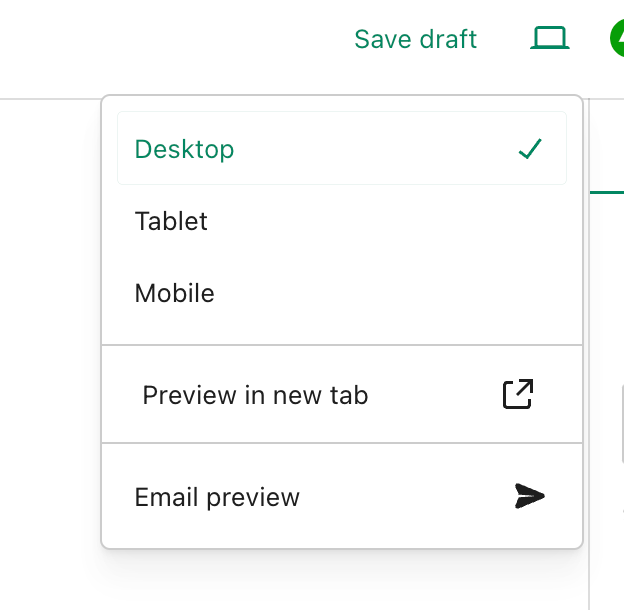
Before publishing a post, click the little ‘laptop computer’ symbol at the top right of the page on which you are drafting the post. You will be able to see a preview of your post as it will look on a desktop computer, tablet, and mobile phone. Plus, and this is fantastic news, WordPress has now moved the ‘preview email’ option to the same menu for how your post will look in an email.

Image showing the preview post and email option on WordPress.
Always preview your posts and WordPress notification emails before publishing them.

Thank you for making that option more accessible to find, WordPress.

There is no excuse for sloppiness in ensuring your posts and WordPress notification emails are at their best for your audience.

Finally, how are your blogging stats performing?

I’m delighted that my blogging statistics have rocketed this year. I’ve surpassed last year’s total number of visitors and views to my blog. But to make things even better, 2024 is on track to be my best year ever (in the ten years I’ve blogged) in terms of viewing statistics and engagement. I believe this disproves those who tell you that you must publish posts every day for your blog to be successful. You don’t need to force yourself to blog every day.

A blog’s success depends not on how often it publishes posts but on the quality of those posts.

Thank you to everyone who visits my blog, reads my posts, and engages with me. Without you, Hugh’s Views and News would never have reignited my passion for writing and engaging with others.

How are your blogging stats this year? Tell me in the comments section.

Layout, content, settings, and format might differ on self-hosted blogs.

Click the buttons below to follow Hugh on Social Media

Copyright @ 2024 hughsviewsandnews.com – All rights reserved.

Turn This Setting On To Stop Seeing Too Much Spam On Your WordPress Blog

Is your WordPress blog getting too much spam?

Do you want to free up the time it takes you to filter through spam looking for genuine comments?

Turn this setting on now.

Light blue image with the words 'Turn This Setting On To Stop Seeing Too Much Spam On Your WordPress Blog' in white text.
Does your blog get too much spam? Turn this setting on.
  • On your blog’s dashboard, go to Jetpack – Akismet Anti-spam.
Image highlighting Jetpack - Akismet Anti-spam on the dashboard of a WordPress blog
Click Jetpack – Akismet Anti-spam
  • On the page that opens, look for the Settings box. Under Spam Filtering, ensure ‘Silently discard the worst and most pervasive spam so I never see it’ is selected.
Image highlighting the 'Silently discard the worst and most pervasive spam so I never see it' setting on WordPress.
Ensure ‘Silently discard the worst and most pervasive spam so I never see it’ has been selected.
  • Click the ‘Save changes‘ button.

You’ll now see much less spam in your blog’s spam folder.

Obviously, you can continue to review all spam, but this can be very time-consuming if your blog gets a lot of spam.

On average, I now see less than 10 spam comments per week in my spam folder. It used to be hundreds. Turning this setting on has helped.

On the same page, you can also see how much good work the Akismet anti-spam software has done in capturing spam comments on your blog. Here’s a snapshot of my blog.

Image showing the stats of how much spam has been blocked on Hugh's Views And News.
How much spam has been blocked on your WordPress blog?

Akismet has caught over 308,000 spam comments since I started blogging in February 2014!

Occasionally, spam comments will get through, but you can help WordPress by marking them as spam. Likewise, if a genuine comment ends up in the spam folder by mistake, mark it as ‘not spam.’

Something else you may find interesting is that WordPress now deletes spam that is over 15 days old in the spam folder, so you no longer have to do it! Another win! Thank you, WordPress.

Don’t stress about spam!

I’ve come across some bloggers who allow spam to stress them. This does nothing but spoil the enjoyment blogging brings.

If your blog receives too much spam, turn on the setting outlined in this post. You’ll soon see a vast decrease in the amount of spam you see.

How do you deal with spam on your blog?

Layout, content, settings, and format might differ on self-hosted blogs.

Did you enjoy this post? Then you may like…

Click the buttons below to follow Hugh on Social Media

Copyright @ 2024 hughsviewsandnews.com – All rights reserved.

How Easy Is It To Follow Your Blog? How To Add A Subscribe Button To All Your WordPress Posts

Sometimes, I struggle to find a subscribe or follow button on blogs. I came across one recently where there wasn’t one. I spent ages looking and even left a comment asking how to subscribe to receive more posts, but the host didn’t reply to my comment!

But I’m delighted that WordPress now makes adding a subscribe (to my blog) button to all your posts (past and future) even more effortless. And the best part is that once you switch on this setting, you won’t have to do it again.

Light blue image with the words 'How Easy Is It To Follow Your Blog? How To Add A Subscribe Button To All Your WordPress Posts' in white text.
Is it easy for visitors to follow your blog?

Where and how to switch on the Subscribe Block button.

  • On the dashboard of your blog, go to Settings – Newsletter.
  • On the Newsletter settings page, look for ‘Add the Subscribe block at the end of each post,’ and slide the button to the ‘on’ position.
Image highlighting the 'Add the subscribe block at the end of each post' button on WordPress.
Slide the button to the ‘on’ position.
  • Click the ‘Save Settings’ button.

That’s it! The ‘Subscribe’ block will appear on all of your posts (past and future), making it easy for anyone visiting your blog to follow you.

This is what the block looks like if you’re already subscribed to the blog or have just signed up.

Image showing the Subscribe block once you've subscribed to a blog on WordPress
You’re following my blog. Thank you.

How easy is it for a new visitor to follow or subscribe to your blog?

Did you enjoy reading this post? Then you may also like…

Layout, content, settings, and format might differ on self-hosted blogs.

Click the buttons below to follow Hugh on Social Media

Copyright @ 2024 hughsviewsandnews.com – All rights reserved.

Why Do You Use The WordPress Reader? This Is Why You Should Use It.

I don’t use the WordPress Reader nearly as much as I should.

I get email notifications when new blog posts are published by the bloggers I follow. This makes sense as I only follow around 55 blogs, most of which publish no more than a few times a week.

Am I missing out on not using the WordPress Reader? I think so, yes! But why?

Light blue image with the words 'Why Do You Use The WordPress Reader?' in white text.
Tell me why you use or don’t use the WordPress Reader.

One of the reasons I stopped using the WP Reader was that when I was following over 500 blogs, I felt like a hamster constantly running around a wheel in my endless battle to reach the top of the reader. I never reached the top, so I thought I was missing out!

However, I occasionally use the WordPress Reader to search for posts on subjects I enjoy reading. In my opinion, this is where the WordPress Reader is at its best!

For example, I recently entered the word ‘WordPress’ into the reader search bar and was presented with a long list of blog posts in which ‘WordPress’ had been used as a category or tag (this shows how important categorising and tagging your posts is).

But before I discuss some of the search results, let me first say that, unlike some bloggers who seem to think WordPress has deleted the ‘Reader,’ the WP Reader has moved.

Where is the WordPress Reader?

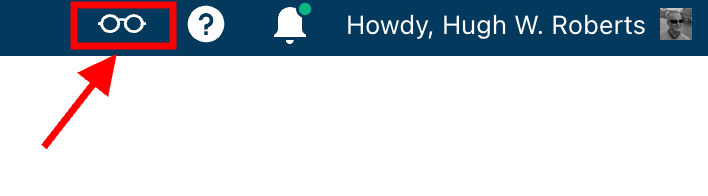
If you’re using a desktop computer, the WP Reader is now located in the top right corner of your blog. Look for the pair of spectacles icon.

Image highlighting the WordPress Reader icon and where to find it.
The WordPress Reader icon has changed and moved.

Click on it, and you’ll be taken to the WordPress Reader.

On mobile phones and tablets (using the Jetpack app), the WP Reader icon (spectacles) is located at the bottom of the screen.

What I found in the search results!

I was delighted to see some of my posts appear in the search results. However, I was more interested in the posts from blogs I don’t currently follow.

One of those posts that grabbed my attention was from Mitch, who blogs at The Power Of Story. Mitch’s post, ‘What’s Up WordPress?‘, was about the sudden ups and downs of his blog’s number of subscribers/followers. Indeed, I’ve noticed the same thing happening with my blog.

Image showing the ups and downs of subscriber/follower numbers on WordPress

My subscriber/follower stats have become like a fairground rollercoaster ride. Some days, I lose a lot of subscribers/followers, and then the numbers suddenly return, although not the same subscribers.

I did some digging and found that WordPress are now actively deleting spam blogs and blogs run by spambots. That’s a good thing, especially since I’ve been manually unsubscribing them for many months. WordPress is unsubscribing these blogs for me, although I will unsubscribe any I find myself.

Have you noticed your subscriber/follower numbers going on a rollercoaster ride recently?

Another post that grabbed my attention from the results page was from Kevin, who blogs at Chef Kevin Ashton. Kevin’s post, titled ‘The Thorny Issue Of WordPress Likes.’ touched on a subject I’ve often written about – the ‘like’ button!

Love it or hate it, the ‘like’ button is something just about every WordPress user and visitor will use. However, Kevin touched on the subject of ‘guilt’ by not using it, especially when he doesn’t have enough time to visit and read blogs.

I’ve been there, Kevin. Many bloggers feel guilty or stressed about not clicking ‘like’, visiting blogs that follow them, or leaving comments. Yet, in my opinion, nobody really cares that you can’t always visit their blog. I’ve discovered that leaving one engaging comment occasionally that shows you read the post is much more appreciated than leaving short, non-engaging comments just to prove you visited. However, you may not have read their post.

I’ve written many posts about blogging guilt and stress. In my last post on the subject, ‘Stressed Or Feeling Guilty About Blogging? Please Read This Post. Let’s Keep Blogging Fun,’ many readers spoke up about how bad they feel when they don’t have the time to read blogs, click ‘like,’ and leave comments, often resulting in blogging feeling like a chore rather than something that should be enjoyed.

Nobody should ever feel obliged to read posts, click the ‘like’ button or leave comments. Keep blogging fun.

How do you deal with blogging stress or guilt?

The happy and sad sides of blogging!

It was also lovely to see blog posts celebrating milestones on WordPress in the results. From celebrating 15 years of blogging on WordPress to publishing their 100th post and some folks being notified that their blogs had achieved half a million visits, these posts brought a smile to my face.

Of course, posts complaining about how bad WordPress is and the problems bloggers are having also appeared in the results. Although I only read a few, most of the reported issues were related to WordPress’s changes, and the author often confirmed in the comments section that the issue(s) had now been resolved.

Personally, I’m pleased that WordPress does make changes. If they left things alone, the platform would quickly become outdated and dull, as would all our blogs. WordPress would lose many paying customers, and we’d all lose our blogs if they went out of business. I used to hate change but learned that adapting to it is much less stressful than fighting it

Are you encountering any issues with WordPress? My recent post, ‘WordPress Problems: Don’t Panic! How To Solve Issues Quickly,’ may be of some help.

Are your blog posts appearing on the WordPress Reader?

I always check that my blog posts appear in the WordPress reader. To do this, I follow my blog and check the reader immediately after publishing a post. If it’s not there, I know there’s a problem.

There are several reasons why your posts may not appear in the WordPress Reader. The main reason is that you add too many categories and tags to a post. WordPress allows up to 15 categories and tags combined. Your post could be marked as spam and won’t appear if you add more, so ensure you do not add more than 15 tags and categories (combined).

There may also be technical reasons why your posts don’t show in the reader. If you don’t see your posts, contact WordPress. They’ll be able to help.

That’s it for today. I’ll share other interesting posts when I do more searches on the WordPress Reader.

Why Do You Use The WordPress Reader?

Did you enjoy reading this post? Then you may also like…

Layout, content, settings, and format might differ on self-hosted blogs.

Click the buttons below to follow Hugh on Social Media

Copyright @ 2024 hughsviewsandnews.com – All rights reserved.
5 Easy Ways To Unfollow A WordPress Blog

If you missed my recent post, 7 Common Mistakes To Avoid When Deciding Whether To Follow A Blog, you won’t have seen the fantastic discussions in the comments section that raised many questions.

One of those questions was, ‘How do I Unsubscribe From A WordPress Blog I’m No Longer Interested In Reading?’

Not sure why you should unfollow a blog? Read the post for the answers.

Light blue image with the words '5 Easy Ways To Unfollow A WordPress Blog' in white text.
It’s easy to unfollow a blog on WordPress.

For this post, I’m using a desktop computer.

1. From The WordPress Reader

Ensure you are viewing posts from the WordPress Reader.

Click the three horizontal dots (meatball menu) next to the blog you want to unfollow and click the ‘Unsubscribe‘ button.

2. From A Post

Open the post from the WordPress Reader.

Right-click on the post title and click ‘Open in a new tab.’

Click the ‘Subscribe‘ button in the screen’s floating action bar in the lower right corner.

You’ll now be unsubscribed from following that blog.

3. From An email Notification

If you get email notifications of new posts, click the ‘Manage your email settings or unsubscribe’ link in the email.

Image highlighting the 'Manage your email settings or unsubscribe' link on a WordPress new post notification email.
Click the ‘Manage your email settings or unsubscribe’ link

On the new page that opens, click the ‘unsubscribe‘ button.

4. From the ‘Manage’ subscriptions list on the WordPress Reader

From the ‘manage‘ section of the blogs you’re following, click on the ‘Manage‘ link (next to ‘Subscriptions‘).

Image highlighting the 'Manage' link in the WordPress Reader page
Click the ‘Manage’ link.

A list of all the blogs you’re following will show.

Click the three horizontal dots (meatball menu) next to the blog you want to unfollow and click the ‘Unsubscribe‘ button.

5. From a WordPress Web Address

Ensure you are signed into WordPress.

Type or click on the following URL address https://wordpress.com/following/edit

A list of all the blogs you are following will show.

Click the three horizontal dots (meatball menu) next to the blog you want to unfollow.

Click the ‘Unsubscribe‘ button.

If you have any questions, please leave them in the comments section.

More blogging tips posts from Hugh

Click the buttons below to follow Hugh on Social Media

Copyright @ 2024 hughsviewsandnews.com – All rights reserved.
WordPress Problems: Don’t Panic! How To Solve Issues Quickly

Do you encounter problems using WordPress? Are your posts not aligning correctly, or are you unable to leave comments on certain blogs? What’s causing these problems? Is it WordPress, or are you or your device causing them?

Light blue image with the words 'WordPress Problems: Don't Panic! How To Solve Issues Quickly' in white text
Don’t panic when WordPress causes you problems. The problem could be you!

Like any online website, the WordPress platform experiences problems. Bugs occur. They can often cause havoc for users. Sometimes, things don’t go to plan when new updates are released.

But what causes these problems, and how can they be fixed?

Case 1 – Your posts are not displaying correctly.

A few years ago, a reader informed me that my blog posts were not displaying correctly.

I checked my blog and couldn’t see any problems. I used another device and couldn’t see any issues.

I contacted the WordPress Happiness Engineers. They assured me that from what they saw, there were no problems with how my blog posts were displaying. They even sent me screenshots and some short video clips showing me what they were seeing at their end.

But I was still not happy.

I decided to write and publish a post about the problem.

I asked my followers to check some of my blog posts and let me know if there were any problems with how they were displaying. Over 100 people came to my call for help. Only one person said there was a problem with how my posts were displayed, and this was the person who reported the problem to me.

It turned out that the problem wasn’t my blog or WordPress. The problem was the device belonging to the reader who reported the issue.

I asked them to make sure their device had the latest updates. They never informed me that my blog was displaying incorrectly again.

Case 2 – I can’t leave comments on certain blogs.

I recently saw a post from a blogger who said he had problems leaving comments on certain blogs.

He named the blogs so they knew who they were and apologised, saying that his comments were being cut off as he wrote them.

He asked if anybody else was having the same problem when leaving comments.

By the time the responses came in (and all were saying ‘No’), he’d gone to another device. He tried leaving comments on the same blogs. They all worked, and he came back and apologised.

The problem was caused by the device he was using. He updated the device’s software and also tried using another internet browser, and his comments worked.

Case 3 – When was the last time you cleaned your house?

Some of my WordPress data and stats were not displaying. ‘Have you tried clearing your browser history, cookies and cache on your computer?” somebody asked?

I did the clear-out, and the data all showed up.

Like your home, your blog device needs some housekeeping to keep it working correctly.

Case 4 – Have you tried the most popular advice when things go wrong?

A user contacted me saying they could not leave comments or ‘likes’ on any blog posts. She was using the Jetpack app on her mobile phone.

I told her to try signing out of the Jetpack app, delete it, reinstall it and sign in again.

Problem solved.

Case 5 – Has the blog theme you’re using been retired?

Another WordPress user was experiencing many problems with her blog. Her posts were not aligning correctly, and some readers contacted her to say they couldn’t leave comments. The sharing buttons at the end of her posts were also not working. There were also other issues like certain tools no longer working.

She contacted WordPress, which informed her that her blog theme was retired and was no longer supported. The advice was to change her theme. She didn’t want to change the theme; she liked it. She tried working around the problems. That worked for a while. Then, the issues worsened, and she eventually gave up on her blog.

The WordPress platform wasn’t the problem. The device she was using wasn’t the problem. She was the problem for refusing to change to a theme that WordPress supported.

If your theme has been retired, you will find this notice on the theme’s info page:

Image showing the message 'This theme has been retired' on WordPress
Has your WordPress theme been retired?

When a theme is retired, it no longer appears in the list of themes at Appearances – Themes or at Appearance – Theme Showcase if using the Classic Editor.  

But, if the theme is already active on your site, you can continue to use it. Some retired themes will usually stay available for the lifetime of your site or blog without any issues. However, if you continue using a retired theme, you should note the following:

  • A retired theme no longer receives WordPress updates or new features. This includes security updates that protect your blog from spammers and hackers.
  • A retired theme should continue functioning on your site. However, WordPress does not guarantee that it will always work well with its ever-evolving software.
  • You may lose access to certain features like sharing and reblog buttons, blocks, writing tools and clicking the ‘like’ button.

If you still use a retired theme, you will likely encounter problems at some point. Visitors to your blog may also experience problems viewing it correctly or engaging with you.

How do I change my WordPress theme?

Some bloggers are terrified of changing the theme of their WordPress blog. It can seem like a daunting task.

Once upon a time, changing your WordPress blog theme was a nightmare. I recall the first time I changed the theme of my blog. It took a whole weekend to finish.

But changing the theme of your WordPress blog is now easy and quick. WordPress provides full details on how to do it on the ‘Change your theme‘ page.

Have you checked the WordPress forum?

A user experiencing problems with their WordPress blog does not necessarily mean that other users are experiencing the same problems. Sometimes, problems can be exclusive to one blog (as in some of the above cases).

The WordPress forum page is great for determining if problems affect other users. Here, you can report issues and check what other issues users are experiencing.

Another way to find out if other users are experiencing the same problems with their WordPress blog is to ask them (as I did in Case Number One). Sometimes, issues can be theme-related. Once reported and provided the theme has not been retired, WordPress quickly fixes theme-related problems.

Let’s Wrap It Up!

  • Like any website, the WordPress platform will suffer from bugs and problems.
  • While some problems are widespread, many problems can be caused by a user’s device when blogging, especially if the device is old and does not have the latest updates installed.
  • If you can access another device, try using it to determine whether the problem is only related to one device or a certain web browser.
  • Some problems are related to themes. If a theme has been retired, consider changing to one WordPress support.
  • Changing your blog theme is now easier and quicker.
  • You can check if other bloggers are experiencing the same problems you’re having with your blog by asking them, posting on the WordPress forum, or doing both.
  • Consider that any issues lie outside of WordPress first before blaming them solely.
  • Ensure all devices you use to blog have the latest updates.
  • Report issues and problems to WordPress. They may not know about issues unless you report them.

Are you experiencing any problems using WordPress? Have you checked if the issues are sitewide or only affecting you? How do you deal with issues using the WordPress platform?

Layout, content, settings, and format might differ on self-hosted blogs.

More blogging tips posts from Hugh

Click the buttons below to follow Hugh on Social Media

Copyright @ 2024 hughsviewsandnews.com – All rights reserved.

Blogging Simplified: Adding Images From Your Phone To A WordPress Post

Do you draft blog posts on a desktop computer or laptop? If so, did you know you can now add photos to your post directly from your mobile phone? No more having to download photos to your computer or laptop.

Light blue image with the words 'Blogging Simplified: Adding Images From Your Phone To A WordPress Post' in white text
Now you can add images and photos directly from your phone to a WordPress post.

Here’s how to do it: 

Ensure you have the Jetpack app on your phone. If not, download it from the app store.

  1. Insert an ‘Image‘ or ‘Gallery‘ Block on your post/page. 
  2. Click ‘Select Image.‘ 
  3. From the dropdown menu, select ‘Your Phone.’ A message will pop up on your phone with a QR code.
Image highlighting the 'Select Image' and 'Your Phone' links on an Image block on WordPress
Click ‘Select Image’ and ‘Your Phone.’
Image showing the QR code that pops up on WordPress when selecting 'Your Phone' when selecting an image or photo.
Scan the QR code.

4. Use your phone’s camera to scan the QR code. This will automatically open the Jetpack app on your phone and then your photo library. 

5. Choose the image(s) you want to use: From there, simply click the image or images you wish to add to your post/page.

6. Click ‘Add‘ (top right corner): Watch your image(s) automatically appear in your desktop/laptop editor. Here’s one I added directly from my phone.

img_0529-1

Can I adjust the size of images in the Jetpack app?

Yes. This is important to do to prevent images from taking up too much storage space in your blog’s media library. By default, the “Optimise Images” option is turned on. You can set the ‘Max Image Upload Size‘ so the original file is resized automatically when you upload it.

Here’s how to do it:

In the Jetpack app for iPhone and the Jetpack app for Android, to adjust the settings, follow these steps:

  1. Log into the Jetpack app on your phone.
  2. Click your profile icon in the bottom right.
  3. Click ‘App Settings‘.

You can toggle ‘Optimize Images‘ off (not recommended) or adjust the ‘Max Image Upload Size‘. The default is 2000 x 2000px.

img_0527-1

As you can see from the above image, I’ve set the maximum image upload size to 1000 x 1000px. I recommend not going any higher than this.

Is there anything to remember when uploading images directly from your phone?

Yes. If you add copyright information to images and photos on your computer or laptop (something I recommend you do), remember to add copyright information to your images and photos on your phone before you add them to your blog posts.

Remember to also complete the ‘Alt-Text‘ and ‘Description‘ details of the images in your blog’s media library. My blog post ‘Adding Images Or Photos To Your Blog Posts? 4 Essential Things To Do,’ gives full details as to why this information should always be completed.

Would you use this method for adding photos and images to your blog posts? If you have questions, please leave me a comment.

Layout, content, settings, and format might differ on self-hosted blogs.

Click the buttons below to follow Hugh on Social Media

Copyright @ 2024 hughsviewsandnews.com – All rights reserved.
WordPress: How To Close Comments: What You Need To Know

WordPress has managed to do it once more! It’s relocated a setting I frequently use, seemingly without informing anyone about it.

Light blue image with the words 'WordPress: How To Close Comments: What You Need To Know' in white text.
Turning comments off is simple to do. But WordPress has moved the settings!

During a recent post-drafting session, I attempted to disable comments on a post. I encountered difficulty locating the ‘Discussion‘ setting, which is the usual place for enabling or disabling comments on individual posts.

Why turn comments off?

I consistently close comments whenever I share another blogger’s post or a guest post I’ve written on another blog. This strategy ensures that new comments appear on the original post, consolidating the discussion in one place rather than being split between two posts. Kinda makes sense, doesn’t it?

Some bloggers also choose to close comments on older posts as a proactive measure. This practice became popular when WordPress faced a significant spam issue. Specific posts received hundreds of spam comments daily, making it challenging for bloggers to sift through the spam in their WordPress folders to find authentic comments that can sometimes end up there.

The installation of the updated Askimet anti-spam software in 2023 has led to a significant improvement in the spam situation. Thanks to Askimet’s enhanced functionality, the previously prevalent issue of hundreds of visible spam comments daily has been effectively curtailed to just a few a week. Consequently, there is no longer a necessity to close comments on these posts.

Where has the ‘Discussion’ setting gone?

The ‘Discussion’ setting used to be located at the bottom of the settings box of a post.

Image highlighting where on WordPress the 'Discussion' setting used to be.
The ‘Discussion’ setting used to sit under ‘Tags.’

Now, the discussion setting has been conveniently relocated to a more prominent position at the top of the post settings panel rather than at the bottom. This new placement, coupled with the clear indication of whether comments on a post are open or closed, significantly enhances the ease and user-friendliness of managing comments and pingbacks.

Changing the discussion setting is straightforward. Click on ‘open‘ or ‘closed‘ to make the change.

Image highlighting where a WordPress post's 'Discussion' setting is now located.
The ‘Discussion’ setting is now further up the ‘draft post’ section of a post.

This simple, user-friendly system also allows you to control comments, pingbacks, and trackbacks.

Image highlighting where to enable or switch off pingbacks and trackbacks on a WordPress post.
This is where to turn on or switch off pingbacks on your WordPress posts.

Pingbacks and trackbacks are methods for alerting other blogs that you have linked to them. However, they only work when the blog you’re linking to has enabled pingbacks and trackbacks and you do not link to a blog’s home page. My post, ‘The Power Of Pingbacks: How To Create One‘, has more details.

Do you disable comments on posts? If so, which posts? Do you have any questions about the ‘Discussion’ setting on WordPress? Please leave them in the comments box.

Layout, content, settings, and format might differ on self-hosted blogs.

Click the buttons below to follow Hugh on Social Media

Copyright @ 2024 hughsviewsandnews.com – All rights reserved.