
How to Prevent This Horrible Blogging Nightmare From Happening

Imagine turning on your computer, laptop, or phone and discovering that your blog had vanished without a trace. What a horrible nightmare, yes?

In the 12 years I’ve been blogging, it has never happened to me, although there was an occasion when the setup of my blog (and that of many others) changed completely overnight, all due to a bug that affected many WordPress blogs. Fortunately, it was fixed quickly, even though it caused many users a nightmare they never thought would happen.

If you’re a WordPress.com blogger, be assured that if your blog and all its content suddenly vanish, WordPress will have a backup. Regardless of your WordPress plan, WordPress backs up every blog and keeps a copy, just in case it is ever needed. All you need to do is contact WordPress and request the file. They will send you a file containing the most recent backup they made. However, as we will discuss later, backups do not include everything.

But there’s no need to contact WordPress

If you’ve ever had a bad experience contacting WordPress or don’t want to contact them, there is another step you can take to ensure you have a backup of your blog. I’m using an Apple iMac desktop computer for the following guide.

How to backup your WordPress blog.

  • On the dashboard of your blog, go to Tools – Export.
  • Choose the items you wish to export (I recommend ‘All content‘) and click the ‘Download Export File‘ button.
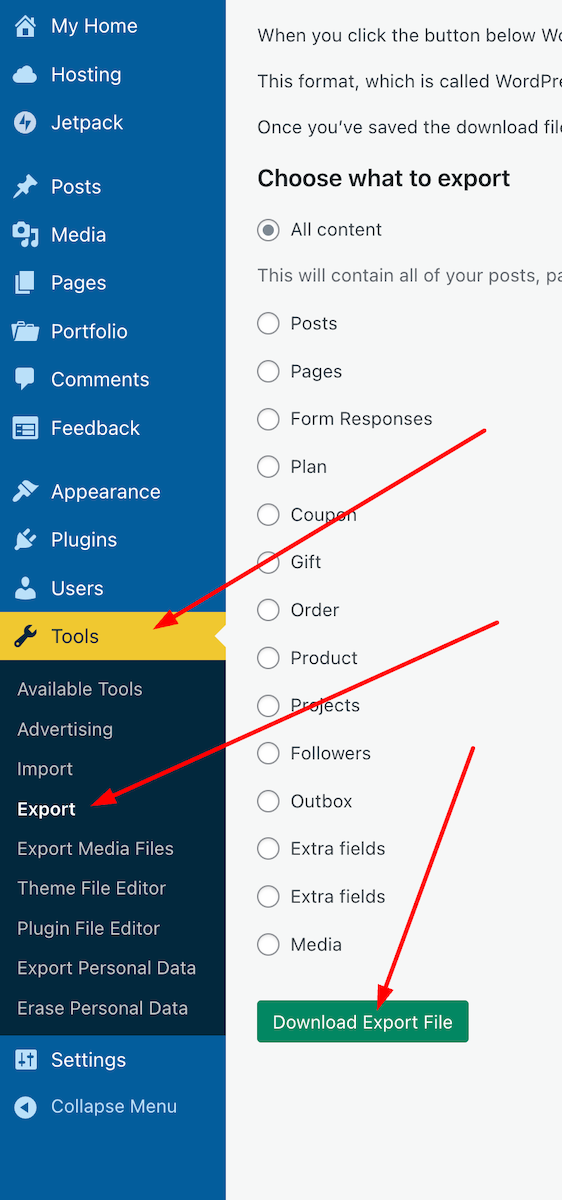
An image showing Tools - Export' on the dashboard of a WordPress blog.
Press these buttons to begin the process of backing up your WordPress blog.
  • You will see a message informing you that your export file is being processed, along with the email address where a download link will be sent once the process is complete.
  • Access your email account where the link is sent, locate the email, and open it. Click on the ‘Download‘ button within the email.
An image showing the Download button in the email sent from WordPress when backing up your blog.
Click the ‘Download’ button in the email.
  • The file will be downloaded to your device. Ensure you remember its location and move it to another folder if necessary. I’ve created a file on my computer called ‘WordPress Backups’. Note that the file is only available for download for 7 days.
  • Remember to delete any previous WordPress backup files to free up memory on the device you are using.

The backup file you have downloaded does not include any media such as images, videos, or photographs. To back up media, follow the above instructions but select ‘Export Media Files‘ from the Tools menu – Tools – Export Media Files.

Do the backup files include everything?

It depends on which WordPress plan you have.

Users on a Free, Personal, or Premium plan can back up content and media. However, themes and plugins are not included in the backup. Therefore, if you ever need to download a backup file and have been using a retired theme that WordPress no longer supports, you will need to choose a new, current theme that is still supported. You’ll also need to download any plugins your blog uses.

Those with Business or Commerce plans have access to Jetpack Vault Backup, which allows them to view and restore backups at any time from their blog’s dashboard. This can be accessed at Jetpack – Backup. These backups include everything, including the theme and any plugins you use.

An image highlighting jetpack - Backup on the dashboard of a WordPress blog.
Click the Backup link to access the Jetpack Vault backup file.

Should I need to worry about backing up my blog?

Given that WordPress backs up your blog, no! However, for total peace of mind, and depending on how often you publish posts, you might consider backing up your blog at least once a month. If you publish posts daily or more frequently, I’d recommend backing up your blog at least once a week. However, after performing a backup, remember to delete the previous backup file.

Most likely, you’ll never need a backup copy of your blog, but I suggest you save a copy of this post in case you ever lose all the content of your blog.

All WordPress blogs also come with an ‘Activity Log‘ feature where bloggers can reinstall posts they have deleted by mistake. However, this feature is limited by the extent to which you can recover posts, depending on the WordPress Plan you have.

An image highlighting the Activity Log link on the dashboard of a WordPress blog.
Click the Activity Log button to see the most recent activity on WordPress.

Conclusion:

  • WordPress automatically backs up WordPress.com blogs, but it doesn’t include everything.
  • Users can contact WordPress and request a copy of the backup file.
  • Users can backup their blogs via the dashboard.
  • For backing up media files, remember to perform a backup by going to Tools – Export Media Files.
  • What is backed up depends on your WordPress plan.
  • Business or Commerce plan users have access to Jetpack Vault Backup, which includes everything (themes, plugins, etc.) and can be accessed at any time via the dashboard.
  • Backup links are only valid for 7 days.
  • Remember to delete previous backup files to free up space on your device.
  • While WordPress does back up your blog, regular manual backups (such as monthly or weekly) are recommended for added peace of mind.
  • The Activity Log feature allows recovery of accidentally deleted posts, with limitations based on your plan.
  • Keep a copy of this guide for future reference.

Have you ever lost content on your blog? If so, how did you handle it? What has been your experience with WordPress backups? Have you ever had to restore a backup? Are there any specific plugins or tools you recommend for backing up a self-hosted blog? Would you prefer to rely on WordPress’s automatic backups, or do you believe manual backups are essential? Join the discussion and leave your comments and answers.

Layout, content, settings, and format might differ on self-hosted blogs.

The featured image in this blog post is taken from Pixabay. AI checked spelling and grammar mistakes.

Click the buttons below to follow Hugh on Social Media

Copyright @ 2025 hughsviewsandnews.com – All rights reserved.

Simple Blogging Tips And Insights Every Blogger Needs To Know

Occasionally, I receive questions or comments about blogging and social media that inspire me to share key insights with my readers. Here are three recent examples of those topics. Hopefully, you’ll learn something from them.

How to get less spam!

In my recent post, “Astonishing! Some Bloggers Disable Comments on Their Blogs. Why?” many readers mentioned that they turn off comments due to the overwhelming number of spam comments that often come through. This is a valid concern! However, it’s worth noting that WordPress offers a setting that can help prevent you from seeing most spam comments. Activating this feature is simple.

  • On your blog’s dashboard, go to Jetpack – Akismet Anti-spam.
Image highlighting Jetpack - Akismet Anti-spam on the dashboard of a WordPress blog
Click Jetpack – Akismet Anti-spam
  • On the page that opens, look for the Settings box. Under Spam Filtering, ensure ‘Silently discard the worst and most pervasive spam so I never see it‘ is selected.
Image highlighting the 'Silently discard the worst and most pervasive spam so I never see it' setting on WordPress.
Ensure ‘Silently discard the worst and most pervasive spam so I never see it’ has been selected.
  • Click the ‘Save changes‘ button.

You’ll now see much less spam in your blog’s spam folder. On average, I’m seeing no more than a few spam comments every week.

For more details, check out my post, ‘Turn This Setting On To Stop Seeing Too Much Spam On Your WordPress Blog.’

How do you find the people you want to follow?

Author Liz Gauffreau recently left a comment on my post, ‘The Ultimate Guide to Engaging on Bluesky: Tips, Features, and Strategies for Success,’ saying she was struggling to find other users on Bluesky who read or write literary fiction.

I asked Liz if she had checked out the Bluesky Starter Pack directory, where users can search for other users with similar interests. I included a link to the directory. This is how Liz replied.

An image showing a reply from a blogger thanking me for the information I sent her.
Job done!

If you’re a Bluesky user, I recommend checking out the information about Starter Packs. They are an excellent way to discover other bloggers, writers, authors, photographers, and more. Starter Packs are also great for getting noticed and connecting with other users. Click the following link.

What are Bluesky Starter Packs?

And click the following link to check the Bluesky Starter Pack directory I sent to Liz.

Bluesky Starter Pack Directory.

I recently passed a milestone on Bluesky: getting over 5,000 followers. Given that I’ve only been on Bluesky since November 2024 and it took me nearly 12 years to reach 9,000 followers on X, I can’t emphasise enough how every blogger and writer should consider using Bluesky.

If you haven’t already, give Bluesky a go.

How to stop the theme you’re using from crashing your blog.

Amanda, who blogs at ForestWood, recently published a post titled ‘It’s Time For A Change Of Theme.’ She was referring to a change of blog theme. I’d recently published a post about WordPress themes, so I was interested in what Amanda had to say. Needless to say, Amanda’s post inspired me (and many others) to leave a comment.

You’ll have to read Amanda’s post to find out what she and I had to say, but it contained an important lesson some readers may have forgotten or may not know about regarding WordPress themes. Do not attempt to change your WordPress blog’s theme unless you’re using a theme still supported by WordPress.

If, like Amanda, you are using a retired theme and click ‘activate’ on any of the current themes WordPress offers, you won’t be able to return to your retired theme!

If you are using a retired WordPress theme that isn’t causing you any issues, you can continue using it. However, be cautious, as there are drawbacks to using a retired theme, including those related to online security. For more information, check out my recent post, “WordPress Themes: Something Exciting Is Happening,” which provides further details.

Let’s wrap it up!

  • Use WordPress’s Jetpack – Akismet Anti-spam feature to significantly reduce spam comments. By enabling the option to “silently discard the worst and most pervasive spam,” users can keep their spam folder manageable.
  • Use the Bluesky Starter Pack Directory to connect with other users with similar interests. This resource helps you discover other bloggers, writers, authors and photographers and gain visibility.
  • If you are thinking of changing the theme of your WordPress blog, be aware that if the current theme you are using is retired and no longer supported by WordPress, you won’t be able to return to it.

Do you have any questions about blogging or social media? Leave them in the comments section.

The featured image in this blog post is taken from Pixabay. AI checked spelling and grammar mistakes.

I’m getting tough with non-engaging comments. Comments such as ‘Nice post’ are marked as spam.

Layout, content, settings, and format might differ on self-hosted blogs.

Click the buttons below to follow Hugh on Social Media

Copyright @ 2025 hughsviewsandnews.com – All rights reserved.

7 Common Blogging Mistakes and How to Avoid Them for a Successful Blog

We’re all human, so we all make mistakes. When it comes to blogging, whether bloggers are just starting out or have been writing for a while, some make more mistakes than others.

But what are those mistakes? And do some bloggers not make any mistakes at all?

1. Not Defining a Target Audience

One of the most critical mistakes of bloggers is not clearly understanding their target audience. Writing for everyone often leads to writing for no one.

Solution:

Take some time to define your ideal reader. Consider their demographics, interests, and problems they want to solve. Tailoring your content to a specific audience will make your blog more focused and engaging. For example, I target most of my posts at other bloggers by giving blogging tips and helping to solve problems users are experiencing with WordPress.

2. Ignoring SEO (Search Engine Optimization) Best Practices

SEO might seem daunting, but ignoring it can severely limit your blog’s visibility. Many bloggers neglect to use relevant keywords or proper formatting that can help their posts rank better in search results.

Solution:

Invest some time in mastering the essentials of SEO. Consider creating blog post titles with keywords that appeal to visitors and make them want to read your posts.

If you’re not interested in attracting more traffic or followers to your blog, you can disregard SEO.

3. Inconsistent Posting Schedule

Consistency is key in the blogging world. Many new bloggers either post too sporadically or overwhelm their readers with too much content at once. I’m guilty of this mistake, having cut back on how often I publish posts.

Solution:

Develop a realistic posting schedule that you can maintain. Whether it’s once a week or biweekly, staying consistent helps build an audience that knows when to expect new content. Some will not publish any posts for many weeks or months and then suddenly publish many posts within a short time as if they are in a race. Space the publication of posts out to give readers time to read and engage before publishing your next post.

4. Failing to Promote Content

Creating great content is only half the battle; the other half is getting that content in front of readers. Many bloggers publish their posts and assume readers will find them, which rarely happens unless you have a loyal audience who reads all your posts.

Solution:

Share your blog posts across various social media platforms, engage in relevant online communities, and consider using email marketing to reach your audience directly. Never believe that an audience will find you.

5. Not Engaging with Their Audience

Some bloggers overlook the importance of conversing with their readers through blog comments, social media, or emails. Never ignore your audience.

Solution:

Make it a priority to respond to comments and questions, ask for feedback, and create a community around your blog. Engaging with your audience not only builds loyalty but also provides you with valuable insights into what they want to see.

6. Neglecting the Visual Aspect

A blog’s visual appeal can significantly impact reader retention in the internet age. A blog that looks outdated or cluttered can deter visitors.

Solution:

Invest a little time learning about basic design principles, using user-friendly blogging tools and updating your blog’s theme. Choose clean layouts, appealing colour schemes, and high-quality images to enhance your blog’s aesthetic.

You don’t need to spend tens of thousands on re-branding, but if your website still looks stuck in 2015, it’s worth updating. People judge quickly. A blog’s look and design play an enormous role in how professional (or trustworthy) it looks.

7. Writing Without a Clear Purpose

Blogs that lack direction can confuse readers and fail to deliver value. Having a clear purpose behind each post is essential.

Solution:

Before writing, outline what you want to achieve with your content. Are you aiming to inform, entertain, or persuade? Staying focused on your purpose will guide your writing and make it more effective.

Conclusion

Recognising these common mistakes is the first step toward becoming a successful blogger. By defining your audience, optimising for SEO, maintaining consistency, actively promoting your content, engaging with readers, improving your blog’s design, and writing with a clear purpose, you can significantly improve your blogging experience and expand your reach.

Keep these tips in mind as you continue your blogging journey. Good luck!

Do you have any blogging mistakes you’d like to share? If you’ve faced challenges or learned valuable lessons throughout your blogging journey, I would love to hear about them! Please leave the details in the comments section and join the discussion. By sharing your insights, you can help others avoid similar pitfalls and foster a supportive community of bloggers eager to enhance their craft. Let’s learn from each other and make our blogging experiences even more rewarding!

The featured image and title of this blog post were generated using the WordPress AI blocks.

I’m getting tough with non-engaging comments. Any non-engaging comments such as ‘Nice post’ are marked as spam.

Click the buttons below to follow Hugh on Social Media

Copyright @ 2025 hughsviewsandnews.com – All rights reserved.

How to Fix Commenting Issues on WordPress Email Notifications: A Simple Solution

If you receive email notifications from WordPress about new blog posts, you might face difficulties leaving comments on certain blogs.

When I attempt to leave a comment, I receive an error message.

Image of an error message that appears when trying to leave a comment on WordPress.
The error message.

This issue only impacts comments made when opening posts from email, not those via the WordPress Reader or the bell icon in the notification centre of my blog.

The issue still exists at the time of this post. However, I have found that comments go through when replying to the You can also reply to this email to leave a comment message (see the image below).

Image highlighting the 'You can also reply to this email to leave a comment' link on a new post notification from WordPress.
Leave your comment via the ‘You can also reply to this email to leave a comment’ link.

You’ll see that it’s like replying to an email rather than leaving a comment on the post, so press the reply button to the email, draft your comment and click the send button. When you check the post, you’ll see your comment unless it’s waiting for approval by the blogger for which you’re leaving the comment.

I recently came across this message. I’m unsure how long it’s been appearing in WordPress emails, whether WordPress has temporarily added it to email notifications to address the issue, or whether it’s a permanent fix. Next time I talk with WordPress, I’ll ask them and update this post.

The important thing is that this method of leaving comments works, so there’s no longer a need to remember to copy comments before submitting them.

Update: See the below response from a staff member at WordPress to me.

An image of a comment from a member of staff at WordPress about the problem involving not be able to leave comments via the WordPress new blog post notification email.
WordPress is working on the problem that is causing some comments to fail.

I inquired with WordPress about whether the text ‘You can also reply to this email to leave a comment at the bottom of their notifications is a recent addition. They confirmed that this specific wording is new; however, the ability to leave comments by replying to emails has been available for a long time.

Update 2

WordPress has now resolved this problem. I’m no longer seeing the error message.

However, if you still get the ‘Sorry, this comment could not be posted’ message when leaving comments, please contact WordPress.

Is this commenting problem affecting you? Please feel free to ask any questions by leaving a comment.

Click the buttons below to follow Hugh on Social Media

Copyright @ 2025 hughsviewsandnews.com – All rights reserved.

WordPress: Excerpts Are Working Again!

Earlier this week, in my post, ‘Is This WordPress Problem Affecting You? It’s Been Reported.’ I outlined a problem where excerpts no longer appeared in WordPress’s new post email notifications.

Is This WordPress Problem Affecting You? It’s Been Reported

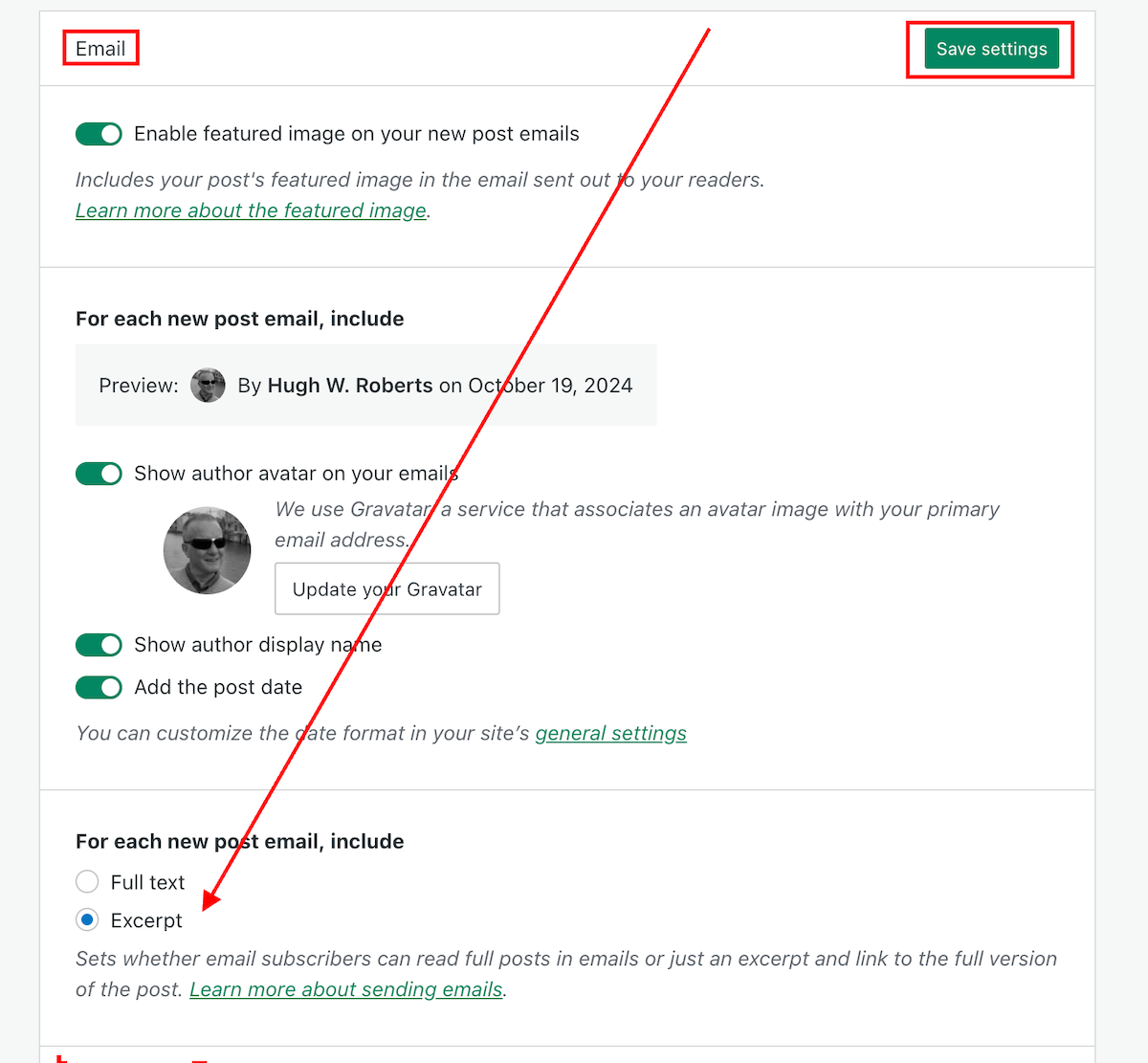
I’m delighted to say that the problem has now been fixed. Unfortunately, users will need to change the ‘For each new post email, include‘ setting back to ‘Excerpt,’ as the fix has caused the setting to default back to ‘Full text.’

Do the following now if you want your new post email notifications to only show an excerpt.

  • On the dashboard of your blog, go to Settings – Newsletter.
  • Scroll down to the Emails sections of the Newsletter settings page, and change the ‘For each new post email, include‘ setting back to ‘Excerpt.’
  • Click the ‘Save Settings‘ button.
Image highlighting where to change the 'For each new post email, include..' setting to 'Excerpt,'
Change this setting to ‘Excerpt.’

Your new post notification emails will now only show an excerpt rather than the full post.

The ‘For each new post email, include‘ setting can also be found on your blog’s dashboard under SettingsReading.

My thanks to Dave Martin at Automattic and WordPress for fixing this problem.

Layout, content, settings, and format might differ on self-hosted blogs.

Any questions? Leave them in the comments section.

Follow Hugh on social media. Click the links below.

Copyright @ 2024 hughsviewsandnews.com – All rights reserved.
WordPress Problems: Don’t Panic! How To Solve Issues Quickly

Do you encounter problems using WordPress? Are your posts not aligning correctly, or are you unable to leave comments on certain blogs? What’s causing these problems? Is it WordPress, or are you or your device causing them?

Light blue image with the words 'WordPress Problems: Don't Panic! How To Solve Issues Quickly' in white text
Don’t panic when WordPress causes you problems. The problem could be you!

Like any online website, the WordPress platform experiences problems. Bugs occur. They can often cause havoc for users. Sometimes, things don’t go to plan when new updates are released.

But what causes these problems, and how can they be fixed?

Case 1 – Your posts are not displaying correctly.

A few years ago, a reader informed me that my blog posts were not displaying correctly.

I checked my blog and couldn’t see any problems. I used another device and couldn’t see any issues.

I contacted the WordPress Happiness Engineers. They assured me that from what they saw, there were no problems with how my blog posts were displaying. They even sent me screenshots and some short video clips showing me what they were seeing at their end.

But I was still not happy.

I decided to write and publish a post about the problem.

I asked my followers to check some of my blog posts and let me know if there were any problems with how they were displaying. Over 100 people came to my call for help. Only one person said there was a problem with how my posts were displayed, and this was the person who reported the problem to me.

It turned out that the problem wasn’t my blog or WordPress. The problem was the device belonging to the reader who reported the issue.

I asked them to make sure their device had the latest updates. They never informed me that my blog was displaying incorrectly again.

Case 2 – I can’t leave comments on certain blogs.

I recently saw a post from a blogger who said he had problems leaving comments on certain blogs.

He named the blogs so they knew who they were and apologised, saying that his comments were being cut off as he wrote them.

He asked if anybody else was having the same problem when leaving comments.

By the time the responses came in (and all were saying ‘No’), he’d gone to another device. He tried leaving comments on the same blogs. They all worked, and he came back and apologised.

The problem was caused by the device he was using. He updated the device’s software and also tried using another internet browser, and his comments worked.

Case 3 – When was the last time you cleaned your house?

Some of my WordPress data and stats were not displaying. ‘Have you tried clearing your browser history, cookies and cache on your computer?” somebody asked?

I did the clear-out, and the data all showed up.

Like your home, your blog device needs some housekeeping to keep it working correctly.

Case 4 – Have you tried the most popular advice when things go wrong?

A user contacted me saying they could not leave comments or ‘likes’ on any blog posts. She was using the Jetpack app on her mobile phone.

I told her to try signing out of the Jetpack app, delete it, reinstall it and sign in again.

Problem solved.

Case 5 – Has the blog theme you’re using been retired?

Another WordPress user was experiencing many problems with her blog. Her posts were not aligning correctly, and some readers contacted her to say they couldn’t leave comments. The sharing buttons at the end of her posts were also not working. There were also other issues like certain tools no longer working.

She contacted WordPress, which informed her that her blog theme was retired and was no longer supported. The advice was to change her theme. She didn’t want to change the theme; she liked it. She tried working around the problems. That worked for a while. Then, the issues worsened, and she eventually gave up on her blog.

The WordPress platform wasn’t the problem. The device she was using wasn’t the problem. She was the problem for refusing to change to a theme that WordPress supported.

If your theme has been retired, you will find this notice on the theme’s info page:

Image showing the message 'This theme has been retired' on WordPress
Has your WordPress theme been retired?

When a theme is retired, it no longer appears in the list of themes at Appearances – Themes or at Appearance – Theme Showcase if using the Classic Editor.  

But, if the theme is already active on your site, you can continue to use it. Some retired themes will usually stay available for the lifetime of your site or blog without any issues. However, if you continue using a retired theme, you should note the following:

  • A retired theme no longer receives WordPress updates or new features. This includes security updates that protect your blog from spammers and hackers.
  • A retired theme should continue functioning on your site. However, WordPress does not guarantee that it will always work well with its ever-evolving software.
  • You may lose access to certain features like sharing and reblog buttons, blocks, writing tools and clicking the ‘like’ button.

If you still use a retired theme, you will likely encounter problems at some point. Visitors to your blog may also experience problems viewing it correctly or engaging with you.

How do I change my WordPress theme?

Some bloggers are terrified of changing the theme of their WordPress blog. It can seem like a daunting task.

Once upon a time, changing your WordPress blog theme was a nightmare. I recall the first time I changed the theme of my blog. It took a whole weekend to finish.

But changing the theme of your WordPress blog is now easy and quick. WordPress provides full details on how to do it on the ‘Change your theme‘ page.

Have you checked the WordPress forum?

A user experiencing problems with their WordPress blog does not necessarily mean that other users are experiencing the same problems. Sometimes, problems can be exclusive to one blog (as in some of the above cases).

The WordPress forum page is great for determining if problems affect other users. Here, you can report issues and check what other issues users are experiencing.

Another way to find out if other users are experiencing the same problems with their WordPress blog is to ask them (as I did in Case Number One). Sometimes, issues can be theme-related. Once reported and provided the theme has not been retired, WordPress quickly fixes theme-related problems.

Let’s Wrap It Up!

  • Like any website, the WordPress platform will suffer from bugs and problems.
  • While some problems are widespread, many problems can be caused by a user’s device when blogging, especially if the device is old and does not have the latest updates installed.
  • If you can access another device, try using it to determine whether the problem is only related to one device or a certain web browser.
  • Some problems are related to themes. If a theme has been retired, consider changing to one WordPress support.
  • Changing your blog theme is now easier and quicker.
  • You can check if other bloggers are experiencing the same problems you’re having with your blog by asking them, posting on the WordPress forum, or doing both.
  • Consider that any issues lie outside of WordPress first before blaming them solely.
  • Ensure all devices you use to blog have the latest updates.
  • Report issues and problems to WordPress. They may not know about issues unless you report them.

Are you experiencing any problems using WordPress? Have you checked if the issues are sitewide or only affecting you? How do you deal with issues using the WordPress platform?

Layout, content, settings, and format might differ on self-hosted blogs.

More blogging tips posts from Hugh

Click the buttons below to follow Hugh on Social Media

Copyright @ 2024 hughsviewsandnews.com – All rights reserved.

Blogging Simplified: It’s Easy, Isn’t It? Things I’ve Learned

How obsessed are you with your blog stats and blogging? And what essential points have you learned about blogging?

Light blue image with the words 'Blogging Simplified: It's Easy, Isn't It? Things I've Learned' in white text
How obsessed are you with your blog?

When I first started blogging in 2014, I was obsessed with my blog stats. I checked them almost hourly to see if anybody had visited my blog. We all know that wonderful feeling when somebody clicks the ‘like’ button, or better still, when somebody leaves a comment on one of our posts for the first time.

It didn’t matter what that comment said. Even if it was, ‘Great post,’ it made my day. How times have changed!

Taking the advice of other bloggers

When another more experienced blogger and somebody who had been blogging much longer than me told me that most of the hits my posts were getting were probably from people who didn’t stay more than a few seconds on my blog, my whole blogging world began caving in.

Even worse, that blogger told me that many of those who hit the ‘like’ button probably didn’t even read the post. What?

I was so deflated that I thought, ‘Why bother?’ It wasn’t until another blogger told me to stop obsessing over my blog stats and to put the energy of stat-watching into writing blog posts that I took that advice.

More trouble

A few months later, I found myself in trouble again. ‘Concentrate on the comments rather than how many people have visited your blog or how many have hit the ‘like’ button,’ another blogger told me. ‘Most importantly, don’t forget to visit, read and leave engaging comments on other blogs.’

But I took that last bit of information to heart and soon found myself spending all my blogging time reading and leaving engaging comments instead of writing posts. I was following over 500 blogs and I believed I had to read and comment on every single post.

Blogging guilt and stress crept up on me, and I thought I’d upset people if I didn’t read their posts and leave them comments, or, even worse, people would unfollow me if I stopped reading and leaving comments on their posts. After all, they were reading and commenting on all my posts.

Once again, I found myself on the edge of packing in blogging. I was going to delete my blog and find something else to do that was more fun and enjoyable.

How do you find the right blogging balance?

Thankfully, I never deleted my blog, but I know of bloggers who have done so, some of whom came back and started afresh. Unfortunately, it doesn’t always work out, and some of these bloggers went on to abandon their blogs for the same reasons they left blogging in the first place.

Finding a balance between writing blog posts and reading and commenting on other blogs can be a significant task. Thankfully, I found it.

I know some bloggers who balance blogging by reading as many posts as possible in as short a time as possible. They’ll often leave short, non-engaging comments on all those posts. It works for them, but not for me, but good for them if that’s what works.

What works for some won’t work for others.

Then there are the bloggers who reduce the number of blogs they follow without worrying that they’ll probably lose followers in the process (and they will), giving them more time to write. Good for them.

Why do bloggers suddenly stop leaving comments?

I’ve lost followers because I cut down on the number of blogs I followed. Now, I’m following around 75 blogs, all of which I’m interested in. That gives me more time to write, more time to read and more time to leave engaging comments on the blogs I follow.

I no longer get comments from people who always used to leave me comments, however, the fall in non-engaging comments is something I’m delighted with.

Some bloggers seem to have disappeared from the blogging world while others are still around, but have lost interest in what I have to say or no longer have anything interesting to add in a comment. But there’s nothing wrong with that. It’s not worth worrying about.

Are you more of an engaging or non-engaging blogger?

Someone once told me that a non-engaging comment indicates that the person who left it does not want to engage with you (or anybody else). This is usually because they’ll say they don’t have the time to engage. All they want to do is say, ‘Hello, I visited,’ before moving on quickly. They may not have even read the post.

And then there are the bloggers who leave comments like ‘Subscribe to my blog!’ or ‘Nice’ without saying anything else. Do they want to engage, or are they simply number/follower-hunting? I often wonder how would they react if I left them an engaging comment on one of their posts.

Of course, blogging isn’t only about engagement. Many people blog just to express their thoughts online. Some bloggers do not respond to comments. Some bloggers simply thank people for leaving a comment without engaging with them, even if the comment they’re responding to shouts, ‘I want to engage with you!’ thus taking the person who wants to engage down a dead-end.

Many bloggers want to engage, yet I’ve heard from some bloggers who say the comments section of blogs is a waste of time and should be removed. I don’t agree with that, but if a blogger does not want to engage then there is the option to turn off comments.

How often should you blog?

I’ve learned the only answer to this question is – ‘blog as often as you like without feeling obliged to publish something.’

It took me a while to find that I’m happier publishing two or three posts weekly. Any more than that, and I find I’m forcing myself to write posts, which makes blogging less enjoyable. Sometimes, I may only publish once a week.

I do not want to get myself feeling stressed because I haven’t got a post ready, so my advice is not to blog to any schedule of when you’re going to publish posts. If readers are interested in what you write and publish, they’ll read your posts regardless of how often or when you publish and sometimes that could mean days, weeks or even months after the publication of a post, so don’t close comments off to force your audience to read your posts within a particular time-frame. Blogging should always be a leisurely activity.

I also witnessed a drop in the quality of the posts I publish when publishing more than a few times a week. For me, quality is much more important than quantity, but it may not be the same for you.

I also tend to stay clear of blogs that publish more than once daily as they tend to bring an overwhelming feeling that I don’t like. Once again, it’s about finding the perfect balance that works best for you.

Blogging! It’s a fascinating subject, isn’t it? I could go on, but it’s now over to you. Can we discuss blogging honestly without fearing upsetting other people? What do you think? Let me know in the comments section. Let’s discuss blogging.

Did you enjoy this post? Then you may also like –

Follow Hugh on social media. Click the buttons below.

Copyright @ 2024 hughsviewsandnews.com – All rights reserved.

Are You Getting ‘Anonymous’ Blog Comments? How To Stop Them.

Encouraging visitors to join the conversation on my blog posts and those of other bloggers is a must for me. Personally, if I can’t quickly leave a comment on a blog post, I’ll move on to the next one.

It’s one of the reasons why I use WordPress, as I’ve found it difficult to leave comments on other blogging platforms. What about you?

I firmly believe that we should prioritise making it effortless for blog visitors to leave comments. It’s crucial not to burden them with unnecessary obstacles when they want to engage with us. But that comes with the cost of receiving comments from anonymous readers. But is that a problem?

Light blue image with the words 'Are You Getting 'Anonymous' Blog Comments? How To Stop Them.' in white text.
Or should you make it easier for visitors to leave comments?

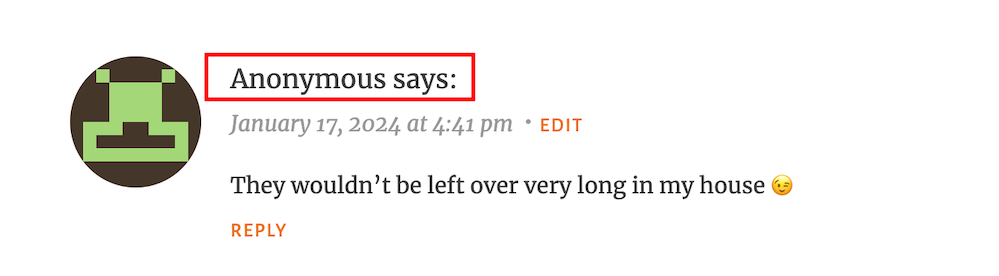
I’ve always received comments on my blog posts from visitors using ‘Anonymous’ or ‘Someone’ as their display names. But it has never bothered me because I can spot spam comments easily and guarantee that none will reach the comments section of my posts.

Here’s an anonymous comment I received recently.

Image showing what an 'anonymous' comment on WordPress
Do anonymous comments annoy you?

I wasn’t concerned when it appeared because it was left on one of my recent Wordless Wednesday posts about leftover chocolate, so I knew it was genuine.

Not knowing who the comment is from could pose a problem, but if it sounds genuine and has no uninvited or suspicious links, I’ll reply and approve the comment.

However, I’ll mark it as spam if it looks or sounds like a spam comment or contains any uninvited links. Oh! And I never approve comments that say ‘Nice Post.’ ‘Nice’ or ‘Great photo,’ regardless of who left them.

How do I make it easier for visitors to leave comments on my posts or prevent them from being anonymous?

In the blog settings of WordPress.Com blogs, there are settings which users can turn on or off to make it easier for visitors to leave comments or to prevent comments from being shown as anonymous.

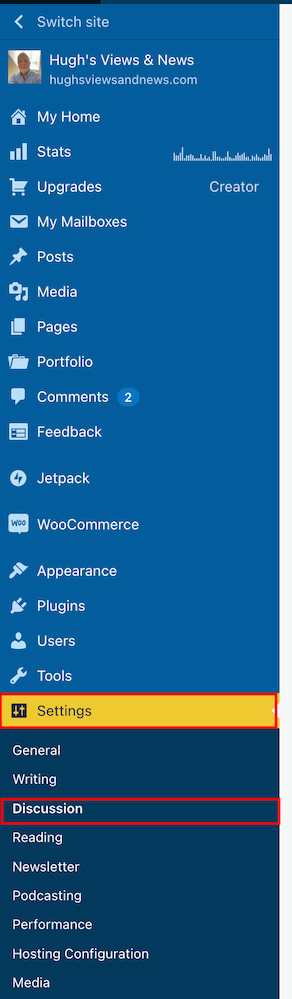
  • To find these settings on your blog’s dashboard, go to SettingsDiscussion and scroll down to the ‘Comments‘ section on the ‘Discussion Settings‘ page. I’m using WordPress on an Apple iMac desktop computer in these screenshots.
Image highlighting 'Settings' - 'Discussion' on a WordPress blog.
Click on Settings – Discussion
Image highlighting the 'Comments' section on the discussions settings page of a WordPress blog.
Scroll to the ‘Comments’ section.
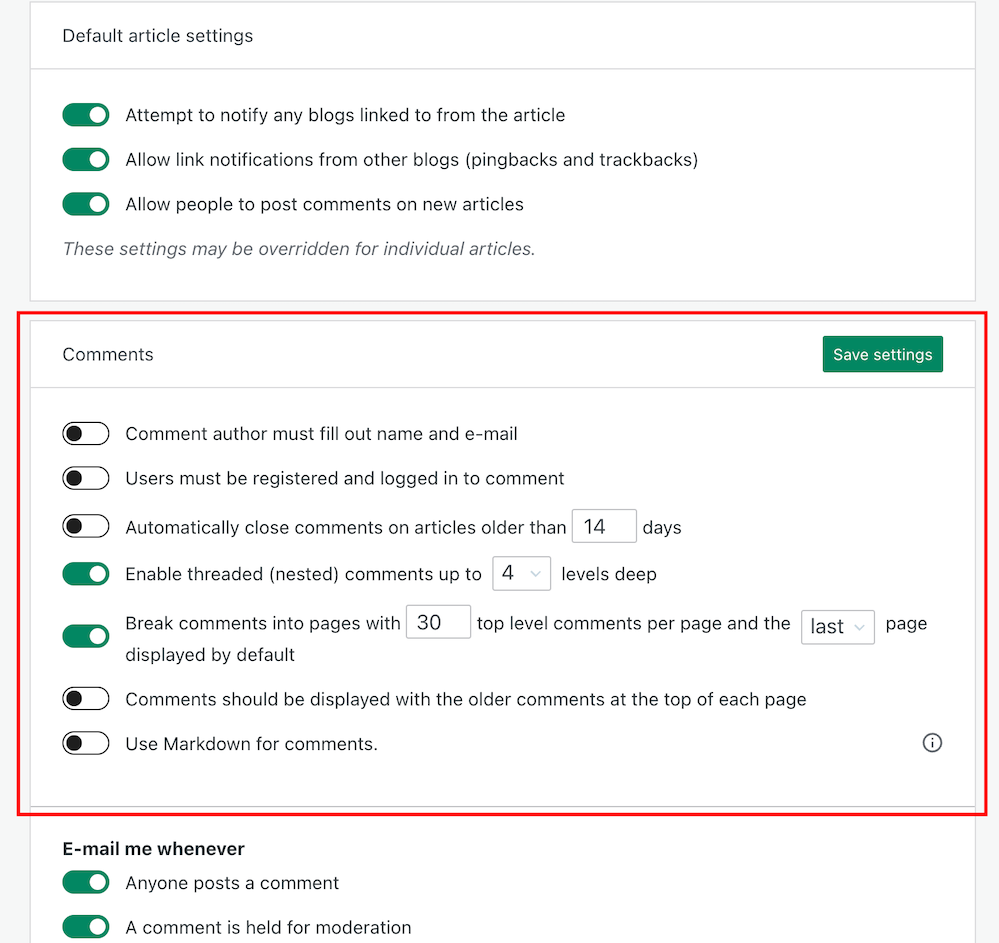
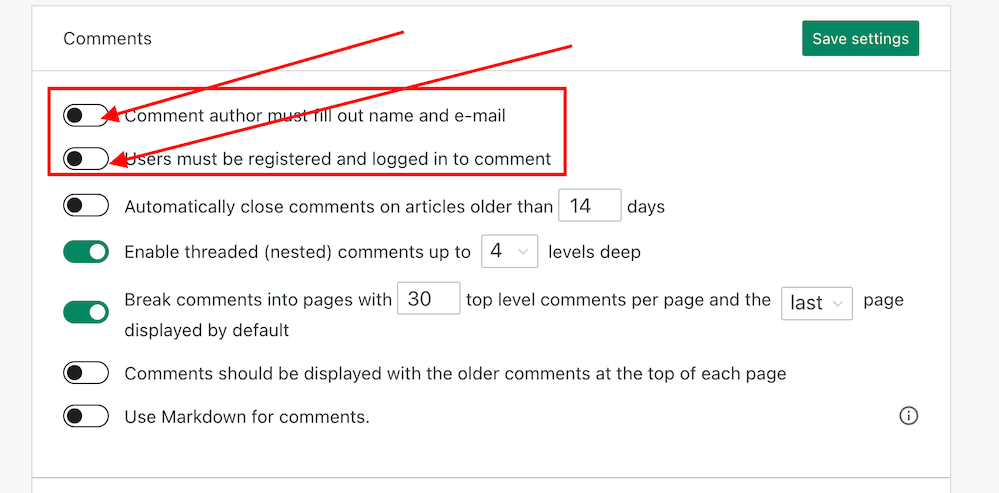
  • If you want to make it easy for visitors to your blog to be able to leave comments, ensure you have the first two settings in the ‘Comments‘ section, ‘Comment author must fill out name and email‘ and ‘User must be registered and logged in to comment,’ switched off.
Image showing the settings to turn on or off depending how easy you want to make it for visitors to your blog to leave comments.
Switch on or off depending on how easy you want it to be for visitors to leave comments on your blog.
  • If you do not want comments on any posts showing as ‘Anonymous’, ensure those two settings are switched on. However, beware that turning these settings on will make it more difficult for some users to leave comments.
  • Turning these settings on means that users must either fill out their name and email address or be registered as a WordPress user and logged in to be able to leave a comment. Some users may not like giving this information to be able to comment.
  • Make sure you click the ‘Save Settings’ button if you make any changes.

And that’s it. Only you can choose whether to have these settings on or off. Go with what you feel most comfortable with.

Do you make it easy for visitors to your blog to comment, or do you prefer to only allow those willing to give their information to be able to leave comments? Is WordPress the best platform for engagement and for leaving comments? Let me know in the comments.

Is your blog as secure as it can be? Take this final step to make sure nobody can hack it. Take a look at my recent post for more details.

Is Your Blog Safe? One Security Feature You Must Have

Layout, content, settings, and format might differ on self-hosted blogs.

Click the buttons below to follow Hugh on Social Media

Copyright @ 2024 hughsviewsandnews.com – All rights reserved.

Exploring Multiple Avenues: How to Contact WordPress for Support: 6 Best Ways

Whether you’re a seasoned developer or a novice blogger, there might come a time when you need assistance or have questions about your WordPress site.

Have you ever had to contact WordPress? What’s your preferred method and experience of contacting them?

Light blue image with the words 'Exploring Multiple Avenues: How to Contact WordPress for Support: 6 Best Ways' in white text.
What’s your preferred method to contact WordPress?

During the ten years I’ve been blogging, I’ve contacted WordPress many times for support with my blog. I’ve always received good support from them.

From reporting bugs to getting answers to my questions and getting deals on renewing my WordPress plan, they’ve always been helpful and friendly.

But does the level of support vary depending on which WordPress plan you have?

Fortunately, WordPress offers various channels for users to seek help and find solutions to their queries. In this blog post, we’ll explore how you can contact WordPress for support.

WordPress Support Forums

The forums cover various topics, from general troubleshooting to specific plugins or theme-related queries.

This is my preferred way of contacting WordPress as their staff (Happiness Engineers) get involved in your query, as do other blogging community members.

Users worldwide share their knowledge and assist each other in the forums. You can post your questions, describe your issues, and receive helpful responses from experienced WordPress users, moderators, and WordPress staff.

I’ve helped bloggers out with their queries and questions on the forums.

Next time you have a question or a problem with your blog, give the Forums a go. I’ve had great success with them. And who knows? It may be me who responds to your question or query.

Click the following link to go to the WordPress.Com Forums.

Official WordPress How-To Documentation

Before reaching out for help, the official WordPress how-to documentation is worth checking out.

These comprehensive resources provide detailed information about WordPress features, settings, and troubleshooting tips.

Many common issues have step-by-step solutions outlined in these guides, making it an excellent self-help option.

Click the following link to go to the Official WordPress How-To Documents.

WordPress Support via Email

For more personalised assistance, you can contact WordPress support via email. The official WordPress support email address can only be accessed by completing a form – Contact Us.

When reaching out through email, be sure to provide detailed information about your issue, including the name of your blog, which WordPress plan you are on, which WordPress theme you use, which device you are using, and details of the device’s operating system.

The more details you provide, the easier it is for the support team to understand and address your problem.

Social Media Channels

WordPress is active on various social media platforms, including X and Facebook.

You can follow official WordPress accounts and use these platforms to ask questions or seek assistance. Community members and WordPress developers often actively monitor these channels and may respond to your queries.

I’ve spoken with WordPress staff on X and have found them professional, helpful and friendly. After talking to them on X, I even got a discount code for renewing my WordPress plan.

WordPress on X.

WordPress on Facebook.

Live Chat Support

This can be a quick way to get real-time assistance.

If you’re lucky enough to have a WordPress plan that offers Live Chat, it’s an instant way of getting help from a staff member at WordPress, although I have found that Live Chat isn’t always available.

Although I’ve always had much success with Live Chat, it can sometimes be time-consuming.

As well as having details of your blogging problem or question, give details of which device and operating system you are using. Screenshots of errors or bugs are also helpful and help resolve issues quickly.

To find out if your WordPress plan has Live Chat, click the question mark icon in the top right of your screen and click the ‘Still need help‘ button, and you’ll see a list of options available to you.

Image showing where to access Live Chat on WordPress
Live chat is great for getting an instant response from WordPress.

Users with a free or starter WordPress plan or those on a monthly subscription cannot access Live Chat.

Hire a WordPress Developer

Hiring a WordPress developer might be the best solution for complex issues or customisation requirements. However, this could be an expensive option.

If you do go down the route of this option, I’d recommend you ask around first to find out if anybody can recommend a computer savvy who knows their way around the WordPress platform. Asking the blogging community is always a good option.

If you want to hire a member of the WordPress staff to sort out problems with your blog, contact them via email at support@wordpress.org.

WordPress isn’t always at fault, but sometimes they are.

You only have to look at the WordPress Forums to see that some problems are caused by users rather than WordPress. They’re usually not following the correct procedures or do not understand how something works.

I recently saw a user blame WordPress because they could not add images to their posts. It turned out that they’d never reduced the size of the images they were downloading into their media library; hence, they’d run out of media space.

Some bloggers also give out incorrect information to other bloggers. I had to step in when one blogger said everyone had to be logged into WordPress to leave comments on any WordPress blog. That is not true, and I corrected them explaining that all bloggers can choose via their blog settings whether or not readers had to be logged into WordPress to be able to leave a comment.

So, WordPress are not always at fault.

Of course, the WordPress platform will have bugs like any online site and platform, but WordPress will only know about them if you report them. Don’t sit back and hope that somebody else will do the job.

Sometimes, problems can be related to just one blog.

I recently had a problem with my blog, which only seemed to be affecting me. I stopped getting email notifications of new comments being left on my blog posts.

From the moment I reported the problem, the WordPress staff I spoke with on the Forums were not only accommodating and kept me updated, but they finally got to the bottom of what was causing the problem and fixed it.

My blogging friend Colleen Chesebro also reported problems around some Full Site Editoring themes. WordPress has since withdrawn some of the themes without any notice to users. They’d launched these themes too soon without proper testing, so sometimes, WordPress can be at fault.

However, I hear that current changes to the FSE Themes make them easier to use and install. I think the very least WordPress could have done was give notice first to those using the FSE themes they were going to withdraw.

For now, I’m sticking with my Classic theme, which WordPress still supports (along with over 50 other Classic themes).

Finally, whenever contacting WordPress, please be friendly. Treat them how you expect them to treat you. Being angry, impatient or nasty does nobody any good.

Conclusion:

WordPress has built a robust and supportive community that caters to users of all skill levels. Whether you prefer community-driven forums, official documentation, or personalised support via email, various channels are available to help you navigate any WordPress-related challenges.

By exploring these options, you can ensure a smooth and enjoyable experience as you build and manage your WordPress blog.

What’s your experience with reporting problems to WordPress? What methods do you use to report problems? Are you currently experiencing any issues with WordPress? If so, what are they and have you reported them to WordPress? Share your experiences in the comments section.

Click the buttons below to follow Hugh on Social Media

Copyright @ 2024 hughsviewsandnews.com – All rights reserved.

Why I’m Delighted WordPress Has Fixed This Annoying Bug

In my recent blog post, Experiencing Problems With Leaving Comments On WordPress? This Is What I Found. Read This Post Now, I shared details of two problems I was experiencing connected to comments on WordPress.

Light blue image with the words 'Why I'm Delighted WordPress Has Fixed This Annoying Bug,' in white text
If you don’t report problems to WordPress, how will they know about issues with their platform?

I am thrilled to inform you that the issue I reported regarding the ‘Email me new comments‘ checkbox when leaving a comment has been successfully resolved by WordPress.

Image highlighting the 'Email me new comments' button on WordPress
Click the ‘Email me new comment’ button to get an email notification of when somebody has replied to a comment you left them.

So here’s what happened: When you checked the ‘Email me new comments‘ box, things went a bit haywire. You not only started getting email notifications for comments on that specific post, but you also got bombarded with notifications for comments on other posts on that blog, even if you hadn’t left a comment or picked the ‘Email me new comments‘ option. Your inbox was basically drowning in a sea of WordPress emails. Crazy, right?

Now, when you select the ‘Email me new comments‘ option, rest assured that you will only receive email notifications for comments posted on the exact same post where you have left a comment.

Why do I tick the ‘Email me new comments’ box?

Not only do I get informed via email when I get a reply to a comment I’ve left, but reading other blog posts’ comments always helps me with ideas for new posts. Sometimes, comments can be as interesting as the post they’ve been left on.

I can also definitely lend a helping hand when bloggers reach out for assistance in their comments. Moreover, I take great pleasure in rectifying any misinformation that comes my way. Just the other day, I came across a comment where a blogger erroneously mentioned that having a WordPress account is a prerequisite for leaving comments. Allow me to assure you that this information is not accurate. Indeed, anyone can participate in the discussion without the need for a WordPress account.

One problem remains

The problem I reported concerning no longer getting email notifications when somebody leaves a comment on any of my posts has still not been fixed. However, WordPress has assured me that they’re still working on fixing it.

I’d be interested in knowing if anybody else is experiencing problems with not getting email notifications when comments are left on their posts. Please let me know in the comments section.

Are you experiencing any problems with leaving or receiving comments on blog posts? What are they, and have you reported them to WordPress?

Click the buttons below to follow Hugh on Social Media

Copyright @ 2024 hughsviewsandnews.com – All rights reserved.