In this post, I’m going to show you how to reduce or completely disable WordPress ‘Like’ email notifications, stop serial ‘likers’ from clogging up your comment sections, and take back control of how the ‘Like’ button works on your posts and comments.
Taking control of your WordPress notifications doesn’t have to be complicated. With just a few clicks in your dashboard settings, you can silence the notifications that don’t serve you, put a stop to serial liking on comments, and decide exactly when and where the ‘Like’ button appears on your blog.
A tidier inbox and a more intentional blogging experience are all well within your reach.
Here are some bullet points of frustrations some bloggers have shared with me.
- Inbox overload — WordPress generating hundreds of notification emails, many of which add no real value.
- Pointless ‘Like’ alerts — every time someone clicks ‘Like’ on a post or comment, an email notification is sent to the blog owner.
- Serial likers — some users click ‘Like’ on every single comment, regardless of content, triggering a flood of notifications.
- Lack of control — many bloggers don’t know they can customise or turn off these notifications and Like buttons entirely. Where are the settings?
Disabling ‘Like’ Email Notifications
- Go to your blog’s dashboard and click Settings > Discussion.
- Scroll down to the ‘Email me whenever‘ section.
- Untick the box next to ‘Someone likes one of my posts‘.
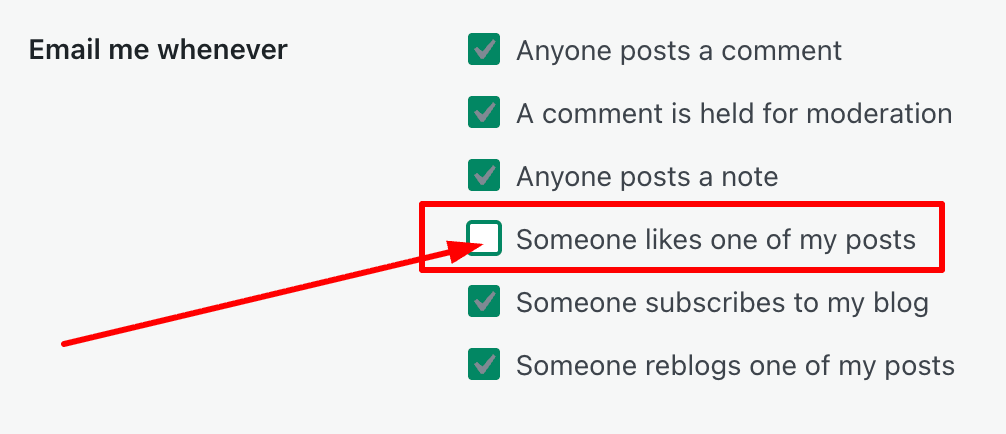
- While there, review the other email options WordPress offers, and tick or untick the boxes.
- Scroll to the bottom of the page and click the ‘Save Changes‘ button.
Turning Off Comment Likes
In my recent post, ‘The Truth About WordPress Like Buttons: Support or Empty Gesture?‘, many readers told me how frustrated they are by the constant ‘liking’ of every comment on a post, usually by the same person. I used to have a serial liker who liked all my response comments on my own posts. It didn’t matter what the comment said; even a simple ‘yes’ in response to a question would get a like.
Here’s how to disable the ‘Like’ button for all comments to prevent serial-likers from clicking ‘Like’ on all comments left on your posts.
- Go to your blog’s dashboard and click Settings > Sharing.
- Scroll down to the bottom of the page, then look for ‘Comments Likes are‘ and untick the box titled ‘on for all comments‘.
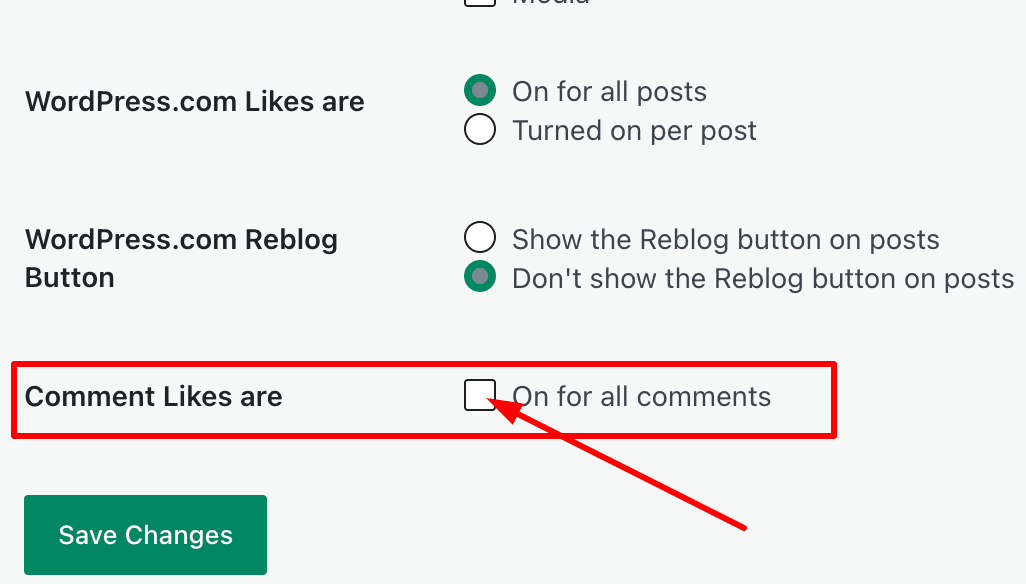
- Click the ‘Save Changes’ button.
Managing the ‘Like’ Button on Posts
Sadly, this does not stop ‘serial-likers’ from pressing the ‘Like’ button on comments when viewing posts on the WordPress Reader. But you can still switch off getting WordPress email ‘Like’ notifications.
While there, you can also turn off the ‘Like’ button on all posts, or turn it on per post instead. If you turn on ‘per post‘, the ‘Like’ button will disappear from all existing posts until you turn it back on. However, if you use the Block editor, you will be required to create a custom post template to turn the ‘ Like ‘ button on per post. Then, for future posts, you’ll be able to choose whether to show the ‘Like’ button or not.
Over to you
Are WordPress ‘Like’ notifications filling your inbox? Have you encountered serial likers on your posts or comments? Do you prefer to keep the Like button on your blog, or have you decided to switch it off? Most importantly — has tweaking your notification settings improved your blogging experience?
Share your thoughts in the comments. I’d love to hear how you manage Likes and notifications on your blog.
Note: the screenshots in this post were taken on an Apple iMac.
The featured image in this post was created using the WordPress AI Image Generator block. AI was also used for checking spelling and grammar mistakes.
Layout, content, settings, and format might differ on self-hosted blogs.
You can follow me on the following sites.
Copyright @ 2026 hughsviewsandnews.com – All rights reserved.
Please feel free to share this post.












Feel free to leave a comment. Engagement helps keep blogs alive and forms community.