

5 ‘Questionable’ Photos That Give You The Chance To Say Who You Are

Last month, I published the first post of my ‘photography-themed’ series. If you missed it, you can read ‘4 Never Before Seen Photos And Why You Need To See Them‘ and join the many readers who have already joined the conversations.

I want to thank everyone who left a comment and those who started conversations about the photos I featured. Honestly, the post’s success exceeded my expectations. I have a dedicated group of readers who love to engage, and for that, I am genuinely grateful.

December 2025

This month, I am not only showcasing five photographs (some of which I appear in), all with a Christmas theme, but I am also highlighting another WordPress gallery block you can use to display your photos and photography.

So, here we go. I’m excited to share five photos, three of which are new to my blog, each one posing a question. Feel free to leave a comment or write your own post with your answers. If you choose to write a post, you’re welcome to link back to mine so other bloggers can join the discussion.

1. When did you first meet Father Christmas?

A photo of a smiling man standing next to Father Christmas
When was the last time you bumped into Father Christmas?

I have to dig deep into the archives of my memory to recall the first time I encountered Father Christmas. I was six years old, and meeting the man I thought was the ultimate VIP (Very Important Person) was like waiting for the last biscuit in the jar.

It happened in a department store’s Christmas grotto, a place where the air smelled like gingerbread and desperation—not just mine, but also my sister’s, who was so terrified of Father Christmas that she screamed like we were evacuating from a man-eating, zombie, giant snowman! The whole store was probably questioning their Christmas spirit as they listened to her wails echo off the walls, rattling every bauble and piece of tinsel in the store.

However, on Christmas Eve, she had no problem with Father Christmas making his grand entrance into our home, as if he owned the place, and dropping off presents. After all, she was fast asleep, blissfully convinced that if she couldn’t see him, he mustn’t be able to see her!

The above photo was snapped one June while I was on a cruise, proving that you might just find Father Christmas on a beach holiday! So remember to be nice all year long, because you never know when you may be teetering on the edge of his nice list.

Do you have a photo of you with Father Christmas?

2. Have you ever baked a Christmas cake?

A photo taken from above of an iced Christmas cake. On top of the cake are some stars, Santa, a Christmas tree, and a snowman.
Have you ever baked a Christmas cake?

I distinctly recall my grandmother turning into a Christmas cake factory every year. I adored being her little helper, especially during the cake decoration extravaganza a few days before Christmas.

It was quite the spectacle watching her bake the cakes in September, then patiently unwrap them from their greaseproof swaddling every few weeks for a little “brandishing” with brandy. Who knew a cake could get an alcoholic makeover before the Christmas festivities even started?

I would sit there, as she dramatically stabbed the cake bases with a fork and spooned what seemed like an endless supply of brandy into the tiny holes. Of course, she’d also help herself to a few swigs of brandy while waiting for the cakes to soak up what she’s already spooned in. It was like she was giving them a little boozy makeover and joining in the festivities early.

The cake in the above photo was baked by me, but it wasn’t made the traditional way my grandmother prepared her Christmas cakes. I cheated by using a box with all the ready-prepared ingredients for making a Christmas cake. However, the magic of icing and decorating the cake was still present. And, of course, I carried on the tradition of a few glasses of brandy while feeding and decorating it.

If you’re wondering why it’s just a photo of the top of the cake, I decided it was the only part of it I felt I hadn’t cheated at. However, this made me start looking at all the different angles you can take photos, giving them a new dimension.

Do you make your own Christmas cake or do you buy a shop-bought one? And what’s inside your cake? Is it fruit-based, or filled with sponge, jam, and buttercream?

3. What’s your go-to karaoke song?

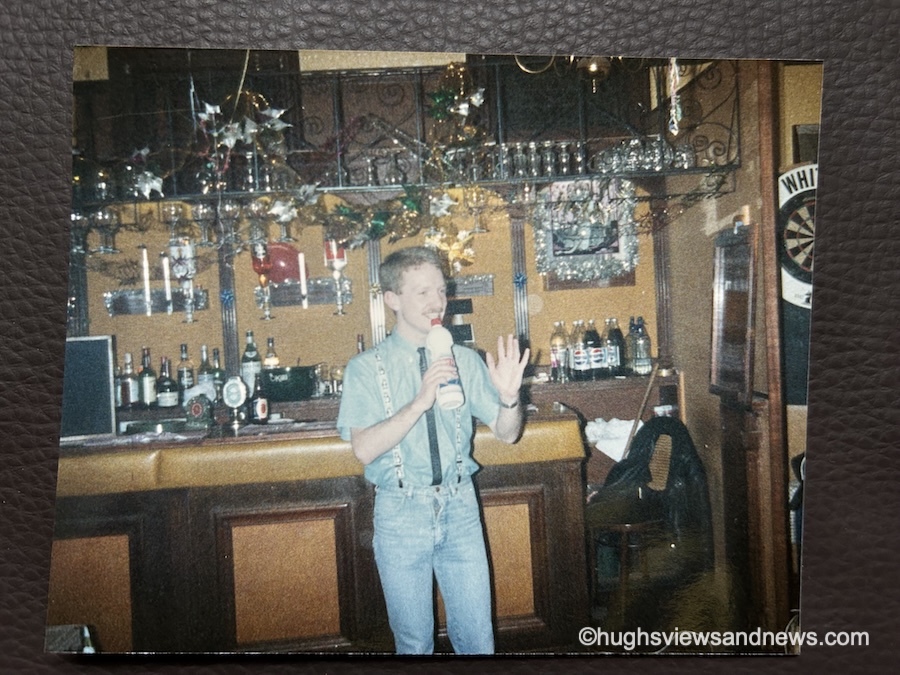
An old 1980s photo of a young man at a Christmas party in a bar, singing into a plastic bottle?
What’s your go-to song at a party?

Get ready to cringe! I’ve totally lost track of how many Christmas parties I’ve attended over the years—seriously, it’s like my life turned into a never-ending Netflix series focused on festive cheer, and most of them were work parties, where the eggnog flows like water, and the awkward small talk is the real gift! From fancy dress to black tie, I’ve always got into the spirit of Christmas celebrations. And the above photo is no exception.

Taken in the late 1980s, I’m not entirely sure why I decided a bottle of bleach was the ideal choice for a microphone, but let’s chalk it up to a few too many festive glasses of sherry or eggnog that night! My outfit is a glorious testament to the era; I mean, who could resist the charm of penguins proudly dancing on my braces? Clearly, I was ahead of my time in fashion… or maybe just in silliness!

However, I still know the song I was singing when the photo was taken.

This song has become my ‘go-to’ whenever anyone puts a microphone in my hand. So, if you ever meet me, never give me a bottle of bleach or a microphone!

What’s your go-to karaoke song?

4. What’s your favourite Christmas tree ornament?

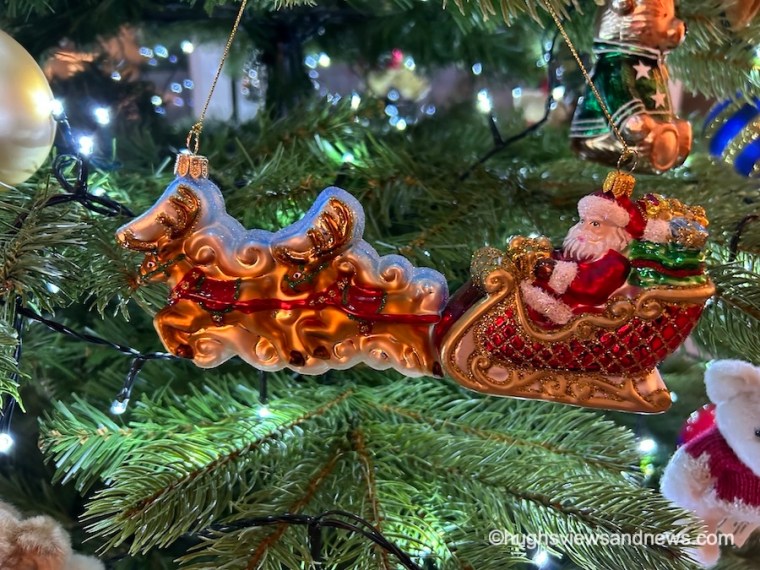
A photo of a Christmas tree ornament of Father Christmas in his sleigh being pulled by reindeer.
What’s your favourite Christmas tree ornament?

My favorite Christmas tree ornament is a jolly old Father Christmas in his sleigh, dramatically being yanked along by two reindeer who have clearly lost the plot; they’re now engaged in an epic showdown over who gets the last carrot that all the kids left out, while Father Christmas just sits back, chuckling with a mince pie in one hand and a glass of brandy in the other, thinking, “This is the real Christmas spirit!”

As Father Christmas steers his sleigh joyfully, all those glasses of brandy would probably get him into trouble if he were caught by a traffic officer. However, as he’s flying, rather than driving on roads, hopefully he won’t get into any trouble.

Over the years, I have collected many Christmas tree ornaments. This one is only a few years old and was bought online from a well-known London store. Yes, it was expensive, but the joy it has brought is worth every penny.

Do you have a favourite Christmas tree ornament? Share the details or a photo with us.

5. Is this how Christmas makes you feel?

And finally, is this how Christmas makes you feel?

A photo of a festive Christmas reindeer that appears to have collapsed onto the ground after a busy Christmas.
Does the thought of Christmas make you feel like this?

Whether it’s before or after Christmas, most of us will find ourselves feeling deflated, like a poor reindeer caught napping three days after the big day—let’s just say, even Rudolph looks like he needs a strong cup of cocoa at this point!

The look on its face says it all and reminds me of those confusing days between Christmas and New Year, when the days of the week all blend into one. “Is it Monday or Tuesday? No, it’s Wednesday, isn’t it, or was Wednesday yesterday? Hang on, wasn’t it Thursday yesterday?”

The Slideshow Block

This month, I am displaying and featuring the ‘Slideshow’ block. Here are my five photos, all in the slideshow block.

  • A photo of a smiling man standing next to Father Christmas
  • A photo taken from above of an iced Christmas cake. On top of the cake are some stars, Santa, a Christmas tree, and a snowman.
  • An old 1980s photo of a young man at a Christmas party in a bar, singing into a plastic bottle?
  • A photo of a Christmas tree ornament of Father Christmas in his sleigh being pulled by reindeer.
  • A photo of a festive Christmas reindeer that appears to have collapsed onto the ground after a busy Christmas.

You can select as many photos as you like for your slideshow. Captions you have added to your photos also appear, but unfortunately, and this is something I dislike, the captions cannot be centred.

You can set the slideshow to manual, so readers must click to view the next image, or select an autoplay option. If you choose autoplay, you can also decide how many seconds pass between each photo (I chose 4 seconds).

Another option is to add a transition. You can choose slide or fade for your photos. You can also select the image size: small, medium, large, or extra large. I decided on the ‘Large’ option.

All of these options can be found by clicking on the image and choosing the ‘Block‘ option.

An image showing the different options of the Slideshow block on WordPress
The Slideshow Block options.

Click the following link for more information about the Slideshow Block.

How to make a photographer’s day.

Next time you leave a comment on a photography post, instead of saying ‘Great photo,’ explain what it was about the picture that made you think it was great. Was it the subject, the lighting, the scenery, the angle it was taken from, or the emotion it evoked when you saw it?

It only needs to be a few lines, but the people you leave the comment for will appreciate the feedback much more than when all you say, time after time, is that it’s a great photo.

Do you have a photo of you with Father Christmas? Do you make your own Christmas cake or do you buy a shop-bought one? What’s your go-to karaoke song? Do you have a favourite Christmas tree ornament? How does Christmas make you feel?

Linking to Sunday Stills hosted by Terri Webster Schrandt – Theme: Festive Red and Green.

The featured image in this blog post is taken from Pixabay. AI checked spelling and grammar mistakes.

You can follow me at the following sites.

Copyright @ 2025 hughsviewsandnews.com – All rights reserved.

How to Enable or Disable the Falling Snow Effect on Your WordPress Blog

Have you noticed that snow is falling on some WordPress blogs? As you read the post, small flakes of snow gently drift down. Meanwhile, on other blogs, like mine, there’s no snow.

WordPress introduced the festive snowfall feature a few years ago. It only works when reading a post via the WordPress website. You won’t see it if you’re reading a post in the WordPress Reader or the Jetpack App unless you click through to the website. This time, it runs until 4th January 2026. But how do you turn the feature on or off? Easy – follow my instructions.

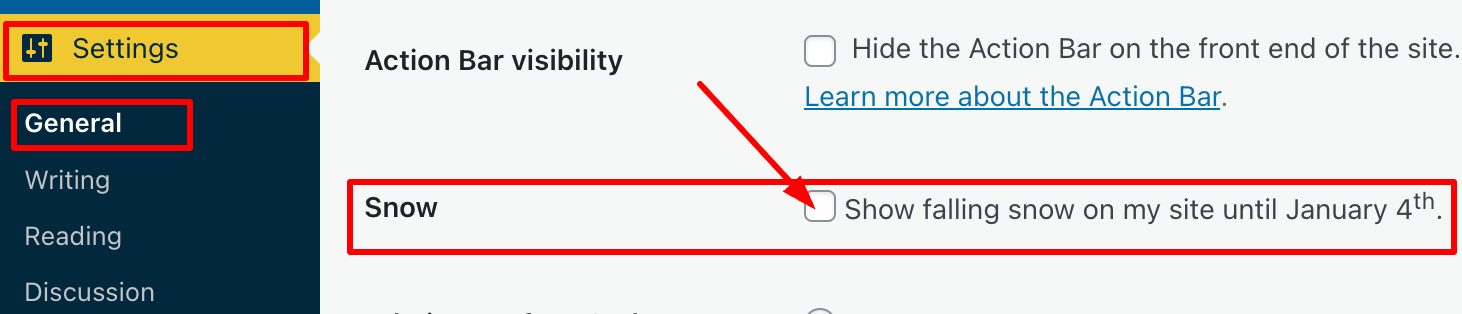
  • Go to your blog’s dashboard and click Settings – General.
  • Scroll down the page until you come to ‘Snow.’
  • You’ll see a box with the words ‘Show falling snow on my site until January 4th.’
An image highlighting how to turn on/off the falling snow feature on the dashboard of a WordPress blog.
Where to turn on/off falling snow on your WordPress blog
  • If you want snow to fall on your blog, tick the box. If you don’t want snow falling on your blog, untick the box.
  • Click the ‘Save Changes‘ box at the bottom of the page.
  • Ensure the changes are effective by opening one of your posts on the WordPress website.

I’m not a lover of anything moving onscreen while I’m reading, as I find it distracting. However, I know that many bloggers love the idea of gently drifting snowflakes while they read blog posts during the festive season.

The choice is yours. And now you know how to switch on or turn off snow falling on your blog.

For the above instructions, I’m using a desktop computer. The falling snow effect is only controlled through your WordPress.com dashboard, not the Jetpack mobile app.

Is it snowing on your blog? If not, do you want it to snow? Let me know why you like or dislike the idea of snowflakes drifting on WordPress blogs.

The featured image on this blog post is sourced from Pixabay. AI reviewed spelling and grammar errors.

You can follow me at the following sites.

Copyright @ 2025 hughsviewsandnews.com – All rights reserved.

Essential December Blog Housekeeping to Keep Your Site Safe and Functional!

Over the past few years, I’ve published a post around this time of year outlining some jobs all bloggers can do to ensure their blog not only looks good but also functions correctly.

If you’re interested in what some of those crucial jobs are, my post from this time last year, ‘7 Essential, Easy Ways to Help You Blog Through December‘ gives full details.

One thing bloggers who never do any blog housekeeping refuse to believe is that many problems on their blogs originate from a lack of maintenance. They’ll blame WordPress, instead of themselves. Continuing to use an outdated theme can also cause issues and create a security risk.

One job all bloggers are recommended to do

One important task I am currently working on in the housekeeping aspect of my blog is reviewing posts and removing any images that I cannot be certain are entirely free to use. But why am I doing this?

If you have read my recent posts, ‘Where To Legally Source Amazing Images For Your Blog Posts‘ and ‘The Latest Blogging and Publishing Scams You Need to Be Aware Of Now‘, you’ll understand why.

The comments sections of both posts offer interesting reading, so I recommend taking a look.

I’m a personal blogger, so this won’t affect me!

Wrong! Just because you are a personal blogger, don’t think you are exempt from being fined for copyright infringement. Downloading and using copyrighted images, photos, song lyrics, and some GIFs in your blog posts is illegal; therefore, nobody should encourage bloggers to download or publish any copyrighted material.

Most of the images I deleted are from flash fiction challenges I used to participate in. However, I have also found some images in other posts where I either failed to give proper attribution to the source or used images from the host blogger that I could not guarantee were free to use when taking part in their link-up.

And don’t forget to delete those images and photos from your media library, too. Not only are they proof that you downloaded them illegally, but deleting them will free up valuable storage space.

Unless you are completely certain that images, photos, song lyrics and GIFs are not copyrighted and free to use, avoid using them. Sure, you might get away with it, but why risk a hefty fine?

Back to why December is the ideal time for some blog housekeeping

I’ve already had the pleasure of seeing bloggers bid farewell to their blogs and followers for the festive season, joyfully extending warm wishes to their readers for a Merry Christmas while eagerly expressing their intention to return promptly in the New Year.

An image of a festive sign that says 'back in 2026
Image created using the WordPress AI image generator.

Some have published their final posts of 2025, while others have happily shared their anticipated dates for a well-earned blogging break.

And who can blame them? Blogging is enjoyable, but all bloggers need a break from the blogging world. I’m taking a blogging break during the last few weeks of December.

For those who do not celebrate Christmas, December still provides a valuable opportunity to focus on blog maintenance and security. This can include reviewing and updating posts, auditing existing content for accuracy and relevance, fixing broken links, and improving website speed and SEO.

Furthermore, it’s an excellent time to review your blog’s design and user experience, making necessary adjustments to improve accessibility and engagement. By investing time in these areas, bloggers can keep a polished, secure platform ready to impress their audience in the upcoming year.

As December rolls in and its days dwindle, you’ll probably witness how much of the blogging world falls into a hush. So why let your blog languish in neglect? This is your golden opportunity to roll up your sleeves and give it the fierce love and attention it deserves, ensuring it runs flawlessly for another year.

Let’s wrap it up!

  • At least once a year, focus on housekeeping tasks to enhance your blog’s appearance and functionality.
  • Many blog issues stem from a lack of maintenance; outdated themes can pose security risks.
  • One essential task is reviewing and removing any images from posts and your blog’s media library that may not be free to use to avoid copyright infringement.
  • Personal bloggers are not exempt from potential copyright-related legal issues when downloading or using copyrighted materials.
  • December is an ideal time for blog maintenance as many bloggers take breaks. It’s an opportunity for bloggers to give their blogs the attention they deserve before the New Year.

Are you excited about some upcoming blog housekeeping or maintenance? If so, what fantastic plans do you have in store? Perhaps you’ve already tackled some blog maintenance—if that’s the case, I’d love to hear about the wonderful jobs you accomplished!

The featured image in this post was created using the WordPress AI Image Generator block. AI was also used for checking spelling and grammar mistakes.

Click the buttons below to follow Hugh on Social Media

Copyright @ 2025 hughsviewsandnews.com – All rights reserved.
9 Important Options on Your WordPress Blog to Check Now!

I’m surprised by how many bloggers miss the opportunity of having their posts shared for free by not displaying sharing buttons on their blog posts.

Of course, some bloggers don’t want any of their posts shared, but they tend to be in the minority.

In today’s digital age, having social sharing buttons on your blog is crucial for expanding your reach and boosting engagement. This post will guide you through the steps to add sharing buttons to your WordPress blog and emphasise the benefits of including them.

For the purpose of this guide, I’m using an iMac desktop computer.

To add and edit sharing buttons on your WordPress.com blog, follow these steps:

  • Log in to your WordPress.com account.
  • From your dashboard, navigate to ‘Settings‘ and select ‘Sharing.’
An image that highlights Settings and Sharing on the dashboard of a WordPress blog.
Click the ‘Sharing’ option.

You’ll be taken to the ‘Sharing Options‘ page of your blog, where you will see a variety of options that include –

  • Available services
  • Enabled services
  • Live preview
  • Button style
  • Sharing label
  • Show buttons on
  • WordPress.com Likes are
  • WordPress.com Reblog button
  • Comment Likes are

Let’s have a look at each of these options and what they mean.

Available services – This displays any sharing buttons not currently visible on your blog. To add an available sharing button, drag it to the ‘Enabled services‘ box and click the ‘Save‘ button at the bottom of the page.

There is also an ‘Add a new service‘ link that, when clicked, allows a user to add new sharing services that are not currently available on WordPress.

Enabled Services – This section shows all the sharing buttons currently on display on your blog. Here’s an image of the sharing buttons available on my blog posts and pages.

An image showing the sharing buttons on a WordPress blog
Sharing buttons on Hugh’s Views And News blog.

Notice the ‘Customise buttons‘ link under the buttons. Click this to be taken straight to the ‘Sharing options‘ page of your blog.

You may also have noticed the ‘More‘ sharing button. This is where you can group certain sharing buttons under one button. To do this, simply drag the buttons you want to hide to the ‘Services dragged here will be hidden behind a share button‘ box. On my blog, the ‘More‘ button includes sharing buttons for ‘X’, ‘Email’ and ‘Print.’

An image showing hidden sharing buttons behind a 'More' button on a WordPress blog.
Hide sharing buttons behind one button.
  • To rearrange the order of how sharing buttons display on your blog, simply drag the buttons to the order you want them in. Remember to save any changes.
  • To remove a sharing button from your blog, drag the button to the ‘Available services‘ section and click the ‘Save‘ button at the bottom of the page.

Live preview – This section shows how the sharing buttons display on your blog.

Button style – There are four options to choose from.

  • Icon + Text
  • Icon only
  • Text only
  • Official buttons

On my blog, I have chosen sharing buttons to show ‘Icon + Text’ as this helps those using speech software know which sharing button is which. If you use ‘Icon only,’ speech software won’t know what each sharing button is.

Sharing label – This section allows users to change and display their own message above their sharing buttons. Simply add the text you want and click the save button.

Show buttons on – Choose where on your blog you want sharing buttons to appear. Place a tick next to the options and click the save button.

An image showing the options available as to where sharing buttons display on a WordPress blog.
Choose where you want the sharing buttons to display on your blog.

WordPress.com Likes are – This is where you can turn off (or on) the ‘Like’ button on blog posts and pages.

WordPress.com Reblog button – This is where you can turn off (or on) the reblog button on blog posts and pages.

Comment Likes are – This is where you can turn off (or on) the availability of a ‘like’ button on comments on your blog.

  • Once you’ve added sharing buttons to your blog, remember to always test them. The best way to do this is to visit one of your blog posts to ensure the sharing buttons appear as intended. Click on each button to check that it links correctly to the respective social media platforms.

Top tip: If you have an account on a social media platform, remember to ensure that there is a sharing button for that platform on your blog. You don’t need to remove share buttons where you don’t have an account, as other bloggers and readers may want to share your posts and pages to their own social media accounts. For example, I don’t have a Facebook account, but I allow visitors to my blog to share my posts and pages on their Facebook accounts.

But, at the end of the day, it’s your decision as to how many sharing buttons you want to display on your blog.

Advantages of Having Sharing Buttons on Your Blog

  1. Increased Visibility: Sharing buttons allow visitors to easily share your content with their networks, leading to greater visibility and new readers.
  2. Enhanced Engagement: When users share your posts, it engages their followers, creating conversations and interactions around your content.
  3. Improved SEO: Social shares can boost your search engine rankings. Search engines often view shared content as more credible and relevant.
  4. Brand/Blog Awareness: Every share increases exposure for your brand/blog, helping you capture a larger audience over time.
  5. Traffic Boost: Each share potentially drives more traffic back to your blog, increasing your overall reach and influence in your niche.
  6. User-Friendly: A streamlined sharing process enhances the user experience, encouraging visitors to interact more with your content.

By integrating sharing buttons into your WordPress blog, you not only make it easier for readers to share your posts but also create new opportunities for engagement and growth.

Summary:

  • Many bloggers miss out on free content-sharing opportunities by not displaying sharing buttons. These buttons are crucial for expanding reach and boosting engagement.
  • It’s easy to add and display sharing buttons on your WordPress blog. Follow the guide in this post.
  • Ensure you deal with each option available to you on the ‘Sharing options‘ page of your blog.
  • There are many advantages of displaying sharing buttons on your blog, including increased visibility, enhanced engagement and improved SEO ratings.
  • If you have a social media account, ensure you display a sharing button for that account on your blog.
  • Add as many sharing buttons as you like, even for those social media platforms where you don’t have an account.
  • Test that the sharing buttons are working correctly at least once every few months.
  • Make the most of the other options available on the ‘Sharing options’ page of your blog, such as switching on/off the like button and whether or not you want a ‘Reblog’ button to show.

I want to open up the conversation and hear from you. What social media platforms do you find most effective for sharing your blog content? Have you noticed an increase in your blog traffic after adding sharing buttons? How much of a difference has it made? Have you experimented with the different button styles? Which one do you think looks best on your blog? If you could add one feature to the sharing buttons on your blog, what would it be and why?

Layout, content, settings, and format might differ on self-hosted blogs.

Click the buttons below to follow Hugh on Social Media

The featured image on this blog post is taken from Pixabay. AI checked spelling and grammar mistakes. Images, which were taken from screenshots of my blog, were created by me.

Copyright @ 2025 hughsviewsandnews.com – All rights reserved.

How to Prevent This Horrible Blogging Nightmare From Happening

Imagine turning on your computer, laptop, or phone and discovering that your blog had vanished without a trace. What a horrible nightmare, yes?

In the 12 years I’ve been blogging, it has never happened to me, although there was an occasion when the setup of my blog (and that of many others) changed completely overnight, all due to a bug that affected many WordPress blogs. Fortunately, it was fixed quickly, even though it caused many users a nightmare they never thought would happen.

If you’re a WordPress.com blogger, be assured that if your blog and all its content suddenly vanish, WordPress will have a backup. Regardless of your WordPress plan, WordPress backs up every blog and keeps a copy, just in case it is ever needed. All you need to do is contact WordPress and request the file. They will send you a file containing the most recent backup they made. However, as we will discuss later, backups do not include everything.

But there’s no need to contact WordPress

If you’ve ever had a bad experience contacting WordPress or don’t want to contact them, there is another step you can take to ensure you have a backup of your blog. I’m using an Apple iMac desktop computer for the following guide.

How to backup your WordPress blog.

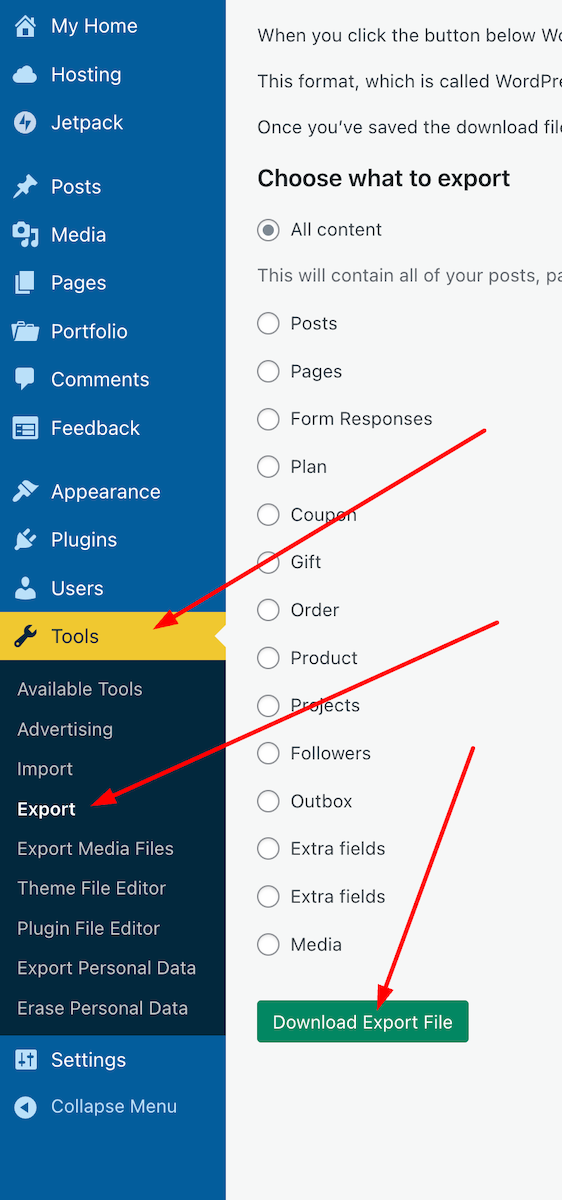
  • On the dashboard of your blog, go to Tools – Export.
  • Choose the items you wish to export (I recommend ‘All content‘) and click the ‘Download Export File‘ button.
An image showing Tools - Export' on the dashboard of a WordPress blog.
Press these buttons to begin the process of backing up your WordPress blog.
  • You will see a message informing you that your export file is being processed, along with the email address where a download link will be sent once the process is complete.
  • Access your email account where the link is sent, locate the email, and open it. Click on the ‘Download‘ button within the email.
An image showing the Download button in the email sent from WordPress when backing up your blog.
Click the ‘Download’ button in the email.
  • The file will be downloaded to your device. Ensure you remember its location and move it to another folder if necessary. I’ve created a file on my computer called ‘WordPress Backups’. Note that the file is only available for download for 7 days.
  • Remember to delete any previous WordPress backup files to free up memory on the device you are using.

The backup file you have downloaded does not include any media such as images, videos, or photographs. To back up media, follow the above instructions but select ‘Export Media Files‘ from the Tools menu – Tools – Export Media Files.

Do the backup files include everything?

It depends on which WordPress plan you have.

Users on a Free, Personal, or Premium plan can back up content and media. However, themes and plugins are not included in the backup. Therefore, if you ever need to download a backup file and have been using a retired theme that WordPress no longer supports, you will need to choose a new, current theme that is still supported. You’ll also need to download any plugins your blog uses.

Those with Business or Commerce plans have access to Jetpack Vault Backup, which allows them to view and restore backups at any time from their blog’s dashboard. This can be accessed at Jetpack – Backup. These backups include everything, including the theme and any plugins you use.

An image highlighting jetpack - Backup on the dashboard of a WordPress blog.
Click the Backup link to access the Jetpack Vault backup file.

Should I need to worry about backing up my blog?

Given that WordPress backs up your blog, no! However, for total peace of mind, and depending on how often you publish posts, you might consider backing up your blog at least once a month. If you publish posts daily or more frequently, I’d recommend backing up your blog at least once a week. However, after performing a backup, remember to delete the previous backup file.

Most likely, you’ll never need a backup copy of your blog, but I suggest you save a copy of this post in case you ever lose all the content of your blog.

All WordPress blogs also come with an ‘Activity Log‘ feature where bloggers can reinstall posts they have deleted by mistake. However, this feature is limited by the extent to which you can recover posts, depending on the WordPress Plan you have.

An image highlighting the Activity Log link on the dashboard of a WordPress blog.
Click the Activity Log button to see the most recent activity on WordPress.

Conclusion:

  • WordPress automatically backs up WordPress.com blogs, but it doesn’t include everything.
  • Users can contact WordPress and request a copy of the backup file.
  • Users can backup their blogs via the dashboard.
  • For backing up media files, remember to perform a backup by going to Tools – Export Media Files.
  • What is backed up depends on your WordPress plan.
  • Business or Commerce plan users have access to Jetpack Vault Backup, which includes everything (themes, plugins, etc.) and can be accessed at any time via the dashboard.
  • Backup links are only valid for 7 days.
  • Remember to delete previous backup files to free up space on your device.
  • While WordPress does back up your blog, regular manual backups (such as monthly or weekly) are recommended for added peace of mind.
  • The Activity Log feature allows recovery of accidentally deleted posts, with limitations based on your plan.
  • Keep a copy of this guide for future reference.

Have you ever lost content on your blog? If so, how did you handle it? What has been your experience with WordPress backups? Have you ever had to restore a backup? Are there any specific plugins or tools you recommend for backing up a self-hosted blog? Would you prefer to rely on WordPress’s automatic backups, or do you believe manual backups are essential? Join the discussion and leave your comments and answers.

Layout, content, settings, and format might differ on self-hosted blogs.

The featured image in this blog post is taken from Pixabay. AI checked spelling and grammar mistakes.

Click the buttons below to follow Hugh on Social Media

Copyright @ 2025 hughsviewsandnews.com – All rights reserved.