


I’m surprised by how many bloggers miss the opportunity of having their posts shared for free by not displaying sharing buttons on their blog posts.
Of course, some bloggers don’t want any of their posts shared, but they tend to be in the minority.
In today’s digital age, having social sharing buttons on your blog is crucial for expanding your reach and boosting engagement. This post will guide you through the steps to add sharing buttons to your WordPress blog and emphasise the benefits of including them.
For the purpose of this guide, I’m using an iMac desktop computer.
To add and edit sharing buttons on your WordPress.com blog, follow these steps:
- Log in to your WordPress.com account.
- From your dashboard, navigate to ‘Settings‘ and select ‘Sharing.’

You’ll be taken to the ‘Sharing Options‘ page of your blog, where you will see a variety of options that include –
- Available services
- Enabled services
- Live preview
- Button style
- Sharing label
- Show buttons on
- WordPress.com Likes are
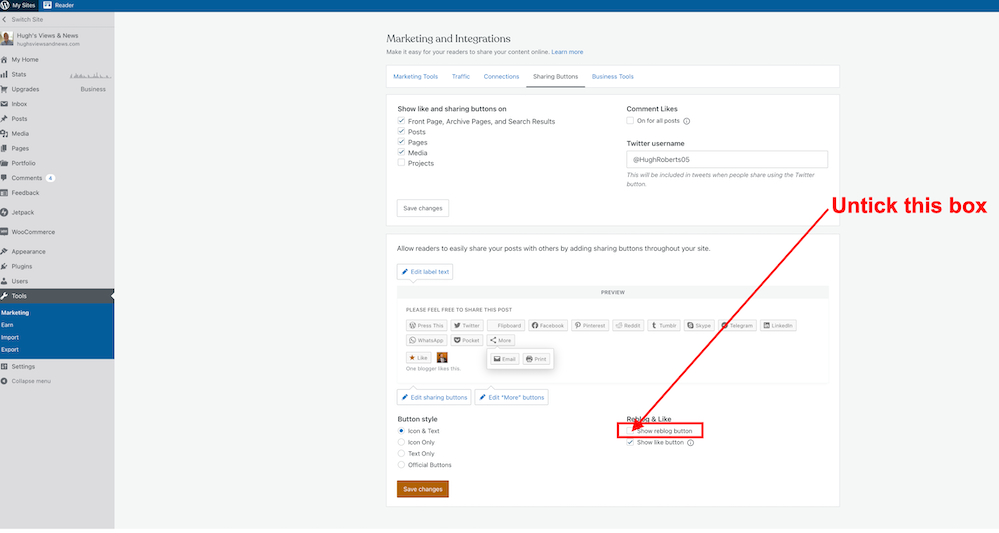
- WordPress.com Reblog button
- Comment Likes are
Let’s have a look at each of these options and what they mean.
Available services – This displays any sharing buttons not currently visible on your blog. To add an available sharing button, drag it to the ‘Enabled services‘ box and click the ‘Save‘ button at the bottom of the page.
There is also an ‘Add a new service‘ link that, when clicked, allows a user to add new sharing services that are not currently available on WordPress.
Enabled Services – This section shows all the sharing buttons currently on display on your blog. Here’s an image of the sharing buttons available on my blog posts and pages.

Notice the ‘Customise buttons‘ link under the buttons. Click this to be taken straight to the ‘Sharing options‘ page of your blog.
You may also have noticed the ‘More‘ sharing button. This is where you can group certain sharing buttons under one button. To do this, simply drag the buttons you want to hide to the ‘Services dragged here will be hidden behind a share button‘ box. On my blog, the ‘More‘ button includes sharing buttons for ‘X’, ‘Email’ and ‘Print.’

- To rearrange the order of how sharing buttons display on your blog, simply drag the buttons to the order you want them in. Remember to save any changes.
- To remove a sharing button from your blog, drag the button to the ‘Available services‘ section and click the ‘Save‘ button at the bottom of the page.
Live preview – This section shows how the sharing buttons display on your blog.
Button style – There are four options to choose from.
- Icon + Text
- Icon only
- Text only
- Official buttons
On my blog, I have chosen sharing buttons to show ‘Icon + Text’ as this helps those using speech software know which sharing button is which. If you use ‘Icon only,’ speech software won’t know what each sharing button is.
Sharing label – This section allows users to change and display their own message above their sharing buttons. Simply add the text you want and click the save button.
Show buttons on – Choose where on your blog you want sharing buttons to appear. Place a tick next to the options and click the save button.

WordPress.com Likes are – This is where you can turn off (or on) the ‘Like’ button on blog posts and pages.
WordPress.com Reblog button – This is where you can turn off (or on) the reblog button on blog posts and pages.
Comment Likes are – This is where you can turn off (or on) the availability of a ‘like’ button on comments on your blog.
- Once you’ve added sharing buttons to your blog, remember to always test them. The best way to do this is to visit one of your blog posts to ensure the sharing buttons appear as intended. Click on each button to check that it links correctly to the respective social media platforms.
Top tip: If you have an account on a social media platform, remember to ensure that there is a sharing button for that platform on your blog. You don’t need to remove share buttons where you don’t have an account, as other bloggers and readers may want to share your posts and pages to their own social media accounts. For example, I don’t have a Facebook account, but I allow visitors to my blog to share my posts and pages on their Facebook accounts.
But, at the end of the day, it’s your decision as to how many sharing buttons you want to display on your blog.
Advantages of Having Sharing Buttons on Your Blog
- Increased Visibility: Sharing buttons allow visitors to easily share your content with their networks, leading to greater visibility and new readers.
- Enhanced Engagement: When users share your posts, it engages their followers, creating conversations and interactions around your content.
- Improved SEO: Social shares can boost your search engine rankings. Search engines often view shared content as more credible and relevant.
- Brand/Blog Awareness: Every share increases exposure for your brand/blog, helping you capture a larger audience over time.
- Traffic Boost: Each share potentially drives more traffic back to your blog, increasing your overall reach and influence in your niche.
- User-Friendly: A streamlined sharing process enhances the user experience, encouraging visitors to interact more with your content.
By integrating sharing buttons into your WordPress blog, you not only make it easier for readers to share your posts but also create new opportunities for engagement and growth.
Summary:
- Many bloggers miss out on free content-sharing opportunities by not displaying sharing buttons. These buttons are crucial for expanding reach and boosting engagement.
- It’s easy to add and display sharing buttons on your WordPress blog. Follow the guide in this post.
- Ensure you deal with each option available to you on the ‘Sharing options‘ page of your blog.
- There are many advantages of displaying sharing buttons on your blog, including increased visibility, enhanced engagement and improved SEO ratings.
- If you have a social media account, ensure you display a sharing button for that account on your blog.
- Add as many sharing buttons as you like, even for those social media platforms where you don’t have an account.
- Test that the sharing buttons are working correctly at least once every few months.
- Make the most of the other options available on the ‘Sharing options’ page of your blog, such as switching on/off the like button and whether or not you want a ‘Reblog’ button to show.
I want to open up the conversation and hear from you. What social media platforms do you find most effective for sharing your blog content? Have you noticed an increase in your blog traffic after adding sharing buttons? How much of a difference has it made? Have you experimented with the different button styles? Which one do you think looks best on your blog? If you could add one feature to the sharing buttons on your blog, what would it be and why?
Layout, content, settings, and format might differ on self-hosted blogs.
Click the buttons below to follow Hugh on Social Media
The featured image on this blog post is taken from Pixabay. AI checked spelling and grammar mistakes. Images, which were taken from screenshots of my blog, were created by me.
Copyright @ 2025 hughsviewsandnews.com – All rights reserved.

 Hugh's Views & News