

How to Prevent This Horrible Blogging Nightmare From Happening

Imagine turning on your computer, laptop, or phone and discovering that your blog had vanished without a trace. What a horrible nightmare, yes?

In the 12 years I’ve been blogging, it has never happened to me, although there was an occasion when the setup of my blog (and that of many others) changed completely overnight, all due to a bug that affected many WordPress blogs. Fortunately, it was fixed quickly, even though it caused many users a nightmare they never thought would happen.

If you’re a WordPress.com blogger, be assured that if your blog and all its content suddenly vanish, WordPress will have a backup. Regardless of your WordPress plan, WordPress backs up every blog and keeps a copy, just in case it is ever needed. All you need to do is contact WordPress and request the file. They will send you a file containing the most recent backup they made. However, as we will discuss later, backups do not include everything.

But there’s no need to contact WordPress

If you’ve ever had a bad experience contacting WordPress or don’t want to contact them, there is another step you can take to ensure you have a backup of your blog. I’m using an Apple iMac desktop computer for the following guide.

How to backup your WordPress blog.

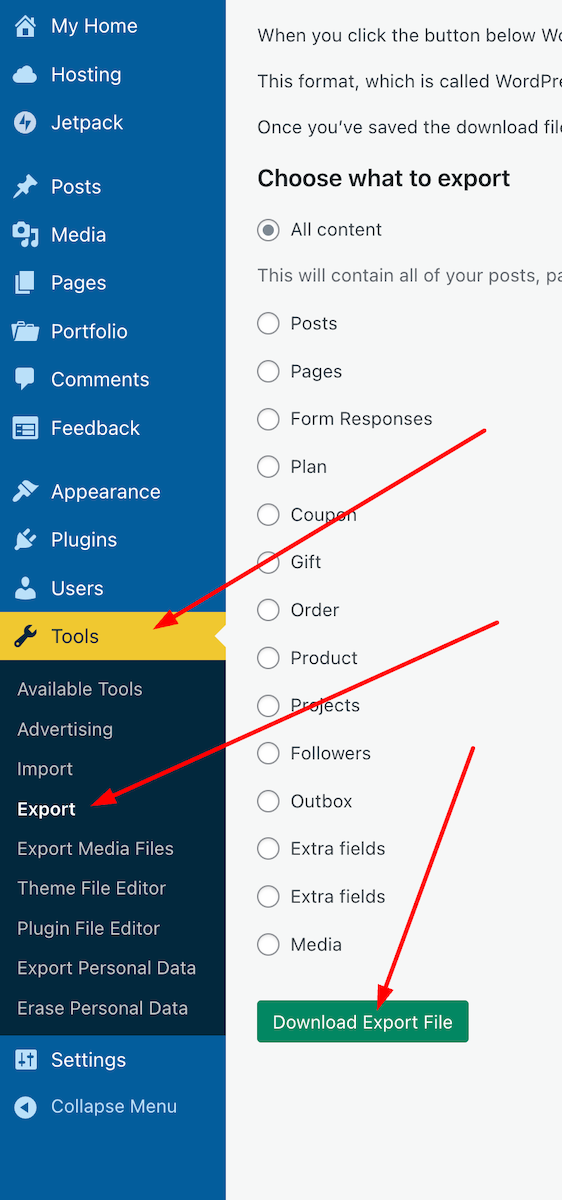
  • On the dashboard of your blog, go to Tools – Export.
  • Choose the items you wish to export (I recommend ‘All content‘) and click the ‘Download Export File‘ button.
An image showing Tools - Export' on the dashboard of a WordPress blog.
Press these buttons to begin the process of backing up your WordPress blog.
  • You will see a message informing you that your export file is being processed, along with the email address where a download link will be sent once the process is complete.
  • Access your email account where the link is sent, locate the email, and open it. Click on the ‘Download‘ button within the email.
An image showing the Download button in the email sent from WordPress when backing up your blog.
Click the ‘Download’ button in the email.
  • The file will be downloaded to your device. Ensure you remember its location and move it to another folder if necessary. I’ve created a file on my computer called ‘WordPress Backups’. Note that the file is only available for download for 7 days.
  • Remember to delete any previous WordPress backup files to free up memory on the device you are using.

The backup file you have downloaded does not include any media such as images, videos, or photographs. To back up media, follow the above instructions but select ‘Export Media Files‘ from the Tools menu – Tools – Export Media Files.

Do the backup files include everything?

It depends on which WordPress plan you have.

Users on a Free, Personal, or Premium plan can back up content and media. However, themes and plugins are not included in the backup. Therefore, if you ever need to download a backup file and have been using a retired theme that WordPress no longer supports, you will need to choose a new, current theme that is still supported. You’ll also need to download any plugins your blog uses.

Those with Business or Commerce plans have access to Jetpack Vault Backup, which allows them to view and restore backups at any time from their blog’s dashboard. This can be accessed at Jetpack – Backup. These backups include everything, including the theme and any plugins you use.

An image highlighting jetpack - Backup on the dashboard of a WordPress blog.
Click the Backup link to access the Jetpack Vault backup file.

Should I need to worry about backing up my blog?

Given that WordPress backs up your blog, no! However, for total peace of mind, and depending on how often you publish posts, you might consider backing up your blog at least once a month. If you publish posts daily or more frequently, I’d recommend backing up your blog at least once a week. However, after performing a backup, remember to delete the previous backup file.

Most likely, you’ll never need a backup copy of your blog, but I suggest you save a copy of this post in case you ever lose all the content of your blog.

All WordPress blogs also come with an ‘Activity Log‘ feature where bloggers can reinstall posts they have deleted by mistake. However, this feature is limited by the extent to which you can recover posts, depending on the WordPress Plan you have.

An image highlighting the Activity Log link on the dashboard of a WordPress blog.
Click the Activity Log button to see the most recent activity on WordPress.

Conclusion:

  • WordPress automatically backs up WordPress.com blogs, but it doesn’t include everything.
  • Users can contact WordPress and request a copy of the backup file.
  • Users can backup their blogs via the dashboard.
  • For backing up media files, remember to perform a backup by going to Tools – Export Media Files.
  • What is backed up depends on your WordPress plan.
  • Business or Commerce plan users have access to Jetpack Vault Backup, which includes everything (themes, plugins, etc.) and can be accessed at any time via the dashboard.
  • Backup links are only valid for 7 days.
  • Remember to delete previous backup files to free up space on your device.
  • While WordPress does back up your blog, regular manual backups (such as monthly or weekly) are recommended for added peace of mind.
  • The Activity Log feature allows recovery of accidentally deleted posts, with limitations based on your plan.
  • Keep a copy of this guide for future reference.

Have you ever lost content on your blog? If so, how did you handle it? What has been your experience with WordPress backups? Have you ever had to restore a backup? Are there any specific plugins or tools you recommend for backing up a self-hosted blog? Would you prefer to rely on WordPress’s automatic backups, or do you believe manual backups are essential? Join the discussion and leave your comments and answers.

Layout, content, settings, and format might differ on self-hosted blogs.

The featured image in this blog post is taken from Pixabay. AI checked spelling and grammar mistakes.

Click the buttons below to follow Hugh on Social Media

Copyright @ 2025 hughsviewsandnews.com – All rights reserved.

Blogging Simplified: Adding Images From Your Phone To A WordPress Post

Do you draft blog posts on a desktop computer or laptop? If so, did you know you can now add photos to your post directly from your mobile phone? No more having to download photos to your computer or laptop.

Light blue image with the words 'Blogging Simplified: Adding Images From Your Phone To A WordPress Post' in white text
Now you can add images and photos directly from your phone to a WordPress post.

Here’s how to do it: 

Ensure you have the Jetpack app on your phone. If not, download it from the app store.

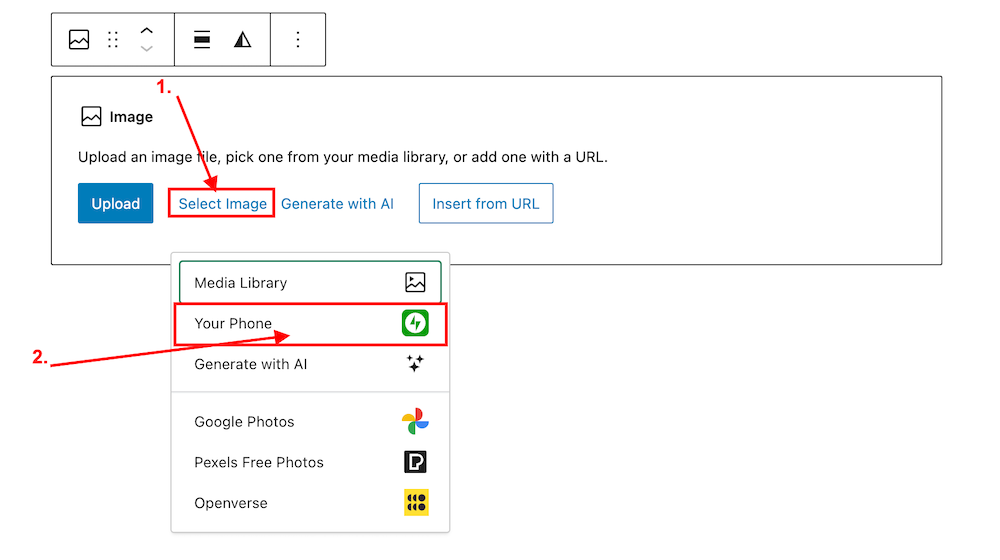
  1. Insert an ‘Image‘ or ‘Gallery‘ Block on your post/page. 
  2. Click ‘Select Image.‘ 
  3. From the dropdown menu, select ‘Your Phone.’ A message will pop up on your phone with a QR code.
Image highlighting the 'Select Image' and 'Your Phone' links on an Image block on WordPress
Click ‘Select Image’ and ‘Your Phone.’
Image showing the QR code that pops up on WordPress when selecting 'Your Phone' when selecting an image or photo.
Scan the QR code.

4. Use your phone’s camera to scan the QR code. This will automatically open the Jetpack app on your phone and then your photo library. 

5. Choose the image(s) you want to use: From there, simply click the image or images you wish to add to your post/page.

6. Click ‘Add‘ (top right corner): Watch your image(s) automatically appear in your desktop/laptop editor. Here’s one I added directly from my phone.

img_0529-1

Can I adjust the size of images in the Jetpack app?

Yes. This is important to do to prevent images from taking up too much storage space in your blog’s media library. By default, the “Optimise Images” option is turned on. You can set the ‘Max Image Upload Size‘ so the original file is resized automatically when you upload it.

Here’s how to do it:

In the Jetpack app for iPhone and the Jetpack app for Android, to adjust the settings, follow these steps:

  1. Log into the Jetpack app on your phone.
  2. Click your profile icon in the bottom right.
  3. Click ‘App Settings‘.

You can toggle ‘Optimize Images‘ off (not recommended) or adjust the ‘Max Image Upload Size‘. The default is 2000 x 2000px.

img_0527-1

As you can see from the above image, I’ve set the maximum image upload size to 1000 x 1000px. I recommend not going any higher than this.

Is there anything to remember when uploading images directly from your phone?

Yes. If you add copyright information to images and photos on your computer or laptop (something I recommend you do), remember to add copyright information to your images and photos on your phone before you add them to your blog posts.

Remember to also complete the ‘Alt-Text‘ and ‘Description‘ details of the images in your blog’s media library. My blog post ‘Adding Images Or Photos To Your Blog Posts? 4 Essential Things To Do,’ gives full details as to why this information should always be completed.

Would you use this method for adding photos and images to your blog posts? If you have questions, please leave me a comment.

Layout, content, settings, and format might differ on self-hosted blogs.

Click the buttons below to follow Hugh on Social Media

Copyright @ 2024 hughsviewsandnews.com – All rights reserved.
Should I Switch To The New Jetpack App Or Stay With The WordPress App?

I’ve been contacted by several bloggers asking the question in the title of this post.

In March 2023, the WordPress app that many of us are familiar with will lose many key features. For example, you’ll no longer be able to access the WordPress Reader or view your blog’s stats.

But fear not because all the features the WordPress app bring have been transferred to the new Jetpack app.

Banner for the blog post 'Should I Switch To The New Jetpack App Or Stay With The WordPress App?'
Which app should I use?

Which app should I use?

If you want access to all the WordPress features you’re used to, switch to the new Jetpack app.

If you only want to focus on the basics of writing and publishing and have no interest in your blog stats, notifications of comments, menus and the WordPress Reader (to name a few), stick with the WordPress app.

Can I use both apps?

It’s not recommended that you use both apps. Managing your blog across both apps is unsupported and may lead to issues such as data conflicts. So I’d recommend sticking to one.

What features does the Jetpack app have?

  • Posts
  • Pages
  • Media Library
  • Comments
  • Site Settings
  • Stats
  • WordPress Reader
  • Notifications
  • Activity Log
  • Jetpack Social
  • Jetpack Backup
  • Jetpack Scan
  • Menus
  • People
  • Themes

With the Jetpack app, you’ll benefit from powerful tools to manage and build your blog.

Is the Jetpack app free?

Yes. There are no additional costs for using the Jetpack app.

What features does the WordPress app have?

From March 2023, only the features listed below will be available on the WordPress app.

  • Posts
  • Pages
  • Media library
  • Comments
  • Site Settings

How do I make the switch to the Jetpack app?

  • First, ensure you have the latest version of the WordPress app installed and are logged in to it.
  • If you’ve had (or get) an email from WordPress asking you to choose which app to use, click the link in the email to download the Jetpack app. If you’ve not had the email, click here to download the Jetpack app.
  • Once the app has been downloaded, open it, and you’ll be automatically logged in with all your data and settings in place. All your posts, pages, media library and anything else you have on your blog will also be transferred.
  • Remember to delete the WordPress app.

Any questions about switching to the Jetpack app? Leave them in the comments section.

Follow Hugh on Social Media. Click the buttons below.

Want more posts like this? Enter your email address and click Subscribe.

Copyright @ 2024 hughsviewsandnews.com – All rights reserved.