


What do you do to make it easy for your readers to contact you?
Most bloggers aim to connect with their audience. This is mainly achieved through the comments section of blog posts, but sometimes someone may wish to contact you privately, which may not be suitable for public view. For example, I receive messages asking for help with WordPress or requests to buy a signed copy of one of my books. Nobody wants to share their address, email, or contact number in the comments section.
A ‘Contact’ page is an important connection point between a blogger and their readers, offering a convenient way to get in touch privately. If you look at the menubar of my blog, you’ll see a ‘Contact Hugh‘ link. That’s where any visitor to my blog can contact me privately.
Here’s why you should prioritise having a Contact page on your blog and how to easily set one up.
Benefits of Having a Contact Page
1. Establishes Credibility
Having a dedicated Contact page gives your blog a welcome and friendly impression. It demonstrates that you’re open to communication and approachable, increasing your credibility with readers and new visitors.
2. Facilitates Communication
A Contact page offers a clear and straightforward way for visitors to get in touch with you. Whether they have questions, feedback, or collaboration ideas, this page acts as a direct link to you, preventing confusion about how to contact you.
3. Encourages Engagement
By encouraging readers to contact you, you’re promoting engagement with your audience. This can lead to meaningful discussions, valuable feedback, and even new ideas for content, further benefiting and enhancing your blog.
4. Supports Networking Opportunities
For the majority of bloggers, networking is essential. A Contact page makes it easy for other bloggers to reach out for collaborations, sponsorships, or guest posting opportunities, contributing to your blog’s growth and visibility.
5. Keeps Your Private Details Private
Having a contact form means you don’t need to share your personal details, like an email address, on your blog. After all, do you know everyone who visits your blog? Even if you provide an email address solely for your blog, advertising it will attract spam, spammers, and trolls.
Some bloggers might prefer not to engage with their audience, so a Contact page may not be essential. However, if you choose not to engage, ensure you turn comments off.
How to Install a Contact Page
Creating a Contact page is a simple process. Here’s how you can set one up on your blog. For this purpose, I’m using an Apple iMac desktop computer.
- Go to the dashboard of your blog, click Pages and then Add Page.

- Title your page ‘Contact’ or ‘Get in Touch’ or choose a title you prefer.
- Add a Contact template. WordPress offers several ‘Contact’ templates. To find them, click the ‘+‘ symbol in the top-left corner of the page, then select Patterns and Contact.

- Choose the template you want to use and make any edits to it. For the contact form on my blog, I used Template Number One.
- Preview your contact form before publishing it. Once you’re happy, click the publish button so it appears on your blog.
Tip: Yes, you’ll likely receive spam or spam bots trying to contact you. To quickly sort out those messages, add a line to your Contact form giving instructions on what to do. I added the following details to my Contact form –
Please complete and submit the form below to contact me securely. To verify that you are not a bot or spam, please start your message with ‘Dear Hugh.’ I will then get back to you as quickly as possible.
Messages that do not start ‘Dear Hugh’ will be marked as spam.
And guess what, it works!
You can also find additional Contact forms under Jetpack – Forms (select the ‘About‘ tab) on the dashboard of your blog.
- Next, to make it easy for readers to contact you, add your contact form to the menubar of your blog.
- On the dashboard of your blog, go to Appearance – Menus.
- Search for your Contact form by clicking View All, tick the box next to it, and click the ‘Add To Menu’ Button.
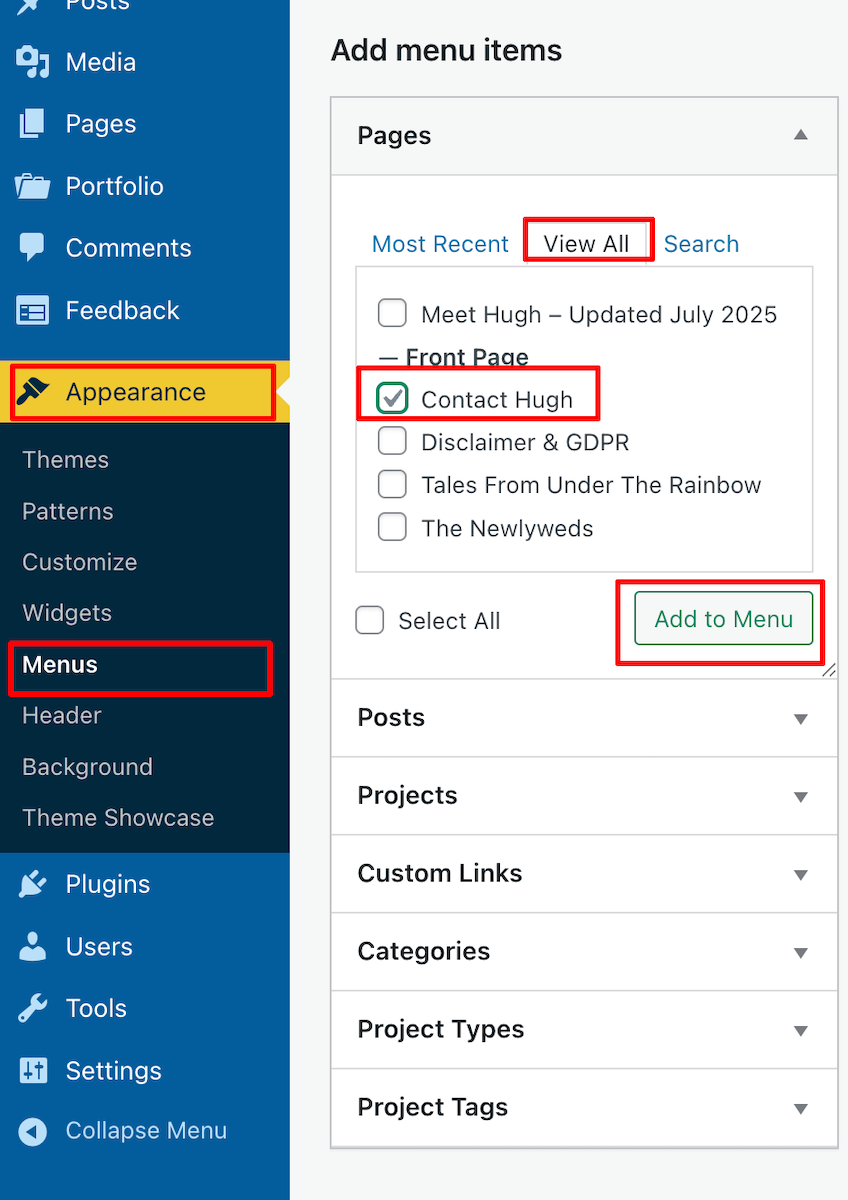
- Click the Save Menu button at the bottom of the page.
- To reposition the Contact form on the menubar, on the Menus page, click on it and drag it to the desired location. Remember to click the Save Menu button after any changes.

- Check the menubar of your blog to ensure the Contact form is visible and in the correct place.
WordPress also offers Contact forms plugins.
- Contact Form 7:
- Install and activate the plugin.
- Go to Contact – Add New in the dashboard.
- Customise your form fields as needed, then save.
- Copy the shortcode provided and paste it into your Contact page.
- Add the Contact form to your menubar.
- WPForms:
- Install and activate the plugin.
- Create a new form using their drag-and-drop builder.
- Save your form and copy the shortcode.
- Paste the shortcode into your Contact page content.
- Add the Contact form to your menubar.
How do I know when somebody has contacted me via my Contact form?
WordPress sends an email to you whenever anyone contacts you via the Contact form (except when they consider it as spam). Users will also see a notification under Jetpack – Forms on the dashboard of their blog.
Anything considered spam by WordPress goes straight to the spam folder. Spam is deleted automatically after 30 days, so there’s no need to worry about it.
Conclusion
Having a Contact page is essential for fostering communication and building relationships with your audience. By following these simple steps, you can easily set up a Contact page on your blog and start engaging with your visitors today!
Do you have a way that visitors to your blog can contact you directly? Any questions? Leave them in the comments section or contact me directly.
Layout, content, settings, and format might differ on self-hosted blogs.
The featured image in this blog post is taken from Pixabay. AI checked spelling and grammar mistakes.
Click the buttons below to follow Hugh on Social Media
Copyright @ 2025 hughsviewsandnews.com – All rights reserved.
 Hugh's Views & News