

Bloggers/Authors: Are You Ready For A Writing Challenge?

I’m excited to share that I have published a new post on Marsha Ingrao’s blog, Always Write, dedicated to the captivating art of flash fiction!

If you’re a writer looking to sharpen your skills or a reader eager to explore new narrative forms, this piece offers valuable tips to help you craft compelling stories in a brief format.

But that’s not all! To test your newfound knowledge, I invite you to take part in a creative flash fiction challenge: Write a complete flash fiction story in just 101 words based on the image I have used as the featured image on this post. The image also features in the post.

Whether you’re an experienced author or just starting out, this is an excellent opportunity to unleash your imagination. Jump in, write away, and let’s see what wonderful stories we can create together!

Check out the post on Marsha’s blog for all the details.

Click the image or link below to be taken straight to the post.

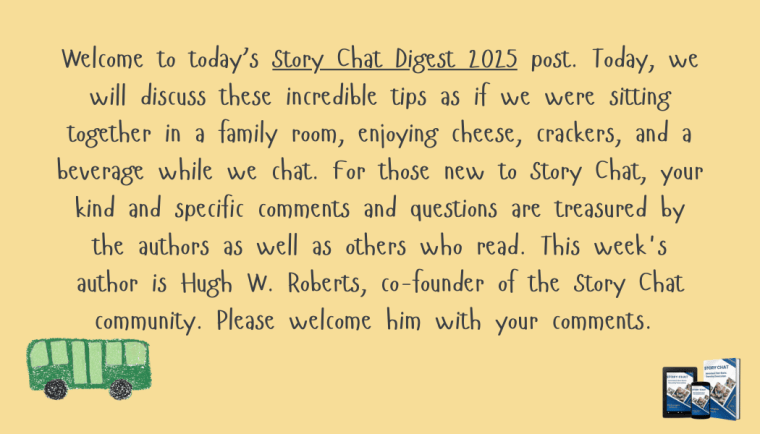
An image introducing the guest post about writing flash fiction.
Are you up for a writing challenge?

Story Chat Digest: “Mastering the Art of Flash Fiction” by Hugh W. Roberts

If you have any comments or questions, please leave them on the post on Marsha’s blog, as I am closing comments here to ensure all comments and questions are in one place where everyone can see them.

Have fun with the challenge. Happy writing.

Click the buttons below to follow Hugh on Social Media

Copyright @ 2025 hughsviewsandnews.com – All rights reserved.

This New WordPress Feature Helps Promote The Blogs You Love

I recently began receiving emails from WordPress informing me that another blogger has recommended my blog.

Of course, there’s an easy way to recommend another blog simply by writing and publishing a post and linking to that blog, but this new way of recommending another blog was something I thought was much better.

After all, once you read a post recommending a blog, it isn’t long before that post gets pushed down your reader list, until it’s probably forgotten about. So, if you haven’t read the post or maybe thought you’d come back to it later, you probably won’t.

However, this new method of recommending a blog is better because the blogs you recommend appear on your Gravatar profile when using the WordPress Reader, which means that anyone checking your Gravatar will see a list of the blogs you recommend.

It’s easy to add the blogs you want to recommend. I’m using an Apple iMac desktop computer to demonstrate this. Here’s how to do it.

  • On the dashboard of your blog, click the ‘Reader‘ icon (represented by a pair of spectacles).
An image showing the 'Reader' icon on a WordPress blog.
Click the ‘Reader’ icon.
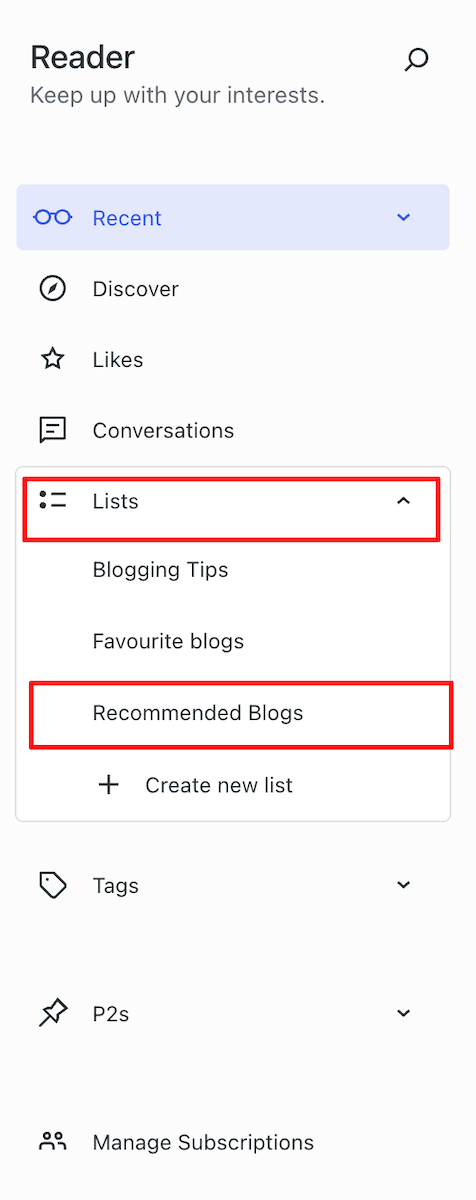
  • On the Reader menu, open ‘Lists‘ and click on ‘Recommended Blogs.’
An image showcasing 'Recommended Blogs' on the 'Reader' list of a WordPress blog.
Click the Recommended Blogs link.
  • Click the ‘Edit‘ button and open the ‘Sites‘ tab. As you will see from the image below, I’ve already recommended some blogs.
An image displaying the Sites tab on the Recommended Blogs page of the WordPress Reader.
Click the ‘Sites’ tab.
  • To remove a recommended blog, click on the ‘Remove‘ button.
  • To add a blog, start typing the name of the blog in the ‘Search or enter URL to follow‘ box, and a list of suggestions will appear.
An image displaying a list of blogs that appear as you type in the search box.
Start typing to display a list of blogs.
  • Click the ‘Recommend‘ button to add a blog to your Recommended Blogs list. Note that if you are already following a blog, you’ll see ‘Subscribed‘ next to it.
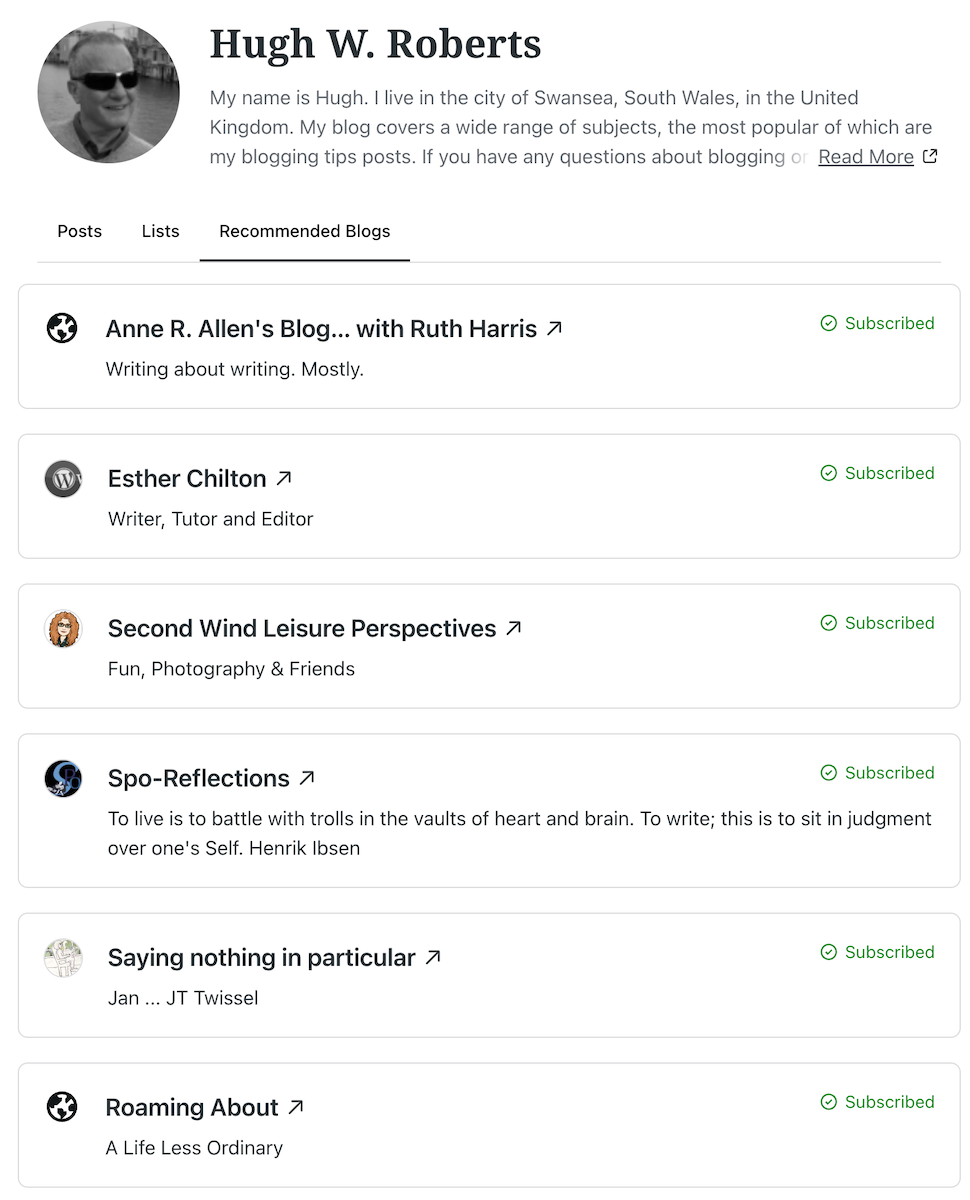
  • The blog you recommended is now added to your Recommended Blogs list and will appear whenever anyone hovers their mouse over your Gravatar profile in the WordPress Reader. Click the ‘View All‘ link to see a list of all the blogs they recommend.
An image of a list of recommended blogs when hovering over a Gravatar profile.
As you recommend blogs, they will appear on your Gravatar profile.

Whenever another blogger recommends your blog, you should receive a notification email from WordPress with the details of who has recommended your blog, provided you have not switched off notifications. However, I’ve not yet seen these notifications appear under the notification bell icon.

Based on my observations, after clicking on the Gravatars of many bloggers, few have recommended any blogs so far. Additionally, some bloggers haven’t included their blog details on their Gravatar, making it harder for others to find their blog. And remember that if you leave comments on other blogs, your Gravatar will appear next to your comment.

Have you seen this new feature on WordPress? Has anyone recommended your blog in this way? Will you start using the ‘Recommend Blog’ feature? Have you added your blog details to your Gravatar?

Layout, content, settings, and format might differ on self-hosted blogs.

The featured image in this blog post is taken from Pixabay. AI checked spelling and grammar mistakes.

Click the buttons below to follow Hugh on Social Media

Copyright @ 2025 hughsviewsandnews.com – All rights reserved.
August 2025 – Something strange happened on my blog!

Something strange happened this month. For the first time since I’ve been blogging, one of my blog posts received more engagement on social media (Mastodon) than on the actual post. I wasn’t sure how to feel about it, but could it be that claims of real engagement in the world of blogging are on the decline?

However, August turned out to be a bumper month for me. Although I only published three blog posts, four if you include this one, my stats soared. August 2025 was the highest month for views of any August since I started blogging in 2014. And to top it all off, engagement remained high.

How was your August blogging-wise?

Here’s your opportunity to catch up on my three blog posts from August 2025.

  • Did you know that keeping old, outdated blog posts can damage your blog? What do you do with your old blog posts? Join the discussion.

The Ultimate Guide to Updating, Deleting, or Republishing Old Blog Posts

  • Warning: If you spot a small pod similar to this, do not go near it.

Flash Fiction – A Small Invasion

  • How easy do you make it for visitors to your blog to contact you without attracting the spammers and spambots?

5 Reasons Why Every Blogger Should Have a Contact Page and How to Build One

Follow Hugh On Social Media.

Don’t forget to add a BlueSky sharing button to your blog.

Copyright @ 2025 hughsviewsandnews.com – All rights reserved.

5 Reasons Why Every Blogger Should Have a Contact Page and How to Build One

What do you do to make it easy for your readers to contact you?

Most bloggers aim to connect with their audience. This is mainly achieved through the comments section of blog posts, but sometimes someone may wish to contact you privately, which may not be suitable for public view. For example, I receive messages asking for help with WordPress or requests to buy a signed copy of one of my books. Nobody wants to share their address, email, or contact number in the comments section.

A ‘Contact’ page is an important connection point between a blogger and their readers, offering a convenient way to get in touch privately. If you look at the menubar of my blog, you’ll see a ‘Contact Hugh‘ link. That’s where any visitor to my blog can contact me privately.

Here’s why you should prioritise having a Contact page on your blog and how to easily set one up.

Benefits of Having a Contact Page

1. Establishes Credibility

Having a dedicated Contact page gives your blog a welcome and friendly impression. It demonstrates that you’re open to communication and approachable, increasing your credibility with readers and new visitors.

2. Facilitates Communication

A Contact page offers a clear and straightforward way for visitors to get in touch with you. Whether they have questions, feedback, or collaboration ideas, this page acts as a direct link to you, preventing confusion about how to contact you.

3. Encourages Engagement

By encouraging readers to contact you, you’re promoting engagement with your audience. This can lead to meaningful discussions, valuable feedback, and even new ideas for content, further benefiting and enhancing your blog.

4. Supports Networking Opportunities

For the majority of bloggers, networking is essential. A Contact page makes it easy for other bloggers to reach out for collaborations, sponsorships, or guest posting opportunities, contributing to your blog’s growth and visibility.

5. Keeps Your Private Details Private

Having a contact form means you don’t need to share your personal details, like an email address, on your blog. After all, do you know everyone who visits your blog? Even if you provide an email address solely for your blog, advertising it will attract spam, spammers, and trolls.

Some bloggers might prefer not to engage with their audience, so a Contact page may not be essential. However, if you choose not to engage, ensure you turn comments off.

How to Install a Contact Page

Creating a Contact page is a simple process. Here’s how you can set one up on your blog. For this purpose, I’m using an Apple iMac desktop computer.

  • Go to the dashboard of your blog, click Pages and then Add Page.
An image highlighting Pages and Add Page on the dashboard of a WordPress blog.
Click ‘Add Page.’
  • Title your page ‘Contact’ or ‘Get in Touch’ or choose a title you prefer.
  • Add a Contact template. WordPress offers several ‘Contact’ templates. To find them, click the ‘+‘ symbol in the top-left corner of the page, then select Patterns and Contact.
An image that highlights Patterns and Contact on the draft page of a Page on WordPress.
Click ‘Contact’ to find the WordPress contact templates.
  • Choose the template you want to use and make any edits to it. For the contact form on my blog, I used Template Number One.
  • Preview your contact form before publishing it. Once you’re happy, click the publish button so it appears on your blog.

Tip: Yes, you’ll likely receive spam or spam bots trying to contact you. To quickly sort out those messages, add a line to your Contact form giving instructions on what to do. I added the following details to my Contact form –

Please complete and submit the form below to contact me securely. To verify that you are not a bot or spam, please start your message with ‘Dear Hugh.’ I will then get back to you as quickly as possible.

Messages that do not start ‘Dear Hugh’ will be marked as spam.

And guess what, it works!

You can also find additional Contact forms under Jetpack – Forms (select the ‘About‘ tab) on the dashboard of your blog.

  • Next, to make it easy for readers to contact you, add your contact form to the menubar of your blog.
  • On the dashboard of your blog, go to Appearance – Menus.
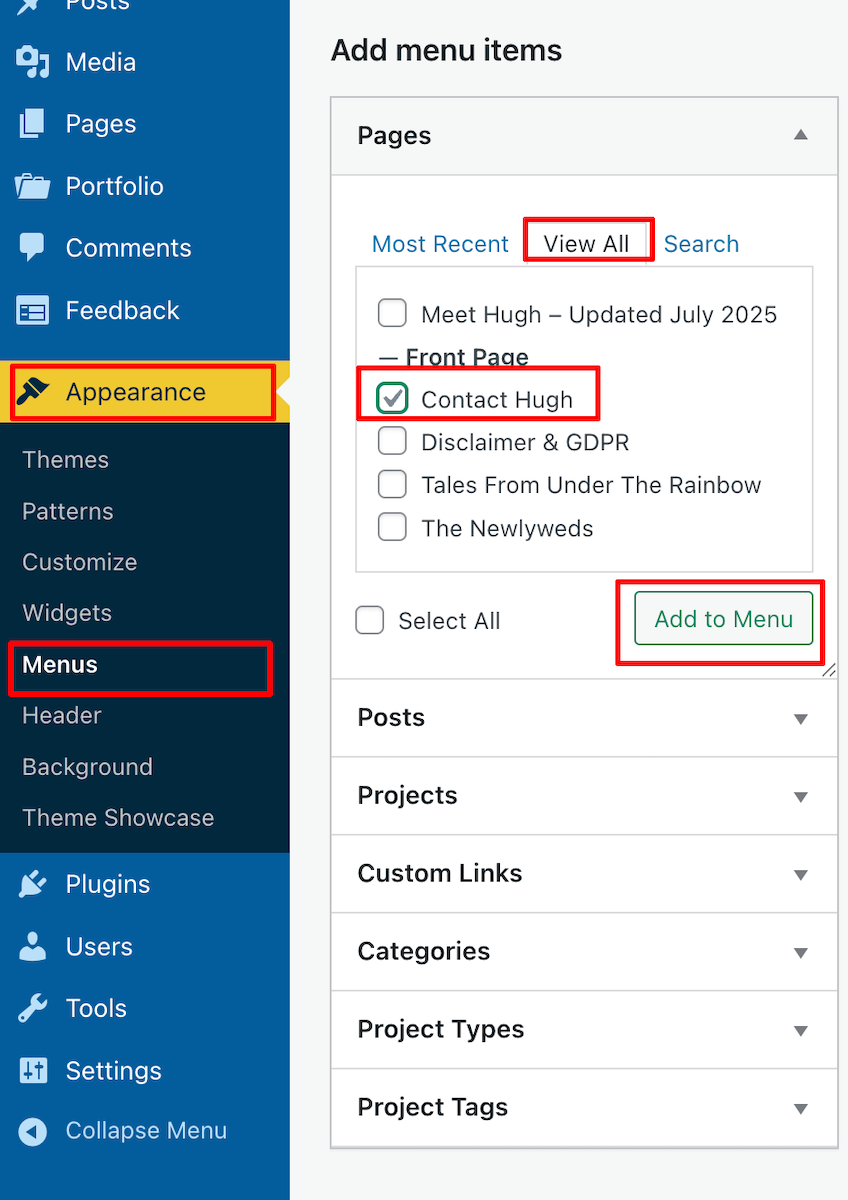
  • Search for your Contact form by clicking View All, tick the box next to it, and click the ‘Add To Menu’ Button.
An image demonstrating how to add a page to a menu on a WordPress blog.
Add your Contact form to your blog’s menubar.
  • Click the Save Menu button at the bottom of the page.
  • To reposition the Contact form on the menubar, on the Menus page, click on it and drag it to the desired location. Remember to click the Save Menu button after any changes.
An image highlighting how to reposition an item on the menu bar of a WordPress blog.
Click and drag the contact form button to move it on the menu bar.
  • Check the menubar of your blog to ensure the Contact form is visible and in the correct place.

WordPress also offers Contact forms plugins.

  • Contact Form 7:
    1. Install and activate the plugin.
    2. Go to Contact – Add New in the dashboard.
    3. Customise your form fields as needed, then save.
    4. Copy the shortcode provided and paste it into your Contact page.
    5. Add the Contact form to your menubar.
  • WPForms:
    1. Install and activate the plugin.
    2. Create a new form using their drag-and-drop builder.
    3. Save your form and copy the shortcode.
    4. Paste the shortcode into your Contact page content.
    5. Add the Contact form to your menubar.

How do I know when somebody has contacted me via my Contact form?

WordPress sends an email to you whenever anyone contacts you via the Contact form (except when they consider it as spam). Users will also see a notification under Jetpack – Forms on the dashboard of their blog.

Anything considered spam by WordPress goes straight to the spam folder. Spam is deleted automatically after 30 days, so there’s no need to worry about it.

Conclusion

Having a Contact page is essential for fostering communication and building relationships with your audience. By following these simple steps, you can easily set up a Contact page on your blog and start engaging with your visitors today!

Do you have a way that visitors to your blog can contact you directly? Any questions? Leave them in the comments section or contact me directly.

Layout, content, settings, and format might differ on self-hosted blogs.

The featured image in this blog post is taken from Pixabay. AI checked spelling and grammar mistakes.

Click the buttons below to follow Hugh on Social Media

Copyright @ 2025 hughsviewsandnews.com – All rights reserved.

Flash Fiction – A Small Invasion

Nobody took much notice of the small Halloween pod that appeared in the Griffiths’ small front window on the night before Halloween. They’d sold the place because it was too small, and the neighbours thought the new owners had placed the pod there. But they were wrong!

The mesmerising, faint green glow out of the eyes and mouth of the pod during daytime Halloween became brighter as the sun set and dusk arrived. It was a sight to behold, especially for the innocent local small children who couldn’t resist posing with it for photos. Their innocence, a stark contrast to the small danger lurking within, made them all the more vulnerable.

Photo of a halloween pumpkin
Halloween

Little did they know that the small creature inside was not just observing, but also making intricate plans. Its intelligence, a chilling reminder of the impending threat, was something to be feared and respected.

At the stroke of midnight, the pod cracked open, and the small, agile creature darted out. It was now a master of disguise, mimicking all the costumes it had seen. Its constant shifting and learning, and planning its next move, was a clear sign of the magnitude of the threat.

By dawn, the small population of the street had shrunk, mostly of children. Of course, nobody took any notice of me, the new owner of the Griffiths’ house, as I blended in seamlessly into your world, now a perfect mimic of your kind.

They asked me about the small pod and the missing children, but I denied any knowledge of them. Over the following twelve months, the city’s human population decreased.

On the run-up to Halloween, keep your eyes peeled for a small alien pod in your neighbourhood. But more importantly, keep a close eye on your neighbours. After all, every invasion starts small.


Written for Esther Chilton’s writing prompt: Small.

The featured image in this blog post was created using AI.

I’m taking a proactive approach to comments to keep conversations meaningful on my blog. Please leave some constructive feedback. Short comments like ‘Nice story’ don’t help anyone.

Click the buttons below to follow Hugh on Social Media

Copyright @ 2025 hughsviewsandnews.com – All rights reserved.

The Ultimate Guide to Updating, Deleting, or Republishing Old Blog Posts

Should You Delete, Update, or Republish Your Old Blog Posts?

As a blogger, you likely know that maintaining high-quality content is crucial for your blog’s success. One of the key aspects is dealing with old blog posts. What should we do with them? Give them a new lease of life? Delete them? Should we allow them to rot away in our archives, where nobody sees them anymore?

Many blogging experts agree that outdated articles can harm your blog, especially its SEO (search engine optimisation) rating. Even if you are regularly publishing fresh content, any remaining outdated information can diminish your efforts and lower the rankings of your new posts.

Search engines favour accurate, up-to-date information and often direct readers to sites that provide it. That’s one reason I recommend updating your ‘About Me‘ page every six to nine months (I update mine every three months). This also applies to all posts on your blog—outdated content is pointless and can deter readers. Imagine you’re an author and have new visitors to your blog reading out-of-date information. Are they likely to buy any of your books?

I make it a point to clear out old blog posts at least once a year, usually in December, when the blogging scene tends to slow down.

Before you hit delete: Things to consider

Before deleting old posts, take a moment to assess each one. Should bloggers update, rewrite, or simply delete older posts?

If a post remains relevant, provides valuable information, and includes evergreen content, it is advisable to update it. This is especially true if it contains valid pingbacks to other live posts on your blog, other blogs, or reputable external sites.

If a post continues to receive traffic, it may be worth updating. Did you know that you can check how much recent traffic every one of your blog posts has had? On the ‘Posts’ page of your blog’s dashboard, look for the ‘Stats’ column, and check the numbers.

An image displaying the number of views a blog post recently received on a WordPress blog.
How many recent views have my blog posts had?

Also, check for incoming pingbacks from other blogs that are still valid; you’ll find them in the comments section of your posts. For example, I recently had to remove several pingbacks to one of my posts because the original content on other blogs was deleted. Broken links can harm your SEO—too many of them, and readers are likely not to return to your site because links don’t work or lead to a ‘404 Content Not Found’ page.

When is it time to rewrite?

If you have an old post with outdated or low-quality content (including low-resolution images) that you believe still holds value, then it’s time for a rewrite. Just remember to delete the older version before publishing the new one.

While rewriting, consider creating a new title that encourages your readers to learn more. A captivating title can significantly boost your click-through rates.

If a post is irrelevant and can only be salvaged through a thorough rewrite, do it! Your audience will value fresh and engaging content, and many of them will never have read the original post.

This post is a rewrite of a popular post from 2022.

Checking for broken links

After deleting any old posts, take a moment to check your blog for broken links. Using a free broken link checker, such as Brokenlinkcheck.com, can assist you with this. However, if it’s your first time, the initial results may seem overwhelming. I recommend pausing the report after identifying about 20 broken links, fixing them, and then running another check.

WordPress also offers a broken link plugin, available depending on your plan or if you’re self-hosted.

Once you’ve finished a broken link check, I recommend doing it at least monthly or whenever old posts are deleted. Also, remember to remove any pingbacks on posts you’re about to delete, as well as delete any images or photos from your media library that are on the post. This helps free up library space.

Is it worth reading old blog posts?

It depends, but if you hear someone celebrating their 5000th blog post, it’s hard to ignore that many of those posts are likely outdated and probably never received any traffic a few days after publication. They may be keeping them for a reason, but don’t hold your breath for any real engagement on them. Many of the comments will also be outdated and probably from readers who no longer have profiles.

If you have posts you want to keep, consider moving them from your blog to a secure location (such as a memory stick).

Can rewritten blog posts be successful?

Absolutely!

I’ve rewritten and republished several of my earlier blog post tips. Initially, these posts had low views and lacked depth, but I revitalised them with improved procedures and high-quality images. I also added links to some of my most successful posts for context.

Many of these revamped pieces have since become top performers on my blog.

Are there any blogs that don’t require regular updating?

No! Every blog needs to be updated. Although some blogs, such as photography blogs, may not require frequent updates to posts, and some blog owners may not prioritise SEO rankings, the ‘About’ page will always need to be updated and links checked to ensure they still work.

Conclusion:

  • Delete any old blog posts that contain outdated information that cannot be salvaged.
  • Before deleting, deactivate any incoming and outgoing pingbacks associated with the post.
  • Delete images from your blog’s media library from posts you are about to delete to free up space.
  • Conduct a broken link report on your blog at least once a month or following the deletion of old posts.
  • SEO benefits rely on your blog’s capacity to provide updated information; lack of it can hurt your new posts.
  • If a post remains relevant and useful with evergreen content, be sure to update it, especially if it contains valid links to other relevant content and continues to receive traffic.
  • Rewrite posts that feature outdated or poor-quality content but still hold some relevance and give them a fresh title.
  • Always remove older versions of rewritten posts before going live with the new content.
  • Every blog needs regular updates, especially the ‘About’ page and a check for broken links.

What criteria do you use when deciding whether to update or delete an old blog post? Have you ever resurrected an old post? What changes did you make to breathe new life into it? How often do you check your blog for broken links, and what tools do you find most effective? Have you ever regretted deleting a post? What would you have done differently?

Layout, content, settings, and format might differ on self-hosted blogs.

The featured image in this blog post is taken from Pixabay. AI checked spelling and grammar mistakes.

Click the buttons below to follow Hugh on Social Media

Copyright @ 2025 hughsviewsandnews.com – All rights reserved.

Did You Miss Any Of These? Monthly Round-Up – July 2025

I’ve always believed that the summer months are quieter in the blogging world because many of us are off doing better things and making the most of the weather, provided it’s not too hot and humid. Yet, I have been proved wrong this summer, with my stats for June being significantly higher compared to June 2024, and they remained much the same for July. But how are your stats doing for the year so far?

Including this post, I’ve published 31 posts so far this year, which is significantly fewer than I’ve ever done, except for 2014, my first year of blogging. My blogging tips posts remain popular, although I’m pleased that both my flash fiction posts received much more engagement than previous flash fiction posts.

When was the last time you backed up your blog? Don’t need to back it up? Think again. I’d recommend reading the last post on the following list.

Here’s your opportunity to catch up on my four blog posts from July 2025.

  • Bill faces a crucial decision at a crossroads, ultimately choosing a hidden path that leads to complicated consequences for him and his wife.

Flash Fiction – Crossroads Of Desire

  • Why this new WordPress feature functions as a backdoor for verifying that everything is working as intended on your blog.

Now This Is Why Keeping Your WordPress Site Updated Matters

  • An empty house. Brightly coloured feathers on the stairs. But where do they lead, and what do they mean? Adrian is about to find out.

Flash Fiction – Follow The Feathers

  • Would you know what to do if your blog vanished without explanation? My post describes how you can prevent the nightmare of losing all your blog’s content.

How to Prevent This Horrible Blogging Nightmare From Happening

Follow Hugh On Social Media.

Don’t forget to add a BlueSky sharing button to your blog.

Copyright @ 2025 hughsviewsandnews.com – All rights reserved.

How to Prevent This Horrible Blogging Nightmare From Happening

Imagine turning on your computer, laptop, or phone and discovering that your blog had vanished without a trace. What a horrible nightmare, yes?

In the 12 years I’ve been blogging, it has never happened to me, although there was an occasion when the setup of my blog (and that of many others) changed completely overnight, all due to a bug that affected many WordPress blogs. Fortunately, it was fixed quickly, even though it caused many users a nightmare they never thought would happen.

If you’re a WordPress.com blogger, be assured that if your blog and all its content suddenly vanish, WordPress will have a backup. Regardless of your WordPress plan, WordPress backs up every blog and keeps a copy, just in case it is ever needed. All you need to do is contact WordPress and request the file. They will send you a file containing the most recent backup they made. However, as we will discuss later, backups do not include everything.

But there’s no need to contact WordPress

If you’ve ever had a bad experience contacting WordPress or don’t want to contact them, there is another step you can take to ensure you have a backup of your blog. I’m using an Apple iMac desktop computer for the following guide.

How to backup your WordPress blog.

  • On the dashboard of your blog, go to Tools – Export.
  • Choose the items you wish to export (I recommend ‘All content‘) and click the ‘Download Export File‘ button.
An image showing Tools - Export' on the dashboard of a WordPress blog.
Press these buttons to begin the process of backing up your WordPress blog.
  • You will see a message informing you that your export file is being processed, along with the email address where a download link will be sent once the process is complete.
  • Access your email account where the link is sent, locate the email, and open it. Click on the ‘Download‘ button within the email.
An image showing the Download button in the email sent from WordPress when backing up your blog.
Click the ‘Download’ button in the email.
  • The file will be downloaded to your device. Ensure you remember its location and move it to another folder if necessary. I’ve created a file on my computer called ‘WordPress Backups’. Note that the file is only available for download for 7 days.
  • Remember to delete any previous WordPress backup files to free up memory on the device you are using.

The backup file you have downloaded does not include any media such as images, videos, or photographs. To back up media, follow the above instructions but select ‘Export Media Files‘ from the Tools menu – Tools – Export Media Files.

Do the backup files include everything?

It depends on which WordPress plan you have.

Users on a Free, Personal, or Premium plan can back up content and media. However, themes and plugins are not included in the backup. Therefore, if you ever need to download a backup file and have been using a retired theme that WordPress no longer supports, you will need to choose a new, current theme that is still supported. You’ll also need to download any plugins your blog uses.

Those with Business or Commerce plans have access to Jetpack Vault Backup, which allows them to view and restore backups at any time from their blog’s dashboard. This can be accessed at Jetpack – Backup. These backups include everything, including the theme and any plugins you use.

An image highlighting jetpack - Backup on the dashboard of a WordPress blog.
Click the Backup link to access the Jetpack Vault backup file.

Should I need to worry about backing up my blog?

Given that WordPress backs up your blog, no! However, for total peace of mind, and depending on how often you publish posts, you might consider backing up your blog at least once a month. If you publish posts daily or more frequently, I’d recommend backing up your blog at least once a week. However, after performing a backup, remember to delete the previous backup file.

Most likely, you’ll never need a backup copy of your blog, but I suggest you save a copy of this post in case you ever lose all the content of your blog.

All WordPress blogs also come with an ‘Activity Log‘ feature where bloggers can reinstall posts they have deleted by mistake. However, this feature is limited by the extent to which you can recover posts, depending on the WordPress Plan you have.

An image highlighting the Activity Log link on the dashboard of a WordPress blog.
Click the Activity Log button to see the most recent activity on WordPress.

Conclusion:

  • WordPress automatically backs up WordPress.com blogs, but it doesn’t include everything.
  • Users can contact WordPress and request a copy of the backup file.
  • Users can backup their blogs via the dashboard.
  • For backing up media files, remember to perform a backup by going to Tools – Export Media Files.
  • What is backed up depends on your WordPress plan.
  • Business or Commerce plan users have access to Jetpack Vault Backup, which includes everything (themes, plugins, etc.) and can be accessed at any time via the dashboard.
  • Backup links are only valid for 7 days.
  • Remember to delete previous backup files to free up space on your device.
  • While WordPress does back up your blog, regular manual backups (such as monthly or weekly) are recommended for added peace of mind.
  • The Activity Log feature allows recovery of accidentally deleted posts, with limitations based on your plan.
  • Keep a copy of this guide for future reference.

Have you ever lost content on your blog? If so, how did you handle it? What has been your experience with WordPress backups? Have you ever had to restore a backup? Are there any specific plugins or tools you recommend for backing up a self-hosted blog? Would you prefer to rely on WordPress’s automatic backups, or do you believe manual backups are essential? Join the discussion and leave your comments and answers.

Layout, content, settings, and format might differ on self-hosted blogs.

The featured image in this blog post is taken from Pixabay. AI checked spelling and grammar mistakes.

Click the buttons below to follow Hugh on Social Media

Copyright @ 2025 hughsviewsandnews.com – All rights reserved.

Flash Fiction – Follow The Feathers

Slowly opening the front door, Adrian listened for signs of life.

Fairly confident that nobody was home, he stepped inside.

Should he go to the kitchen for snacks or upstairs to turn on his new PlayStation and watch his new favourite show? What lay on the stairs held the answer. Brightly coloured feathers going up the stairs piqued his curiosity to follow them. How did they get there?

An image of a carpeted staircase with some brightly coloured feathers lying on some of the steps.

Hearing muffled voices, he suddenly stopped and walked towards where they were coming from. The door to his parents’ bedroom wasn’t fully closed, allowing him to look through the small gap.

The scent of his mother’s perfume hit his nostrils. She was sitting down with her back to the door wearing a dress he’d never seen her in before, one his father had probably bought her. A feathered boa lay around her neck. The mystery of the strange coloured feathers was solved. He watched briefly as she scrunched her hair and wondered if she knew the zip on the back of the dress was not zipped up all the way. Had she had her hair styled differently? It didn’t look right. Something nagged at him.

“Mum?”

“Adrian!” came a deep, shocked voice. His father turned around to face the door, spitting a feather out of his mouth; his expression readable. “I thought you were going to Danny’s after college?”

Adrian froze, his heart racing. The sight of his father, clad in a dress, feather boa and wig, left him speechless. The room behind the door filled with an awkward silence, until broken by the soft rustle of the feathers and then laughter.

“Uh, I—” his father stammered, a mix of surprise and embarrassment washing over his face. “This isn’t what it looks like.”

Adrian blinked, trying to process the scene. “Then what is it?” he asked, as he pushed open the door.

His mother laughed nervously and joined his father from the other side of the room, a playful spark in her eyes. “Maybe we should tell him. It’s about time he knows.”

With a sigh, Adrian’s father straightened and took a deep breath. “Alright, Adrian. This isn’t what you think. Your mother and I are part of a show for the charity gala this weekend. We thought it would be fun to do a dress-rehearsal at home.”

“Dress-rehearsal?” Adrian echoed, incredulity giving way to excitement. The mystery of the feathers and the strange scene before him transformed into something far more compelling.

“Yes!” his mother said, smiling brightly. “We could really use your help! How about you watch us rehearse and tell us what you think?”

Realising he was now part of this unexpected adventure, Adrian grinned. “No thanks. I’d rather go on my PlayStation. But have fun.”

As laughter filled the room, Adrian walked to his bedroom, his earlier curiosity now filled with enthusiasm for a new side of his parents and their secret world.

Switching on his PlayStation, Adrian didn’t play any games. He connected to the BBC iPlayer to watch a newly discovered show which had now become his favourite.

“Welcome to RuPaul’s Drag Race UK,” said another man wearing a dress. He looked far more glamorous than Adrian’s father did.


Written for Sunday Stills hosted by Terri Webster-Schrandt: – Theme: Feathers.

The featured image and main image in this blog post were created using AI.

I’m taking a proactive approach to comments to keep conversations meaningful on my blog. Please leave some constructive feedback. Short comments like ‘Nice story’ don’t help anyone.

Click the buttons below to follow Hugh on Social Media

Copyright @ 2025 hughsviewsandnews.com – All rights reserved.

Now This Is Why Keeping Your WordPress Site Updated Matters

WordPress has introduced a useful new feature that benefits all users, including those with a ‘Free’ plan.

With just a few clicks, you can check whether the version of WordPress you are using is up to date, whether any plugins you have installed are current, and if the theme of your WordPress site is the latest release.

Here’s how to verify that all your WordPress installations are up to date. I am using an Apple iMac desktop computer for this guide.

  • Go to the dashboard of your blog and click on Dashboard – Updates.
An image emphasising the 'Update' button on the dashboard of a WordPress blog.
Click the ‘Update’ button.
  • After clicking on Updates, you will see a page that informs you whether you are using the latest version of WordPress, plugins, and the WordPress theme you have installed.
An image of a page on a WordPress blog informing if WordPress, plugins and themes are all up to date.
Is everything on your WordPress blog updated?

If, like me, you are a WordPress.com user, WordPress will keep all these items up to date for you. So, why am I then informing you of this feature? Well, it’s all about retired themes and plugins that cause problems.

If you are using any plugins or a theme that has been retired, even if it appears you have the latest versions, any bugs affecting the theme or plugin since the final update will no longer be fixed because WordPress has withdrawn support.

How do I find out if the WordPress theme I’m using is still supported?

To find out if the WordPress theme you are using is still supported (and receiving updates), visit your blog’s dashboard and click Appearance – Themes. You will see a message indicating your theme is retired if it is no longer supported by WordPress. As we all know, using outdated themes can cause numerous problems for users.

Although a retired theme might not cause problems now, it could in the future. Some users attempt to use a workaround to avoid issues, but this is not advised, as it may lead to further problems. Instead of a workaround, switch to a current theme fully supported by WordPress. You don’t have to move to a Block theme if you prefer not to, since many Classic themes remain supported by WordPress. I am still using a Classic theme (Toujours) on my blog, which is fully supported.

Using an outdated, unsupported theme can lead to several issues. Here are a few.


1. Security vulnerabilities: Without ongoing updates, the theme may become prone to security risks that could compromise your blog.
2. Compatibility issues: As plugins and WordPress itself update, an outdated theme may not function correctly with newer versions, causing layout glitches, functional problems such as not being able to leave comments and issues with WordPress believing you are not logged in.
3. Lack of support: You won’t have access to official support for troubleshooting any issues or queries that arise with the theme. WordPress will advise you to change to a supported theme.
4. Performance issues: Unsupported themes may not be optimised for speed and performance, leading to slower load times.
5. Missed features: Regular updates often include new features and improvements; sticking with an unsupported theme means missing out on these enhancements, which could benefit your blog’s features and user experience.

If you are using a retired theme and refuse to switch to a supported one, there’s no point in blaming WordPress for any problems with your blog. It’s not their fault if you continue to use something they no longer support.

How do I change my WordPress theme?

Refer to the ‘Change Your Theme‘ page for complete details.

How do I change a retired plugin?

The best approach is to find a new plugin that provides similar functionality. You can search the WordPress plugin repository or other trusted sources for alternatives. 

Conclusion:

  • Many users often blame WordPress for blog-related issues, which are frequently due to user error or outdated software on their devices.
  • WordPress has introduced a new feature that allows users, even on the free plan, to check if their WordPress version, plugins, and theme are up to date.
  • To check for updates, navigate to Dashboard – Updates in your blog’s dashboard. If everything is updated, great!
  • However, if you’re using retired themes or plugins, you won’t receive support or fixes for any issues that arise.
  • Unsupported themes can lead to security vulnerabilities, compatibility issues with newer updates, a lack of support, performance problems, and the omission of key features.
  • To determine if your theme is still supported, navigate to Appearance – Themes in the dashboard.
  • If it’s retired, consider switching to a supported theme or plugin for better performance and security.

Have you ever faced issues with outdated themes or plugins on your WordPress blog? How did you go about resolving them? Which themes are you currently using, and have you checked if they are still supported? Do you have any WordPress tips to share with others?

Layout, content, settings, and format might differ on self-hosted blogs.

I’m getting tough with non-engaging comments. Comments such as ‘Nice post’ are marked as spam.

The featured image in this blog post is taken from Pixabay. AI checked spelling and grammar mistakes.

Click the buttons below to follow Hugh on Social Media

Copyright @ 2025 hughsviewsandnews.com – All rights reserved.