

Imagine turning on your computer, laptop, or phone and discovering that your blog had vanished without a trace. What a horrible nightmare, yes?
In the 12 years I’ve been blogging, it has never happened to me, although there was an occasion when the setup of my blog (and that of many others) changed completely overnight, all due to a bug that affected many WordPress blogs. Fortunately, it was fixed quickly, even though it caused many users a nightmare they never thought would happen.
If you’re a WordPress.com blogger, be assured that if your blog and all its content suddenly vanish, WordPress will have a backup. Regardless of your WordPress plan, WordPress backs up every blog and keeps a copy, just in case it is ever needed. All you need to do is contact WordPress and request the file. They will send you a file containing the most recent backup they made. However, as we will discuss later, backups do not include everything.
But there’s no need to contact WordPress
If you’ve ever had a bad experience contacting WordPress or don’t want to contact them, there is another step you can take to ensure you have a backup of your blog. I’m using an Apple iMac desktop computer for the following guide.
How to backup your WordPress blog.
- On the dashboard of your blog, go to Tools – Export.
- Choose the items you wish to export (I recommend ‘All content‘) and click the ‘Download Export File‘ button.
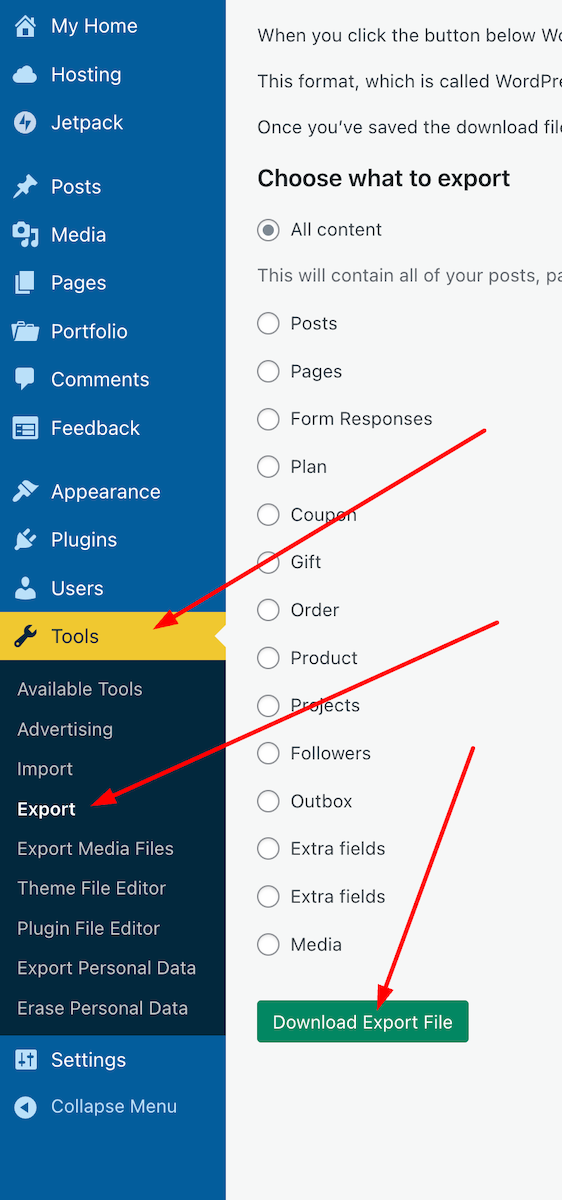
- You will see a message informing you that your export file is being processed, along with the email address where a download link will be sent once the process is complete.
- Access your email account where the link is sent, locate the email, and open it. Click on the ‘Download‘ button within the email.

- The file will be downloaded to your device. Ensure you remember its location and move it to another folder if necessary. I’ve created a file on my computer called ‘WordPress Backups’. Note that the file is only available for download for 7 days.
- Remember to delete any previous WordPress backup files to free up memory on the device you are using.
The backup file you have downloaded does not include any media such as images, videos, or photographs. To back up media, follow the above instructions but select ‘Export Media Files‘ from the Tools menu – Tools – Export Media Files.
Do the backup files include everything?
It depends on which WordPress plan you have.
Users on a Free, Personal, or Premium plan can back up content and media. However, themes and plugins are not included in the backup. Therefore, if you ever need to download a backup file and have been using a retired theme that WordPress no longer supports, you will need to choose a new, current theme that is still supported. You’ll also need to download any plugins your blog uses.
Those with Business or Commerce plans have access to Jetpack Vault Backup, which allows them to view and restore backups at any time from their blog’s dashboard. This can be accessed at Jetpack – Backup. These backups include everything, including the theme and any plugins you use.

Should I need to worry about backing up my blog?
Given that WordPress backs up your blog, no! However, for total peace of mind, and depending on how often you publish posts, you might consider backing up your blog at least once a month. If you publish posts daily or more frequently, I’d recommend backing up your blog at least once a week. However, after performing a backup, remember to delete the previous backup file.
Most likely, you’ll never need a backup copy of your blog, but I suggest you save a copy of this post in case you ever lose all the content of your blog.
All WordPress blogs also come with an ‘Activity Log‘ feature where bloggers can reinstall posts they have deleted by mistake. However, this feature is limited by the extent to which you can recover posts, depending on the WordPress Plan you have.

Conclusion:
- WordPress automatically backs up WordPress.com blogs, but it doesn’t include everything.
- Users can contact WordPress and request a copy of the backup file.
- Users can backup their blogs via the dashboard.
- For backing up media files, remember to perform a backup by going to Tools – Export Media Files.
- What is backed up depends on your WordPress plan.
- Business or Commerce plan users have access to Jetpack Vault Backup, which includes everything (themes, plugins, etc.) and can be accessed at any time via the dashboard.
- Backup links are only valid for 7 days.
- Remember to delete previous backup files to free up space on your device.
- While WordPress does back up your blog, regular manual backups (such as monthly or weekly) are recommended for added peace of mind.
- The Activity Log feature allows recovery of accidentally deleted posts, with limitations based on your plan.
- Keep a copy of this guide for future reference.
Have you ever lost content on your blog? If so, how did you handle it? What has been your experience with WordPress backups? Have you ever had to restore a backup? Are there any specific plugins or tools you recommend for backing up a self-hosted blog? Would you prefer to rely on WordPress’s automatic backups, or do you believe manual backups are essential? Join the discussion and leave your comments and answers.
Layout, content, settings, and format might differ on self-hosted blogs.
The featured image in this blog post is taken from Pixabay. AI checked spelling and grammar mistakes.
Click the buttons below to follow Hugh on Social Media
Copyright @ 2025 hughsviewsandnews.com – All rights reserved.
Discover more from Hugh's Views & News
Subscribe to get the latest posts sent to your email.
 Hugh's Views & News
This is such an important topic and post, Hugh. Thank you. It is also quite timely, as I had my first scare ever, last week, after blogging for almost twenty years! I went to my site, as often, and didn’t recognize the home page. It looked totally different from what looked like a weird company promoting itself and my tabs and post titles spread across the page in weird spots. Was my blog hacked?
The timing was awful. It was 10pm, I was exhausted, and I’d just gotten off the phone with Mark who needed to go to bed early and say goodbye to his mom, as he was leaving by plane – back to me – very early the next morning. But he’s my “tech guy” and I had to share my horror about our site!
Long story short, we think when our hosting company (which isn’t WordPress) moved us to a different plan, the site was messed up and the theme was accidentally changed. All Mark needed to do was restore my Hemingway theme. That being said, he did call our hosting company and was about to have them reset my blog to a previous version, as they back it up every day.
In the past, our business website has been hacked and this was a big deal. Even recovering the site to a previous version meant having lost emails with customers and orders as well. It was a mess!
Anyway, backing up files is always a good idea!
Hi Liesbet, don’t these things always happen at a time when we are near bedtime, so tired, or just as we are going out or have guests arriving?
Thank you for sharing your stories. It proves just how important it is to back up our blogs.
Thank you for this, Hugh. I didn’t know WordPress backed up blogs. That’s worth knowing, but I’ll definitely be backing up manually as well.
They do, but they don’t back up everything. But you can backup content and media of your blog and keep the files safely, should you ever need them (hopefully not).
This is good to know, Hugh. WordPress has bailed me out a few times, and their backups included most everything, except for a couple of current posts. Even my images were included.
I didn’t know backup links were valid for only seven days, and thank you for sharing that information.
I don’t know how often WordPress do backups, Eugi. What they sent will also depended on which WordPress plan you have. For example, the free plan may only offer a certain amount of media to be downloaded.
I think you have to have the Business plan for Jetpack backups, which I had some time ago. Otherwise, you’re on your own if you have the Premium or the Free plans.
Yes, a Business plan or above for the Jetpack backup. Those on lower plans can use the Download Export File backup.
I do back up my blog every so often and it’s good to know there’s also a back up on WP. The media files however don’t seem to back up fully, whether there’s too much media or something else I’m not sure but they get about half way and stop.
That could be a problem caused by the theme you use, Cathy. One for WordPress to check for you. The download should include all media, unless the plan you are on only allows a certain amount of media being downloaded.
I check it out, Hugh. Thanks.
Hi Cathy,
Something I found on WordPress this morning about export files not fully downloading. I hope it helps.
If your download times out with an error before completion, follow these steps:
Check if your browser supports resuming downloads. If it does, click the Resume button in your browser’s download manager.
If resuming isn’t an option, use a download manager application for large files:
For Windows: Use a Free Download Manager or similar application.
For Mac: Use a Free Download Manager or a similar application.
Thanks so much for this, Hugh. I haven’t tried again as yet so I’ll give this a go.
I’m still recovering from the shock of finding that the theme I used was no longer available and I couldn’t access the blog as a result. I didn’t know you could do your own back up – I use a paid service but will certainly take a look at your instructions now. If I could do my own, I can save some money
I’d recommend checking it out first before canceling the paid service. Your story of not being able to access your blog because of the out-of-dare theme you were using is a good example of why backing up our blogs is so important.
There are a few posts I could swear were eaten up by WP but I’ve been blogging for so long that perhaps they were just posts I contemplated writing but never did! I have experienced with the back up files and you’ve written an excellent explanation.
I heard of bloggers saying that WordPress lost their posts (usually draft posts) but if they were there, they would show up under the Activity tool.
Thank you, as always, Hugh, for your wonderful information!! :)
I hope it all helps, Penny. You’re welcome.
Great information, Hugh. We all need to keep track of our updates.
Indeed we do, Colleen. The Activity feature is very useful, especially when deleting the wrong posts or images.
I’ve used your instructions several times, Hugh. You’re doing a great service for us all.
Thanks a lot for the reminder, Hugh. I used to do a backup weekly but just noticed that I had not done it in a while!
At least you are backing up the contents of your blog, Erika. It’s something I think the majority of bloggers never think of doing – until it’s too late.
Oh, gosh, yes, that would be a nightmare indeed. after so many years of working on a blog.
Great to know about the backup. My blog recently went to the dogs – huge pictures, references to things I’d forgotten, no posting of new posts – I had to hire someone to straighten it out. He told me I must have deleted something in the program, but I remember right before it happened that WordPress told me they were going to make some ‘updates’ to my site. Grrrr….
When WordPress updates occurs, they usually affect all of our blogs, unless they are aimed at certain themes. But what a nightmare it must have been. Glad you were able to find someone to sort the problem out.
You’re hearing a big sigh of relief!
That really would be a nightmare to find that it had disappeared. I had no idea about being able to backup my blog myself. Thank you for the advice, Hugh.
I hope it all helps, Esther. It’s something many bloggers think will never happen.
That’s great to know that they keep a backup. That would be pretty horrific if your blog just vanished.
It is, but remember that the backup WordPress keeps won’t include everything (depending on which WordPress plan you have).