The Amazing New WordPress Comments Box: What It Does

Have you noticed the new style comment box on WordPress?

In line with the Block editor, WordPress has rolled out a new cool comment box on most WordPress blogs. While I’m writing this post, I still see a few blogs with the old-style comments box, but I’m confident all WordPress blogs will soon display the block-style comment box.

The new style comments box appears on blog posts, but not when you add your comment via the comments box on the WordPress Reader.

Light blue image with the words 'The Amazing New WordPress Comments Box: What It Does' in white text
This new comments box can do more than just leave comments

For the purpose of this post, I’m using an iMac desktop computer.

Here is a breakdown of what users can do when leaving comments on blogs with the new block-style comment box.

What does it look like?

This is what the new style comment box looks like.

Image showing the new style block comment box on WordPress
WordPress Block Style Comments Box

It looks very simple, doesn’t it? And it is very easy to use. Your Gravatar image appears in the bottom left corner.

The comments box looks like this as soon you click in the box.

Image showing
Click inside the box to start typing your comment.

Notice the difference? A toolbar has opened along the top, and an ‘+‘ icon has appeared inside the comments box. Let’s examine what they do. I’ve numbered some icons in the following image.

Image highlighting the features of the toolbar on the block style comments box on WordPress
Features of the toolbar
  1. Block being used.
  2. Aline text
  3. Bold
  4. Italic
  5. Pingback link

1 – This is the type of block being used when commenting. It will always be the Paragraph block by default, but you can switch to the List or Quote block by clicking on it. If you change it to the List or Quote block, a new toolbar will appear.

2 – Use this icon to align text to the left, right or centre.

3 – Use this icon to make the text bold.

4 – Use this icon to make the text italic.

5 – Use this icon to create a pingback.

Most readers only use text when leaving comments and they will never feel the need to align it or make it bold. However, many bloggers want more.

You can now insert other blocks into the comments box by clicking the ‘+‘ icon. For example, you can now easily insert an image in your comment by clicking the ‘+‘ icon and choosing the Image block.

Image showing an image placed into the block-style comments box on WordPress.
Copy and paste the URL address of the image you want to add.

How cool is that? (not the photo of me, but the fact that I can add an image to the comments). This is especially good for participating in photography challenges without creating a blog post or when explaining something where including an image or screenshot helps.

I want to mention that you can create pingbacks in your comments. Pingbacks are powerful and can help boost visitors to your blog. We could already add pingbacks when using the Classic view on our blog’s dashboard but we can now finally do it using the Default view.

Image showing how to create a pingback in the comments box on WordPress
Create pingbacks in your comments.

Are you unsure how to create a pingback? My post, The Power Of Pingbacks: How To Create One, provides full details.

Before submitting your comment, remember to click the small settings cog next to your Gravatar photo to open a new menu. Why?
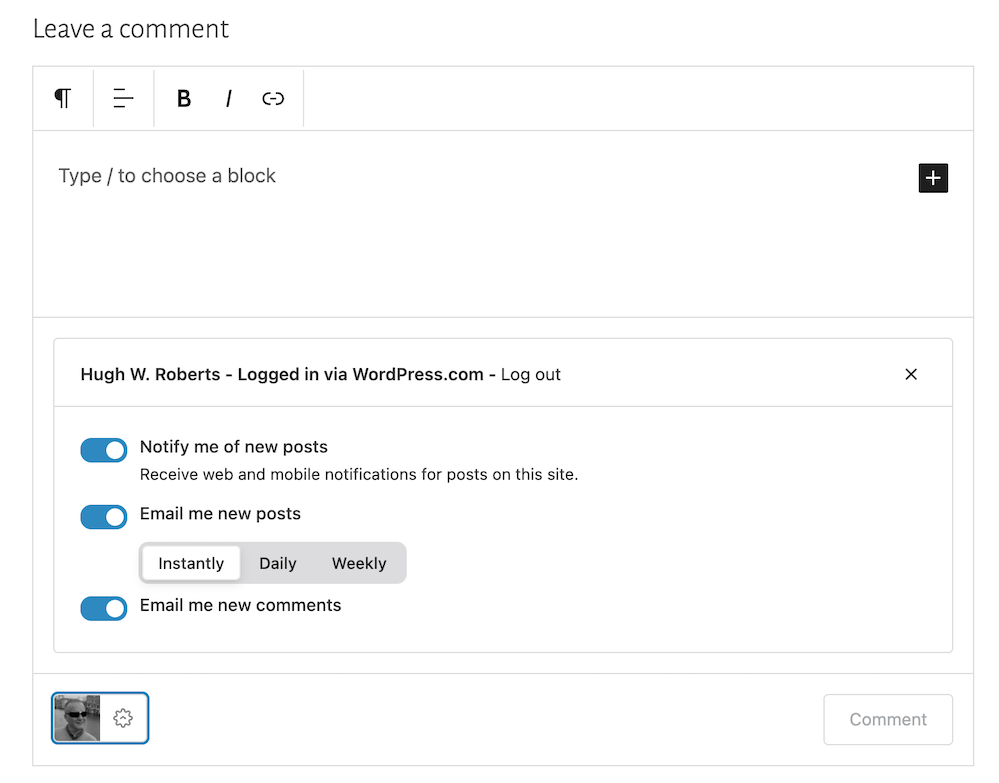
Image showing the new menu that opens when clicking the settings button next to a Gravatar profile in a Block-style comments box on WordPress
Click the settings cog next to your Gravatar picture for a new menu.

Not only will the menu that opens confirm if you are logged into WordPress, but you can also sign up to receive web and mobile notifications for posts on the blog you are leaving your comment on, get email notifications of new posts, and receive email notifications of any new comments left on the post (including a response to your comment from the blog host).

Press the ‘Comment‘ box to submit your comment.

Is this true?

I’ve heard that some bloggers are threatening to stop leaving comments or are thinking of leaving WordPress because of the introduction of the new block-style comment box.

Given that the bare minimum somebody has to do to leave a comment is to type their comment into the box, I find it hard to believe that people are threatening to stop leaving comments or leaving WordPress because of the introduction of this new comments box. If you are, please reconsider your decision.

The new block-style comments box is not hard to use; it’s just a little different!

Update

Users can now disable blocks in comments. Go to Settings – Discussions, and in the ‘Comments‘ section of the page, turn off ‘Enable blocks in comments.’ Remember to save the change.

WordPress’s new comments box style is a refreshing update that enhances the user experience. Its modern and intuitive design makes interacting with comments more enjoyable. If you have any questions about it, feel free to leave them in the comments section. I look forward to hearing your thoughts!

Layout, content, settings, and format might differ on self-hosted blogs.

Click the buttons below to follow Hugh on Social Media

Copyright @ 2024 hughsviewsandnews.com – All rights reserved.


Discover more from Hugh's Views & News  

Subscribe to get the latest posts sent to your email.

131 thoughts on “The Amazing New WordPress Comments Box: What It Does

  1. Thanks for the insight. My problem is that now comments are hidden in who they are from and many, especially in real life friends, don’t leave their names.

      1. I just like to be able to connect with people, and a comment from “someone” isn’t very personal, so it’s hard to always respond appropriately. Once it was my cousin and her next comment made it seem like I should have known that, but there is no way to know. I certainly won’t stop WP because of it.

  2. Hugh, I’m so glad you were inspired to write this post about the changes to the comment box and happy to know that no one here is leaving because of this change. :)

    The sign-in issue frequently happens when commenting on WordPress.com websites that have their own domain and it’s been like that for a while now. If someone is already signed in to their WordPress.com account, they can “sign in” right from the comment box by clicking the big W icon that appears there once you add something to the box, even if the icon isn’t highlighted.

    I was especially excited to see a blog post embed in the comments.

    Thanks again for the info and insights!

    1. Thanks, Jen.

      You may have seen on one of the comments above that WordPress advised to untick the setting for blocking third party cookies. And it seems it has worked and Terri is now not always getting the ‘sign into’ WordPress; message when she is already signed in. I think that may help a lot of people who are experiencing the problem. But thank you for your advice about signing in too.

      This new comments box is very exciting with all the features it offers. I think it’ll prove a big success amongst the majority of bloggers.

      1. I did read that, Hugh, and happy to know it works for Terri. Enabling 3rd party cookies in Firefox hasn’t been a complete solution to the problem for me. I still have to log in again on many WordPress.com sites.

        The new possibilities for sharing content in comments is really wonderful for increasing engagement. More engagement is always better. :)

  3. Thanks for this information and tutorial. I didn’t take time to learn about using blocks. I still don’t understand their purpose. Even now, I save my posts as drafts and go back to edit in the classic view. The theme I use is like me — from the Word Press dinosaur age, and I do wonder if the new comment design will appear on my blog. I suppose I’ll find out when some of my older followers from the dinosaur age comments. :-)

    1. The Block editor not only brings blogs into the 21st century, but offers bloggers lots of excellent tools, many of which are time-saving. The Classic editor also has its own block. I’ve seen this new comment block on blogs where the author uses the Classic editor, so it’ll probably appear on your blog soon unless the theme you’re using has been retired and has bugs which prevent its use.

  4. I love the new comment block, Hugh, and thank you for giving us the rundown on its features. I see it on most blogs, including mine. Your posts are so helpful and I appreciate all you do. 

    1. Good to hear it’s on your blog, Eugi. I don’t think it will be long before it appears on all blogs unless a blogger has a theme that has its own unique comment box.

  5. Yep, its all here as I comment, Hugh! I’ve seen this option lately on many blogs (not all) and I like it so far. As a photo challenge host, I believe this can open the door for those who don’t want to write a post but take part in the challenge with an image. And I like you can easily make a paragraph break…

    ..Like this! I have to share that I was having huge difficulties logging in to every single post from my desktop (chrome, windows 11, etc). With help from WP engineers, I discovered I had taken some advice from an article I read and blocked third party cookies. Once the H.E. suggested this I changed my settings and I have been mostly OK to leave comments or like without having to log in. Perhaps other bloggers who are experiencing ussies with WP should check their computer settings.

    Well done, Hugh, as always, keeping our blogging community informed!

    1. Terri, I’m pleased what WordPress suggested has just about helped. There are so many settings available to us, and it seems that sometimes we change things without knowing what the consequences may be. It would be good to know where the third party cookies setting is so that if anyone mentions it in the future, we can point them in the right direction. I could hunt around for it, but if you do know, it would be very helpful.

      1. Ok. Go to Chrome and select the 3 dots. Go to settings and select Privacy and Security. Then click on third party cookies if you dare 😆 it’s defaulted to allow them but you can block them.

        When I did that, reading blog posts
        became a chore to have to log in each time. This is the same area in settings to clear browsing data and cache, which I do from time to time.

        1. Thanks, Terri.

          It reminds me of a problem I had over the weekend where I was not able to access my account for our home phone and broadband. The site keep logging me out. However, after clearing all the cache on Chrome, I was able to log in without any problems. That tells me that it’s not always the fault of the company whose website I am trying to access.

          Thanks again.

  6. Thanks for the info, Hugh. I’ve noticed the new comment box but I’m not sure it appears on my blog yet. The only concern I’d have, and maybe it’s not a big one, is that the new comment box might be confusing to non-bloggers or those who don’t use WP.

    I like having the ability to add a photo. I hope people don’t abuse the ability to add a link (adding a link to their blog in all of their comments)… that wouldn’t be good blogging etiquette.

    1. Hi Janis, I checked, and the new comment box does not appear on your blog yet. There could be a number of reasons why, the main one being if your blog is self-hosted. Also, the theme you use may have it’s own unique comment box. Some blogs have had this new style comment box for a long time, whereas my blog only got it a few months ago. Next time you chat with WordPress, maybe ask them.

      And I agree with you about those adding a link to their blog after every comment. Whenever that happens the comments section on my posts, I edit the link out before approving the comment. People soon get the hint.

  7. It hadn’t occurred to me that I could use different types of block in the comment and add an image – although I did add a url to a comment yesterday and was pleased to find it turned into a link. :)

    I’ve been migrating our u3a website to a new WordPress platform and have learned about new blocks I hadn’t used before. It’s disappointing to come back to my bog-standard blog and find not all of the bells and whistles are available here. :(

    1. You can still add URLs to the new comment box, although I’m not sure if the option to open the link in a new tab is available; otherwise, anyone clicking it will lose the page they’re on.

      There are lots of blocks, although I tend to only use a few. If you’re still using an old theme that is retired or the Classic editor, you’ll miss out on many of the new features now available.

      1. Yep – not only did it open up for me, it opens in a new tab. I don’t recall telling it to when I posted the reply. I didn’t even expect it to convert.

  8. Thanks for sharing this, Hugh! I love the new options/features shown here. It’s a win for blogging engagement for sure. Thanks again for sharing these tips!

    1. Certainly gives readers many more options to use for their comments, Natalie. Like many, I won’t need to use them all, but I certainly like being able to include pingbacks and images in comments.

  9. Interesting. I’m on the creator plan and I don’t have that comment box. I’ve only seen the box on free blogs so far, but I’ll pay better attention. Thanks for sharing this information, Hugh. I like that you can add an image.

    1. Do you see the new Comments box on my blog, Colleen? I certainly do, as well as the majority of other blogs, although there are a few that still show the old-style comments box.
      Being able to use the image block within the comments area means no more having to copy and paste URLs and remembering to delete the ‘s’ after http. Phew!

      1. Please go to my blog and see if it works for you. It doesn’t for me. I have the Gravatar part but not the drop-down menu. Do you have to select something in settings? Thanks, Hugh.

        1. When I click on the cog next to my Gravatar image in the comments box on your blog, I see the new dropdown menu. But I don’t see the toolbar above the comments box or the ‘+’ symbol inside it, Colleen. It could be that the theme you use has it’s own comments box, but that’s something you’d have to look into via the ‘Themes’ page.

          The new comments box just appeared on my blog one morning, although I saw it on other blogs many weeks before it appeared on mine.

          Here’s an image of what I see on your blog

        2. Interesting. I wonder if the comment box you’re describing only works on Classic themes. That’s strange, don’t you think? The FSE themes are all you see in the themes now. Thanks for checking.

  10. I love this. It is so great to be able to do something with the text. And being able to add a photo is something I have always wanted.

    1. I think being able to add images will come especially helpful when trying to explain something better. I’ve always found including screenshots very helpful.
      I’m glad you like the new comment box. It has many great new features.

    1. I agree. That’s why I was somewhat shocked when I heard that some bloggers were thinking of no longer leaving comments or leaving WordPress because of the change to the comments box.

  11. That is so cool! I didn’t realize that about images.

    My site doesn’t have this cool comment box because I’m using my theme’s comment box. I wish my theme had it.

    Sorry the image of my avatar is so big. Is there are way in comments to resize and image or specify the image size?

      1. Thank you so much, Hugh. I’m sorry the image was so large. If you want to delete it, that’s fine with me; whatever you like. :)

        I’m heading to the article you linked right now. :)

      2. Hugh… So, I checked and this comment box only works on the Classic themes, not the FSE themes. I find that confusing. I also, can’t add an image on an FSE theme in the comment box. How frustrating is this? I can add a clink but no image! Why would they do this when all the theme selections are FSE themes? 🤔

        1. That’s very odd, Colleen. Although I did check what themes are available to me on another blog I have which is on a WordPress Free plan (I use it for testing), and I see lots of Classic themes available.
          Do you want me to try and add an image to the comments box on your last post?

        2. Thanks, Hugh. I have the comment box on my Unicorn Cats Publishing.wordpress.com site. How interesting. I’m on a premium theme on the creator plan. 😞

    1. I don’t use all the options, Jan. I just use the ones I like the most, but it’s great that WordPress now gives us the option for all these new features when leaving comments.

      Glad the post helps.

  12. I love the new comment box, but it’s a bit inconsistent with if I’m signed in or not on certain sites. Sometimes I constantly have to log back in, but it’s gorgeous. I love that you can login with both WordPress account and FB or just plain email.

    I did not know about the photos, though. That’s super cool!

    1. I’d recommend clearing the cache on the device you’re using if having problems with leaving comments on some blogs. It may or may not work, but worth a try.

      And being able to sign into WordPress to leave comments via a social media account is a great asset. This new comment box has a lot of great features.

      1. I have cleared the cache but that does not help. Still I use Safari and it’s a pretty buggy browser 😂.

        1. I ditched Safari years ago after encountering various problems when using WordPress. The folk at WordPress recommended Chrome, which I switched to. Since then, I encounter little if any problems when using WordPress.

        2. Totally understand.

          I use Chrome for coding, but otherwise I’m sticking to Safari. It works well most of the time and I can learn to live with the weird bugs.

Join the discussion by leaving me a comment

This site uses Akismet to reduce spam. Learn how your comment data is processed.