Have you seen images and photos in the comments section of blog posts and wondered how they were left there? It’s something I’ve written about before and, given the many changes at WordPress since I last wrote about it, deserves an update.

When it comes to adding images and photos to comments, we have to be careful with what we add. We should always ensure the photo or image has a connection to the subject of the post we’re leaving the comment on. And not only that.
If a blogger invites readers to leave photos and images (such as in a photography challenge), then go ahead and leave them.
However, leaving an image or photo just for the sake of doing so is frowned upon by many bloggers, who will mark them as spam. And given that blogs are attacked by spammers daily, I don’t blame bloggers marking uninvited images and photos as spam.
I’ve added images and photos to the comments sections on my blog posts and the comments I have left on the blogs of other bloggers. However, unless I’ve been invited to leave an image or photo, I won’t leave them.
While many bloggers will be happy for you to leave images and photos, it’s always polite to ask first.
How to add images and photos to your comments
- Add the image or photo to your WordPress media library.
- Once the image has been added, click it and click the edit button to open it.
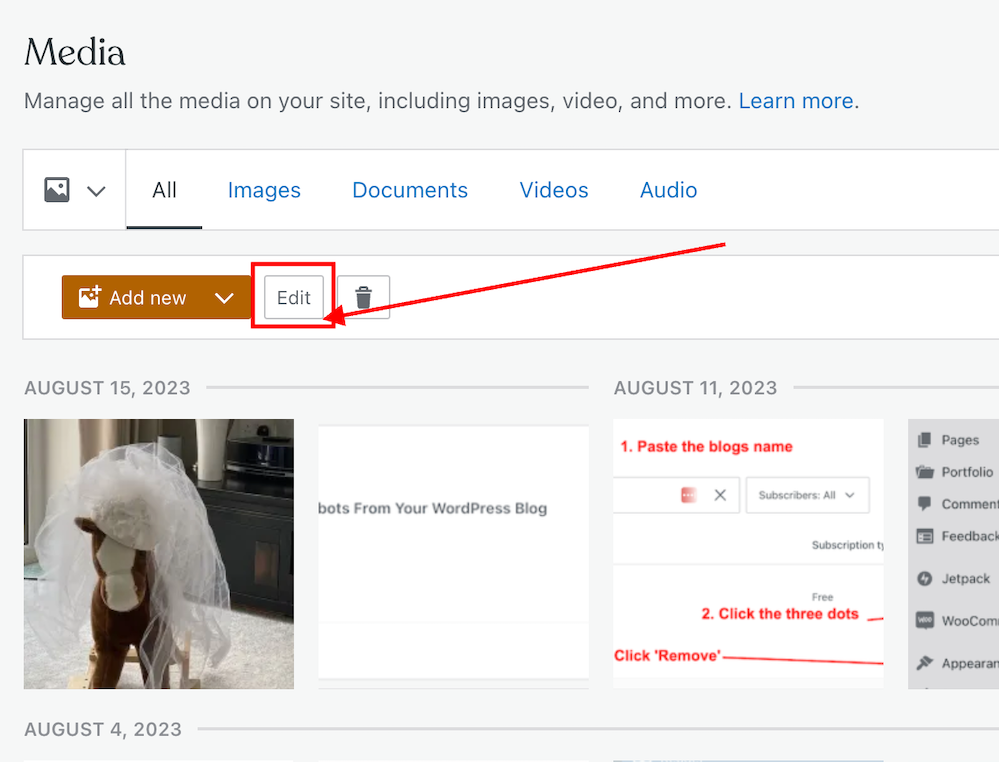
- On the righthand side of the screen, you’ll see a window where you can add details about your image. It’s important to complete these details (see the image below).
- Click the ‘Copy‘ button in the URL box.

- Paste the URL address into your comment.
- Do not, at this stage, submit your comment as you need to edit one part of the text within the link.
- Carefully delete the ‘s‘ from the ‘https‘ at the beginning of the link address, so it reads ‘http‘. (If you do not delete the ‘s‘ the image will not show in the comment).
- Ensure your link ends with ‘.png’ or ‘.jpg’. If it doesn’t, delete any text after ‘.png’ or ‘.jpg’.
- You can now submit your comment.
The image will now show on the comment. However, remember that if you are leaving an image in a comment on another blogger’s blog, they may have to approve it (and may even remove the link to the image) before it shows up.
I’ve only found this to work on WordPress.Com blogs. On self-hosted blogs, only the link to the image is visible rather than the image appearing. However, those clicking on the link will see the image.
Note – Not all images and photos will show if the security settings on your web browser are set high. However, this does not affect the photos or pictures you leave in the comments of your own blog posts. I recommend that you not change the security settings on your web browser.
Let’s wrap it up.
- Yes, it is possible to insert images and photos into comments on WordPress.
- After inserting the URL address of the image, ensure you remove the ‘s‘ from the beginning of the URL so that ‘https’ becomes ‘http.’
- Only leave images and photos in comments if invited to do so or if you have asked for permission to do so first.
- If the security settings on your web browser are set high, images and photos may not show. However, this does not affect the photos or pictures you leave in the comments of your own blog posts.
Want to give inserting an image or photo into a comment a go?
Leave me a comment with the link to your image. Perhaps it can be a photo of your latest book cover or of a family pet. I’ll leave it up to you, but only family-friendly images and photos, please.
If you have any further questions about inserting images or photos into the comments, leave them in the comments section.
Layout, content, settings, and format might differ on self-hosted blogs.
Follow Hugh on social media. Click the buttons below.
If you enjoyed this post and want more like it, enter your email address and click ‘Subscribe’ to stay up-to-date with my latest content.
Copyright @ 2024 hughsviewsandnews.com – All rights reserved.
Discover more from Hugh's Views & News
Subscribe to get the latest posts sent to your email.
 Hugh's Views & News
I can see none of the images, unless they’re deleted already.
There is one image in the post, but plenty of images in the comments section.
What a wonderful post Hugh. I’ll keep an eye on this for future reference. Thanks Hugh
I’m glad it has helped. Thanks, Brenda.
Hi Hugh, it’s always good to see what you’re up to and I remember trying to work out how to do this, adding a photo to a comment ages ago! I’m going to try it now with a lovely little grape hyacinth in the garden heralding spring is on the way! Hope all is going well with you and I always enjoy catching up, thanks for your helpful tips :) Hope it works.
Hi Debbie, a few bloggers recently asked me how to add images to comments, so this post made the perfect update. Your hyacinth photo is lovely. Thank you for sharing it with us.
I hope winter has been kind to you. We’re about to enter my favourite of the seasons. Autumn is already making a few subtle hints that she is on her way to the Northern Hemisphere.
Enjoy spring.
Thank you for sharing your various links with us at #275 SSPS Linky. Hope to see you again next week.
Maybe you should try to leave one on my blog (self-hosted) then we can test and see if it will work there.
That’s a great idea, Esmé. I’ll try leaving my Wordless Wednesday photo for next week on your Wordless Wednesday post next week.
That will be awesome Hugh, I will keep an eye out for your comment with the picture and keep you updated.
Thank you for this Hugh. The magic trick is deleting the ‘s’ from https! Thanks! :)
Yes, exactly, Debby. Unless that ‘s’ is deleted, it won’t work.
And therein lies the problem when I couldn’t share a pic from my media – a simple fix. Thanks Hugh. x
Great post, Hugh. I didn’t know about the ‘s’ – that’s good advice. I rarely leave images in a comment, unless invited.
Same here, Dan. I had a few questions from people asking if it could be done, so this updated post came in handy.
Wow! Thank you so much for this, Hugh! I appreciate you sharing this information. Btw, I love the new look of your site.
You’re welcome, Eugi.
I’ve tidied up the blog, but nothing major. But thanks for the feedback.
Another awesome and outstanding tip and even for self-hosted sites. I did not know about this. Thank you so much Hugh.
You’re welcome, Esmé. Glad it has helped.
It’s funny how you posted this after our little interaction a few weeks ago. Good post to let everyone know how to do it and the tips included are also important.
This works great with bloggers on WordPress but doesn’t really help those without a blog. I suppose they could use a free cloud service to upload their images.
I posted about a WordPress plugin that I am currently trying out and I have to say that it’s very impressive. The plugin I’m using allowed users to upload directly to my site, and has an inline commenting feature that I hope people will use when I (remember to) embed it into my articles.
Yes, when I saw the post I sent you the link to was out of date, I decided it needed updating. Hence this new updated post.
Those without a blog can still upload a link to their photo. All they have to do is copy the link, paste it to a comment, and delete the ‘s’ before submitting the comment.
Thank you for the timely reminder that we can share our images in the comments of pre-approved blogs, Hugh! I know you and several others use this technique to share for my Sunday Stills challenge. I think it’s genius for a photo challenge because some bloggers may not always have a post to go with the challenge. I also like how the images won’t be added to the host blogger’s media files. Thanks for letting us practice!
Also, I believe it is important for bloggers to keep a space in between the URL of the image and their comment. It makes it impossible to see using the jetpack app which means I have to go to my computer to see the image.
Here is a preview for Wordless Wednesday of our smoky backyard and the sunflowers still pushing to the sky, even if a bit confused as to where the sun is.

That’s a great reminder about the image not downloading to the host’s media library, Terri. And the space between the URL address of the image and the comment also makes good sense.
And thanks for your image. Despite the hazy, smoky conditions, those sunflowers still have their bearings right. I hope that haze and smoke soon disappear.
Glad to add my 2 cents worth to a very helpful post, Hugh 😁 We’re supposed to get rain from a tropical storm moving north. With 2 big fires in the rural Spokane area, this should help.
I’ll keep my fingers crossed that the rain arrives, Terri. I only wish I could send you some of the rain we’ve had this summer. It’s been a washout, but at least it’s stayed cool.
that would be great, Hugh! strange weather worldwide!
I read your previous post about leaving photos in comments, Hugh, and it never worked for me, even though there are occasions where I’d like to share a particular and relevant photo with someone on their blog. I’ll try it here again with one of my favorite photos of this year…
Thanks for the (new) tutorial. Let’s see if it works! :-)
I won’t know if your image will show until I press approve on your comment, Liesbet. The only reason I think it may not work is because it’s coming from a self-hosted blog. Let’s find out.
That’s a stunning photo, by the way. I love it.
Hooray, it worked. Thanks for a great photo, Liesbet.
Oh, cool, Hugh! When I left the comment, it only showed the link. Thanks for this amazing tip. I will use your info in the future. Yay!!!
It may only work when posting on WordPress.com blogs, Liesbet. And the image only shows when the comment has been approved (or you’re leaving the comment on a blog you’ve left comments on before, and the blogger has the ‘approve comments from those who have left comments before’ setting switched on.
Have fun with it.
I used to add photos by copying the link of the photo and deleting the “s”. So, there is still no other option.
Not as far as I’m aware, Erika. But somebody may tell us differently.
At least it is a possibility.
Interesting, I didn’t know this! That said, I don’t want anyone to post images/gifs in my comment section. 😅 It just reminds me of Flickr comment section where people add all those banners, and I really hated it. 😅
Not everyone allows images and photos to be posted in comments, but it’s a great way to participate in photo challenges or if you’re helping someone with a question. I use screenshots a lot in my comments when responding to questions.
Who knew?! I have often wanted to leave an image on a comment but had no idea it was even possible. Thank you so much! Here is a picture of The Fab Four

What a gorgeous photo, Jacqueline. Not only all the colours contained within the photo, but the fab four are all adorable.
Thank you, Hugh!
I think they’re lovely too, and feel so lucky that this gorgeous display of wild flowers was on the clifftop above my home beach in Bournemouth, Dorset.
I like it when our local authority does not cut the grass by the sides of the roads. We get lots of wildflowers growing then.
The above photo was taken last year right by the side of a busy road. Sadly, they’ve been cutting the grass this year.
The flowers are lovely, aren’t they, Hugh? I don’t know whether it was a cost-cutting exercise, but I really like it!
They are. And all that plant life helps absorb damaging carbon that comes from vehicles. It seems a shame they cut it all this year, Jacqueline.
Allow me to kick this off with a photo.
OMG, Those look so yummy!
They were.
Oh that was disappointing. I thought the photo would be in the comment not a link
Photos or images won’t show until I’ve approved the comment. But your photo has worked. Thank you for giving it a go.
Excellent. I just had a look 👍😀
Why not gave a go. Here’s a flower Hugh
Thank you. And what a lovely flower it is.