Have you noticed that snow is falling on some WordPress blogs? As you read the post, small flakes of snow gently drift down. Meanwhile, on other blogs, like mine, there’s no snow.
WordPress introduced the festive snowfall feature a few years ago. It only works when reading a post via the WordPress website. You won’t see it if you’re reading a post in the WordPress Reader or the Jetpack App unless you click through to the website. This time, it runs until 4th January 2026. But how do you turn the feature on or off? Easy – follow my instructions.
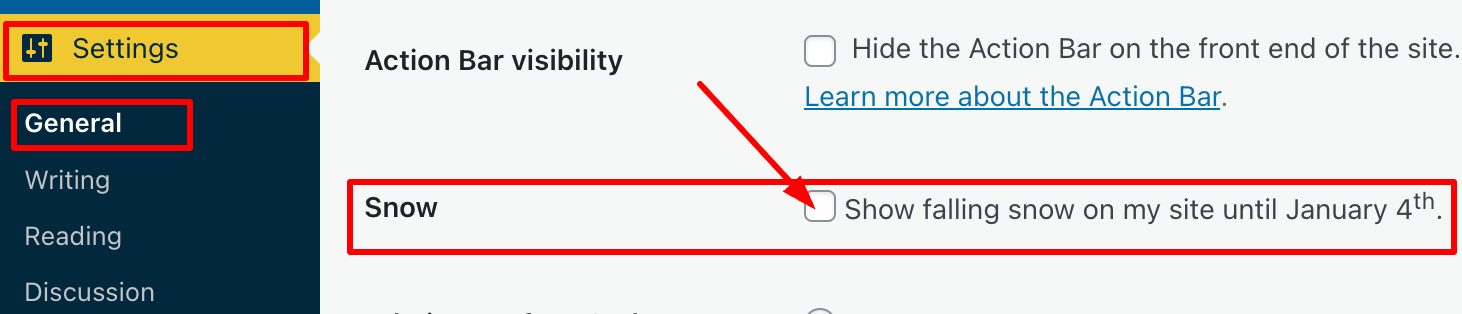
Go to your blog’s dashboard and click Settings – General.
Scroll down the page until you come to ‘Snow.’
You’ll see a box with the words ‘Show falling snow on my site until January 4th.’
Where to turn on/off falling snow on your WordPress blog
If you want snow to fall on your blog, tick the box. If you don’t want snow falling on your blog, untick the box.
Click the ‘Save Changes‘ box at the bottom of the page.
Ensure the changes are effective by opening one of your posts on the WordPress website.
I’m not a lover of anything moving onscreen while I’m reading, as I find it distracting. However, I know that many bloggers love the idea of gently drifting snowflakes while they read blog posts during the festive season.
The choice is yours. And now you know how to switch on or turn off snow falling on your blog.
For the above instructions, I’m using a desktop computer. The falling snow effect is only controlled through your WordPress.com dashboard, not the Jetpack mobile app.
Is it snowing on your blog? If not, do you want it to snow? Let me know why you like or dislike the idea of snowflakes drifting on WordPress blogs.
The featured image on this blog post is sourced from Pixabay. AI reviewed spelling and grammar errors.
The past three months have been busy outside the world of blogging, so much so that I didn’t get the chance to write and publish monthly round-up posts for September or October.
Did I feel bad? Did I apologise? No. Sometimes life gets in the way of schedules, and my blogging routine was thrown off course, but it happens to everyone, and nobody needs to apologise. From what I saw, my posts from September, October and November continued to receive engagement, and for me, it’s all about interacting with other bloggers, writers, and readers.
Better late than never. Without further ado, here is the monthly round-up for the past three months on Hugh’s Views and News.
WordPress has introduced a new blog recommendation feature that displays recommended blogs on your Gravatar profile, improving visibility. My post details how to add the blogs you love the most.
Here’s a fresh writing challenge that everyone is encouraged to try. Can you write a story using only 101 words (no more, no less) based on a featured image?
How easy do you make it for visitors to share your blog posts and boost the visibility of your blog? Take action: These nine options are easy to find and activate.
This post outlines various scams affecting bloggers, including voicemail scams and email phishing claims that appear to come from WordPress. Don’t become a victim of a scam or fined for downloading copyrighted material.
Let me begin with a new scam that is unrelated to blogging or publishing. It’s a scam that comes via a voicemail message on mobile phones.
I’ve lost track of how many times I’ve had the same call and message saying, ‘Please add my number to WhatsApp.’ Each time, the number the scammer uses is slightly different, but it’s always the voice of the same woman.
Thanks to Apple’s advanced AI, my phone now does a great job at identifying spam calls and sends them straight to voicemail. It doesn’t even ring. The spammers’ numbers then show in my call list, which I mark as ‘Spam – Delete and send details to Apple.’ I should add that since I enabled AI on my phone, the number of spam calls I receive has dropped significantly.
The latest Blogging scams
Recently, I encountered a concerning blogging email scam. It purportedly originated from WordPress, claiming that my payment details were incorrect in my account and included a link for me to click to rectify them.
I immediately recognised the email as fraudulent because the email failed to address me by name. All it said was ‘Dear WordPress User,’ But what alarmed me was that the same scammer went on to also send me the same email through the ‘Contact Hugh‘ form on my blog, neglecting to begin the message with ‘Dear Hugh.’ It’s important to note that I request anyone using the form to begin their message with ‘Dear Hugh,’ as this practice helps identify potential spam, particularly from automated spam bots.
I don’t know how the scammer obtained my email address, but it must have appeared on a list with some connection to WordPress. This is likely how they discovered I had a WordPress blog, although nowhere on my blog do I provide an email address. Anyone wanting to contact me must go via the ‘Contact Hugh’ form.
Although this was an easy scam for me to spot, I still feel bad for any blogger who falls for it. If you are unsure whether an email from WordPress is genuine, always log in to your WordPress account to verify any details. Never click on any uninvited links and never give an email address anywhere on your blog.
Image generated using WordPress AI
However, more concerning was news of a blogging scam that involved using royalty-free platforms, such as Pixabay. Author, writer and blogger Jacqueline Lambert left a comment on my recent post, Where To Legally Source Amazing Images For Your Blog Posts.’ outlining how she was almost scammed by a company after using a royalty-free image from Pixabay on one of her posts.
I strongly encourage you to read Jacqueline’s insightful post ‘Bloggers Beware The Copyright Trolls – Even If You Use Royalty-Free Images‘ to glean valuable lessons from her experience. It is imperative to remain vigilant and not become a target of such scams that specifically seek to exploit bloggers.
I would also like to reiterate that downloading and publishing copyrighted images or photographs on your blog is strictly prohibited. Always verify that such materials are free for use. This also applies to reblogging blog posts from other bloggers that contain images or photos. If you share copyrighted images from another blogger’s post, you could be fined.
A plea to you – yes, you!
Despite my recent post addressing copyright infringement, I continue to observe bloggers (you know who you are) using images and photos in their posts without proper attribution regarding their sources. They probably believe that nobody will come after them for downloading and using copyrighted images, but I know of two bloggers who have been fined for doing so. Never believe that it will never happen to you.
Even if the images and photos are your own, I recommend that you indicate in your post that they are your property. If you don’t believe me, read Jacqueline’s post. As she elaborates, numerous companies are employing image recognition technology to scan the internet for unauthorised use of images and photographs, especially in blogging posts. Some bloggers have even been threatened with legal action and fines for using their own pictures.
The latest publishing scam
My thanks again to Jacqueline, who recently published a guest post by author Peter Barber about a publishing scam he fell for. Titled ‘Publish and Be Damned: How I Got Scammed, Learned My Lesson, and Came Out Fighting‘, Peter details how he fell head-over-heels for a scam many authors will probably encounter at some point in their writing lives. I urge you to read his post and learn from it because it could happen to you.
Are you aware of any current scams related to blogging or publishing? Please share details in the comments section. Have you ever fallen victim to a blogging or publishing scam? If so, what happened?
The featured image on this blog post is sourced from Pixabay. AI reviewed spelling and grammar errors.
I’m surprised by how many bloggers miss the opportunity of having their posts shared for free by not displaying sharing buttons on their blog posts.
Of course, some bloggers don’t want any of their posts shared, but they tend to be in the minority.
In today’s digital age, having social sharing buttons on your blog is crucial for expanding your reach and boosting engagement. This post will guide you through the steps to add sharing buttons to your WordPress blog and emphasise the benefits of including them.
For the purpose of this guide, I’m using an iMac desktop computer.
To add and edit sharing buttons on your WordPress.com blog, follow these steps:
Log in to your WordPress.com account.
From your dashboard, navigate to ‘Settings‘ and select ‘Sharing.’
Click the ‘Sharing’ option.
You’ll be taken to the ‘Sharing Options‘ page of your blog, where you will see a variety of options that include –
Available services
Enabled services
Live preview
Button style
Sharing label
Show buttons on
WordPress.com Likes are
WordPress.com Reblog button
Comment Likes are
Let’s have a look at each of these options and what they mean.
Available services – This displays any sharing buttons not currently visible on your blog. To add an available sharing button, drag it to the ‘Enabled services‘ box and click the ‘Save‘ button at the bottom of the page.
There is also an ‘Add a new service‘ link that, when clicked, allows a user to add new sharing services that are not currently available on WordPress.
Enabled Services – This section shows all the sharing buttons currently on display on your blog. Here’s an image of the sharing buttons available on my blog posts and pages.
Sharing buttons on Hugh’s Views And News blog.
Notice the ‘Customise buttons‘ link under the buttons. Click this to be taken straight to the ‘Sharing options‘ page of your blog.
You may also have noticed the ‘More‘ sharing button. This is where you can group certain sharing buttons under one button. To do this, simply drag the buttons you want to hide to the ‘Services dragged here will be hidden behind a share button‘ box. On my blog, the ‘More‘ button includes sharing buttons for ‘X’, ‘Email’ and ‘Print.’
Hide sharing buttons behind one button.
To rearrange the order of how sharing buttons display on your blog, simply drag the buttons to the order you want them in. Remember to save any changes.
To remove a sharing button from your blog, drag the button to the ‘Available services‘ section and click the ‘Save‘ button at the bottom of the page.
Live preview – This section shows how the sharing buttons display on your blog.
Button style – There are four options to choose from.
Icon + Text
Icon only
Text only
Official buttons
On my blog, I have chosen sharing buttons to show ‘Icon + Text’ as this helps those using speech software know which sharing button is which. If you use ‘Icon only,’ speech software won’t know what each sharing button is.
Sharing label – This section allows users to change and display their own message above their sharing buttons. Simply add the text you want and click the save button.
Show buttons on – Choose where on your blog you want sharing buttons to appear. Place a tick next to the options and click the save button.
Choose where you want the sharing buttons to display on your blog.
WordPress.com Likes are – This is where you can turn off (or on) the ‘Like’ button on blog posts and pages.
WordPress.com Reblog button – This is where you can turn off (or on) the reblog button on blog posts and pages.
Comment Likes are – This is where you can turn off (or on) the availability of a ‘like’ button on comments on your blog.
Once you’ve added sharing buttons to your blog, remember to always test them. The best way to do this is to visit one of your blog posts to ensure the sharing buttons appear as intended. Click on each button to check that it links correctly to the respective social media platforms.
Top tip: If you have an account on a social media platform, remember to ensure that there is a sharing button for that platform on your blog. You don’t need to remove share buttons where you don’t have an account, as other bloggers and readers may want to share your posts and pages to their own social media accounts. For example, I don’t have a Facebook account, but I allow visitors to my blog to share my posts and pages on their Facebook accounts.
But, at the end of the day, it’s your decision as to how many sharing buttons you want to display on your blog.
Advantages of Having Sharing Buttons on Your Blog
Increased Visibility: Sharing buttons allow visitors to easily share your content with their networks, leading to greater visibility and new readers.
Enhanced Engagement: When users share your posts, it engages their followers, creating conversations and interactions around your content.
Improved SEO: Social shares can boost your search engine rankings. Search engines often view shared content as more credible and relevant.
Brand/Blog Awareness: Every share increases exposure for your brand/blog, helping you capture a larger audience over time.
Traffic Boost: Each share potentially drives more traffic back to your blog, increasing your overall reach and influence in your niche.
User-Friendly: A streamlined sharing process enhances the user experience, encouraging visitors to interact more with your content.
By integrating sharing buttons into your WordPress blog, you not only make it easier for readers to share your posts but also create new opportunities for engagement and growth.
Summary:
Many bloggers miss out on free content-sharing opportunities by not displaying sharing buttons. These buttons are crucial for expanding reach and boosting engagement.
It’s easy to add and display sharing buttons on your WordPress blog. Follow the guide in this post.
Ensure you deal with each option available to you on the ‘Sharing options‘ page of your blog.
There are many advantages of displaying sharing buttons on your blog, including increased visibility, enhanced engagement and improved SEO ratings.
If you have a social media account, ensure you display a sharing button for that account on your blog.
Add as many sharing buttons as you like, even for those social media platforms where you don’t have an account.
Test that the sharing buttons are working correctly at least once every few months.
Make the most of the other options available on the ‘Sharing options’ page of your blog, such as switching on/off the like button and whether or not you want a ‘Reblog’ button to show.
I want to open up the conversation and hear from you. What social media platforms do you find most effective for sharing your blog content? Have you noticed an increase in your blog traffic after adding sharing buttons? How much of a difference has it made? Have you experimented with the different button styles? Which one do you think looks best on your blog? If you could add one feature to the sharing buttons on your blog, what would it be and why?
Layout, content, settings, and format might differ on self-hosted blogs.
Click the buttons below to follow Hugh on Social Media
The featured image on this blog post is taken from Pixabay. AI checked spelling and grammar mistakes. Images, which were taken from screenshots of my blog, were created by me.
Copyright @ 2025 hughsviewsandnews.com – All rights reserved.
I recently began receiving emails from WordPress informing me that another blogger has recommended my blog.
Of course, there’s an easy way to recommend another blog simply by writing and publishing a post and linking to that blog, but this new way of recommending another blog was something I thought was much better.
After all, once you read a post recommending a blog, it isn’t long before that post gets pushed down your reader list, until it’s probably forgotten about. So, if you haven’t read the post or maybe thought you’d come back to it later, you probably won’t.
However, this new method of recommending a blog is better because the blogs you recommend appear on your Gravatar profile when using the WordPress Reader, which means that anyone checking your Gravatar will see a list of the blogs you recommend.
It’s easy to add the blogs you want to recommend. I’m using an Apple iMac desktop computer to demonstrate this. Here’s how to do it.
On the dashboard of your blog, click the ‘Reader‘ icon (represented by a pair of spectacles).
Click the ‘Reader’ icon.
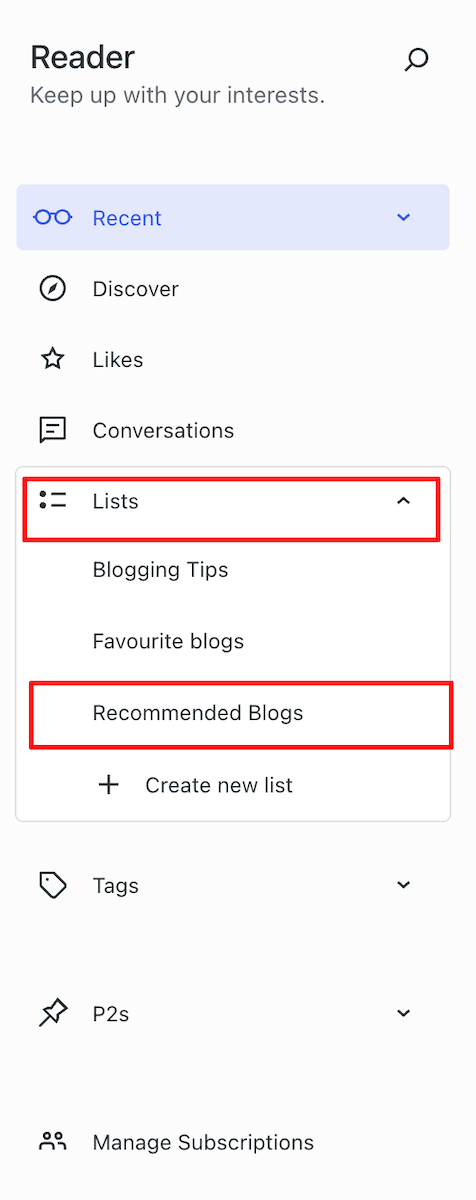
On the Reader menu, open ‘Lists‘ and click on ‘Recommended Blogs.’
Click the Recommended Blogs link.
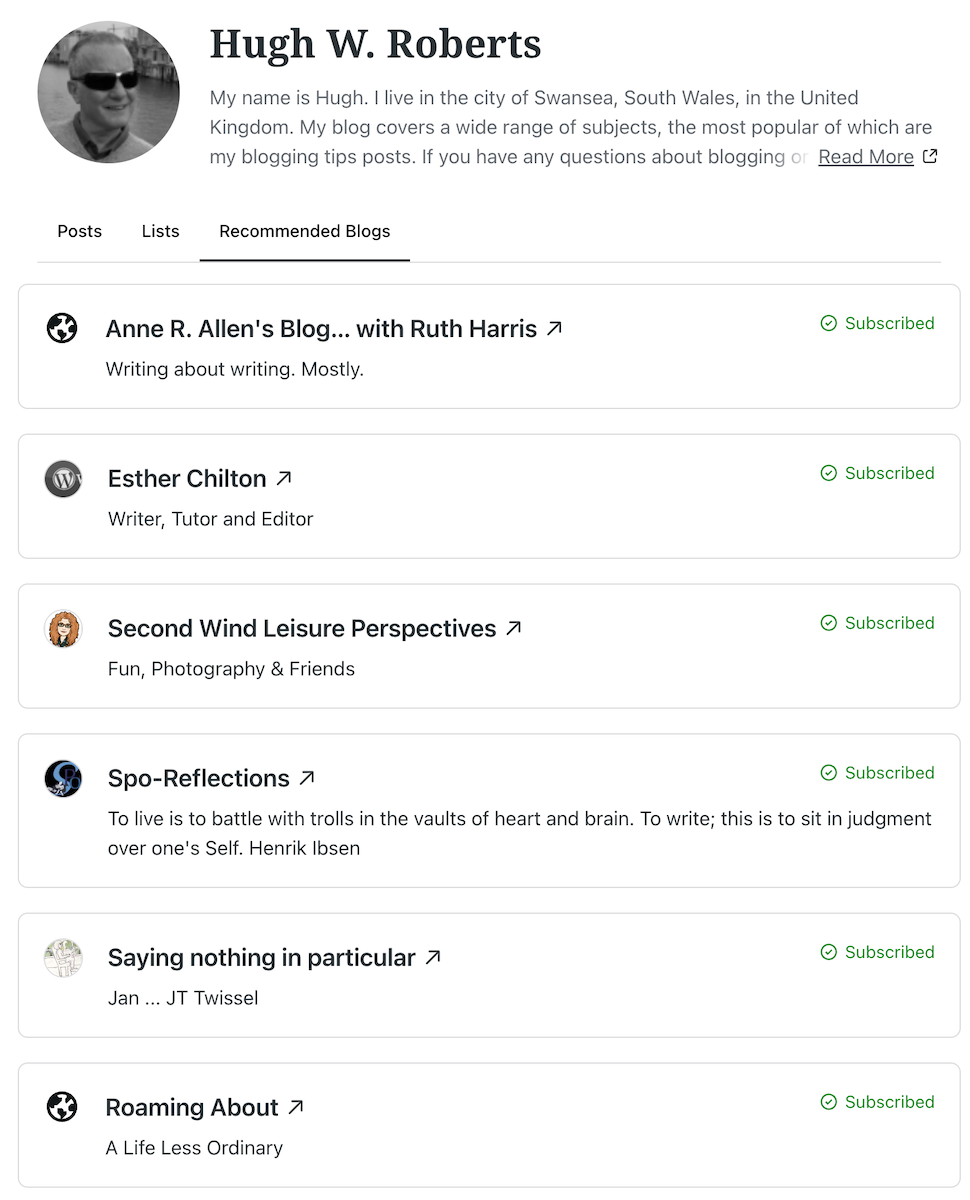
Click the ‘Edit‘ button and open the ‘Sites‘ tab. As you will see from the image below, I’ve already recommended some blogs.
Click the ‘Sites’ tab.
To remove a recommended blog, click on the ‘Remove‘ button.
To add a blog, start typing the name of the blog in the ‘Search or enter URL to follow‘ box, and a list of suggestions will appear.
Start typing to display a list of blogs.
Click the ‘Recommend‘ button to add a blog to your Recommended Blogs list. Note that if you are already following a blog, you’ll see ‘Subscribed‘ next to it.
The blog you recommended is now added to your Recommended Blogs list and will appear whenever anyone hovers their mouse over your Gravatar profile in the WordPress Reader. Click the ‘View All‘ link to see a list of all the blogs they recommend.
As you recommend blogs, they will appear on your Gravatar profile.
Whenever another blogger recommends your blog, you should receive a notification email from WordPress with the details of who has recommended your blog, provided you have not switched off notifications. However, I’ve not yet seen these notifications appear under the notification bell icon.
Based on my observations, after clicking on the Gravatars of many bloggers, few have recommended any blogs so far. Additionally, some bloggers haven’t included their blog details on their Gravatar, making it harder for others to find their blog. And remember that if you leave comments on other blogs, your Gravatar will appear next to your comment.
Have you seen this new feature on WordPress? Has anyone recommended your blog in this way? Will you start using the ‘Recommend Blog’ feature? Have you added your blog details to your Gravatar?
Layout, content, settings, and format might differ on self-hosted blogs.
The featured image in this blog post is taken from Pixabay. AI checked spelling and grammar mistakes.
Click the buttons below to follow Hugh on Social Media
Something strange happened this month. For the first time since I’ve been blogging, one of my blog posts received more engagement on social media (Mastodon) than on the actual post. I wasn’t sure how to feel about it, but could it be that claims of real engagement in the world of blogging are on the decline?
However, August turned out to be a bumper month for me. Although I only published three blog posts, four if you include this one, my stats soared. August 2025 was the highest month for views of any August since I started blogging in 2014. And to top it all off, engagement remained high.
How was your August blogging-wise?
Here’s your opportunity to catch up on my three blog posts from August 2025.
Did you know that keeping old, outdated blog posts can damage your blog? What do you do with your old blog posts? Join the discussion.
What do you do to make it easy for your readers to contact you?
Most bloggers aim to connect with their audience. This is mainly achieved through the comments section of blog posts, but sometimes someone may wish to contact you privately, which may not be suitable for public view. For example, I receive messages asking for help with WordPress or requests to buy a signed copy of one of my books. Nobody wants to share their address, email, or contact number in the comments section.
A ‘Contact’ page is an important connection point between a blogger and their readers, offering a convenient way to get in touch privately. If you look at the menubar of my blog, you’ll see a ‘Contact Hugh‘ link. That’s where any visitor to my blog can contact me privately.
Here’s why you should prioritise having a Contact page on your blog and how to easily set one up.
Benefits of Having a Contact Page
1. Establishes Credibility
Having a dedicated Contact page gives your blog a welcome and friendly impression. It demonstrates that you’re open to communication and approachable, increasing your credibility with readers and new visitors.
2. Facilitates Communication
A Contact page offers a clear and straightforward way for visitors to get in touch with you. Whether they have questions, feedback, or collaboration ideas, this page acts as a direct link to you, preventing confusion about how to contact you.
3. Encourages Engagement
By encouraging readers to contact you, you’re promoting engagement with your audience. This can lead to meaningful discussions, valuable feedback, and even new ideas for content, further benefiting and enhancing your blog.
4. Supports Networking Opportunities
For the majority of bloggers, networking is essential. A Contact page makes it easy for other bloggers to reach out for collaborations, sponsorships, or guest posting opportunities, contributing to your blog’s growth and visibility.
5. Keeps Your Private Details Private
Having a contact form means you don’t need to share your personal details, like an email address, on your blog. After all, do you know everyone who visits your blog? Even if you provide an email address solely for your blog, advertising it will attract spam, spammers, and trolls.
Some bloggers might prefer not to engage with their audience, so a Contact page may not be essential. However, if you choose not to engage, ensure you turn comments off.
How to Install a Contact Page
Creating a Contact page is a simple process. Here’s how you can set one up on your blog. For this purpose, I’m using an Apple iMac desktop computer.
Go to the dashboard of your blog, click Pages and then Add Page.
Click ‘Add Page.’
Title your page ‘Contact’ or ‘Get in Touch’ or choose a title you prefer.
Add a Contact template. WordPress offers several ‘Contact’ templates. To find them, click the ‘+‘ symbol in the top-left corner of the page, then select Patterns and Contact.
Click ‘Contact’ to find the WordPress contact templates.
Choose the template you want to use and make any edits to it. For the contact form on my blog, I used Template Number One.
Preview your contact form before publishing it. Once you’re happy, click the publish button so it appears on your blog.
Tip: Yes, you’ll likely receive spam or spam bots trying to contact you. To quickly sort out those messages, add a line to your Contact form giving instructions on what to do. I added the following details to my Contact form –
Please complete and submit the form below to contact me securely. To verify that you are not a bot or spam, please start your message with ‘Dear Hugh.’ I will then get back to you as quickly as possible.
Messages that do not start ‘Dear Hugh’ will be marked as spam.
And guess what, it works!
You can also find additional Contact forms under Jetpack – Forms (select the ‘About‘ tab) on the dashboard of your blog.
Next, to make it easy for readers to contact you, add your contact form to the menubar of your blog.
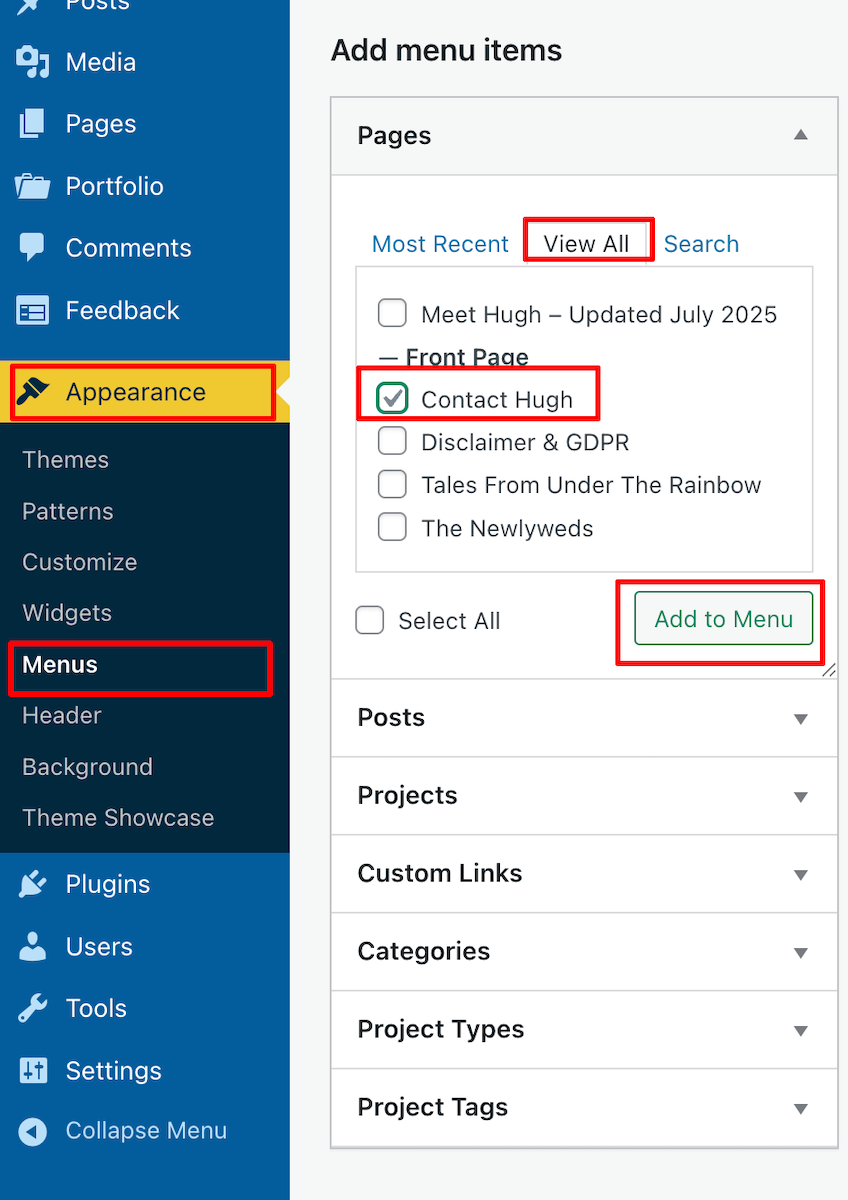
On the dashboard of your blog, go to Appearance – Menus.
Search for your Contact form by clicking View All, tick the box next to it, and click the ‘Add To Menu’ Button.
Add your Contact form to your blog’s menubar.
Click the Save Menu button at the bottom of the page.
To reposition the Contact form on the menubar, on the Menus page, click on it and drag it to the desired location. Remember to click the Save Menu button after any changes.
Click and drag the contact form button to move it on the menu bar.
Check the menubar of your blog to ensure the Contact form is visible and in the correct place.
WordPress also offers Contact forms plugins.
Contact Form 7:
Install and activate the plugin.
Go to Contact – Add New in the dashboard.
Customise your form fields as needed, then save.
Copy the shortcode provided and paste it into your Contact page.
Add the Contact form to your menubar.
WPForms:
Install and activate the plugin.
Create a new form using their drag-and-drop builder.
Save your form and copy the shortcode.
Paste the shortcode into your Contact page content.
Add the Contact form to your menubar.
How do I know when somebody has contacted me via my Contact form?
WordPress sends an email to you whenever anyone contacts you via the Contact form (except when they consider it as spam). Users will also see a notification under Jetpack – Forms on the dashboard of their blog.
Anything considered spam by WordPress goes straight to the spam folder. Spam is deleted automatically after 30 days, so there’s no need to worry about it.
Conclusion
Having a Contact page is essential for fostering communication and building relationships with your audience. By following these simple steps, you can easily set up a Contact page on your blog and start engaging with your visitors today!
Do you have a way that visitors to your blog can contact you directly? Any questions? Leave them in the comments section or contact me directly.
Layout, content, settings, and format might differ on self-hosted blogs.
The featured image in this blog post is taken from Pixabay. AI checked spelling and grammar mistakes.
Click the buttons below to follow Hugh on Social Media
I’ve always believed that the summer months are quieter in the blogging world because many of us are off doing better things and making the most of the weather, provided it’s not too hot and humid. Yet, I have been proved wrong this summer, with my stats for June being significantly higher compared to June 2024, and they remained much the same for July. But how are your stats doing for the year so far?
Including this post, I’ve published 31 posts so far this year, which is significantly fewer than I’ve ever done, except for 2014, my first year of blogging. My blogging tips posts remain popular, although I’m pleased that both my flash fiction posts received much more engagement than previous flash fiction posts.
When was the last time you backed up your blog? Don’t need to back it up? Think again. I’d recommend reading the last post on the following list.
Here’s your opportunity to catch up on my four blog posts from July 2025.
Bill faces a crucial decision at a crossroads, ultimately choosing a hidden path that leads to complicated consequences for him and his wife.
Would you know what to do if your blog vanished without explanation? My post describes how you can prevent the nightmare of losing all your blog’s content.
Imagine turning on your computer, laptop, or phone and discovering that your blog had vanished without a trace. What a horrible nightmare, yes?
In the 12 years I’ve been blogging, it has never happened to me, although there was an occasion when the setup of my blog (and that of many others) changed completely overnight, all due to a bug that affected many WordPress blogs. Fortunately, it was fixed quickly, even though it caused many users a nightmare they never thought would happen.
If you’re a WordPress.com blogger, be assured that if your blog and all its content suddenly vanish, WordPress will have a backup. Regardless of your WordPress plan, WordPress backs up every blog and keeps a copy, just in case it is ever needed. All you need to do is contact WordPress and request the file. They will send you a file containing the most recent backup they made. However, as we will discuss later, backups do not include everything.
But there’s no need to contact WordPress
If you’ve ever had a bad experience contacting WordPress or don’t want to contact them, there is another step you can take to ensure you have a backup of your blog. I’m using an Apple iMac desktop computer for the following guide.
How to backup your WordPress blog.
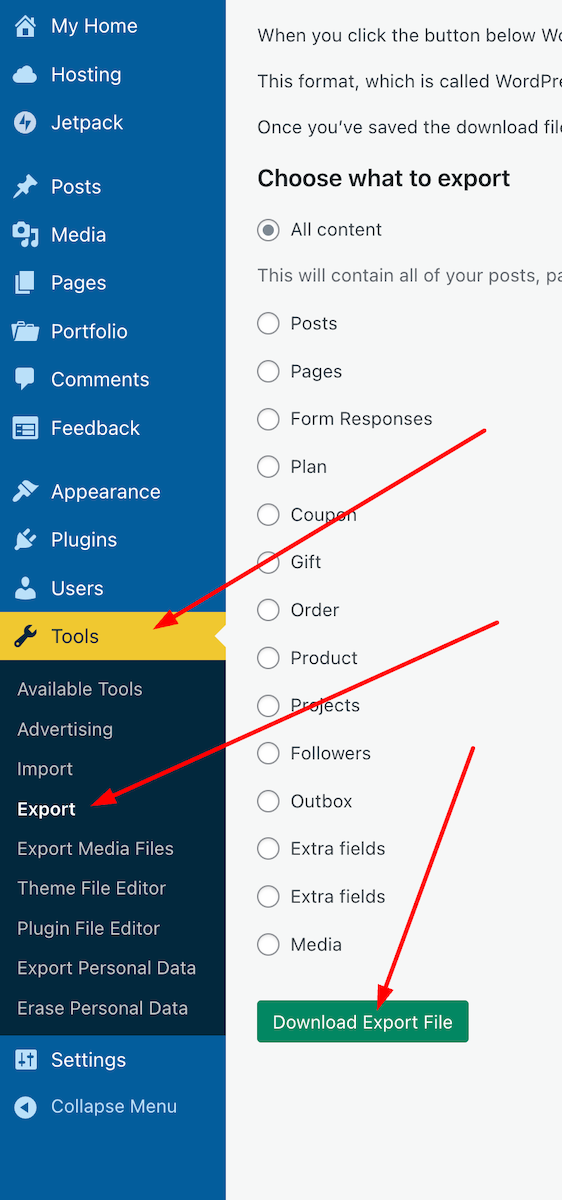
On the dashboard of your blog, go to Tools – Export.
Choose the items you wish to export (I recommend ‘All content‘) and click the ‘Download Export File‘ button.
Press these buttons to begin the process of backing up your WordPress blog.
You will see a message informing you that your export file is being processed, along with the email address where a download link will be sent once the process is complete.
Access your email account where the link is sent, locate the email, and open it. Click on the ‘Download‘ button within the email.
Click the ‘Download’ button in the email.
The file will be downloaded to your device. Ensure you remember its location and move it to another folder if necessary. I’ve created a file on my computer called ‘WordPress Backups’. Note that the file is only available for download for 7 days.
Remember to delete any previous WordPress backup files to free up memory on the device you are using.
The backup file you have downloaded does not include any media such as images, videos, or photographs. To back up media, follow the above instructions but select ‘Export Media Files‘ from the Tools menu – Tools – Export Media Files.
Do the backup files include everything?
It depends on which WordPress plan you have.
Users on a Free, Personal, or Premium plan can back up content and media. However, themes and plugins are not included in the backup. Therefore, if you ever need to download a backup file and have been using a retired theme that WordPress no longer supports, you will need to choose a new, current theme that is still supported. You’ll also need to download any plugins your blog uses.
Those with Business or Commerce plans have access to Jetpack Vault Backup, which allows them to view and restore backups at any time from their blog’s dashboard. This can be accessed at Jetpack – Backup. These backups include everything, including the theme and any plugins you use.
Click the Backup link to access the Jetpack Vault backup file.
Should I need to worry about backing up my blog?
Given that WordPress backs up your blog, no! However, for total peace of mind, and depending on how often you publish posts, you might consider backing up your blog at least once a month. If you publish posts daily or more frequently, I’d recommend backing up your blog at least once a week. However, after performing a backup, remember to delete the previous backup file.
Most likely, you’ll never need a backup copy of your blog, but I suggest you save a copy of this post in case you ever lose all the content of your blog.
All WordPress blogs also come with an ‘ActivityLog‘ feature where bloggers can reinstall posts they have deleted by mistake. However, this feature is limited by the extent to which you can recover posts, depending on the WordPress Plan you have.
Click the Activity Log button to see the most recent activity on WordPress.
Conclusion:
WordPress automatically backs up WordPress.com blogs, but it doesn’t include everything.
Users can contact WordPress and request a copy of the backup file.
Users can backup their blogs via the dashboard.
For backing up media files, remember to perform a backup by going to Tools – Export Media Files.
What is backed up depends on your WordPress plan.
Business or Commerce plan users have access to Jetpack Vault Backup, which includes everything (themes, plugins, etc.) and can be accessed at any time via the dashboard.
Backup links are only valid for 7 days.
Remember to delete previous backup files to free up space on your device.
While WordPress does back up your blog, regular manual backups (such as monthly or weekly) are recommended for added peace of mind.
The Activity Log feature allows recovery of accidentally deleted posts, with limitations based on your plan.
Keep a copy of this guide for future reference.
Have you ever lost content on your blog? If so, how did you handle it? What has been your experience with WordPress backups? Have you ever had to restore a backup? Are there any specific plugins or tools you recommend for backing up a self-hosted blog? Would you prefer to rely on WordPress’s automatic backups, or do you believe manual backups are essential? Join the discussion and leave your comments and answers.
Layout, content, settings, and format might differ on self-hosted blogs.
The featured image in this blog post is taken from Pixabay. AI checked spelling and grammar mistakes.
Click the buttons below to follow Hugh on Social Media
WordPress has introduced a useful new feature that benefits all users, including those with a ‘Free’ plan.
With just a few clicks, you can check whether the version of WordPress you are using is up to date, whether any plugins you have installed are current, and if the theme of your WordPress site is the latest release.
Here’s how to verify that all your WordPress installations are up to date. I am using an Apple iMac desktop computer for this guide.
Go to the dashboard of your blog and click on Dashboard – Updates.
Click the ‘Update’ button.
After clicking on Updates, you will see a page that informs you whether you are using the latest version of WordPress, plugins, and the WordPress theme you have installed.
Is everything on your WordPress blog updated?
If, like me, you are a WordPress.com user, WordPress will keep all these items up to date for you. So, why am I then informing you of this feature? Well, it’s all about retired themes and plugins that cause problems.
If you are using any plugins or a theme that has been retired, even if it appears you have the latest versions, any bugs affecting the theme or plugin since the final update will no longer be fixed because WordPress has withdrawn support.
How do I find out if the WordPress theme I’m using is still supported?
To find out if the WordPress theme you are using is still supported (and receiving updates), visit your blog’s dashboard and click Appearance – Themes. You will see a message indicating your theme is retired if it is no longer supported by WordPress. As we all know, using outdated themes can cause numerous problems for users.
Although a retired theme might not cause problems now, it could in the future. Some users attempt to use a workaround to avoid issues, but this is not advised, as it may lead to further problems. Instead of a workaround, switch to a current theme fully supported by WordPress. You don’t have to move to a Block theme if you prefer not to, since many Classic themes remain supported by WordPress. I am still using a Classic theme (Toujours) on my blog, which is fully supported.
Using an outdated, unsupported theme can lead to several issues. Here are a few.
1. Security vulnerabilities: Without ongoing updates, the theme may become prone to security risks that could compromise your blog. 2. Compatibility issues: As plugins and WordPress itself update, an outdated theme may not function correctly with newer versions, causing layout glitches, functional problems such as not being able to leave comments and issues with WordPress believing you are not logged in. 3. Lack of support: You won’t have access to official support for troubleshooting any issues or queries that arise with the theme. WordPress will advise you to change to a supported theme. 4. Performance issues: Unsupported themes may not be optimised for speed and performance, leading to slower load times. 5. Missed features: Regular updates often include new features and improvements; sticking with an unsupported theme means missing out on these enhancements, which could benefit your blog’s features and user experience.
If you are using a retired theme and refuse to switch to a supported one, there’s no point in blaming WordPress for any problems with your blog. It’s not their fault if you continue to use something they no longer support.
The best approach is to find a new plugin that provides similar functionality. You can search the WordPress plugin repository or other trusted sources for alternatives.
Conclusion:
Many users often blame WordPress for blog-related issues, which are frequently due to user error or outdated software on their devices.
WordPress has introduced a new feature that allows users, even on the free plan, to check if their WordPress version, plugins, and theme are up to date.
To check for updates, navigate to Dashboard – Updates in your blog’s dashboard. If everything is updated, great!
However, if you’re using retired themes or plugins, you won’t receive support or fixes for any issues that arise.
Unsupported themes can lead to security vulnerabilities, compatibility issues with newer updates, a lack of support, performance problems, and the omission of key features.
To determine if your theme is still supported, navigate to Appearance – Themes in the dashboard.
If it’s retired, consider switching to a supported theme or plugin for better performance and security.
Have you ever faced issues with outdated themes or plugins on your WordPress blog? How did you go about resolving them? Which themes are you currently using, and have you checked if they are still supported? Do you have any WordPress tips to share with others?
Layout, content, settings, and format might differ on self-hosted blogs.
I’m getting tough with non-engaging comments. Comments such as ‘Nice post’ are marked as spam.
The featured image in this blog post is taken from Pixabay. AI checked spelling and grammar mistakes.
Click the buttons below to follow Hugh on Social Media