

Blogging Simplified: Adding Images From Your Phone To A WordPress Post

Do you draft blog posts on a desktop computer or laptop? If so, did you know you can now add photos to your post directly from your mobile phone? No more having to download photos to your computer or laptop.

Light blue image with the words 'Blogging Simplified: Adding Images From Your Phone To A WordPress Post' in white text
Now you can add images and photos directly from your phone to a WordPress post.

Here’s how to do it: 

Ensure you have the Jetpack app on your phone. If not, download it from the app store.

  1. Insert an ‘Image‘ or ‘Gallery‘ Block on your post/page. 
  2. Click ‘Select Image.‘ 
  3. From the dropdown menu, select ‘Your Phone.’ A message will pop up on your phone with a QR code.
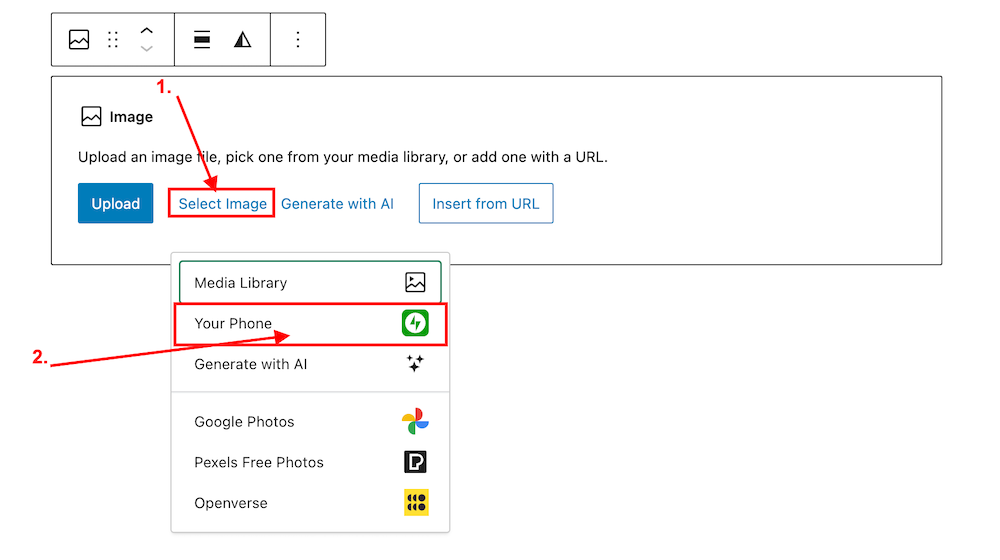
Image highlighting the 'Select Image' and 'Your Phone' links on an Image block on WordPress
Click ‘Select Image’ and ‘Your Phone.’
Image showing the QR code that pops up on WordPress when selecting 'Your Phone' when selecting an image or photo.
Scan the QR code.

4. Use your phone’s camera to scan the QR code. This will automatically open the Jetpack app on your phone and then your photo library. 

5. Choose the image(s) you want to use: From there, simply click the image or images you wish to add to your post/page.

6. Click ‘Add‘ (top right corner): Watch your image(s) automatically appear in your desktop/laptop editor. Here’s one I added directly from my phone.

img_0529-1

Can I adjust the size of images in the Jetpack app?

Yes. This is important to do to prevent images from taking up too much storage space in your blog’s media library. By default, the “Optimise Images” option is turned on. You can set the ‘Max Image Upload Size‘ so the original file is resized automatically when you upload it.

Here’s how to do it:

In the Jetpack app for iPhone and the Jetpack app for Android, to adjust the settings, follow these steps:

  1. Log into the Jetpack app on your phone.
  2. Click your profile icon in the bottom right.
  3. Click ‘App Settings‘.

You can toggle ‘Optimize Images‘ off (not recommended) or adjust the ‘Max Image Upload Size‘. The default is 2000 x 2000px.

img_0527-1

As you can see from the above image, I’ve set the maximum image upload size to 1000 x 1000px. I recommend not going any higher than this.

Is there anything to remember when uploading images directly from your phone?

Yes. If you add copyright information to images and photos on your computer or laptop (something I recommend you do), remember to add copyright information to your images and photos on your phone before you add them to your blog posts.

Remember to also complete the ‘Alt-Text‘ and ‘Description‘ details of the images in your blog’s media library. My blog post ‘Adding Images Or Photos To Your Blog Posts? 4 Essential Things To Do,’ gives full details as to why this information should always be completed.

Would you use this method for adding photos and images to your blog posts? If you have questions, please leave me a comment.

Layout, content, settings, and format might differ on self-hosted blogs.

Click the buttons below to follow Hugh on Social Media

Copyright @ 2024 hughsviewsandnews.com – All rights reserved.

Should I Switch To The New Jetpack App Or Stay With The WordPress App?

I’ve been contacted by several bloggers asking the question in the title of this post.

In March 2023, the WordPress app that many of us are familiar with will lose many key features. For example, you’ll no longer be able to access the WordPress Reader or view your blog’s stats.

But fear not because all the features the WordPress app bring have been transferred to the new Jetpack app.

Banner for the blog post 'Should I Switch To The New Jetpack App Or Stay With The WordPress App?'
Which app should I use?

Which app should I use?

If you want access to all the WordPress features you’re used to, switch to the new Jetpack app.

If you only want to focus on the basics of writing and publishing and have no interest in your blog stats, notifications of comments, menus and the WordPress Reader (to name a few), stick with the WordPress app.

Can I use both apps?

It’s not recommended that you use both apps. Managing your blog across both apps is unsupported and may lead to issues such as data conflicts. So I’d recommend sticking to one.

What features does the Jetpack app have?

  • Posts
  • Pages
  • Media Library
  • Comments
  • Site Settings
  • Stats
  • WordPress Reader
  • Notifications
  • Activity Log
  • Jetpack Social
  • Jetpack Backup
  • Jetpack Scan
  • Menus
  • People
  • Themes

With the Jetpack app, you’ll benefit from powerful tools to manage and build your blog.

Is the Jetpack app free?

Yes. There are no additional costs for using the Jetpack app.

What features does the WordPress app have?

From March 2023, only the features listed below will be available on the WordPress app.

  • Posts
  • Pages
  • Media library
  • Comments
  • Site Settings

How do I make the switch to the Jetpack app?

  • First, ensure you have the latest version of the WordPress app installed and are logged in to it.
  • If you’ve had (or get) an email from WordPress asking you to choose which app to use, click the link in the email to download the Jetpack app. If you’ve not had the email, click here to download the Jetpack app.
  • Once the app has been downloaded, open it, and you’ll be automatically logged in with all your data and settings in place. All your posts, pages, media library and anything else you have on your blog will also be transferred.
  • Remember to delete the WordPress app.

Any questions about switching to the Jetpack app? Leave them in the comments section.

Follow Hugh on Social Media. Click the buttons below.

Want more posts like this? Enter your email address and click Subscribe.

Copyright @ 2024 hughsviewsandnews.com – All rights reserved.