
The Commenting Problems So Far
If you read my recent post ‘WordPress.Com Comment Problems? Here’s What’s Going On,’ I outlined two problems which many WordPress users were having when attempting to leave comments on other WordPress blogs.
The first problem, an error message saying, ‘This block has encountered an error and cannot be previewed,’ was fixed within a few hours of me reporting it to WordPress. I have to say I was impressed by how quickly it was fixed and how WordPress reached out to ensure I was no longer experiencing the problem.
The second problem, however, remains. This happens when I try to leave a comment on a WordPress blog and am told I need to sign in, even though I’m signed in to WordPress.com.
A Response From WordPress
I wanted to update you all that WordPress has contacted me again with an update on this problem.
Here’s what they said in their email:
‘On the second issue you flagged- being asked to sign in again when you comment on other WordPress.com blogs even though you’re already logged in- you’re right that it isn’t just you. We’ve reproduced it on our side too, and it’s with our developers. It tends to show up on blogs that use their own custom domain, which we’re still working through, so I don’t want to say it’s fully resolved when it isn’t yet.
In the meantime, these all get a comment through without the repeated prompt:
- Commenting straight from the WordPress.com Reader, under the Conversations section (https://wordpress.com/support/reader/, which you mentioned already works well for you.
- When you do hit the prompt on a blog, click “Add your name” and pick your WordPress.com profile, as you’ve been doing.
- Replying from the notification itself when you get one, rather than opening the post in a new tab.
Here’s the general guide to leaving comments for reference: https://wordpress.com/support/comments/comment-on-a-post/
I don’t have a fixed date yet, but please feel free to reply here anytime if the prompts still appear after a WordPress update, and we’ll take another look. Thanks again for your patience and for helping us pin this down.’
Testing the Fixes
All three methods work. I’ve tested them all.
Logging In to Leave a Comment
To help, here’s an image of what happens when clicking the ‘Add your name‘ link in the comments box.
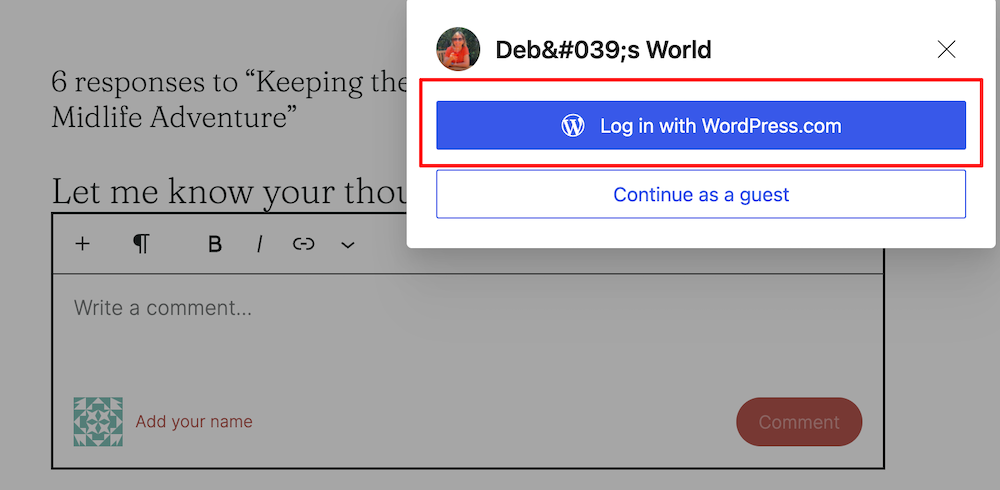
As you can see, you have two ways to log in.
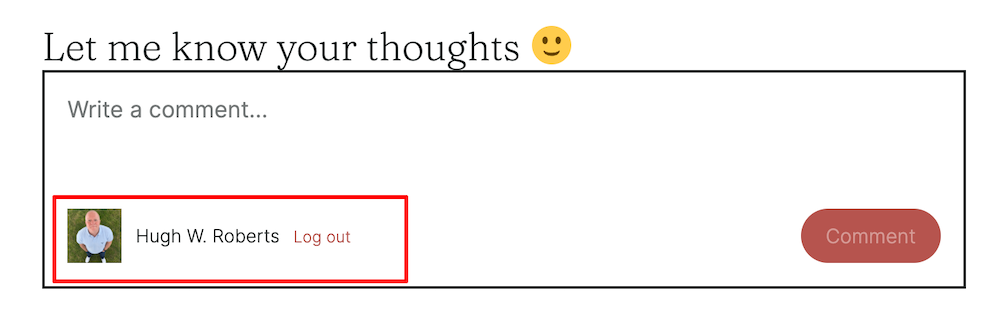
Click the ‘Log in with WordPress.Com‘ button, and your name and Gravatar profile picture will appear in the comments box. Here’s an image of what happened when I clicked the ‘Add your name’ link on Deb’s, who blogs at Deb’s World, blog.
Final Thoughts
I know it can be frustrating to remember having to log in every time you want to leave a comment, so if you’d rather not have to remember, leave comments via the other two methods WordPress suggested. You can do this via the WordPress Reader or by replying to a WordPress new post email notification without opening the post in a new tab. If you can’t read the whole post in the email, open the post and then, before leaving a comment, close it and reply to the email.
Of course, I’ll keep you all updated on when a fix is in place, but for now, please rest assured that WordPress is aware of the problem and is working on a fix.
This just in from WordPress!
Just as I was going to push the publish button for this post, this email came in.
‘Hi there,
Thanks for your patience on this. I checked on the sign-in prompt issue today and there’s no update from the developers yet. It’s still open on their side, and your ticket will stay open while we wait.
We’ll let you know as soon as we hear back, and you’re welcome to reach out in the meantime.’
Best Regards,
These emails are reassuring that a fix is in the works.
I’ve seen lots of comments across WordPress from bloggers and readers experiencing this problem. If you know somebody having the same problem, please let them know I’m on the case with WordPress to get it fixed. If it helps, point them to this post.
Copyright @ 2026 hughsviewsandnews.com – All rights reserved.
The featured image in this post was created using the WordPress image generator. AI was used to check for grammar and spelling mistakes and to help with the layout of the post.
You can follow me on the following sites.
Please feel free to share this post.















Feel free to leave a comment. Engagement helps keep blogs alive and forms community.