

Do you draft blog posts on a desktop computer or laptop? If so, did you know you can now add photos to your post directly from your mobile phone? No more having to download photos to your computer or laptop.

Here’s how to do it:
Ensure you have the Jetpack app on your phone. If not, download it from the app store.
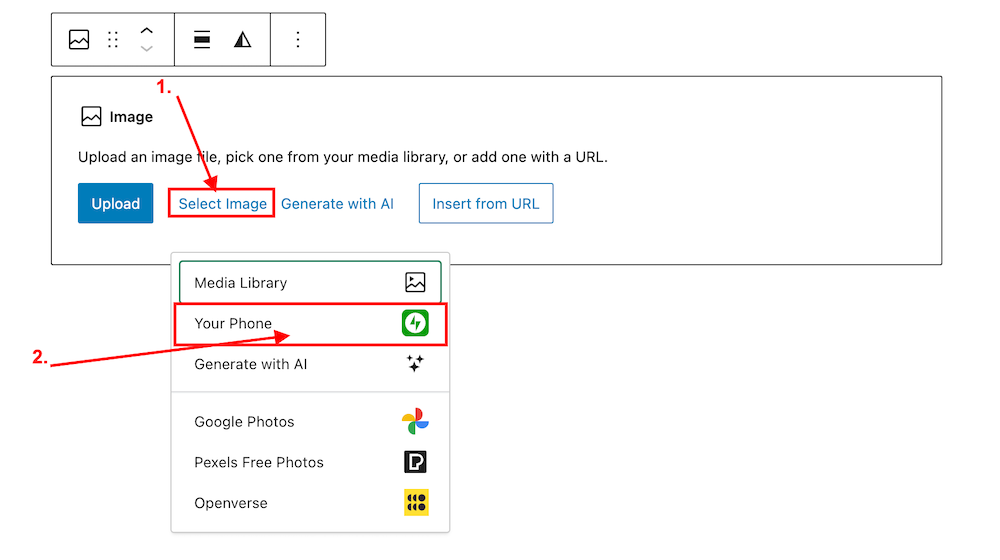
- Insert an ‘Image‘ or ‘Gallery‘ Block on your post/page.
- Click ‘Select Image.‘
- From the dropdown menu, select ‘Your Phone.’ A message will pop up on your phone with a QR code.

4. Use your phone’s camera to scan the QR code. This will automatically open the Jetpack app on your phone and then your photo library.
5. Choose the image(s) you want to use: From there, simply click the image or images you wish to add to your post/page.
6. Click ‘Add‘ (top right corner): Watch your image(s) automatically appear in your desktop/laptop editor. Here’s one I added directly from my phone.

Can I adjust the size of images in the Jetpack app?
Yes. This is important to do to prevent images from taking up too much storage space in your blog’s media library. By default, the “Optimise Images” option is turned on. You can set the ‘Max Image Upload Size‘ so the original file is resized automatically when you upload it.
Here’s how to do it:
In the Jetpack app for iPhone and the Jetpack app for Android, to adjust the settings, follow these steps:
- Log into the Jetpack app on your phone.
- Click your profile icon in the bottom right.
- Click ‘App Settings‘.
You can toggle ‘Optimize Images‘ off (not recommended) or adjust the ‘Max Image Upload Size‘. The default is 2000 x 2000px.

As you can see from the above image, I’ve set the maximum image upload size to 1000 x 1000px. I recommend not going any higher than this.
Is there anything to remember when uploading images directly from your phone?
Yes. If you add copyright information to images and photos on your computer or laptop (something I recommend you do), remember to add copyright information to your images and photos on your phone before you add them to your blog posts.
Remember to also complete the ‘Alt-Text‘ and ‘Description‘ details of the images in your blog’s media library. My blog post ‘Adding Images Or Photos To Your Blog Posts? 4 Essential Things To Do,’ gives full details as to why this information should always be completed.
Would you use this method for adding photos and images to your blog posts? If you have questions, please leave me a comment.
Layout, content, settings, and format might differ on self-hosted blogs.
Click the buttons below to follow Hugh on Social Media
Copyright @ 2024 hughsviewsandnews.com – All rights reserved.
Discover more from Hugh's Views & News
Subscribe to get the latest posts sent to your email.
 Hugh's Views & News
Thanks for this post, Hugh. I’ve always avoided uploading directly from my phone because of the size. I didn’t know you could set a maximum upload size. That’s perfect!
I was delighted to hear there was an option to set a maximum size for photos, Dan. It would have been a shame if WordPress had not included it as part of this new feature.
I did know about adding photos from your phone – very useful – but not how to optimise images, so thank you for another invaluable tip, Hugh!
You’re welcome. I’m glad the bit of optimising photos helped, June.
Extremely helpful, Hugh! Thank you so much for sharing this with us! Defo a “I learned something new” moment for me! Cher xoxoxo
I love those ‘learning something new’ days, Cher. And in the blogging world, I’m learning something new every day.
Me too, Hugh, on all accounts!
This is a useful feature, Hugh, and thank you for your explanation. I don’t use Jetpack and prefer to use my laptop but it is nice to know about the photo options.
It’s useful for those images and photos you don’t need to copyright, Eugi. Going forward, I’ll certainly be using it for those images.
Thank you. Very useful. I’ve been wondering about that feature, but so far I’d never had to use it.
I used it for the first time while drafting this post and loved it. It’s so quick.
Yeah, it seems to go very smoothly indeed. I could’ve used that for my old blog, since I uploaded new selfies taken with my cameras for basically each post.
I’ll certainly use this feature to upload images I don’t need to watermark on my blog.
Another day, another useful Hugh Roberts post! I didn’t know this, thanks.
I hope you’ll find this feature helpful, Paul. I thought many people may not know about it, hence this post.
Thanks for this great info Hugh, the WordPress guru. :) I’ll be adding this to my next Writer’s Tips later this month. :)
You’re welcome, and thanks for the upcoming share.
This is great! It will really streamline the process of uploading photos. I create my posts on my PC too, but most of my images are on my phone. On your suggestion, I tried to change the image size from the default 2000 x 2000 to a more reasonable 1000 x 1000 but it wouldn’t “stick.” I didn’t see where to “save” or “apply” the change and it kept reverting back to 2000 x 2000. Any suggestions?
After moving the slider button, I didn’t have to click ‘save’ or ‘apply’, Janis. I have a couple of suggestions for trying to get the Max Image Upload Size to stick. Give these a go.
Change the Image Quality setting to Medium (if it’s not already set to that setting).
Log out of the Jetpack app and log back in again.
Log out, delete the app, reinstall the app, and log back in.
The app needs to be the latest version. Ensure you’ve downloaded the latest version. On my iPhone, I get notified when there are updates for apps. There’s also a setting to automatically update apps when updates become available. Updates usually take place overnight or when the phone is next switched on.
I hope one of these works. Otherwise, you will need to speak with WordPress about it.
I hadn’t known it wasn’t possible as I’ve always uploaded directly from my phone, but the step by step guides you provide, Hugh, are always helpful. I tend to draft on my tablet or PC, then once I’m finished, I add in the photos using Jetpack on my phone. Usually as my phone is my camera and I can’t be bothered transferring them to another device.
It’s good to hear you’re already using this feature, Brenda. I hope you haven’t encountered any problems using it.
Thank you for the valuable feedback on my step-by-step guide. I always appreciate readers letting me know.
No problems Hugh. The only time I had problems, it was with the website too. So works well for me.
In fact, I was trying to use my tablet with my last post and ended up going back to the phone. Maybe it’s just because I’m more comfortable with the app to upload photos. Although it’s a tablet, I use the Web version rather than the app
Good to hear, Brenda. My fingers are too big for the keyboard on my phone and iPad, so I feel more comfortable blogging on a desktop.
I have a separate keyboard for my tablet otherwise I’d agree. I’m more comfortable using a keyboard
I’m going to give that a try. Thanks Hugh!
It’s a cool feature. I hope you find it useful, Jan.
You’ve done it again Hugh by teaching me another feature that will make blogging life much easier –
I’ve literally just done a post where I took a picture > attached it to email > sent email > go onto desktop email client > download and save > upload into WordPress
Thanks for sharing this useful time saver! Great feature!
Wow! That’s a long process to get images onto blog posts, James. I can see how this new feature will be so helpful as well as saving you some time.
Glad you found it helpful. Enjoy using it.
Thanks for the tip Hugh! I had no idea that one could do this!
I thought I’d share it with my readers as I expect many won’t know about it, Michael. It’s a cool feature.
This is a great feature, Hugh, thanks for sharing how easy it is to use. Resizing is an excellent point.
For me, because I watermark all published images, I won’t use this much since I use a computer program to edit then download to my media file. I see this feature pop up all the time. But I rarely store finished media files on my phone to save space.
I tried watermarking photos and images on my phone, but it’s too fickle because my fingers are too big for the phone’s keyboard, Terri. I’ll stick with watermarking on my desktop, although I will use this feature for images I don’t need to watermark.
This is awesome, Hugh. I never even considered checking such an option. How do you think of that?
I get the information from WordPress, Erika. There is also a lot on the WordPress forums (so long as you can get through all the people complaining about stuff WordPress have no control over). I enjoy sharing this kind of information as I know many won’t have heard about it.
Oh 😅 probably one of those posts I scroll over when I don’t have much time. Thank God, we have you!
I’ve been using this for awhile now. Great feature!
Now I don’t have to upload using the Jetpack media upload now.
Good to hear you are using it. It’s a great added feature and I’m still amazed when I see the images appear in front of my face. It’s like magic.
Lol! It’s witchcraft!
That’s great news. I don’t use the JetPack app because it messed up all my comments. But, for those that do use the app, your instructions are most welcome.
I prefer to use my desktop computer for leaving and replying to comments, Colleen. I don’t use the app on the phone very much. My fingers are too big for the keyboard on a phone. But I like this new feature from Jetpack.
That’s what I was thinking. It might be worth having the app just for the photo options. Good point, Hugh.