
WordPress has managed to do it once more! It’s relocated a setting I frequently use, seemingly without informing anyone about it.

During a recent post-drafting session, I attempted to disable comments on a post. I encountered difficulty locating the ‘Discussion‘ setting, which is the usual place for enabling or disabling comments on individual posts.
Why turn comments off?
I consistently close comments whenever I share another blogger’s post or a guest post I’ve written on another blog. This strategy ensures that new comments appear on the original post, consolidating the discussion in one place rather than being split between two posts. Kinda makes sense, doesn’t it?
Some bloggers also choose to close comments on older posts as a proactive measure. This practice became popular when WordPress faced a significant spam issue. Specific posts received hundreds of spam comments daily, making it challenging for bloggers to sift through the spam in their WordPress folders to find authentic comments that can sometimes end up there.
The installation of the updated Askimet anti-spam software in 2023 has led to a significant improvement in the spam situation. Thanks to Askimet’s enhanced functionality, the previously prevalent issue of hundreds of visible spam comments daily has been effectively curtailed to just a few a week. Consequently, there is no longer a necessity to close comments on these posts.
Where has the ‘Discussion’ setting gone?
The ‘Discussion’ setting used to be located at the bottom of the settings box of a post.

Now, the discussion setting has been conveniently relocated to a more prominent position at the top of the post settings panel rather than at the bottom. This new placement, coupled with the clear indication of whether comments on a post are open or closed, significantly enhances the ease and user-friendliness of managing comments and pingbacks.
Changing the discussion setting is straightforward. Click on ‘open‘ or ‘closed‘ to make the change.
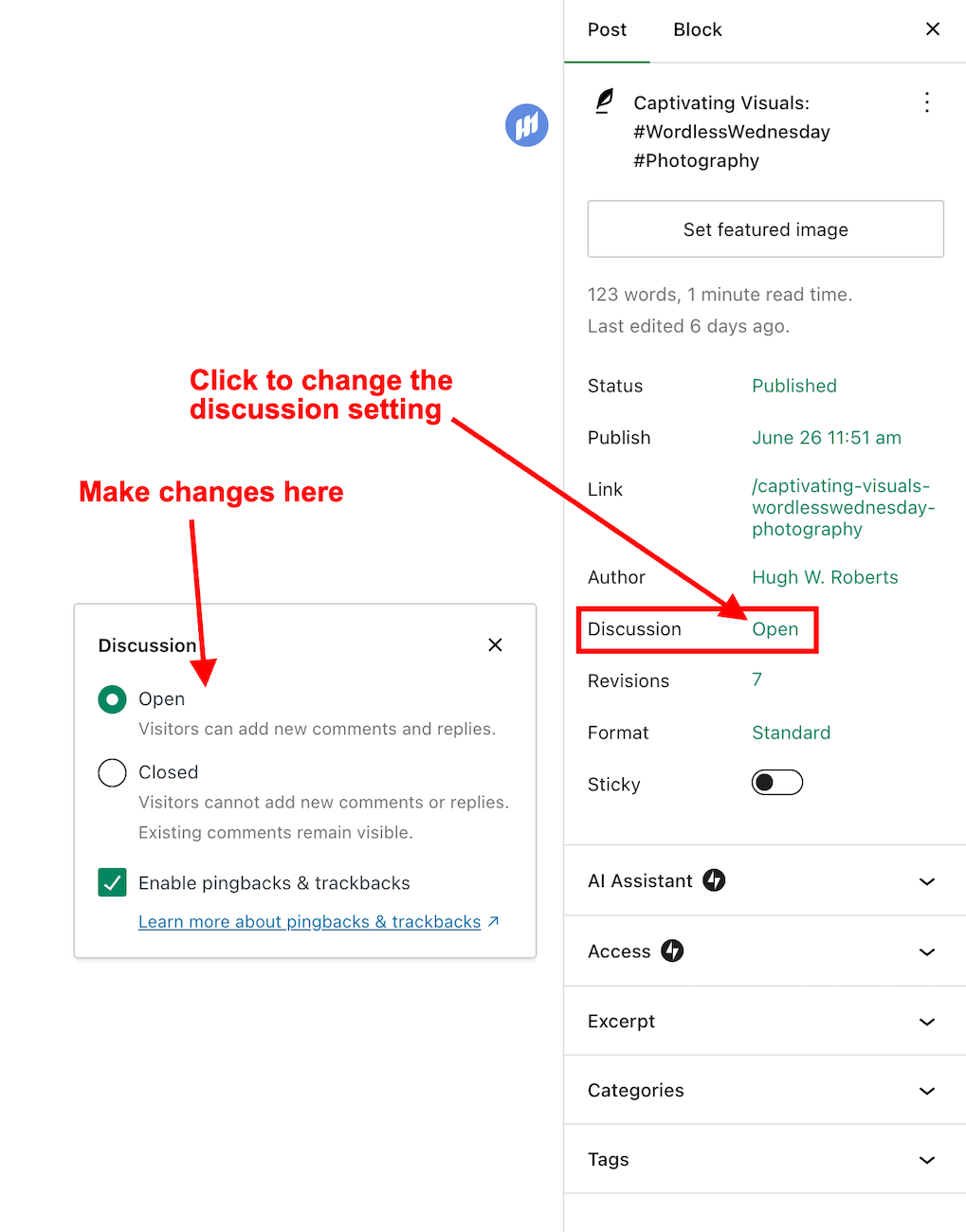
This simple, user-friendly system also allows you to control comments, pingbacks, and trackbacks.

Pingbacks and trackbacks are methods for alerting other blogs that you have linked to them. However, they only work when the blog you’re linking to has enabled pingbacks and trackbacks and you do not link to a blog’s home page. My post, ‘The Power Of Pingbacks: How To Create One‘, has more details.
Do you disable comments on posts? If so, which posts? Do you have any questions about the ‘Discussion’ setting on WordPress? Please leave them in the comments box.
Layout, content, settings, and format might differ on self-hosted blogs.
Click the buttons below to follow Hugh on Social Media
Copyright @ 2024 hughsviewsandnews.com – All rights reserved.
Discover more from Hugh's Views & News
Subscribe to get the latest posts sent to your email.
 Hugh's Views & News
Thanks for this, Hugh. I hadn’t noticed the change because I usually leave comments enabled on all my posts by default. The only time I disable is on my Throwback Thursday posts.
I have had a problem with WordPress randomly disallowing comments on some posts. Thankfully, some of my blogging friends pointed it out to me so I could fix it. I have no idea why that happens.
The only reason I can think of for being unable to leave a comment is that they’ve been closed by the blog’s owner, Michelle. You can certainly automatically close comments after so many days on blog posts, but they shouldn’t close if you’ve not changed the settings. That’s one to watch and report to WordPress if it keeps happening. I’d ask those reporting the problem to email you some screenshots so you can send them to WordPress as proof.
Thanks Hugh. I’ll keep an eye on it to see if it happens again.
Thanks Hugh. I only ever turn off comments on posts I share someone’s post. Thanks for letting me know where it’s been moved.
The same as me, Dan. I’m not a fan of turning comments off other posts. It feels like shutting the door in your audience’s face. Other than for information, I see no point in keeping posts online if you don’t allow anyone to add their thoughts and interact with you.
Thank you this information, Hugh. Yes, I have used the close comments feature and just recently. I published a post about issues with my hands, and of course, closed the comments since it was painful to type.
Though I receive news about WordPress, it seems they aren’t transparent about changes that are important to bloggers and the every day operation of blogging.
I get WordPress news but don’t always have time to read it all, Eugi. They may well have mentioned this change, but given that their support page still had the old version of where to find the ‘discussion’ setting until a few days after I contacted them, I think it’s more likely they didn’t share it.
I’m sorry to hear about your hand problem. I hope it improves. You may need to rest them for a few days and stay away from the keyboard. Take care.
Thank you, Hugh. It’s hard to stay away from the keyboard and my hands are slowly improving. I wear a fingerless glove and bought a new mousepad with a soft cushion for my wrist.
I also have one of those mousepad soft cushions. I love it. It helped stop the pain I used to get in my wrists. I also have one for the keyboard, and that has helped.
I wish WP would notify users when they make changes.
I agree, Jennie, although I can’t say for sure that they didn’t send information out about this change. It could have been that I just missed it.
Somehow I suspect they just ‘did it’. Best to you, Hugh.
I’m glad I was recommended to do this Hugh as I was getting tons of SPAM to wade through every day to ensure no legitimate comments were embedded in there.
You should have seen a dramatic reduction in visible spam messages since last year’s update, Linda. I used to get hundreds of visible spam messages daily, but now I get maybe two or three a week. It’s much better.
Oh, is that why it decreased so much Hugh – I was wishing I’d closed comments a long time before I did. Same here – I felt I should go through them as occasionally a legitimate comment was trapped in there.
Yes, I always found it odd that some legitimate comments ended up in spam, yet spam messages that were obviously spam would go into my moderation queue.
Amazing sometimes Hugh. Tonight, every comment I responded to I got a message it was a duplicate comment or I couldn’t post it. I went to my blog and the comment was there. Every so often it’s like WP just gets an attitude and everything goes buggy.
I barely use this function but lately I did and noticed that they changed something. But I found everything soon…. lol
It took me a while to figure out where they’d moved the setting even though it was staring me in the face, Erika.
Yes, same overhere. WP remains and adventure… lol
Yes, I like the adventure, Erika. It can be frustrating sometimes, but we carry on with it, don’t we?
Of course, we do 😎
OH my goodness! Thanks so much, Hugh. I was in a hurry with a reshare the other day and couldn’t find the comments off! Now I see it! 🤦🏼♀️
I don’t know why WordPress didn’t announce the change, Colleen. It took me a while to find where they’d moved it.
They keeping changing things and I struggle to find where they’ve hidden them. It’s very frustrating. Thanks for letting us know.
I just wish they’d inform us of changes, Colleen. I don’t mind changes and updates but tell your users about them.
Yes. But that hasn’t been the case at all. Corporate greed ignores the small accounts. WP is all about big accounts now.
For the longest time when I got back into blogging on WordPress, I wasn’t aware that pinbacks and trackbacks were disabled by default. It was my Trackback Alliance post that I did when I realized that it was disabled. Explained a lot of questions that I had.
Pingbacks and trackbacks have never been off by default for me. I have to turn them off if I don’t want anyone to link to one of my posts (not that I’ve ever done so). I occasionally get pingback requests from spam sites, but I mark them as spam, so they never make it through.
Must be a self hosed thing then because mine was set to disabled.
Yes, I think that’s more likely.
Lol. Welk now tour reader know if they read this.
Omg. I didn’t proof read that.
“Well now your readers know if they read this.”
That’s what it was supposed to say lol.
Fat fingers on iPhone don’t work well together.
Thank you for sharing your thoughts and tips on allowing comments, Hugh. I’ve noticed a lot of subtle changes lately in layout of post tools. I was one of those folks who turned off Comments after xx days to relieve the spam. I have noticed Akismet is performing better.
Question…do you ever have issues commenting using jetpack? I can comment 90% of the time, however in some posts that linked to mine for example, when I comment or like, I’m taken to a log in or kicked out completely. Clearly I’m logged into WordPress. Do you think it’s related to their themes? The issue has improved, but I find myself heading to my PC if I want to comment on some posts.
Thanks again for your tutorials! Have a great week!
Hi Terri, thanks for your question about jetpack.
I do 95% of my blogging on my iMac, so it’s very rare that I get the ‘login’ issue. Are you using your phone or tablet to leave comments, and is this where the problem is occurring?
The problems occur with my phone. But not on every post. I can easily like and comment on yours from my phone. And this is true for most posts. And I also notice that this may be true for other folks, too, that leave an anonymous comment. It happens far less. I tend to think it’s the theme. A couple bloggers are self-hosted.
I’ll try it on my phone and see if I get the same problems, Terri. However, I agree with you that it’s more likely to happen on blogs with non-supportive and retired themes.