Have you noticed the new feature WordPress has added to your blog’s dashboard? It’s located on the ‘My Home‘ page in the top right corner.
But what does this new feature do?
For this post, I’m using an Apple iMac desktop computer and the ‘Default‘ view setting of my blog’s dashboard.

Let’s get started
- Click on the meatball menu (three horizontal dots) to open a new menu.
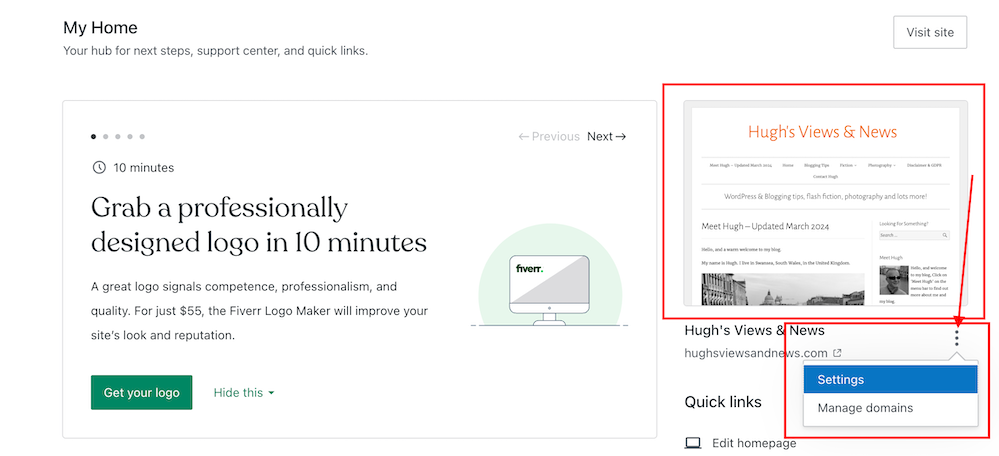
The menu contains two options – Settings and Manage Domains.
Let’s take a look at the two options
- Settings – this option takes you to the General Settings page of your blog.
You can make many changes to your blog on this page, including your blog’s icon (photo or image), name, and tagline.

- Click the ‘Save Settings‘ button if you make any changes.
On the same page, you can also create a logo for your blog via Fiverr logo maker (note that there is a charge for this) and set/change your blog’s primary language and timezone. Remember to save any changes you make.
Another option includes setting privacy settings for your blog.
Privacy – This is where you can set your blog to public viewing (anyone can view it) or private viewing (only visible to you and logged-in members you have approved to view it). There is also a ‘Coming Soon‘ option, so your blog is hidden from view until it’s ready for viewing.

Two other options are also available.
If ticked, the ‘Discourage search engines from indexing this site‘ option will prevent search engines from indexing your blog, but note that it is up to search engines to honour your request.
The ‘Prevent third-party sharing‘ option should be ticked if you want to restrict your blog’s content from AI training and third-party use. It will exclude your blog’s public content from WordPress’s network of third-party content and research partners. It also adds known AI bots to the ‘disallow’ list in your blog’s robots.txt file to stop them from crawling your site, though it is up to AI platforms to honour this request.
Click the ‘Save Settings‘ button if you make any changes.
Other settings include –
Accept a gift subscription – turn this setting on to accept gift subscriptions from visitors to your blog.
Footer credit: Here, you can choose or edit a footer credit that appears at the bottom of your blog’s pages and posts.
Site tools – this section allows you to do the following.
- Register a new domain or change your blog’s URL address.
- Transfer your blog to another blogging provider.
- You can reset your blog and start afresh while keeping the same domain/blog name. (If you choose this option, all your posts, pages, and media will be deleted).
- Delete your blog and give up your blog’s domain/address.
2. Manage Domains — This option takes you to the part of your blog where you can manage your blog’s domains.
It’s worth checking this page to see what domains you have and to see offers for other domains you may be interested in purchasing for your blog.
While you may not visit your blog’s settings page regularly, it’s worth knowing that there is now an even quicker way to find these settings.
Any questions? Leave them in the comments section.
Did you enjoy this post? Then you may also like –

Layout, content, settings, and format might differ on self-hosted blogs.
Click the buttons below to follow Hugh on Social Media
Copyright @ 2024 hughsviewsandnews.com – All rights reserved.
Discover more from Hugh's Views & News
Subscribe to get the latest posts sent to your email.
 Hugh's Views & News
I think admin is part of the fun of blogging in that it’s like putting your own creative spin on the blog. That’s what makes our blogs so different from each others. However, like housekeeping to keep our homes sparkling and interesting, our blogs need updating, too. Thanks for sharing, Hugh! :)
I’ve been following some blogs that haven’t changed in the 10 years I’ve blogged, Marsha. They all look very outdated now. Some I ditched because of so many broken links and technical bugs. I don’t know why some bloggers don’t feel the need to keep their blogs updated and in good order.
WordPress provides lots of reasons to update. Mostly, they quit working right. I’m sad about all the problems that Charli has had with her blog. She is a force in the blogging world.
I miss Charli so much. I’m not 100% sure, but I think she moved to another blogging provider. Some of her community are still here, and I’m sure they’ll let us know once her blog is up and running again.
I hope so! I miss her too!
Thanks for sharing another great information on the hidden features of WordPress. Or should i better say, WordPress debunked by Hugh? Lol Unbelievable, but there must be a lot of youngsters on operative floor of WP. Sometimes they are too much kind of a gamer group. ;-) Best wishes, Michael
I embrace most of the changes WordPress make, Michael. They have to make them to keep up with the competition and keep customers. Not all change is good, but we can usually ignore the changes we don’t like, although I’ll always try them out first and give them some of my time.
Congratulations, Hugh, as you are being featured at SSPS 307. See you again next week https://esmesalon.com/tag/seniorsalonpitstop/
That’s great news. Thanks so much Esme.
As always very valuable information for WordPress users.
Thanks so much for participating and sharing at SSPS 306. See you again next week at https://esmesalon.com/tag/seniorsalonpitstop/
Thanks for that, Hugh. Really useful stuff.
I’m delighted it has helped. You may not use the settings much but at least you now know how to find them quickly.
The user interface between Self hosted WP sites and WP hosted sites is like night and day. To be honest, I wish the self hosted UI was more like yours Hugh.
All those tips you mentioned are all under the Settings section on the sidebar for those with self hosted WP sites that are wondering.
Posts like this though are great for bloggers just getting into the blogging world on WordPress. Great job Hugh!
Thank you. I only wish I could help self-hosted bloggers more. So thank you for confirming where those settings are, Mac.
Thank you for explaining these features. :)
No need to thank me, Kymber. I enjoy sharing this information with you all. It’s a pleasure.
Thank you for this, Hugh. Knowing where to find shortcuts is time-saving and helps to maintain the integrity of one’s blog.
I agree, Eugi. It’s always good knowing where they are.
Thanks, Hugh. Another great find!
I’m glad you think so, Colleen. Even though these settings are not accessed much, it’s good to know where they are.
Exactly. So many bloggers cling to the old themes and ways. It’s good to be aware of what the platform offers us.
Oh, cool! I don’t take (have) the time to check out small changes. So, good to have you showing us new features like this shortcut. Thank you, Hugh!
Usually, when these settings are set, they don’t need editing again for some time, but it’s good to know where they are, Erika.
Absolutely!
I’m a little confused about the third-party sharing option. It sounds like something I’d want to prevent. Is that just talking about AI and bots that are used to generate ads and that kind of thing?
It’s more to stop partners of WordPress from using the contents of your blog for training and development. However, even if you tick the box, it may not stop other AI software (outside of WordPress) from scrolling and using your content for training and development.
Will this option prevent sharing? Like to FB or other social media platforms?
No, it won’t, Danny. And nor (as some bloggers have reported) does ticking that box mean your posts will no longer appear on the WordPress Reader.
It’s always great to see how shortcuts can help us with our blogs, Hugh. Regular admin maintenance is very useful for our peaceful state-of-mind. Thanks for the tutorial.
I think too many bloggers tend to forget about the admin side of blogging, Terri. I read an about me page yesterday on a blog that stated that they were just about to publish their first book in 2015. There were also lots of broken links on the menu of their blog and the old theme they were using made their blog look very outdated.
Useful stuff, thanks for sharing
You’re welcome.
I did not know there was a shortcut to those settings. Nice! Thanks for sharing.
You’re welcome. Glad this post has helped.