I came across some comments recently where somebody asked how to create a pingback to the post they were leaving their comment on. The blog host didn’t know. It got me thinking that I should do an updated post on what pingbacks are and how to create them.

What are pingbacks?
A pingback is a type of notification that allows you to inform another blogger that you have linked to a post or article on their blog or website. This notification is typically automated and serves as a way to establish connections between different blogs or websites. Sometimes, pingbacks are also referred to as trackbacks.
If the other blogger has a pingback-enabled website or blog, then they can see a notification that you have linked to their article. They can then choose to allow your link to appear in the comments section of their blog post.
This may drive traffic to your blog when readers click on the pingback notification link.
Pingbacks work well on blog challenge posts such as Thursday Doors or Sunday Stills (to name but a few).
Today, I’m going to show you how to create a pingback.
Let’s get started.
In the screenshots below, I’ve numbered key points and am creating a pingback to my recent blog post, ‘The Power of Feedback: A Writer’s Brief Journey Through Editing and Story Chat.‘

- Highlight the word or words you’ve picked.
- Click the pingback link that pops up in the toolbar.
- In the URL box, enter the URL address of the blog post you’re linking to, or if it’s one of your own posts, search for the post.
- Choose the post you’re linking to.
Finally, and most importantly, tick the box next to the ‘open in new tab‘ box.
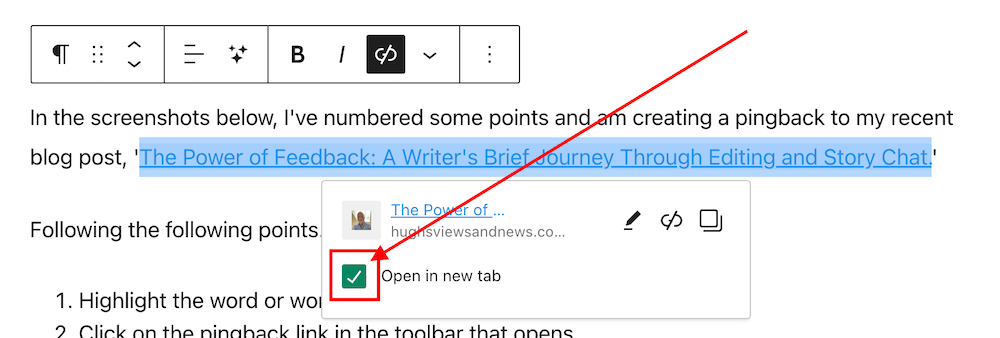
Ticking the ‘open in new tab’ option guarantees that when users click the pingback link, the linked post will open in a new tab or page. This feature effectively retains users on the current page, allowing them to easily return to your post to leave a comment or engage with the content.
Not selecting the “open in new tab” option could result in missed opportunities for comments and likes.
- Your pingback has been created and will be highlighted in the post.
Tip – You can also highlight the pingback by making the text bold. To do this, highlight the text and click ‘B‘ (bold button in the toolbar).
- Before publishing your post, preview it first and make sure the pingback works. Does it go to the right location? If not, delete the URL and insert the correct one.
- Once you are happy that your pingback is working, publish the post.
Pingbacks should be exclusively directed toward blog posts and websites relevant to the subject of the post you are sharing or where you have been specifically invited to link.
Never create a pingback to a post that has no connection with the subject of your post.
Should I ask first before creating a pingback to another blogger’s post?
It’s always nice to ask first, but you’re good to go if the blogger has enabled pingbacks. And if you know the blogger well, there is no need to ask. But it’s best to ask if it’s your first time linking to one of their posts.
However, there’s no guarantee that your pingback requests will get the thumbs up. I receive pingback approval requests every day, and I won’t approve any that seem spammy or are completely unrelated to the post they’re trying to link to.
Are there any advantages of having pingbacks on your blog posts?
Yes. Here are a few advantages.
- Creates traffic to your blog.
- SEO-friendly.
- Search engine optimizations (SEOs) such as Google and Bing rank blog posts that include pingbacks higher.
- Bloggers may link back to one of your blog posts.
- Great for promoting older blog posts you have published that some of your followers may not have read.
Caution—It is crucial to refrain from creating a pingback to a blog or website’s home page. This practice is discouraged because it fails to notify the blogger whose post you are referencing.
Do pingbacks attract spam?
Some experts recommend not allowing any pingbacks or trackbacks to a blog because they attract spam. However, by moderating all pingback notifications, you can prevent any spam pingbacks from appearing in the comments section of your blog posts.
Good news from WordPress about spam comments
After an update in 2023, the WordPress anti-spam software has dramatically strengthened its ability to intercept spam. Consequently, there has been a significant decrease in the volume of visible spam comments reaching blogs. Previously, hundreds of spam comments inundated my blog on a daily basis. However, following the update, I only encounter one or two weekly.
Where possible, try and include at least one pingback in every blog post you publish.
You can use a mixture of pingbacks to your posts and those of other bloggers.
Are there any problems with allowing pingbacks on your blog?
None that I am aware of.
An invitation to create a pingback
If you’ve never created a pingback before, try creating one for this post. I’ll be happy to let you know if it works and include it in the comments section.
If you encounter any problems creating a pingback, don’t hesitate to ask me for some help.
Summary: The Power of Pingbacks and How to Create Them
- This guide explains pingbacks, how to create them, and the best practices to follow.
- This guide covers everything from creating a pingback to the benefits, staying safe from spam comments, and recent anti-spam updates from WordPress.
- This post also encourages readers to use pingbacks and shares my positive experience. It’s helpful for new and experienced bloggers, giving them the knowledge and confidence to use pingbacks effectively.
- In the busy blogging world, pingbacks are important for connecting and getting more site visitors.
- Pingbacks, sometimes also known as trackbacks, are useful tools for bloggers that let other bloggers know when you link to their posts.
- It’s polite to ask first before creating a pingback to another blog unless you know the blogger well or have been invited to link to a post.
- Always tick the ‘open in a new tab’ box so that readers do not lose the page they are reading.
- Pingbacks do not attract spam.
- WordPress anti-spam software now eliminates the majority of visible spam, saving you time in checking for comments that may have been marked as spam by mistake.
Layout, content, settings, and format might differ on self-hosted blogs.
I actively utilise pingbacks as part of my content strategy. My experience with using them has been positive, as they help me foster connections with other blogs and websites and enhance engagement. If you have any questions about pingbacks, please leave them in the comments section below, and I’ll be happy to address them.
My thanks to Sylvain Richard for his recent blog post about pingbacks.
Click the buttons below to follow Hugh on Social Media
Copyright @ 2024 hughsviewsandnews.com – All rights reserved.
















 Hugh's Views & News
Leave a reply to WordPress: How To Close Comments: What You Need To Know Cancel reply