How easily can all visitors engage with you on your blog?
Is it as easy as you think it is?
After receiving an e-mail from Jean, who blogs at DelightfulRepast.com, who had seen one of my posts at the Senior Salon Pitstop weekly linky party hosted by Esme and Julie, I was somewhat concerned when she mentioned that it wasn’t easy for her to engage with me on my blog.
Jean explained that she didn’t want to leave her e-mail address, create a WordPress account or use social media to be able to leave me comments. I understand why she didn’t want to leave any of those details. After all, our information is private and shouldn’t be given out if we don’t want to give it out.
WordPress offers ‘Discussions‘ options where users can decide how easily readers can engage with them without leaving any personal details. I thought I already had this option switched off, so nobody needed to leave any personal details, and I was right, but it didn’t explain why Jean thought she had to leave her personal details if she wanted to comment on my posts.
Upon further checking my discussion settings, I saw where the confusion was coming from and want to highlight it so those who wish to engage with me without personal details can still leave comments knowing they do not need to give any personal information.
Let’s Look At The Discussion Settings On WordPress.
- Ensure you’re viewing your blog’s dashboard in the Default view. To do this, click on the View button in the top right of the screen when viewing your blog’s dashboard.
- Go to Settings – Discussion.
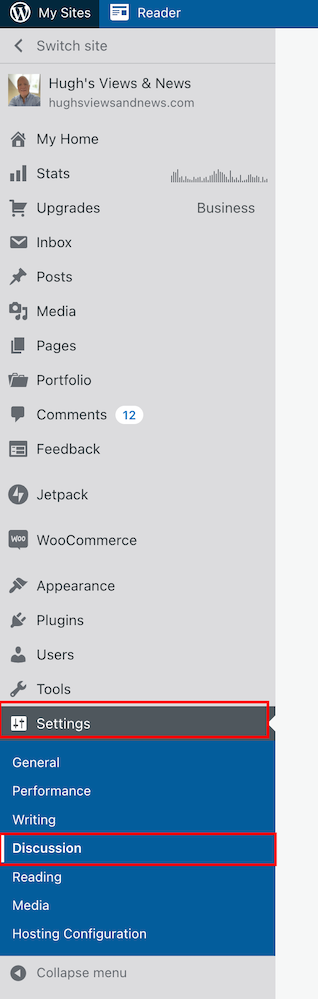
- On the Discussions Settings page, look for the Comments box.
As you will see from the above screenshot, I have turned off both the ‘Comment author must fill out name and e-mail‘ and ‘Users must be registered and logged in to comment‘ options. So why wasn’t Jean able to leave me a comment?
It seems that, for whatever reason, in their wisdom, WordPress has decided to still show visitors a login box when these options have been switched off. This is what Jean and visitors who are not logged in see.
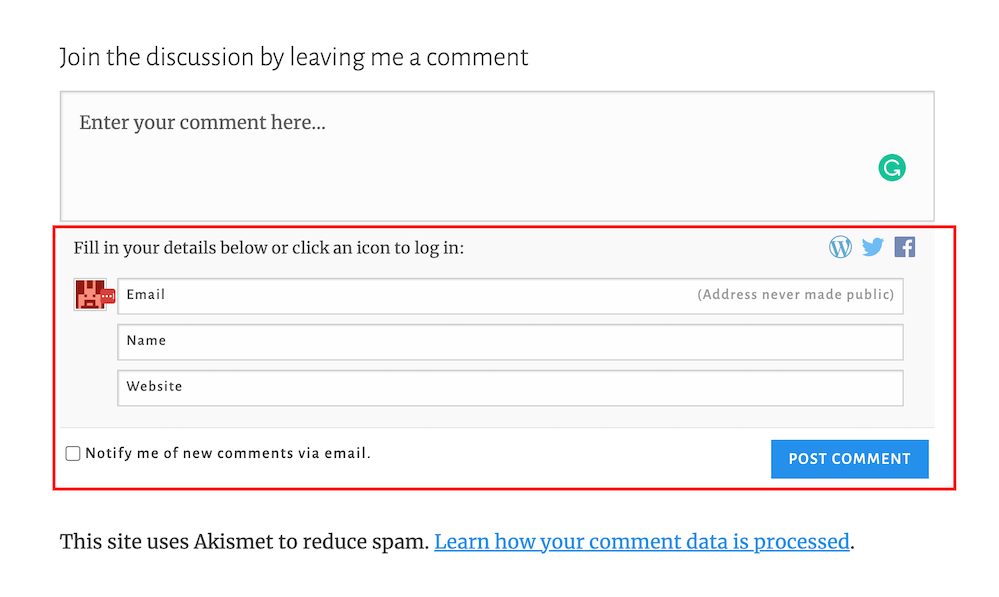
And this is what WordPress say –
Comment author must fill out name and e-mail: When this setting is on, anyone leaving a comment will be forced to leave a name and a valid e-mail address. If the setting is off, visitors can leave anonymous comments. While your commenters do not have to fill in the e-mail field if you’ve turned this setting off, it will still be visible to them when they comment.
So I understand why Jean thought I wasn’t making it easy for her to engage with me.
If you only want readers to engage with you who must leave their name and email address, ensure you have this option switched on.
If you only want comments from readers who are logged in and registered, ensure you have the ‘Users must be registered and logged in to comment‘ setting switched on.
If you want comments from both, ensure both settings are switched on.
However, if, like me, you’re happy to allow anyone to leave you a comment, then switch both of these settings off.
Don’t forget to click the ‘Save‘ button in the Comments settings box if you make any changes.
Are There Any Disadvantages To Switching These Discussion Settings Off?
The main disadvantage is that it could open the gates for spammers and trolls to leave you comments. However, the Akismet antispam software on WordPress catches and places the majority of spam into your blog’s spam folder, so you’ll never see it unless you check what’s in it.
Further down on the Discussion Settings page, there is more help to filter out spam and troll comments.
- Look for the ‘Before A Comment Appears‘ box, and you’ll see these two options.
- Comment must be manually approved: If this setting is on, all comments will go into moderation, and they will need to be approved by you before appearing on your blog.
- Comment author must have a previously approved comment: If this option is on, any visitors that have had a comment approved on your blog in the past will get a free pass through approval and only comments from new visitors will go into moderation.
As you will see from the following screenshot, my blog is set for manually approving all comments before they appear on any of my posts.

This helps me stop unprofessional, rude, nasty comments from appearing on any of my posts, even if they’re from somebody who has previously left a friendly comment.
My thanks to Jean for contacting me about discussion settings on blogs. And apologies for the confusion WordPress causes in insisting a login box shows when visitors do not need to leave any personal details when wanting to engage or leave a comment.
If you see a login box or are asked to leave your name and email address when leaving a comment, try leaving a comment without filling in personal details or logging in. If the blogger you’re engaging with has switched off the ‘Comment author must fill out name and e-mail‘ and ‘Users must be registered and logged in to comment.‘ options, your comment will go through.
If either or one of those options is switched on, you’ll need to follow the instructions to be able to leave a comment.
Let’s wrap it up.
- Check the discussion settings on your blog to see if you’re preventing visitors from leaving comments.
- Decide whether you want only certain visitors to be able to leave comments or if you’re happy for all visitors to leave comments.
- The majority of spam comments will go straight to your spam folder. Remember to empty your spam folder regularly.
- To stop comments from trolls appearing on your blog posts, switch on the ‘Comment must be manually approved‘ setting.
- Consider whether comments from those who have previously left you a friendly comment do not need to be manually approved by you.
If you have questions about the discussion settings on your WordPress blog, leave them in the comments section.
Layout, content, settings, and format might differ on self-hosted blogs.
Follow Hugh on Social Media. Click the buttons below.
Want more posts like this? Enter your email address and click Subscribe.
Copyright @ 2024 hughsviewsandnews.com – All rights reserved.
Discover more from Hugh's Views & News
Subscribe to get the latest posts sent to your email.


Great info, Hugh. I noticed that you have “Email me whenever someone likes my posts” switched off. I’m thinking about doing this since I’m inundated with email in my inbox. Any reason you can think of to not do this?
None at all, Janis. Given that some readers click the ‘like’ button without reading the posts, those notifications are more of a nuisance. I don’t know about you, but I have serial likers who press the like button on all my posts and comments. For me, one email notification of a genuine comment is worth no-end of email notifications that tell me that somebody has pressed the ‘like’ button on a post or comment.
Haha! I almost pressed the “Like” button for your reply, then realized you wouldn’t see it :)
I take little, if any notice of the ‘likes’ on my blog or those of other bloggers. However, I do press ‘like’ on posts I’ve enjoyed reading.
Thank you for the helpful article where I didn’t have to leave my email address to comment.
You’re welcome, Susanne.
Thanks Hugh. Now off to check my settings. I didn’t receive notification of this post, so I’m glad its appeared in the Reader.
I wonder why you didn’t get an email notification, Brenda? Did you check your spam folder? Good to hear that the post appeared on the WordPress Reader, though.
I’ll check once I get home. Its been a hectic couple of days. Get to work from home tomorrow 😁
Thanks for the tip. I have one friend who has not been able to comment, though she used to be able to. I turned off the setting requiring a name and email, so maybe that will help. It’s odd WordPress keeps the box there. I ave had some commenters put obviously fake emails there.
Another problem I have run into is that if a commenter has registered with WordPress before in any way, they tell me WP wants their password before allowing them to log in–even though I don’t require that in my settings. If they put in an email that they used for an old WP blog, even if the blog is no longer online, WP defaults to the box asking for their user name and password. I guess one solution to that would be using a different email address when commenting. Or, with this changed setting, not using an email address at all.
I’ve also had some trouble commenting on other WP sites in that it makes me log in every time I comment–even sites I have been commenting on for years and sites where I click “Remember me” when I fill in my information. Have you encountered that? Any ideas what to do about it?
Hi Barbara,
First, I must tell you that your comment went straight to my WordPress spam folder. I think this may have happened before with comments from you. I’d recommend you check with other bloggers you’re leaving comments for if the same thing is happening to your comments. If it is, I’d recommend you contact WordPress about it. I marked your comment as ‘Not Spam’, so hopefully, that will help.
If you have now turned these settings off, nobody should have to give any personal information when leaving you comments. You’ll need to contact WordPress and inform them if it still happens. One possibility is that it could have something to do with the WordPress theme you’re using on your blog. If it’s an old theme that has been retired, WordPress will have stopped supporting it, and you may have to select a new theme. If it’s still a current theme, it could have a bug which WordPress will inform the developer of the theme about.
Regarding your last question, again, it could be theme related. However, do you have the latest version of WordPress on the device you’re using? Ensure you have the latest version and are using all the latest software they provide. Usually, it all downloads automatically, but you may have settings on your device that need updating. In any case, the Happiness Engineers at WordPress will be able to help.
Great post, and good to highlight this. I was thinking of writing a blog post to hight the same. I have them switched off, I did years back, because I thought it would be annoying and it not necessary.
Thank you.
Like you, I turned these settings off years ago. However, it’s a shame that WordPress still insists on displaying the login box when those settings are turned off. No wonder some readers get confused.
True. Oh maybe I should mention to wp.com. cause that is silly
Oh yes, I like how you added your subscribe block to this post. I decided to do the same at the end of my posts, much like yours! Thanks for that advice and how-to as well!
I think the smaller subscribe blocks look much better, Terri. While they are quite discreet, they still help when somebody wants to sign up. If it takes too long to find out how to subscribe, I walk away (like I did the other day with another blog). I’m guessing others will do the same.
It does look better and I’ve now added my newest one to my reusable blocks. I always appreciate your fabulous how-tos, Hugh!
That was an important post for me. I went right to my settings and checked them. I too had ‘Comment author must fill out name and e-mail‘ turned on. I turned it off now. Sometimes I should visit my blog and posts when I am not logged in… that may make a difference.
It does, yes, Erika. I regularly check how my posts look when I’m not logged in. It’s how I discovered that the login box still appears when the settings mentioned are switched off. WordPress doesn’t always make it easy for users to understand what (if any information) they need to leave when leaving comments.
That’s true! WP makes you stumble over quite some things over time that you only notice by chance… or by your posts… hehe.
Thanks Hugh, problem explained. I recently had a long time WP blogger try to leave a comment but was hit with the name + email box. She informed me about this requirement and how it would negatively impact comments. I explained it wasn’t me.
It’s a shame that WordPress insist on showing the login box even when the settings are switched off, Danny. Hopefully, this post will reassure those who don’t want to have to give personal information when leaving comments.
Every time I read your posts, I learn one or more things about blogging. Thanks for sharing this important article on blog settings.
You’re welcome, John. I’m glad my posts are helpful. I’m still learning lots about blogging and enjoy sharing information with readers.
Hi Hugh, Thanks for following up on Jean’s comment and sharing your findings and this post. I am sure many other bloggers (as above) will be glad and happy about this useful information and I will obviously also go back and check the settings. Also, thanks for the Linky mention
Thank you for sending over Jean’s email, Esmé. These discussion settings are a great topic to discuss. I had a feeling that it would generate lots of conversations.
Although I am self hosted, I still could follow all your instructions and fortunately I have them set up as you suggested, so hopefully all should be fine on my end as well.
That’s great to hear, Esmé. Thanks for letting me know.
Some awesome stuff here, Hugh! Off I go to check my settings, many thanks!
You’re welcome, Terri.
I am sure this will come in very handy to many bloggers. I am still relatively new to blogging so learning these tips is sure to help myself, as my blog continues to grow. Screenshots are helpful here so thank you :) I will check my discussion settings now
I’m glad the screenshots help. I always find screenshots so helpful when looking for information. Thank you for the feedback.
Very welcome and indeed :)
Thanks … I am careful about unwanted comments and followers.
I think we should all be careful. It’s one of the reasons why I moderate all comments before they appear on any of my posts or pages.
Thanks for this, Hugh. I had no idea!
I don’t think many will know about these settings, Cathy. I switched mine off many years ago, so I looked into it when Jean contacted me to say she didn’t want to have to leave her email address and name to leave me comments. I’m glad I did.
I’m glad too :)
My mom recently told me she had trouble commenting on a post. I checked my settings and discovered I still had “Comment author must fill out name and e-mail” enabled. I don’t think I would have realized that without this post.
We can always count on Hugh to highlight the little things we may have missed! :)
I must pass on my thanks to Jean for also emailing me about these settings. While she could have left a comment without having to fill in any personal information, WordPress certainly do not make it easy to pass that information on to those visitors thinking of leaving comments but who don’t want to have to log in or leave their email address.
Right? The only thing I can think of is maybe leaving a note in the prompt heading above the comments window. But I think that option is only available in the classic WordPress admin view, so it might eventually go away(?). At least on mobile, they have the asterisk for required fields, but that doesn’t appear to be the case on desktop, from what I can see.
Having just moved a lot of features over onto the new Jetpack mobile app, I feel that the current WordPress app may disappear altogether in the next 24 months. Although the Classic editor is still available, WordPress announced last year that it would be available until the end of 2024 or when necessary.
Great information, Hugh. Thank you. WP should give you a stipend for all this advertising. LOL! You explain things better than they do.
Aww, thanks so much, Colleen. I enjoy checking out the WordPress system. As you’re aware, they’re always making changes (mostly always good ones), so they keep me on my toes.
LOL! I’m thankful you share all these tips. I’ve learned a lot about the system from you. Thanks.
Thanks, Hugh!
You’re welcome.
Always good idea to review and consider your settings once in a while
I agree. After all, we often check settings on everyday objects to ensure everything is working as it should be, so why not do the same on blogs, too.
Thanks for the tips, Hugh. I needed to change a few of mine.
You’re welcome. I’m always delighted to help, Pamela.
Thanks, once again, for a very helpful post. I have updated my blog settings. Have a great week, Hugh!
You’re welcome, Michelle. I’m always pleased to help.