
Have you ever seen someone ask how to leave a pingback to the very post they’re commenting on, only to discover the blog host has no idea either? That happened recently, and it made me realise it’s time for an updated, easy-to-follow guide on what pingbacks are and how to create them.
What are pingbacks?
A pingback is an automatic notification that lets another blogger know you’ve linked to a post or page on their site. When it works as expected, it quietly builds connections between related posts across different blogs or websites. You may also hear people call them trackbacks.
If the other blogger has a pingback-enabled website or blog, then they can see a notification that you have linked to their article. They can then choose to allow your link to appear in the comments section of their blog post.
This may drive traffic to your blog when readers click on the pingback notification link.
Pingbacks work especially well on ongoing blog challenges and link-ups (for example, weekly photo or writing prompts) where hosts invite participants to link back to the main challenge post.
In the walkthrough below, I’ll show you how to create a pingback in the WordPress.com editor, step by step.
Let’s get started.
In the screenshots below, I’ve highlighted key points and am creating a pingback to my recent blog post, ‘Taking Stock: 26 Little Snapshots of My Life and the Blogging World.’
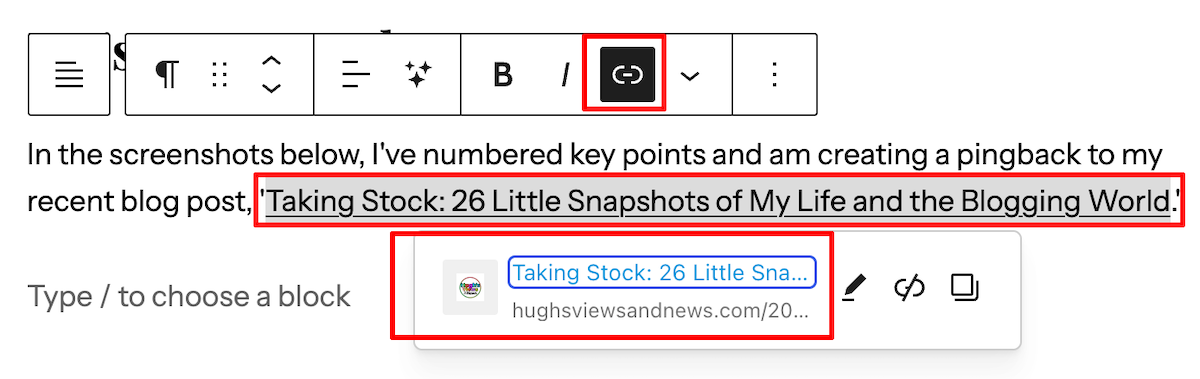
- Highlight the word or words you’ve picked for the pingback link. I’ve chosen the blog post title.
- Click the pingback link that appears in the toolbar (it looks like a paperclip).
- In the URL box that appears, start typing the post title of the post you’re linking to and select it. If it’s the post of another blogger, copy and paste the URL address of their post.
- If you want the post you are linking to to open in a new tab, click the pencil icon and tick the ‘Open in a new tab’ box.
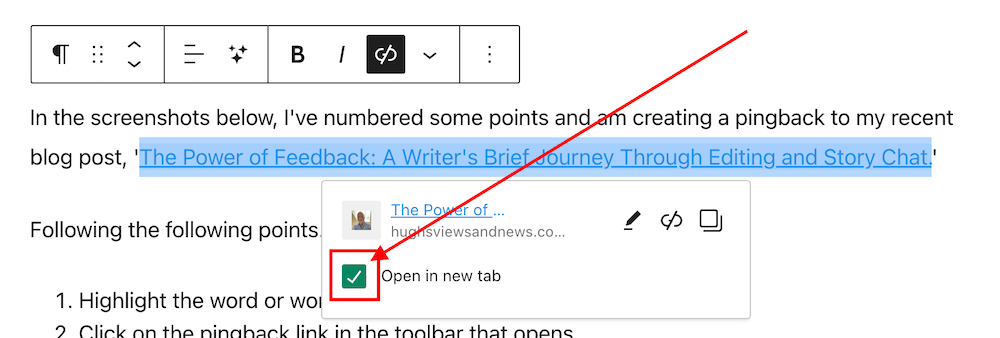
- Your pingback has been created and will be highlighted in your post.
Ticking the ‘open in new tab’ option means that when readers click the pingback link, the linked post will open in a new tab or window. That way, they don’t lose your post and can easily come back to finish reading or leave a comment.
If you don’t select the “open in new tab” option, some readers may not find their way back to your post, which can mean missed comments, likes, and conversations.
Tip: You can also highlight the pingback by making the text bold. To do this, highlight the text and click ‘B‘ (the bold button in the toolbar).
- Before publishing your post, preview it first and make sure the pingback works. Does it go to the right location? If not, delete the URL and insert the correct one.
- Once you are happy that your pingback is working, publish the post.
Pingbacks should always point to posts or pages that are genuinely relevant to the topic you’re writing about, or where you’ve been specifically invited to link. However, some bloggers will link back to a blogger’s About’ page if they’re only mentioning the blogger by name.
Never create a pingback to a post that has no real connection with your content, as that’s how pingbacks end up looking like spam. Most bloggers block uninvited links.
Should I ask first before creating a pingback to another blogger’s post?
It’s always courteous to ask first, but in general, you’re fine to create a pingback if the blogger has enabled them. If you know the blogger well or they’ve invited links to a specific post (for example, for a challenge), there’s usually no need to ask. If it’s your first time linking to them, a quick message to say you’re mentioning their post is a friendly touch.
However, there’s no guarantee that your pingback requests will be approved. I receive pingback approval requests every day, and I won’t approve any that seem spammy or are completely unrelated to the post they’re trying to link to.
Are there any advantages to having pingbacks on your blog posts?
Yes. Used thoughtfully, pingbacks can be a powerful part of your blogging toolkit. Here are a few advantages.
- Can create extra traffic to your blog.
- Can be helpful for SEO when used naturally and not overdone.
- Helps search engines understand how posts on different sites relate to each other.
- Encourages other bloggers to discover and sometimes link back to your posts.
- Great for bringing older but still useful posts back into the spotlight for newer readers.
Caution: Avoid creating a pingback to a blog or website’s home page. Always link to a specific post or page instead, otherwise the blogger won’t receive a notification.
Do pingbacks attract spam?
Some experts recommend turning off pingbacks and trackbacks completely because they can attract spam. On WordPress.com, you can reduce the risk by keeping moderation enabled so you can approve pingbacks before they appear in your comments. If something looks suspicious or irrelevant, simply don’t approve it.
Good news from WordPress about spam comments
Recent improvements to WordPress.com’s built-in anti-spam tools have dramatically strengthened their ability to intercept spam. As a result, there’s been a big drop in the number of visible spam comments reaching blogs. I used to see hundreds of spam comments in my spam folder every day on my blog. Now, the majority of them don’t even make it to my spam folder. I usually only see the occasional one slipping through to the spam folder in a typical week.
Where it makes sense, try to include at least one relevant pingback in the blog posts you publish.
You can use a mix of pingbacks to your posts and to other bloggers’.
Are there any problems with allowing pingbacks on your blog?
For me, the benefits far outweigh the downsides. The main “problem” is the time it takes to quickly check and moderate pingbacks so spammy ones don’t slip through, but that’s a small price to pay for the extra connections and traffic.
An invitation to create a pingback
If you’ve never created a pingback before, why not try creating one for this post? I’ll be happy to let you know if it works and include it in the comments section so others can see your example.
If you run into any problems creating a pingback, don’t hesitate to ask me for help in the comments.
Summary: The Power of Pingbacks and How to Create Them
- Pingbacks (sometimes called trackbacks) are notifications that let other bloggers know when you link to their posts.
- This guide explains pingbacks, how to create them in the WordPress.com editor, and the best practices to follow.
- It covers everything from creating a pingback to the benefits, staying safe from spam comments, and the latest anti-spam improvements on WordPress.com.
- This post encourages you to use pingbacks and shares my positive experience. It’s helpful for both new and experienced bloggers, giving you the knowledge and confidence to use pingbacks effectively.
- In a busy blogging world, pingbacks are a simple but powerful way to connect with others and attract more visitors.
- It’s polite to ask first before creating a pingback to another blog unless you know the blogger well or have been invited to link to a post.
- Always tick the ‘open in a new tab’ box if you don’t want readers to lose the page they are on.
- Pingbacks can attract spam, so keep moderation turned on and only approve relevant, genuine links.
- WordPress.com’s anti-spam tools now eliminate the majority of visible spam, saving you time while still letting you rescue any genuine comments that were marked as spam by mistake.
I actively use pingbacks as part of my content strategy. My experience with them has been very positive. They help me foster connections with other blogs and websites and boost engagement. If you have any questions about pingbacks, please leave them in the comments section below, and I’ll be happy to help.
The featured image in this post was created using the WordPress image generator. AI was used to check for grammar and spelling mistakes and to help with the layout of the post.
Layout, content, settings, and format might differ on self-hosted blogs.
This post is an update of a post originally published on my blog in 2019.
Click the buttons below to follow Hugh on Social Media
Copyright @ 2026 hughsviewsandnews.com – All rights reserved.


















Feel free to leave a comment. Engagement helps keep blogs alive and forms community.