

If you missed my recent post, 7 Common Mistakes To Avoid When Deciding Whether To Follow A Blog, you won’t have seen the fantastic discussions in the comments section that raised many questions.
One of those questions was, ‘How do I Unsubscribe From A WordPress Blog I’m No Longer Interested In Reading?’
Not sure why you should unfollow a blog? Read the post for the answers.
For this post, I’m using a desktop computer.
1. From The WordPress Reader
Ensure you are viewing posts from the WordPress Reader.
Click the three horizontal dots (meatball menu) next to the blog you want to unfollow and click the ‘Unsubscribe‘ button.
2. From A Post
Open the post from the WordPress Reader.
Right-click on the post title and click ‘Open in a new tab.’
Click the ‘Subscribe‘ button in the screen’s floating action bar in the lower right corner.
You’ll now be unsubscribed from following that blog.
3. From An email Notification
If you get email notifications of new posts, click the ‘Manage your email settings or unsubscribe’ link in the email.
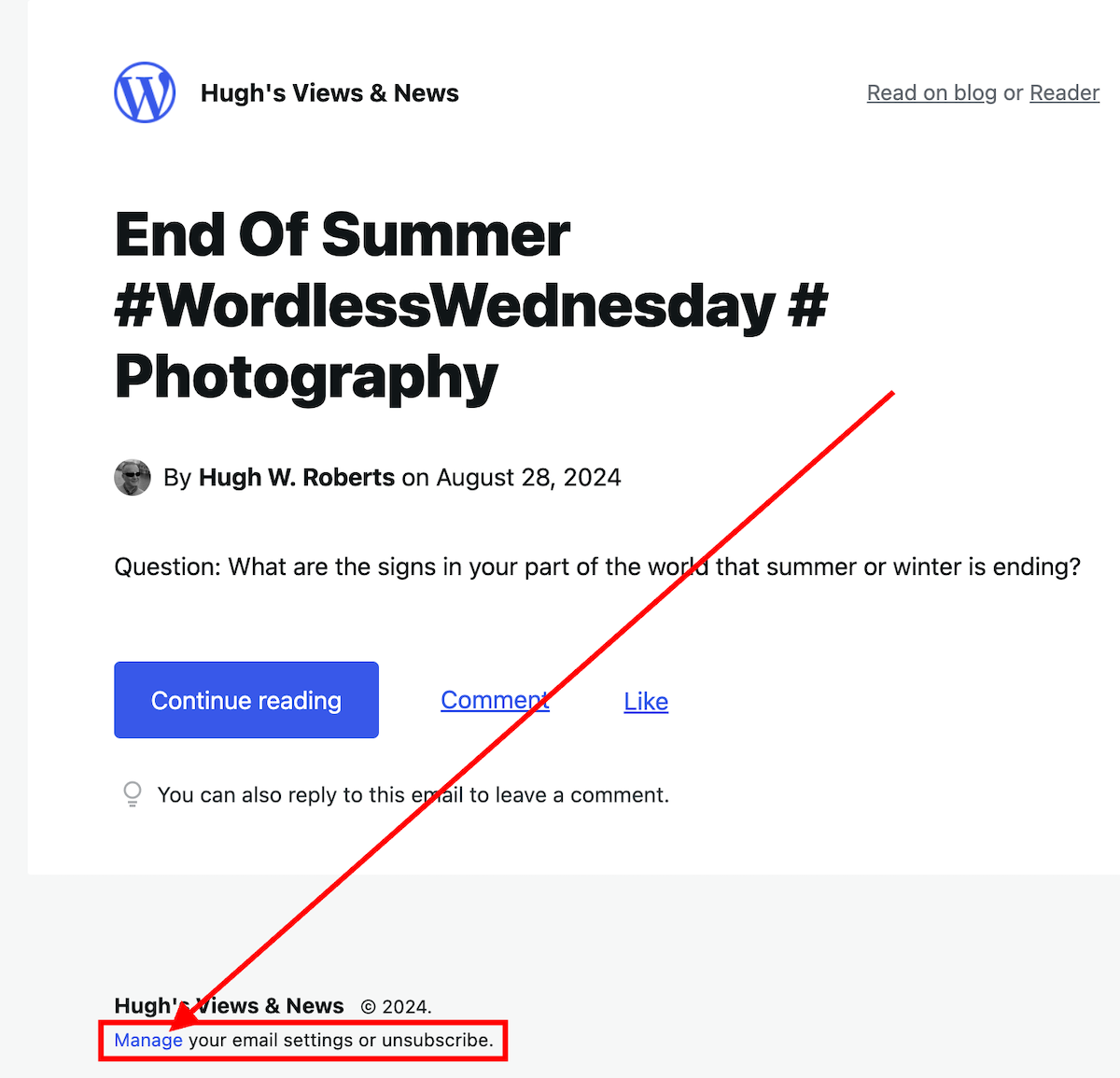
On the new page that opens, click the ‘unsubscribe‘ button.
4. From the ‘Manage’ subscriptions list on the WordPress Reader
From the ‘manage‘ section of the blogs you’re following, click on the ‘Manage‘ link (next to ‘Subscriptions‘).

A list of all the blogs you’re following will show.
Click the three horizontal dots (meatball menu) next to the blog you want to unfollow and click the ‘Unsubscribe‘ button.
5. From a WordPress Web Address
Ensure you are signed into WordPress.
Type or click on the following URL address https://wordpress.com/following/edit
A list of all the blogs you are following will show.
Click the three horizontal dots (meatball menu) next to the blog you want to unfollow.
Click the ‘Unsubscribe‘ button.
If you have any questions, please leave them in the comments section.
More blogging tips posts from Hugh
7 Common Mistakes To Avoid When Deciding Whether To Follow A Blog
Are you following too many blogs?
7 common mistakes to look out for before following a blog.
Keep reading
WordPress Problems: Don’t Panic! How To Solve Issues Quickly
WordPress users often face problems, but they may not always be caused by their blogging platform. Device issues, internet browsers, poor blog housekeeping and retired themes can all contribute to problems.
My post outlines what to do if you’re experiencing issues with using WordPress.
Keep reading
Blogging Simplified: Adding Images From Your Phone To A WordPress Post
You can now add images to WordPress posts directly from your phone using the Jetpack app, with simple resizing options.
Read my posts for all the details.
Keep reading
Click the buttons below to follow Hugh on Social Media
Copyright @ 2024 hughsviewsandnews.com – All rights reserved.
Discover more from Hugh's Views & News
Subscribe to get the latest posts sent to your email.
 Hugh's Views & News
Why did the song “50 Ways to Leave Your Lover” pop into my head when I saw the title of your post? LOL Thanks for the informative post, Hugh.
I hope that song didn’t play on your mind all day, Michelle.
I currently don’t subscribe to many blogs at all, but this is super helpful how-to information so I can keep on top of it all. Very much appreciated. Thank you for sharing!
Sally | Challenge Fifty Two
I’m glad it helped, Sally. You may never have to do it, but at least you know how it’s done now.
Thank you for sharing these tips, Hugh. The only way I knew how to unsubscribe was by using the Manage Subscriptions list. Now I know there are other options after reading your post, which is very helpful.
Yes, there are a few other ways, Eugi. But there is nothing wrong with sticking to what you know. The most important thing is to remember to have a declutter of subscriptions every so often.
Yes, decluttering is important, and I need to remember to do it more often.
Good idea to mark these as spam so we can teach AI what spam looks like 👍
Agreed. They’ll find other ways, but I’m onto them, Terri.
Great how-to Hugh! I took your advice and unsubscribed to a handful the other day. I also checked a couple of others and saw that their sites were deleted. Sadly I unsubscribed to a fellow blogger’s site who passed away last spring.
I’m dealing with a lot more spam comments, that don’t get flagged as spam. Many are from new “subscribers” who start following me. They leave a one word comment, which I check, then look at my latest subscribers. I’ve been deleting a lot of those lately as well. Not that I have anything against AI tools, but I’m sure AI has raised the frequency of spammers and fake followers.
It’s always a good idea to spend 5 minutes a day on blog administration for these reasons. After my Facebook blog page got hacked 2 years ago, I’ve been extra careful who follows me.
I stopped approving one-word comments or comments with just one emoji quite a few months ago, Terri. I noticed the same thing, with some leaving the same one-word comment (nice! Beautiful! Good!), not just on my blog posts but on others. They look genuine, but if you start marking them as spam, WordPress should start sending them straight to your spam folder. Be careful because I’ve also had two-worded comments, such as ‘Beautiful post’ from the same spam blogger who leave the same comment all over the blog world, so they now get marked as spam. I’m sure you don’t, but don’t believe that they have read the post they are leaving the comment on.
Some of these spammers subscribed to my blog, but most haven’t. I’ve removed those that have.
All good ways when it becomes necessary.
Which, in my case, is quite often. Always makes me feel like I’m decluttering.
Great post and very simply written. It makes it easy to follow. I wrote a similar post myself, but that was very complicated 😂.
In my experience, when writing ‘How To’ posts, make them simple to read and include a few images as they also help.
I don’t recall your post about this subject. How did you title it?
It wasn’t a how to post per se, but here’s the link:
I remember it now, especially given that I commented on it. I was somewhat concerned that someone told you anyone wanting to engage with a WordPress blogger must have a WordPress account. We know that isn’t the case.
Yeah. It’s absolutely possible to comment using just your email. The notifications, though using just the email works pretty badly, though in my experience.
The few times I’ve left comments using my email, because they don’t have the WordPress comments on, I’ve rarely gotten a reply. It could be because the replies never came, but still. I know I’ve missed comments and replies when doing so.
It could be that your comments have gone into their WordPress spam folder. Some bloggers fail to check what’s in there.
You can also comment via a social media account or, like I have done, turn off the settings that say commenters must be signed into WordPress to be able to comment.
Yeah, the spam thing most likely will explain that.
I should post a link to this at the top of my blog, Hugh. About once a week I get a comment asking (sometimes demanding) me to unsubscribe someone. The worst are the people who are nasty about it, but don’t share their email. So, I have to find the comment and hope there’s an email, or search on the IP address. I know, if they subscribed via email, the email has an unsubscribe link in it, but they ignore that. The last person left all their contact information, except their email.
I’ve never had anyone ask me to unsubscribe them, but I have seen comments demanding it on other blogs, Dan.
However, I see plenty of irate bloggers usually blaming everybody but themselves when they can’t be bothered to find out how to do something. I mark all those types of comments as spam.
I read and respond to every comment, and I do unsubscribe people that ask. I’d like to point out that “you could ask nicely” but I don’t want to open a dialog of that sort.
I work hard, on my own and with WordPress, when there are problems, but some things do get frustrating. I appreciate your in-depth posts on the how-to-do-things. Some of these are things we should all know by now, but you often have a new trick.
The other day, I came across a comment from a blogger (on another blog) who said that they had tried leaving a comment, but the comment box wasn’t there. The comment box was there when they logged out of WordPress and signed in again. Of course, they blamed WordPress, as did the blogger for whom the comment was for (who often blames WordPress for everything). I had to roll my eyes and shake my head. I was tempted to come into the conversation but decided it was not worth it.
I’m glad these posts help, Dan. They take a lot of time to put together, but that does not matter to me when I know my posts are helping (even if it’s just one person). Thanks again.