
Categorising and tagging blog posts are some of the most potent ways for bloggers to get their posts noticed. However, some bloggers don’t bother with either, meaning they’re losing the potential for new readers and followers. Are you one of them?
But what are categories and tags, and how do they work?
What are blogging categories?
Blogging categories act like groups where blog posts that have a connection with each other are stored.
For example, if you’re a travel blogger, you could have The United Kingdom category and list the sub-categories Scotland, Wales, England, and Northern Ireland.
Categories are important because they make finding specific blog posts more straightforward for visitors to your blog (especially first-time visitors).
Every blog post should have at least one category.
Unfortunately, if you don’t categorise blog posts, they will be uncategorised, which is no help to anyone.
Imagine going into a shop to find a particular book about dinosaurs and finding that none of the books has been categorised. You’d leave and go to another shop that helps customers by categorising its books to find what you’re looking for much easier.
I never return to blogs that do not categorise posts.
How to add a category to your WordPress blog post
This tutorial uses an Apple iMac desktop computer and the WordPress ‘Default’ dashboard.
- While drafting a blog post, you’ll see a toolbar in the settings area on the right-hand side of the page. This is where you can add categories.

If a blog post doesn’t fit into one of your existing categories, click ‘Add New Category‘ and create a new one.
Remember to do some housekeeping regularly for the categories on your blog. For example, delete categories that are no longer being used or update categories by giving them a new name if something works better.
How to edit the categories on your blog.
- On your blog’s dashboard, click on Posts to open a submenu, and click on Categories.

- To edit a category, click the three verticle dots (meatball menu) next to the category you want to edit.
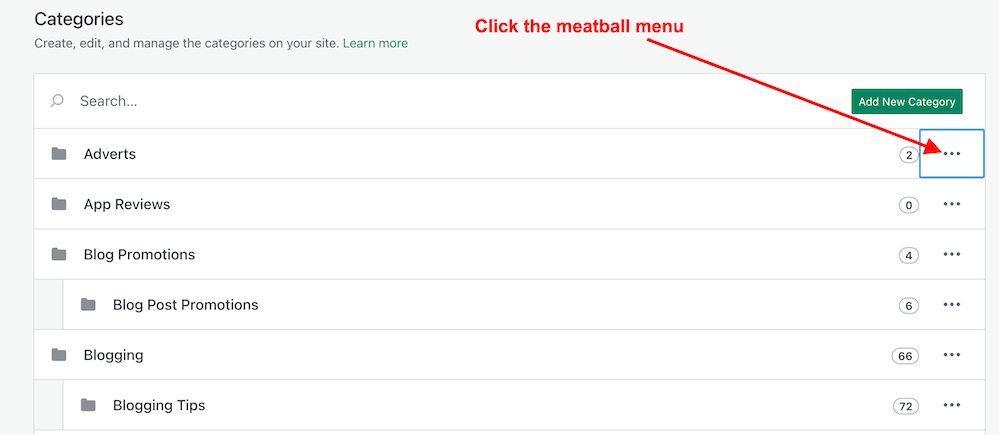
- The meatball menu displays four options: edit, delete, view posts, and set as a default.
- Edit – Edit the name or description of the category.
- Delete – Delete the category.
- View posts – View a list of all your posts under the category.
- Set as default – Useful when most posts fall under a particular category.
- Remember to click the ‘Update‘ button to save any changes you make.
The number next to each category tells you how many posts are under that category. I recommend deleting any categories that are not being used.
Any sub-categories will show under each category.
Tip: Setting your default category to ‘Uncatorigised‘ allows you to search for any blog posts you may have forgotten to categorise.
What are tags?
Tags are popular keywords that can be added to a blog post. For example, some of the tag words I’ve added to this post are –
- blogging
- bloggingtips
- categories
- tags
- WordPress
- HowTo
Each tag should be separated with a comma or by pushing ‘Enter’ on your keyboard.
Tags containing more than one word (such as ‘Blogging tips’) act as one tag word, but you must add them without any space between the words, i.e., ‘ blogging tips’ becomes ‘bloggingtips.’
Generally, tags do not need to connect with each other, but when used correctly, they can generate a lot of extra traffic to a blog post.
Like categories, tags can be added to blog posts in the settings area toolbar on the right side of a draft post.
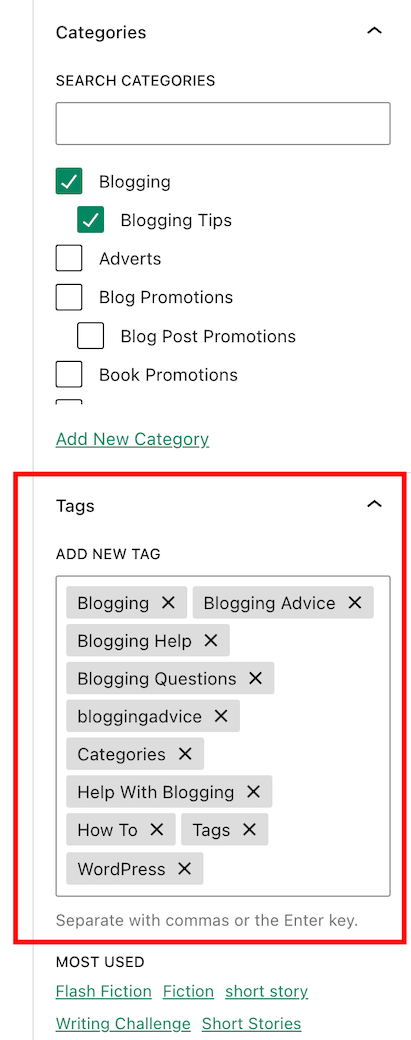
When adding tags to your post, consider the keywords somebody would add to the WordPress search bar when looking for specific blog posts. Or think of words you would use to search for your post.
Check out the tags I’ve added for this blog post. They appear at the end of every post.
Important information – Did you know this…?
The cardinal tagging rule on WordPress.com is that you should never add more than 15 tags and categories (combined) to your post; otherwise, it won’t appear in the WordPress Reader. This cap prevents spam posts from appearing on the reader list, as spammers and spambots tend to use many categories and tags to lure readers in
15 tags and categories can seem like a lot, but you don’t need to use all of them.
Never tag your blog post with words that have nothing to do with the post’s subject. Otherwise, visitors will come to your blog under false pretences and probably won’t return.
Generally, I add no more than three categories and between six and ten tags to my blog posts.
As with categories, it’s also essential to do some housekeeping for the tags you use on your blog.
How to delete and update tags
- On the dashboard of your blog, click on Posts – Tags.
- A page showing your tags and how many blog posts containing each tag appears.
- To edit, view and delete posts containing a tag word, hover your mouse over each tag word and click edit, quick edit, view or delete.
- You can also view the posts containing the tag word by clicking the number in the ‘Count’ column. I recommend deleting any tag words that are no longer being used.
Let’s wrap it up!
- All blog posts should be categorised and tagged.
- Categorising and tagging your blog posts makes them user-friendly, meaning people will likely return to your blog.
- Not categorising your blog posts means they’ll be challenging to find.
- When tagging posts, think of keywords others will use when searching for your blog post.
- Don’t use tag words that have nothing to do with the subject of your blog post.
- WordPress users – never add more than 15 tags and categories (combined) to your posts; otherwise, they won’t appear on the WordPress Reader.
- Remember to perform regular housekeeping of categories and tags on your blog.
- Adding the proper tags to your blog posts will increase the number of readers who find them. More readers mean higher stats, more comments, and new followers.
Do you categorise and add tags to all your blog posts? If not, why not? Which tags-words work best for you? Is there anything you’d like to add or ask regarding categories and tags in blog posts? Join the discussion by leaving a comment.
Did you enjoy reading this post? Then you may also like…
Blogging Simplified: It’s Easy, Isn’t It? Things I’ve Learned
Do you like talking about blogging? I do, and I’ve lots to say about it. What about you?
Keep reading
How To Use This New Easy Feature For Your Blog’s Settings On WordPress.
This new WordPress dashboard feature includes settings like privacy, site tools, and domain management for your blog
My post tells you where to find it and how to use it.
Keep reading
3 Quick And Easy Ways To Promote Your Old Blog Posts
Are you making use of your old blog posts?
My three quick and easy tips to bring old blog posts alive again are easy to follow and will deliver results.
Keep reading
Layout, content, settings, and format might differ on self-hosted blogs.
Follow Hugh on social media. Click the buttons below.
Copyright @ 2024 hughsviewsandnews.com – All rights reserved.
Discover more from Hugh's Views & News
Subscribe to get the latest posts sent to your email.
 Hugh's Views & News
Hi there! I knew about the 15 tag count, but did not know about the other things in your post. Thank you so much for posting these tips! 🌺
You’re welcome, Kymber. I’m glad this post has helped.
I almost missed this important post, Hugh! Guess I was busy last week, LOL! Thanks for the reminder to adjust my tags. What I like about this post is that you tell us two important concept: appropriate categories and tags used to bring readers to our posts. Using too many tags is counterproductive, so I keep mine at that number or under. I rarely use more than 3 categories. Apparently my default category is leisure, then I add the appropriate categories with each post.
Today is a good day to update both! Thanks again for all of your great blogging tips!
I’m glad this post has helped, Terri. I saw it as an opportunity to remind many bloggers to housekeep their tags and categories and not to overdo them when tagging and categorising posts. Some bloggers blame WordPress when their posts do not appear on the reader, yet if they only stopped using so many tags and categories, they’d solve the problem.
Seems like a simple strategy, Hugh 😀
Good info Hugh … I didn’t start doing this until I had been blogging for awhile.
It wasn’t until I took a WordPress course that I learned the importance of categorising and tagging blog posts, Linda. Fortunately, I took the course a month after creating my blog.
Well timing was everything for you Hugh. I think I should go back and update some of my posts so they show up in my newer posts.
The archives of our blogs are full of treasure, Linda.
Yes they are Hugh.
Thanks for the info, Hugh! I use categories and tags all the time, but I wasn’t aware of the maximum 15 rule. Good to know. Shared as well. :)
You’re welcome, Debbie. Thank you for sharing.
This is very helpful, Hugh. I use tags and categories but I’ve always been unsure I am using the proper tags. Your post is very beneficial to me in the use of tags and thank you.
That’s great to hear. I always aim for these posts to be helpful and straightforward to follow.
Super helpful! I like how you explained this in an easy to understand straight forward way. Very useful for someone trying to create categories thanks a lot for sharing!
Thank you for the great feedback on how easy the tutorial in the post was to follow, Andrea. I’m not keen on too much jargon, so your comment is helpful for future posts.
Yes, I do categorize and tag all my posts. I didn’t know about the 15 maximum, although I’d be very surprised if any of mine had more than that. You’ve reminded me that I should be reviewing my tags when I refresh old posts. That’s something I never think to do.
It’s definitely worth reviewing the tags and categories in older posts. I always treat old posts as brand new, so I review the excerpt of the post, too. Good to hear you’re already tagging and categorising posts.
It’s funny because I update the excerpt but never look at the tags when I refresh older posts. I’ll definitely make a point of doing that from now on. Thanks Hugh!
Super informative and insightful post, Hugh. Especially since I thought I knew all about categories and tags, but I did learn something new – like not adding more than 15 words combined (I always seem to do more, as in anything I can think about that fits my posts) and not adding a space in between two words that I use as a tag!
So, if we delete tags or categories that are not used anymore, would they get deleted from older posts where we did use those specific terms?
Spammers and spambots always add more than 15 tags and categories to lure in as many readers as possible, Liesbet. So it’s best to add no more than 15, as SEOs could mark the post as not safe or as spam.
I recommend only deleting categories and tags no longer used on blog posts. But in answer to your question, yes.
This is great, Hugh. Although I always add categories and tags, I didn’t know about editing or deleting ones no longer needed. Sometimes I struggle to come up with appropriate/useful tags, so this post is helpful with that also.
Housekeeping of categories and tags is always a good option, Janis. I tend to do mine in December when the blogging world seems quiet.
As for coming up with tag words, I ask myself which tags I would use if searching for the post on WordPress.
I recently added a category for Short Stories because I wanted to add a menu for them. Adding a category is easy. Finding all the posts you should have been putting in a category all along is not so easy. Great post, Hugh.
That’s true, Dan. I tend to add a new category to an old post when I’m going through old posts, deciding which ones to delete because they’re outdated and no longer relevant.
Thanks so much for the tips, Hugh. I definitely recognize the value in categorizing and tagging blog posts.
Adding categories and tags to all blog posts is important, Jan. I don’t know why some bloggers refuse to add them. It just gives the impression that they don’t care about their readers.
I do the best I can with tags but what I find funny is that on some of my blog posts when I publish they offer me tags to use and I accept but on other posts I am on my own. Very confusing.
Yes, that’s happened to me, too. In one case, I added the tags they suggested and ended up with more than 15 categories and tags combined, so I had to go back into the post and delete some.
I always try and remember to use categories and tags. Thank you for the useful reminder. You explain it so well.
I’m glad it all makes sense in this post, Esther. I always try to explain everything in plain English and avoid jargon at all costs.
You should have pointed out that if you ‘delete’ any categories or tags that you will be penalized by search engines if you don’t add a permanent redirect when deleting (That is if they have been indexed already). You can do that manually or if your host (like mine) they have a feature to do it for you, and I believe there are plugins to do it also.
Thankfully, WordPress takes care of all of that for those who are WordPress.Com users (like me). But thanks for the reminder for those who self-host.
I use categories and tags all the time. In fact, I think you were the first blogger to teach me about them! This is an excellent tutorial, Hugh. Thanks for your hard work.
I’ve unfollowed several blogs that do not categorise their posts, Colleen. They’re of no help to me if I can’t find what I’m looking for. I’d rather spend my time on blogs that help their readers rather than those where everything is just in one pile to sort through.
I wasn’t aware of the maximum number of tags and categories either, Hugh. Thanks for that.
You’re welcome, Cathy. It’s one of the reasons why a post may not show on the WP Reader.
I’ll definitely check in future.
Informative and useful as ever, Hugh, thank you.
I do categorise and tag my posts, but didn’t realise categories could have sub categories. How do you do that?
Hi Jacqueline, To create a subcategory, first add it as a category. Then, go to the categories page on your blog’s dashboard, click the meatball menu next to the category you just created, toggle off the switch for ‘Top-level Category’, and choose the top-level category you want this subcategory associated with.
I hope that helps.
Pawfect!
That’s helped a lot, so I can tidy up my categories.
Thank you :-)
Great tutorial and guide for newbies! I try and categorize as well, but I’m not sure if I have good enough of a system 😂. I do try and use very few tags per post, but I’m still not sure I’m using the right ones.
When tagging your posts, think of words you would use if you were trying to find the post on WordPress. Use those tags, and you should be doing alright.
That’s what I’m trying to do. I’ve looked through the WordPress reader and found popular tags to use, so I’ve used those for some of my posts. Thanks!
Proving those tags have a connection to the post you’re using them on, then that’s not a problem.
I wasn’t aware of the 15 count for categories and tags and the non appearance in Reader. Thanks Hugh
You’re welcome, Brian. I found out about this many years ago after some of my posts did not show up on the reader.
I do tag and categorize posts, but some of mine could do with updating, I just havent gotten around to it yet!
It’s good to hear you categorise and add tags to your posts. Update a couple a day. You’ll soon get through them.