Have you noticed the new feature WordPress has added to your blog’s dashboard? It’s located on the ‘My Home‘ page in the top right corner.
But what does this new feature do?
For this post, I’m using an Apple iMac desktop computer and the ‘Default‘ view setting of my blog’s dashboard.

Let’s get started
- Click on the meatball menu (three horizontal dots) to open a new menu.
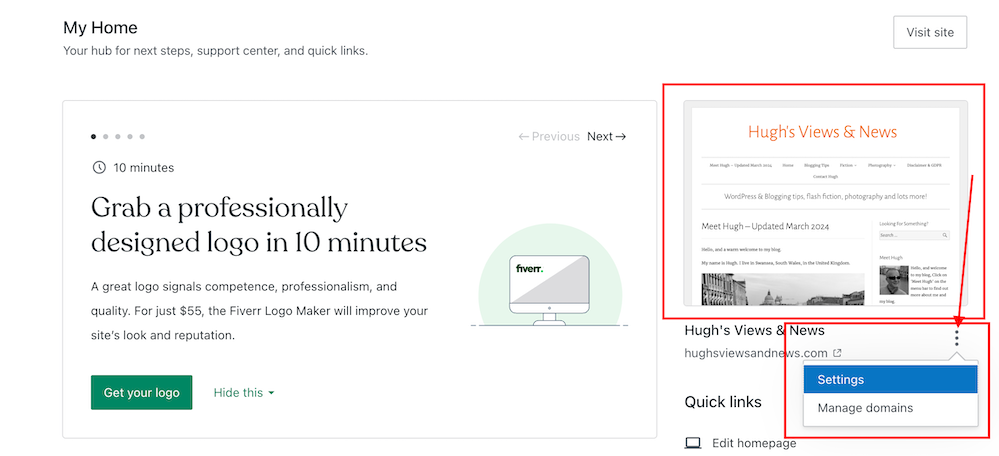
The menu contains two options – Settings and Manage Domains.
Let’s take a look at the two options
- Settings – this option takes you to the General Settings page of your blog.
You can make many changes to your blog on this page, including your blog’s icon (photo or image), name, and tagline.

- Click the ‘Save Settings‘ button if you make any changes.
On the same page, you can also create a logo for your blog via Fiverr logo maker (note that there is a charge for this) and set/change your blog’s primary language and timezone. Remember to save any changes you make.
Another option includes setting privacy settings for your blog.
Privacy – This is where you can set your blog to public viewing (anyone can view it) or private viewing (only visible to you and logged-in members you have approved to view it). There is also a ‘Coming Soon‘ option, so your blog is hidden from view until it’s ready for viewing.

Two other options are also available.
If ticked, the ‘Discourage search engines from indexing this site‘ option will prevent search engines from indexing your blog, but note that it is up to search engines to honour your request.
The ‘Prevent third-party sharing‘ option should be ticked if you want to restrict your blog’s content from AI training and third-party use. It will exclude your blog’s public content from WordPress’s network of third-party content and research partners. It also adds known AI bots to the ‘disallow’ list in your blog’s robots.txt file to stop them from crawling your site, though it is up to AI platforms to honour this request.
Click the ‘Save Settings‘ button if you make any changes.
Other settings include –
Accept a gift subscription – turn this setting on to accept gift subscriptions from visitors to your blog.
Footer credit: Here, you can choose or edit a footer credit that appears at the bottom of your blog’s pages and posts.
Site tools – this section allows you to do the following.
- Register a new domain or change your blog’s URL address.
- Transfer your blog to another blogging provider.
- You can reset your blog and start afresh while keeping the same domain/blog name. (If you choose this option, all your posts, pages, and media will be deleted).
- Delete your blog and give up your blog’s domain/address.
2. Manage Domains — This option takes you to the part of your blog where you can manage your blog’s domains.
It’s worth checking this page to see what domains you have and to see offers for other domains you may be interested in purchasing for your blog.
While you may not visit your blog’s settings page regularly, it’s worth knowing that there is now an even quicker way to find these settings.
Any questions? Leave them in the comments section.
Did you enjoy this post? Then you may also like –

Layout, content, settings, and format might differ on self-hosted blogs.
Click the buttons below to follow Hugh on Social Media
Copyright @ 2024 hughsviewsandnews.com – All rights reserved.












 Hugh's Views & News
Leave a reply to Y3 Story Chat #16: “Cruising at Half Speed” by Suzanne Vickery – Marsha Ingrao – Always Write Cancel reply