Have you seen images and photos in the comments section of blog posts and wondered how they were left there? It’s something I’ve written about before and, given the many changes at WordPress since I last wrote about it, deserves an update.

When it comes to adding images and photos to comments, we have to be careful with what we add. We should always ensure the photo or image has a connection to the subject of the post we’re leaving the comment on. And not only that.
If a blogger invites readers to leave photos and images (such as in a photography challenge), then go ahead and leave them.
However, leaving an image or photo just for the sake of doing so is frowned upon by many bloggers, who will mark them as spam. And given that blogs are attacked by spammers daily, I don’t blame bloggers marking uninvited images and photos as spam.
I’ve added images and photos to the comments sections on my blog posts and the comments I have left on the blogs of other bloggers. However, unless I’ve been invited to leave an image or photo, I won’t leave them.
While many bloggers will be happy for you to leave images and photos, it’s always polite to ask first.
How to add images and photos to your comments
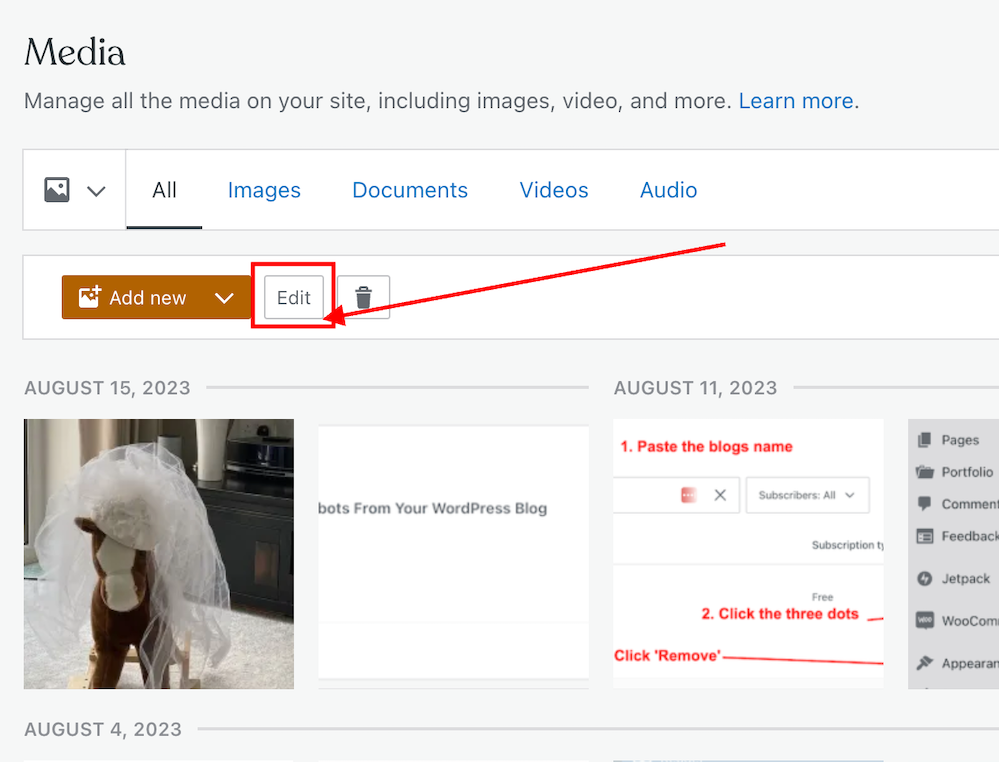
- Add the image or photo to your WordPress media library.
- Once the image has been added, click it and click the edit button to open it.
- On the righthand side of the screen, you’ll see a window where you can add details about your image. It’s important to complete these details (see the image below).
- Click the ‘Copy‘ button in the URL box.

- Paste the URL address into your comment.
- Do not, at this stage, submit your comment as you need to edit one part of the text within the link.
- Carefully delete the ‘s‘ from the ‘https‘ at the beginning of the link address, so it reads ‘http‘. (If you do not delete the ‘s‘ the image will not show in the comment).
- Ensure your link ends with ‘.png’ or ‘.jpg’. If it doesn’t, delete any text after ‘.png’ or ‘.jpg’.
- You can now submit your comment.
The image will now show on the comment. However, remember that if you are leaving an image in a comment on another blogger’s blog, they may have to approve it (and may even remove the link to the image) before it shows up.
I’ve only found this to work on WordPress.Com blogs. On self-hosted blogs, only the link to the image is visible rather than the image appearing. However, those clicking on the link will see the image.
Note – Not all images and photos will show if the security settings on your web browser are set high. However, this does not affect the photos or pictures you leave in the comments of your own blog posts. I recommend that you not change the security settings on your web browser.
Let’s wrap it up.
- Yes, it is possible to insert images and photos into comments on WordPress.
- After inserting the URL address of the image, ensure you remove the ‘s‘ from the beginning of the URL so that ‘https’ becomes ‘http.’
- Only leave images and photos in comments if invited to do so or if you have asked for permission to do so first.
- If the security settings on your web browser are set high, images and photos may not show. However, this does not affect the photos or pictures you leave in the comments of your own blog posts.
Want to give inserting an image or photo into a comment a go?
Leave me a comment with the link to your image. Perhaps it can be a photo of your latest book cover or of a family pet. I’ll leave it up to you, but only family-friendly images and photos, please.
If you have any further questions about inserting images or photos into the comments, leave them in the comments section.
Layout, content, settings, and format might differ on self-hosted blogs.
Follow Hugh on social media. Click the buttons below.
If you enjoyed this post and want more like it, enter your email address and click ‘Subscribe’ to stay up-to-date with my latest content.
Copyright @ 2024 hughsviewsandnews.com – All rights reserved.














 Hugh's Views & News
Leave a reply to Joey J 📸 Cancel reply