Have you noticed the three horizontal dots next to your blog posts when viewing the ‘Posts‘ page of your blog’s dashboard on WordPress? If not, you’re missing out on some useful tools that will help save you time when blogging and make your blog posts appeal to even more readers.
Light blue image with the words '9 Hidden Useful Tools You May Not Know About On The Posts Page Of A WordPress Blog' in white text
Have you discovered these 9 hidden blogging tools on WordPress?

For the purpose of this post, I’m viewing my blog’s dashboard in ‘Default‘ view.  

These three horizontal dots are known by numerous names, my favourite being a ‘Meatball Menu.’

Not sure what I’m referring to? Here’s a screenshot pointing out the meatball menu on the dashboard of the posts page of my blog.
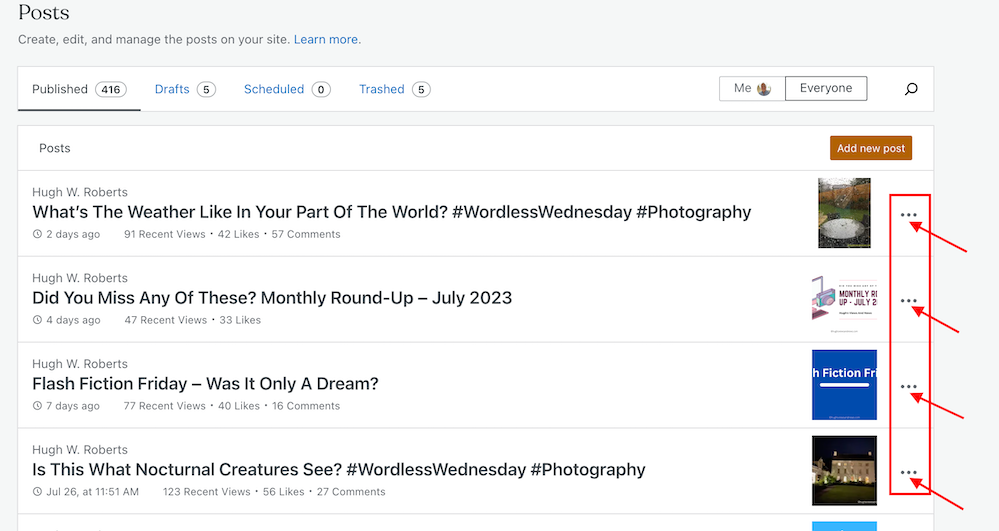
 

Image highlighting a meatball menu on the posts page of a WordPress Blog
The Meatball Menu.

When you click on the meatball menu against a post, the three horizontal dots change to three vertical dots (known as a kebab Menu), and nine options appear.

Let’s investigate each option. 

Edit

  • Click this button to edit or update a post. Useful when spotting mistakes. Don’t forget to press the Update button to save any changes you make. 

View

  • This button does more than just show a preview of your post. It also offers the option of previewing the post as it appears on a desktop computer, tablet and phone. You should always preview your posts before publishing them.
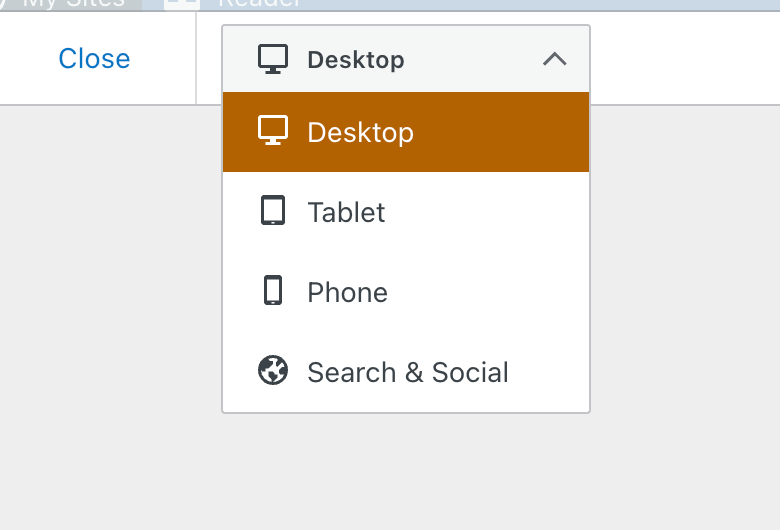
Image showing the display menu when clicking the 'view' option on the posts page of a WordPress blog.
See your post in desktop, tablet and phone form.
  • The Search & Social button (at the bottom of the menu) allows you to preview your post as it appears on Facebook, Twitter (now known as X), and a Google search. 
  • I recommend you always preview your post first to ensure they are mobile-friendly, especially given that most people now read blog posts on tablets and phones. 

Promote With Blaze

Blaze is a way to pay to have a post advertised by WordPress, putting it in front of thousands of new readers.

You can advertise a post or page on some of the millions of pages across WordPress.com and Tumblr from $5 per day. This option is not available to bloggers who have a free WordPress plan.

Stats

  • Click ‘Stats‘ to check a post’s latest daily, weekly, monthly, and yearly stats.
  • For some WordPress plans, you can view a post’s stats for emails opened and how many people who got the email clicked the link to view the post.  
  • You can also view who clicked the ‘like‘ button on the post and how often ‘like‘ has been clicked. 
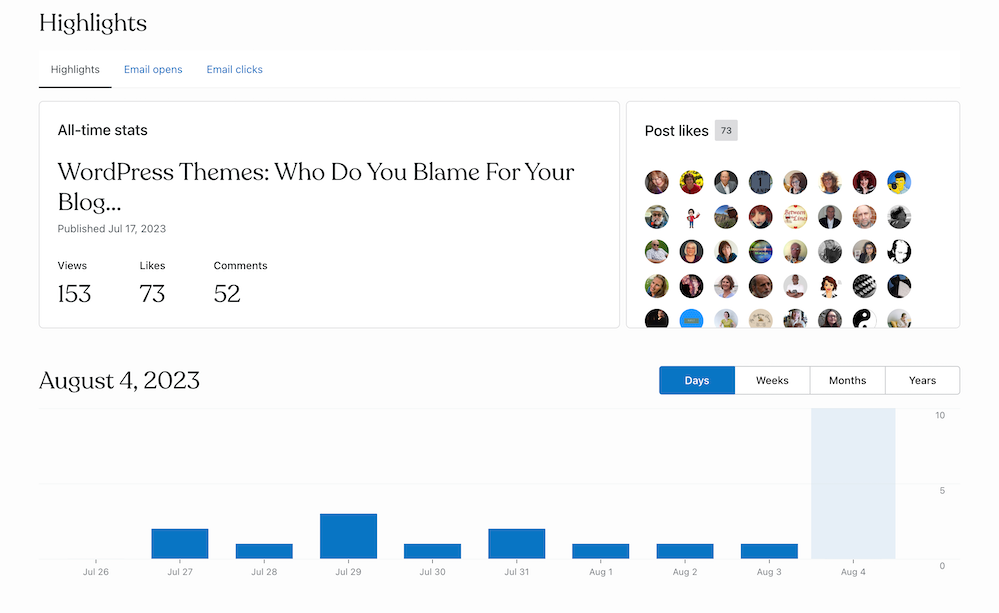
 

Image showing stats for a blog post when clicking the stats option in the kebab menu
What’s behind the ‘Stats’ option?
  • Under ‘Post Likes‘, hover your mouse over any of the profile icons to display the blog name of the blogger.
  • Click on an icon to view a list of that blogger’s blog posts, how many posts they have published, how many followers they have, a list of their most popular tags, and a follow button (WordPress.Com bloggers only). This is a great way to find new blogs to follow.
  • If you’re already following a blogger who has clicked ‘like‘, the ‘follow‘ button will be replaced with the word ‘following.’ 
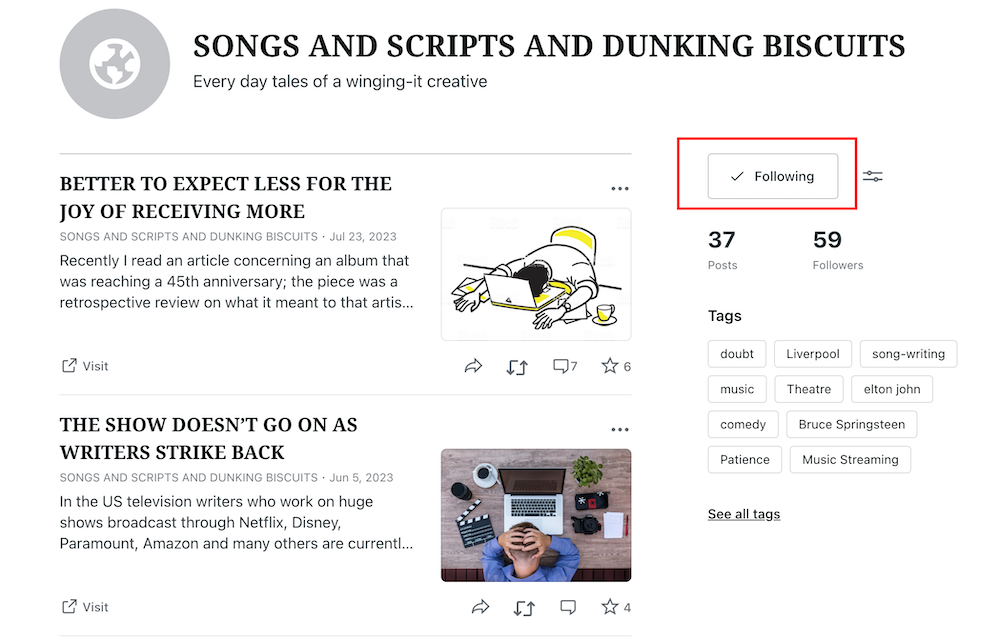
 

Image showing details of a blog of somebody who clicked 'like' on a post.
Are you following somebody who clicked ‘like’ on your post?
  • To unfollow, click the ‘Following‘ button. 

Comments

View all the comments that have been left on a post.

Along the top, you can view the following information for a post. 

  • The number of comments it has received.
  • The number of comments that are pending (waiting for approval).
  • The number of comments that have been approved.
  • The number of comments you or WordPress have marked as spam.
  • The number of comments that have been sent to the trash folder.
  • Your replies to comments also show on this page.

You can also sort comments by newest first and oldest first.

With just one click, the ‘bulk edit‘ button allows you to perform a command (approve, un-approve, send to spam, send to trash). However, the ‘bulk edit‘ is only done per page, so if the post has many comments, you’ll need to bulk edit each page.
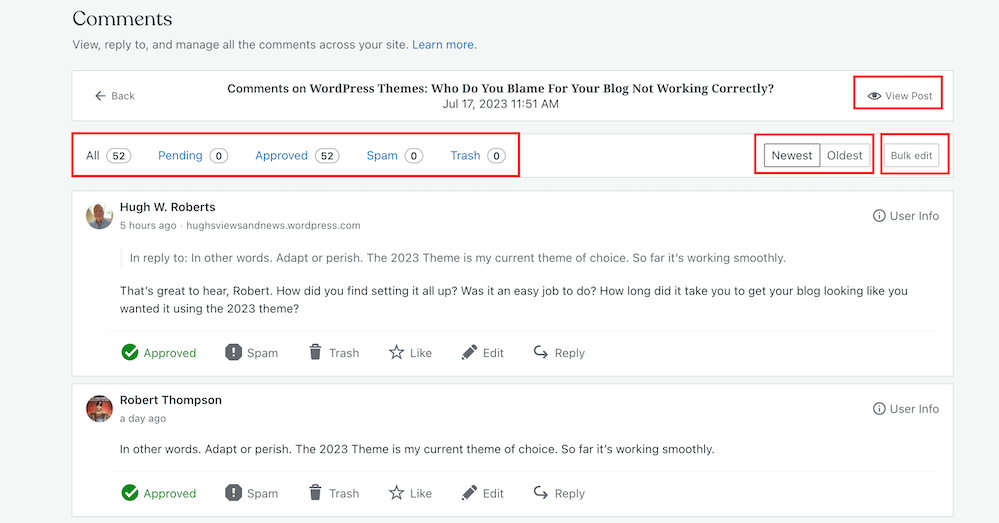
Image showing options in the comments section of a WordPress post.
An easier way to view comments on a post.
  • You can also perform the following under the comments link –
  • View the post.
  • Approve a comment.
  • Mark and send a comment to the spam folder.
  • Send a comment to the trash bin.
  • Like a comment.
  • Edit a comment.
  • Reply to a comment.

To the right of each comment is a ‘User Info‘ button. Clicking on this button reveals the following information. 

  • The name of the commenter’s WordPress blog. 
  • The commenter’s email address.
  • A link to the commenter’s blog/website.
  • The IP address of the commenter.

You’ll also see a ‘Block User‘ button when clicking ‘User Info.’ If you press ‘Block User,’ any further comments from that user on any of your blog posts are sent directly to your WordPress trash folder. 


Share

  • This neat button allows you to auto-share details of the post to the social media accounts WordPress have an auto-share facility with which you have connected to your blog.
  • Click on the ‘Share Post‘ button to share the post.
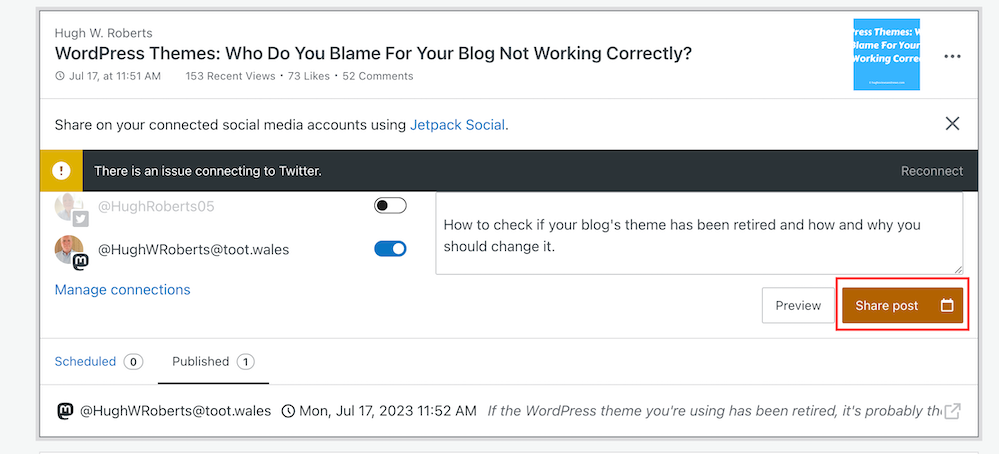
Image showing the auto-sharing facility behind the 'sharing' option on WordPress.
Have you set up auto-sharing for your blog posts?
  • The preview button displays your post’s appearance on Facebook, Twitter (now X), LinkedIn, Mastodon, Instagram Business and Tumblr (provided you have set up auto-sharing with them).
  • You can also manage all your social media auto-share connections by clicking on ‘Manage Connections.’  

Copy Post

  • This is my favourite of all the options on the kebab menu.
  • Not only will clicking on this button duplicate your post, but the categories and tags of the post are also copied over. 
  • This is especially beneficial if you run a daily/weekly/monthly blog challenge, series, or promotional posts on your blog.
  • It’s saved me lots of time by not copying, pasting, or redoing links, images, text, tags, and categories. 
  • I also use the ‘copy post‘ function for posts with the same layout (such as my ‘Wordless Wednesday’ posts. 
  • However, if you write excerpts for your blog posts (and I recommend you do), remember to change the excerpt before publishing the post. Otherwise, the excerpt may not make sense. 

Copy Link

  • A link to the post is copied to the clipboard of the device you are using. You can paste the link into an email, message, website, blog post, comment, etc. 

Trash

  • Clicking this button will send your post to the trash folder.
  • You can reinstate the post from the trash folder if you accidentally clicked it.

Let’s wrap things up.

  • There are nine hidden options available to WordPress.Com users on the page that displays their blog posts (and pages).
  • The options are hidden behind a menu known as a meatball menu.
  • The meatball menu opens up a kebab menu listing all available options.
  • Some of the options do exactly as they say on the can.
  • However, other options lead to lots more options and functions.
  • The comments option has a hidden ‘Block User‘ button – great for blocking comments from spammers or those you don’t want leaving comments anymore.
  • No need to copy and paste – The copy option copies an existing blog post and copies over the categories, tags and any images you have on that post, saving you lots of time.
  • It’s worth checking out all the options, especially as some are time-saving functions.

I hope you have found this post useful. If you have any questions, please leave them in the comments section.

Layout, content, settings, and format might differ on self-hosted blogs.

Follow Hugh on social media. Click the buttons below.

If you enjoyed this post and want more like it, enter your email address and click ‘Subscribe’ to stay up-to-date with my latest content.

Copyright @ 2024 hughsviewsandnews.com – All rights reserved.


Discover more from Hugh’s Views & News  

Subscribe to get the latest posts sent to your email.

63 responses to “9 Hidden Useful Tools You May Not Know About On The Posts Page Of A WordPress Blog”

  1. Blogging Chat: 15 Great Blogging Time Hacks – Marsha Ingrao – Always Write avatar

    […] a system for your writing posts. Use previous posts as a template by pressing “Copy Post,” then update them. I had trouble with this the last time I tried it, so I went back to cut […]

  2. Resa avatar

    Thank you, Hugh!
    I know most of this (surprised myself) but did pick up a few new tips!

    1. Hugh W. Roberts avatar

      That’s good to know. Glad you found it useful, Resa.

  3. Cindy Georgakas avatar

    Great information Hugh, thanks. I think a workshop given by you would be great on Zoom. I digest best if there’s a tutorial. Hovering over a reader to see stats are interesting which I never knew but then again I don’t even have time to check my stats. lol
    Much appreciated.

    1. Hugh W. Roberts avatar

      Thanks for the great feedback, Cindy. I have thought about doing Zoom calls so other bloggers can ask questions, but I’ve never gotten around to sorting anything out, probably because I’m not sure it will interest many. Plus, there’s the time difference, and I’d hate leaving anybody out.

      I check my stats, but the only one that interests me is the one that tells me which posts have been the most popular.

      1. Cindy Georgakas avatar

        It’s a pleasure Hugh. Let me know if you ever do.. I think it would be great..
        💞

        1. Hugh W. Roberts avatar

          I will, Cindy. Thanks again for the suggestion.

          1. Cindy Georgakas avatar

            Great.. and you’re so welcome😘

  4. tidalscribe.com avatar

    Thanks, that’s great Hugh, I immediately went onto my blog to my posts page to compare with your notes. I tend to cower in the ‘living room’ not daring to explore other parts of the WordPress house in case I get lost or erase every blog I ever wrote!

    1. Hugh W. Roberts avatar

      I’ve found that WordPress gives a warning asking if you really want to delete a post. These new tools they’ve provided are excellent, especially the ‘Copy post’ tool.

  5. Did you miss any of these blog posts? avatar

    […] 9 Hidden Useful Tools You May Not Know About On The Posts Page Of A WordPress Blog […]

  6. BookerTalk avatar

    I hadn’t seen the function that enables you to learn more about the people who “like” the post. Very useful.

    1. Hugh W. Roberts avatar

      I’m glad it’s helped, Karen.

  7. msomerville2014 avatar

    This caught my eye and I will have to check out the three dots, meatball menu. I have been away from my blog for many reasons but wanting to get back to a more disciplined writing life. There are many changes in the months I have been away. For good reasons I have just p ublished not mroe than 3 posts since March, like I said, lots of catching up to do. Thank you for sharing this post.

    1. Hugh W. Roberts avatar

      You’re welcome, and I’m glad this post has helped. There are lots of changes always taking place on WordPress. They are constantly updating the platform.

      1. msomerville2014 avatar

        Food for thought. That ought to keep me motivated enough to check in a few times a week if not daily, j ust to make a clean sweep through spam and see what else is up. Thanks again. Michele

  8. Liesbet @ Roaming About avatar

    Wow, that’s a lot of (hidden) information, Hugh! I’ve never played around with the meatball menu. As a matter of fact, I’m not even sure I have that layout on my WordPress dashboard/blog anywhere. I’m aware of all the functions you mention, but I access them on my dashboard usually. I also have the “copy post” option, but find that the “clone post” works better for my Hemingway theme/self-hosted blog.

    1. Hugh W. Roberts avatar

      Self-hosted blogs can differ significantly from the guides and images I put in these posts, Liesbet. However, I do hope you guys who are self-hosted get the same tools we WordPress.Com users get. Many of these hidden tools help us blog and save us time.

  9. dgkaye avatar

    Thanks for more great info Hugh. I particularly liked the ‘copy’ instruction. :)

    1. Hugh W. Roberts avatar

      Me too, Debby. It’s my most-used and favourite hidden tool behind the meatball and kebab menu.

  10. J Sylvia Kalungi avatar
    J Sylvia Kalungi

    Hi Hugh,
    I use WordPress as a CMS only, so my blogs/websites are hosted elsewhere. That said I love to learn ways to Use WP for clients who use WordPress for their websites. I love how you lay it all out very simply. Thanks for sharing at the #SSPS

    1. Hugh W. Roberts avatar

      Thank you. Your feedback is brilliant and helps me a lot.

Feel free to leave a comment. Engagement helps keep blogs alive and forms community.

I’m Hugh

Welcome to my blog. I’m delighted to have you here. This is the place to discover tips on blogging and WordPress, flash fiction, photography, and more. I enjoy engaging with my readers, so please feel free to explore, join discussions, and contact me. I’m happy to assist! Find out more about me and my blog by clicking the ‘Meet Hugh’ button.

Let’s connect

Subscribe to Hugh’s Views And News

Latest Posts

Follow Hugh in the Fediverse

Hugh's Views & News  
Hugh's Views & News  
@hughsviewsandnews.com@hughsviewsandnews.com

WordPress & Blogging tips, flash fiction, photography and lots more!

403 posts
6 followers

Recommend Blogs To Follow


Boomer Eco Crusader
Boomer Eco Crusader
Live Green | Declutter | Simplify Life

Jacqueline Lambert
Jacqueline Lambert
Award-Winning Travel Humour Writer

Spo-Reflections
Spo-Reflections
To live is to battle with trolls in the vaults of heart and brain. To write; this is to sit in judgment over one's Self. Henrik Ibsen

Anne R. Allen’s Blog… with Ruth Harris
Writing about writing. Mostly.

Fancying France
The musings of a ‘femme d’un certain âge’ who divides her time between SW France and SE England

SONGS AND SCRIPTS AND DUNKING BISCUITS
Every day tales of a winging-it creative

Marsha Ingrao         Always Write
Marsha Ingrao Always Write
Having fun blogging with friends

Curiosities, Castles and Coffee Shops
The musings of a curious mind

WrookieSchU
WrookieSchU
Live life 🙌🏼

WPcomMaven
WPcomMaven
Helping you make the most of your free WordPress.com website since 2011

Second Wind Leisure Perspectives
Fun, Photography & Friends

Share Your Light
Share Your Light
You are a miracle – Let it happen

No Facilities
No Facilities
Random thoughts, life lessons, hopes and dreams

Esther Chilton
Writer, Tutor and Editor

Roaming About
A Life Less Ordinary

Saying nothing in particular
Jan … JT Twissel

The Chicago Files
The Chicago Files
A Canadian Perspective on Living in the Windy City!

Thank you to all my visitors

469,700 hits

253,012 visitors

Most Viewed Posts & Pages

Copyright Protected Blog

COPYRIGHT ©2011-2031 Hugh’s Views And News BLOG – All Rights Reserved.

This work by Hugh W. Roberts, and/or Hugh’s Views And News blog, is licensed under a Creative Commons Attribution-Noncommercial-NoDerivatives 4.0 International License. Unauthorised use and/or duplication of this material (text and images) without express and written permission from this blog’s author and/or owner is strictly prohibited. If you want to use posts, excerpts, photos and links, you may contact me first. You must give full and clear credit to Hugh W. Roberts and Hugh’s Views And News dot com with links to the original content.